Find Contracts Instantly with AI Document Search in BoldSign
 Preethi Loganathan
TL;DR: Artificial intelligence (AI) document search in BoldSign lets you find a document or template by describing it in plain words. Type something like “documents expiring this week and waiting for others”, and our AI Search applies the matching conditions for you.
You know the vendor contract went out last month. You remember the signer, but not the title it was saved under. A title search comes back empty, and the filter menus need several clicks each.
AI Search fixes that gap. This guide explains what it is, what you can ask it, and how to start using it in BoldSign.
What is AI document search in BoldSign?
AI Search is a search box in BoldSign that understands plain sentences. It uses AI to read your request, apply the matching search conditions and list the results.
Think of asking a colleague at the next desk for “the lease Jane signed last week”. You describe what you remember, and they find the right folder. AI Search works the same way, with no filters to set.
You can read how we use AI and protect your data before you start.
What can you search by?
A single request can hold people, status, dates and tags. AI Search covers both documents and templates.
- Documents by title, document ID, status, signer, sender, team ID, tags and dates.
- Templates by name, tags, team and dates.
- Relative dates such as “last week”, or exact dates written as year, month and day (2026-11-05).
- Exclusions, where a phrase such as “not tagged finance” leaves items out.
The same search works in three places: My Documents, Team Documents and Templates.
What can you ask AI Search?
Write the request the way you would ask a colleague. Each of these examples works as typed.
- “Documents sent to Emily Carter but not viewed”
- “Agreements sent by the finance team that are not signed”
- “Documents expiring this week and waiting for others”
- “Templates tagged HR created this month”
- “Contracts I sent that are still not signed”
You can also search for non-disclosure agreements (NDAs) by month, such as “NDAs created in September”. To reach one exact document, paste its document ID.
How does AI Search help with documents that need action?
AI Search can list documents that are pending, expiring soon or waiting for others. You then act on them straight from the results.
A sales team might ask for “documents expiring this week and waiting for others” every Monday. An HR team can check which offer letters are still in progress. A legal team can find every agreement from one sender without opening three filter menus.
From the list, you can open a document, check its progress, send a reminder or download it.
How do you use AI Search in BoldSign?
AI Search is on by default and works with the documents already in your account. There is nothing to set up.
- Open My Documents, Team Documents or Templates.
- Choose AI search next to the search box.
- Type what you remember, such as “Sent to Jane Smith last week”.
- Open a result, or follow up from the list.
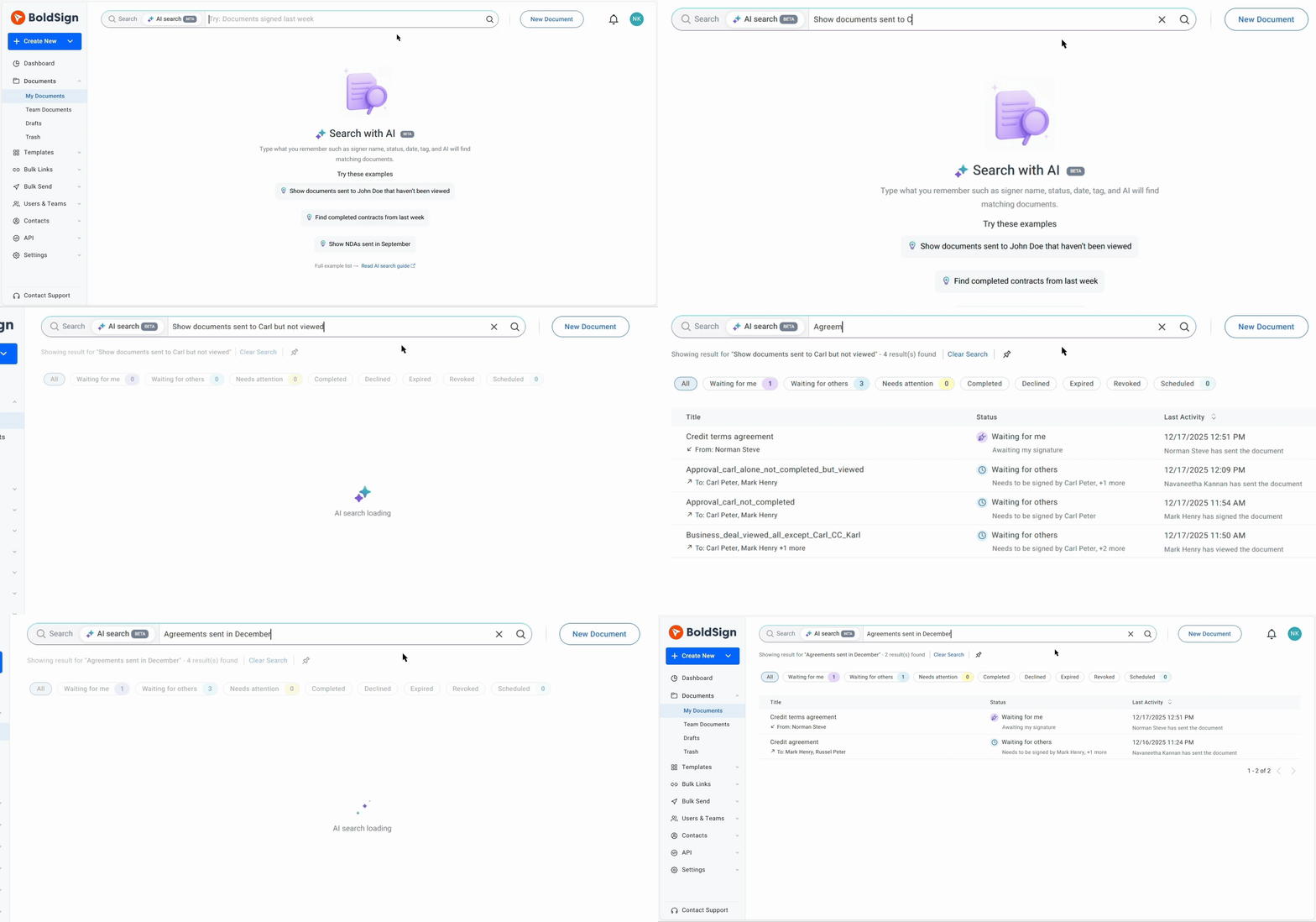
The BoldSign mobile app takes the same plain-language searches, so you can check a contract away from your desk.
What should you know before relying on AI Search?
AI Search only looks at documents in your BoldSign account. Documents signed on another platform are not part of the results.
We do not train AI models on your documents. Each document is encrypted twice with Advanced Encryption Standard (AES) 256-bit encryption. Our security controls are audited for System and Organization Controls (SOC) 2 Type 2.
AI Search sits alongside our other document management tools. Use the regular filters when you prefer to pick each condition yourself.
Which plan includes AI Search, and what does it cost?
AI Search is part of the Business plan, at $15 per user a month billed yearly. The Premium plan, at $99 a month for unlimited users, and the Enterprise API plan include it too.
The Essential and Growth plans do not include AI Search. Prices are in USD, and the 30-day free trial includes AI Search, so you can test it on your own documents first.
Ready to find your next contract in one sentence?
Pick the step that fits where you are.
- Start a 30-day free trial and try AI Search on your own documents.
- Book a demo to see AI Search with your team’s use cases.
- Read our AI Search webinar recap for more example searches.
Frequently asked questions
What does natural language search mean in BoldSign?
It means you type a request the way you would ask a colleague, such as "contracts I sent that are still not signed". AI Search turns that sentence into the matching search conditions for you.
Do I need the exact document title to find a contract?
No. You can describe the document by its signer, sender, status, tags or dates instead of its title.
Can AI Search find documents that need my attention?
Yes. Ask for documents that are pending, expiring this week or waiting for others, then send a reminder from the results.
Can I combine several conditions in one search?
Yes. One sentence can hold a person, a status, a date range and a tag together, such as "tagged HR, in progress, last week".
Can I leave some documents out of the results?
Yes. Add a phrase such as "not tagged finance" to your request, and those items drop out of the list.
Does AI Search work on the BoldSign mobile app?
Yes. The BoldSign mobile app takes the same plain-language searches as the web app.
Does BoldSign train AI models on my documents?
No. We do not train AI models on your documents, and each document is encrypted with Advanced Encryption Standard (AES) 256-bit encryption.
Which BoldSign plans include AI Search?
AI Search comes with the Business, Premium and Enterprise API plans. The Essential and Growth plans do not include it.

Preethi Loganathan
Preethi is a Digital Marketing Executive at BoldSign who develops precise, research-driven content on eSignatures, compliance, and digital signing workflows. She works closely with product and engineering teams to ensure every article is accurate, validated, and aligned with industry best practices. Connect with her on LinkedIn.
More posts by Preethi Loganathan