OneLogin SSO for BoldSign E-Signature: Step-by-Step Setup Guide
 Evans Omondi Otieno
TL;DR: OneLogin single sign-on (SSO) lets your team sign in to BoldSign with the OneLogin account they already use. You create an OpenID Connect app in OneLogin, paste its details into our SSO settings, and invite your users. Our eSignature for enterprise page shows where SSO fits with our other admin controls.
Your team already opens email, chat and files through OneLogin. A separate BoldSign password is one more thing to forget, and one more account to close when someone leaves.
With SSO, OneLogin holds the password and BoldSign trusts its answer. This guide explains how that works, then walks through each screen in OneLogin and in BoldSign.
What is OneLogin as an identity provider?
OneLogin is a cloud service that manages who your staff are and which apps they can open. As an identity provider (IdP), it checks each person at sign-in and tells apps like BoldSign who they are.
Think of a staff badge at a large office. Security checks your face once at the front desk. After that, the badge opens every door you are cleared for.
OneLogin is the front desk, and BoldSign is one of the doors. For BoldSign, the two talk through a standard called OpenID Connect (OIDC).
What does OneLogin do for your BoldSign sign-in?
OneLogin does the checking, and BoldSign trusts its answer. Your admins set the rules in one place.
- It checks each user’s password and any extra sign-in step your admins require.
- It decides which users may open the BoldSign app.
- It lets users sign in once and reach every app they are cleared for.
- It gives admins one dashboard for users, roles and app access.
Why use BoldSign SSO with OneLogin?
SSO gives your users one less password and gives admins one place to control access. Each benefit comes from OneLogin holding the sign-in.
- Users sign in with the work account they open every day.
- Remove someone from the BoldSign app in OneLogin and their SSO login stops.
- Your OneLogin security rules apply to BoldSign sign-in too.
- New staff join from an email invite with no new password to create.
BoldSign SSO works with any provider that supports OAuth or OpenID.
What do you need before you start?
Setting up OneLogin SSO needs two admin roles. One person can hold both.
- A OneLogin admin account. You can create a OneLogin account if you have none.
- A BoldSign account administrator, since only that role can open the SSO settings.
- Each user who needs BoldSign, added in OneLogin and given the BoldSign app.
How do you set up SSO with OneLogin?
The setup has four parts. You build an OpenID Connect app in OneLogin, give it to your users, enter its details in BoldSign, then invite your team.
Our help article on SSO with OneLogin covers the same steps.
Step 1: Create an OpenID Connect app in OneLogin
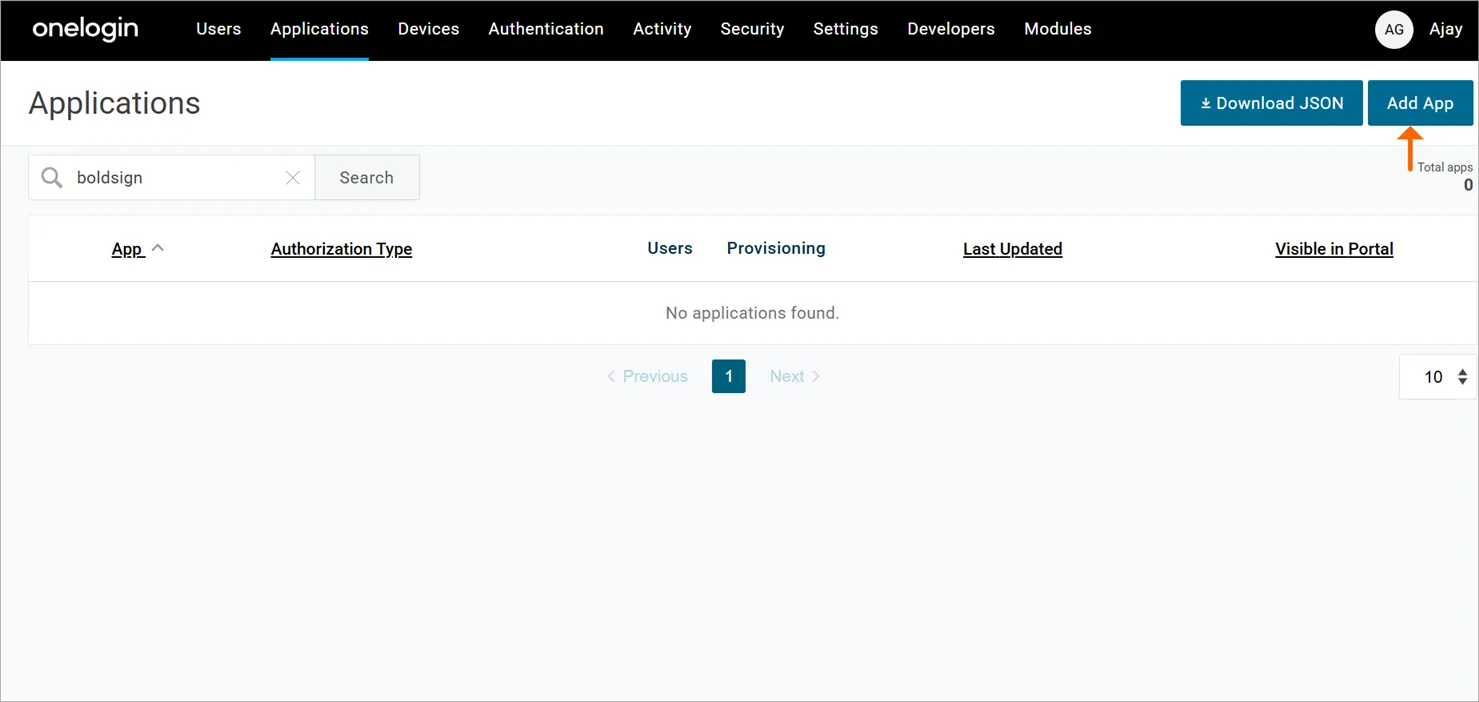
- Log in to your OneLogin admin account.
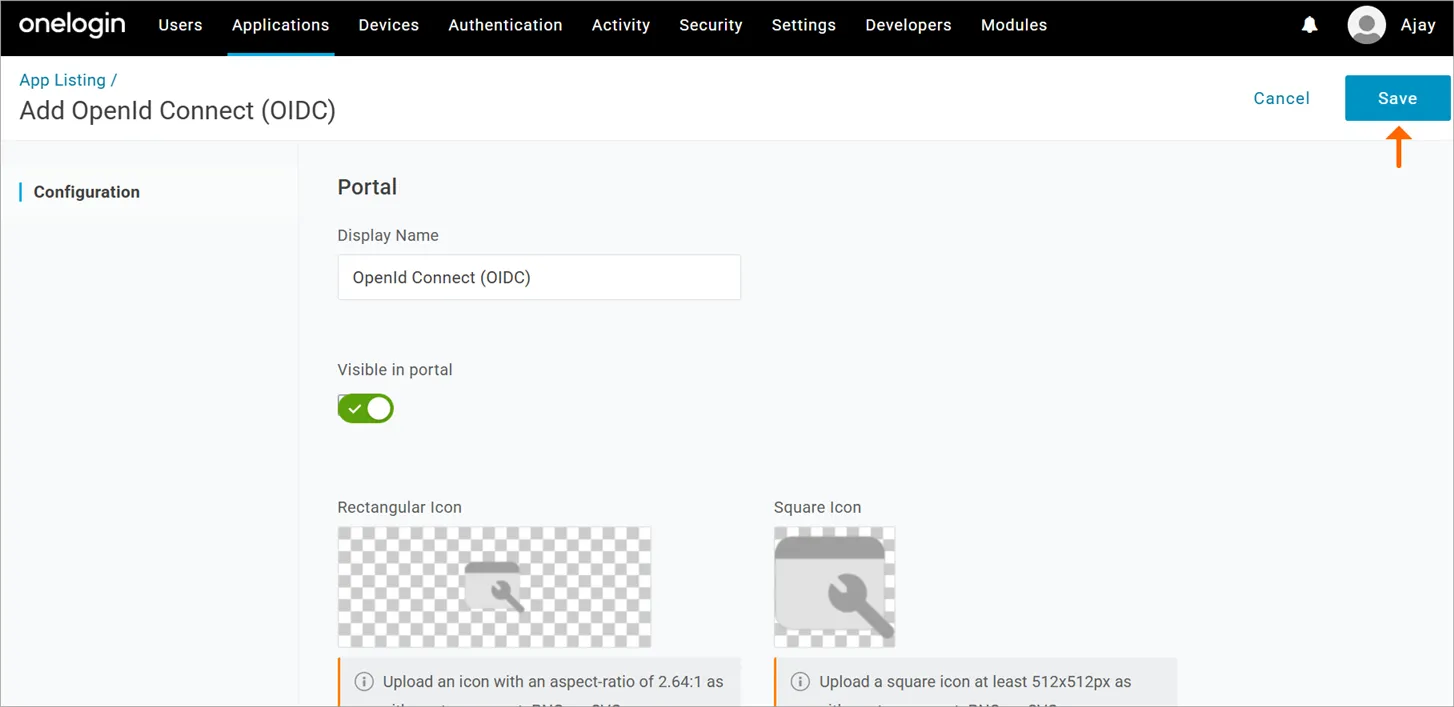
- Go to Applications and select Add App.
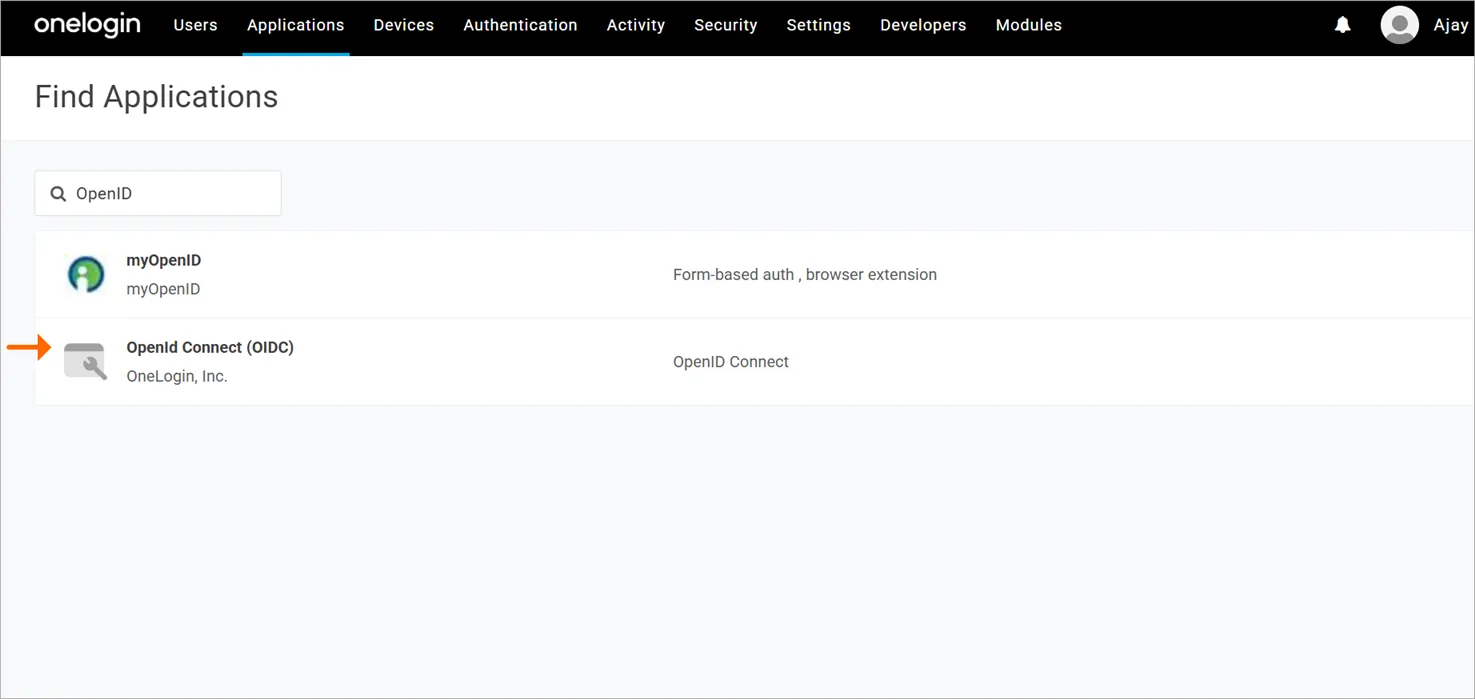
- Search for OpenID Connect (OIDC) and select it.
- Name the app, for example BoldSign, and select Save.
Step 2: Add the BoldSign redirect address and copy the app details
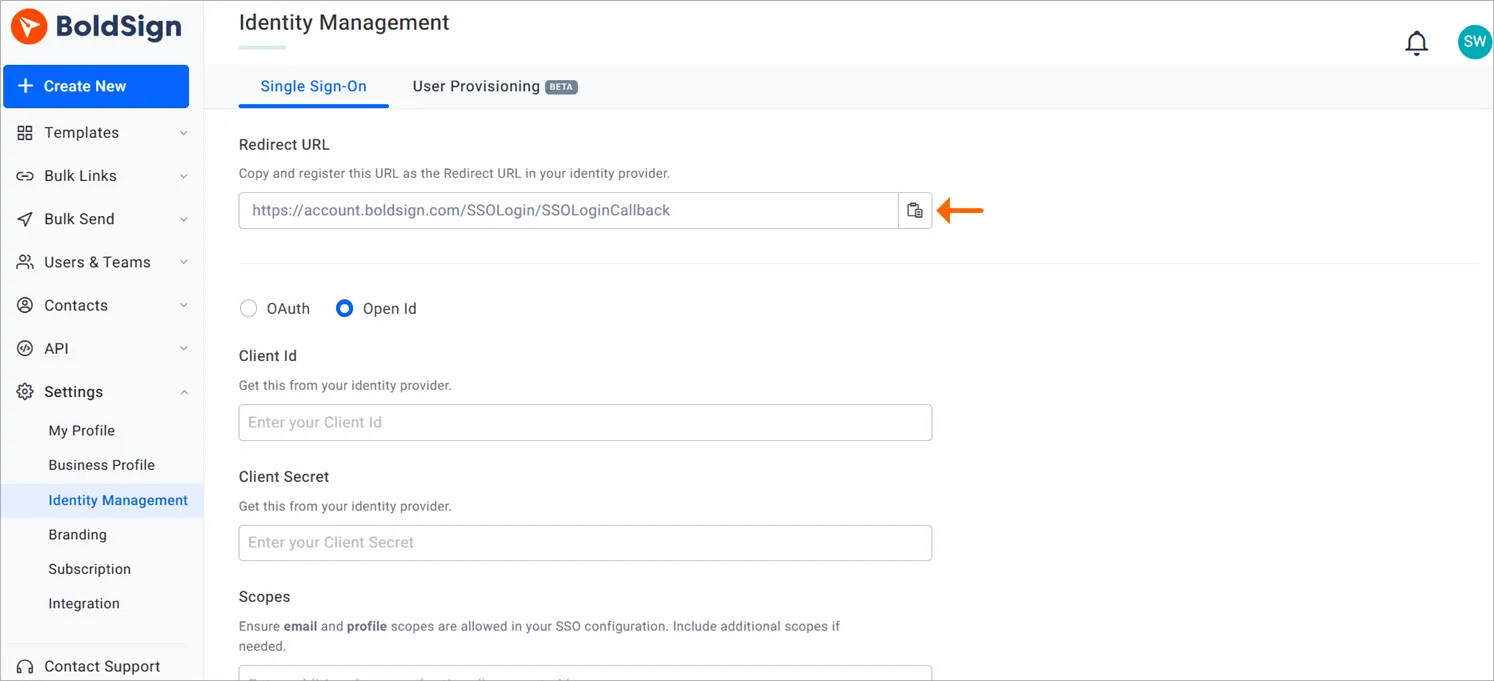
OneLogin needs a redirect uniform resource identifier (URI): the address it sends users back to after sign-in. You can copy it from Settings, then Identity Management, in BoldSign.
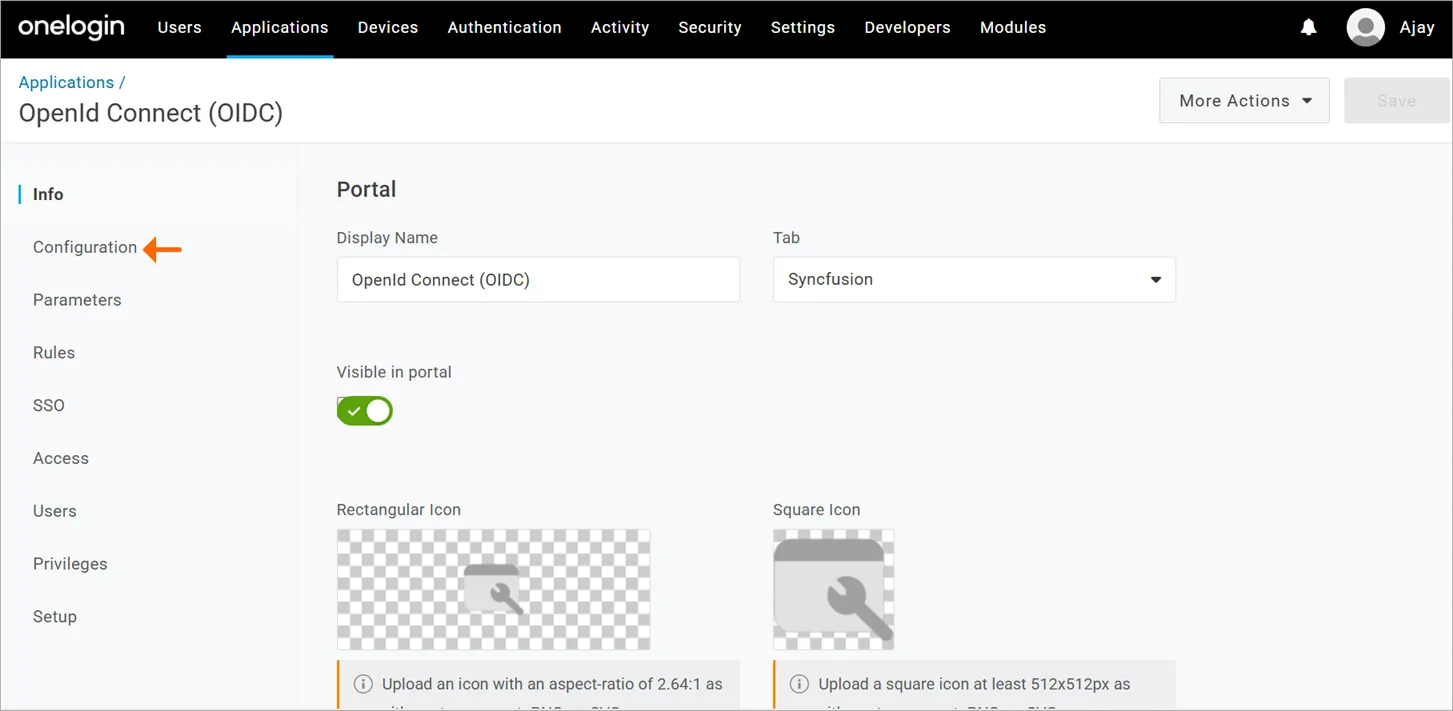
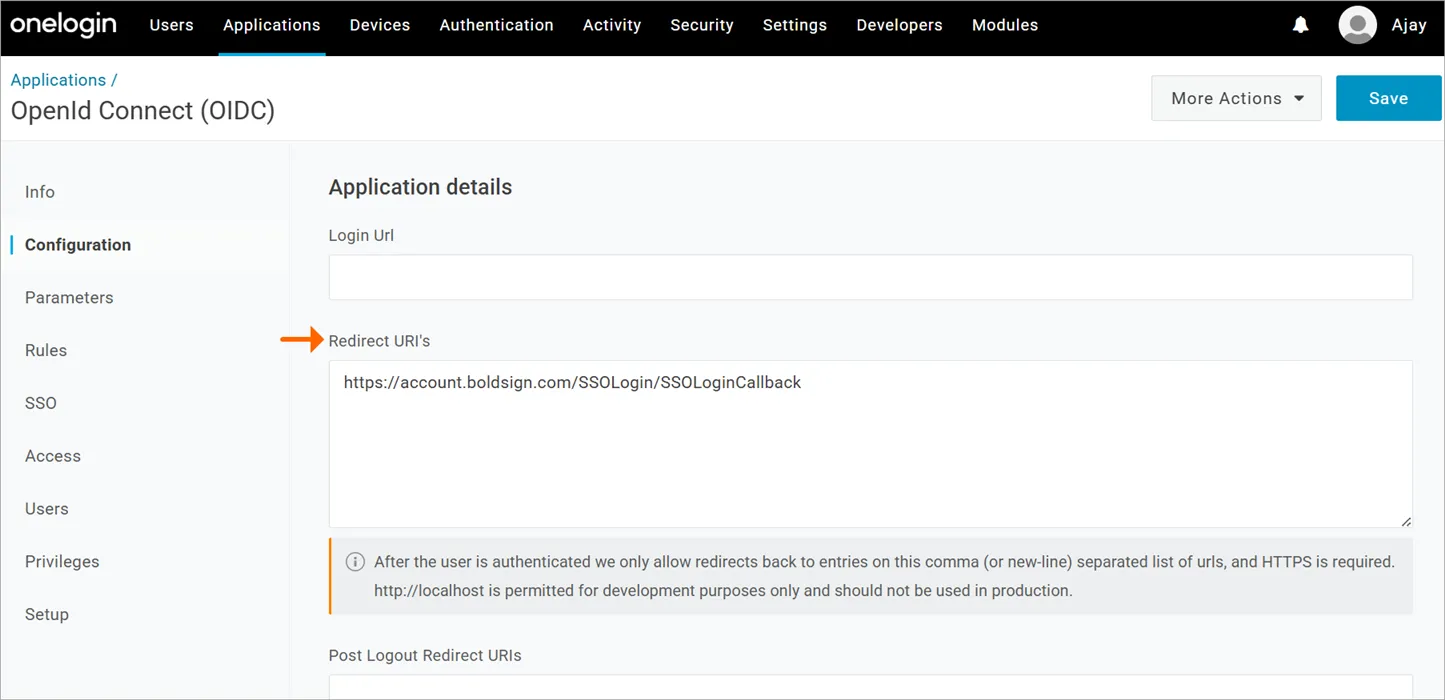
- Open the Configuration tab of your new app.
- Under Redirect URI, enter
https://account.boldsign.com/SSOLogin/SSOLoginCallbackand select Save. - Open the SSO tab and copy the Client ID.
- Select Show client secret and copy the secret.
- Copy the Issuer URL, which looks like
https://your-subdomain.onelogin.com/oidc/2.
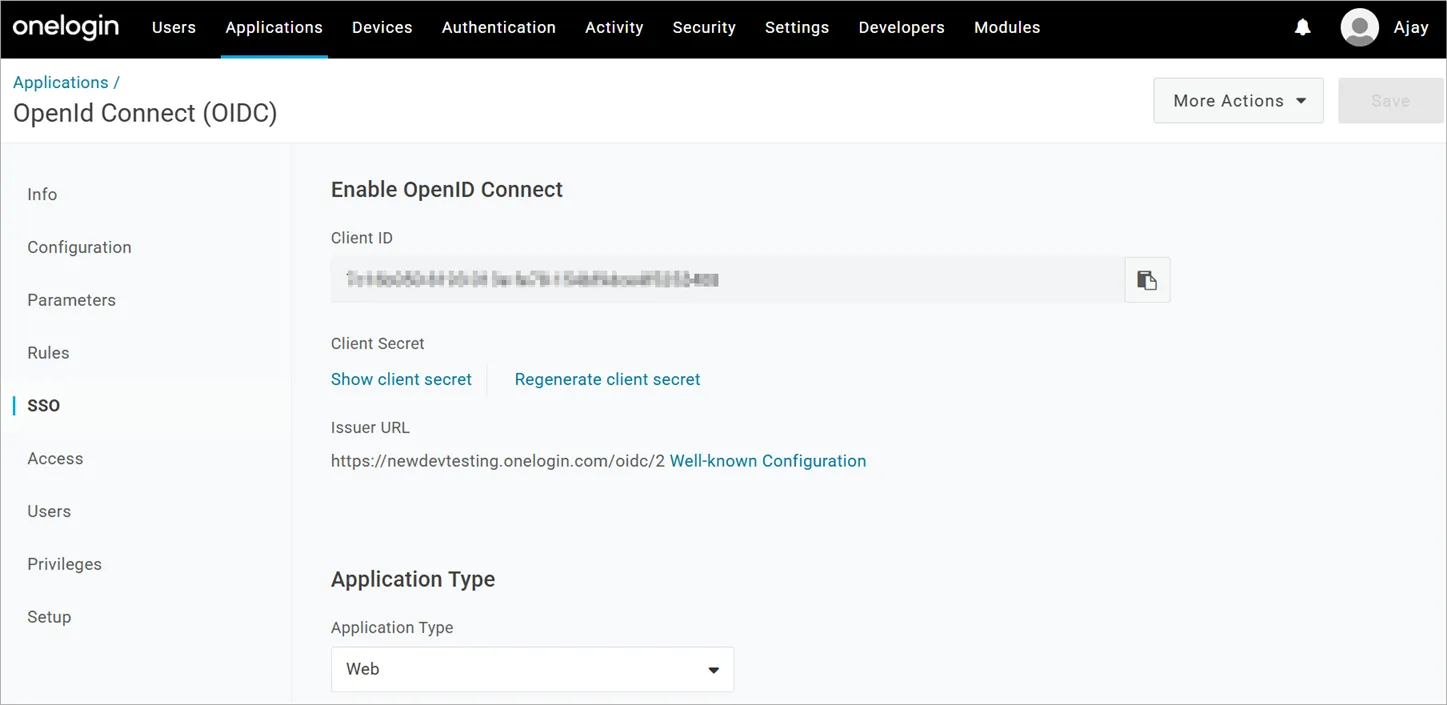
BoldSign calls the Issuer URL the authority URL. Keep all three values to hand for step 5.
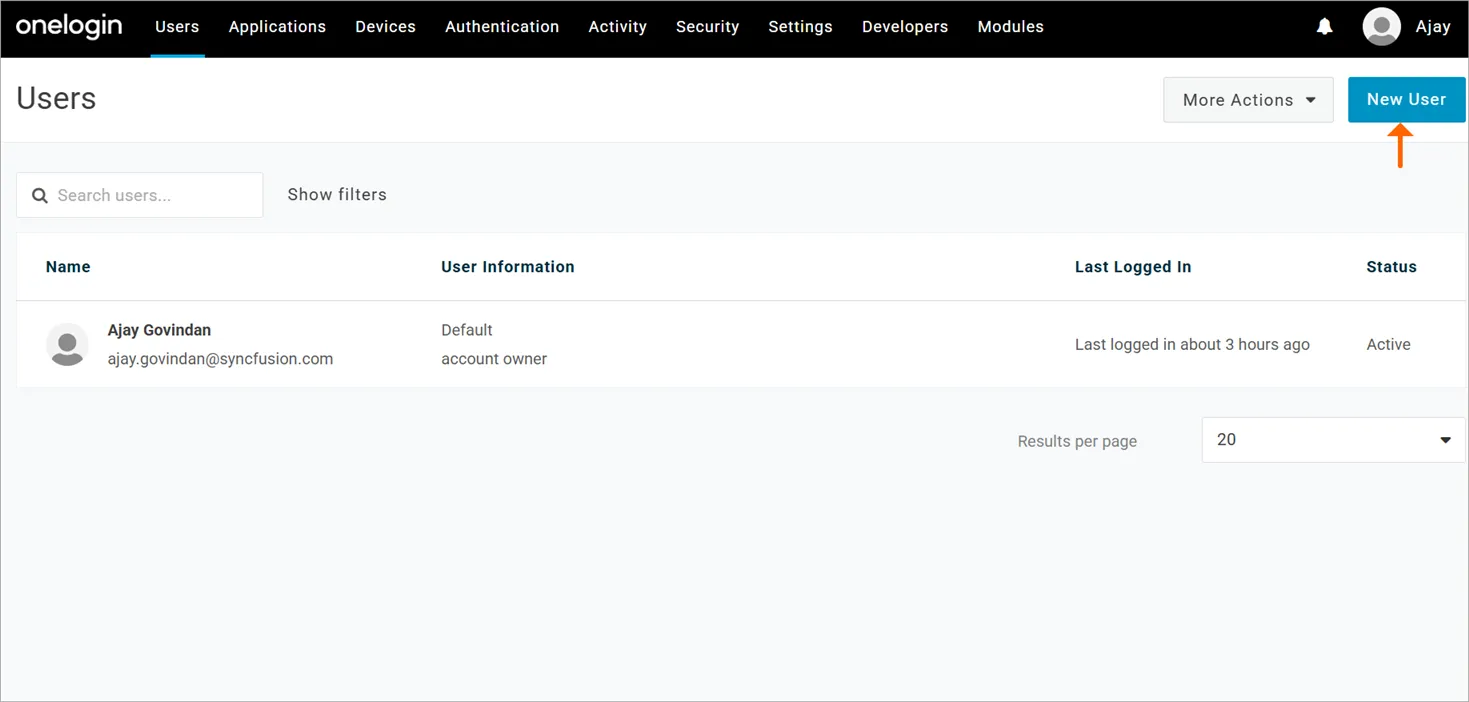
Step 3: Add a user in OneLogin
- Go to Users in the top menu and select New User.
- Enter the email address, first name and last name.
- Enter a username, which can be the same as the email.
- Add a role if you use roles for access, then select Save User.
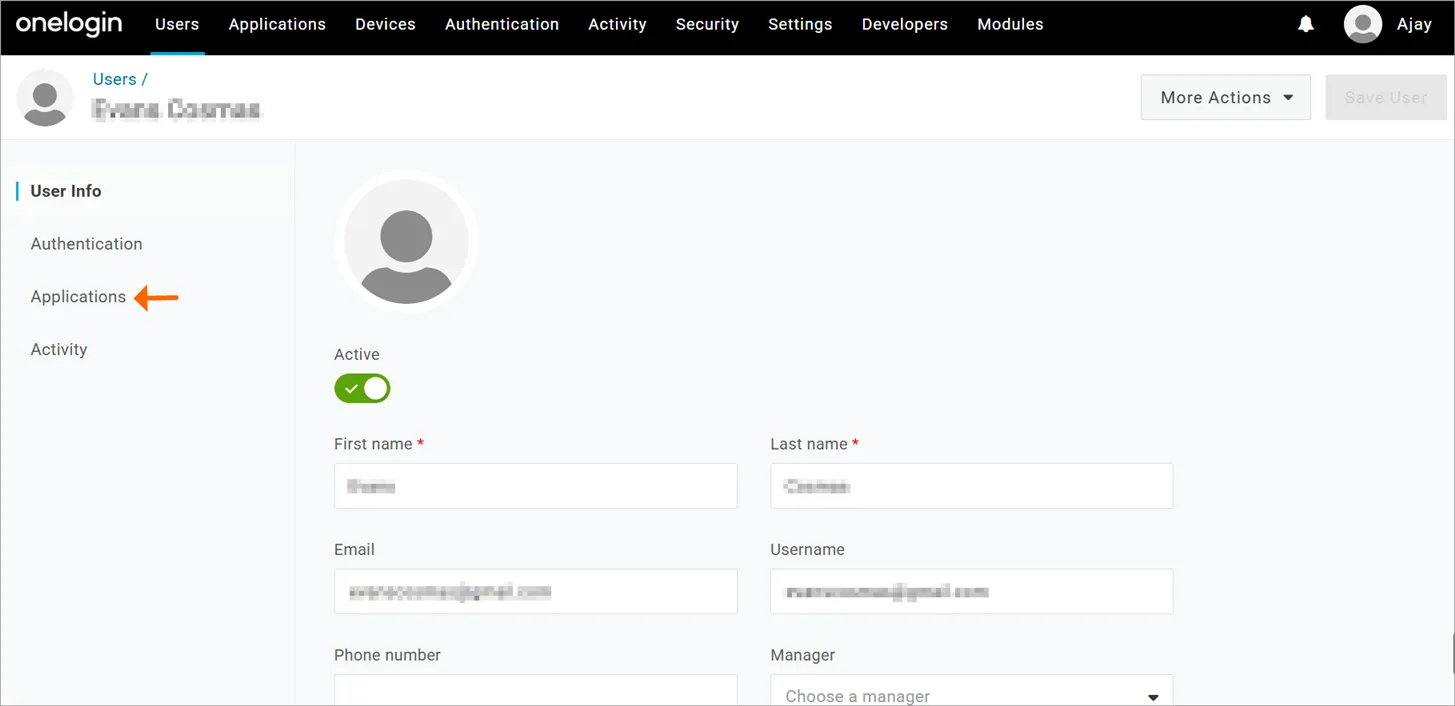
Step 4: Give the user the BoldSign app
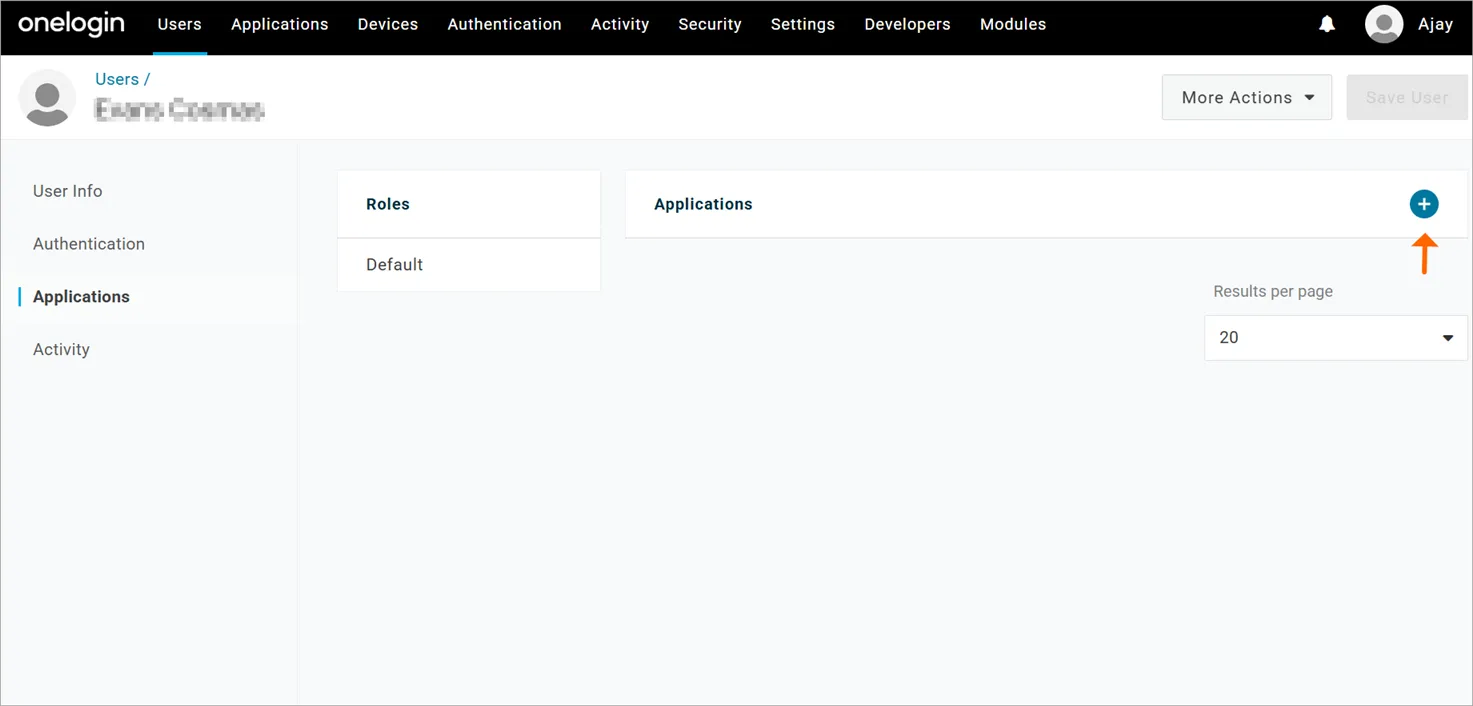
- Open the user’s profile and go to its Applications tab.
- Select the plus (+) button to add an app.
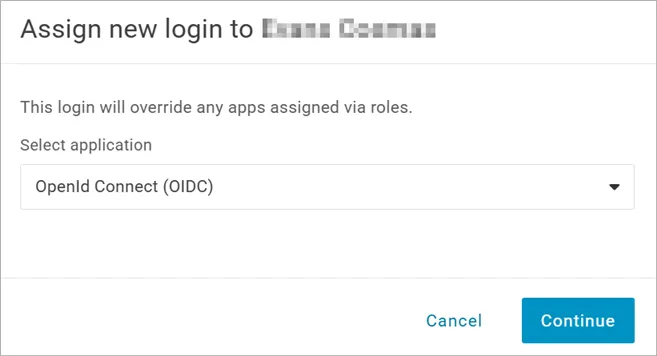
- Pick the OpenID Connect app you created, select Continue, then Save.
How do you enter the OneLogin details in BoldSign?
Open the Single Sign-On section in BoldSign, choose Open Id, and fill in three fields. Only an account administrator can reach this page.
- Log in to your BoldSign admin account.
- Go to Settings, then Identity Management.
- Under Single Sign-On, choose Open Id as the method.
- Paste the Client Id, the Client Secret, and the Issuer URL into Authority.
- Select Save.
You can change these details later. Selecting Delete SSO at the bottom of the page turns SSO off for everyone. Our help article on how to delete the SSO configuration shows each step.
How do you invite users to sign in with OneLogin SSO?
Invite each person from Users & Teams, using the same email as their OneLogin account. They join through the email and sign in with OneLogin.
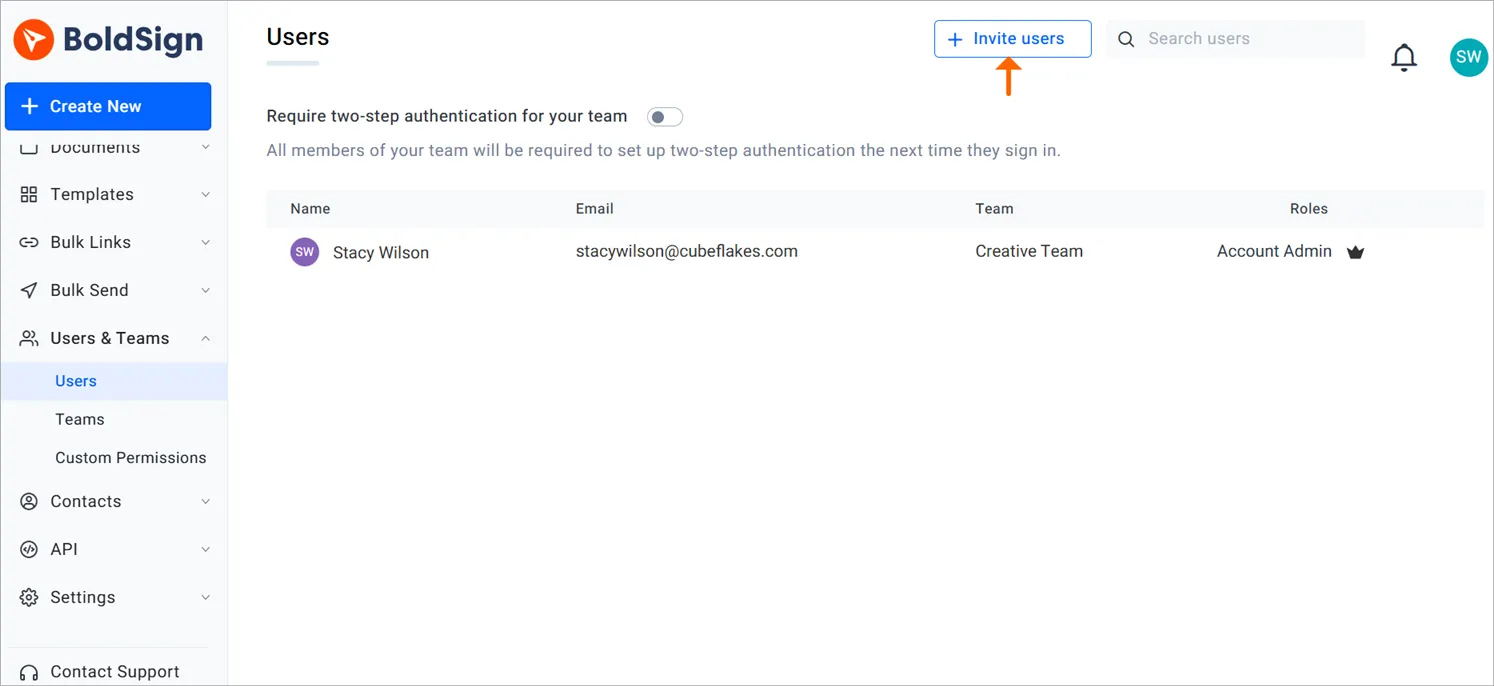
- Go to Users & Teams, then Users, and select Invite users.
- Enter one or more email addresses, select Add, then select Invite.
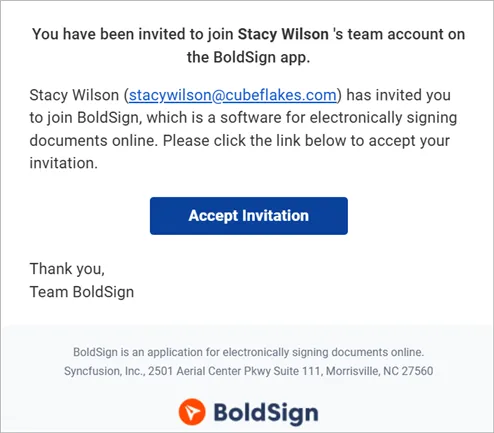
- The user opens the invitation email and selects Accept Invitation.
What does the new user see?
The link opens our sign-in page with a button that names your organization. For an organization called Cubeflakes, it reads Log into BoldSign via Cubeflakes.
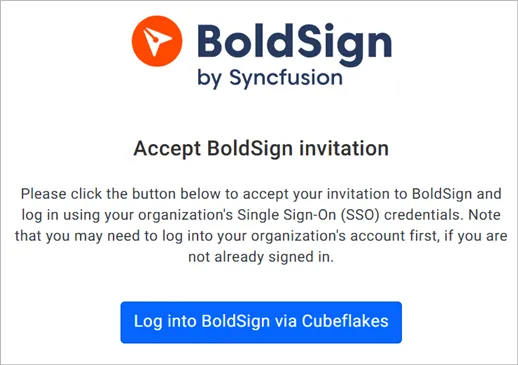
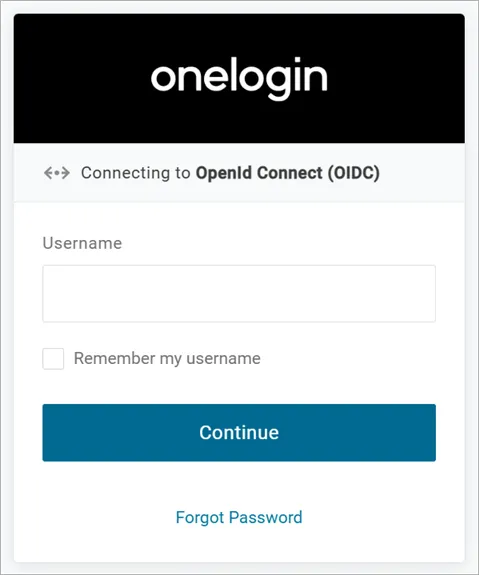
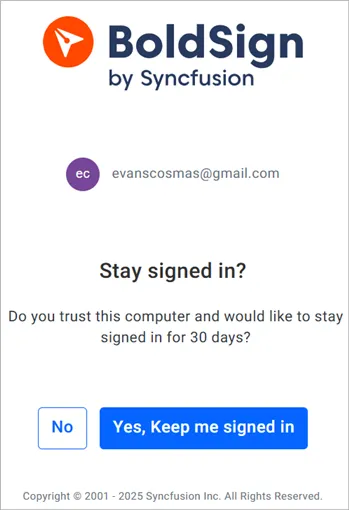
The user signs in on the OneLogin page and selects Continue. Next, they choose Yes, Keep me signed in or No.
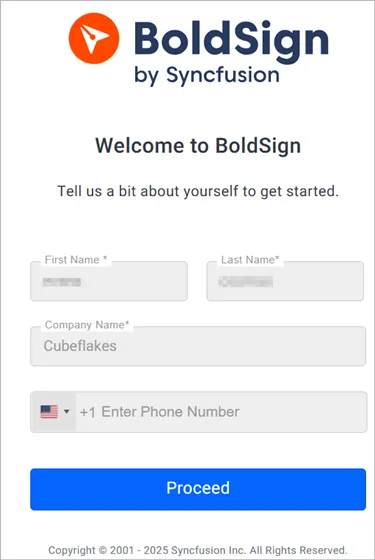
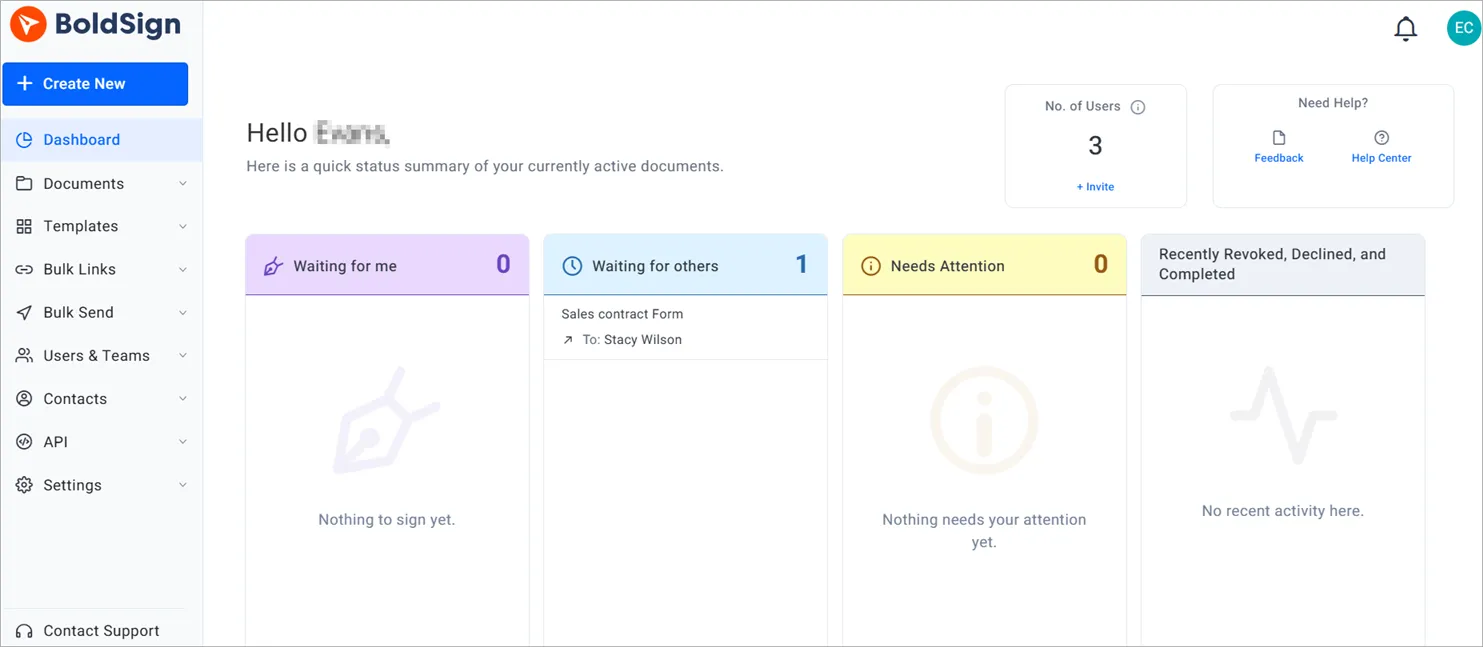
On the Basic Info page, they add their name and phone number and select Proceed. They then land on the BoldSign dashboard as a member of your organization.
How do you test the OneLogin SSO login?
Each SSO login starts on the BoldSign login page. OneLogin checks the password and sends the user back to BoldSign.
- Go to the BoldSign login page and select Sign In with SSO.
- In Organization Email, enter the OneLogin email you were invited with.
- Select Continue, then sign in on the OneLogin page.
- Choose Yes to stay signed in for 30 days, or No.
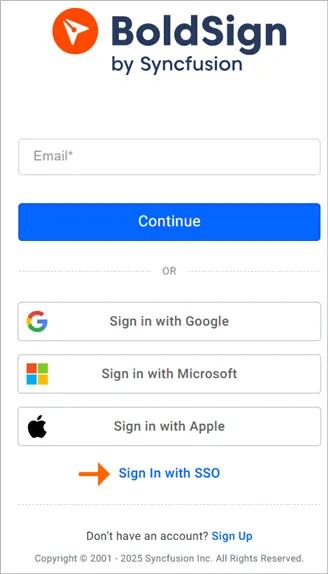
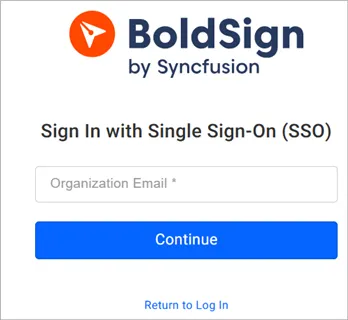
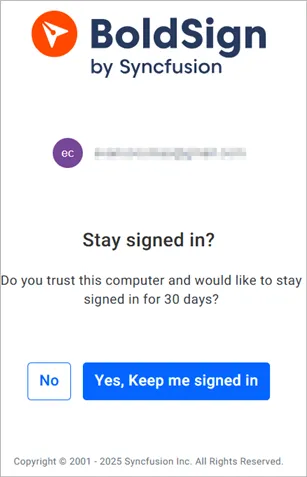
Users then reach the BoldSign dashboard. Try it with one test user before you invite the whole team.
What should you watch out for?
Most problems come from a detail that does not match. Check these first.
- The user must exist in OneLogin and have the BoldSign app.
- The invite must go to the same email as the OneLogin account.
- The redirect address in OneLogin must match the one in BoldSign exactly.
- Choose Open Id in BoldSign, since OneLogin gives you an issuer URL, not OAuth endpoints.
Which BoldSign plan includes SSO, and what does it cost?
Single sign-on starts on the Business plan, as listed on the BoldSign pricing page in November 2026. The Essential and Growth plans do not include it.
The Business plan costs $15 per user a month, and the Premium plan costs $99 a month for unlimited users. Both are billed yearly.
The Enterprise API plan also includes SSO and starts at $30 a month with 40 envelopes. Prices are in USD.
Where do you go next with OneLogin SSO?
Once one test user signs in, roll SSO out to the rest of your team. Our guides for Google SSO, Auth0 and Microsoft Entra ID follow the same pattern.
- Start a 30-day free trial and look around BoldSign.
- Book a demo to see SSO set up for your organization.
- Visit our support portal if a sign-in step fails.
Frequently asked questions
What is e-signature SSO?
E-signature single sign-on (SSO) lets your team open an e-signature app with the work login they already have. With OneLogin, OneLogin checks the password and BoldSign trusts its answer.
Which protocol does BoldSign use with OneLogin?
Our OneLogin setup uses OpenID Connect (OIDC). You pick the Open Id option in BoldSign and enter the client ID, client secret and the OneLogin issuer URL as the authority.
Where do I find the OneLogin issuer URL?
OneLogin shows it on the SSO tab of your OpenID Connect app. It looks like https://your-subdomain.onelogin.com/oidc/2, and it goes in the Authority field in BoldSign.
Who can set up SSO in BoldSign?
Only an account administrator can open the SSO settings under Identity Management. Other users join by invite and then sign in with OneLogin.
Who can sign in to BoldSign with OneLogin SSO?
Users you have added in OneLogin and given the BoldSign app. They also need an invite to your BoldSign organization sent to the same email as their OneLogin account.
How long does BoldSign keep me signed in after an SSO login?
Select Yes on the stay signed in page and we keep you signed in for 30 days. Select No to sign in again next time.
What happens if I delete the SSO configuration?
SSO stops for everyone in your organization. Users need another way to sign in until an administrator sets SSO up again.
Does BoldSign work with other identity providers besides OneLogin?
Yes. Our SSO works with any provider that supports OAuth or OpenID, such as Google, Auth0 and Microsoft Entra ID. The steps follow the same pattern.

Evans Omondi Otieno
Evans Omondi Otieno is a customer support representative and writer at BoldSign, specializing in creating clear, insightful content to help users navigate eSignature solutions. As a blog author, Evans writes well-researched articles that simplify technical concepts, helping businesses and professionals understand how to use BoldSign effectively. With expertise in technical support and content creation, he ensures users have a seamless experience and gain valuable knowledge from his articles.
More posts by Evans Omondi Otieno