Group Signers API: Let Any Team Member Sign and End Approval Delays
 Vallary Achieng Otieno
TL;DR: Group signers let you send one signing step to a team instead of one named person. Any member of that contact group can sign, and the step is done as soon as one of them does. You set it up with the group signers fields in the BoldSign API.
An expense approval sits in one finance officer’s inbox while she is on leave. A new hire’s offer letter waits for the one HR person named on it. Someone ends up changing the signer by hand, and the deadline slips.
Group signers fix that by naming a team as the signer. This guide shows how the feature works and how to set it up in code.
What are group signers in the BoldSign API?
Group signers let you use a contact group as a signer when you send a document or create a template. The group fills one signer slot, and any one member can complete it.
Think of a shop counter with three clerks. You do not wait for one clerk by name: whoever is free serves you. A group signer works the same way for teams such as Finance, Legal or HR.
Why do approvals stall when one person is the signer?
A signing step tied to one person stops whenever that person is away. Group signers keep the step open to the whole team, so work moves on with whoever is free.
- Leave, sick days and busy weeks no longer hold a document.
- Nobody has to reassign signers each time the team changes.
- The audit trail still names the person who signed and when.
Which teams get the most from group signers?
Group signers suit any step where the rule is “someone from this team must sign.” Common examples:
- Finance: expense approvals, vendor payments and budget sign-offs.
- HR: offer letters, onboarding papers and policy acknowledgments during busy hiring weeks.
- Legal: contracts that any reviewer on the team can sign.
- Operations: facility requests, purchase confirmations and other internal forms.
- Customer success: service confirmations that should not wait for one named person.
A larger workflow can use several groups in turn, such as Legal, then Finance, then HR.
What do you need before you use group signers?
You need a contact group with members and at least one directory. Set it up in three steps:
- Create a contact group and add its members.
- Get the group’s GroupId from the web app or from the List Contact Groups endpoint.
- Assign at least one directory to the group.
You can manage contact groups in the BoldSign web app or through the API. Directories are set through the API alone.
Which API endpoints manage contact groups?
Five endpoints cover the full life of a contact group. Each one links to its reference page.
| Endpoint | What it does |
|---|---|
| POST /v1/contactGroups/create | Creates a group from member names, unique email addresses and directories |
| PUT /v1/contactGroups/update | Changes a group’s name, directories and contacts |
| GET /v1/contactGroups/list | Lists the contact groups your account can use |
| DELETE /v1/contactGroups/delete | Deletes a group by its ID |
| GET /v1/contactGroups/get | Returns the details of one group by its ID |
How do you create a contact group via API?
Send the group name, its contacts and its directories in one request. The payload looks like this:
group_contact = boldsign.GroupContactDetails(
    groupName="Add the contact group name",
    contacts=["Add the list of contacts, i.e., Name and email"],
    directories=["Add the list of directories to associate with the contact group"],
)
The samples below create a group called Grouptest1 with two members in the Sales and Legal directories.
curl -X POST \
  'https://api.boldsign.com/v1/contactGroups/create' \
  -H 'accept: application/json' \
  -H 'X-API-KEY: {Your_API_Key}' \
  -H 'Content-Type: application/json' \
  -d '{
  "GroupName": "Grouptest1",
  "Contacts": [
    {
      "Name": "Alex",
      "Email": "alex@example.com"
    },
    {
      "Name": "Sam",
      "Email": "sam@example.com"
    }
  ],
  "Directories": [
    "Sales",
    "Legal"
  ]
}'
var apiClient = new ApiClient("https://api.boldsign.com","Your_API_Key");
var groupContactClient = new GroupContactClient(apiClient);
var groupContact = new GroupContactDetails ()
{
GroupName = "Grouptest1",
Contacts = new List<Contacts>()
{
new Contacts
{
Name = "Alex",
Email = "alex@example.com"
},
new Contacts
{
Name = "Sam",
Email = "sam@example.com"
}
},
Directories = new List<string> {"Sales", "Legal"}
};
var createGroupContactResponse = await groupContactClient.CreateGroupContactAsync(groupContact).ConfigureAwait(false);import boldsign
configuration = boldsign.Configuration(host="https://api.boldsign.com", api_key="Your_API_Key")
with boldsign.ApiClient(configuration) as api_client:
group_contacts_api = boldsign.GroupContactsApi(api_client)
contact1 = boldsign.GroupUser(
name="Alex",
email="alex@example.com",
)
contact2 = boldsign.GroupUser(
name="Sam",
email="sam@example.com",
)
group_contact = boldsign.GroupContactDetails(
groupName="Grouptest1", contacts=[contact1, contact2], directories=["Sales", "Legal"]
)
group_contacts_api.create_group_contact(group_contact_details=group_contact)<?php
require_once "vendor/autoload.php";
$config = new BoldSign\Configuration();
$config->setApiKey('Your_API_key');
$apiInstance = new BoldSign\Api\GroupContactsApi($config);
$contact1 = new BoldSign\Model\GroupUser();
$contact1->setName("Alex");
$contact1->setEmail("alex@example.com");
$contact2 = new BoldSign\Model\GroupUser();
$contact2->setName("Sam");
$contact2->setEmail("sam@example.com");
$group_contact = new BoldSign\Model\GroupContactDetails();
$group_contact->setGroupName("Grouptest1");
$group_contact->setDirectories(["Sales", "Legal"]);
$group_contact->setContacts([$contact1, $contact2]);
$result = $apiInstance->createGroupContact($group_contact);ApiClient apiClient = Configuration.getDefaultApiClient();
apiClient.setApiKey("Your_API_Key");
GroupContactsApi groupContactApi = new GroupContactsApi(apiClient);
GroupUser contact1 = new GroupUser();
contact1.setName("Alex");
contact1.setEmail("alex@example.com");
GroupUser contact2 = new GroupUser();
contact2.setName("Sam");
contact2.setEmail("sam@example.com");
GroupContactDetails groupContactDetails = new GroupContactDetails();
groupContactDetails.setGroupName("Grouptest1");
groupContactDetails.setContacts(Arrays.asList(contact1, contact2));
groupContactDetails.setDirectories(Arrays.asList("Sales", "Legal"));
CreateGroupContactResponse response = groupContactApi.createGroupContact(groupContactDetails);import { GroupContactsApi, GroupContactDetails, GroupUser } from "boldsign";
const contactGroupApi = new GroupContactsApi();
contactGroupApi.setApiKey("Your_API_Key");
var contact1 = new GroupUser();
contact1.name = "Alex";
contact1.email = "alex@example.com";
var contact2 = new GroupUser();
contact2.email = "sam@example.com";
contact2.name = "Sam";
var groupContactDetails = new GroupContactDetails();
groupContactDetails.contacts = [contact1, contact2];
groupContactDetails.groupName = "Grouptest1";
groupContactDetails.directories = ["Sales", "Legal"];
contactGroupApi.createGroupContact(groupContactDetails);How do you send a document with a group signer in BoldSign?
Mark the recipient as a group and turn on group signing for the request. Set these fields:
- Set the recipient’s SignType to “Group”.
- Pass the contact group’s GroupId.
- Set GroupSignerSettings Enabled to true.
- Add AllowedDirectories to limit which groups can be used (recommended).
The samples below send a nondisclosure agreement to a group signer through the Send Document API.
curl --location \
  'https://api.boldsign.com/v1/document/send' \
  --header 'X-API-KEY: {Your_API_Key}' \
  --form 'Title="NDA Agreement"' \
  --form 'Message=" Testing document from SDK integration test case "' \
  --form 'GroupSignerSettings[AllowedDirectories][0]="Sales"' \
  --form 'GroupSignerSettings[AllowedDirectories][1]="Legal"' \
  --form 'GroupSignerSettings[Enabled]="true"' \
  --form 'Signers[0][SignType]="Group"' \
  --form 'Signers[0][GroupId]="{GROUP_ID}"' \
  --form 'Signers[0][FormFields][0][Type]="Signature"' \
  --form 'Signers[0][FormFields][0][Name]="Sign"' \
  --form 'Signers[0][FormFields][0][PageNumber]="1"' \
  --form 'Signers[0][FormFields][0][Bounds][X]="50"' \
  --form 'Signers[0][FormFields][0][Bounds][Y]="50"' \
  --form 'Signers[0][FormFields][0][Bounds][Width]="200"' \
  --form 'Signers[0][FormFields][0][Bounds][Height]="30"' \
  --form 'Signers[0][FormFields][0][IsRequired]="true"' \
  --form 'Files=@"YOUR_FILE_PATH"'
var apiClient = new ApiClient("https://api.boldsign.com", "Your_API_Key");
var documentClient = new DocumentClient(apiClient);
List<FormField> formField = new List<FormField>
{
new FormField(
id: "Signature",
type: FieldType.Signature,
pageNumber: 1,
bounds: new Rectangle(x: 50, y: 50, width: 200, height: 30))
};
// Group signer settings
var groupSignerSettings = new GroupSignerSettings
{
Enabled = true,
AllowedDirectories = new List<string> { "Sales", "Legal" }
};
var documentDetails = new SendForSign
{
Title = "NDA Agreement",
Signers = new List<DocumentSigner>
{
new DocumentSigner
{
GroupId = "GROUP_ID",
SignType = SignType.Group,
FormFields = formField
}
},
Files = new List<IDocumentFile>
{
new DocumentFilePath
{
ContentType = "application/pdf",
FilePath = "YOUR_FILE_PATH",
}
},
// Attach group signer settings
GroupSignerSettings = groupSignerSettings
};
var documentCreated = documentClient.SendDocument(documentDetails);import boldsign
configuration = boldsign.Configuration(api_key="Your_API_Key")
with boldsign.ApiClient(configuration) as api_client:
document_api = boldsign.DocumentApi(api_client)
form_fields = [
boldsign.FormField(
fieldType="Signature",
pageNumber=1,
bounds=boldsign.Rectangle(x=50, y=50, width=200, height=25),
)
]
document_signer = boldsign.DocumentSigner(
groupId="GROUP_ID", signType="Group", formFields=form_fields, locale="EN"
)
send_for_sign = boldsign.SendForSign(
title="NDA Agreement",
files=["YOUR_FILE_PATH"],
signers=[document_signer],
groupSignerSettings=boldsign.GroupSignerSettings(
enabled=True, allowedDirectories=["Sales", "Legal"]
),
)
document_created = document_api.send_document(send_for_sign)<?php
require_once "vendor/autoload.php";
use BoldSign\Configuration;
use BoldSign\Api\DocumentApi;
use BoldSign\Model\{
Rectangle,
FormField,
DocumentSigner,
SendForSign,
GroupSignerSettings
};
$config = new Configuration();
$config->setApiKey('Your_API_Key');
$documentApi = new DocumentApi($config);
$signatureField = new FormField();
$signatureField->setFieldType('Signature');
$signatureField->setPageNumber(1);
$signatureField->setBounds(new Rectangle(['x' => 50,'y' => 50,'width' => 200,'height' => 2]));
$document_signer = new DocumentSigner();
$document_signer->setSignType("Group");
$document_signer->setFormFields([$signatureField]);
$document_signer->setGroupId('Group_ID');
$groupSettings = new GroupSignerSettings();
$groupSettings->setEnabled(true);
$groupSettings->setAllowedDirectories(['Sales', 'Legal']);
$send_for_sign = new SendForSign();
$files = 'YOUR_FILE_PATH';
$send_for_sign->setFiles([$files]);
$send_for_sign->setSigners([$document_signer]);
$send_for_sign->setTitle('NDA Agreement');
$send_for_sign->setGroupSignerSettings($groupSettings);
$created = $documentApi->sendDocument($send_for_sign);ApiClient apiClient = Configuration.getDefaultApiClient();
apiClient.setApiKey("Your_API_Key");
DocumentApi documentApi = new DocumentApi(apiClient);
List<File> files = new ArrayList<File>();
File file = new File("YOUR_FILE_PATH");
files.add(file);
List<FormField> formFields = new ArrayList<FormField>();
FormField signatureField = new FormField();
signatureField.setFieldType(FieldTypeEnum.SIGNATURE);
signatureField.setPageNumber(1);
Rectangle rectangle = new Rectangle().x(100f).y(100f).width(100f).height(50f);
signatureField.setBounds(rectangle);
formFields.add(signatureField);
GroupSignerSettings groupSignerSettings = new GroupSignerSettings();
groupSignerSettings.setEnabled(true);
List<String> allowedDirectories = new ArrayList<String>();
allowedDirectories.add("Sales");
allowedDirectories.add("Legal");
groupSignerSettings.setAllowedDirectories(allowedDirectories);
List<DocumentSigner> signers = new ArrayList<DocumentSigner>();
DocumentSigner signer = new DocumentSigner();
signer.setSignType(DocumentSigner.SignTypeEnum.GROUP);
signer.setGroupId("GROUP_ID");
signer.setFormFields(formFields);
signers.add(signer);
SendForSign sendForSign = new SendForSign();
sendForSign.setTitle("NDA Agreement");
sendForSign.setFiles(files);
sendForSign.setSigners(signers);
sendForSign.setGroupSignerSettings(groupSignerSettings);
DocumentCreated document = documentApi.sendDocument(sendForSign);import {
DocumentApi,
DocumentSigner,
FormField,
Rectangle,
SendForSign,
GroupContactsApi,
GroupSignerSettings,
} from "boldsign";
import * as fs from "fs";
const documentApi = new DocumentApi();
documentApi.setApiKey("Your_API_Key");
const bounds = new Rectangle();
bounds.x = 100;
bounds.y = 50;
bounds.width = 100;
bounds.height = 100;
var formField = new FormField();
formField.fieldType = FormField.FieldTypeEnum.Signature;
formField.pageNumber = 1;
formField.bounds = bounds;
var documentSigner = new DocumentSigner();
documentSigner.groupId = "GROUP_ID";
documentSigner.signType = DocumentSigner.SignTypeEnum.Group;
documentSigner.formFields = [formField];
var groupSettings = new GroupSignerSettings();
groupSettings.enabled = true;
groupSettings.allowedDirectories = ["Sales", "Legal"];
var sendForSign = new SendForSign();
sendForSign.title = "NDA Agreement";
sendForSign.signers = [documentSigner];
var files = fs.createReadStream("YOUR_FILE_PATH");
sendForSign.files = [files];
sendForSign.groupSignerSettings = groupSettings;
async function sendDocument() {
try {
var sendDocumentResponse = await documentApi.sendDocument(sendForSign);
console.log("Document sent successfully:", sendDocumentResponse.documentId);
} catch (error) {
console.error("Error occurred while calling the API:", error.message);
}
}
sendDocument();What happens when a group signs a document?
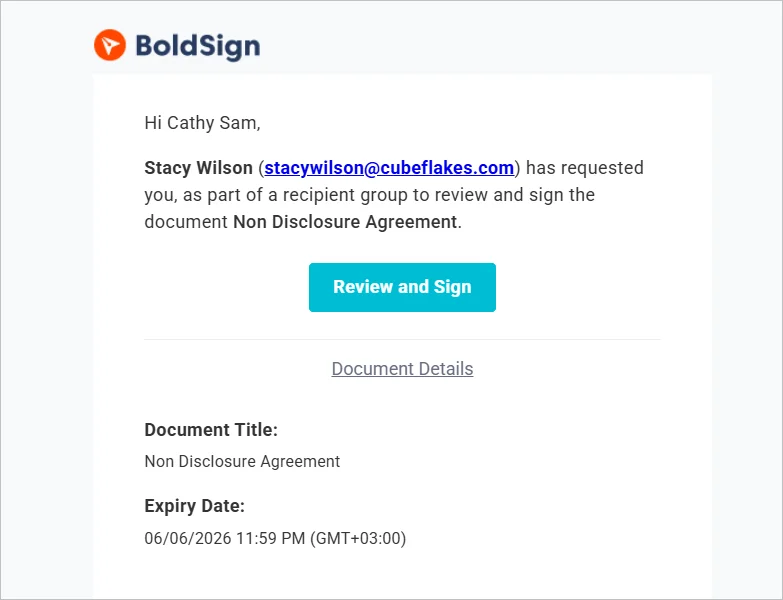
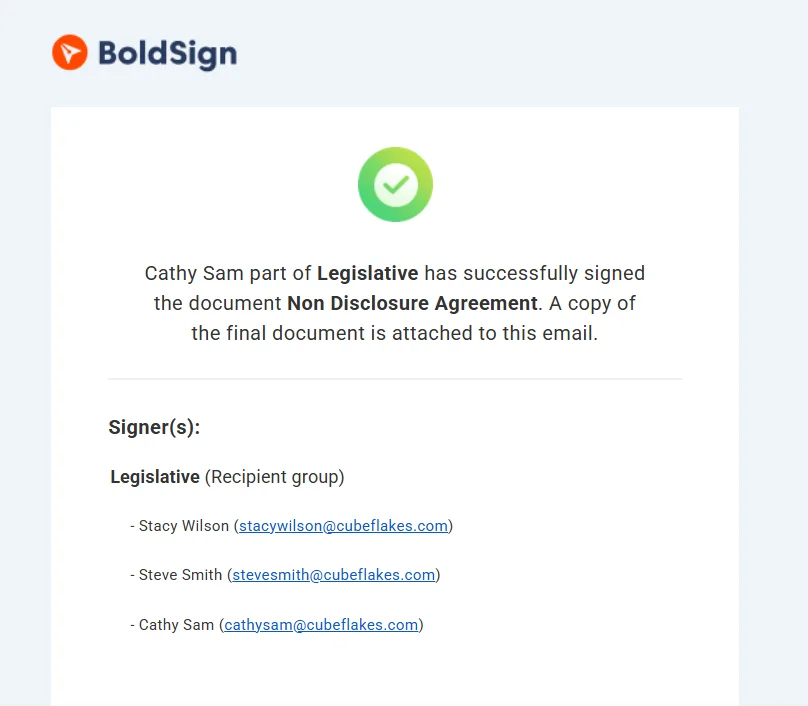
Every member gets the request, and the first signature closes the step. Here is the flow from the signer’s side:
- We email each member of the group and ask them to review and sign on behalf of the group.
- One member signs. The step is now complete, and the other members have nothing left to do.
- We send a completion email that names the member who signed and attaches the final document.
How do audit trails work for group signers?
The audit trail records the group member who actually signed. It lists their name, email address, internet protocol (IP) address and the time of each event.
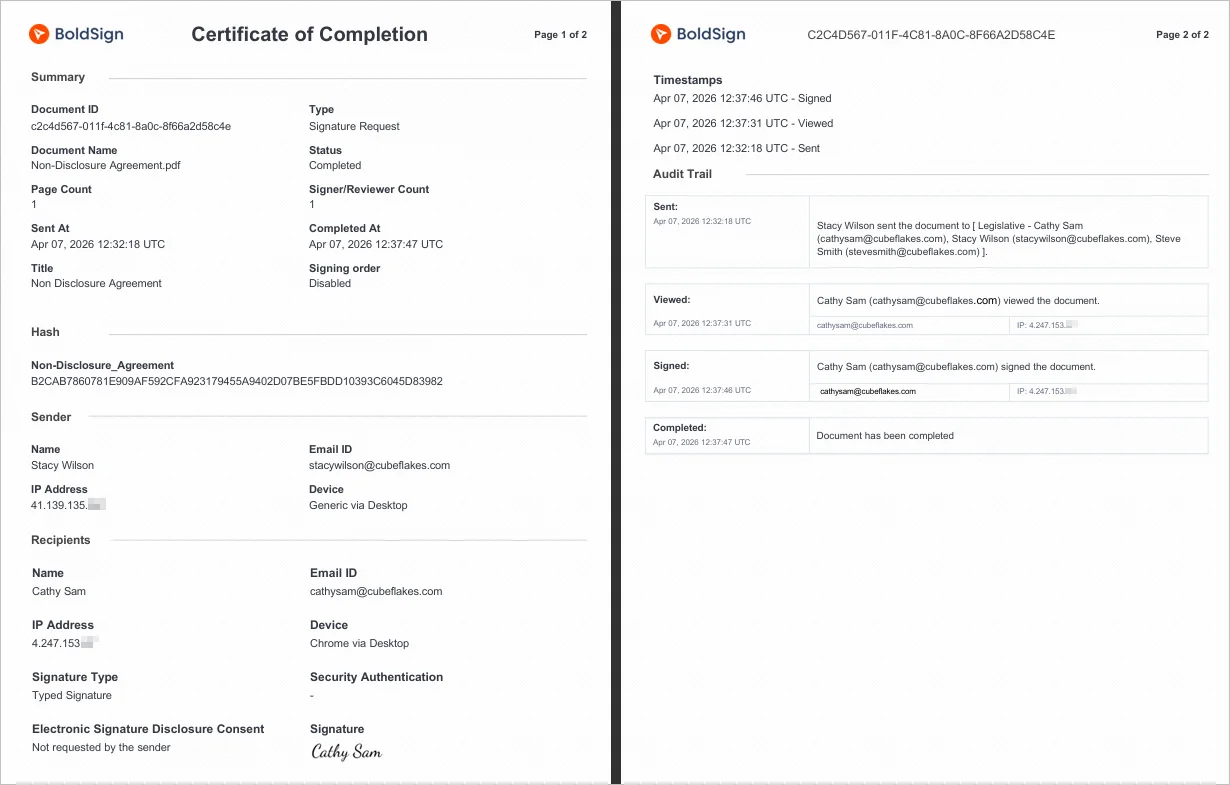
You can download the audit trail through the API at any time. To add a check before signing, such as an access code, see how to add authentication to the document.
What should you watch out for with group signers?
Directories need the most care. Keep these limits and habits in mind:
- A contact group can hold up to 5 directories, each up to 40 characters long.
- A group outside AllowedDirectories cannot be selected as a signer.
- Name directories after stable teams, such as Finance or HR, not after people.
- For many tenants, use a universally unique identifier (UUID) as the directory value.
Two teams that both pick “Legal” as a directory name could see each other’s groups. A UUID avoids that clash. Our guide to group signer directory rules covers this in more depth.
Which plan do you need for group signers, and what does it cost?
You can build and test group signers for free in an API sandbox account. Live sending through the BoldSign API needs the Enterprise API plan.
The Enterprise API plan starts at $30 a month, billed yearly, with 40 envelopes. Each extra envelope costs $0.75. Prices are in USD, and the pricing page shows current details.
How do you start using group signers?
Create a contact group, add a directory, and send your first test request. These links help you get there:
- Sign up for a free API sandbox account to try group signers.
- Request a demo to see group signing with your own workflow.
- Ask our support team if a request does not behave as you expect.
Frequently asked questions
What is a group signer in BoldSign?
A group signer is a contact group placed in a single signer slot. We send the request to every member, and one member's signature completes that step.
Can I create contact groups without the API?
Yes. You can create contact groups and add members in the BoldSign web app. Directories are the exception: you add them to a group through the Contact Groups API.
Which fields turn on group signing in a send request?
Set SignType to Group and pass the GroupId on the recipient. Then set GroupSignerSettings Enabled to true, and add AllowedDirectories to limit which groups can be used.
Why does a contact group need a directory?
A directory is a label that decides which contact groups a sender may use. A group needs at least one directory before it can act as a group signer.
How many directories can one contact group have?
Up to 5 directories per contact group. Each directory value can be up to 40 characters long.
What happens when two group members open the request?
The first member to sign completes the step for the whole group. The other members have nothing left to do for that request.
Is a document signed by a group member legally binding?
Yes, when it meets the usual rules for electronic signatures where you work: the signer agrees to sign electronically and a record is kept. The audit trail names the member who signed.
Can I use a group signer in a template?
Yes. You can add a group signer when you create or edit a template through the API, with the same SignType, GroupId and GroupSignerSettings fields.

Vallary Achieng Otieno
Vallary Achieng Otieno is a growing content writer focused on creating clear, engaging, and user-centered content. She specializes in simplifying complex ideas into practical insights that are easy for readers to understand and apply. With a growing interest in technical writing, Vallary develops well-structured articles that prioritize clarity, consistency, and value. Through her writing, she aims to help readers navigate concepts effectively while maintaining a strong, customer-focused approach.
More posts by Vallary Achieng Otieno