How to Add eSignatures to an ASP.NET Core App with the BoldSign API
 Jayaprakash Kamaraj
TL;DR: You can add electronic signatures to an ASP.NET Core app, built on ASP (Active Server Pages) and .NET (Microsoft’s platform), with our BoldSign.Api package. Install it, register the document and template clients with your API key, then call one method to send a PDF or a template for signing. Our eSignature API page shows what else the API can do.
Your web app creates offer letters, contracts or forms, and each one needs a signature. Emailing PDFs back and forth is slow, and you lose track of who has signed.
The fix is to send documents for signing straight from your code. This guide walks through the setup, a full ASP.NET Core signature example and sending from a template.
What is an ASP.NET Core electronic signature integration?
An ASP.NET Core electronic signature integration lets your ASP.NET Core app send documents to sign and track them from your code. You skip building your own signing user interface (UI).
Think of a courier you book from your desk. You hand over the parcel and the address, and the courier delivers it and brings back a signed receipt. Our API is the courier, and your app only describes what to send and to whom.
Through the API you can do the following:
- Send documents for signature to one or more signers.
- Remind signers who have not signed yet.
- Track status changes with webhooks.
- Download the signed document and its audit trail.
What do you need before you start?
You need an account, a project and an API key. Our getting started guide covers the same steps in more detail.
- Sign up for a free API sandbox account.
- Create an ASP.NET Core web app with the following command:
dotnet new webapp --framework "net10.0" -o ASPCoreEsignApp- Install the BoldSign API NuGet package with the following command:
dotnet add package BoldSign.Api- Get your BoldSign app credentials. In the web app, open API in the left menu, select API Key and then Generate API Key.
You can hold up to four API keys at a time, with at most two for the sandbox and two for live use. Our API key guide explains each option.
How do you register BoldSign clients in ASP.NET Core?
Register the clients once with dependency injection, and every page can use them. The API client holds the base address and your API key, and the document and template clients use it for each call.
Add the following code to Program.cs, before the line that builds the app.
var apiClient = new ApiClient("https://api.boldsign.com/", "***API Key***");
builder.Services.AddSingleton(apiClient);
builder.Services.AddSingleton<IDocumentClient>(new DocumentClient(apiClient));
builder.Services.AddSingleton<ITemplateClient>(new TemplateClient(apiClient));
Your pages can now ask for the document and template clients in their constructors. Keep the real API key in your app settings or a secret store rather than in code.
How do you send a document for signing from ASP.NET Core?
Build a send request with the file, the signature field and the signer, then call SendDocument. The request can also set the signing order, reminders and an expiry date.
What does an ASP.NET Core signature example look like?
The following Razor Pages example reads a local PDF, adds one signature field and sends it to one signer. The authentication code adds a check before the signer can open the document.
private readonly IDocumentClient documentClient;
private readonly ITemplateClient templateClient;

public IndexModel(IDocumentClient documentClient, ITemplateClient templateClient, ILogger<IndexModel> logger)
{
    this.documentClient = documentClient;
    this.templateClient = templateClient;
}

public void SignDocument()
{
    // Read the document from local path as stream.
    using var fileStream = System.IO.File.OpenRead("doc-2.pdf");
    var documentStream = new DocumentFileStream
    {
        ContentType = "application/pdf",
        FileData = fileStream,
        FileName = "doc-2.pdf",
    };

    // Creating collection with the loaded document.
    var filesToUpload = new List<IDocumentFile>
    {
        documentStream,
    };

    // Creating signature field.
    var signatureField = new FormField(
        id: "Sign",
        type: FieldType.Signature,
        pageNumber: 1,
        isRequired: true,
        bounds: new Rectangle(x: 50, y: 50, width: 200, height: 30));

    // Adding the field to the collection.
    List<FormField> formFields = new List<FormField>();
    formFields.Add(signatureField);

    // Creating signer field.
    var signer = new DocumentSigner(
        name: "Signer Name 1",
        emailAddress: "signer@cubeflakes.com",
        signerOrder: 1,
        authenticationCode: "851321",
        signerType: SignerType.Signer,
        privateMessage: "This is private message for signer",
        // Assign the created form fields to the signer.
        formFields: formFields);

    // Adding the signer to the collection.
    var documentSigners = new List<DocumentSigner>
    {
        signer
    };

    // Create send for sign request object.
    var sendForSign = new SendForSign
    {
        Title = "Sent from API SDK",
        Message = "This is document message sent from API SDK",
        EnableSigningOrder = false,

        // Assign the signers collection.
        Signers = documentSigners,

        // Assign the loaded files collection.
        Files = filesToUpload
    };

    // Send the document for signing.
    var createdDocumentResult = this.documentClient.SendDocument(sendForSign);
}
SendDocument returns the new document’s ID. Store it, because you need it to send reminders and download the signed file later.
What can you change in the send request?
Each field takes a page number and a box given as x, y, width and height. Our send document reference lists every option, and these limits apply to each request:
- Upload PDF, image, Word, Excel or PowerPoint files, with PDF preferred.
- Send up to 25 files in one document.
- Keep each document under 25 megabytes and 1,000 pages.
- Documents expire after 60 days unless you set ExpiryDays.
How do you send a document using a template?
Save the document once as a template with its fields and roles, then send it by ID. Templates save time when you send the same contract to different people again and again.
First, create a template in the BoldSign app, then copy its ID:
- Go to the My Templates section in the BoldSign app to see your templates.
- Click the more options button next to the template and choose Copy template ID.
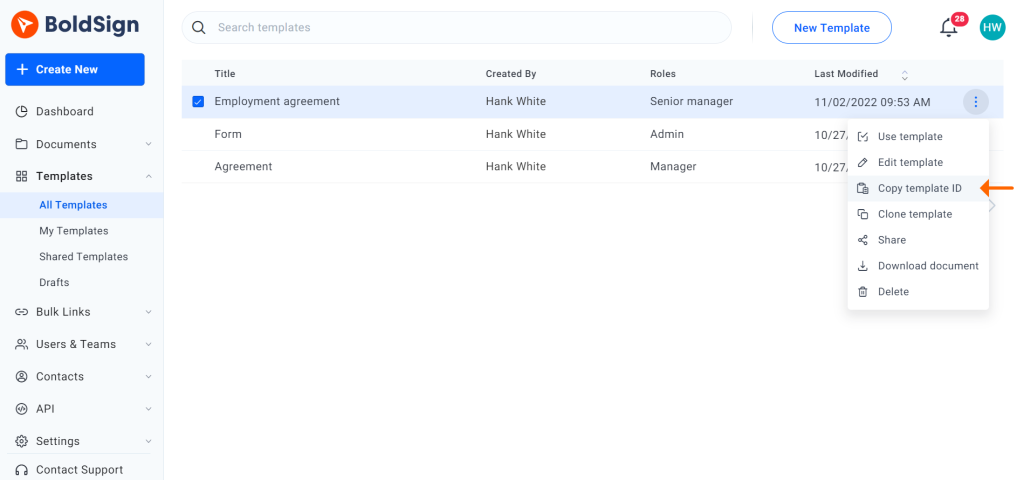
- Use the copied ID in your code. The template can carry its own recipients, or you can add them before you send.
public void SendDocumentUsingTemplate()
{
    var templateDetails = new SendForSignFromTemplate(
        templateId: "**templateId**",
        title: "Document from Template",
        message: "This document description");
    var createdDocumentResult = this.templateClient.SendUsingTemplate(templateDetails);
}
Our guide on how to send a document from a template shows how to fill each role with a signer.
Can you build an ASP.NET Core signature with rich UI?
Yes, and you do not have to build the signing screen yourself. Signers open our signing page, which handles drawing, typing or uploading a signature.
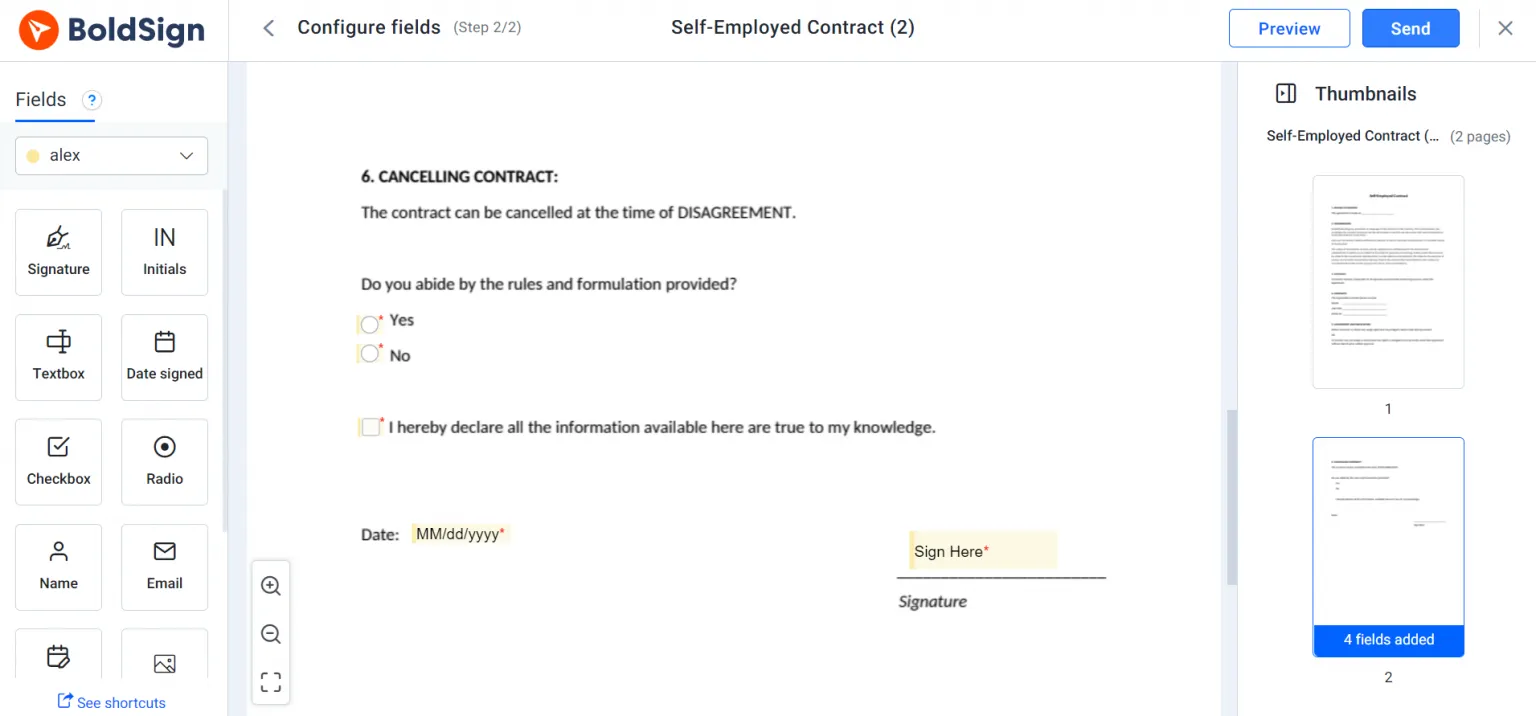
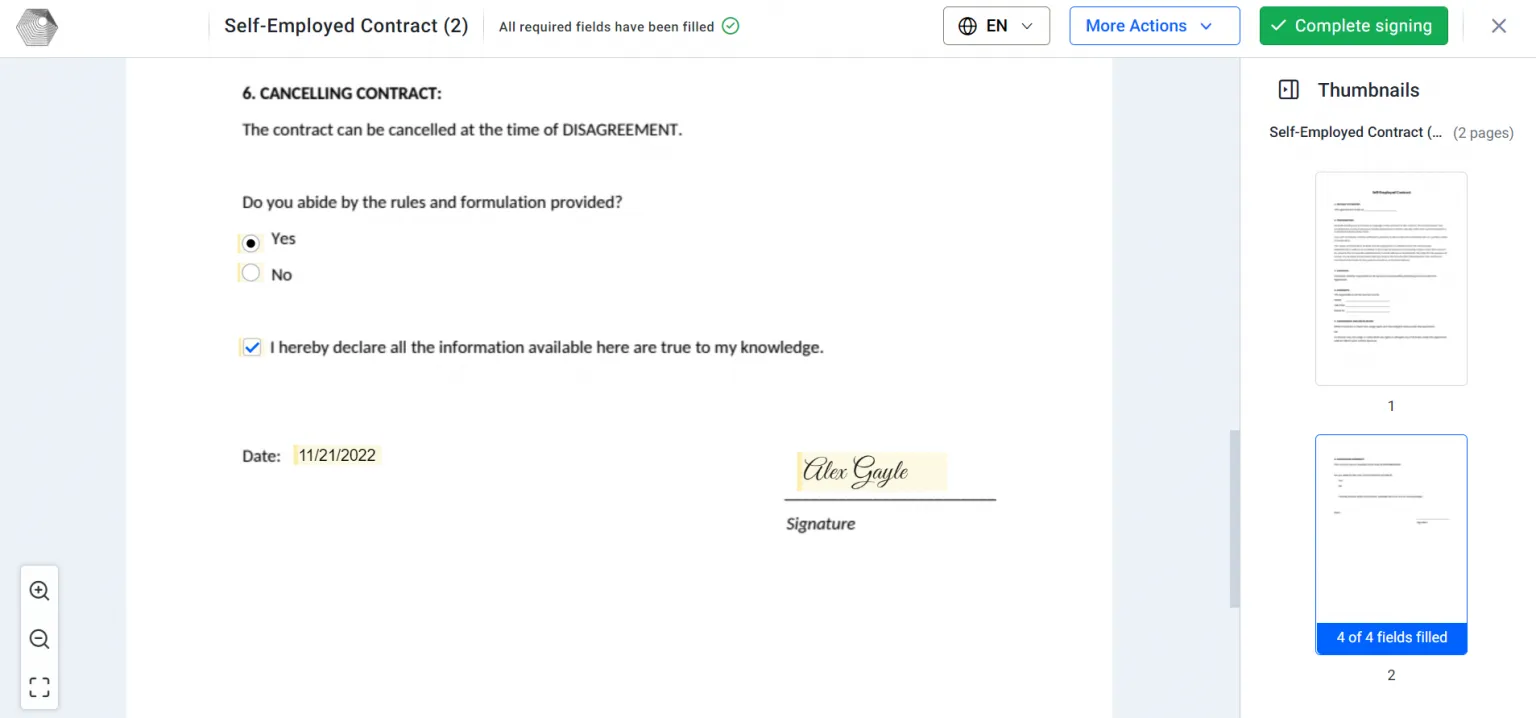
Want signers to stay inside your own UI? Our embedded signing feature lets users review and sign without leaving your app.
Which BoldSign API plan do you need, and what does it cost?
Live API requests need the Enterprise API plan, from $30 a month with 40 envelopes, as listed on the BoldSign pricing page in November 2026. Each extra envelope costs $0.75, and prices are in USD.
The plan also covers webhooks and embedded signing. To build and test first, use the free sandbox. It needs no credit card, and its documents carry a test watermark and are deleted after 14 days.
Where do you go next with your ASP.NET Core app?
Send a test document from the sandbox first, then add webhooks to track each signature.
- Create a free API sandbox account and send your first document.
- Book a demo to talk through your integration with our team.
- Contact us with a question about the API or your setup.
Frequently asked questions
Is there a .NET digital signature SDK (software development kit) for BoldSign?
Yes. Our BoldSign.Api package on NuGet wraps the eSignature API for C#. It has clients for documents and templates, so you call methods instead of writing raw web requests.
How does ASP.NET Core insert signature fields into a PDF?
Your app describes each field in code, with its page number, position and size. We place the field on the page and show it to the signer when they open the document.
Can ASP.NET Core add signature fields to an existing PDF?
Yes. Upload the PDF with your send request and attach a FormField of type Signature to each signer. You can also send from a saved template that already holds the fields.
Can I test an ASP.NET Core signature free of charge?
Yes. Our free API sandbox needs no credit card. Its documents carry a test watermark and are deleted after 14 days, so you can try the full flow first.
How do I download ASP.NET Core signature documents once they are signed?
Call DownloadDocument on the document client with the document ID that SendDocument returned. DownloadAuditLog returns the audit trail for the same document.
Is a fast ASP.NET Core signature setup possible?
Yes. Install one NuGet package, add your API key, register two clients and make one SendDocument call. The sample code in this guide covers each step.
Does the SDK work for electronic signature ASP.NET Framework apps?
Yes. The BoldSign.Api package targets .NET Standard 2.0 and .NET Framework 4.5.2, as listed on NuGet. Older ASP.NET apps can use the same clients and methods.
Is an ASP.NET Core digital signature the same as an electronic signature?
Not quite. An electronic signature is any electronic mark of agreement, and a digital signature is one kind that uses a certificate. This guide sends documents for electronic signature through our API.

Jayaprakash Kamaraj
Jayaprakash Kamaraj is a Product Manager at Syncfusion. He is passionate about front-end technologies and has been active in web development since 2014. Connect with him on LinkedIn.
More posts by Jayaprakash Kamaraj