Caroline Dolly
TL;DR: The BoldSign eSignature extension is on Microsoft Edge Add-ons, so you can add it to Edge in a few clicks. From the toolbar you can track, sign and send documents, remind signers and use templates. Our eSignature extension for Chrome and Edge page lists everything it does.
You work in Microsoft Edge all day. A client asks whether the contract went out, and a manager waits on your approval. Each check means opening another tab, signing in and hunting for the document.
The BoldSign Edge extension puts that list one click away in your toolbar. This guide covers what it does, how to add it and how it differs from marking up a PDF in Edge.
What is the BoldSign Edge extension?
The BoldSign Edge extension is a small add-on that shows your BoldSign documents in the Edge toolbar. You see what needs signing, sign it and follow up without opening the full web app.
Think of it as the flag on a mailbox. You glance at it and know whether something waits for you, so you only walk out when you need to. The toolbar badge does the same job for documents waiting on your signature.
The extension was first released for the Chrome Web Store in June 2026. Edge users had to allow extensions from other stores before they could add it.
Since July 2026, you can add it from Microsoft Edge Add-ons like any other Edge extension. Our post on the BoldSign browser extension covers the first release.
What can you do with the BoldSign extension in Microsoft Edge?
You can track, find, sign, send, remind and download documents from the toolbar. Preparing a new document, such as placing fields, still happens in the BoldSign web app.
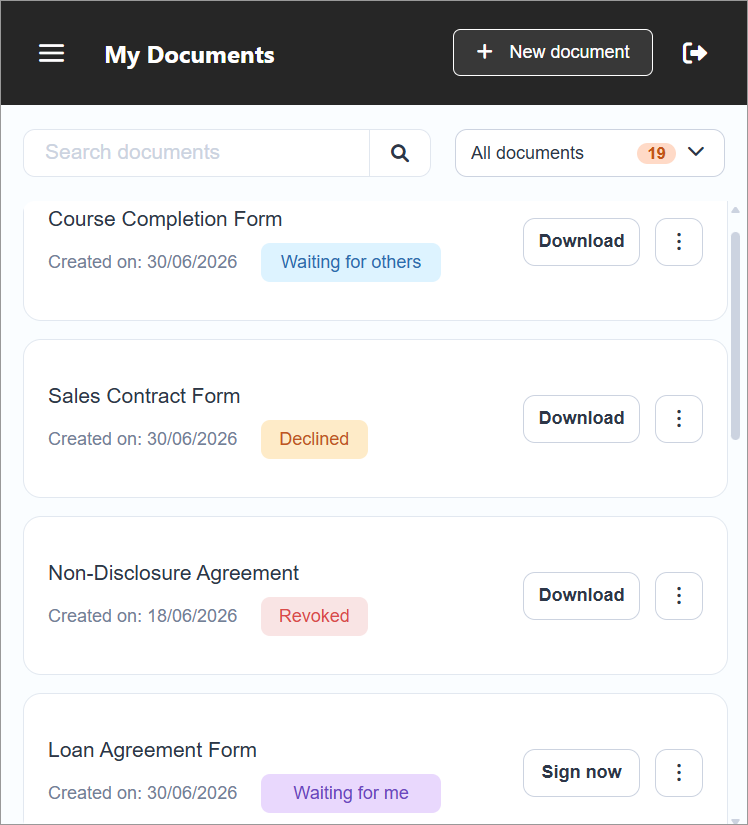
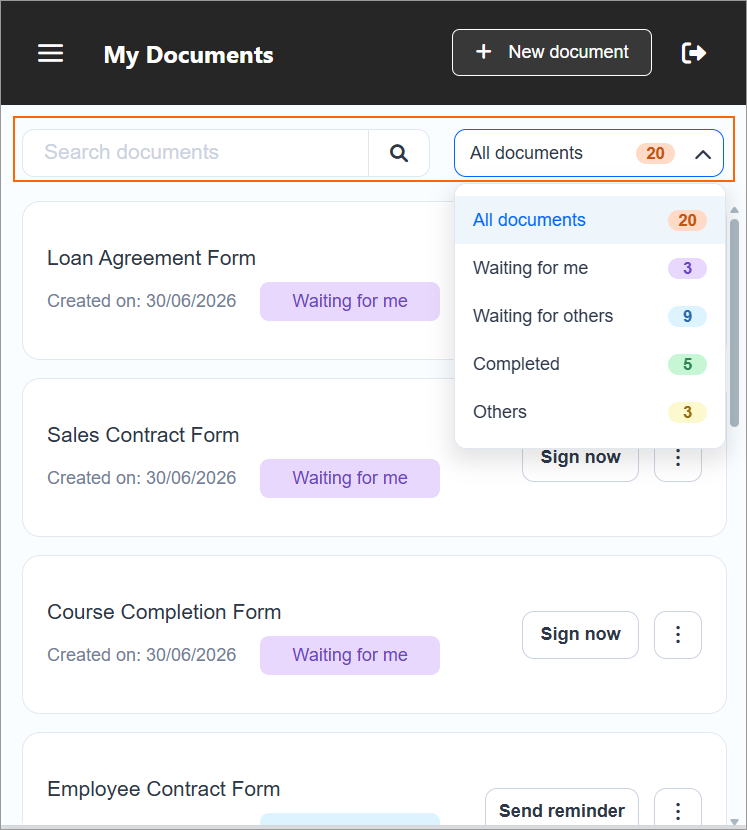
Track document status
Each document shows where it stands. Filter the list by Waiting for you, Waiting for others or Completed to spot the agreement that has stalled.
The same statuses appear in the web app, where our document management features let you sort and store every signed file.
Get signing notifications
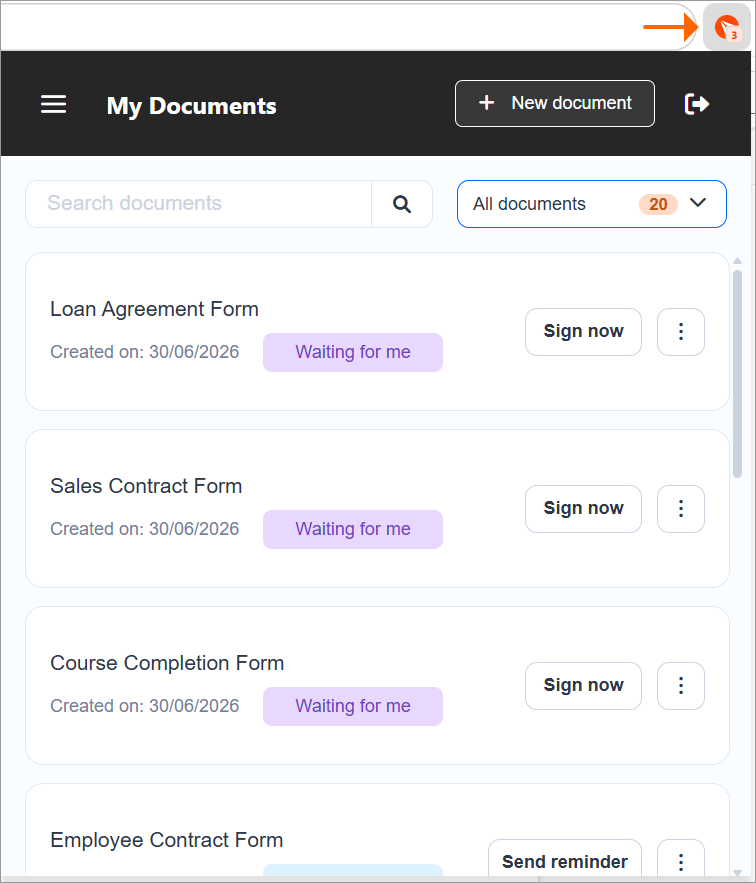
Edge shows a browser notification when a new document lands in your queue. The badge on the BoldSign icon counts the documents that need your signature.
Sign pending documents
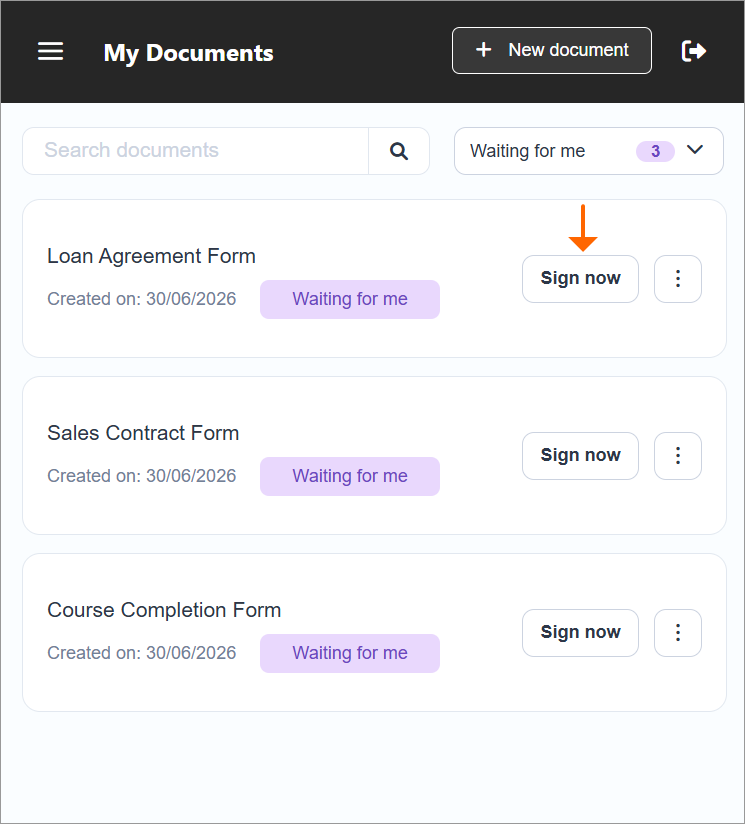
Open a document from the Waiting for you list and sign it in a few clicks. You skip the search through your inbox for the signing email.
Send documents for signature
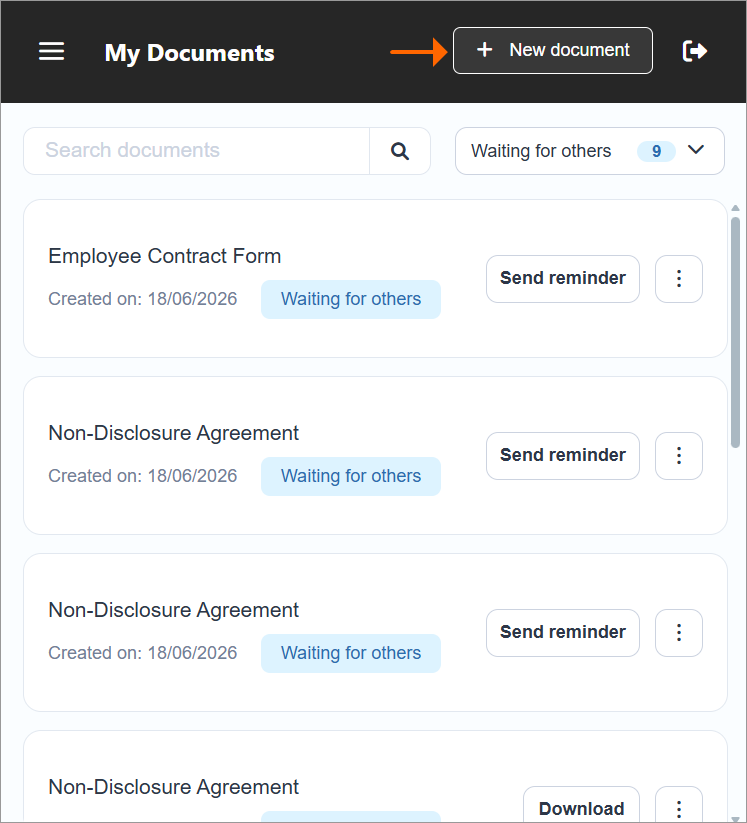
Select Send in the extension to start a new request. BoldSign opens, ready for you to upload a file and add recipients.
Our eSignature features page covers each option you can set when you send.
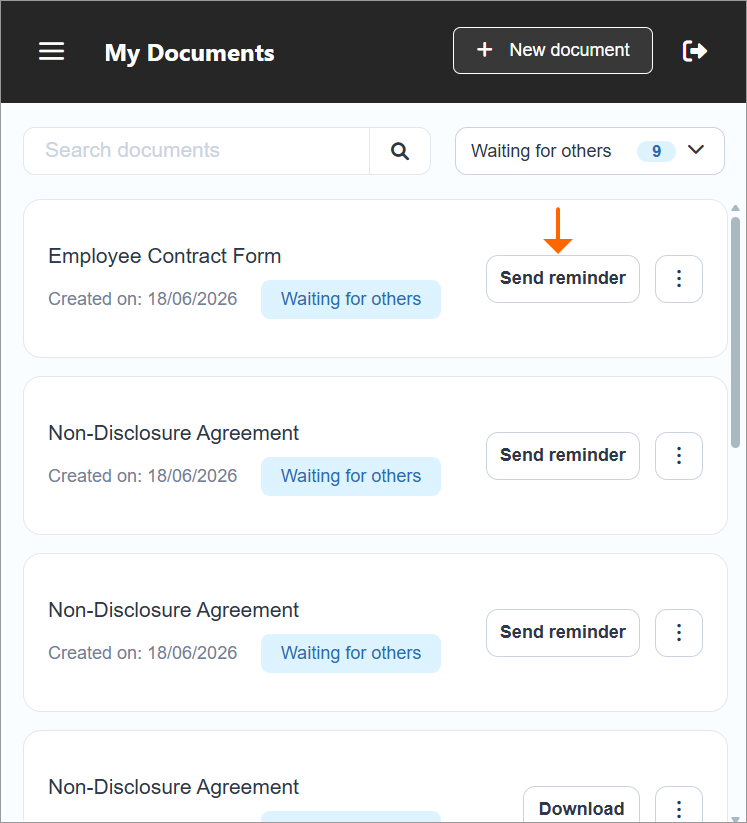
Send reminders
Remind any signer who has not signed yet, straight from the document in the extension. You do not need to write a follow-up email yourself.
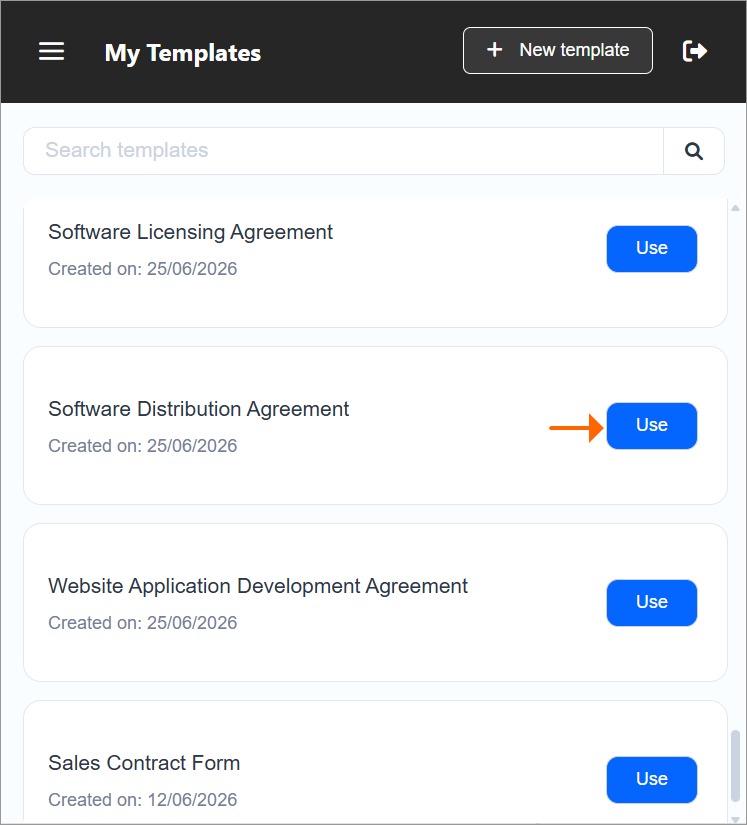
Use templates
Open My Templates from the menu and select Use on a saved template to send it again. Use it for documents you send often, such as offer letters, consent forms and nondisclosure agreements.
Our page on eSignature templates explains how to build one in the web app.
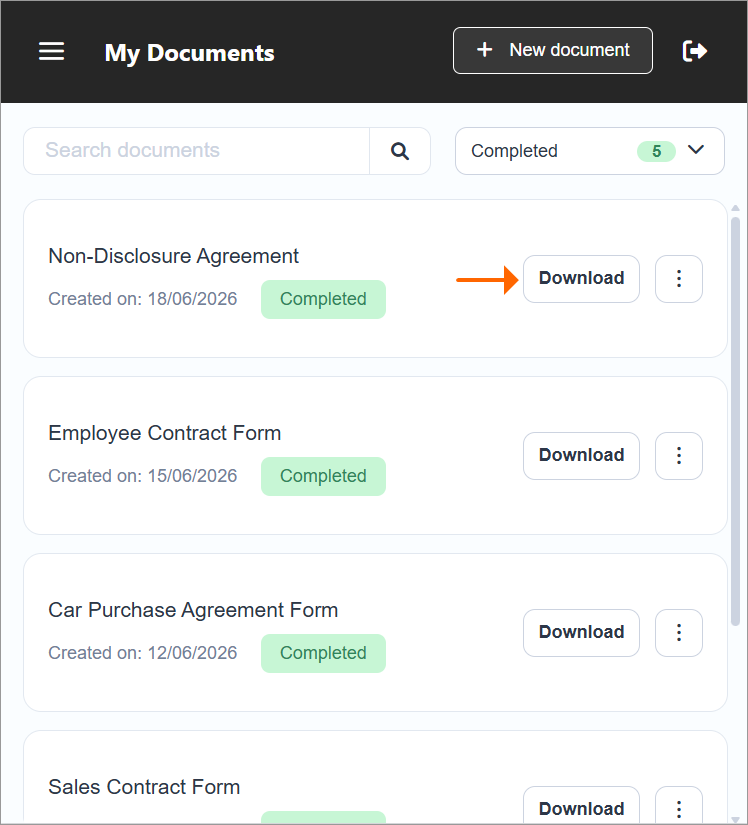
Download documents
Download a completed or pending document from the extension. You can save a signed copy the moment finance or legal asks for it.
Search and filter documents
Search by document name, signer name, email address or document ID. Combine a search with a status filter to find one file in a long list.
How do you install the BoldSign extension from Microsoft Edge Add-ons?
Add the extension from the store, pin its icon and sign in. The whole setup takes a few minutes.
Add the extension to Edge
- Open the BoldSign listing on Microsoft Edge Add-ons.
- Select Get.
- Review the permissions that Edge lists.
- Select Add extension.
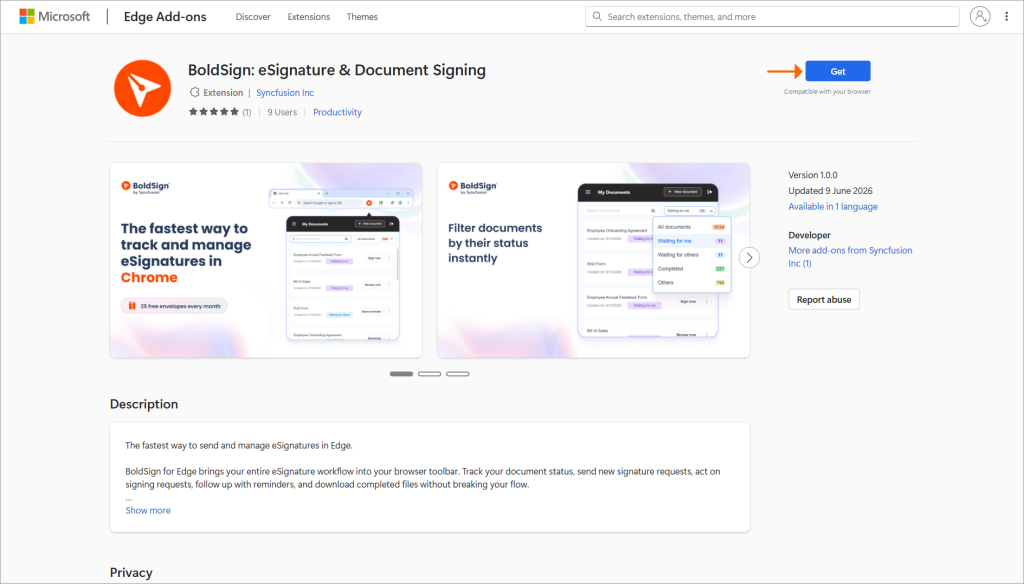
Microsoft explains how extensions work in its Microsoft Edge help.
Pin the icon and sign in
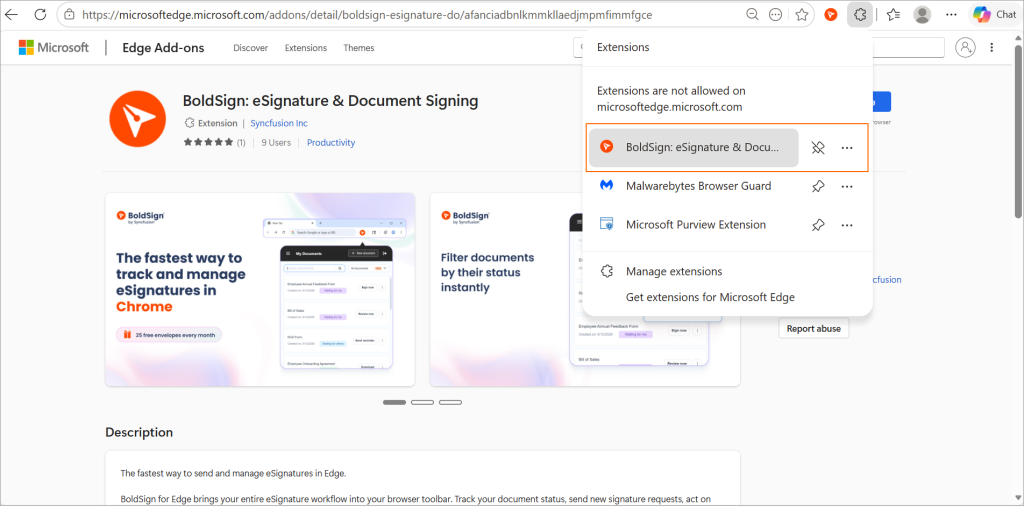
- Select the Extensions icon in the Edge toolbar.
- Select the pin next to BoldSign so the icon stays in view.
- Select the BoldSign icon, then Sign In, or Sign Up if you are new.
- Select Allow when you are already signed in to the BoldSign web app in Edge.
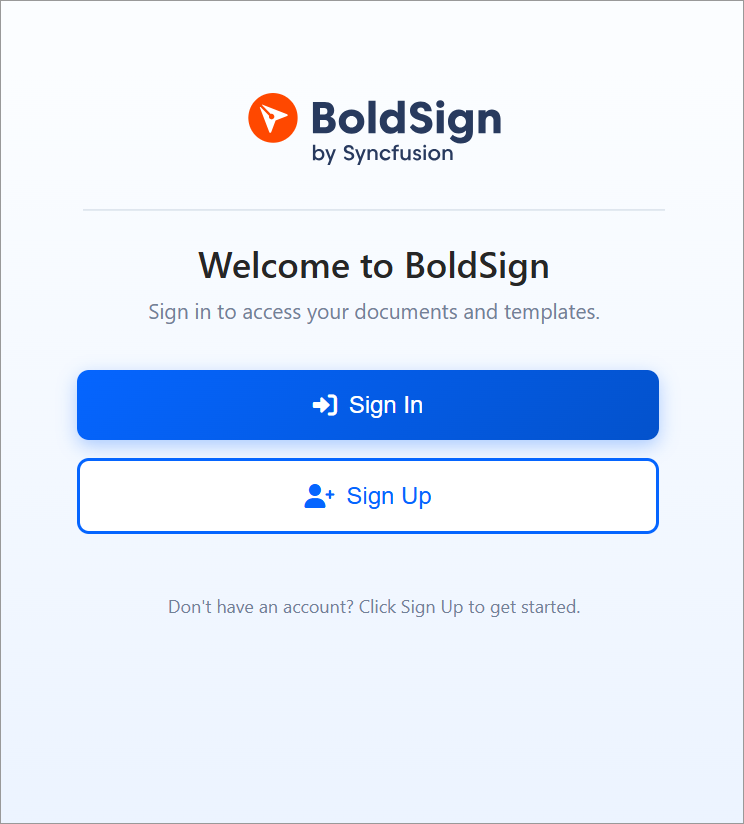
Your documents load once you sign in. Our BoldSign Edge extension installation guide shows the same setup from the Chrome Web Store. More extension help sits in our browser extension knowledge base.
How do you start using the extension each day?
Start with the Waiting for you list and sign what is there. Then check Waiting for others and remind anyone who has stalled.
Later in the day, download the signed copies you need. Send a new request from a template when the same document goes out again.
Which teams use the BoldSign Edge extension?
Any team that sends or signs documents through the day can use it. A few common cases:
- Sales teams follow proposals, quotes and order forms until the client signs.
- HR teams send offer letters and check which new hires have signed.
- Legal teams track contracts and remind the other side.
- Finance teams sign approvals and download vendor forms.
How is BoldSign different from signing a PDF in Edge?
The PDF reader in Edge lets you draw, highlight or add text to a file on your own computer. BoldSign sends a document to each signer, tracks it and keeps the signed copy in your account.
Marking up a PDF works for a one-off personal form. A business agreement usually needs more, such as a set signing order and a record of who signed when. BoldSign adds an audit trail to every signed document.
Our eSignature legality guide explains which laws cover electronic signatures in each region.
Does the BoldSign Edge extension cost anything?
The extension costs nothing to install and comes with your BoldSign account. What you can do in it follows the plan on that account.
The Essential plan is free and includes 2 templates. The Growth plan is $5 per user a month with 10 templates.
The Business plan is $15 per user a month, and the Premium plan is $99 a month for unlimited users. Both include unlimited templates.
All prices are in USD and billed yearly. Our pricing page compares every plan.
How do you get started with BoldSign in Edge?
Add the extension, sign in and your signing queue sits in the toolbar. Pick the next step that fits you.
- Start a 30-day free trial and sign in to the extension with your new account.
- Book a demo to see BoldSign set up for your team’s documents.
- Explore BoldSign integrations to connect eSignatures with the apps your team uses.
Frequently asked questions
Is BoldSign available on Microsoft Edge Add-ons?
Yes. Since July 2026 you can add the BoldSign eSignature extension straight from the Microsoft Edge Add-ons store. You no longer need to turn on extensions from other stores first.
Is the BoldSign Edge extension free?
Yes. The extension costs nothing to install and comes with your BoldSign account. What you can send still follows the plan on your account.
Do I need a BoldSign account to use the extension?
Yes. You sign in with your BoldSign account before your documents load. New users can sign up from the extension or start a free trial on our site.
Can I sign a document from the Edge toolbar?
Yes. Open a document listed under Waiting for you and sign it from the extension. You skip the search through your email for the signing link.
Can I prepare a new document in the extension?
Partly. Select Send and BoldSign opens in the web app, ready for you to upload the file, add recipients and place fields.
Does the extension work in Firefox or Safari?
No, the extension runs in Chrome and Edge on a computer only. On a phone or tablet, use the BoldSign mobile app for iOS or Android instead.
Are documents signed through the Edge extension legally binding?
Yes, when the signing meets the electronic signature laws that apply to the document. The extension uses the same BoldSign signing process and audit trail as the web app.
Why does my Edge extension show a number on its icon?
The number is a badge that counts the documents waiting for your signature. It updates as new requests reach you, so you can see your queue at a glance.

Caroline Dolly
Caroline Dolly is a technical writer at BoldSign who simplifies complex concepts into clear, engaging content. She creates tutorials, help articles, and product documentation, ensuring information is accurate and accessible. Connect with her on LinkedIn.
More posts by Caroline Dolly