Organize Your eSignature Documents Using BoldSign Tags
 Meikanda Nayanar
TL;DR: Tags are short labels you attach to eSignature documents in BoldSign, so you can find them by client, project or team. One document can carry several tags, and you can filter by them or pin them to your dashboard. Our document management page shows how BoldSign keeps signed files in order.
A busy month can leave you with dozens of contracts, offer letters and forms in one list. Someone asks for every document signed for one client, and you scroll and search by name.
Tags fix that. This guide explains what a tag is, then shows how to add, filter, pin and remove tags in BoldSign.
What are document tags in BoldSign?
A tag is a word or phrase you attach to a document, such as “Acme Ltd” or “Q4 renewals”. You can then show only the documents that carry that tag.
Think of the coloured sticky notes people put on paper files. A file can carry a red note and a blue note at once, and you spot both without moving the file. A tag works the same way for a digital document.
Why use tags instead of folders?
A folder holds a document in one place. Tags let one document belong to several groups at once.
- A contract can sit under a client tag and a quarter tag, with no copy.
- You filter by a tag instead of opening folder after folder.
- Adding or removing a tag takes a few clicks, and no file moves.
Which documents can you tag?
You can tag every document in My Documents, both the ones you sent and the ones others sent to you. The sender, the signers, CC (carbon copy) recipients and account admins can add or remove tags.
How do you find documents by status?
Before you add any tags, My Documents already sorts each document by its status. The statuses are Waiting for me, Waiting for others, Needs attention, Completed, Declined, Expired and Revoked.

Status tells you where a document stands. Your own tags tell you what it is about, so the two work well together.
How do you add tags when you create a document?
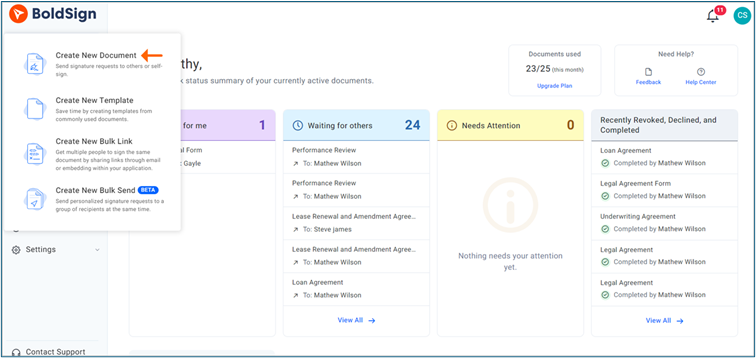
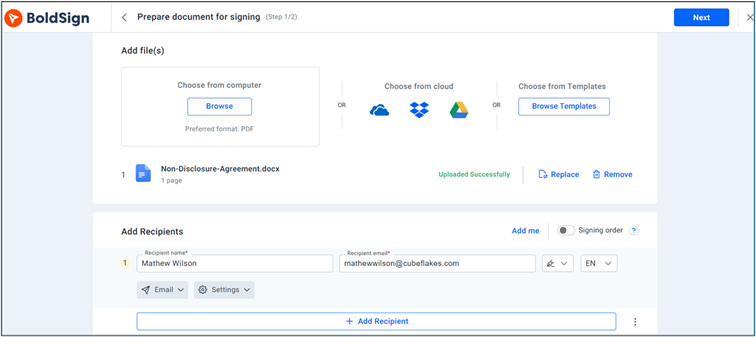
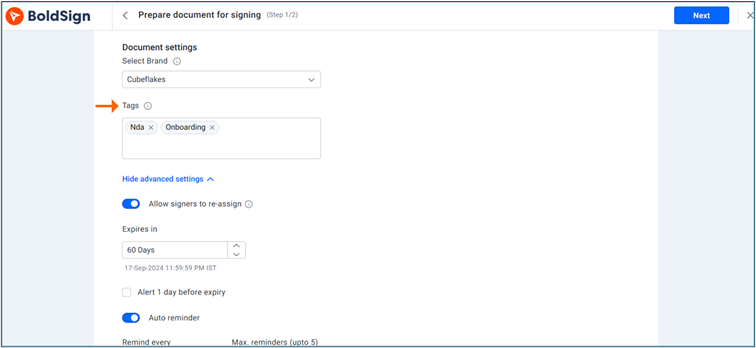
The easiest time to tag a document is while you prepare it. You add tags in the document settings before you send it.
- Select Create New, then Create New Document.
- On the Prepare document for signing page, add your files in Add files and your signers in Add Recipients.
- Scroll to Document settings and type a tag in the Tags field, pressing Enter after each one.
- Prepare the fields and send the document for signature.
How do you add tags to a document you already sent?
Forgot to tag a document? You can add tags at any time from My Documents.
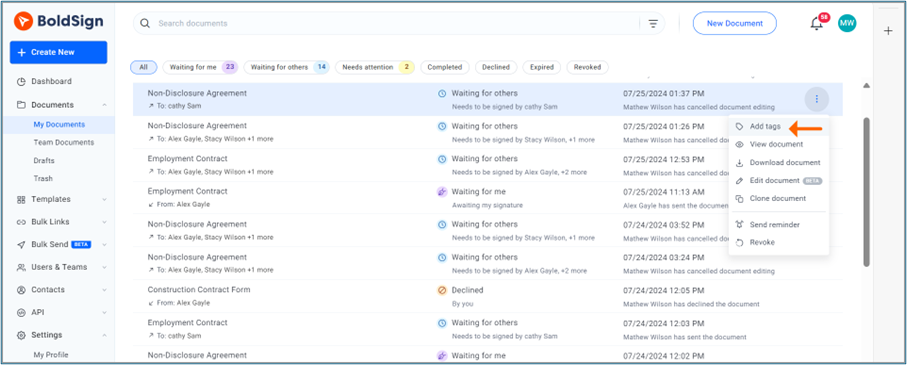
- Select the three dots next to the document and choose Add tags.
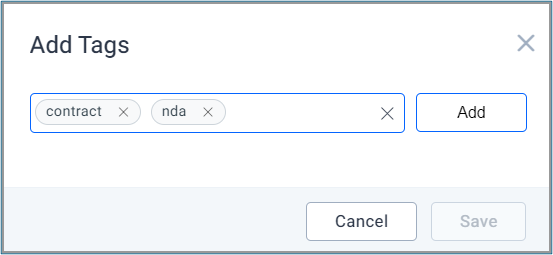
- Type each tag, select Add, then select Save.
- Check the document in the list, where its tags now show beside it.
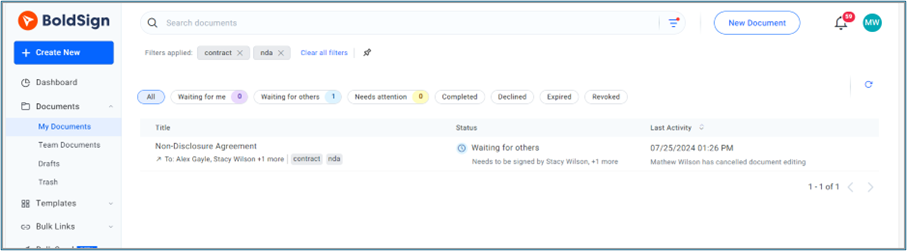
You can also open a document and select Add Tag in its overview.
How do you filter documents by tag?
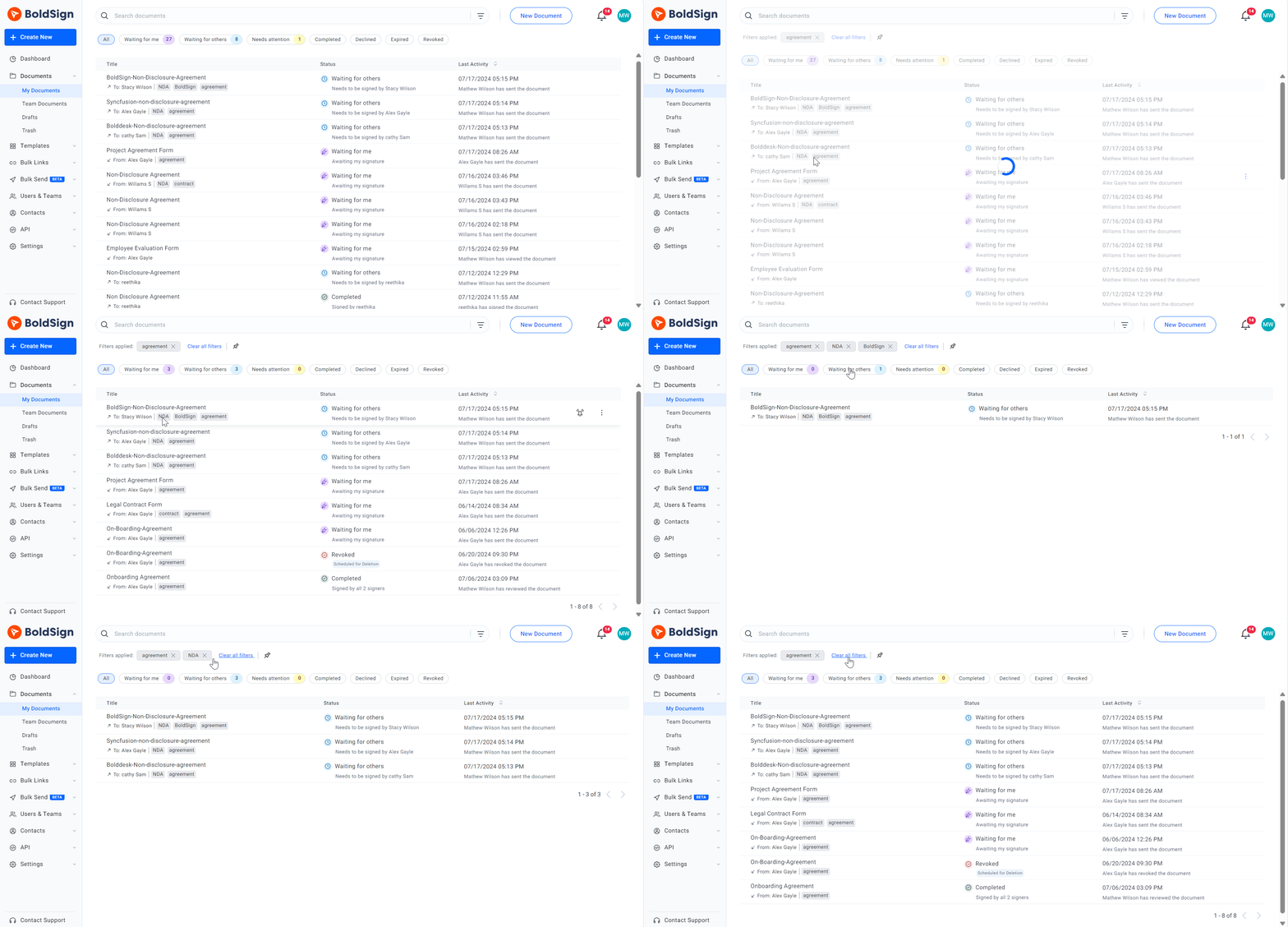
Filtering shows only the documents that carry the tags you pick. You can choose one tag or several at once.
- Select Filter next to the Search documents field.
- Open the Tags list and tick each tag you want.
- Select Apply Filter to see the matching documents.
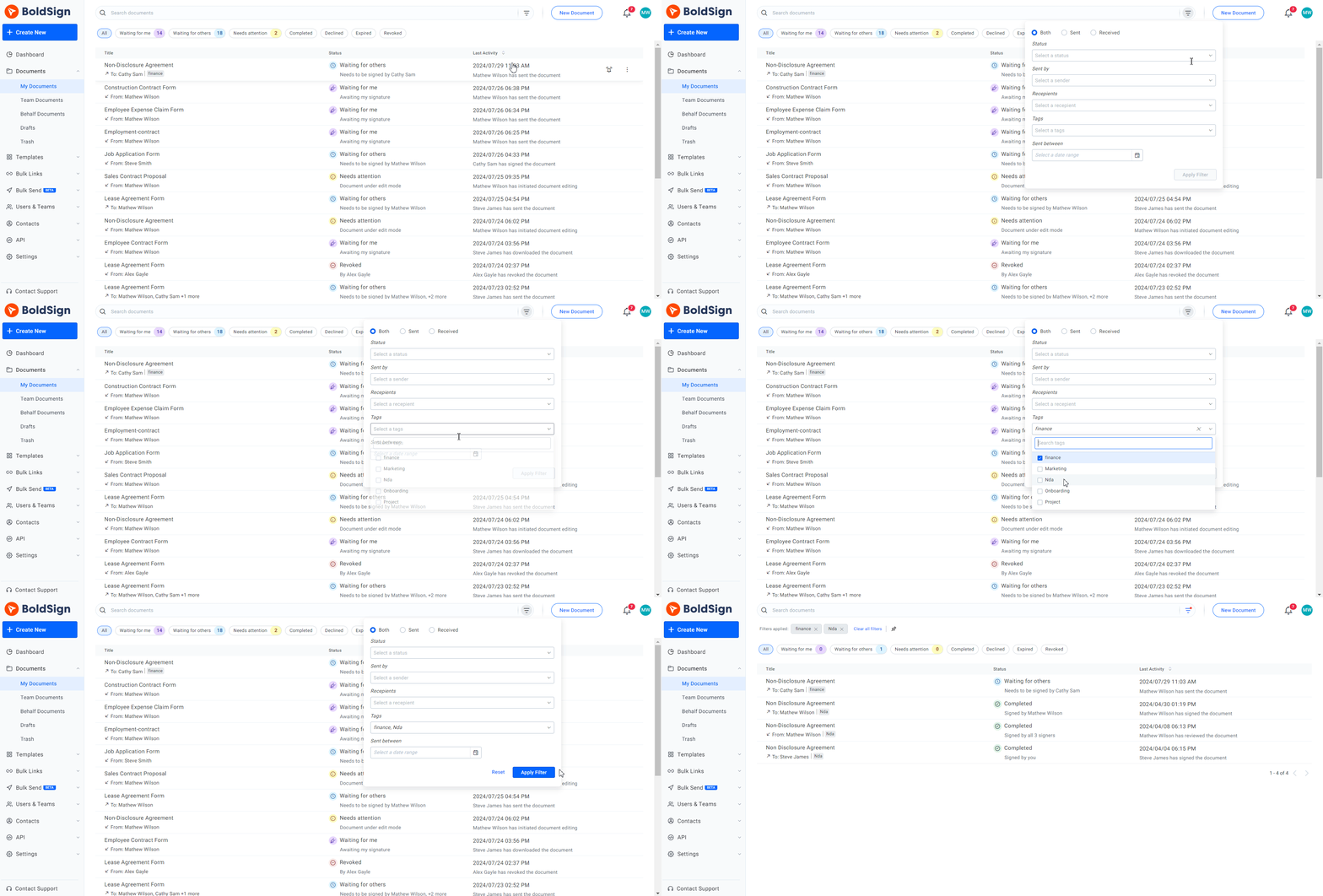
There is a quicker route too. Click any tag in the My Documents list to show every document with that tag.
How do you pin tagged documents to your dashboard?
You can pin a filtered list to your dashboard as a widget. The widget shows the status of every document with that tag.
- Filter your documents by a tag.
- Select the pin icon at the top of the page to open Pin to Dashboard.
- Enter a Widget Name and select Save & Pin.
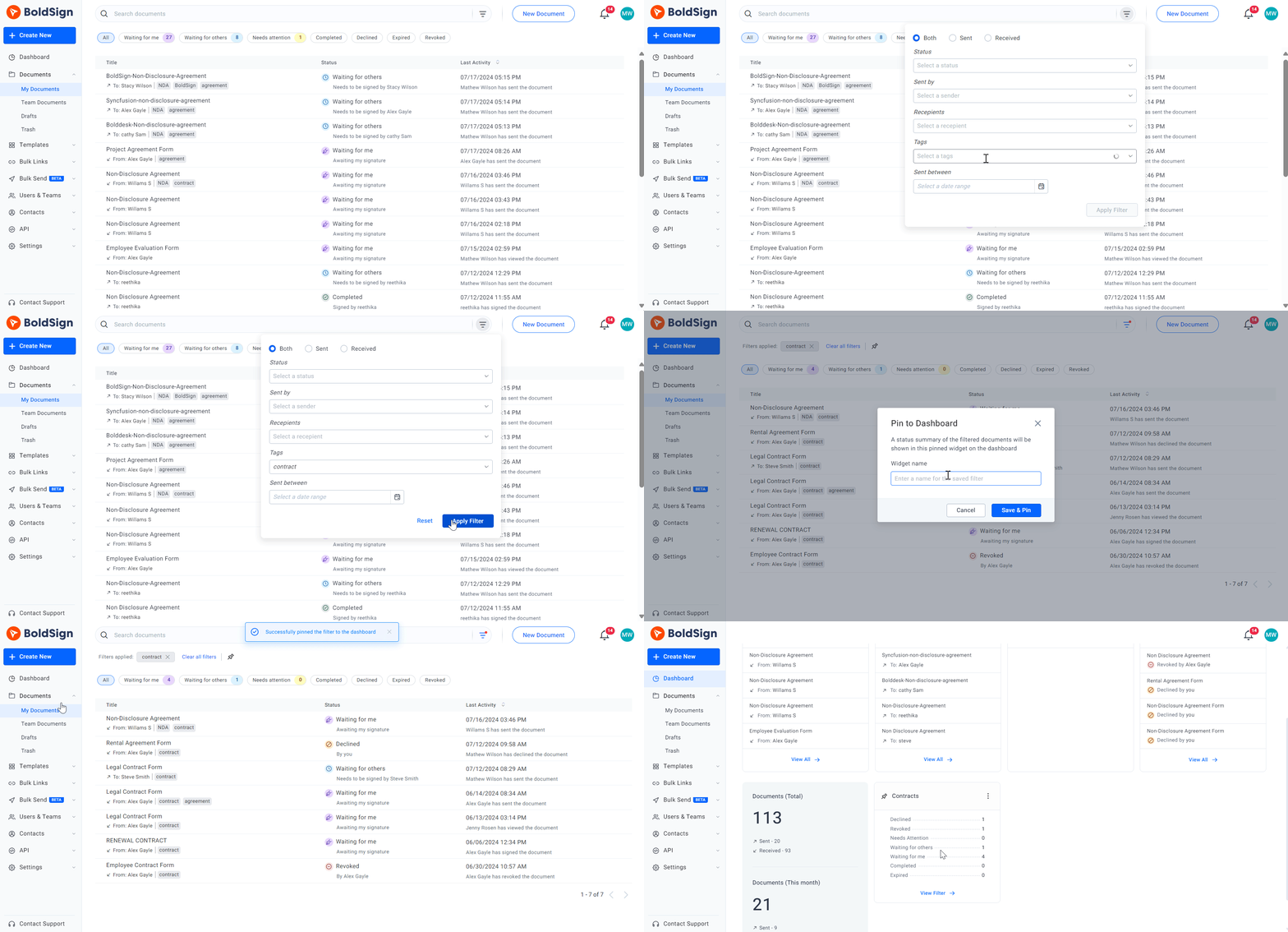
You can rename or delete a widget later from its menu on the dashboard.
How do you remove a tag?
Select the three dots next to the document and choose Manage tags. Select Remove next to each tag you no longer need, then select Save.
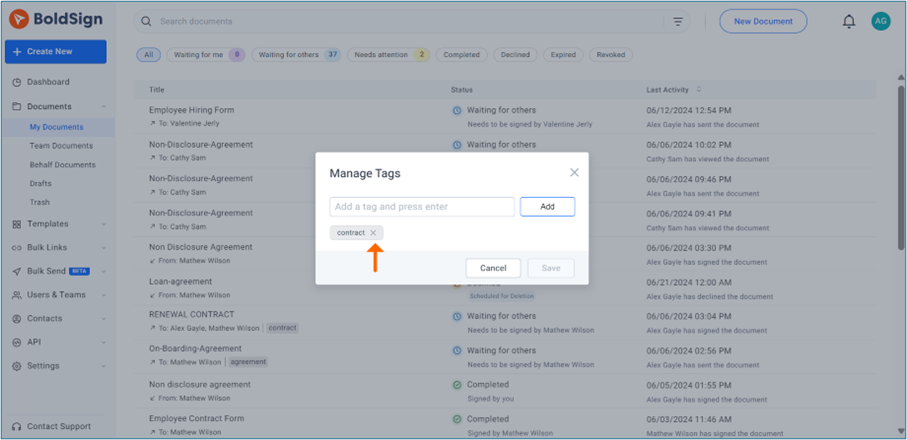
Our help article on how to organize and manage documents using tags covers each step in more detail.
What should you agree on before your team starts tagging?
Agree on a short list of tag names first. Tags only help when everyone spells them the same way.
- Pick one pattern, such as client name or project code, and stick to it.
- Keep each tag short, so it reads well in the document list.
- Check the list now and then and remove tags nobody uses.
Which BoldSign plan includes document tags?
Every plan includes tags, including the free Essential plan. Our pricing page lists the feature as “Labels”, while the app and our help articles call them tags.
Where do you go next with document tags?
Setting up a few tags takes minutes, and they help each time you look for a document. Choose the next step that suits you.
- Start a 30-day free trial and tag your next document.
- Book a demo to see how a team can organize its documents.
- Contact our support team with a question about tags.
Frequently asked questions
What is a document tag in BoldSign?
A tag is a short word or phrase you attach to a document, such as a client name or a project. You can then filter My Documents by that tag.
Can one document have more than one tag?
Yes. You can give a document as many tags as you need, and it still exists once. A contract can carry both a client tag and a quarter tag.
Can I add tags after I send a document?
Yes. Open the document's menu in My Documents and choose Add tags, or open the document and use Add Tag in its overview.
Who can add tags to a BoldSign document?
The sender, the signers, CC (carbon copy) recipients and account admins can all add or remove tags on a document.
How do I find every document with a certain tag?
Open the filter next to the search field in My Documents, pick the tag in the Tags list and select Apply Filter. You can also click a tag in the list.
Can I see tagged documents on my dashboard?
Yes. Filter My Documents by the tag, select the pin icon, name the widget and choose Save & Pin. The widget shows the status of those documents.
How do I remove a tag from a document?
Choose Manage tags from the document's menu, select Remove next to the tag and then Save. The document itself stays where it is.
Are document tags included in the free BoldSign plan?
Yes. Our pricing page lists the feature as Labels, and it is included in every plan, from the free Essential plan up.

Meikanda Nayanar
A veteran product manager at BoldSign, boasting a decade-long journey as a .NET developer. With a rich history of leading product development across diverse technologies like Windows Forms, WPF, UWP, Xamarin.Forms, Flutter, and MAUI, Meikandan brings a unique blend of technical expertise and strategic insight to the table. Connect with him on LinkedIn.
More posts by Meikanda Nayanar