How to Use Attachment Fields for Employee Onboarding Documents
 Preethi Loganathan
TL;DR: Employee onboarding documents fall into two groups: forms the new hire signs and files they upload, such as a voided check. Put both in one signing request by adding an Attachment field for each file. Our HR eSignature solution page shows the rest of the onboarding workflow.
The employment agreement comes back signed on Tuesday. The voided check for direct deposit arrives Friday, as a sideways phone photo, sent to a recruiter who is out that week. Monday is the start date, and HR is still matching files to names.
The fix is to collect the signed forms and the supporting files in the same request. This guide sorts the onboarding paperwork, then shows how to build the packet in BoldSign.
What onboarding documents does a new hire sign, and which do they upload?
A new hire signs agreements, tax forms and policy acknowledgments. They upload outside proof, such as a voided check for direct deposit or a license the role needs.
| Onboarding document | What the new hire does | Fields to use |
|---|---|---|
| Employment agreement or offer letter | Reviews and signs | Signature and date |
| Nondisclosure agreement (NDA) | Reviews and signs | Signature, plus initials on main clauses |
| Employee handbook acknowledgment | Confirms receipt and signs | Signature and date |
| Form W-4 | Enters federal withholding details and signs | Text fields, checkboxes, date and signature |
| State withholding certificate, where needed | Enters state withholding details and signs | Text fields, checkboxes, date and signature |
| Direct deposit authorization | Enters account details, signs and uploads proof | Text fields, signature and an Attachment field |
| Required license or certification | Uploads a copy | Attachment field |
| Emergency contact form | Enters contact details | Text fields only |
| Form I-9, Section 1 | Enters personal details and signs the attestation | Text fields, checkboxes, date and signature |
Most forms need only signature and text fields. The Attachment field belongs on forms that depend on outside proof, and on credentials a role needs before day one.
Your own list will vary by state, industry and role. Confirm the forms your organization needs with your HR or employment law advisor.
Why do onboarding files go missing when they travel by email?
Signing is usually the easy part. The trouble starts when the files that support a form come back in a separate email thread.
- The signing request shows the form as signed, but the bank proof sits in someone’s inbox.
- New hires reply to whoever emailed last, often a recruiter, so bank details land outside HR.
- A cropped photo or a locked PDF arrives and restarts the follow-up loop.
- Each “can you resend that?” pushes the packet closer to the start date and the first payroll run.
The new hire feels it too. They sign on their phone and then get a second email asking for a document. Sending bank details and hearing nothing back is a poor welcome.
What is an attachment field in an onboarding packet?
An attachment field is a box in the signing request that asks the signer to upload a file. The new hire uploads it in the same session in which they fill in and sign the form.
Think of a paper clip on the direct deposit page with a note: “clip your voided check here”. The Attachment field is that clip, built into the digital document. In BoldSign, HR places the field, assigns it to the new hire and sets it up:
- A title that names the file, such as “Voided check or bank letter”.
- An optional instruction that says what the file must show.
- The file types it accepts.
- Whether the upload is required before the new hire can finish.
Signers can upload PDF, Word (.docx) and image files. Our guide to collecting supporting documents before signing covers the same field for vendor and customer agreements.
Is an attachment field the same as identity verification?
No. An uploaded license shows you have the file, while identity verification checks that the person signing is the person you hired.
For fully remote hires, verifying a new hire’s identity before they open the packet is the stronger check. Our identity verification asks for a government-issued photo ID and a selfie before the signer can go on.
Use an Attachment field when you need a file on record. Use identity verification when you need confidence in who is signing. Neither one replaces the document review step of Form I-9.
How do you set up an onboarding packet with attachment fields in BoldSign?
You upload the forms, add the new hire as a signer and place an Attachment field beside the form it supports. The steps below use the direct deposit authorization as the example.
You need your onboarding forms as PDF files and the new hire’s name and email address. A 30-day free trial is enough to build and test the packet.
Upload the forms and add the signers
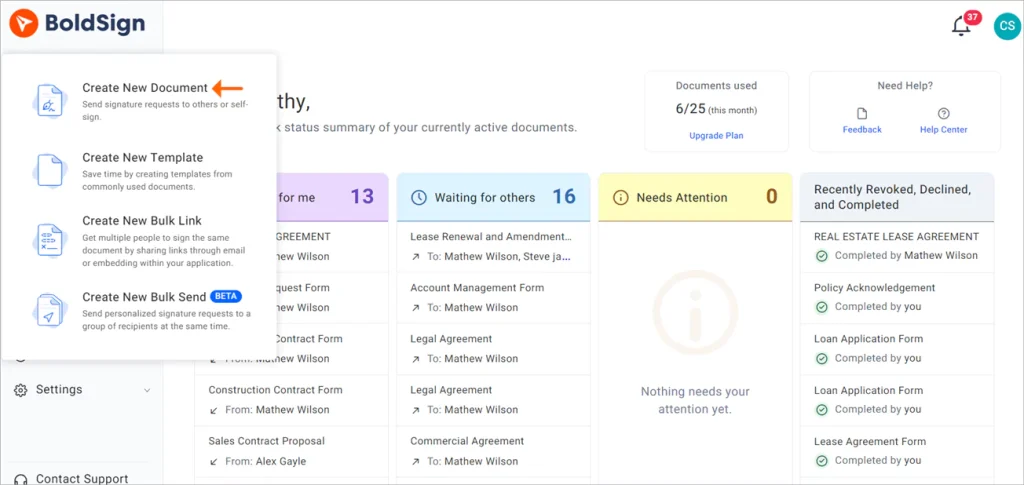
- On the dashboard, click Create New and choose Create New Document.
- Upload the forms for this packet, such as the employment agreement, W-4 and direct deposit authorization.
- Enter the new hire’s name and email address.
- Add an HR manager as a second signer when someone at your company countersigns.
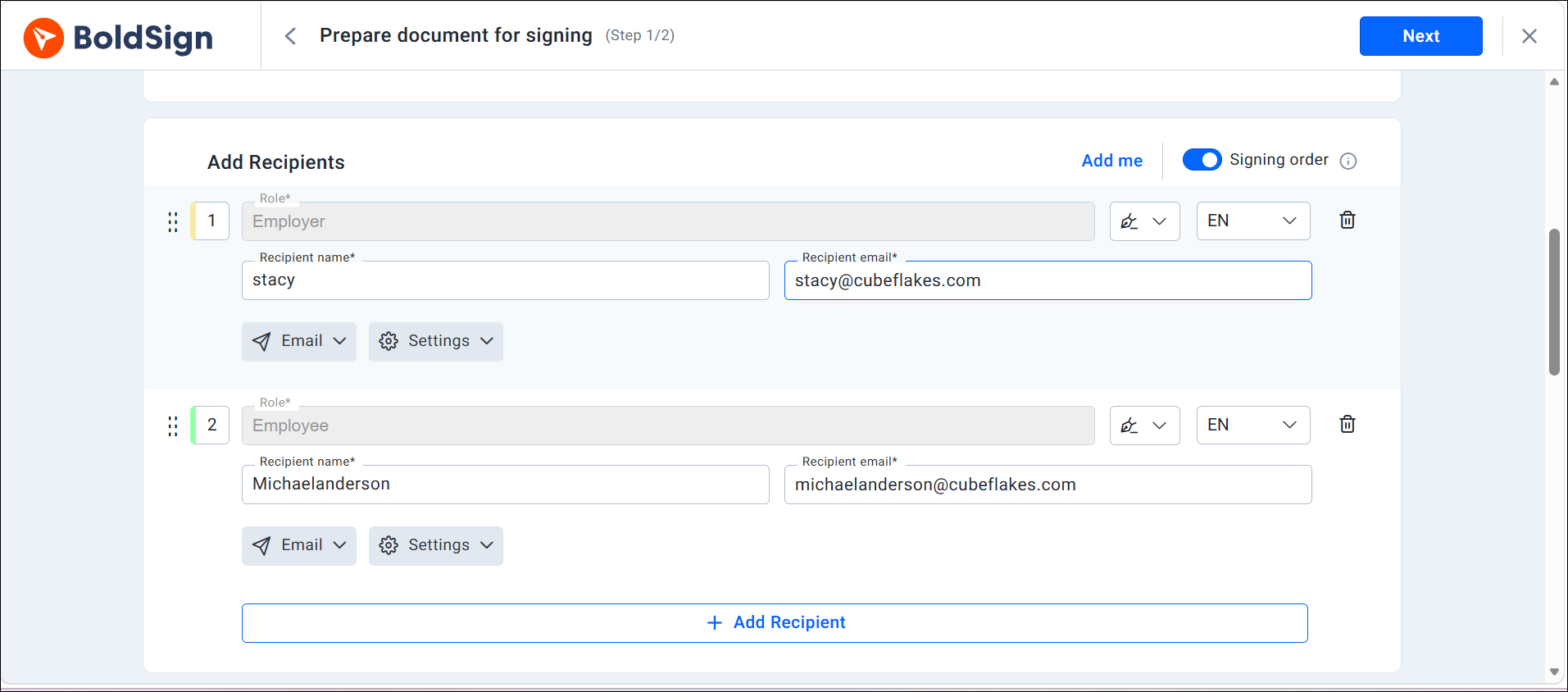
Set a signing order when one person must finish before the other starts. A signing order is the sequence in which signers receive the document.
Place and set up the attachment field
- Click Next to open the Configure fields page and pick the new hire in the signer list.
- Drag the Attachment field onto the direct deposit form, beside the line that explains the proof.
- In Attachment settings, type an Attachment title, such as “Voided check or bank letter for direct deposit”.
- Add an instruction, such as “Show your name, routing number and account number”.
- In Accept only, allow PDF and images, since many people photograph a check.
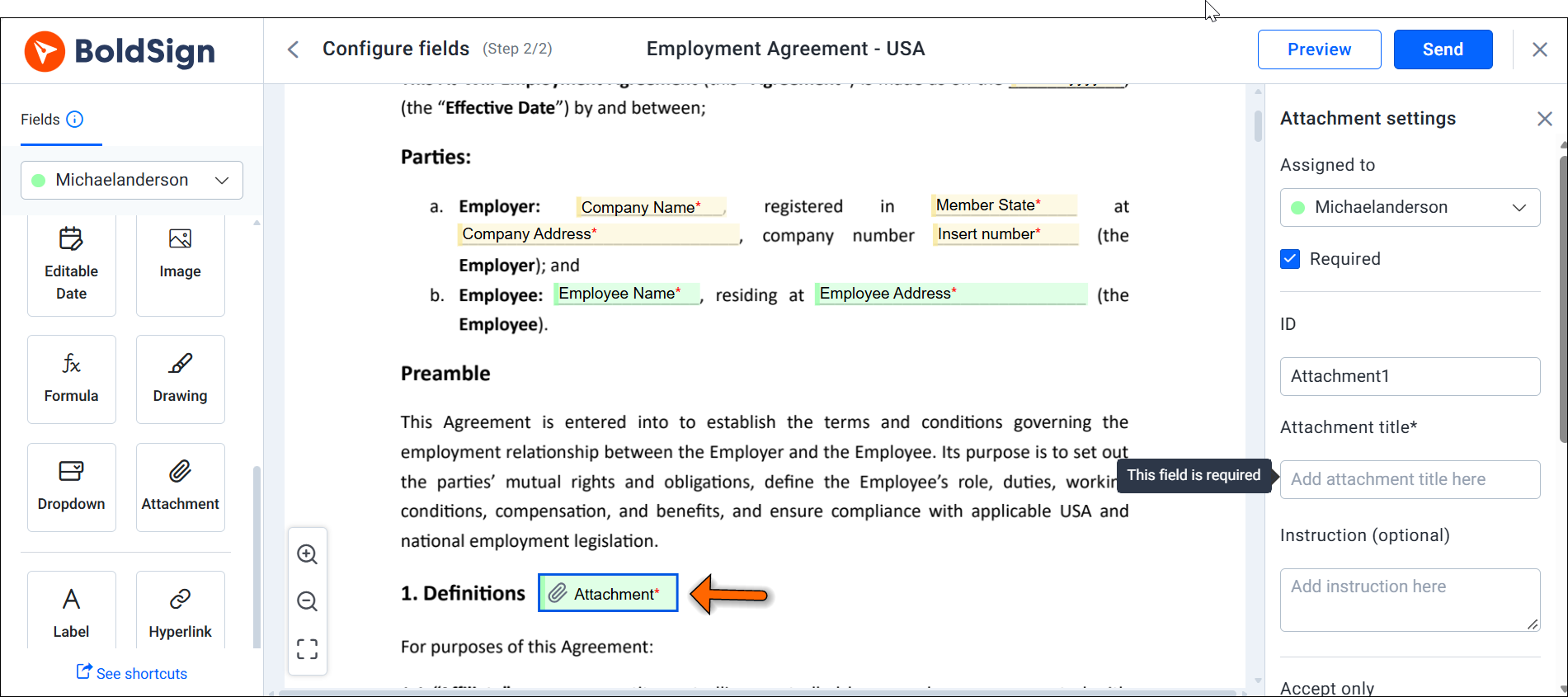
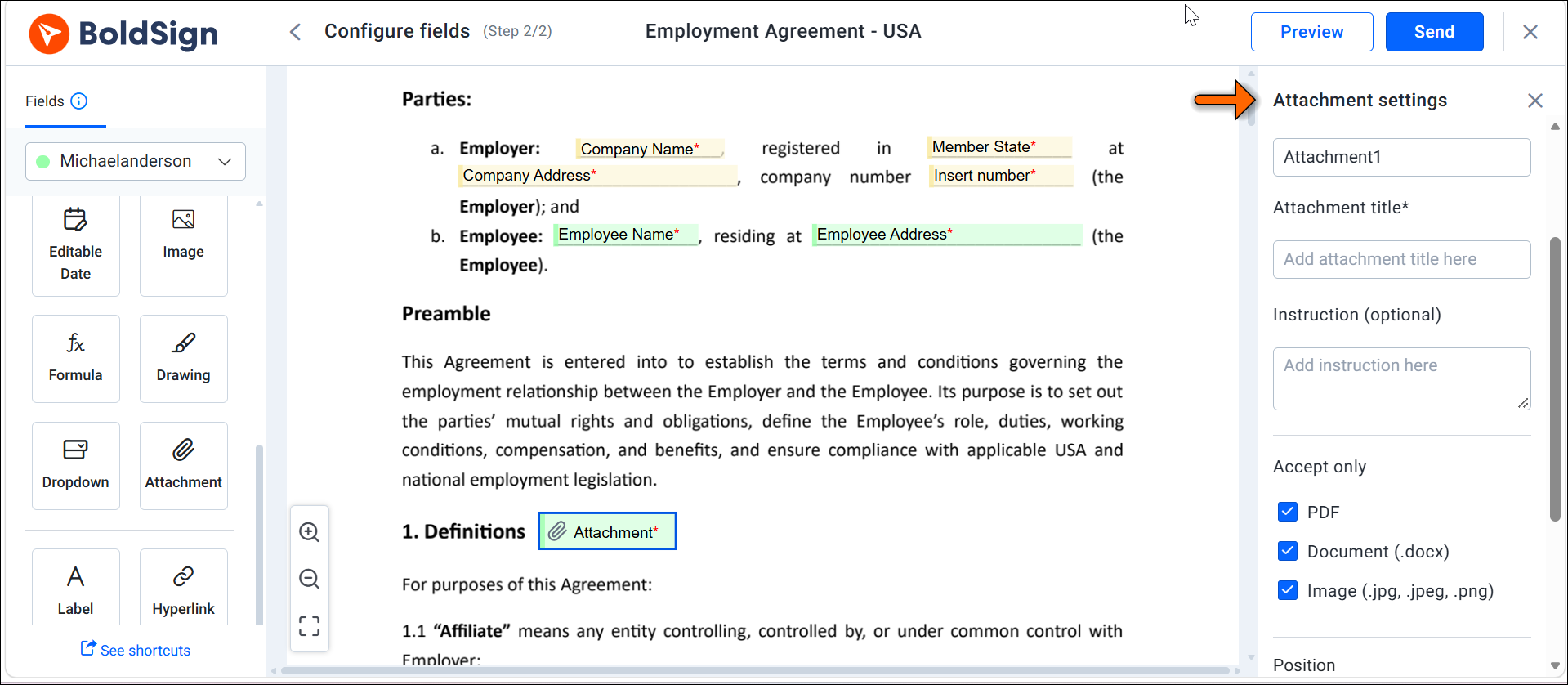
Mark the field as required when payroll needs this proof before setup. Then add signature, date and text fields to each form. Give each license or certificate its own Attachment field, so each file has one clear title.
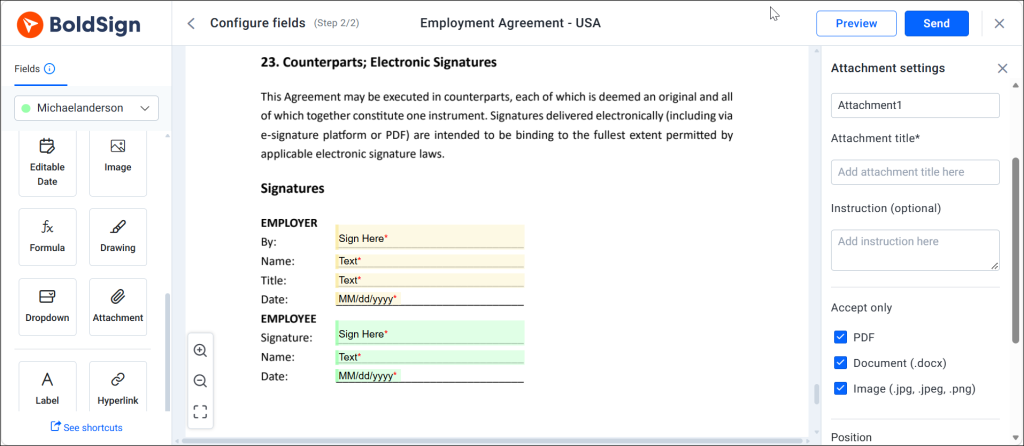
Test, send and review the packet
- Send the packet to your own email address and complete it as the signer.
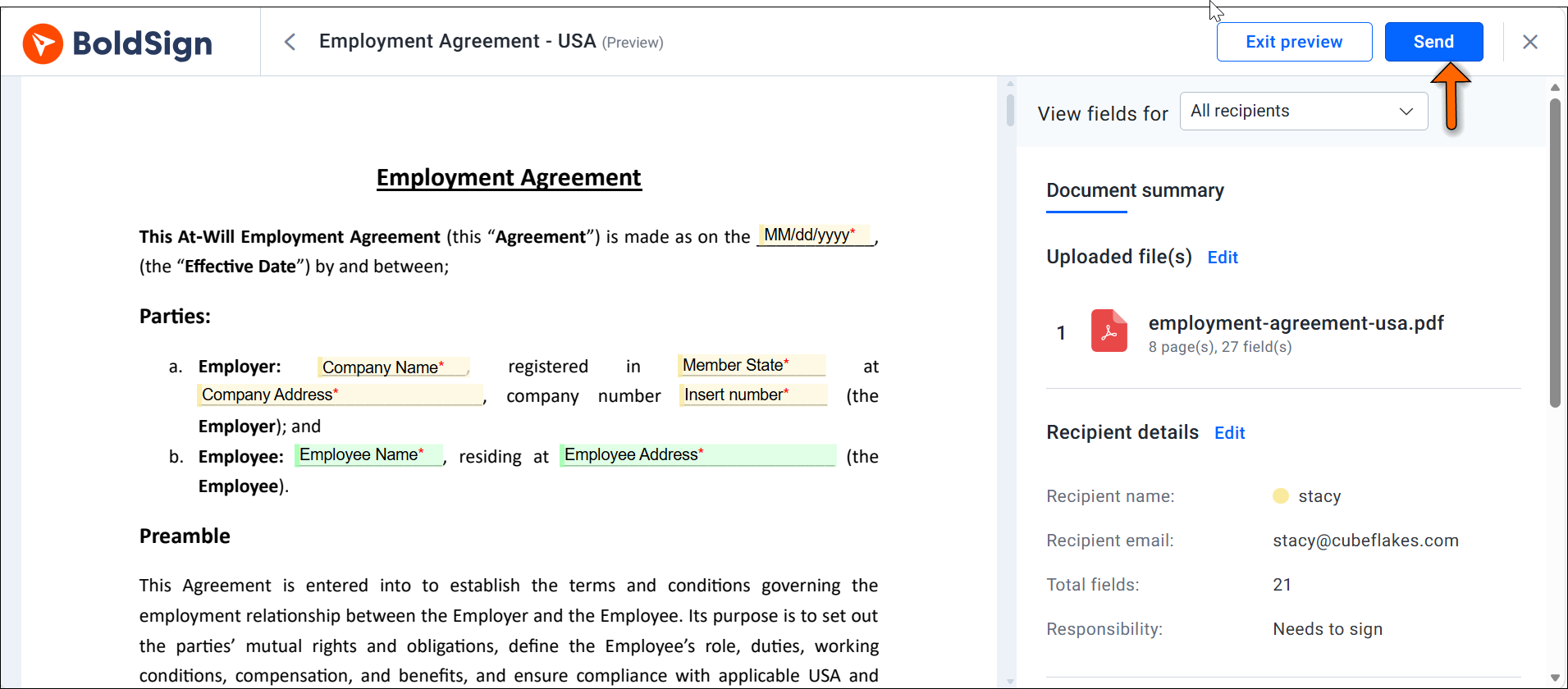
- Preview the real packet, pick the brand and click Send.
- The new hire opens the link, clicks the Attachment field, uploads the file and signs.
- Open the completed packet from My Documents and download the attachments and the signed document.
A required field blocks completion until the new hire attaches a file. Our signer guide shows what uploading an attachment looks like for the new hire.
Choose how the files come back
The Combine Attachments option in the Advanced section of your brand decides the format. With it on, we add the files to the end of the signed document as one combined file. With it off, you download the attachments one by one.
Payroll often wants the bank proof as its own file. In that case, use a brand with Combine Attachments turned off for onboarding packets.
Which upload rules should you set before you send?
Set each field to match what the reviewer needs and what the new hire can easily find. A field that asks for the wrong thing stalls the whole packet.
When should an upload be required?
Make an upload required only when the next step depends on it. Bank proof that payroll needs to set up direct deposit is a good fit.
A required field is a hard stop, so the signed employment agreement waits with it. Leave a field optional when the new hire may need days to get the file from an issuing body. You can also send that file as a separate request.
Which file types should you accept?
Allow images when a phone photo is fine, as with a voided check. Restrict a field to PDF when the personnel file needs a clean copy, as with a professional license.
Proof documents rarely need to be editable. Leave Word files off unless you want an editable file back.
Which files should you leave out?
Ask only for files someone will review. Every file you request is personal data you now have to store, protect and eventually delete.
Leave a field out when nobody owns its review. Do the same when you have no retention rule for that file.
Should new hires upload Form I-9 documents through an attachment field?
Usually not. The employee chooses which acceptable documents to show, and the employer must examine them within three business days of hire.
The employee picks from the lists of acceptable documents. Asking for more or different documents can count as an unfair employment practice when done to discriminate. An Attachment field titled “Upload your passport” asks for one named document, so avoid it.
The Form I-9 instructions list the documents an employee may choose from.
When does the employer review Form I-9 documents?
The employee completes Section 1 at the time of hire, and the employer examines the documents within three business days of the hire. That examination is physical unless the Department of Homeland Security (DHS) has authorized an alternative procedure. Read the US Citizenship and Immigration Services (USCIS) page on remote examination of documents to see whether your company qualifies.
Run Form I-9 as its own step. We offer a ready-to-use Form I-9 template with both the employee and employer sections. Confirm your setup with employment counsel before you move Form I-9 into any eSignature packet.
How do you reuse the packet for every new hire?
Save the finished packet as a template, with its fields, Attachment settings and signer roles in place. Every HR coordinator then sends the same packet with the same titles and instructions.
A completed packet means both the signatures and the required files are in. HR can check status in one place, and automatic reminders nudge new hires who have not finished.
Completed does not always mean correct, though. Name the person who checks each uploaded file. Decide in advance what happens when a bank letter is out of date or a photo is unreadable.
How do you time and scale the packet?
You can prepare the packet early and schedule delivery of onboarding documents for a set date and time. The morning after an offer is accepted works well.
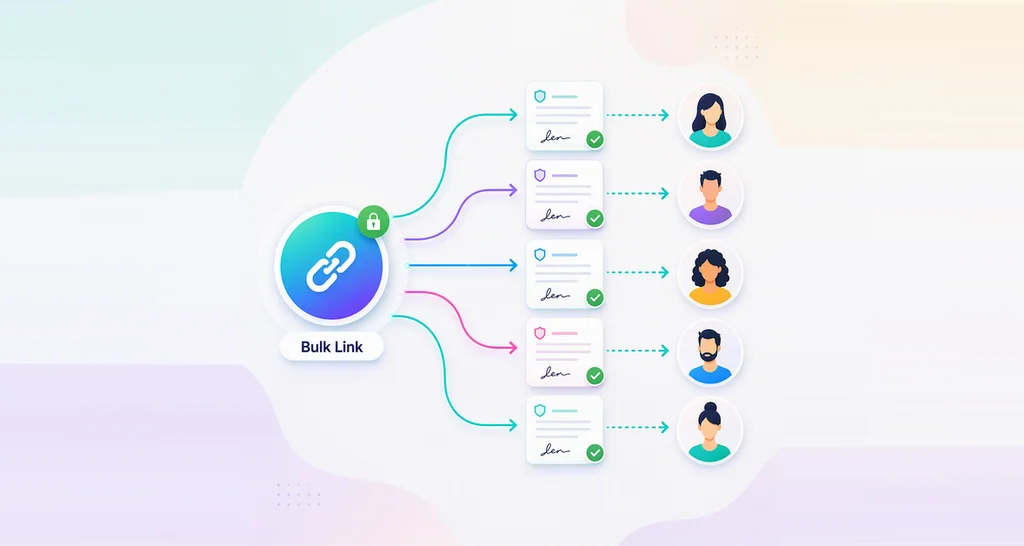
Pair the template with bulk send when a whole start class gets the same packet. Bulk send gives each new hire their own copy from one send.
When must payroll report a new hire?
Federal law requires employers to report new hires to the state no later than 20 days after the date of hire. A state may set a shorter deadline, so check the rule where the employee works.
The W-4 collects much of the data that report needs. A packet that comes back early gives payroll more room to file on time.
Can you automate onboarding packets with Power Automate or the API?
Yes, Power Automate can send the packet when HR adds a new hire to a SharePoint list. Developers can also add Attachment fields through the BoldSign API.
Our guide to connecting BoldSign with Power Automate walks through that flow. Power Automate is a Microsoft product, so your organization needs a Microsoft 365 subscription that includes it.
Teams that build onboarding into their own HR software can add Attachment fields with the API. Each field can set whether the upload is required and which file types it accepts. After signing, developers can download each uploaded file with the document ID and attachment ID.
Which BoldSign plan do you need for onboarding attachment fields, and what does it cost?
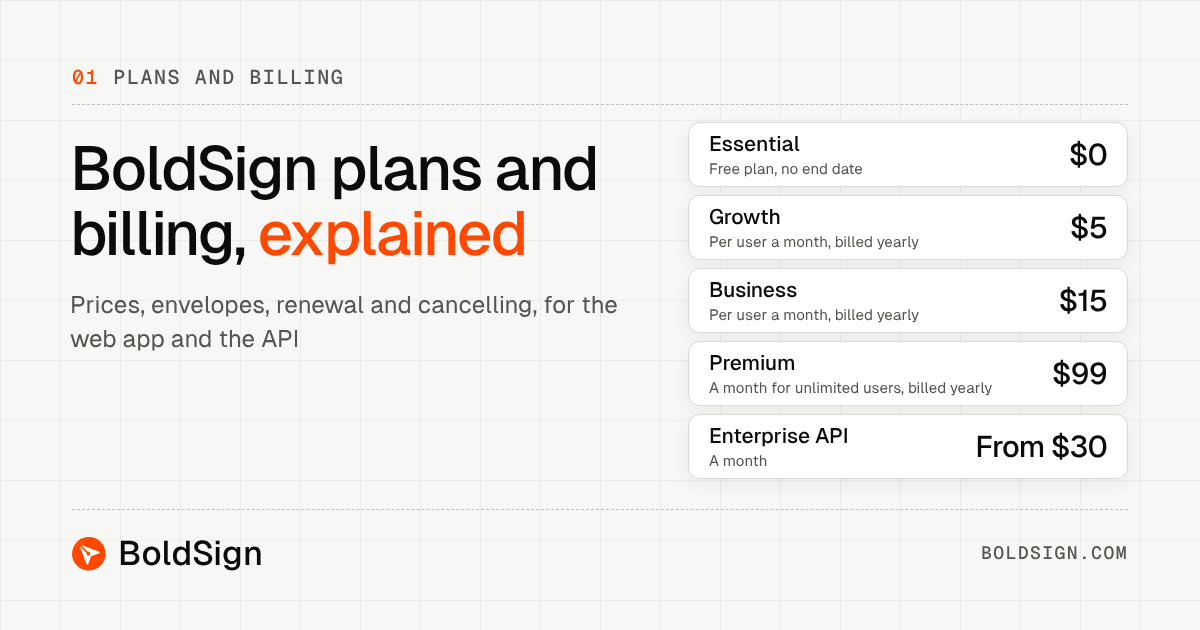
Attachment fields come with every plan, including our free Essential plan. Scheduled send, bulk send and identity verification start on the Business plan, at $15 per user a month.
Templates also depend on the plan. The Essential plan includes 2 templates and the Growth plan, at $5 per user a month, includes 10. The Business plan and the Premium plan, at $99 a month for unlimited users, include unlimited templates and unlimited brands.
Power Automate and live API access need the Enterprise API plan. You can test the API first in a free sandbox.
The Enterprise API plan starts at $30 a month with 40 envelopes, and each extra envelope costs $0.75. All prices are in USD and billed yearly, as listed on our pricing page.
Where should you start with your onboarding packet?
Pick the form that brings the most “can you resend that?” emails, such as the direct deposit authorization. Add one Attachment field, test it as the signer and save the packet as a template.
- Start your free trial and send your first onboarding packet.
- Book a demo to see an onboarding packet built for your forms.
- Read how claims teams handle supporting document uploads for verification.
Frequently asked questions
What documents are needed for employee onboarding?
Most packets hold an employment agreement, Form W-4, Form I-9 and a direct deposit form. Many add a handbook acknowledgment and copies of any license the role needs.
Can onboarding documents be signed electronically?
Yes, when the signing process meets the electronic signature rules that apply to each form. Form I-9 has its own federal rules for electronic signing and storage, so check those with employment counsel first.
How do attachment fields work in an eSignature workflow?
The sender places an Attachment field in the document and assigns it to a signer. The signer clicks it, uploads the requested file and then finishes signing in the same session.
Which onboarding documents need a signature and which need a file upload?
Agreements, tax forms and policy acknowledgments need a signature. A voided check, a bank letter or a professional license comes back as an upload.
Can you require a file upload before a new hire finishes signing?
Yes. Mark the Attachment field as required, and the new hire has to attach a file before they can complete the document.
What file types can a new hire upload?
Signers can upload PDF files, Word files (.docx) and images (.jpg, .jpeg and .png). You can narrow the list for each field.
Should HR collect Form I-9 documents through an upload field?
Usually not. The employee chooses which acceptable documents to show, and the employer must examine them within three business days of hire, so handle Form I-9 as its own step.
When do employers need to report a new hire?
Federal law sets an outer limit of 20 days after the date of hire. Some states set a shorter deadline, so check the rule where the employee works.

Preethi Loganathan
Preethi is a Digital Marketing Executive at BoldSign who develops precise, research-driven content on eSignatures, compliance, and digital signing workflows. She works closely with product and engineering teams to ensure every article is accurate, validated, and aligned with industry best practices. Connect with her on LinkedIn.
More posts by Preethi Loganathan