How to Send E-Signature Documents from OutSystems via API
 Jayaprakash Kamaraj
TL;DR: Import the BoldSign SendDocument endpoint into OutSystems with its representational state transfer (REST) tools, then add your API key as a header. Fill in the request body with the signer and a Base64 PDF, and select Test. Our eSignature API page shows what else the API can do.
Your team has built an approval app in OutSystems. Now customers need to sign a contract from inside it. Printing, scanning and emailing PDFs would undo the time the app saves.
You can call our API from the app instead. This guide walks through each step, from your API key to a signed request, with the screens you will see.
What is an e-sign API?
An e-sign API is a set of web addresses your software calls to send documents for signature. Your app sends the file and the signer’s details, and we handle the signing.
Think of it like a delivery service with a pickup form. You fill in the form and hand over the parcel, and the courier does the rest. With an API, your OutSystems app fills in the form for you.
Do you need e-signature web development services to add signing to OutSystems?
Usually not. OutSystems is a low-code platform, so you import the API and fill in a few fields.
You do need to understand three things: the API key, the request headers and the request body. Each one has its own step below.
How does a digital signature integration API connect to OutSystems?
OutSystems reads a file that describes every endpoint of an API, then builds the calls for you. Our API publishes that file as a Swagger JavaScript Object Notation (JSON) file.
You pick the endpoint you need from the list. For this guide, that is the SendDocument endpoint, which sends a document for signature.
What do you need before you start?
Set up three things before you open the OutSystems editor.
- Create a BoldSign account, paid or a free API sandbox account.
- Generate an API key on the API Key page and keep it handy.
- Log in to your OutSystems account, then create an app or open an existing one.
How do you import the BoldSign API into OutSystems?
You add the API through the REST tools in the Logic tab. Start in the module where signing should happen.
How do you open the Consume REST API option?
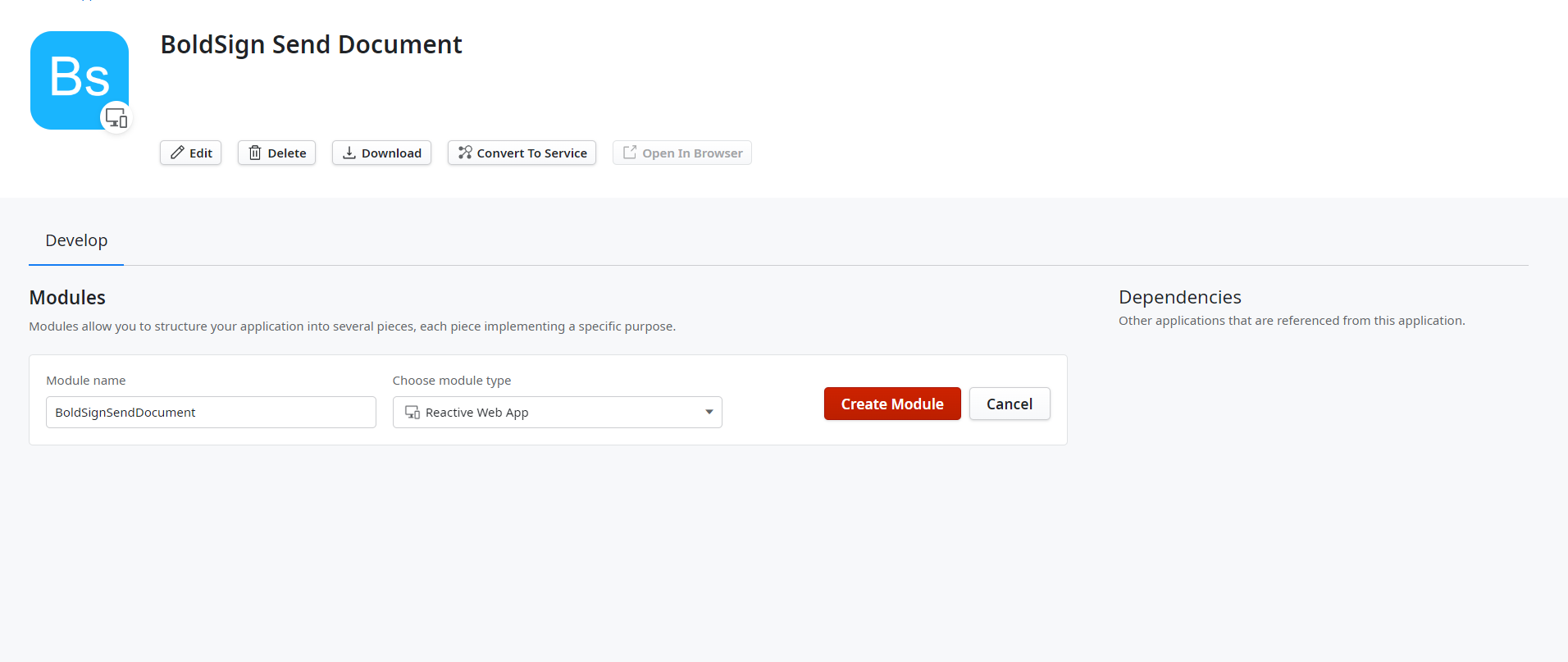
- Create a new module, or open the one where you want to add signing.
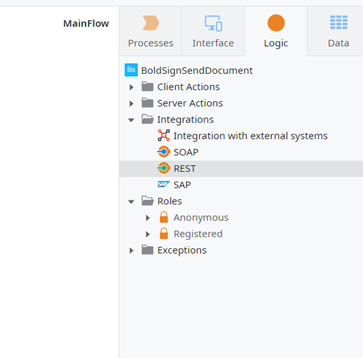
- Go to Logic and expand the Integrations section.
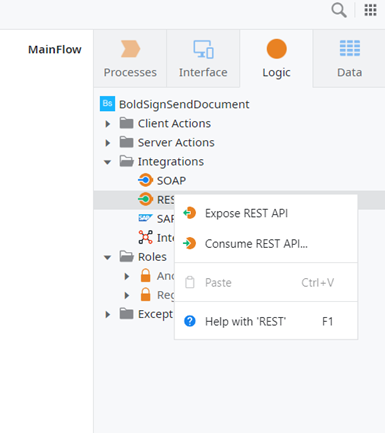
- Right-click REST and select Consume REST API.
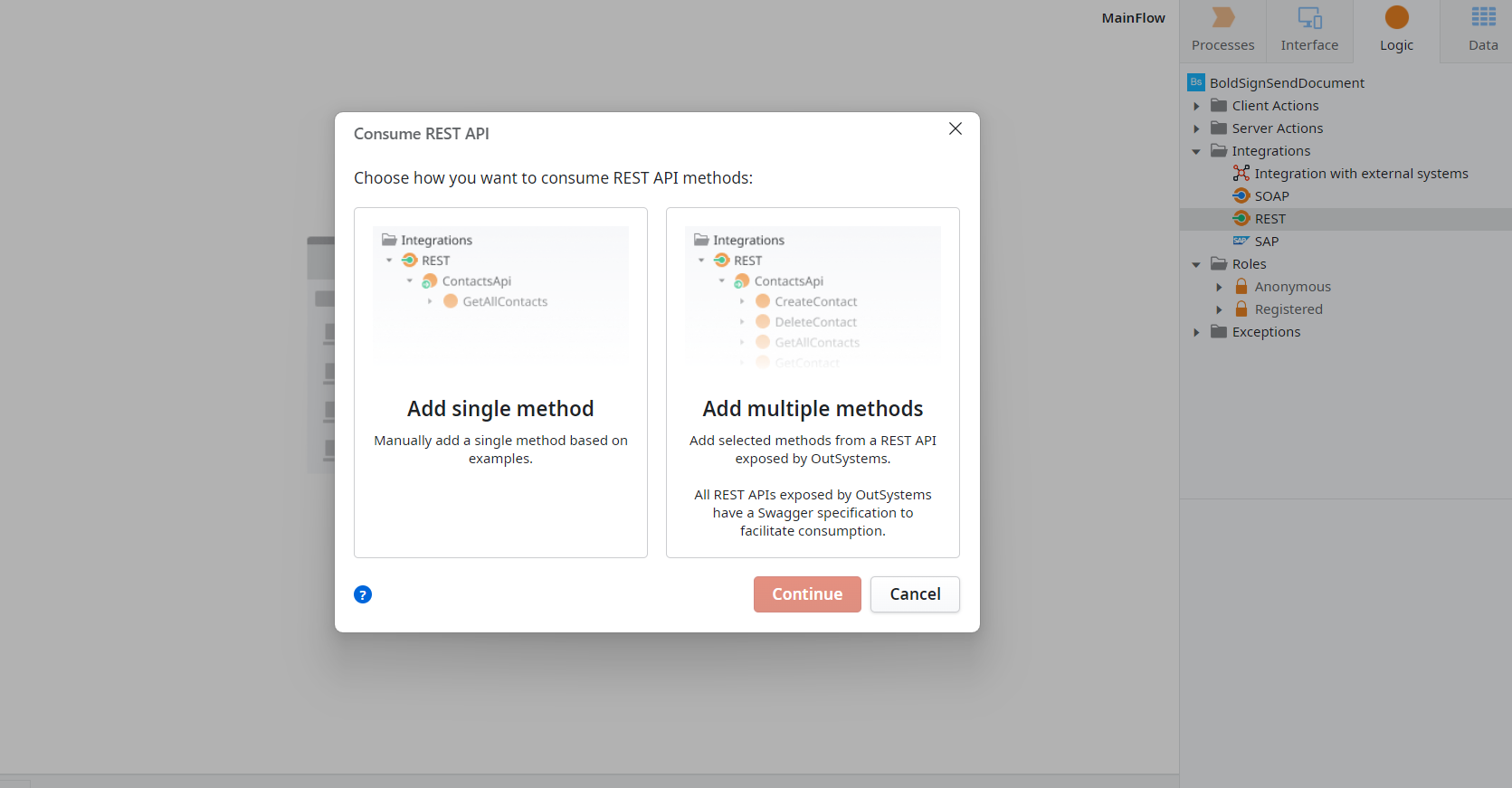
- Select Add Single Method or Add Multiple Methods, based on your need.
How do you add the SendDocument endpoint?
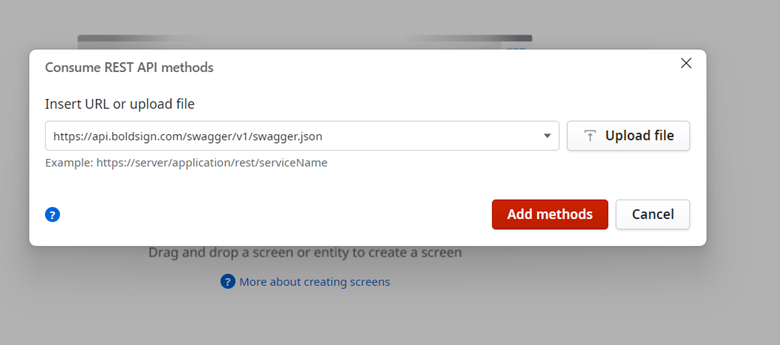
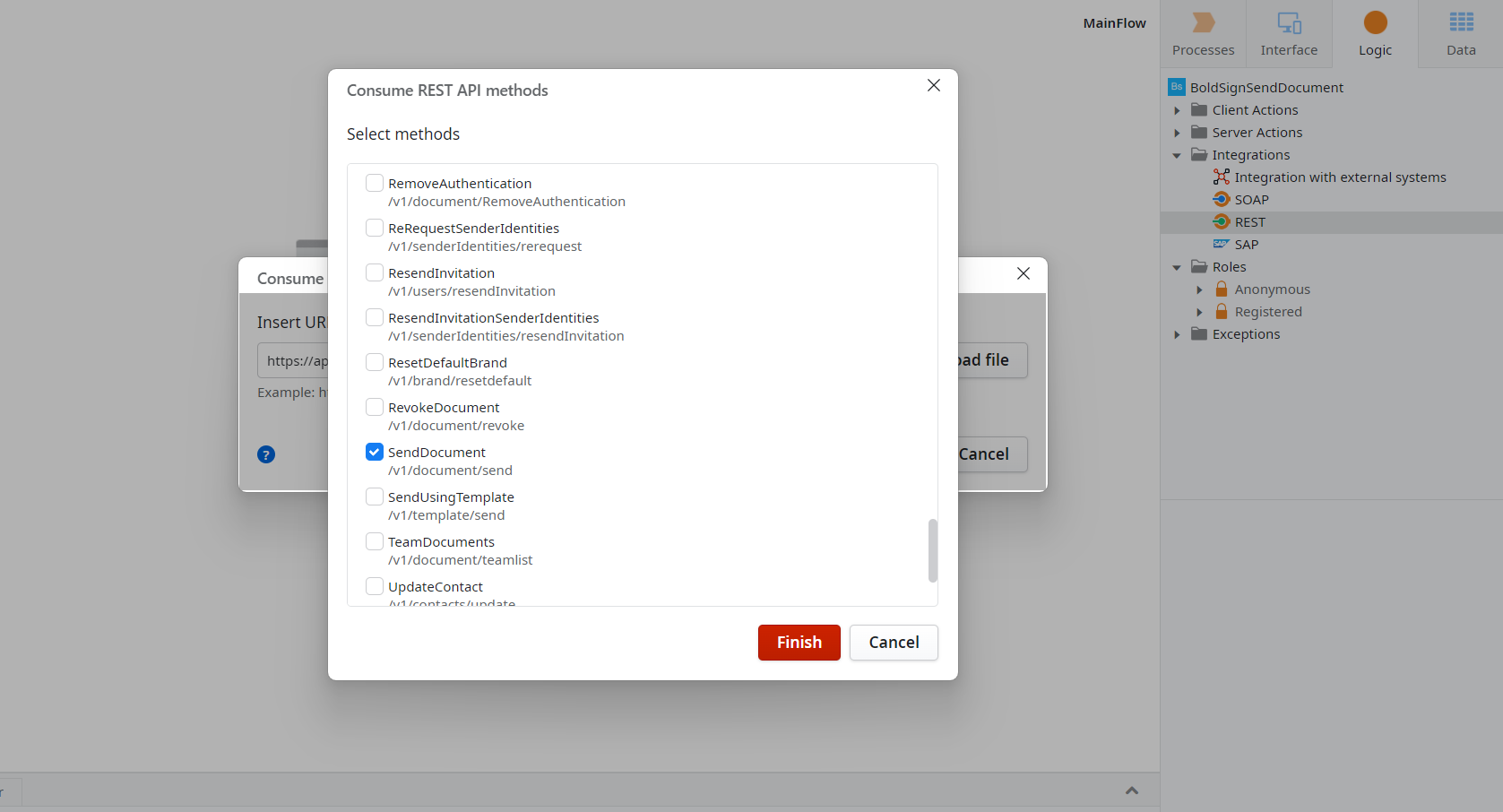
- Paste the address of our Swagger JSON file to load every endpoint.
- Choose the endpoints you want. For this demo, select only SendDocument.
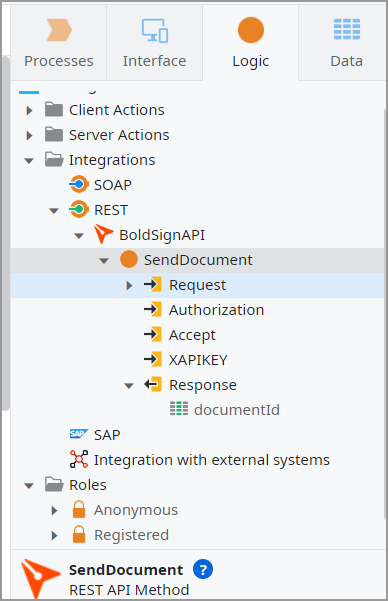
- Click Finish to add the SendDocument method to your module.
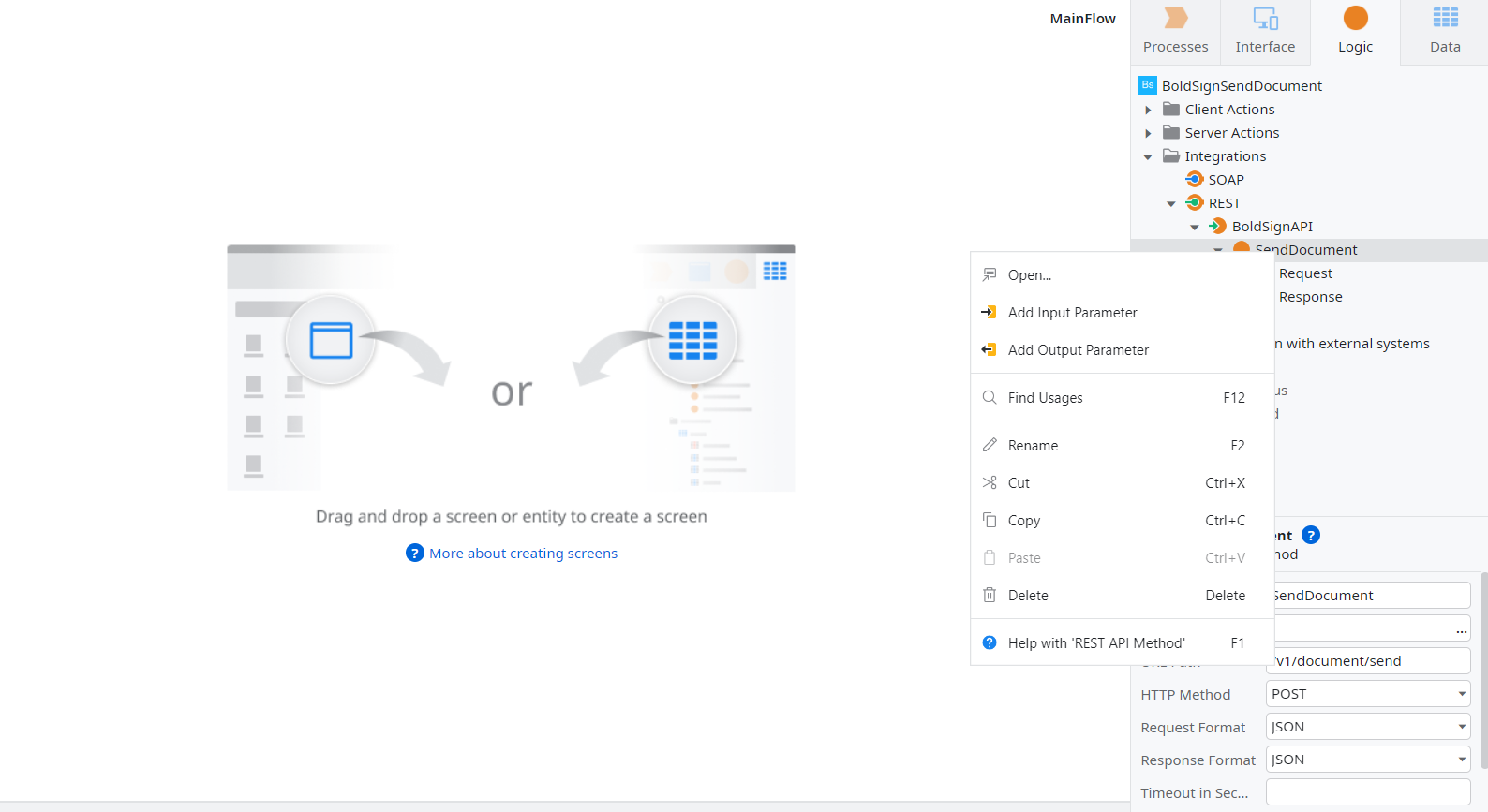
- Right-click the SendDocument method and choose Open.
How do you set up the SendDocument request?
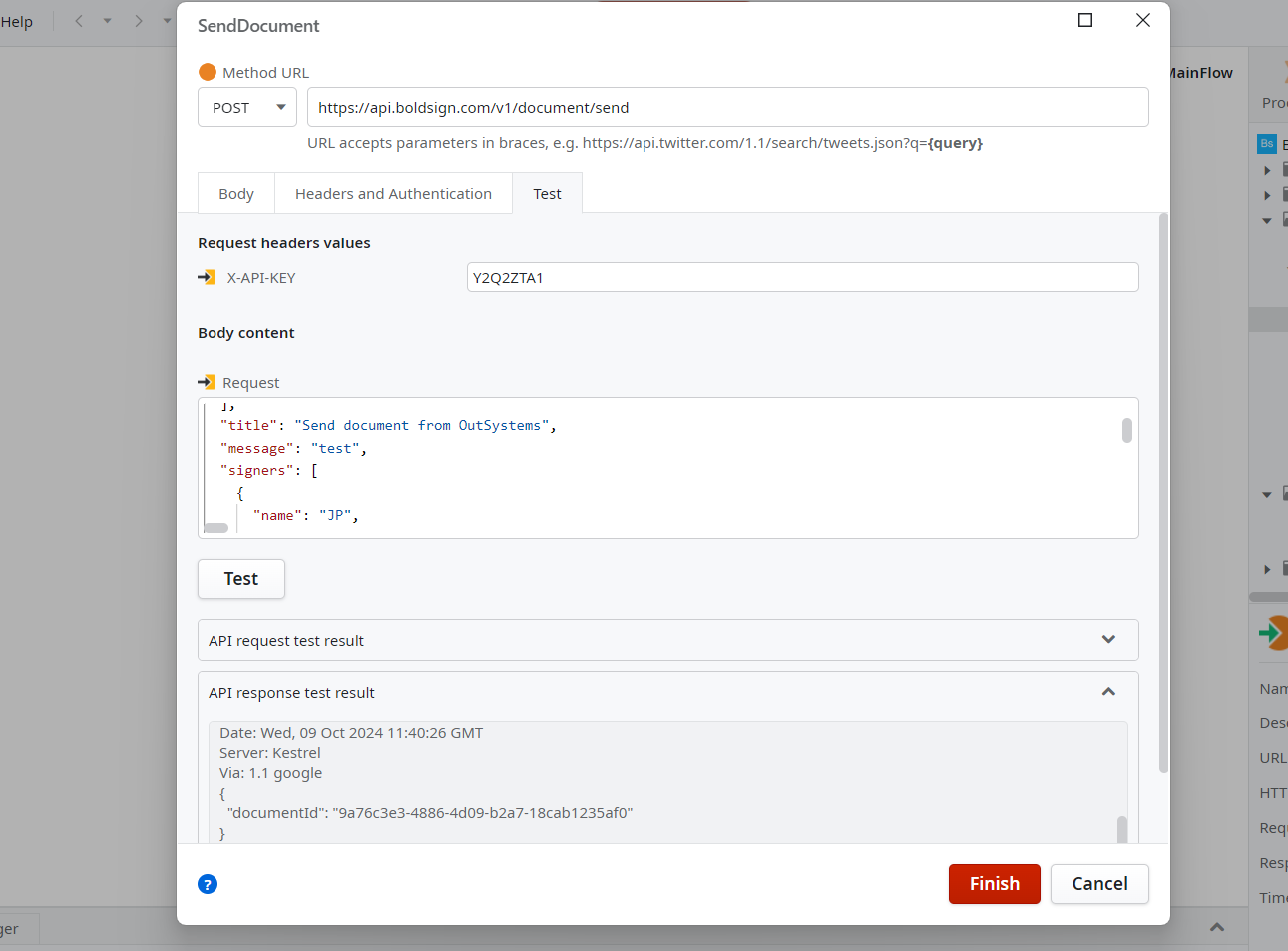
Add two headers, then build the request body. The headers prove who you are, and the body says what to send.
| Header | Value |
|---|---|
| accept | application/json |
X-API-KEY |
Your API key |
Replace the placeholder with the API key you generated earlier.
What goes in the request body?
- A title and a message for the signer.
- The signer’s name and email address.
- The form field where the signer adds their signature.
- The document to sign, as Base64 text.
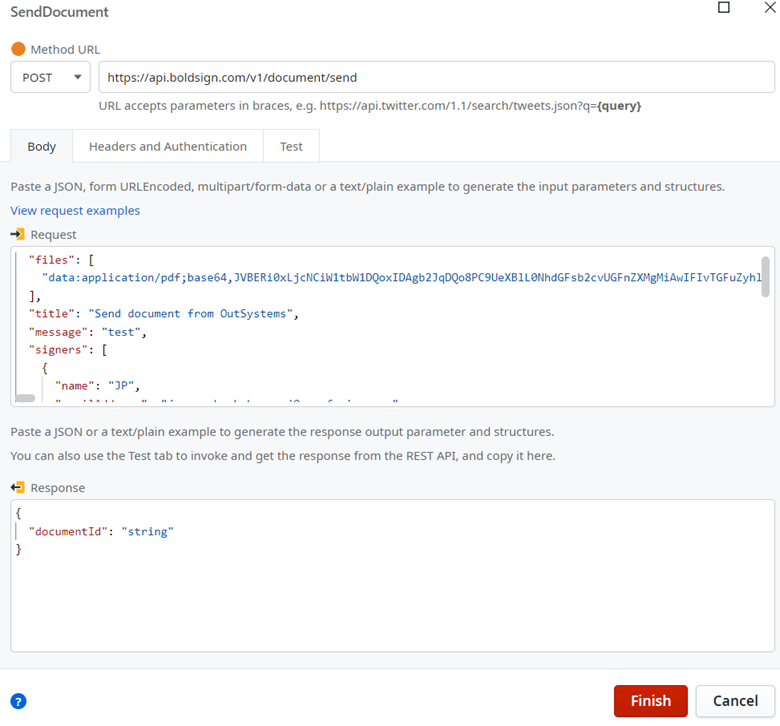
Here is an example request body.
{
      "files": [
        "data:application/pdf;base64,JVBERi0xLjcNCiW1tbW1DQoxIDAgb2JqDQo8P..."
      ],
      "title": "Send document from OutSystems",
      "message": "test",
      "signers": [
        {
          "name": "Alex",
          "emailAddress": "alex@example.com",
          "signerOrder": 1,
          "signerType": "Signer",
          "formFields": [
            {
              "id": "sign",
              "fieldType": "Signature",
              "pageNumber": 1,
              "bounds": {
                "x": 100,
                "y": 200,
                "width": 200,
                "height": 50
              },
              "isRequired": true,
              "isReadOnly": false
                  }
          ]
        }
      ]
     }
Replace Alex and alex@example.com with your signer’s name and email address. Then replace the files value with your own Base64 PDF data.
How do you test the request?
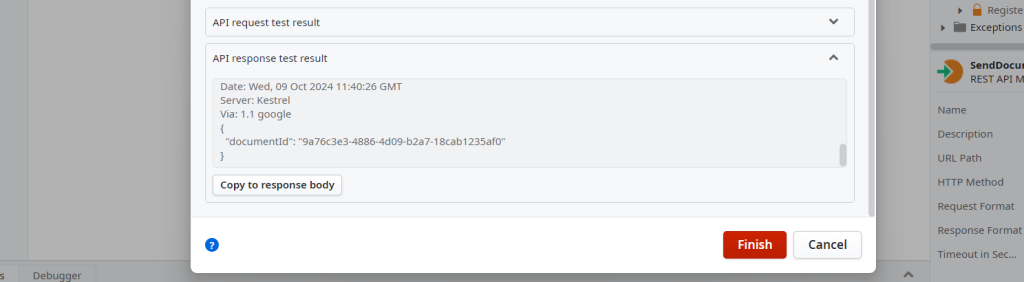
Click the Test button on the SendDocument page. A good response shows that your app can call the API.
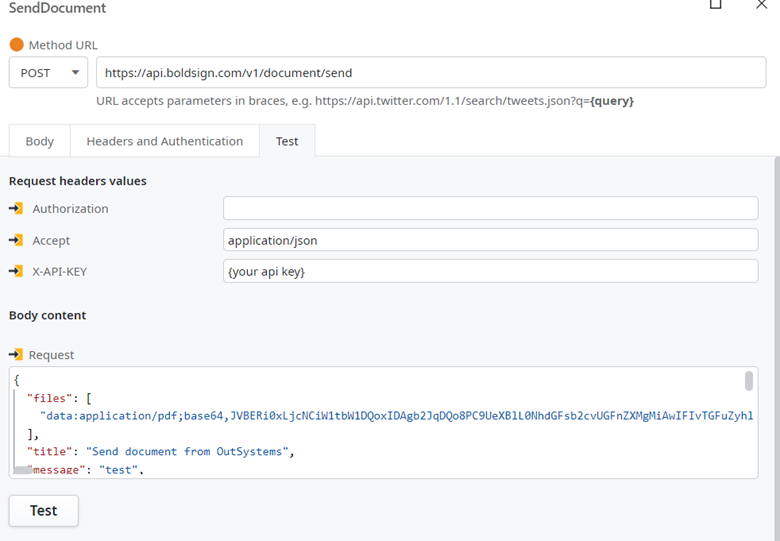
The response holds a documentId, and the signer gets an email with a link to sign. Our send document reference lists every field the request accepts.
What should you watch out for?
A documentId means we accepted the request, but the file may still be processing. A few checks save time later.
- Listen for the Sent or SendFailed webhook event to confirm each send.
- Keep your API key out of client-side code and shared screens.
- Check the field position on page 1 so the signature box lands in place.
- Test in the sandbox first, where documents carry a test watermark.
Which BoldSign plan do you need for the API, and what does it cost?
Live API access comes with the Enterprise API plan, which starts at $30 a month with 40 envelopes. Extra envelopes cost $0.75 each.
You can build and test first in our free sandbox, with no credit card. Sandbox documents carry a test watermark and are deleted after 14 days. Prices are in USD, as listed on the BoldSign pricing page in November 2026.
Where do you go next with BoldSign and OutSystems?
Start with one test document in the sandbox. Then add the options your app needs, such as reminders or more signers.
- Create a free API sandbox account and send your first test document.
- Read the API getting started guide or explore all eSignature features.
- Open a ticket in our support portal with a question about your integration.
Frequently asked questions
What is an e-sign API?
An e-sign API lets your own software send documents for signature. Your app sends the file and signer details in a web request, and the service emails the signer.
Can I add eSignatures to an OutSystems app with little code?
Yes. You import the BoldSign endpoint from our API description file, add two headers and fill in the request body. OutSystems builds the call for you.
Where do I find my BoldSign API key?
Open the API Key page in the BoldSign web app and generate a key there. Pass it in the API key header of each request.
What does the SendDocument endpoint return?
It returns a documentId. Sending finishes in the background, so listen for the Sent or SendFailed webhook event to confirm the result.
Does the signer need a BoldSign account?
No. A signer can sign with or without a BoldSign account. They get an email with a link to the document.
Can I send a file link instead of Base64 data?
Yes. The send request also accepts public file links in the fileUrls field. Use it when your PDF already sits at a public web address.
Is a document signed through the BoldSign API legally binding?
Yes, when the signer agrees to sign electronically and the signed record is kept. Each document has an audit trail you can download. Check the rules for your document type and country.
Can I try the BoldSign API for free?
Yes. Our free sandbox needs no credit card. Sandbox documents carry a test watermark and are deleted after 14 days.

Jayaprakash Kamaraj
Jayaprakash Kamaraj is a Product Manager at Syncfusion. He is passionate about front-end technologies and has been active in web development since 2014. Connect with him on LinkedIn.
More posts by Jayaprakash Kamaraj