How to Switch eSignature Providers Without Downtime: A Step-by-Step Migration Guide
 Yvone Atieno Odhiambo
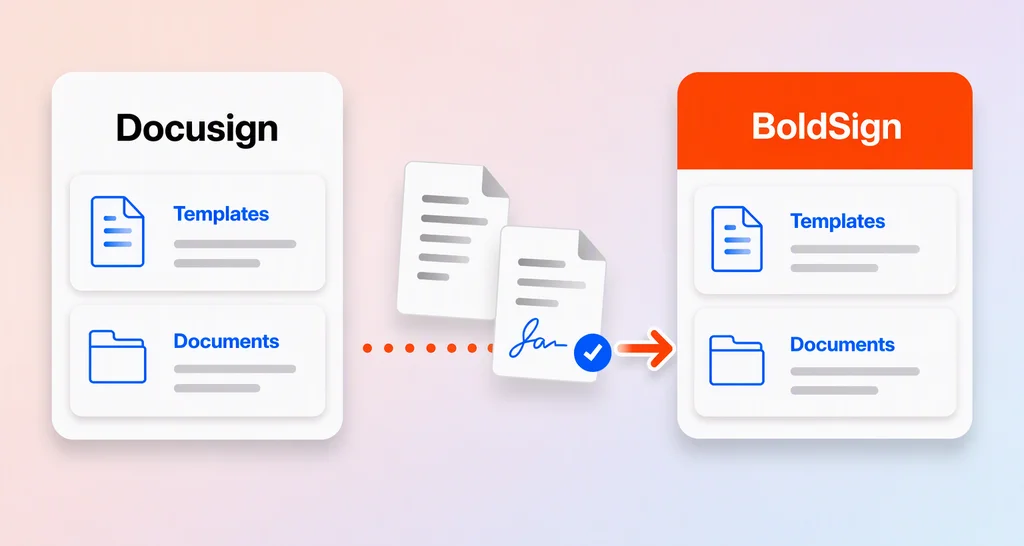
TL;DR: To switch eSignature providers without downtime, leave documents already out for signature on your old tool and move workflows to the new one in phases. Test templates, webhooks and integrations before each move, and keep a rollback plan until every workflow is stable. Our eSignature API page shows how developers connect and test signing before going live.
Your sales contracts, offer letters and customer forms all run through one eSignature tool. Your sales system waits for its status updates, and a shared drive collects the signed copies. Changing tools touches every one of those links.
The good news is that you can switch in stages. The steps below keep documents moving while the new tool takes over one workflow at a time.
Why do businesses switch eSignature providers?
Most teams switch because the current tool no longer fits how they work. The usual reasons are:
- Rising costs or pricing that is hard to predict
- Missing integrations, or limits once document volume grows
- A sending and signing experience people avoid
- New security or compliance needs
- Weak APIs, templates or automation
Choosing the new tool is the easy part. Moving without breaking the work your teams rely on takes a plan.
What is the biggest risk when you switch eSignature providers?
Broken workflows are the biggest risk. Your eSignature tool rarely works alone, so a missed connection can stop documents or send bad data to other systems.
Switching tools is a bit like moving house. You keep the old address getting mail until every sender has the new one. Your eSignature tool is usually linked to:
- CRM (customer relationship management) and ERP (enterprise resource planning) systems
- Approval steps and internal sign-offs
- APIs, webhooks and other automations
- Email notifications and reminders
- Document storage and audit trail records
Documents get stuck when one of these links fails. Notifications stop, and other systems receive half the data. So aim for behavior parity first: the new tool should repeat what already works before you change anything.
What does a low-disruption migration look like?
A low-disruption migration keeps live work running while you set up and test the new tool. You move one workflow at a time instead of all at once.
In practice, that means:
- Leaving documents already out for signature on the current tool
- Running old and new tools side by side for a set period
- Testing templates, APIs, webhooks and notifications before real use
- Moving workflows in small steps
- Keeping a rollback plan in case a workflow needs to pause or go back
How do you switch eSignature providers step by step?
Follow these nine steps in order. Each one builds on the last, from a full audit to the final cutover.
1. Audit your current eSignature setup
Write down exactly how your team uses the current tool today. Start with:
- Templates and the document workflows behind them
- Who can send, view and manage documents
- API connections, webhook events and their payloads
- Notification rules and reminders
- Links to your CRM, ERP or storage tools
Also record your stored documents, audit trail retention rules and every document still waiting for a signature. The audit gives your team a baseline, so nothing important gets missed.
2. Define what the new provider must do
List what the new tool must support before you set it up. Cover:
- Must-have features, plus security and compliance needs
- Integrations, API behavior and webhook behavior
- Template and field mapping
- Reporting and audit trail needs
- Document volume, support and training
A clear list cuts rework. Your team can then test the new tool against real workflows instead of a sales demo.
3. Map workflows so they behave the same
Recreate today’s behavior first and improve it later. A mapping table keeps the comparison honest.
| Migration area | What to check |
|---|---|
| Templates | Roles, fields, signing order, reminders, expiry dates |
| Recipients | Signer roles, CC (carbon copy) recipients, approvers, routing |
| Fields | Required fields, dates, initials, check boxes, text, conditional fields |
| Webhooks | Event names, payloads, retries, status mapping |
| APIs | Sign-in method, endpoints, request and response format, errors |
| Notifications | Sender, signer, reminder, completion and failure messages |
| Audit trails | Access to completed documents, signing history, retention |
| Storage | Where signed documents go and who can open them |
Fill in the table for each workflow. You then know the new tool behaves like the old one before anyone depends on it.
4. Run both tools in parallel
Avoid a hard cutover where every workflow switches on the same day. Instead:
- Keep the current tool active for documents already sent
- Send a few new documents through the new tool
- Move one team, document type or workflow at a time
- Watch each workflow before you expand
- Keep a fallback route open during the move
Running both tools gives your team time to check each process without touching live agreements.
5. Move APIs and integrations as their own project
Treat API work as a separate stream with its own owner. Check how each connection signs in and talks to the new tool:
- API keys or OAuth sign-in, and separate sandbox and live credentials
- Endpoint, template ID and signer role mapping
- Request and response formats
- Embedded signing, if your app shows documents inside it
- How you fetch completed documents and audit trails
Our guide to API keys and OAuth explains the two sign-in methods. Test the full request-to-completion flow in a sandbox before you move live traffic.
6. Plan for errors, retries and duplicates
Failures need as much testing as the normal path. Check how the new tool handles:
- Error codes and failed requests
- Rate limits on API calls
- Webhook retries after your server misses an event
- Duplicate requests and duplicate events
For example, BoldSign retries a failed webhook delivery up to six times, from 1 minute to 24 hours later. Our webhook lifecycle guide explains how to skip duplicate events with the event ID.
7. Test everything before you scale
Testing is where most migrations succeed or fail. Check each workflow from start to finish:
- Document creation, templates and signing order
- Field placement and required fields
- Notifications and webhook delivery
- Updates to your CRM or ERP
- Storage, audit trail access and user access
Then test the cases that go wrong. Try an expired document, a declined document and a missing recipient. Add a failed notification and a webhook retry.
8. Train your team and plan a rollback
People need to know what changes and what stays the same. Prepare:
- Quick-start guides for senders
- Updated internal process notes
- Where to find completed documents and what each status means
- Who to contact when a send or signature fails
- Which workflows still use the old tool for now
A rollback plan says what happens if a workflow misbehaves. Write down who can approve a rollback and how failed workflows get rerouted. Include how you match up documents sent during the move, and when the old tool can close.
9. Cut over in phases
Move live workflows in phases once testing and training are done. A typical order:
- Start with low-risk internal documents.
- Move standard customer agreements next.
- Move complex API workflows after they pass testing.
- Leave high-risk or regulated workflows for the last phase.
- Close old workflows only after the new process is stable.
Take your time with the final switch. A stable process matters more than a fast one.
What mistakes should you avoid when you switch providers?
Most problems come from moving too much, too fast. Watch out for these:
- Moving every workflow at once
- Redesigning templates before the new tool matches the old behavior
- Skipping webhook checks and failure tests
- Losing access to old audit trails
- Closing the old account before training senders and admins
The new tool is rarely the cause. Trouble usually starts when a team switches before checking the whole workflow.
What should you look for in a new eSignature provider?
Look for a tool that makes the move itself easy to test, not just one with a long feature list. Put these near the top:
- Clear APIs, official SDKs (software development kits) and reliable webhooks
- Flexible templates with signing order
- Clear document status tracking and secure audit trails
- A free sandbox for testing
- Published pricing and clear developer documentation
Tools with these traits are easier to test in stages and to grow with after the move.
How does BoldSign help you switch without downtime?
We give you the pieces to rebuild workflows, connect your systems and test before going live. Here is what each one does during a move.
Templates you can rebuild once
You can recreate common workflows with eSignature templates that hold roles and fields. You can also set the signing order so each signer gets the document in turn.
APIs and SDKs for your systems
The BoldSign API connects signing to your internal systems and apps. Our SDK page lists the five languages we keep official kits for.
Webhooks for status updates
Webhooks tell your systems when a document is sent, viewed, signed, declined or completed. Our list of webhook events shows the full set.
A sandbox for testing
A free API sandbox account lets developers test integrations before live use. Sandbox documents carry a test watermark and are deleted after 14 days.
Which BoldSign plan do you need to switch providers?
The right plan depends on how many templates you need and whether you send through the API. All prices below are in USD and billed yearly, from the BoldSign pricing page.
The Essential plan is free with 2 templates. The Growth plan costs $5 per user a month with 10 templates. The Business plan costs $15 per user a month with unlimited templates, plus roles and custom permissions.
The Premium plan costs $99 a month for unlimited users. Webhooks, embedded signing and live API sending are on the Enterprise API plan. It starts at $30 a month with 40 envelopes, and each extra envelope costs $0.75.
Ready to plan your switch to BoldSign?
Start small: rebuild one template and send a test document while your old tool keeps running.
- Start a 30-day free trial and rebuild your most used template.
- Book a demo to talk through your migration plan with our team.
- Read our guide to webhooks for app and account events before you connect your systems.
Frequently asked questions
How long should you run two eSignature providers at the same time?
Run both until every document sent from the old tool is signed, declined or expired. Each moved workflow should also run cleanly for a while. Write the end date into your rollback plan and review it before you close the old account.
What happens to documents still out for signature when you switch?
Leave them on your old provider and let them finish there. Moving a half-signed document breaks its signing history, so only new documents go through the new tool.
Do you lose your audit trails when you change eSignature providers?
You can, unless you export them first. Download every completed document and its audit trail from the old tool, store them where your team can find them, and only then close the account.
Are documents signed on the old platform still valid after you switch?
Yes, when you keep the signed file and its audit trail. A signature that was valid when it was made stays valid after you change tools, and those records prove it later.
Can I test BoldSign before I move live documents?
Yes. A free API sandbox account lets developers test sending, signing and webhooks. Sandbox documents carry a test watermark and are deleted after 14 days. Teams that send from the web app can start a 30-day free trial.
What does BoldSign do when a webhook delivery fails?
We retry a failed delivery up to six times, with the gap growing from 1 minute to 24 hours. Each event has a unique event ID, so your system can skip any duplicate it has already handled.
Which languages do BoldSign SDKs support?
We keep official software development kits in five languages, including Python, Java and Node.js. Each one installs from the usual package manager for its language.
Which BoldSign plan includes webhooks and live API sending?
Webhooks, embedded signing and live API sending are on the Enterprise API plan. It starts at $30 a month with 40 envelopes, and each extra envelope costs $0.75.

Yvone Atieno Odhiambo
Yvone is a Technical Assistant at BoldSign who specializes in creating clear documentation and engaging videos. She combines her technical skills and creativity to deliver user-focused solutions. Connect with her on LinkedIn.
More posts by Yvone Atieno Odhiambo