How to Add Hyperlinks to Digital Contracts with the BoldSign API
 Evans Omondi Otieno
TL;DR: You add a hyperlink with the BoldSign API by including a form field with
fieldTypeset toHyperlinkin your send request. Give it the link text inhyperlinkTextand the address invalue. Our eSignature API page shows what else you can build.
A customer signs a service contract that mentions your privacy policy, fee schedule and support terms. If those papers are missing, the customer stops to search your website or emails your team. The contract waits.
A clickable link in the document takes the signer straight to the answer. This guide explains how hyperlink fields work, then shows how to add them with code.
What is a hyperlink field in an eSignature document?
A hyperlink field is clickable text that you place on a document before you send it. The signer clicks it to open a webpage, start an email or call a phone number.
Think of a note in a printed contract that says “see our fee schedule”. A hyperlink does the same job, but one click opens the schedule. In BoldSign, the link is a form field, placed on the page like a signature or date field.
Which link types can a hyperlink field hold?
You use the FormField object with fieldType set to Hyperlink for all three types. The value you give decides what the link opens.
- Webpage link: starts with http or https, such as
https://www.example.com. It opens the page in the signer’s browser. - Email link: starts with
mailto:, such asmailto:alex@example.com. It opens the signer’s email app. - Phone link: starts with
tel:and the country code, such astel:+15550100. It opens the signer’s phone app.
Use webpage links for policies, product pages or help articles. Email and phone links give signers a quick way to reach your team.
Why add hyperlinks to documents you send for signature?
Links answer a signer’s questions while they read, so fewer of them stop to email you. They also keep the contract short, because details sit one click away.
A signer can skim the main terms and open a linked policy only when they need it. A linked page can also show your current version without a new PDF. Keep binding terms inside the document, though, since the signed file stays fixed and a web page can change.
How do you add a hyperlink field with the BoldSign API?
Add the hyperlink to the signer’s formFields list in your send request. Each hyperlink field needs link text, a value and a position on the page.
- Install the software development kit (SDK) for your language from our SDK overview.
- Create your API key, using the API key guide for details.
- Add a form field with
fieldTypeset toHyperlink. - Put the words the signer sees in
hyperlinkTextand the address invalue. - Add at least one other field for each signer, such as a signature.
Step 5 matters because the API treats hyperlink and label fields as common fields. A date signed or label field does not meet the rule.
Example code for sending signature requests with hyperlinks
Each sample sends one document with a signature field and two hyperlinks. Replace the API key, file path and signer details with your own.
curl -X 'POST' \
  'https://api.boldsign.com/v1/document/send' \
  -H 'accept: application/json' \
  -H 'X-API-KEY: {your API key}' \
  -H 'Content-Type: multipart/form-data' \
  -F 'Title=Sample Document' \
  -F 'Signers={
  "name": "Alex",
  "emailAddress": "alex@example.com",
  "signerType": "Signer",
  "formFields": [
    {
      "id": "Signature",
      "fieldType": "Signature",
      "pageNumber": 1,
      "bounds": {
        "x": 50,
        "y": 100,
        "width": 200,
        "height": 50
      }
    },
    {
      "id": "HyperLink",
      "fieldType": "Hyperlink",
      "pageNumber": 1,
      "bounds": {
        "x": 50,
        "y": 600,
        "width": 150,
        "height": 50
      },
      "hyperlinkText": "Employee Handbook",
      "value": "https://www.google.com"
    },
    {
      "id": "HyperLink_2",
      "fieldType": "Hyperlink",
      "pageNumber": 2,
      "bounds": {
        "x": 50,
        "y": 600,
        "width": 150,
        "height": 50
      },
      "hyperlinkText": "Company email address",
      "value": "mailto:{emailAddress}"
    }
  ]
}' \
  -F 'Files=@{your file}'
using BoldSign.Api;
using BoldSign.Model;
using System.Collections.Generic;
class Program
{
static void Main()
{
// Initialize API client
var apiClient = new ApiClient("https://api.boldsign.com", "Your API key");
var documentClient = new DocumentClient(apiClient);
// File to upload
var documentFilePath = new DocumentFilePath
{
ContentType = "application/pdf",
FilePath = "C:\\path\\to\\your\\file.pdf" // replace with actual file path
};
var filesToUpload = new List<IDocumentFile>
{
documentFilePath
};
// Hyperlink field (web link)
var hyperlinkField = new FormField(
id: "Hyperlink",
isRequired: true,
type: FieldType.Hyperlink,
pageNumber: 1,
hyperlinkText: "Employee Handbook", // text to display
value: "https://www.google.com", // actual hyperlink value
bounds: new Rectangle(400, 200, 125, 25)
);
// Hyperlink field (email link)
var hyperlinkMailField = new FormField(
id: "Hyperlink_2",
isRequired: true,
type: FieldType.Hyperlink,
pageNumber: 2,
hyperlinkText: "Company email address", // text to display
value: "mailto:someone@company.com", // must start with mailto:
bounds: new Rectangle(400, 200, 125, 25)
);
// Signature field (a hyperlink field needs at least one other field)
var signatureField = new FormField(
id: "Signature",
isRequired: true,
type: FieldType.Signature,
pageNumber: 1,
bounds: new Rectangle(50, 100, 200, 50)
);
// Collect all form fields
var formFieldCollections = new List<FormField>
{
signatureField,
hyperlinkField,
hyperlinkMailField
};
// Define signer
var signer = new DocumentSigner(
signerName: "Alex",
signerEmail: "alex@example.com",
signerType: SignerType.Signer,
formFields: formFieldCollections
);
var documentSigners = new List<DocumentSigner>
{
signer
};
// Send document for signing
var sendForSign = new SendForSign
{
Signers = documentSigners,
Title = "Sample Document",
Files = filesToUpload
};
var documentCreated = documentClient.SendDocument(sendForSign);
}
}import boldsign
# Configure API client
configuration = boldsign.Configuration(api_key="Your API Key")
with boldsign.ApiClient(configuration) as api_client:
document_api = boldsign.DocumentApi(api_client)
# Define form fields
form_fields = [
boldsign.FormField(
id="Signature",
fieldType="Signature",
pageNumber=1,
bounds=boldsign.Rectangle(x=50, y=100, width=200, height=50),
),
boldsign.FormField(
id="HyperLink",
fieldType="Hyperlink",
pageNumber=1,
bounds=boldsign.Rectangle(x=50, y=700, width=150, height=50),
hyperlinkText="Employee Handbook", # text to display
value="https://www.google.com", # actual hyperlink value
),
boldsign.FormField(
id="HyperLink_2",
fieldType="Hyperlink",
pageNumber=1,
bounds=boldsign.Rectangle(x=50, y=600, width=150, height=50),
hyperlinkText="Company email address", # text to display
value="mailto:someone@company.com", # must start with mailto:
),
]
# Define signer
document_signer = boldsign.DocumentSigner(
name="Alex",
emailAddress="alex@example.com",
signerType="Signer",
formFields=form_fields,
)
# Prepare document for signing
send_for_sign = boldsign.SendForSign(
title="Test",
files=[r"C:\path\to\YourFile.pdf"], # replace with actual file path
signers=[document_signer],
)
# Send document
document_created = document_api.send_document(send_for_sign)<?php
require_once "vendor/autoload.php";
use BoldSign\Configuration;
use BoldSign\Api\DocumentApi;
use BoldSign\Model\{
FormField,
Rectangle,
DocumentSigner,
SendForSign
};
// Configure API client
$config = new Configuration();
$config->setApiKey('Your API Key');
$documentApi = new DocumentApi($config);
// Define form fields
$formFields = [];
// Signature field (a hyperlink field needs at least one other field)
$formField = new FormField();
$formField->setId("Signature");
$formField->setFieldType("Signature");
$formField->setPageNumber(1);
$formField->setBounds(new Rectangle(['x' => 50, 'y' => 100, 'width' => 200, 'height' => 50]));
$formFields[] = $formField;
// Hyperlink field (web link)
$formField = new FormField();
$formField->setId("HyperLink");
$formField->setFieldType("Hyperlink");
$formField->setPageNumber(1);
$formField->setBounds(new Rectangle(['x' => 50, 'y' => 700, 'width' => 150, 'height' => 50]));
$formField->setHyperlinkText("Employee Handbook"); // text to display
$formField->setValue("https://www.google.com"); // actual hyperlink value
$formFields[] = $formField;
// Hyperlink field (email link)
$formField = new FormField();
$formField->setId("HyperLink_2");
$formField->setFieldType("Hyperlink");
$formField->setPageNumber(1);
$formField->setBounds(new Rectangle(['x' => 50, 'y' => 800, 'width' => 150, 'height' => 50]));
$formField->setHyperlinkText("Company email address"); // text to display
$formField->setValue("mailto:someone@company.com"); // must start with mailto:
$formFields[] = $formField;
// Define signer
$documentSigner = new DocumentSigner();
$documentSigner->setName("Alex");
$documentSigner->setEmailAddress("alex@example.com");
$documentSigner->setSignerType("Signer");
$documentSigner->setFormFields($formFields);
// Prepare document for signing
$sendForSign = new SendForSign();
$pdfFilePath = 'C:/path/to/YourFile.pdf'; // replace with actual file path
$sendForSign->setFiles([$pdfFilePath]);
$sendForSign->setSigners([$documentSigner]);
$sendForSign->setTitle('Non Disclosure Agreement');
// Send document
$documentCreated = $documentApi->sendDocument($sendForSign);import com.boldsign.ApiClient;
import com.boldsign.Configuration;
import com.boldsign.api.DocumentApi;
import com.boldsign.model.*;
import java.io.File;
import java.util.Arrays;
public class SendDocumentExample {
public static void main(String[] args) {
try {
// Initialize API client
ApiClient client = Configuration.getDefaultApiClient();
client.setApiKey("Your API Key");
DocumentApi documentApi = new DocumentApi(client);
// Signature field (a hyperlink field needs at least one other field)
FormField signature = new FormField();
signature.setId("Signature");
signature.setFieldType(FormField.FieldTypeEnum.SIGNATURE);
signature.setPageNumber(1);
signature.setBounds(new Rectangle().x(50f).y(100f).width(200f).height(50f));
// Hyperlink field (web link)
FormField hyperlink1 = new FormField();
hyperlink1.setId("HyperLink");
hyperlink1.setFieldType(FormField.FieldTypeEnum.HYPERLINK);
hyperlink1.setPageNumber(1);
hyperlink1.setBounds(new Rectangle().x(50f).y(900f).width(150f).height(50f));
hyperlink1.setHyperlinkText("Employee Handbook"); // text to display
hyperlink1.setValue("https://www.google.com"); // actual hyperlink value
// Hyperlink field (email link)
FormField hyperlink2 = new FormField();
hyperlink2.setId("HyperLink_2");
hyperlink2.setFieldType(FormField.FieldTypeEnum.HYPERLINK);
hyperlink2.setPageNumber(1);
hyperlink2.setBounds(new Rectangle().x(50f).y(800f).width(150f).height(50f));
hyperlink2.setHyperlinkText("Company email address"); // text to display
hyperlink2.setValue("mailto:someone@company.com"); // must start with mailto:
// Define signer
DocumentSigner signer = new DocumentSigner();
signer.setName("Alex");
signer.setEmailAddress("alex@example.com");
signer.setSignerType(DocumentSigner.SignerTypeEnum.SIGNER);
signer.setFormFields(Arrays.asList(signature, hyperlink1, hyperlink2));
// Prepare document for signing
SendForSign sendForSign = new SendForSign();
File file = new File("C:/path/to/YourFile.pdf"); // replace with actual file path
sendForSign.setFiles(Arrays.asList(file));
sendForSign.setSigners(Arrays.asList(signer));
sendForSign.setTitle("Non Disclosure Agreement");
// Send document
DocumentCreated documentCreated = documentApi.sendDocument(sendForSign);
System.out.println("Document created with ID: " + documentCreated.getDocumentId());
} catch (ApiException e) {
System.err.println("Error occurred: " + e.getMessage());
}
}
}import { DocumentApi, DocumentSigner, SendForSign } from "boldsign";
import * as fs from "fs";
async function sendDocument() {
// Initialize API client
const documentApi = new DocumentApi();
documentApi.setApiKey("Your API Key");
// Define form fields
const formFields = [
{
id: "Signature",
fieldType: "Signature",
pageNumber: 1,
bounds: { x: 50, y: 100, width: 200, height: 50 },
},
{
id: "HyperLink",
fieldType: "Hyperlink",
pageNumber: 1,
bounds: { x: 50, y: 600, width: 150, height: 50 },
hyperlinkText: "Employee Handbook", // text to display
value: "https://www.google.com", // actual hyperlink value
},
{
id: "HyperLink_2",
fieldType: "Hyperlink",
pageNumber: 1,
bounds: { x: 50, y: 700, width: 150, height: 50 },
hyperlinkText: "Company email address", // text to display
value: "mailto:someone@company.com", // must start with mailto:
},
];
// Define signer
const documentSigner = new DocumentSigner();
documentSigner.name = "Alex";
documentSigner.emailAddress = "alex@example.com";
documentSigner.signerType = DocumentSigner.SignerTypeEnum.Signer;
documentSigner.formFields = formFields;
// File to upload
const fileStream = fs.createReadStream("C:/path/to/NonDisclosureAgreement.pdf"); // replace with actual file path
// Prepare document for signing
const sendForSign = new SendForSign();
sendForSign.title = "Agreement";
sendForSign.signers = [documentSigner];
sendForSign.files = [fileStream];
try {
// Send document
const documentCreated = await documentApi.sendDocument(sendForSign);
console.log("Document created with ID:", documentCreated.documentId);
} catch (error) {
console.error("Error occurred:", error.message);
}
}
// Run
sendDocument();When the code runs, BoldSign creates the document with its hyperlink fields. We then email the signer a link to sign it.
Here is how the hyperlinks look on the signing page:
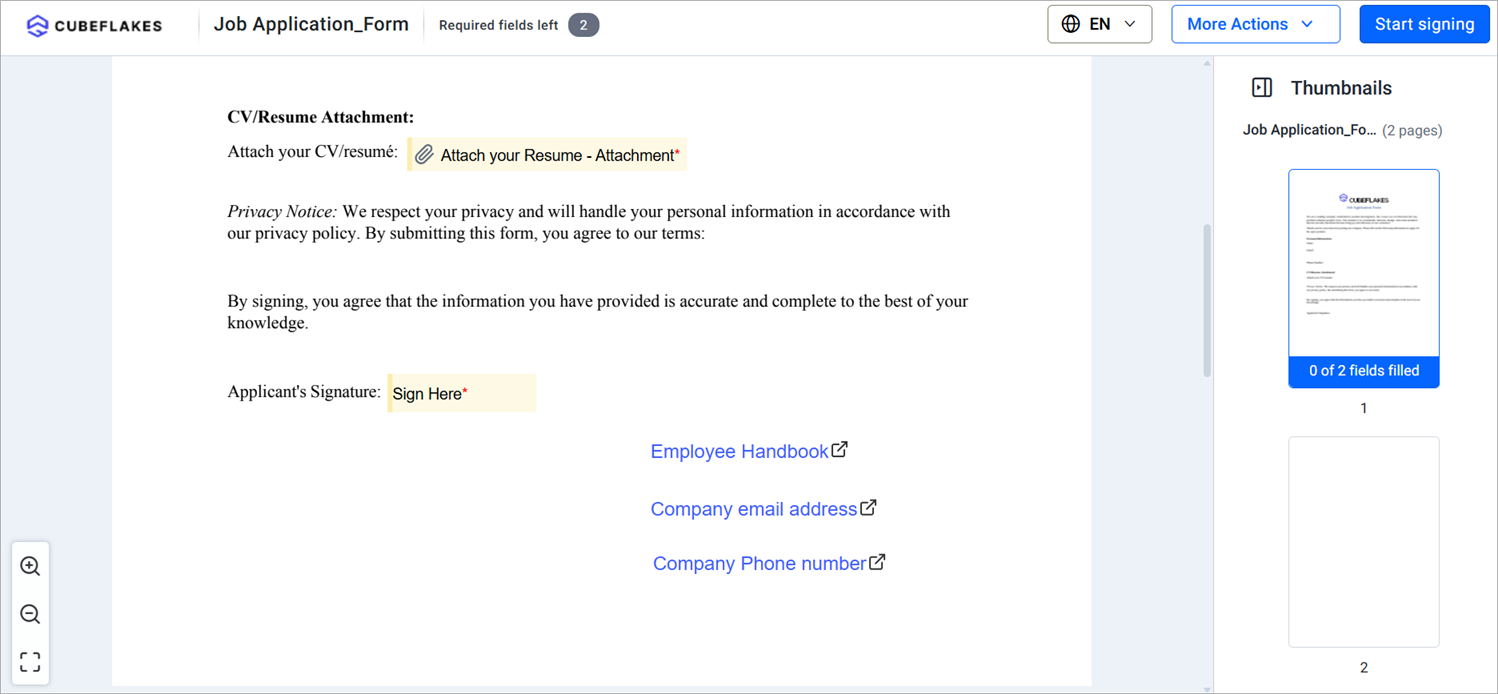
Our developer guide on setting hyperlink form fields lists every property.
What should you check before you send links?
Click each link yourself before you send, on a computer and on a phone. A broken address leaves the signer stuck halfway through.
- Write link text that says where it goes, such as “View terms of service” instead of “Click here”.
- Add only the links a signer needs, since too many can distract them.
- Use https addresses, so browsers show no security warning.
Prefer the web app over code? Our guide to adding hyperlinks in eSignature documents shows the same field without writing code.
Which BoldSign API plan do you need, and what does it cost?
Live API requests need the Enterprise API plan, from $30 a month with 40 envelopes, as listed on the BoldSign pricing page in November 2026. Each extra envelope costs $0.75, and prices are in USD.
To build and test first, use the free sandbox. It needs no credit card, and its documents carry a test watermark and are deleted after 14 days.
Where do you go next with hyperlinks in the BoldSign API?
Start with one link your signers ask about most, such as your terms of service.
- Create a free API sandbox account and send a test document with a hyperlink.
- Read our API getting started guide to set up your first request.
- Book a demo to see hyperlinks and other fields in your own workflow.
Frequently asked questions
What is a hyperlink field in the BoldSign API?
It is a form field with its fieldType set to Hyperlink. You give it the text the signer sees and the address it opens, and it appears on the document as clickable text.
Which link types can a hyperlink field open?
A hyperlink field can open a webpage that starts with http or https. It can also start an email with mailto: or a phone call with tel: and a country code.
Can a document have only hyperlink fields?
No. Each signer also needs at least one other form field, such as a signature. Date signed and label fields do not count toward that rule.
Can I add several hyperlinks to one document?
Yes. Add one hyperlink form field for each link, each with its own ID, page number, position, link text and value.
Does the signer need to do anything with a hyperlink field?
No. The sender sets the text and the address, so the signer only clicks it to read more. They can then return to the document and sign.
Is a contract with hyperlinks still legally binding?
Yes, when it meets the same rules as any other electronic signature. Keep the binding terms in the document itself, since a linked page can change after signing.
Can I test hyperlink fields without paying?
Yes. A free API sandbox account lets you send test documents with hyperlink fields. Test documents carry a watermark and are deleted after 14 days.
Can I add hyperlinks without writing code?
Yes. In the BoldSign web app, you drag the Hyperlink field onto the document while you prepare it. Our web app guide walks through each step.

Evans Omondi Otieno
Evans Omondi Otieno is a customer support representative and writer at BoldSign, specializing in creating clear, insightful content to help users navigate eSignature solutions. As a blog author, Evans writes well-researched articles that simplify technical concepts, helping businesses and professionals understand how to use BoldSign effectively. With expertise in technical support and content creation, he ensures users have a seamless experience and gain valuable knowledge from his articles.
More posts by Evans Omondi Otieno