How to Add Hyperlinks in eSignature Documents with BoldSign
 Rayronald Ochola Otieno
TL;DR: A hyperlink field puts clickable text on a document you send for signature. Signers click it to open a webpage, a file, an email or a phone call. In BoldSign, you drag the Hyperlink field onto the page, type the text, pick the link type and send. Our eSignature features page lists the other fields you can add.
A sales contract mentions your terms of service, a refund policy and a product sheet. The signer stops to search for each one, or emails you to ask where they are. Some give up and leave the contract for later.
A link placed right in the document fixes that. This guide explains what a hyperlink field is, then shows how to add one in BoldSign.
Can you add a hyperlink in a digital signature document?
Yes. A hyperlink digital signature document holds clickable text that opens a page or starts a message while the signer reviews it.
Think of a printed brochure that says “see page 4”. A hyperlink does the same job, except one click takes the reader straight there. In BoldSign, the link is a field that you place on the page, just like a signature or date field.
Where can a hyperlink in a signing document point?
A hyperlink field in BoldSign supports three link types. Each one suits a different kind of help for the signer.
- URL: a webpage, such as your terms and conditions or a help center, or a file stored online.
- Email: opens the signer’s email app with your address filled in.
- Phone number: opens the phone dialer, which is handy for signers on a mobile device.
A URL to a file works well for brochures, price sheets or a copy of an earlier agreement.
Why add hyperlinks to documents you send for signature?
Links give signers the context they need without making the document longer. They also give signers a quick way to reach you with a question.
You can match the link text to your document’s look, so it reads as part of the page. Set the font, size, line height and color to fit your branding. The signer then sees one tidy document instead of a page full of pasted web addresses.
How do you add a hyperlink field in BoldSign?
You add a hyperlink while preparing a document, on the same page where you place the other fields. Our help article on how to add a hyperlink field covers every setting.
1. Create a new document
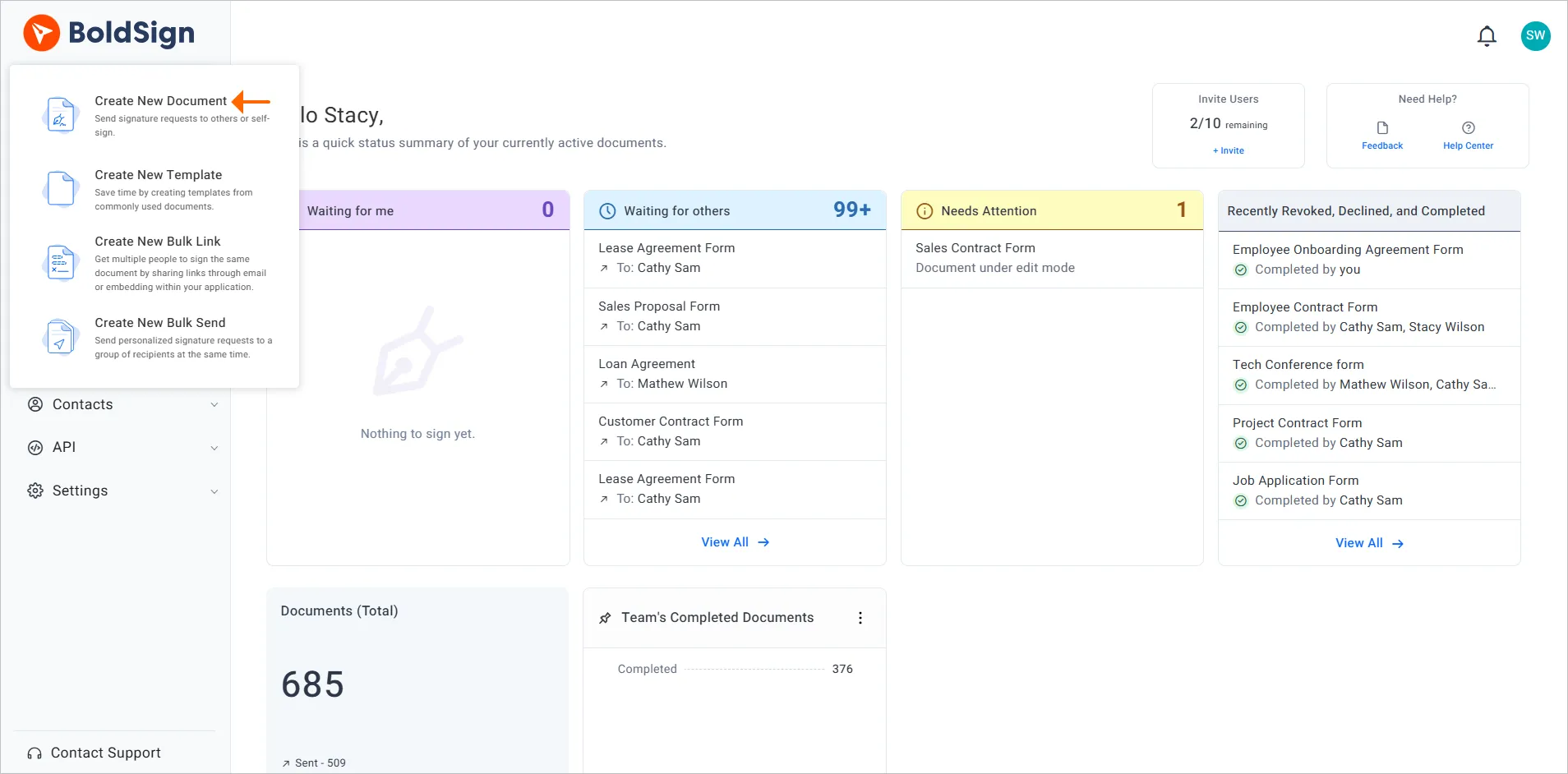
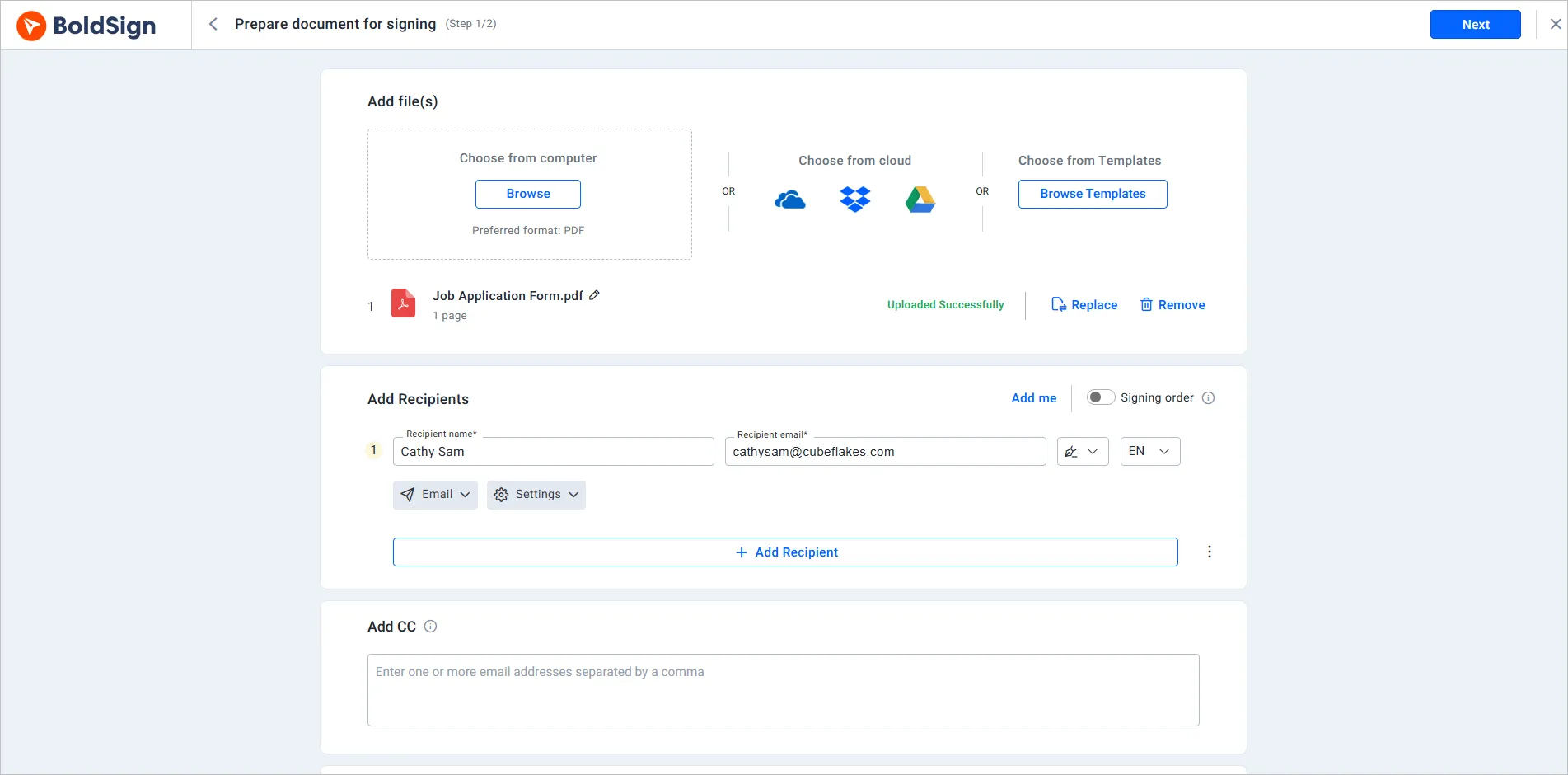
Select Create New, then Create New Document. On the Prepare document page, fill in the required details and select Next.
2. Place and set up the hyperlink field
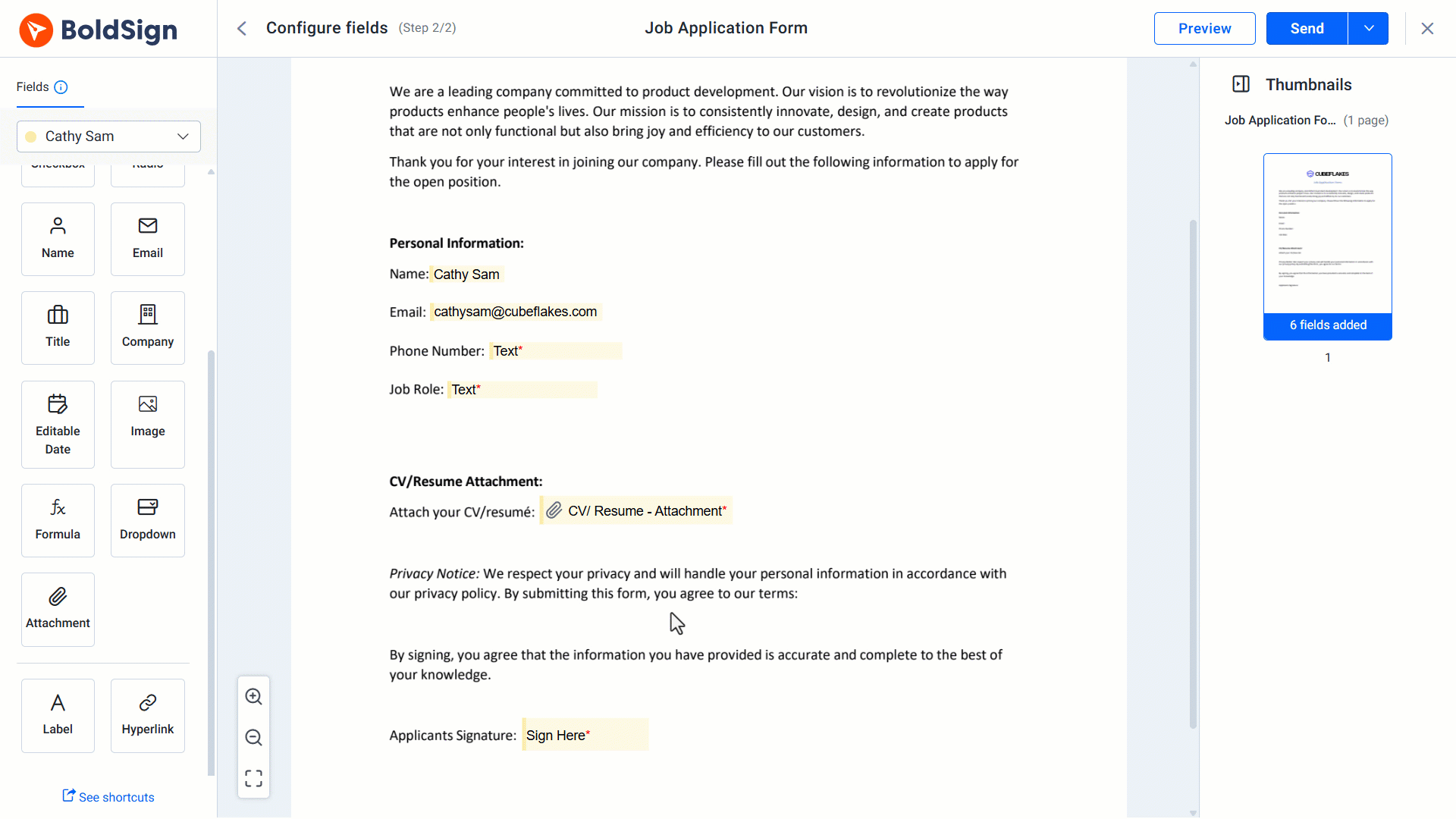
On the Configure fields page, find the Hyperlink field in the left panel. Drag it to the spot in the document where the link belongs. The Hyperlink settings panel then opens on the right.
- In Text to Display, type the words the signer will click.
- In Hyperlink URL, choose URL, Email or Phone number.
- Enter the destination, such as a valid webpage address for a URL.
- Change the font and color if you want the link to match your document.
3. Send the document
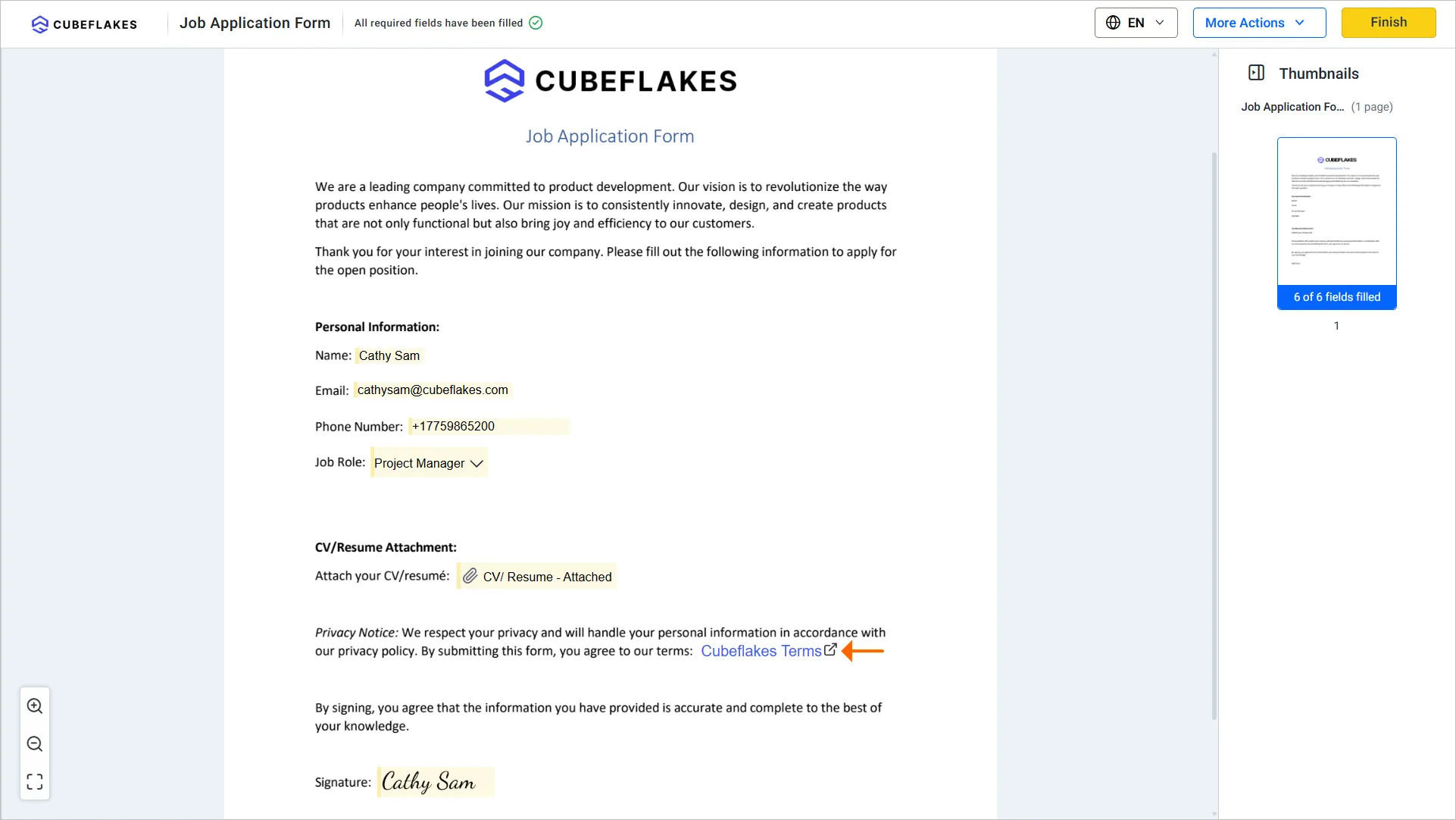
Once all fields are in place, select Send. The signer sees the link text on the document and can click it to reach the destination.
What should you check before you send a document with links?
Click each link yourself before you send, since a broken address leaves the signer stuck. Use clear link text such as “Read our refund policy” instead of “click here”.
Keep the binding terms inside the document itself. A web page can change after signing, while the signed file and its audit trail stay fixed.
Developers can also place the same field with code. Our guide to adding hyperlinks with the BoldSign API shows how.
Which BoldSign plan do you need for hyperlink fields, and what does it cost?
Basic and advanced form fields are in every plan on the BoldSign pricing page, read in November 2026. That includes the free Essential plan.
Plans differ in how many brands you can set up for colors and logos. The Essential plan includes 1, and the Growth plan includes 2 for $5 per user a month. The Business plan ($15 per user a month) and the Premium plan ($99 a month for unlimited users) have no brand limit.
Prices are in USD and billed yearly, and you can try paid features with a 30-day free trial. Adding hyperlinks through the BoldSign API needs the Enterprise API plan, from $30 a month with 40 envelopes.
How do you start adding links to your documents?
Pick the document your signers ask the most questions about and add a link to the answer. Then choose your next step.
- Start a 30-day free trial and send a document with your first hyperlink.
- Book a demo to see hyperlinks and other fields set up for your documents.
- Read how to add the hyperlink field step by step in our help center.
Frequently asked questions
What is a hyperlink field in an eSignature document?
A hyperlink field is clickable text that you place on a document before sending it. When the signer clicks it, it opens a webpage, a file, an email message or a phone call.
Can I link to an email address or phone number?
Yes. In the Hyperlink URL section, choose Email or Phone number instead of URL. Clicking the text then opens the signer's email app or phone dialer.
Do signers need to fill in a hyperlink field?
No. A hyperlink field is set by the sender and only needs a click. The signer can open the link to read more, then go back and finish signing.
Can I change how the link text looks?
Yes. You can set the font family, font style, font size, line height and color in the Hyperlink settings panel. That lets the link match the rest of your document.
Is a signed document with hyperlinks still legally valid?
Yes, when it meets the same rules as any other electronic signature. Put the binding terms in the document itself, since a linked web page can change after signing.
Can I link to a downloadable file?
Yes. Choose URL and enter the web address of the file, such as a PDF brochure stored online. The signer's browser opens or downloads it when they click.
Can I add hyperlinks to a document with code?
Yes. Developers can place hyperlink fields when they create a document through our API. Our separate guide on adding hyperlinks with the API shows how.
Is the hyperlink field included in the free BoldSign plan?
Yes. Basic and advanced form fields are part of every plan we list, including the free Essential plan, so you can try hyperlinks before you pay.

Rayronald Ochola Otieno
Rayronald Ochola Otieno is a content specialist at BoldSign, specializing in video content and help articles within the eSignature domain. As a blog author, he creates well-researched, insightful content that simplifies complex eSignature topics like digital signatures, compliance, and workflow automation for businesses and professionals. With expertise in creating educational videos and articles, Ray helps users understand and adopt secure, efficient signing solutions. Beyond writing and video creation, Ray enjoys exploring new technologies, reading about the latest industry trends, and continually refining his skills.
More posts by Rayronald Ochola Otieno