How to Place Form Fields with AI When You Build an eSignature Template
 Evans Omondi Otieno
TL;DR: Artificial intelligence (AI) form field placement reads the lines, boxes and labels in your PDF or Word file. It then adds signature, date, text, checkbox and radio button fields for you. BoldSign runs it while you build a template, and you review every field before you save. Our AI-powered field placement page shows the feature in action.
A 10-page rental agreement can hold dozens of blanks. Placing a field on each one by hand takes time, and a missed blank sends the document back for another round.
AI field placement does that first pass for you. This guide explains what it detects, how to run it in BoldSign, and what to check before you save.
What is AI form field placement?
AI form field placement reads your document and adds the fields a signer must complete. You then check the result instead of drawing every box yourself.
Think of a friend who marks every blank on a paper form with a sticky note before you hand it over. You still look over the notes, but you no longer hunt for each blank. The AI reads underlines, boxes and printed labels the same way.
Which form fields can the AI detect?
The AI detects five field types. Each one appears where your document’s layout suggests a signer should act.
- Signature fields
- Date signed fields
- Text boxes
- Checkboxes
- Radio buttons
Why place fields with AI instead of by hand?
AI placement removes most of the dragging and dropping on long documents. You start from a template that already has fields, so your time goes on checking, not drawing.
- One action places fields across the whole document.
- The AI reads every page for blanks, which helps most on long files.
- You can still move, resize or delete any field before you save.
Once saved, the eSignature template is ready to reuse. Every later send skips field setup.
Which documents work with AI field placement?
PDF and Word files that hold layout text work. The AI looks for underlines, boxes and labels printed on the page.
- A scanned page needs a text layer before the AI can read it.
- The feature runs only while you create a template, not a single document.
- The AI places fields only where it finds lines or boxes.
How do you place form fields with AI in BoldSign?
You run AI placement on the field setup step of a new template. The steps below follow the BoldSign web app.
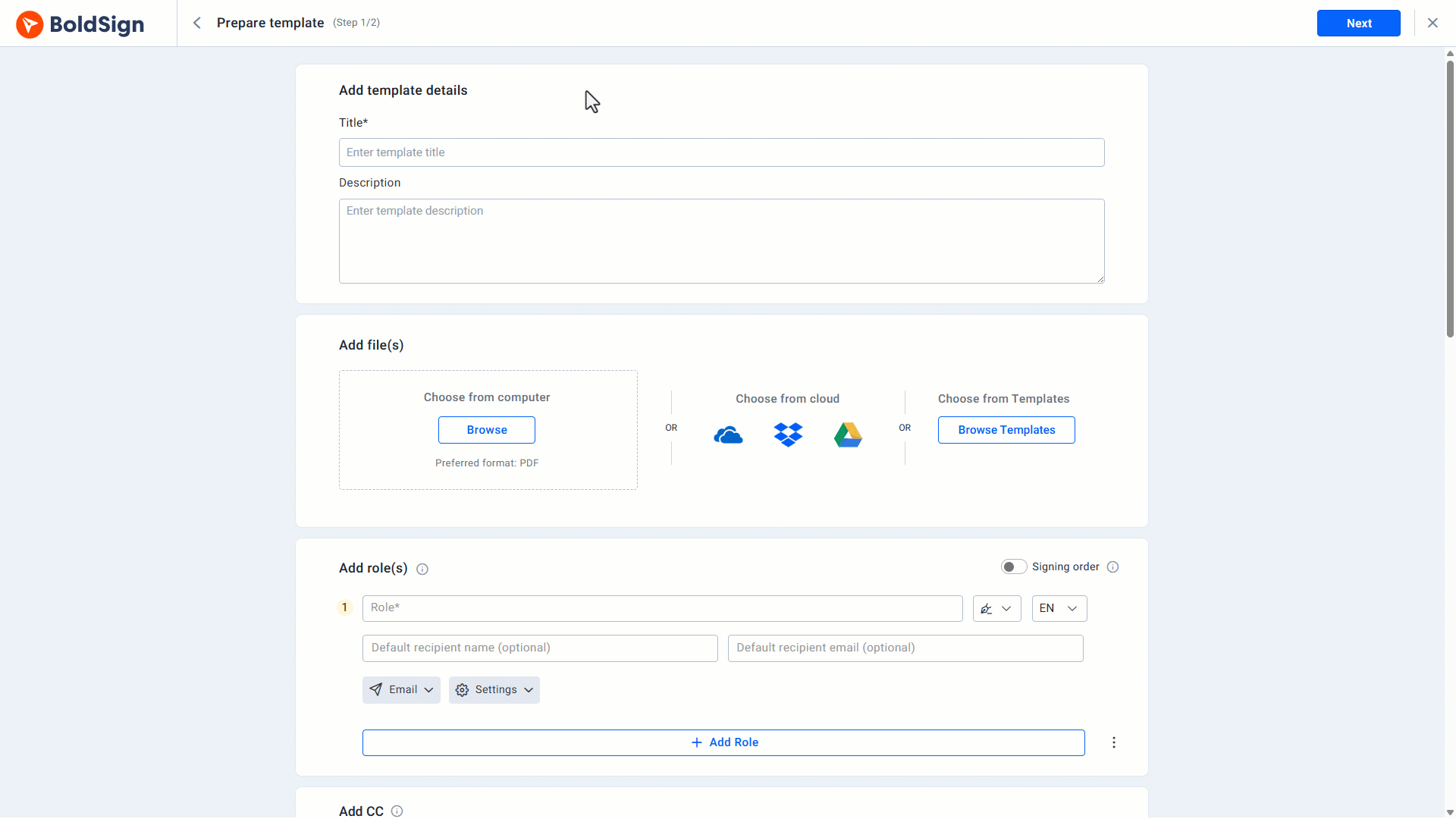
Step 1: Start a new template
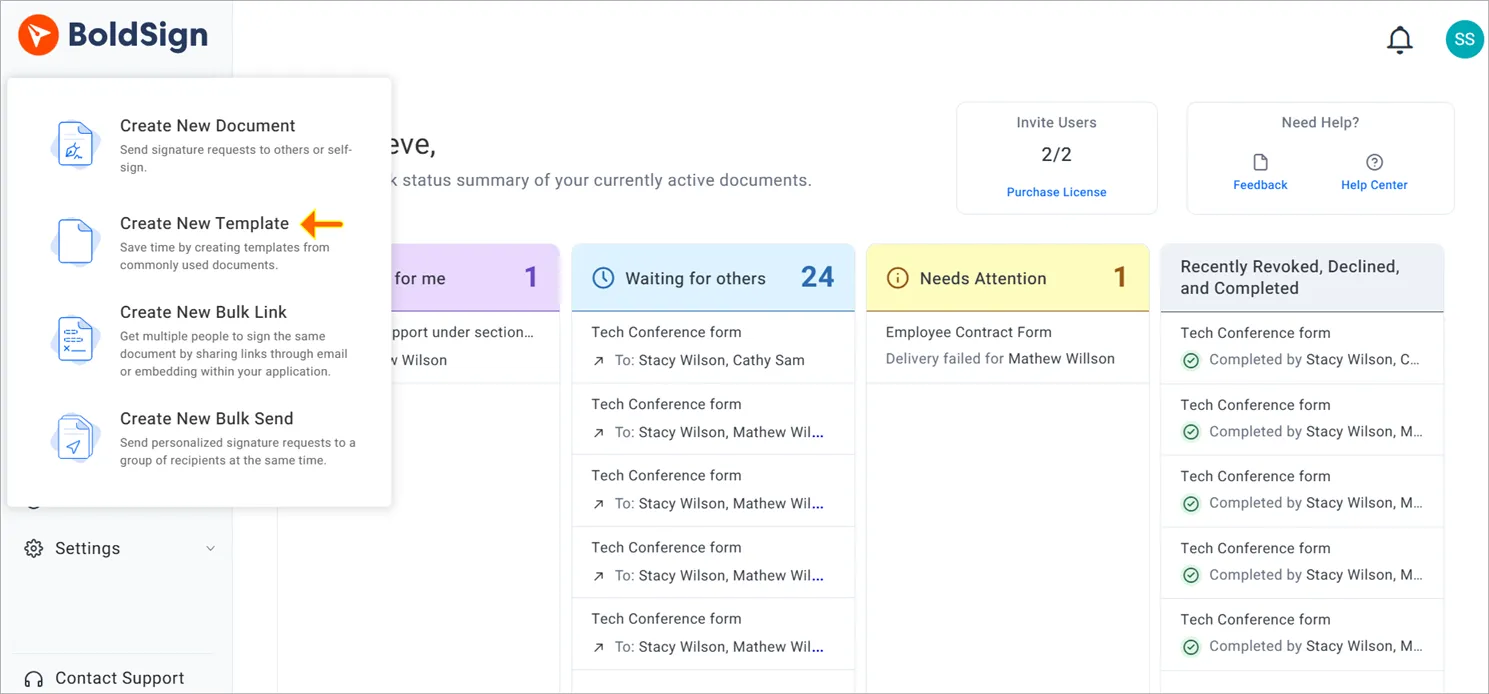
Sign in to BoldSign, or create a free account first. From the dashboard, select Create New, then Create New Template.
Step 2: Add the template details and roles
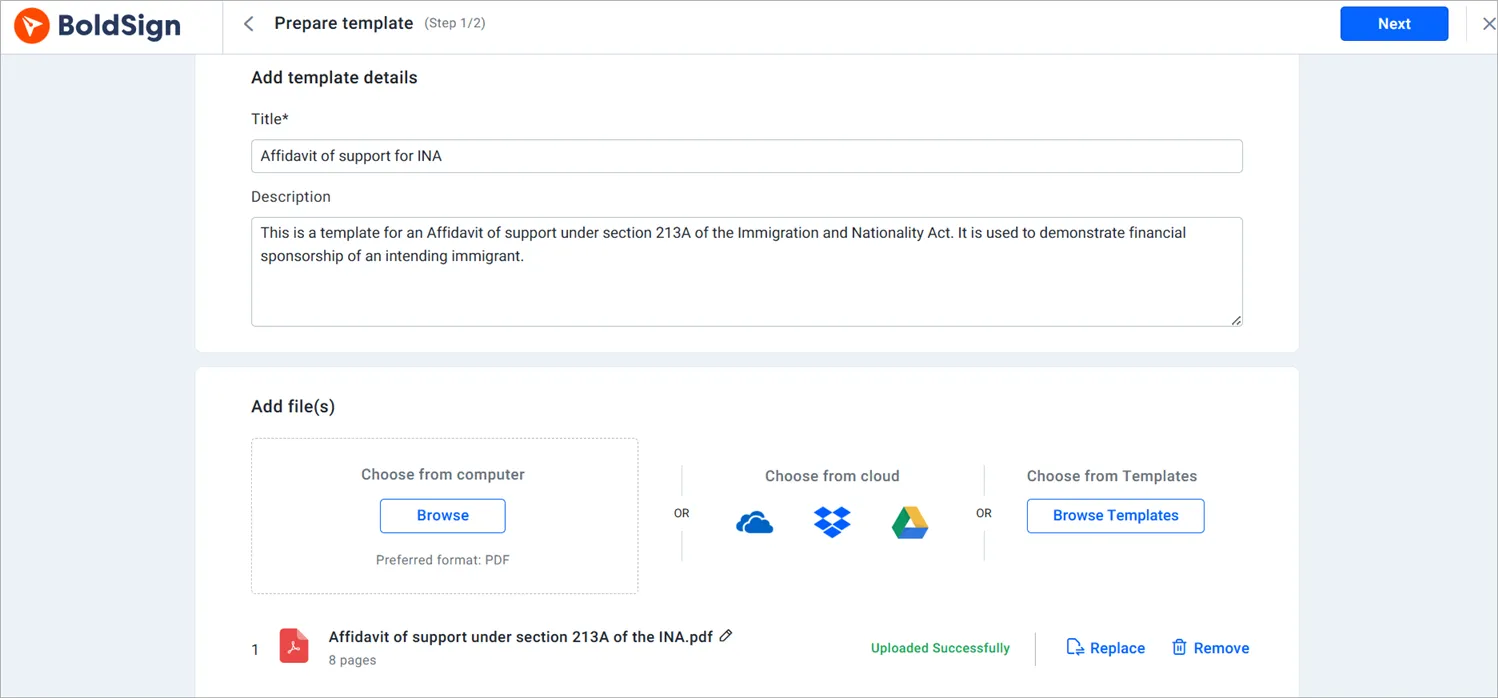
- Under Add template details, enter a Title and a short Description.
- Under Add file(s), upload the PDF or Word file for the template.
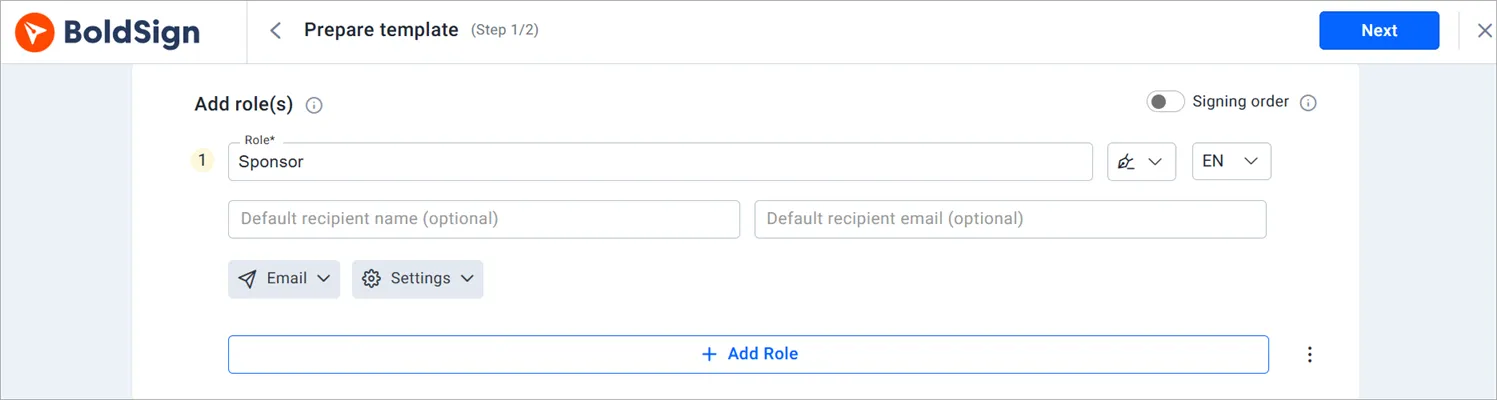
- Under Add role(s), add a role for each signer, such as Tenant or Landlord.
Select Add Role for each extra signer. A role is a placeholder that you fill with a real person when you send.
Step 3: Run Place Fields with AI
- Fill in any other required details and select Next.
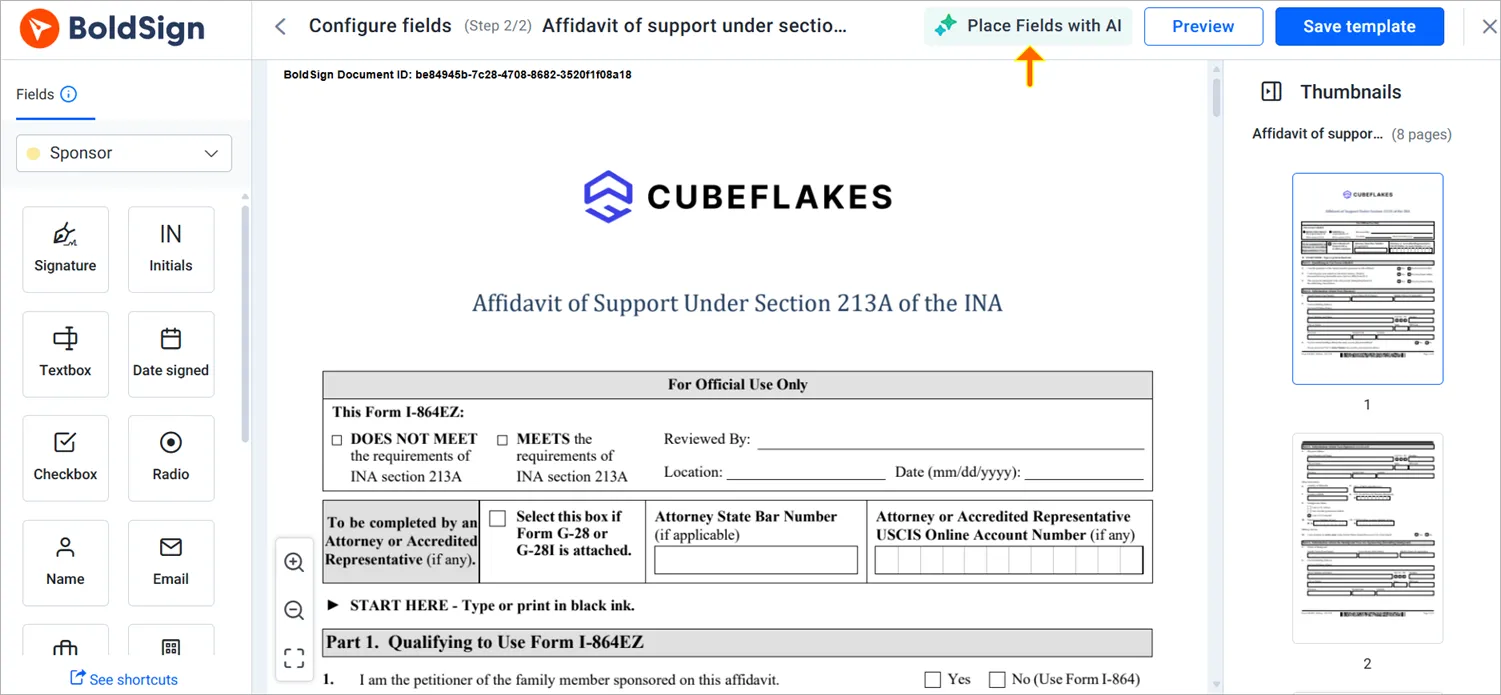
- On the field setup page, select Place Fields with AI.
- Confirm by selecting Place Fields with AI in the dialog box.
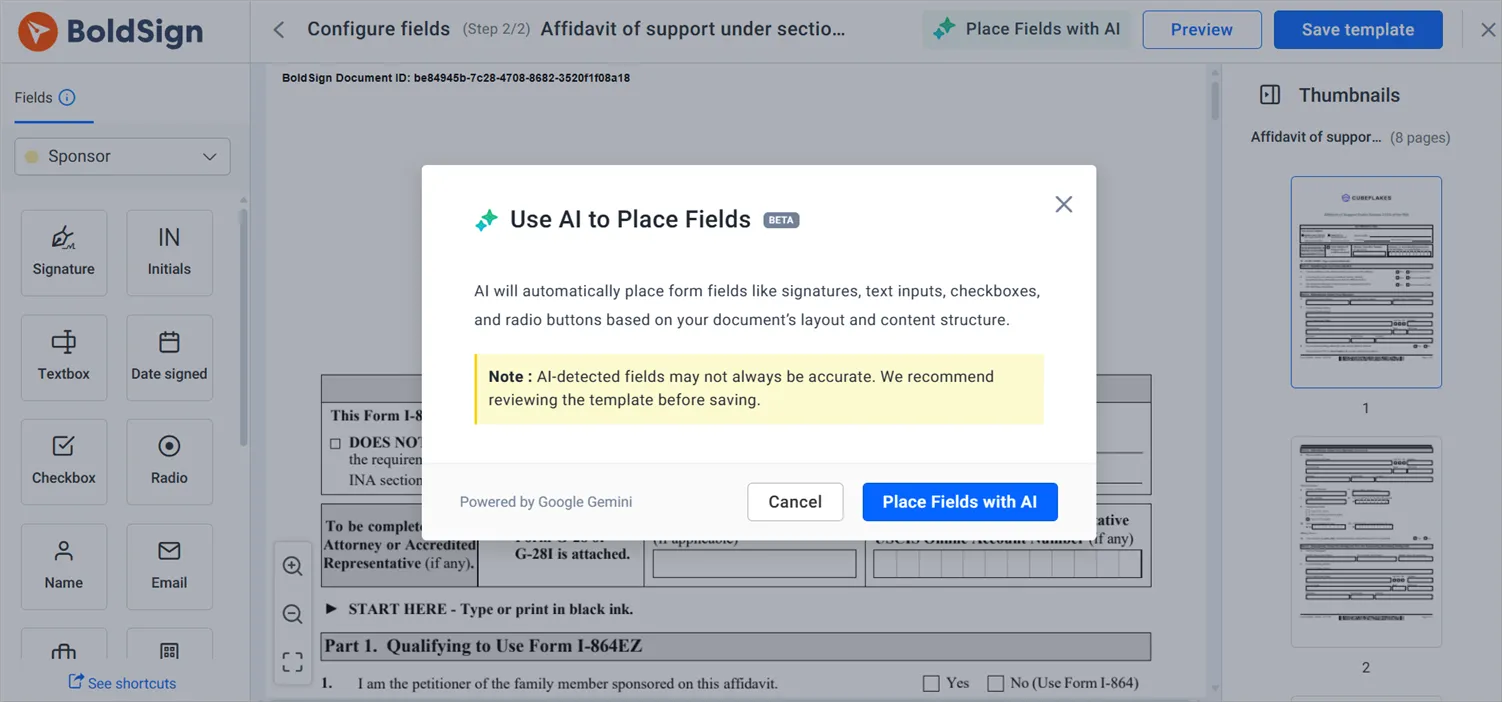
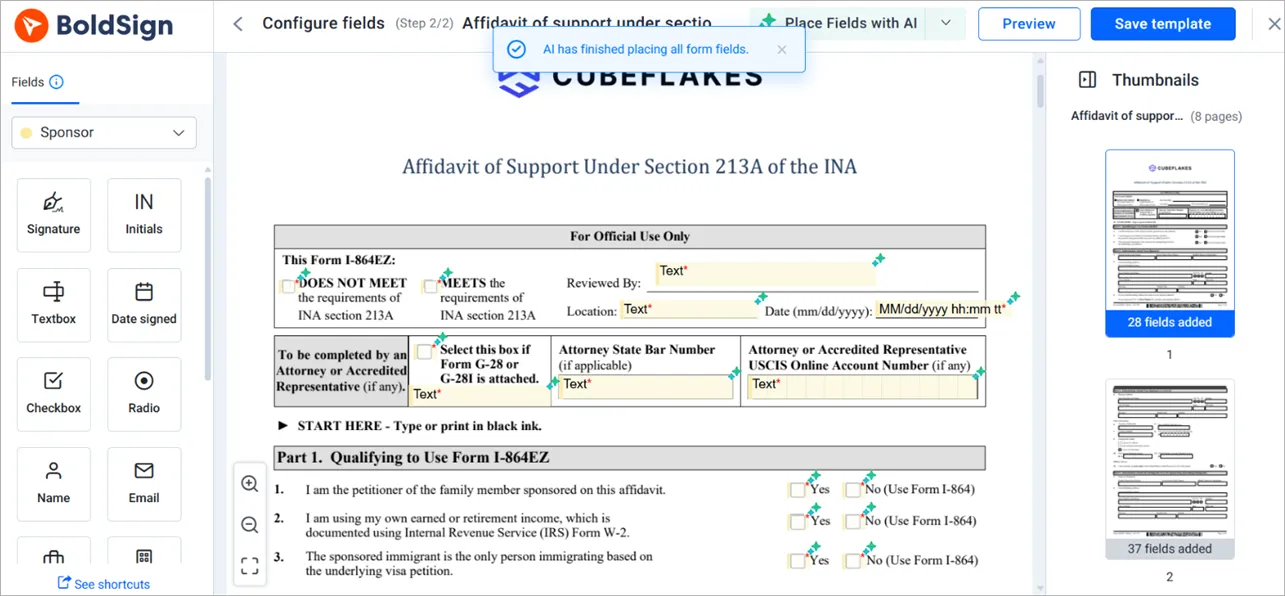
The AI reads the page and places signature, text, checkbox and radio button fields where it finds blanks.
Step 4: Review the fields and save
Each AI field carries a marker, so you can see what the AI added. Check that every field sits in the right place and belongs to the right role.
- Move or resize any field that sits slightly off.
- Delete a single field the same way as one you drew.
- Select Save template when every field looks right.
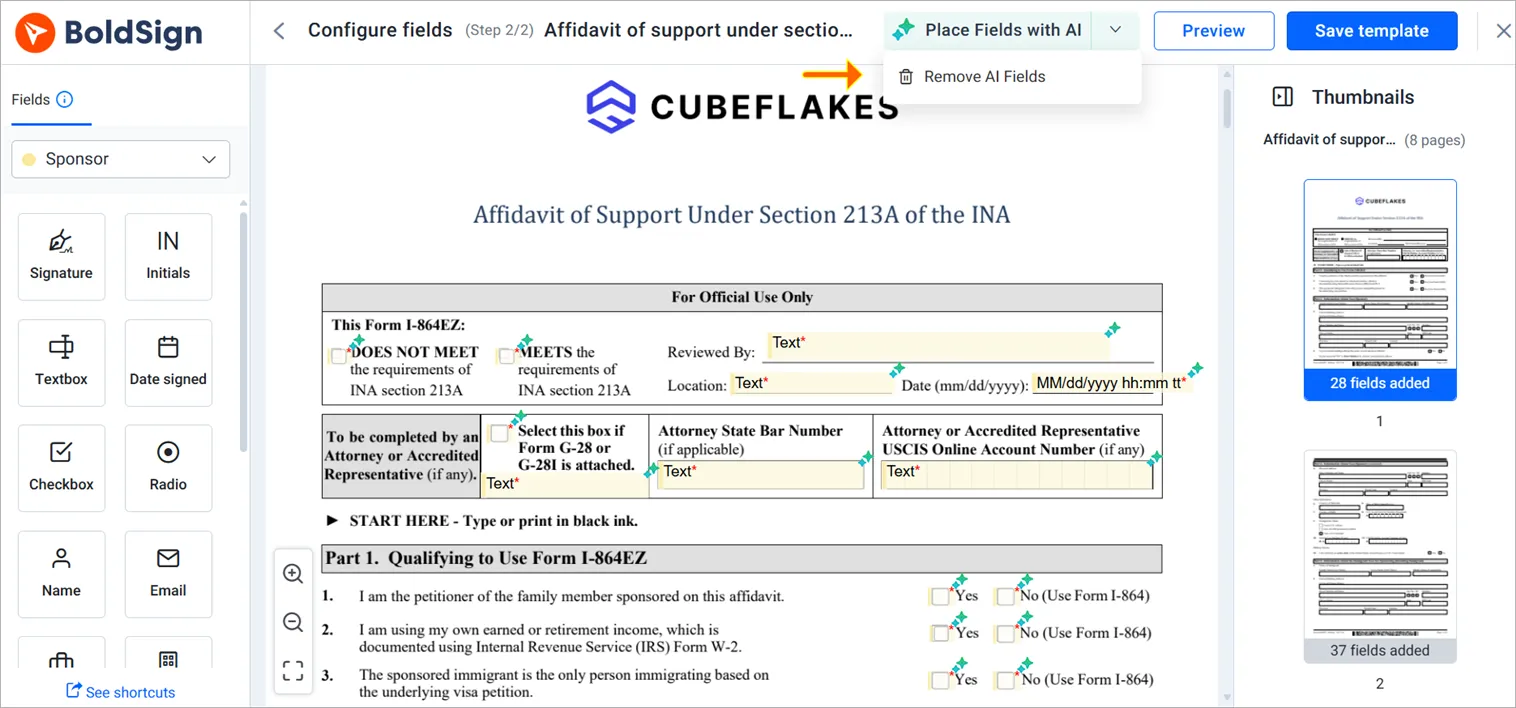
To start over, right-click any AI field and choose Delete AI Fields. That clears the whole set at once.
What should you check before saving an AI-placed template?
AI-detected fields may not always be accurate, so review the template before you save. A short check now saves a resend later.
- Each field belongs to the signer who must complete it.
- Every field sits on its line or box.
- Any blank the AI missed has a field you added by hand.
Running detection a second time does not stack fields. BoldSign tells you that AI fields already exist first.
Is your document safe when the AI reads it?
We do not use your documents to train an AI model. Field detection runs through Google Gemini with zero data retention, as stated on our AI field detection page.
The model reads the file to find the fields and keeps nothing afterwards. The AI does not write your document or fill in what signers type.
Which BoldSign plan includes AI field placement, and what does it cost?
AI-powered field detection starts on the Business plan, at $15 per user a month billed yearly. The Premium plan, at $99 a month billed yearly for unlimited users, and the Enterprise API plan include it too.
Business and Premium also include unlimited templates. The free Essential plan includes 2 templates and Growth includes 10, but neither includes AI placement. Prices are in USD, as listed on the BoldSign pricing page in November 2026.
What can you do next with AI field placement?
Try it on the document your team sends most often. Pick the step that suits you.
- Start a 30-day free trial and build your first AI-placed template.
- Book a demo to see AI placement on your own documents.
- Contact our support team with a question about a template you already use.
Frequently asked questions
What is AI form field placement?
It is a template feature that reads your document and adds the fields a signer must complete. You check the result and save the template, instead of drawing each box yourself.
Which documents work with AI field placement in BoldSign?
PDF and Word files that hold layout text work. A scanned page needs a text layer before the AI can read it.
Can I use AI field placement on a single document?
No, the feature runs only while you create a template. Build the template once, then send documents from it as often as you need.
Do I have to switch on AI field detection in settings?
No setting is needed. The Place Fields with AI option appears on the field setup step of a new template when your plan includes it.
Can I edit the fields the AI placed?
Yes. Every AI field stays editable, so you can move, resize or delete it like a field you drew yourself.
How do I remove all the AI fields at once?
Right-click any AI-placed field and choose Delete AI Fields. That clears the whole set, and you can then place fields by hand or run the AI again.
Does BoldSign use my documents to train an AI model?
No. We keep your documents out of model training. Field detection runs through Google Gemini with zero data retention, and the model keeps nothing after it reads the file.
Does AI field placement work for templates with several signers?
Yes. Templates with more than one role are supported, and you assign each placed field to the role that has to complete it.

Evans Omondi Otieno
Evans Omondi Otieno is a customer support representative and writer at BoldSign, specializing in creating clear, insightful content to help users navigate eSignature solutions. As a blog author, Evans writes well-researched articles that simplify technical concepts, helping businesses and professionals understand how to use BoldSign effectively. With expertise in technical support and content creation, he ensures users have a seamless experience and gain valuable knowledge from his articles.
More posts by Evans Omondi Otieno