How to Place Form Fields with AI in the BoldSign Mobile App
 Jayavigneshwaran
TL;DR: The BoldSign mobile app can place form fields for you with artificial intelligence (AI). Tap the AI icon while you build a template on iOS or Android, and the app places signature, date and other fields for you. Our AI-powered form field detection page shows the feature in action.
Placing fields on a phone is slow work. You zoom in, drag a box onto a line, then zoom out to check it sits in the right spot.
AI detection does that first pass for you. This guide shows how it works in the mobile app, how to run it and how to clear fields you do not need.
Why use AI field detection on your phone?
A small screen makes every drag and resize harder. AI detection places the fields in one tap, so you only check and adjust them.
AI placement helps most in a few everyday cases:
- You prepare templates while you travel or work on site.
- You need to send a document soon and have only your phone.
- You reuse forms that follow the same layout each time.
How does the app go about detecting form fields?
The AI reads the layout, text and spacing on each page. It then places a field wherever it finds a likely blank.
It looks for visual cues such as lines, boxes and printed labels. A page needs at least one of these cues before the AI can place a field.
Which form fields does the AI place?
The AI places five field types:
- Signature fields
- Textbox fields
- Date signed fields
- Checkboxes
- Radio buttons
What should you know before you start?
Use a PDF or Word file that holds layout text. The AI needs a text layer, so add one to a scanned page first.
- The feature runs only while you create a template, not a single document.
- AI fields may not always be accurate, so review each one before you save.
- Templates with several signer roles are supported.
We keep your documents out of model training. Field detection runs through Google Gemini with zero data retention, so the model keeps nothing after it reads the file.
How do you place AI form fields in the BoldSign mobile app?
The steps are the same whether you sign using iOS or sign using Android. Our help article on how to generate AI form fields in the mobile app lists them too.
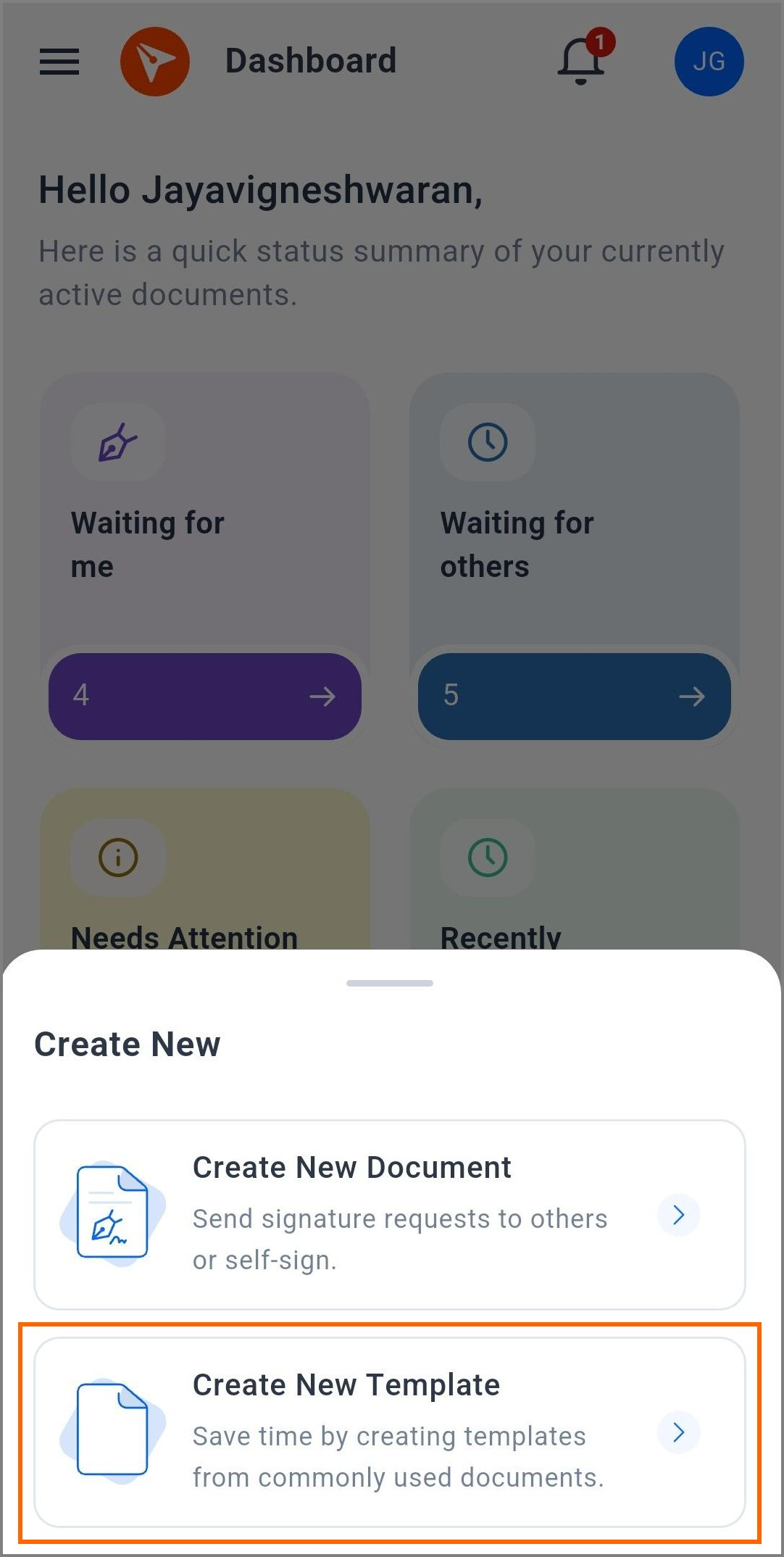
Step 1: Create a new template
Open the BoldSign app and sign in. On the dashboard, tap the + button and select Create New Template.
Step 2: Add the file, roles and details
- On the Upload Documents screen, upload your PDF or Word file.
- On the Add Recipient screen, add the roles and recipient details, then tap Next.
- On the Prepare Template screen, add a title and description, adjust any settings, then tap Next.
Step 3: Place the fields with AI
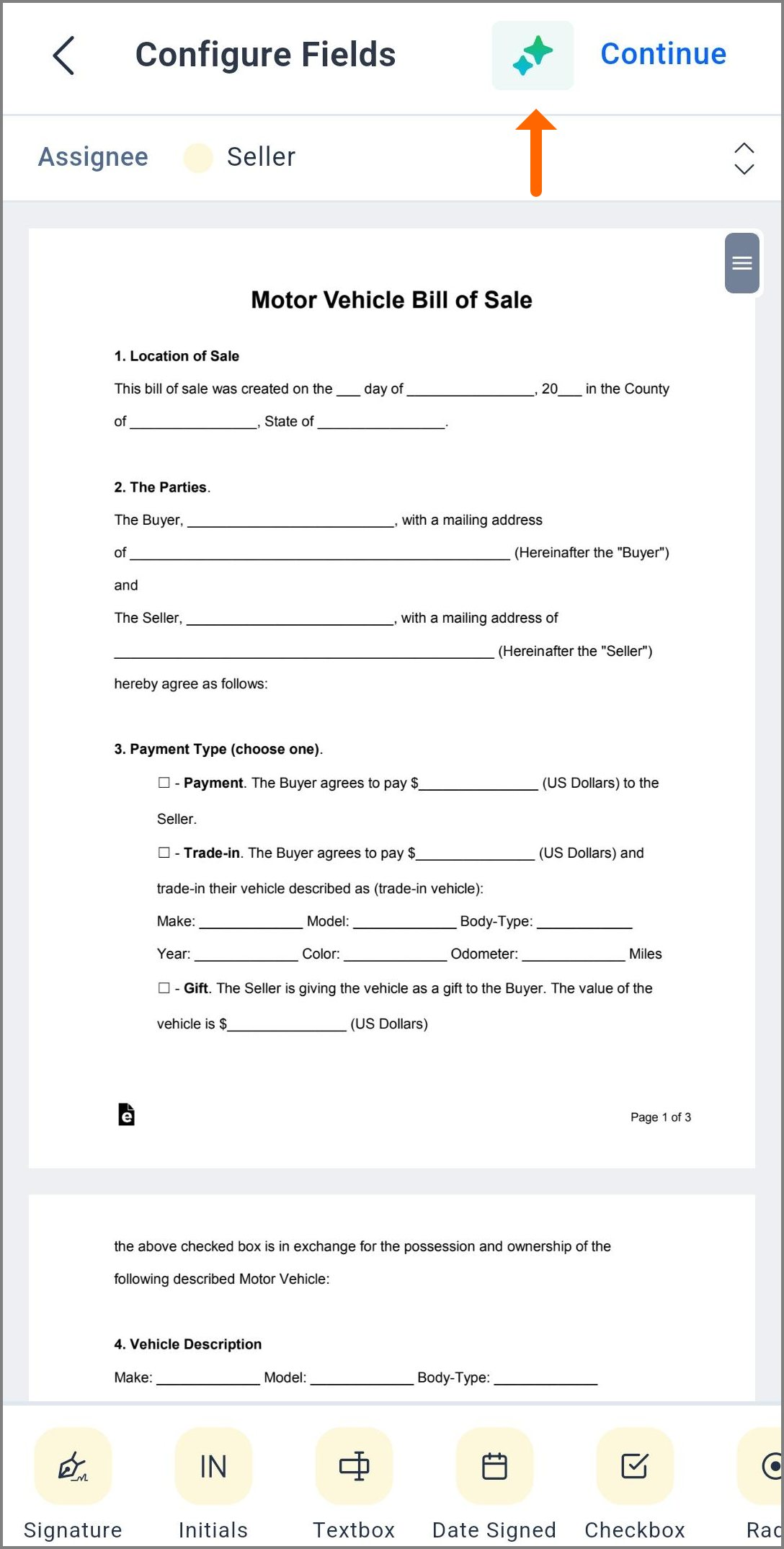
- On the Configure Fields screen, tap the AI icon in the app bar.
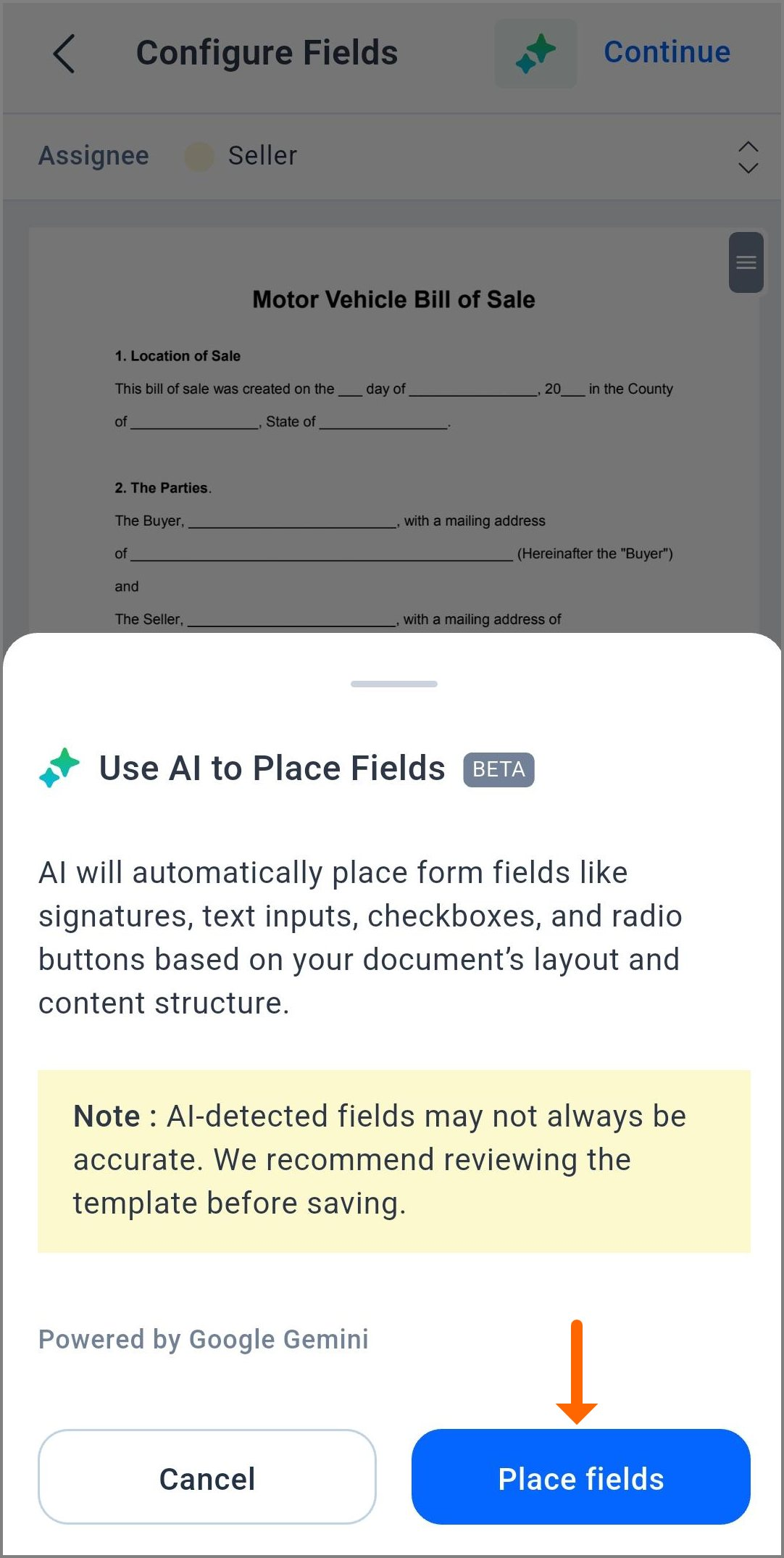
- In the confirmation sheet, tap Place Fields with AI.
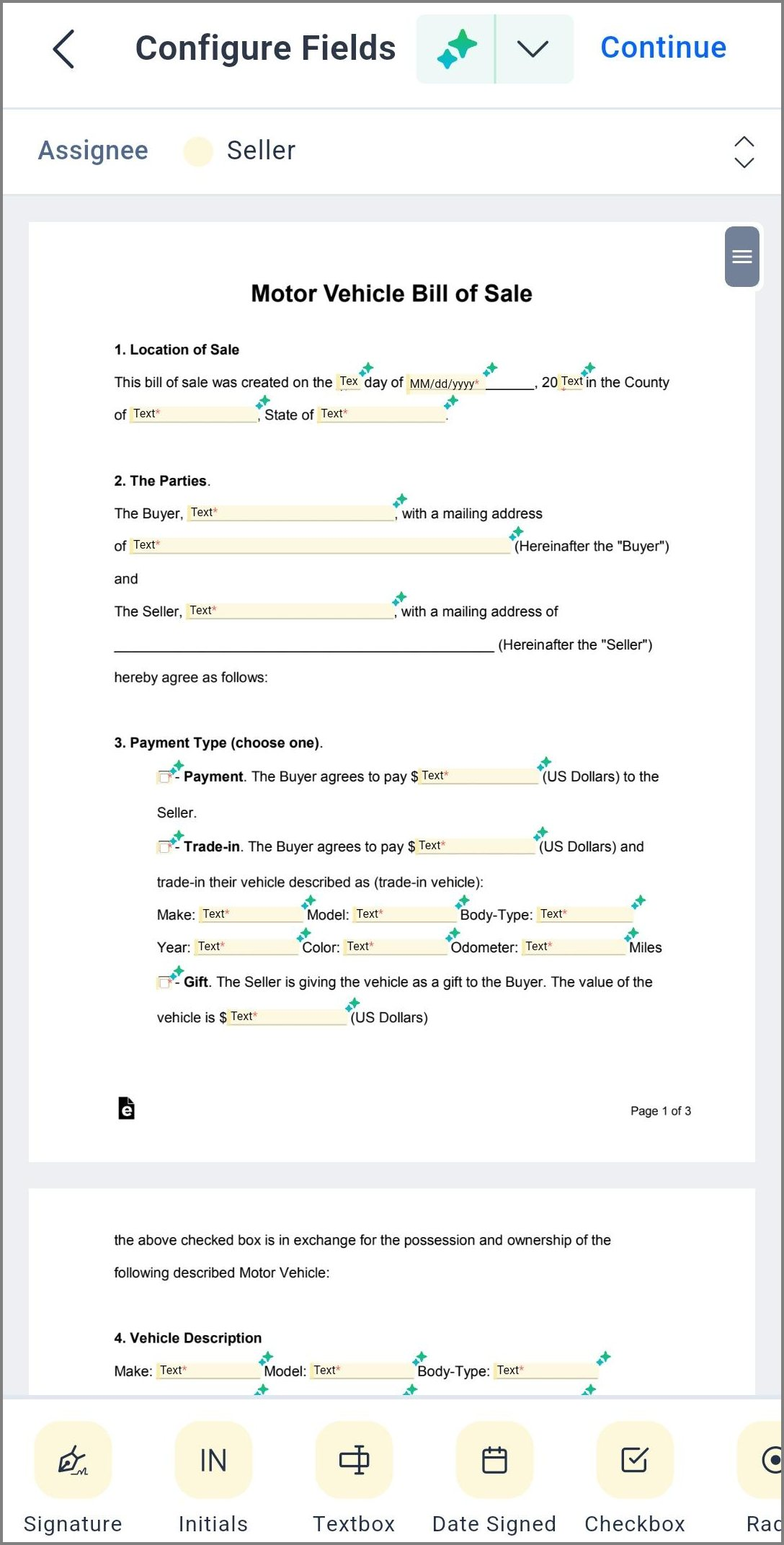
- Wait while the AI reads the page and places the fields.
Each field the AI adds carries a sparkle icon, so you can tell it apart from fields you drew.
Step 4: Review and save the template
- Move, resize or remove any field that sits in the wrong place.
- Tap a field to open its settings, and use Assigned to to give it another role.
- Tap Save Template when every field looks right.
How do you remove fields the AI placed?
You can delete one AI field or clear the whole set. Fields you placed by hand stay as they are.
Remove one AI field
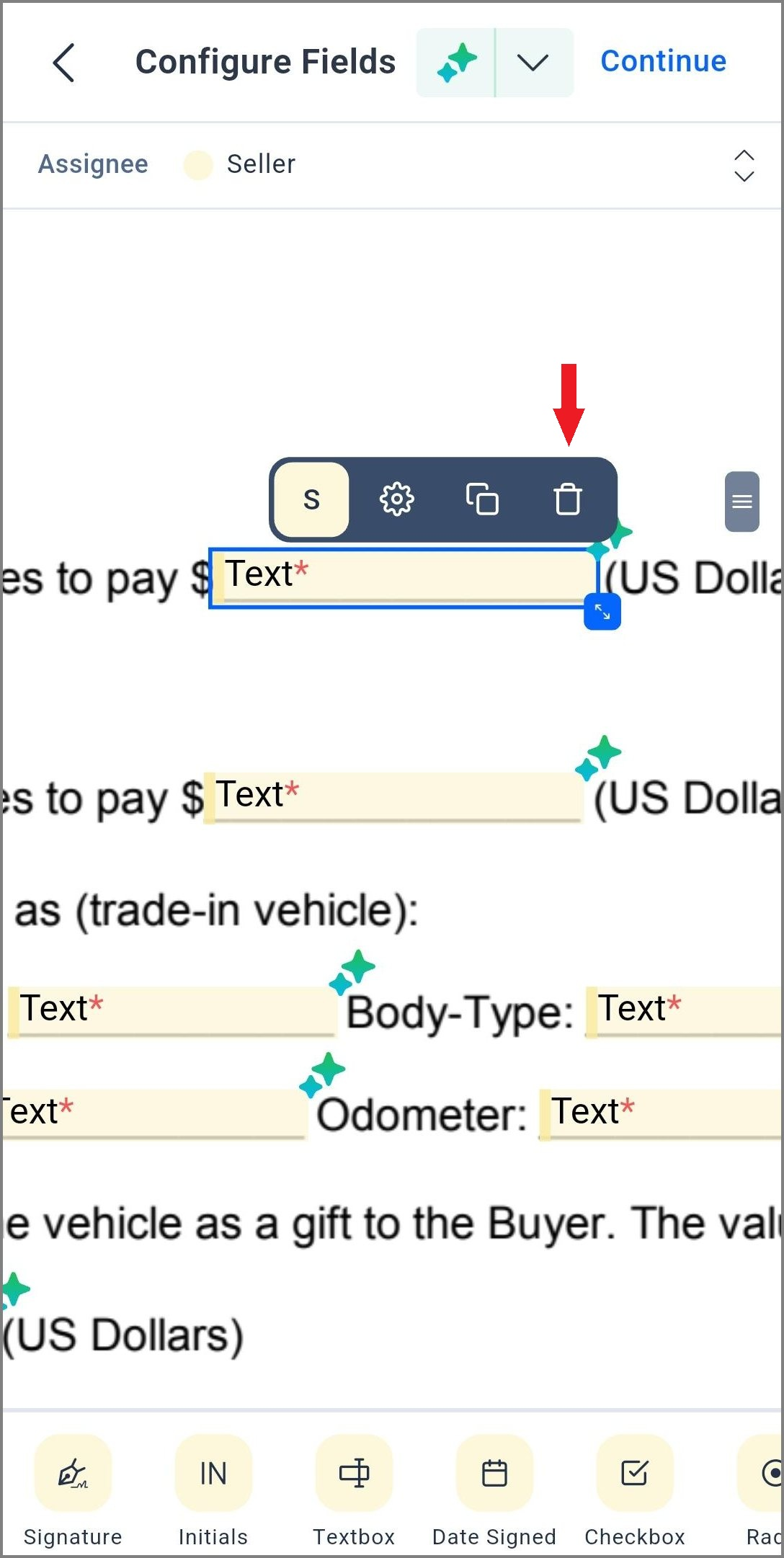
Tap the field to select it, then tap the Delete icon in the button panel that slides up.
Remove all AI fields at once
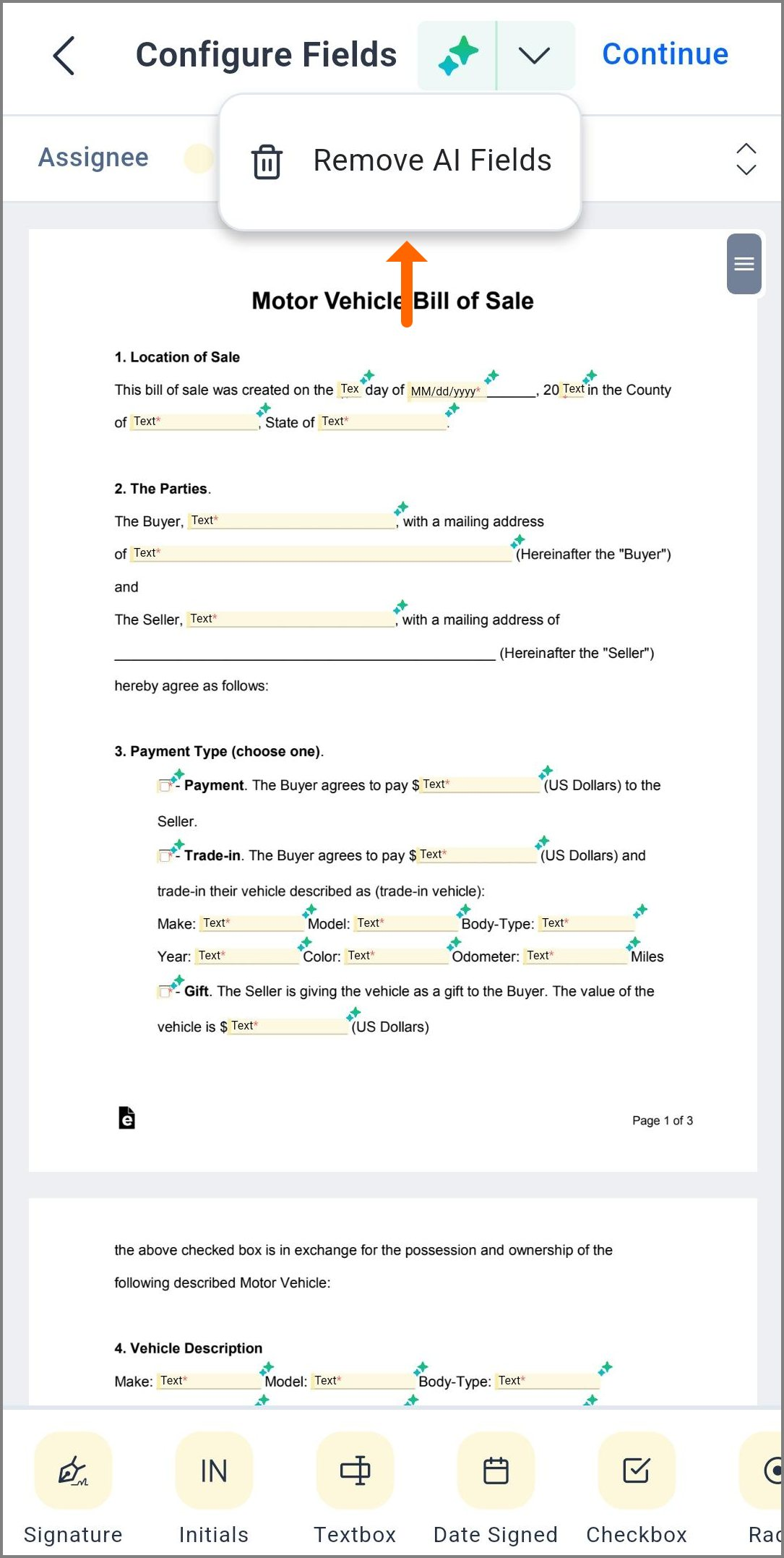
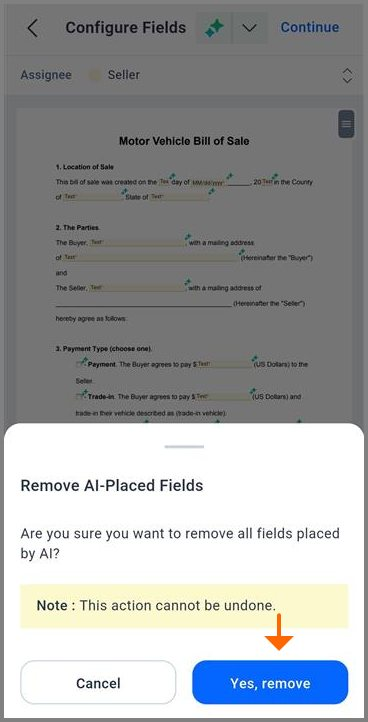
Tap the dropdown next to the AI icon and select Remove all AI fields. Confirm the prompt, and every field the AI added disappears.
On a computer, the web app works in a similar way. Our guide to placing form fields with AI in an eSignature template covers those steps.
Which BoldSign plan includes AI field detection, and what does it cost?
AI field detection starts on the Business plan, at $15 per user a month billed yearly. The Premium plan, at $99 a month billed yearly for unlimited users, and the Enterprise API plan include it too.
Business and Premium also include unlimited templates. The free Essential plan includes 2 templates and Growth includes 10, but neither includes AI detection. Prices are in USD, as listed on the BoldSign pricing page in November 2026.
How can you try AI field detection on your phone?
Pick the document you send most often and build a template from it in the app. You can e-sign on mobile once the template is saved.
- Start a 30-day free trial and build your first AI-placed template.
- Book a demo to see AI detection on your own documents.
- Visit our Support Portal for help with a template you already use.
Frequently asked questions
How do I use AI form field detection in the BoldSign app?
Start a new template, upload a PDF or Word file and add the roles. On the Configure Fields screen, tap the AI icon, then tap Place Fields with AI.
Is BoldSign AI field detection available on mobile?
Yes. The iOS and Android apps both include it, and the steps match on each phone.
Which documents work with AI field detection?
PDF and Word files that hold layout text work. A scanned page needs a text layer before the AI can read it.
How do I remove AI-detected fields in the BoldSign app?
Tap one field and use the Delete icon to remove it. To clear them all, tap the dropdown next to the AI icon, choose Remove all AI fields and confirm.
Is AI form field detection free in BoldSign?
It is part of our paid plans, starting with Business at $15 per user a month billed yearly. The free Essential plan does not include it.
Can I edit AI-placed fields on my phone?
Yes. You can move, resize or delete any AI field, and reassign it to another role from the Assigned to section.
Can I run AI field detection on a single document?
No, it runs only while you create a template. Build the template once, then send documents from it as often as you need.
Does BoldSign use my documents to train an AI model?
No. We keep your documents out of model training. Field detection runs through Google Gemini with zero data retention, so the model keeps nothing afterwards.

Jayavigneshwaran
Product Manager at BoldSign with a strong foundation in web and mobile development. Started as a web developer working with React, Angular, TypeScript, and Blazor, then moved into mobile development with Flutter and Dart. Now leading the BoldSign mobile app and support experience, combining technical depth with product strategy to deliver reliable releases and great customer outcomes. Connect with him on LinkedIn.
More posts by Jayavigneshwaran