BoldSign Formula Fields: Automate Calculations in eSignature Documents with the API
 Evans Omondi Otieno
TL;DR: Formula fields work out values such as balances, totals and due dates inside a document while the signer fills it in. You add them through our eSignature API as form fields of type Formula, with an expression that names other fields by their ID.
A car dealer sends a sales agreement with a vehicle price and a deposit. Someone has to work out the balance and a payment date, then check the sums before the document goes out. One slip means a wrong figure on a signed contract.
Formula fields move that arithmetic into the document itself. This guide explains what they can do, then walks through a vehicle sales agreement sent with the BoldSign API.
What is a formula field in an eSignature document?
A formula field is a form field that shows a result worked out from other fields. You write the formula, and the signer never does the math.
Think of a cell in a spreadsheet that adds up the column above it. You type the numbers, and the total cell fills itself in. A formula field does the same job on a PDF that goes out for signature.
The field holds no fixed value of its own. Our API reference describes the value as the computed result of the expression you give it.
Which fields, operators and functions can a formula use?
A formula can combine number and date fields with arithmetic, comparisons and a set of functions. Our help article on how to configure and use formula fields lists each one.
Which fields can a formula refer to?
- Text boxes set to accept numbers only
- Dropdowns whose options are numbers
- Date picker and editable date fields
- Other formula fields
Give each field a short, clear ID before you write the formula. The formula refers to fields only by those IDs.
Which operators and functions are there?
- Arithmetic:
+,-,*and/ - Comparison:
>,<,>=and<= - Logic:
&&(and),||(or) and theIffunction - Rounding:
FloorandCeil - Dates:
Year,Month,Day,Days,DateDiff,AddDays,AddMonthsandAddYears
How do you add formula fields with the BoldSign API?
Add each formula field to the formFields list of a signer in your send or template request. Set its type to Formula and give it a formulaFieldSettings object.
- Add the input fields first, such as number text boxes, each with its own ID.
- Add a field with
fieldTypeset to “Formula”. - Inside
formulaFieldSettings, setformulaExpression, for example “[textbox1] - [textbox2]”. - Set
decimalPrecisionto the number of decimal places you want in the result. - Send the request to the send document or create template endpoint.
Put each field ID in square brackets inside the expression. The developer guide on adding form fields with the BoldSign API covers the other field types.
What does a vehicle sales agreement example look like?
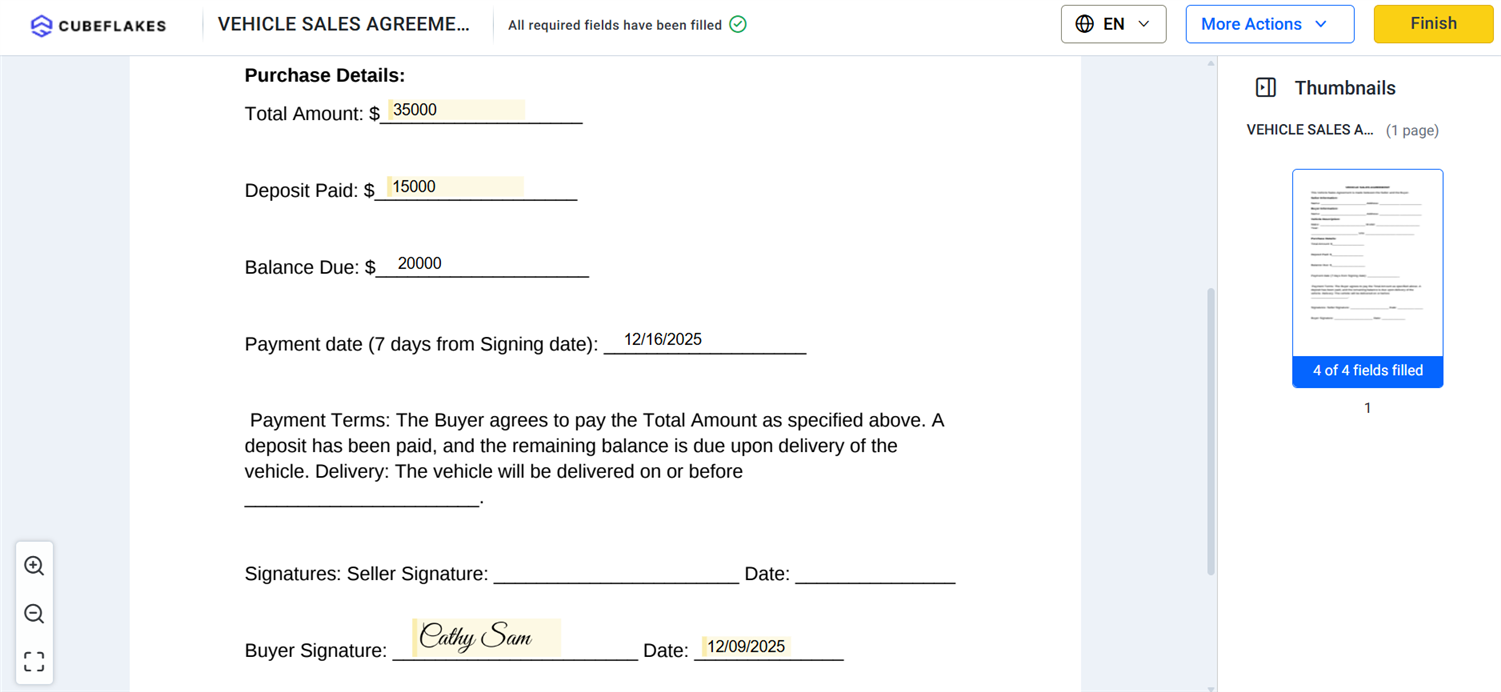
The signer enters two numbers: the total vehicle value in textbox1 and the deposit in textbox2. Two formula fields then fill in the rest.
- Balance:
[textbox1] - [textbox2], rounded to one decimal place - Payment date:
AddDays([SigningDate], 7), a week after the signing date - Signing date: a date signed field with the ID
SigningDate
The samples below send that agreement through the BoldSign API in six languages.
curl -X 'POST' \
  'https://api.boldsign.com/v1/document/send' \
  -H 'accept: application/json' \
  -H 'X-API-KEY: {your API key}' \
  -H 'Content-Type: application/json' \
  -d '{
  "Signers": [
    {
      "Name": "Alex",
      "EmailAddress": "alex@example.com",
      "SignerType": "Signer",
      "DeliveryMode": "Email",
      "FormFields": [
        {
          "Id": "signature1",
          "FieldType": "Signature",
          "PageNumber": 1,
          "Bounds": {
            "X": 50,
            "Y": 50,
            "Width": 100,
            "Height": 50
          },
          "IsRequired": true
        },
        {
          "Id": "textbox1",
          "FieldType": "TextBox",
          "PageNumber": 1,
          "Bounds": {
            "X": 50,
            "Y": 100,
            "Width": 100,
            "Height": 30
          },
          "IsRequired": true,
          "ValidationType": "NumbersOnly"
        },
        {
          "Id": "textbox2",
          "FieldType": "TextBox",
          "PageNumber": 1,
          "Bounds": {
            "X": 200,
            "Y": 100,
            "Width": 100,
            "Height": 30
          },
          "IsRequired": true,
          "ValidationType": "NumbersOnly"
        },
        {
          "Id": "SigningDate",
          "FieldType": "DateSigned",
          "PageNumber": 1,
          "Bounds": {
            "X": 200,
            "Y": 200,
            "Width": 125,
            "Height": 25
          },
          "IsRequired": true
        },
        {
          "Id": "PaymentDate",
          "FieldType": "Formula",
          "PageNumber": 1,
          "Bounds": {
            "X": 50,
            "Y": 200,
            "Width": 200,
            "Height": 30
          },
          "FormulaFieldSettings": {
            "FormulaExpression": "AddDays([SigningDate],7)"
          }
        },
        {
          "Id": "Balance",
          "FieldType": "Formula",
          "PageNumber": 1,
          "Bounds": {
            "X": 50,
            "Y": 250,
            "Width": 200,
            "Height": 30
          },
          "FormulaFieldSettings": {
            "FormulaExpression": "[textbox1] - [textbox2]",
            "DecimalPrecision": 1
          }
        }
      ],
      "Locale": "EN"
    }
  ],
  "ExpiryDays": 30,
  "Files": [
    "data:application/pdf;base64,JVBERi0xLjcKJcfs..."
  ],
  "Title": "Vehicle Sales Agreement",
  "ExpiryDateType": "Days",
  "ExpiryValue": 60
}'
var apiClient = new ApiClient("https://api.boldsign.com", "Your API Key");
var documentClient = new DocumentClient(apiClient);
// Define all form fields
List<FormField> formField = new List<FormField>
{
// Signature field
new FormField(
id: "Signature",
type: FieldType.Signature,
pageNumber: 1,
bounds: new Rectangle(x: 50, y: 50, width: 200, height: 30)),
// TextBox 1
new TextBoxField(
id: "textbox1",
validationType: BoldSign.Model.ValidationType.NumbersOnly,
pageNumber: 1,
bounds: new Rectangle(x: 50, y: 100, width: 100, height: 30),
isRequired: true),
// TextBox 2
new TextBoxField(
id: "textbox2",
validationType: BoldSign.Model.ValidationType.NumbersOnly,
pageNumber: 1,
bounds: new Rectangle(x: 200, y: 100, width: 100, height: 30),
isRequired: true),
// Signing date
new FormField(
id: "SigningDate",
type: FieldType.DateSigned,
pageNumber: 1,
bounds: new Rectangle(x: 200, y: 200, width: 125, height: 25),
isRequired: true),
// Payment date
new FormField(
id: "PaymentDate",
type: FieldType.Formula,
pageNumber: 1,
bounds: new Rectangle(x: 50, y: 200, width: 200, height: 30),
isRequired: true
),
// Balance (formula)
new FormField(
id: "Balance",
type: FieldType.Formula,
pageNumber: 1,
bounds: new Rectangle(x: 50, y: 250, width: 200, height: 30),
isRequired: true
)
};
formField[4].FormulaFieldSettings= new FormulaFieldSettings
{
FormulaExpression = "AddDays([SigningDate],7)",
};
formField[5].FormulaFieldSettings = new FormulaFieldSettings
{
FormulaExpression = "[textbox1] - [textbox2]",
DecimalPrecision = 1
};
// Document details
var documentDetails = new SendForSign
{
Title = "Agreement",
Signers = new List<DocumentSigner>
{
new DocumentSigner(
signerName: "Alex",
signerType: SignerType.Signer,
signerEmail: "alex@example.com",
formFields: formField)
},
Files = new List<IDocumentFile>
{
new DocumentFilePath
{
ContentType = "application/pdf",
FilePath = "Your File Path.pdf",
}
},
};
// Send document
var documentCreated = documentClient.SendDocument(documentDetails);
Console.WriteLine($"Document sent successfully. Document ID: {documentCreated?.DocumentId}");import boldsign
configuration = boldsign.Configuration(api_key="Your API Key ")
with boldsign.ApiClient(configuration) as api_client:
document_api = boldsign.DocumentApi(api_client)
# Signature field
signature_field = boldsign.FormField(
fieldType="Signature",
pageNumber=1,
bounds=boldsign.Rectangle(x=50, y=50, width=200, height=25),
)
# Total vehicle value
textbox1 = boldsign.FormField(
id="textbox1",
fieldType="TextBox",
pageNumber=1,
bounds=boldsign.Rectangle(x=50, y=100, width=100, height=30),
validationType="NumbersOnly",
isRequired=True,
)
# Deposit amount
textbox2 = boldsign.FormField(
id="textbox2",
fieldType="TextBox",
pageNumber=1,
bounds=boldsign.Rectangle(x=200, y=100, width=150, height=30),
validationType="NumbersOnly",
isRequired=True,
)
# Balance formula
formula_balance = boldsign.FormField(
id="FormulaBalance",
fieldType="Formula",
pageNumber=1,
bounds=boldsign.Rectangle(x=50, y=150, width=200, height=30),
formulaFieldSettings=boldsign.FormulaFieldSettings(
formulaExpression="[textbox1] - [textbox2]", decimalPrecision=1
),
)
# Signing date
signing_date_field = boldsign.FormField(
id="SigningDate",
fieldType="DateSigned",
isRequired=True,
pageNumber=1,
bounds=boldsign.Rectangle(x=50, y=200, width=100, height=30),
)
# Payment date (seven days after signing date)
payment_date_field = boldsign.FormField(
id="PaymentDate",
fieldType="Formula",
pageNumber=1,
bounds=boldsign.Rectangle(x=50, y=250, width=200, height=30),
formulaFieldSettings=boldsign.FormulaFieldSettings(
formulaExpression="AddDays([SigningDate], 7)",
),
)
# Signer with all fields
document_signer = boldsign.DocumentSigner(
name="Alex",
emailAddress="alex@example.com",
signerType="Signer",
formFields=[
signature_field,
textbox1,
textbox2,
formula_balance,
signing_date_field,
payment_date_field,
],
)
send_for_sign = boldsign.SendForSign(
title="Vehicle Sales Agreement", files=["Your file path.pdf"], signers=[document_signer]
)
document_created = document_api.send_document(send_for_sign)<?php require_once "vendor/autoload.php";
use BoldSign\Configuration;
use BoldSign\Api\DocumentApi;
use BoldSign\Model\{
FormField,
Rectangle,
DocumentSigner,
SendForSign,
FileInfo,
FormulaFieldSettings,
EditableDateFieldSettings
};
$config = new Configuration();
$config->setApiKey('Your API Key');
$document_api = new DocumentApi($config);
// Signature field
$signatureField = new FormField();
$signatureField->setFieldType('Signature');
$signatureField->setPageNumber(1);
$signatureField->setBounds(new Rectangle([50, 50, 200, 25]));
// Total vehicle value
$textbox1 = new FormField();
$textbox1->setId('textbox1');
$textbox1->setFieldType('TextBox');
$textbox1->setPageNumber(1);
$textbox1->setBounds(new Rectangle([50, 100, 100, 30]));
$textbox1->setValidationType('NumbersOnly');
$textbox1->setIsRequired(true);
// Deposit amount
$textbox2 = new FormField();
$textbox2->setId('textbox2');
$textbox2->setFieldType('TextBox');
$textbox2->setPageNumber(1);
$textbox2->setBounds(new Rectangle([200, 100, 100, 30]));
$textbox2->setValidationType('NumbersOnly');
$textbox2->setIsRequired(true);
// Signing date
$signingDateField = new FormField();
$signingDateField->setId('SigningDate');
$signingDateField->setFieldType('DateSigned');
$signingDateField->setPageNumber(1);
$signingDateField->setBounds(new Rectangle([50, 200, 100, 30]));
$signingDateField->setIsRequired(true);
// Payment date (seven days after signing date)
$paymentDate = new FormField();
$paymentDate->setId('PaymentDate');
$paymentDate->setFieldType('Formula');
$paymentDate->setPageNumber(1);
$paymentDate->setBounds(new Rectangle([50, 200, 200, 30]));
$paymentSettings = new FormulaFieldSettings();
$paymentSettings->setFormulaExpression('AddDays([SigningDate],7)');
$paymentDate->setFormulaFieldSettings($paymentSettings);
// Balance formula
$balanceField = new FormField();
$balanceField->setId('Balance');
$balanceField->setFieldType('Formula');
$balanceField->setPageNumber(1);
$balanceField->setBounds(new Rectangle([50, 250, 200, 30]));
$balanceSettings = new FormulaFieldSettings();
$balanceSettings->setFormulaExpression('[textbox1] - [textbox2]');
$balanceSettings->setDecimalPrecision(1);
$balanceField->setFormulaFieldSettings($balanceSettings);
// Signer
$document_signer = new DocumentSigner();
$document_signer->setName("Alex");
$document_signer->setEmailAddress("alex@example.com");
$document_signer->setSignerType("Signer");
$document_signer->setFormFields([
$signatureField, $textbox1, $textbox2, $signingDateField, $paymentDate, $balanceField
]);
$send_for_sign = new SendForSign();
$send_for_sign->setFiles(['Non Disclosure Agreement.pdf']);
$send_for_sign->setSigners([$document_signer]);
$send_for_sign->setTitle('Vehicle Sales Agreement');
// Send document
$document_created = $document_api->sendDocument($send_for_sign);ApiClient client = Configuration.getDefaultApiClient();
client.setApiKey("Your API Key");
DocumentApi documentApi = new DocumentApi(client);
// Signature field
FormField signatureField = new FormField();
signatureField.setFieldType(FormField.FieldTypeEnum.SIGNATURE);
signatureField.setPageNumber(1);
signatureField.setBounds(new Rectangle().x(100f).y(100f).width(100f).height(50f));
// Total vehicle value
FormField vehicleValue = new FormField();
vehicleValue.setId("textbox1");
vehicleValue.setFieldType(FormField.FieldTypeEnum.TEXT_BOX);
vehicleValue.setPageNumber(1);
vehicleValue.setBounds(new Rectangle().x(50f).y(50f).width(120f).height(30f));
vehicleValue.setValidationType(FormField.ValidationTypeEnum.NUMBERS_ONLY);
// Deposit amount
FormField depositAmount = new FormField();
depositAmount.setId("textbox2");
depositAmount.setFieldType(FormField.FieldTypeEnum.TEXT_BOX);
depositAmount.setPageNumber(1);
depositAmount.setBounds(new Rectangle().x(200f).y(50f).width(120f).height(30f));
depositAmount.setValidationType(FormField.ValidationTypeEnum.NUMBERS_ONLY);
// Signing date
FormField signingDate = new FormField();
signingDate.setId("SigningDate");
signingDate.setFieldType(FormField.FieldTypeEnum.DATE_SIGNED);
signingDate.setPageNumber(1);
signingDate.setBounds(new Rectangle().x(50f).y(100f).width(180f).height(30f));
signingDate.setDateFormat("MM/dd/yyyy");
// Payment date
FormField paymentDate = new FormField();
paymentDate.setId("PaymentDate");
paymentDate.setFieldType(FormField.FieldTypeEnum.FORMULA);
paymentDate.setPageNumber(1);
paymentDate.setBounds(new Rectangle().x(50f).y(140f).width(180f).height(30f));
FormulaFieldSettings paymentSettings = new FormulaFieldSettings();
paymentSettings.setFormulaExpression("AddDays([SigningDate],7)");
paymentDate.setFormulaFieldSettings(paymentSettings);
// Balance
FormField balanceField = new FormField();
balanceField.setId("Balance");
balanceField.setFieldType(FormField.FieldTypeEnum.FORMULA);
balanceField.setPageNumber(1);
balanceField.setBounds(new Rectangle().x(50f).y(200f).width(200f).height(30f));
FormulaFieldSettings balanceSettings = new FormulaFieldSettings();
balanceSettings.setFormulaExpression("[textbox1] - [textbox2]");
balanceSettings.setDecimalPrecision(2);
balanceField.setFormulaFieldSettings(balanceSettings);
// Signer
DocumentSigner signer = new DocumentSigner();
signer.setName("Alex");
signer.setEmailAddress("alex@example.com");
signer.setSignerType(DocumentSigner.SignerTypeEnum.SIGNER);
signer.setFormFields(Arrays.asList(
signatureField, vehicleValue, depositAmount, signingDate, paymentDate, balanceField));
// Send document
SendForSign sendForSign = new SendForSign();
File file = new File("Your file path.pdf");
sendForSign.setFiles(Arrays.asList(file));
sendForSign.setSigners(Arrays.asList(signer));
sendForSign.setTitle("Vehicle Sales Agreement");
DocumentCreated documentCreated = documentApi.sendDocument(sendForSign);
System.out.println("Document created: " + documentCreated.getDocumentId());import { DocumentApi, DocumentSigner, FormField, Rectangle, SendForSign } from "boldsign";
import * as fs from "fs";
const documentApi = new DocumentApi();
documentApi.setApiKey("Your API KEY");
// Signature field
const signatureField = new FormField();
signatureField.fieldType = FormField.FieldTypeEnum.Signature;
signatureField.pageNumber = 1;
signatureField.bounds = new Rectangle();
signatureField.bounds.x = 50;
signatureField.bounds.y = 50;
signatureField.bounds.width = 200;
signatureField.bounds.height = 25;
// Total vehicle value
const textbox1 = new FormField();
textbox1.id = "textbox1";
textbox1.fieldType = FormField.FieldTypeEnum.TextBox;
textbox1.pageNumber = 1;
textbox1.bounds = new Rectangle();
textbox1.bounds.x = 50;
textbox1.bounds.y = 100;
textbox1.bounds.width = 100;
textbox1.bounds.height = 30;
textbox1.validationType = "NumbersOnly";
textbox1.isRequired = true;
// Deposit amount
const textbox2 = new FormField();
textbox2.id = "textbox2";
textbox2.fieldType = FormField.FieldTypeEnum.TextBox;
textbox2.pageNumber = 1;
textbox2.bounds = new Rectangle();
textbox2.bounds.x = 200;
textbox2.bounds.y = 100;
textbox2.bounds.width = 150;
textbox2.bounds.height = 30;
textbox2.validationType = "NumbersOnly";
textbox2.isRequired = true;
// Balance formula
const formulaBalance = new FormField();
formulaBalance.id = "FormulaBalance";
formulaBalance.fieldType = FormField.FieldTypeEnum.Formula;
formulaBalance.pageNumber = 1;
formulaBalance.bounds = new Rectangle();
formulaBalance.bounds.x = 50;
formulaBalance.bounds.y = 150;
formulaBalance.bounds.width = 200;
formulaBalance.bounds.height = 30;
formulaBalance.formulaFieldSettings = {
formulaExpression: "[textbox1] - [textbox2]",
decimalPrecision: 1,
};
// Signing date
const signingDateField = new FormField();
signingDateField.id = "SigningDate";
signingDateField.fieldType = FormField.FieldTypeEnum.DateSigned;
signingDateField.isRequired = true;
signingDateField.pageNumber = 1;
signingDateField.bounds = new Rectangle();
signingDateField.bounds.x = 50;
signingDateField.bounds.y = 200;
signingDateField.bounds.width = 100;
signingDateField.bounds.height = 30;
// Payment date (seven days after signing date)
const paymentDateField = new FormField();
paymentDateField.id = "PaymentDate";
paymentDateField.fieldType = FormField.FieldTypeEnum.Formula;
paymentDateField.pageNumber = 1;
paymentDateField.bounds = new Rectangle();
paymentDateField.bounds.x = 50;
paymentDateField.bounds.y = 250;
paymentDateField.bounds.width = 200;
paymentDateField.bounds.height = 30;
paymentDateField.formulaFieldSettings = {
formulaExpression: "AddDays([SigningDate], 7)",
};
// Signer with all fields
const documentSigner = new DocumentSigner();
documentSigner.name = "Alex";
documentSigner.emailAddress = "alex@example.com";
documentSigner.signerType = DocumentSigner.SignerTypeEnum.Signer;
documentSigner.formFields = [
signatureField,
textbox1,
textbox2,
formulaBalance,
signingDateField,
paymentDateField,
];
const files = fs.createReadStream("Your File Path.pdf");
const sendForSign = new SendForSign();
sendForSign.title = "Vehicle Sales Agreement";
sendForSign.signers = [documentSigner];
sendForSign.files = [files];
const documentCreated = documentApi.sendDocument(sendForSign);Replace the API key and file path placeholders with your own values before you run a sample. The signer then sees the balance and payment date fill in from the numbers they enter.
What should you check before sending formula fields?
A few habits keep formulas accurate and easy to fix later. Our API reference also notes that the Formula field type is available in the beta version, as of November 2026.
- Keep each formula short, and chain formula fields for longer sums.
- Set number fields to
NumbersOnlyso a stray letter cannot break a sum. - Match
decimalPrecisionto how your business writes amounts of money. - Place results close to their inputs so signers can see the effect.
- Send a test document from the sandbox to confirm each result.
Our guide to conditional fields with the BoldSign API shows how to hide or show fields based on a result.
Which BoldSign plan do you need for formula fields via the API, and what does it cost?
Live API access comes with the Enterprise API plan, which starts at $30 a month with 40 envelopes. Extra envelopes cost $0.75 each.
You can build and test first in a free API sandbox account. Sandbox documents carry a watermark and are deleted after 14 days. Prices are in USD, as listed on the BoldSign pricing page in November 2026.
Where do you go next with formula fields?
Start with the vehicle sales sample in the sandbox, then swap in the fields your own documents need.
- Create a free API sandbox account and run one of the samples above.
- Read our developer documentation to set up your API key and first request.
- Open a ticket in our support portal with a question about your formulas.
Frequently asked questions
What is a formula field in BoldSign?
A formula field shows a value worked out from other fields in the same document. You write the formula once, and the field fills in the result from what the signer enters.
Which operators can a BoldSign formula use?
You can add, subtract, multiply and divide. Formulas also take comparison operators such as greater than, and the logical operators && (and) and || (or).
Can a formula field work with dates?
Yes. A formula can read a date picker or editable date field and use date functions such as AddDays or DateDiff, for example to set a payment date a week after signing.
Which fields can a formula refer to?
A formula can refer to text boxes and dropdowns set up for numbers, and to date fields. It can also use the result of another formula field.
How do I set the number of decimal places in a formula result?
Set DecimalPrecision inside FormulaFieldSettings. The API rounds the computed result to that many decimal places, which helps with amounts of money.
Can I add formula fields to a template through the API?
Yes. The create template request takes the same Formula field type as a direct send, so a template can carry its formulas into every document you send from it.
Can a formula field show or hide other fields?
Yes, through conditional logic. A result of 1 shows the target field and 0 hides it, and any other number shows it only on an exact match.
Do I need a paid plan to test formula fields with the API?
No. You can build and test formula fields in a free API sandbox account. Live sending needs the Enterprise API plan.

Evans Omondi Otieno
Evans Omondi Otieno is a customer support representative and writer at BoldSign, specializing in creating clear, insightful content to help users navigate eSignature solutions. As a blog author, Evans writes well-researched articles that simplify technical concepts, helping businesses and professionals understand how to use BoldSign effectively. With expertise in technical support and content creation, he ensures users have a seamless experience and gain valuable knowledge from his articles.
More posts by Evans Omondi Otieno