A Complete Guide to BoldSign Document Deletion and Retention Policy
 Rayronald Ochola Otieno
TL;DR: The BoldSign Document Deletion Policy removes documents for good after a retention period you set, from 14 to 1,827 days. You choose which statuses count: Completed, Declined, Revoked or Expired. It sits with our other document management tools, and you can track or cancel each scheduled deletion.
A sales team signs hundreds of quotes a year. Many are declined or expire, and the signed ones only need to stay for a few years. Clearing them out by hand takes time, and old files hold personal data you no longer need.
Our automatic document deletion setting handles that cleanup for you. This guide covers how it works, how to turn it on, and how to manage what is queued.
What is a document deletion policy?
A document deletion policy is a rule that removes documents once they are old enough. In BoldSign, you pick the document statuses and the number of days to keep them.
Think of it like a shredding schedule in an office. Each folder gets a date, and on that date it goes in the shredder. The policy does the same for your digital documents.
Which document statuses can you delete?
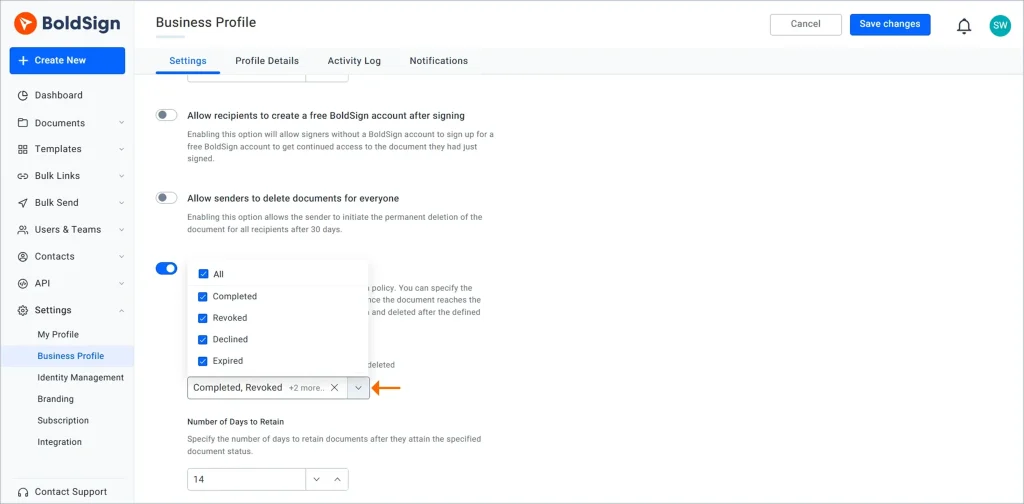
You can choose any of these four statuses in the policy:
- Completed: every signer has signed the document.
- Declined: a recipient refused to sign it.
- Revoked: the sender canceled it before everyone signed.
- Expired: the signing deadline passed with signatures missing.
How long can you keep documents before deletion?
You set a retention period from 14 days up to 1,827 days, which is about 5 years. The policy skips documents sent on behalf of another user, so those stay in place.
Why does document deletion matter?
Keeping every file forever adds risk and clutter. A clear deletion rule keeps only what you still need.
- Privacy rules: the General Data Protection Regulation (GDPR) asks you to keep personal data no longer than needed.
- Less exposure: fewer old files means less data to protect.
- Less manual work: nobody has to sort and delete files by hand.
- Tidier records: your document lists hold only current, useful files.
Set the period to match the longest time the law or your contracts require. Our guide to e-signature retention and secure recordkeeping explains how to pick that period.
How do you set up the Document Deletion Policy in BoldSign?
Turn the policy on in your Business profile settings, then pick the statuses and days. Our help article on how to automatically delete documents lists the same steps.
- Open the Settings menu and select Business profile.
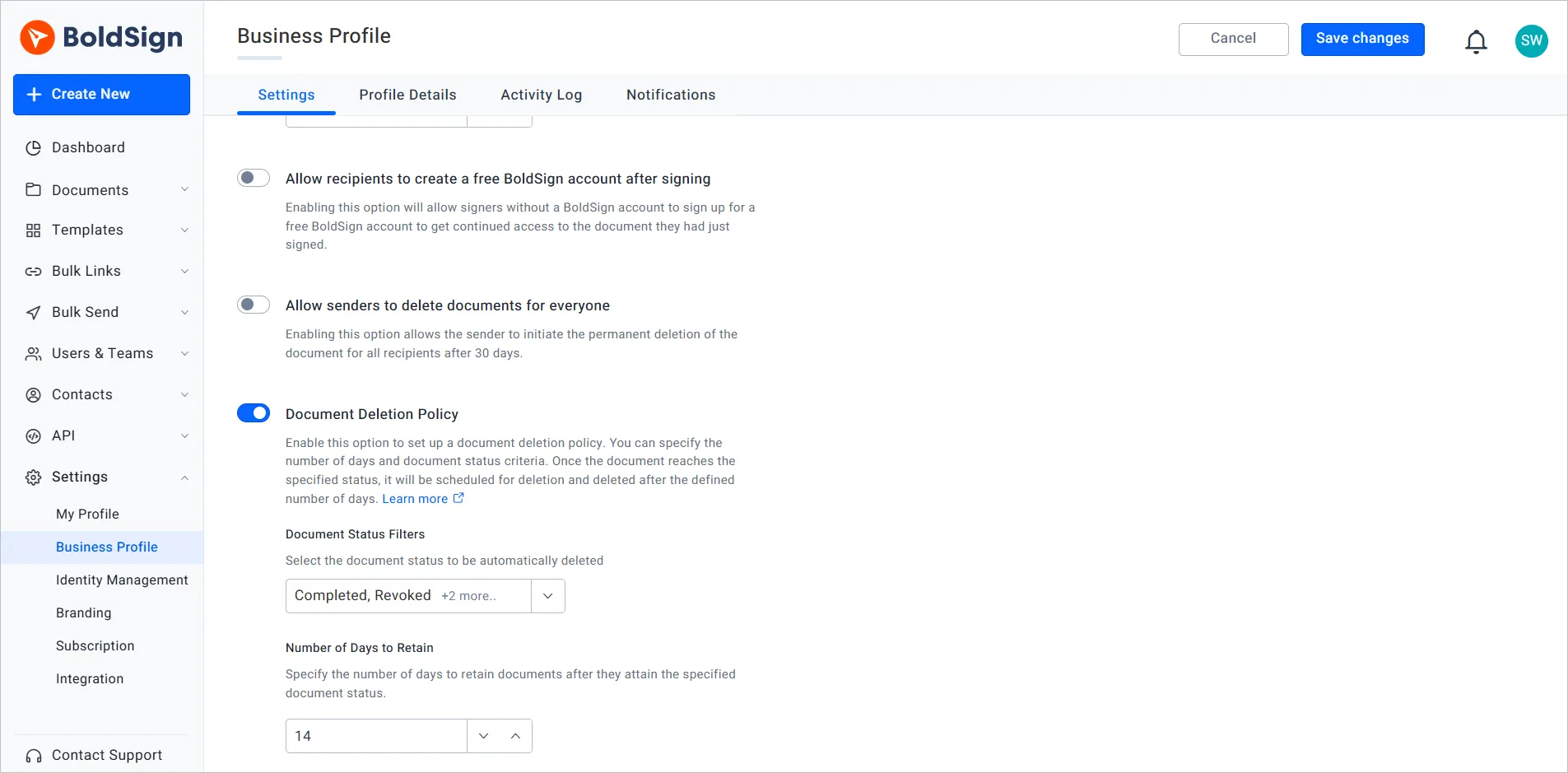
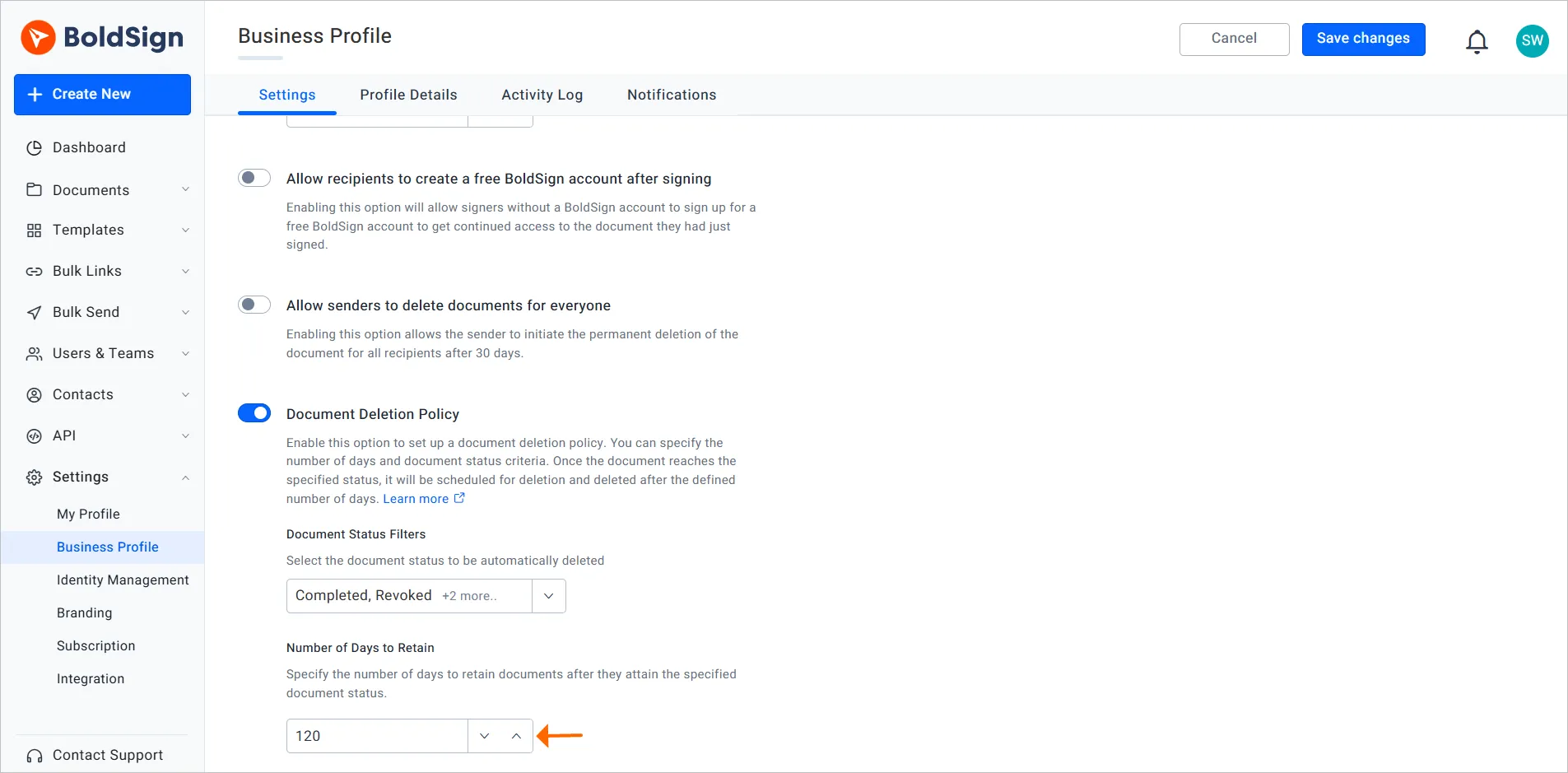
- On the Settings tab, scroll down and turn on Document Deletion Policy.
- Under Document Status Filters, choose the statuses to delete.
- Enter the Number of Days to Retain, from 14 to 1,827.
- Select Save changes to start the policy.
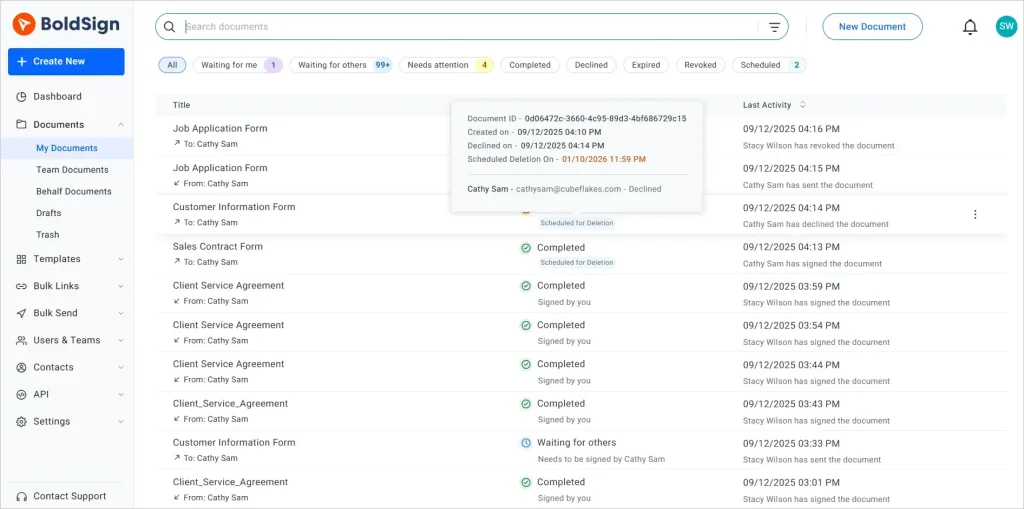
How do you track documents scheduled for deletion?
Each queued document shows a Scheduled for Deletion badge. You see it in My Documents and Team Documents, and hovering shows the date and time.
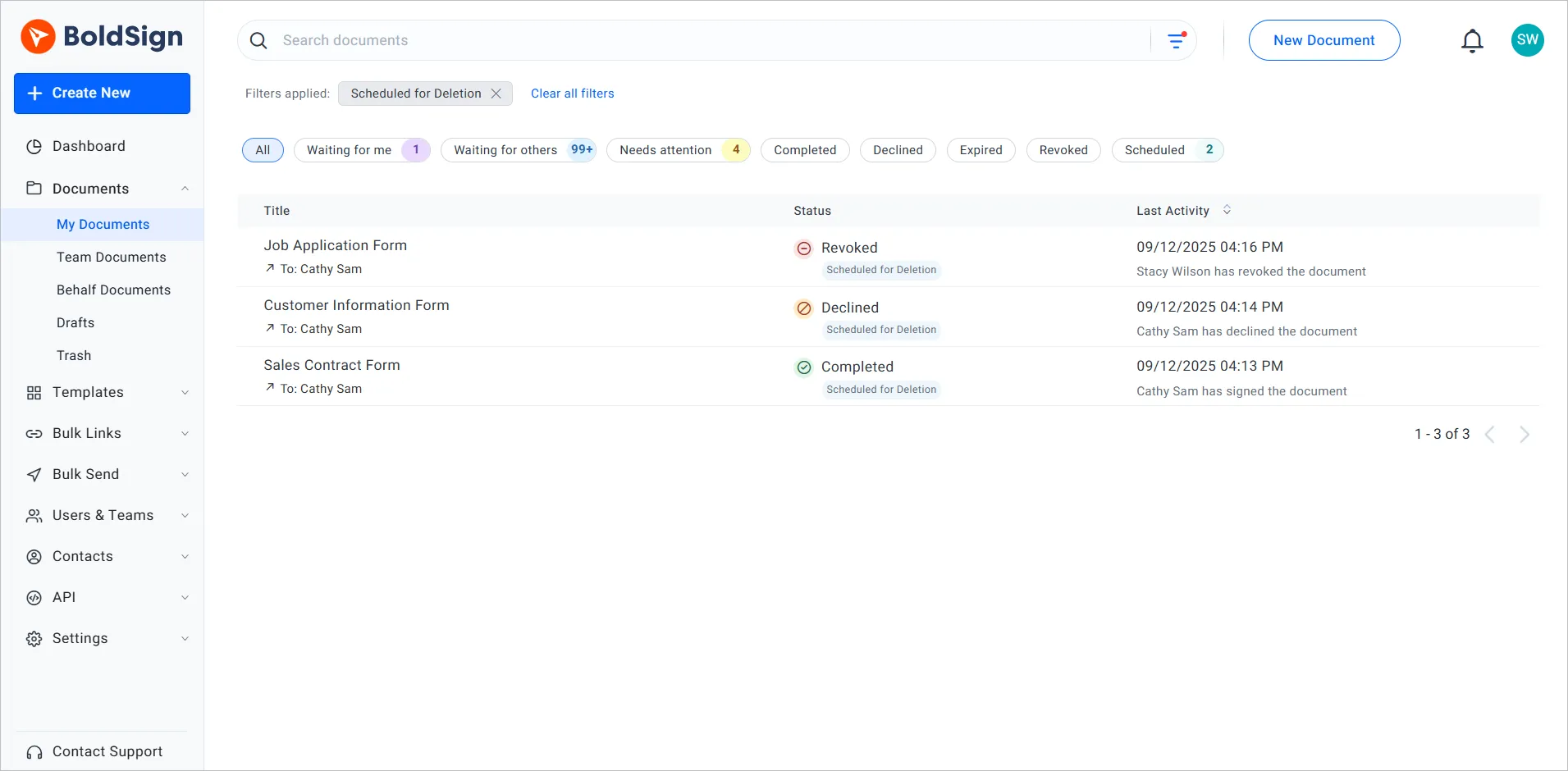
Select a badge to filter the list down to every document waiting for deletion.
How do you cancel a scheduled document deletion?
You can save one document or clear the whole queue. Choose based on how many files you want to keep.
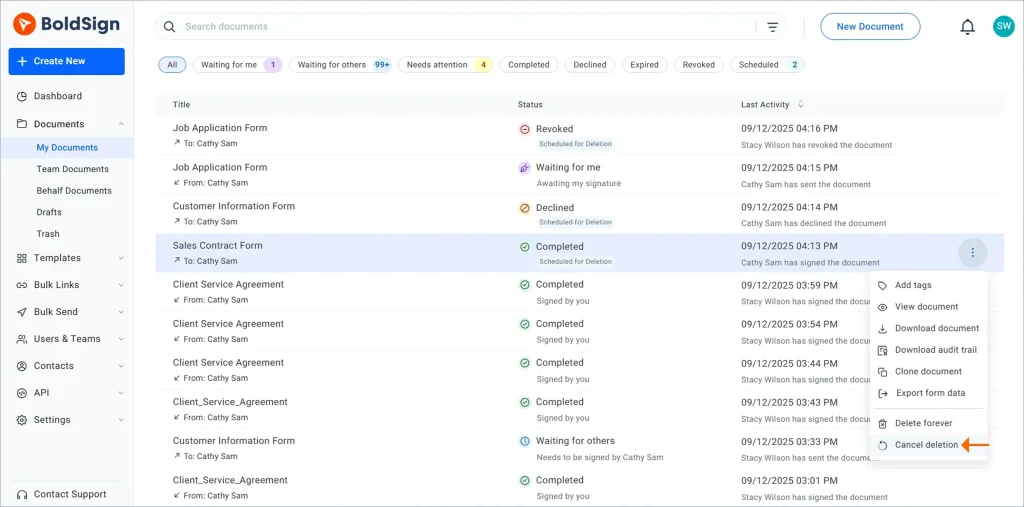
How do you keep one document?
On the My Documents page, open the context menu of the document. Then select Cancel deletion.
How do you turn off the policy for all documents?
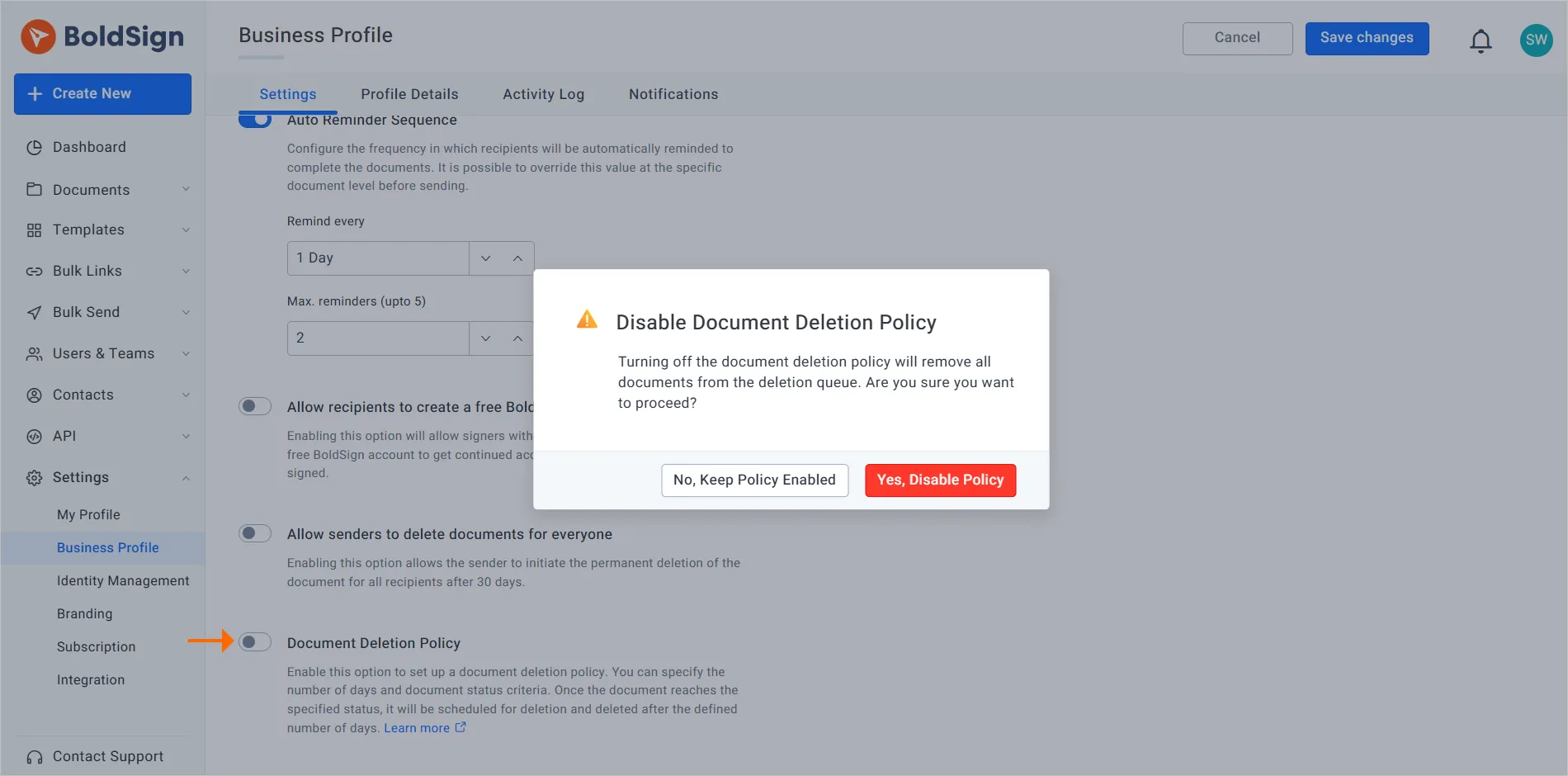
Go back to your Business profile settings and turn off Document Deletion Policy. Select Yes, Disable Policy in the warning, then Save changes. That removes every document from the deletion queue.
What should you check before you turn on document deletion?
The policy deletes documents permanently, so plan ahead. A few checks now save trouble later.
- Download any file you must keep longer than the retention period.
- Match the period to your longest legal or contract requirement.
- Pause the policy when a legal hold asks you to keep records.
- Tell your team which statuses will be deleted and when.
Which BoldSign plan includes automatic document deletion, and what does it cost?
Automatic document deletion is on the Business, Premium and Enterprise API plans, as listed on the BoldSign pricing page in November 2026. The free Essential plan and the Growth plan do not include it.
The Business plan costs $15 per user a month. The Premium plan costs $99 a month for unlimited users. Both are billed yearly, and prices are in USD.
How do you start managing document retention with BoldSign?
Start with one status, such as Expired, and a period you are sure of. Then add more once your team is used to the badges.
- Start a 30-day free trial and test the policy on a few documents.
- Request a demo to walk through retention settings with our team.
- Visit our support portal with a question about a policy you already run.
Frequently asked questions
What is a document deletion policy in BoldSign?
It is a setting that deletes documents on its own once they reach a status you choose and a set number of days pass. You turn it on in your Business profile settings.
How long can BoldSign keep a document before it is deleted?
You choose a retention period from 14 days up to 1,827 days, which is about 5 years. The count starts once a document reaches a status you selected.
Which document statuses can be deleted automatically?
You can pick Completed, Declined, Revoked and Expired. Choose any mix of the four in the Document Status Filters.
Can I set a different retention period for each document type?
The policy works by document status, so one period covers every status you pick. Download any file you must keep longer before its date arrives.
Can I stop one document from being deleted?
Yes. On the My Documents page, open the document's context menu and select Cancel deletion. The rest of the queue stays as it is.
What happens when I turn off the deletion policy?
Turning it off clears every scheduled deletion from the queue. You confirm with Yes, Disable Policy and then select Save changes.
Are documents sent on behalf of someone else deleted too?
They stay out of automatic deletion. The policy skips documents sent on behalf of another user.
What is the difference between document retention and deletion?
Retention is how long you keep a document. Deletion is the step that removes it for good when that period ends.

Rayronald Ochola Otieno
Rayronald Ochola Otieno is a content specialist at BoldSign, specializing in video content and help articles within the eSignature domain. As a blog author, he creates well-researched, insightful content that simplifies complex eSignature topics like digital signatures, compliance, and workflow automation for businesses and professionals. With expertise in creating educational videos and articles, Ray helps users understand and adopt secure, efficient signing solutions. Beyond writing and video creation, Ray enjoys exploring new technologies, reading about the latest industry trends, and continually refining his skills.
More posts by Rayronald Ochola Otieno