Embed eSignature Template Creation in Your App with API
 Gopinath Kannusamy
TL;DR: Embedded template creation puts our template editor inside your app. Your server sends one request to the BoldSign API and gets back a link. You show that link in an iframe, so users build templates without leaving your product. Our eSignature API page shows what else you can embed.
Your customers send the same contracts every week, and each one needs its signature fields placed by hand. You want them to set up those templates once, inside your app, rather than log in to a second tool.
This guide shows how to do that with the embedded eSignature API. It covers the request, the settings that shape the editor, and what to check before you go live.
What is embedded template creation?
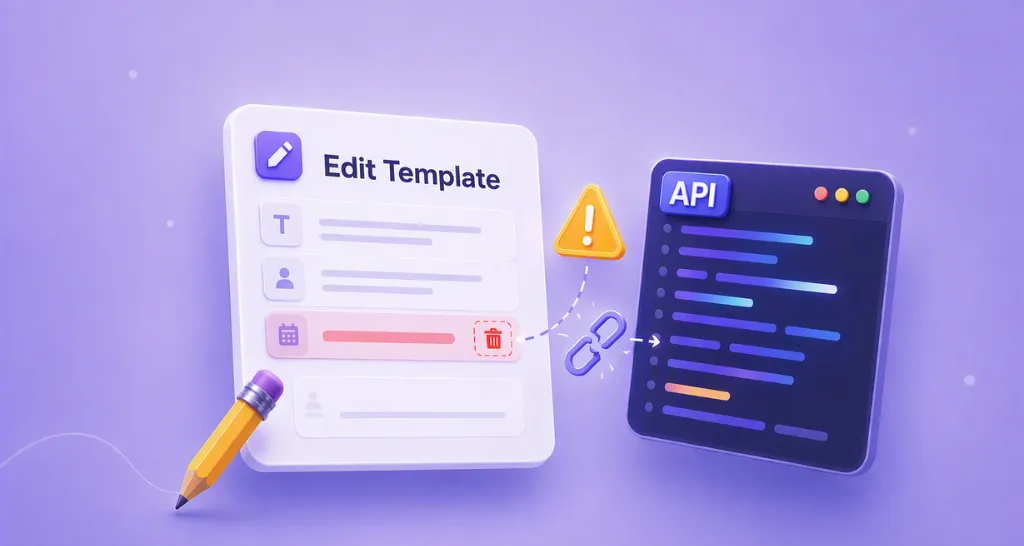
Embedded template creation is a way to show our template editor on a page in your own app. Your users build a reusable template there, and we save it to your BoldSign account.
Think of a store that keeps a cake decorating station at the counter. The bakery supplies the tools, but you decorate in the store you came to. Your app is the store, and our editor is the station.
A template holds the document, the signer roles and the fields each role fills. Once saved, it becomes the starting point for every document of that kind.
Why embed eSignature template creation in your app?
Embedding keeps template work in the place your users already know. Our help article on how to embed template creation into your application gives the overview.
- Users build templates without switching to another site or account.
- You decide which buttons and steps they see.
- Teams check a template once, then reuse it, so fewer documents go out with mistakes.
- Finished templates are ready for your app to send for signature.
How do you create an embedded template with the embedded eSignature API?
Send a request to the create embedded template endpoint with your file and settings. We reply with a template ID and a link that opens the editor.
- Collect the template title, description, roles and file in your app.
- Send them to
/v1/template/createEmbeddedTemplateUrlwith your API key in theX-API-KEYheader. - Read
templateIdandcreateUrlfrom the response. - Load
createUrlin an iframe on your page. - Send documents from the template once your user finishes it.
This client URL (cURL) sample uploads one file and sets one signer role, Manager:
curl --location --request POST \
  'https://api.boldsign.com/v1/template/createEmbeddedTemplateUrl' \
  --header 'X-API-KEY: {Your API Key}' \
  --form 'Title="API Template"' \
  --form 'Description="API Template Description"' \
  --form 'DocumentTitle="API Document Title"' \
  --form 'DocumentMessage="API Document Message Description"' \
  --form 'Roles[0][name]="Manager"' \
  --form 'Roles[0][index]="1"' \
  --form 'Roles[0][language]="English"' \
  --form 'ShowToolbar="true"' \
  --form 'ShowSaveButton="true"' \
  --form 'ShowSendButton="true"' \
  --form 'ShowPreviewButton="true"' \
  --form 'ShowNavigationButtons="true"' \
  --form 'ShowTooltip="false"' \
  --form 'ViewOption="PreparePage"' \
  --form 'Files=@"{Your File Path}"'
Which settings change what users see in the template editor?
Each setting in the request turns one part of the editor on or off. Set it to true to show that part, or false to hide it.
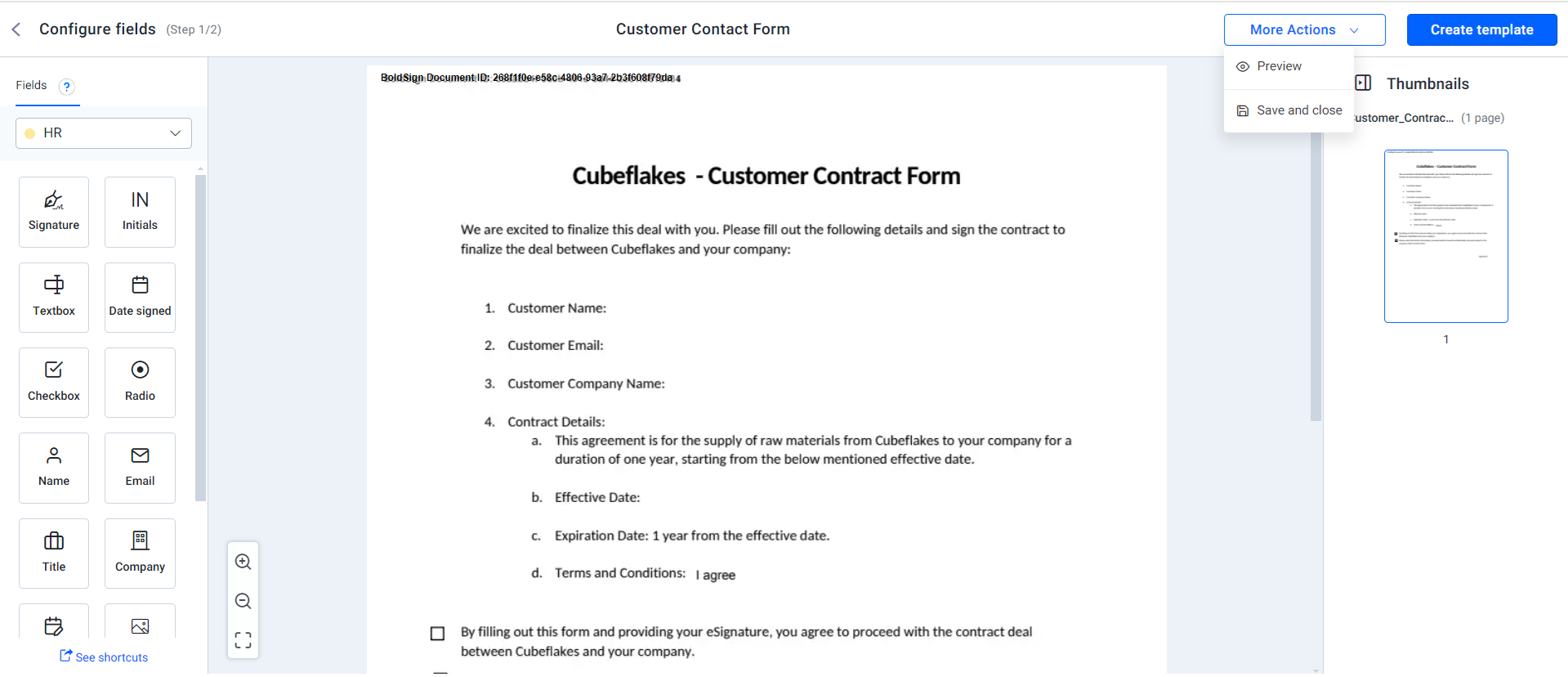
The sections below show each setting, its default, and how the editor looks when you change it.
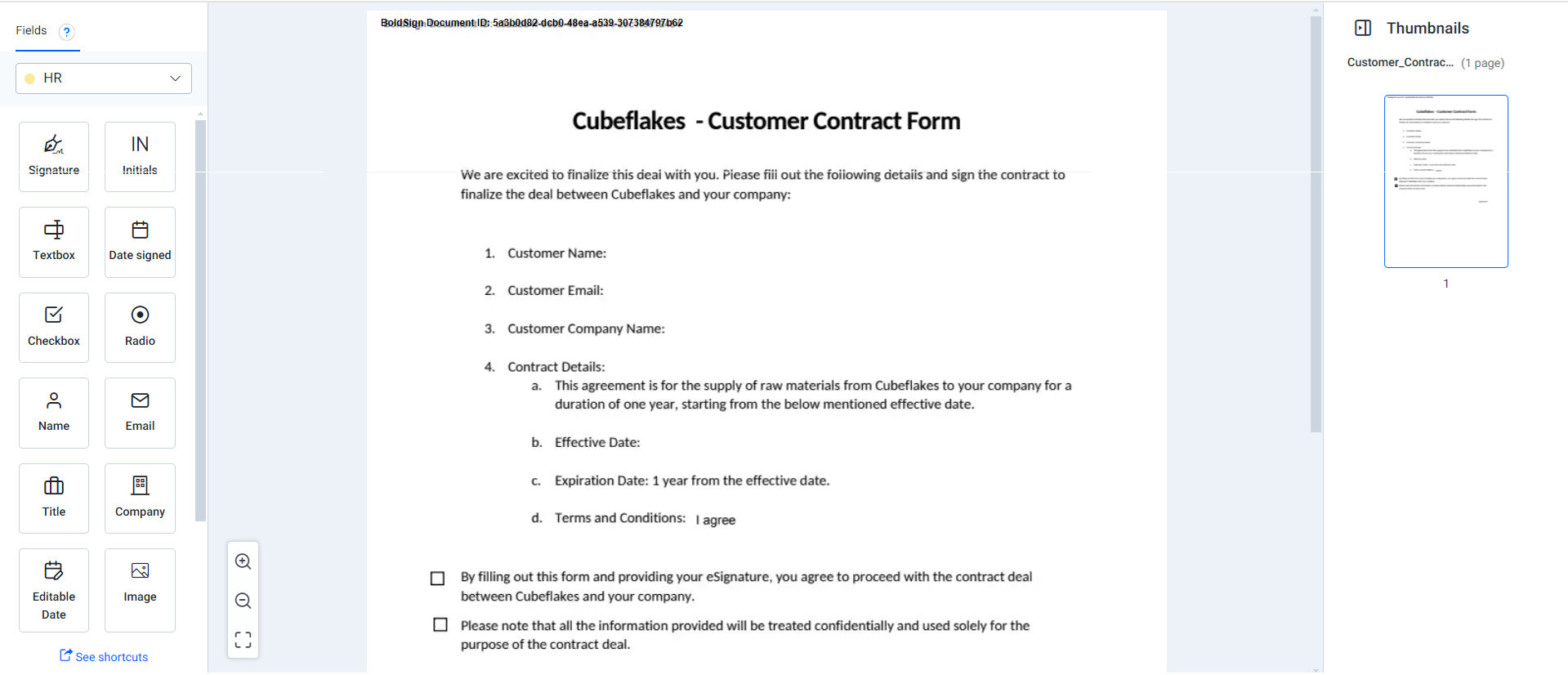
ShowToolbar
ShowToolbar shows or hides the toolbar at the top of the document editor. Its default value is false.
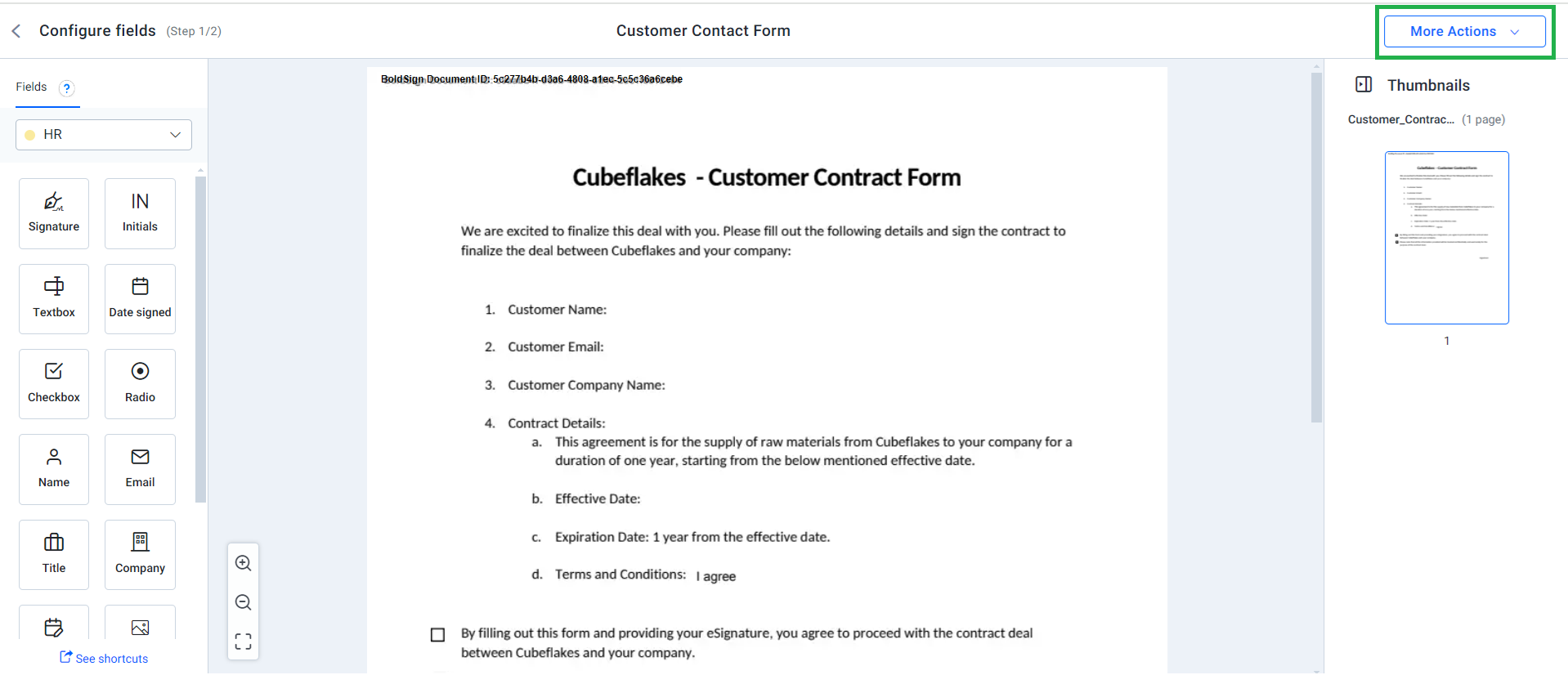
ShowSaveButton
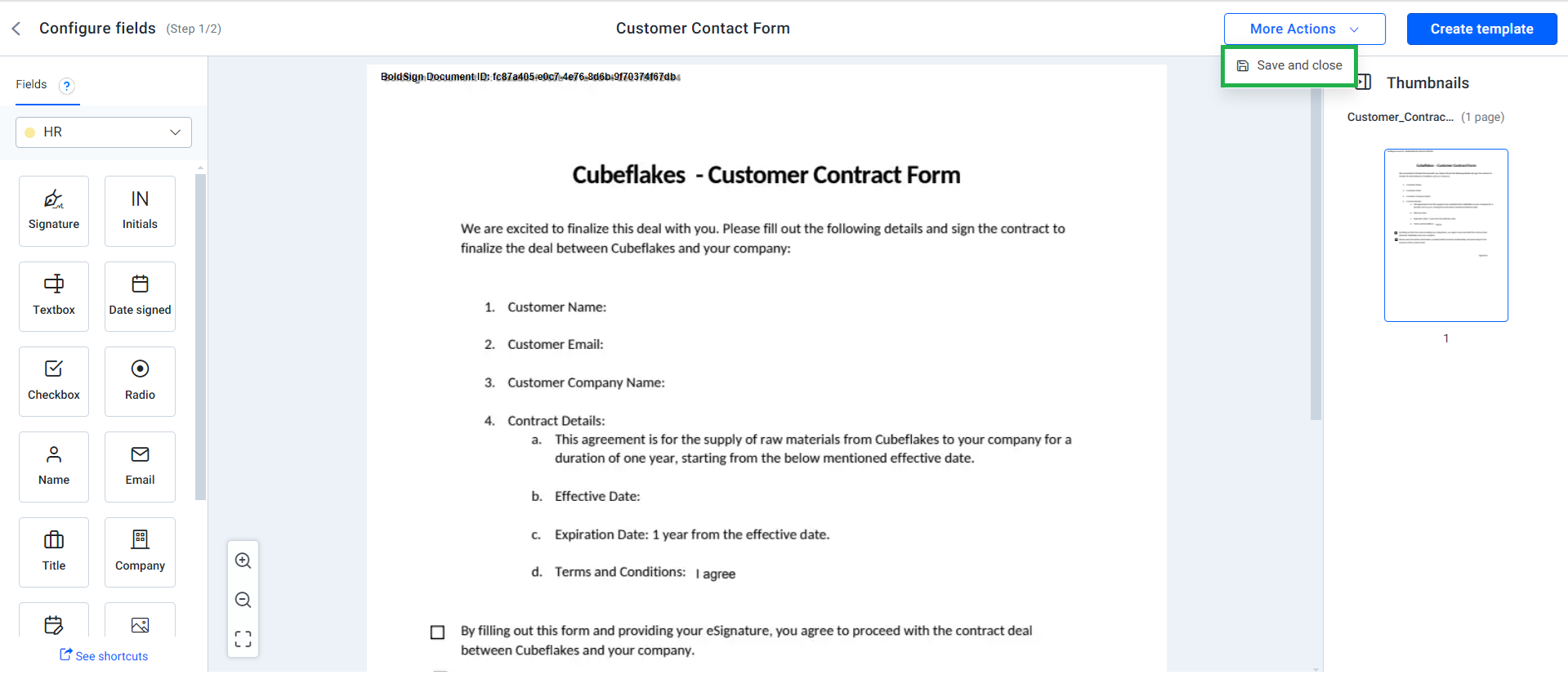
ShowSaveButton shows or hides the Save and Close option in the More Actions menu. Its default value is true.
Users pick Save and Close to keep a draft and come back to it later. Hide it when every template must be finished in one go.
ShowSendButton
ShowSendButton shows or hides the Create Template button in the top right corner. Its default value is true.
Users select Create Template to finish the template and make it ready to use. Hide it when someone on your side should finish each template.
ShowPreviewButton
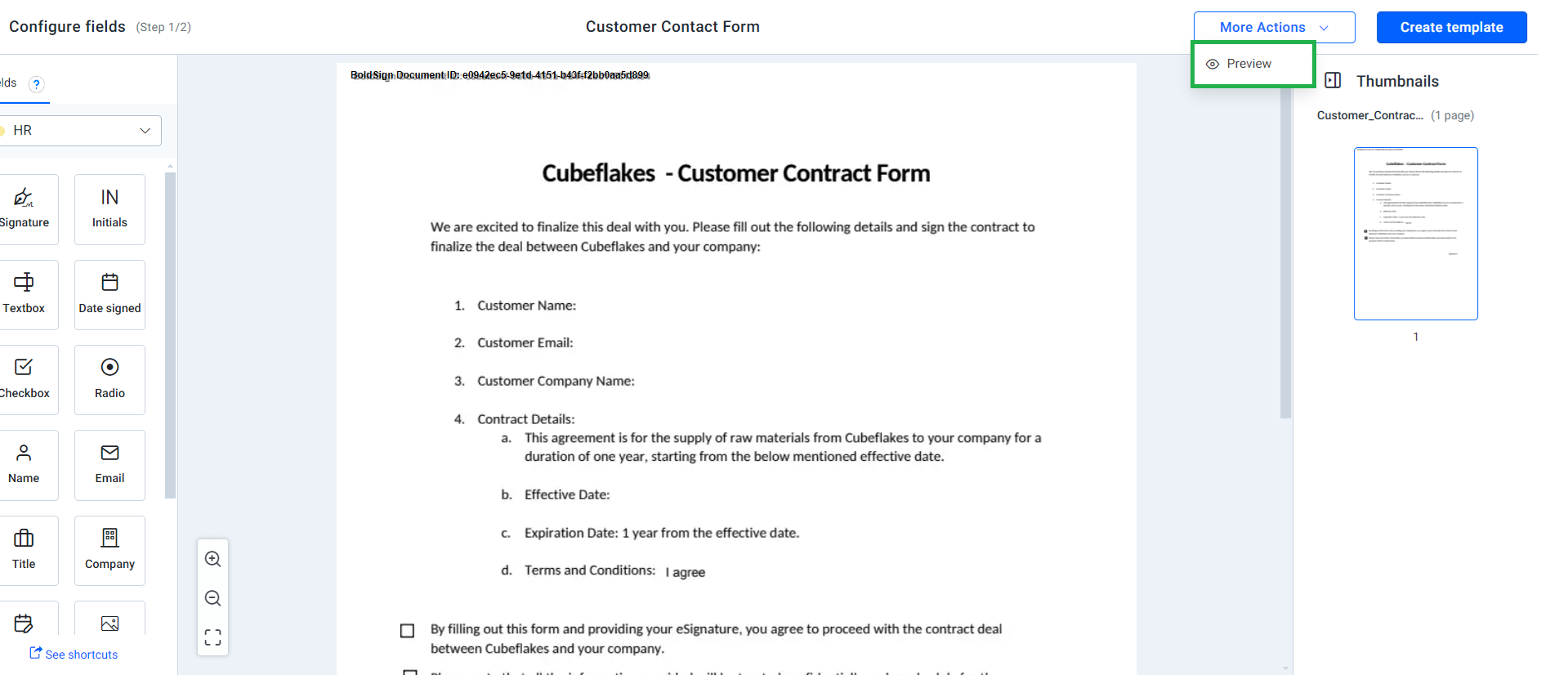
ShowPreviewButton shows or hides the Preview option in the More Actions menu. Its default value is true.
Preview lets users see the template as a signer will before they finish it.
ShowNavigationButtons
ShowNavigationButtons shows or hides the Back button. Its default value is true.
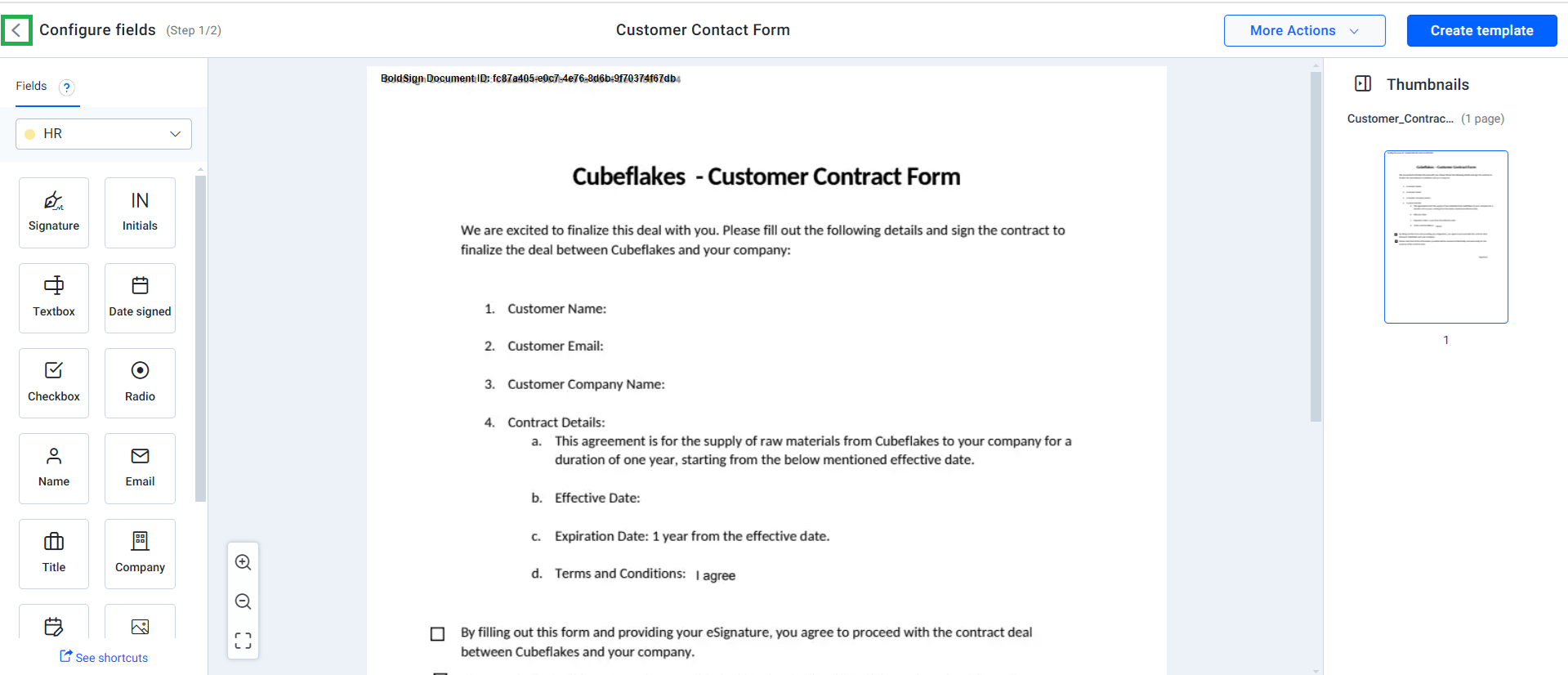
Set it to false to keep users on the current page.
ViewOption
ViewOption picks the page the link opens on. Its default value is PreparePage.
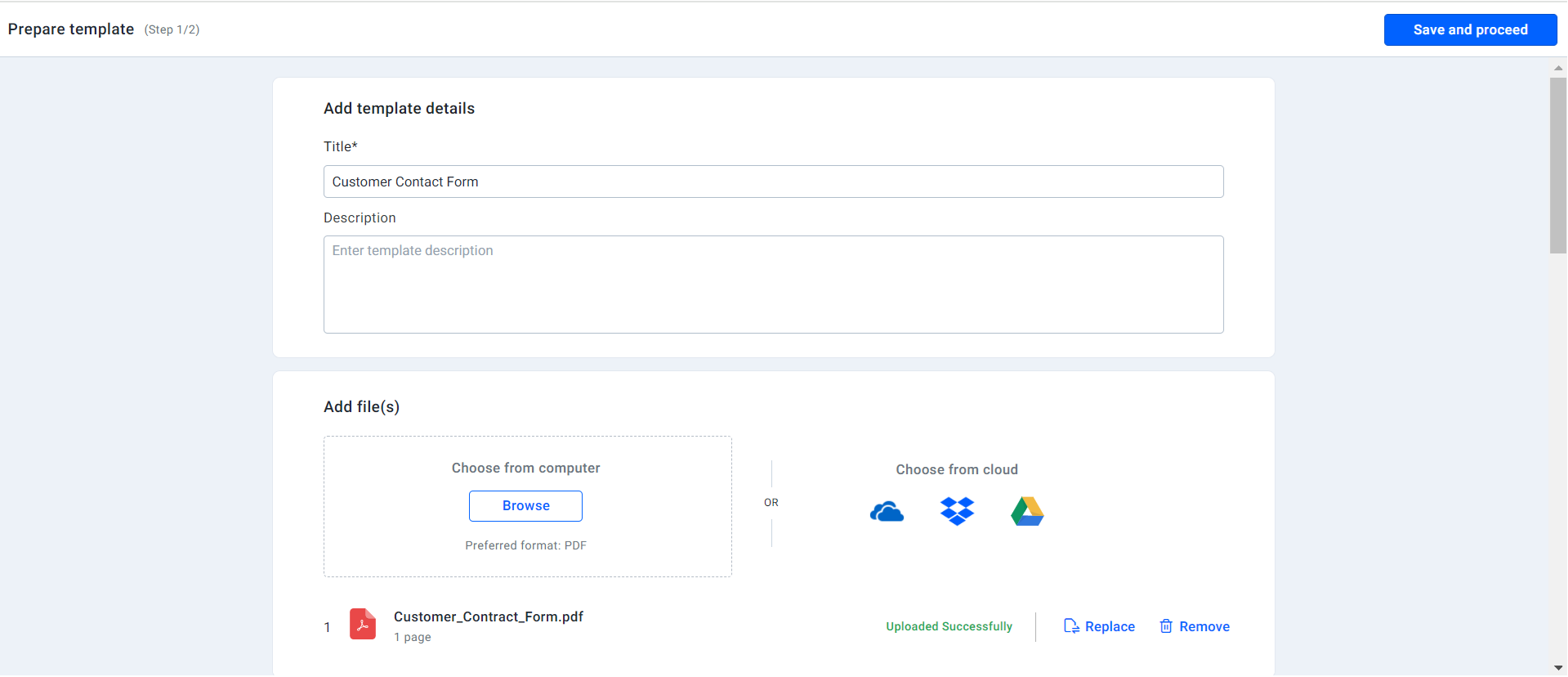
PreparePage opens on the step where users place form fields for each role. FillingPage opens on the step for files and roles.
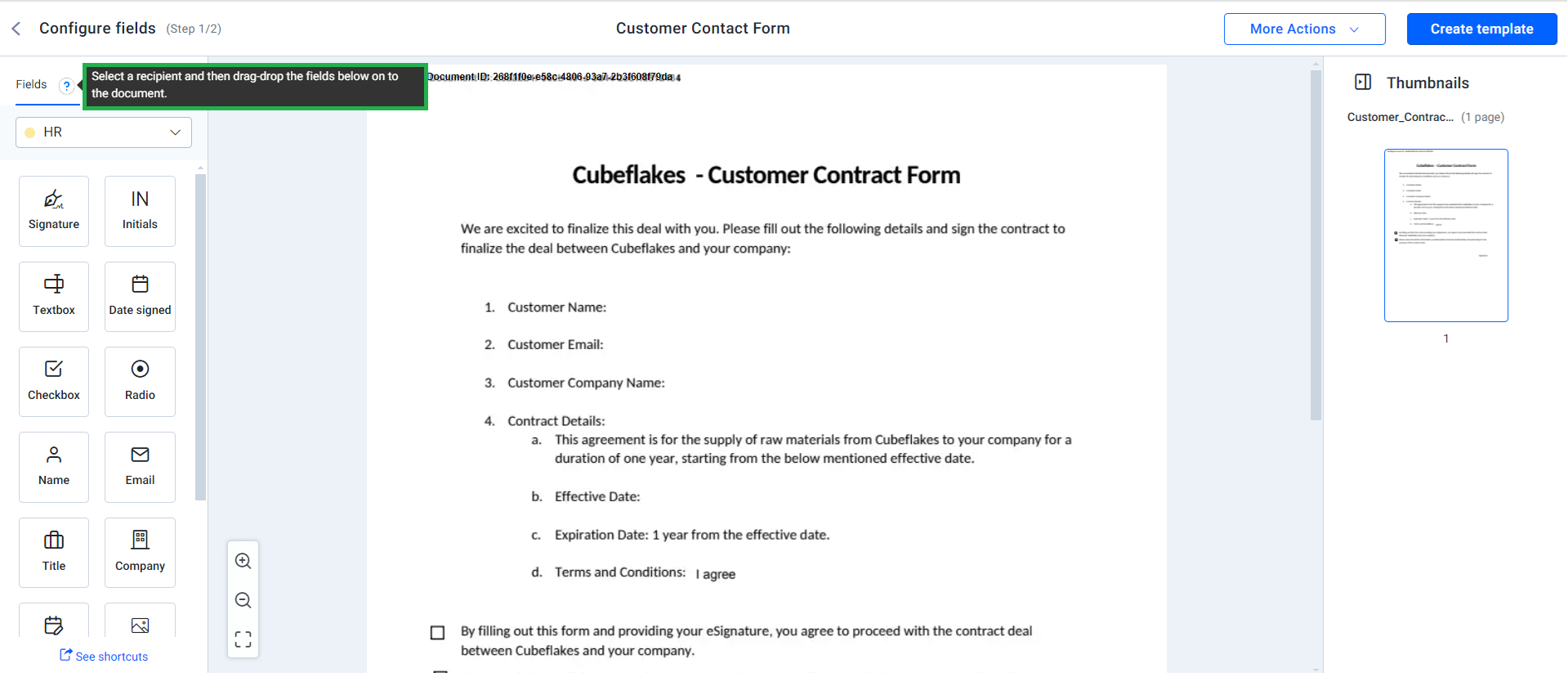
ShowTooltip
ShowTooltip shows or hides a tooltip near the assignee field on the prepare page. Its default value is false.
What should you check before you go live?
Most problems come from the link and the draft state, not the request. Check these points while you test.
- The template stays a draft until your user finishes it in the editor.
- Set LinkValidTill to control when the link expires, up to 180 days.
- Add a RedirectUrl to send users back to your page when they finish.
- Hide ShowSendButton when only drafts should come out of the editor.
To change the editor later, edit the true or false values in your request and create a new link.
Which BoldSign plan do you need for the API, and what does it cost?
Live API access comes with the Enterprise API plan, which starts at $30 a month with 40 envelopes, billed yearly. Extra envelopes cost $0.75 each, and the plan includes unlimited templates.
You can build and test the whole flow first in our free sandbox. Prices are in USD, as listed on the BoldSign pricing page in November 2026.
Where do you go next with embedded templates?
The quickest way to see the editor is to run the sample with your own file. Start in the sandbox, then move to live keys.
- Create a free API sandbox account and run the cURL sample.
- Schedule a demo to walk through your template flow with our team.
- Open a ticket in our support portal with a question about your setup.
Frequently asked questions
What is embedded template creation?
Embedded template creation lets your users build eSignature templates inside your own app. Your server asks our API for a link, and your page shows our template editor at that link.
Which endpoint creates an embedded template link?
Send a request to /v1/template/createEmbeddedTemplateUrl with your API key. The response holds a template ID and a createUrl that opens the editor.
How do I show the template editor in my app?
Load the createUrl from the response in an iframe on your page. Your users then add fields, roles and files without leaving your app.
How long does an embedded template link stay valid?
You choose the expiry with the LinkValidTill setting. The longest you can set is 180 days from when you create the link.
Can I stop users from finishing a template themselves?
Yes. Set ShowSendButton to false to hide the Create Template button, so users can only save the template as a draft.
What is the difference between PreparePage and FillingPage?
PreparePage opens the editor on the step where users place form fields for each role. FillingPage opens it on the earlier step for files and roles.
Does a new embedded template work right away?
The template stays a draft until your user finishes the steps in the editor. After that, you can send documents from it like any other template.
Can I test the embedded eSignature API for free?
Yes. Our free API sandbox lets you build and test the whole flow. Live use needs the Enterprise API plan, from $30 a month billed yearly.

Gopinath Kannusamy
Gopinath is a passionate software developer with 2 years of experience at BoldSign. He is an avid writer and enjoys sharing his insights on technology and development. In his free time, he enjoys exploring new technologies and learning new things. Connect with him on LinkedIn.
More posts by Gopinath Kannusamy