How eSignatures Simplify Construction Approvals in Real Estate
 Meikanda Nayanar
TL;DR: E-signature software speeds up construction approvals by sending each document to the right people in a set order and tracking every step. In BoldSign, you group people into teams, share standard templates and control who sees each file. Our eSignature for construction page shows the documents builders send most.
A real estate build needs sign-off at many stages. Zoning permits, drawings, change orders and lien waivers each pass through different people, often in a fixed order. On paper, a missing signature is hard to spot and stalls the next step.
Below, we explain how e-signatures help with these approvals. Then we walk through setting up teams, sending documents, guarding access and handing work over in BoldSign.
How can e-signature software improve the speed and efficiency of document approvals?
E-signature software sends each document to the right signers in a set order and reminds them until they sign. You can see who has viewed and signed, so you only chase the person holding things up.
Think of a relay race. Each runner waits for the baton, and the next leg starts the moment it is passed. A signing order works the same way: the next person gets the document as soon as the one before them signs.
On a build, a typical order is subcontractor first, then general contractor, then owner. Signers can sign in a phone browser without installing an app or creating a BoldSign account.
Are real estate e signatures valid for construction documents?
Yes, when the signer agrees to sign electronically and the signed record is kept. In the US, the Electronic Signatures in Global and National Commerce (ESIGN) Act covers this.
The law says a signature or contract may not be denied legal effect only because it is electronic. A consumer who must get a record in writing has to agree to electronic records first.
Some papers, such as deeds a county records, may also follow local rules, so check with your lawyer.
What should digital sign software for construction and real estate projects include?
Look for tools that match how a project is run, stage by stage. Our electronic signature app covers each of these needs:
- Teams that group the people who approve one stage, such as design review
- Shared templates for papers you send on every project, like subcontracts
- Permissions that limit who can open sensitive files
- An audit trail that records who viewed and signed each document
- A way to hand documents over when someone leaves the project
The sections below show how to set up each one.
How do you set up project teams in BoldSign?
Account admins create teams from the Users & Teams menu. Each team can hold the people who approve one stage of a project.
- Log in to BoldSign and expand the Users & Teams menu.
- Select Teams, then click Add team.
- Enter a Team name, such as Design Approval or Financial Review.
- Click Add.
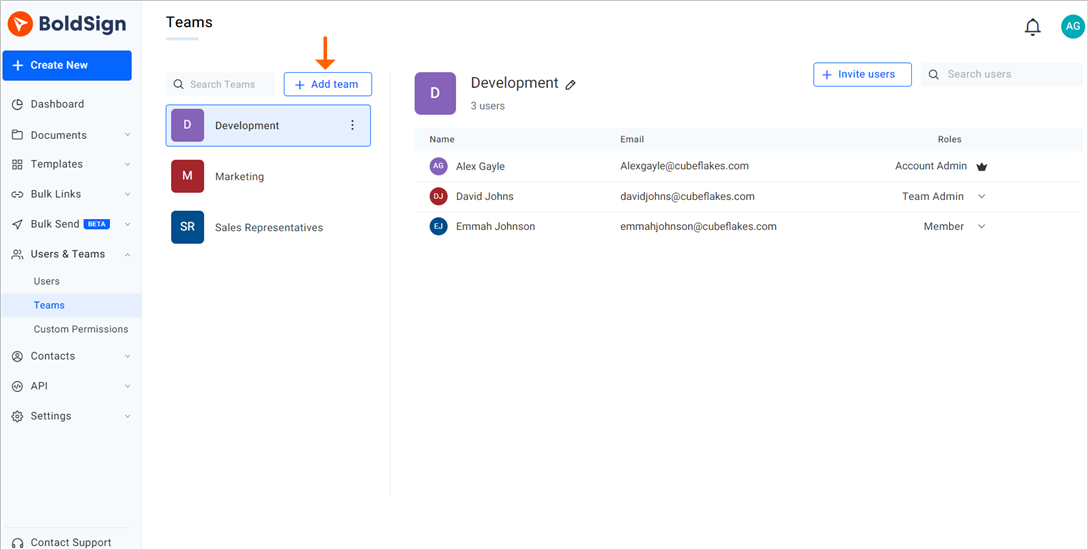
Our help article on creating and managing teams explains each option.
How do you send and approve documents for a construction project?
You upload the document, add the signers and send it. Signers then sign from the email, and notifications tell you as each person acts.
Upload and send a document
- Upload the file, such as a zoning permit or an architectural drawing.
- Add each signer and set the order in which they sign.
- Place the signature fields, then send.
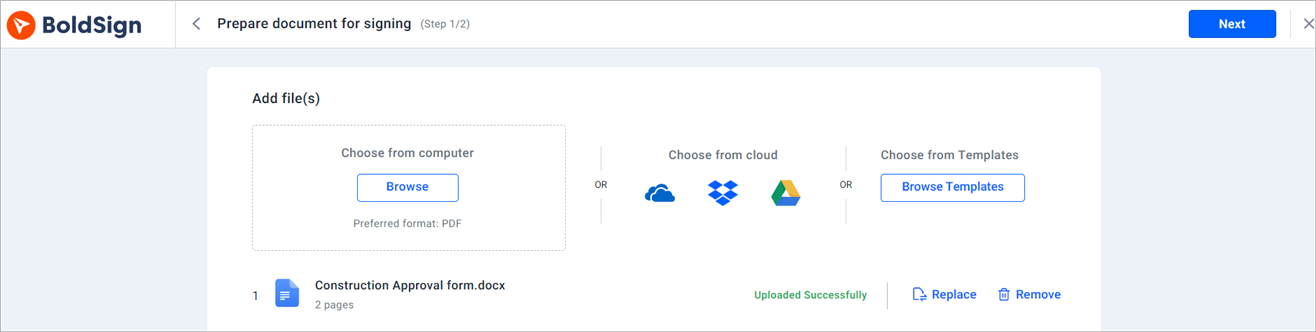
Our guide to sending your first document shows each screen.
Review and sign
Signers open the email and click Review and Sign. They accept the terms, click Start signing, fill in the fields and click Finish.
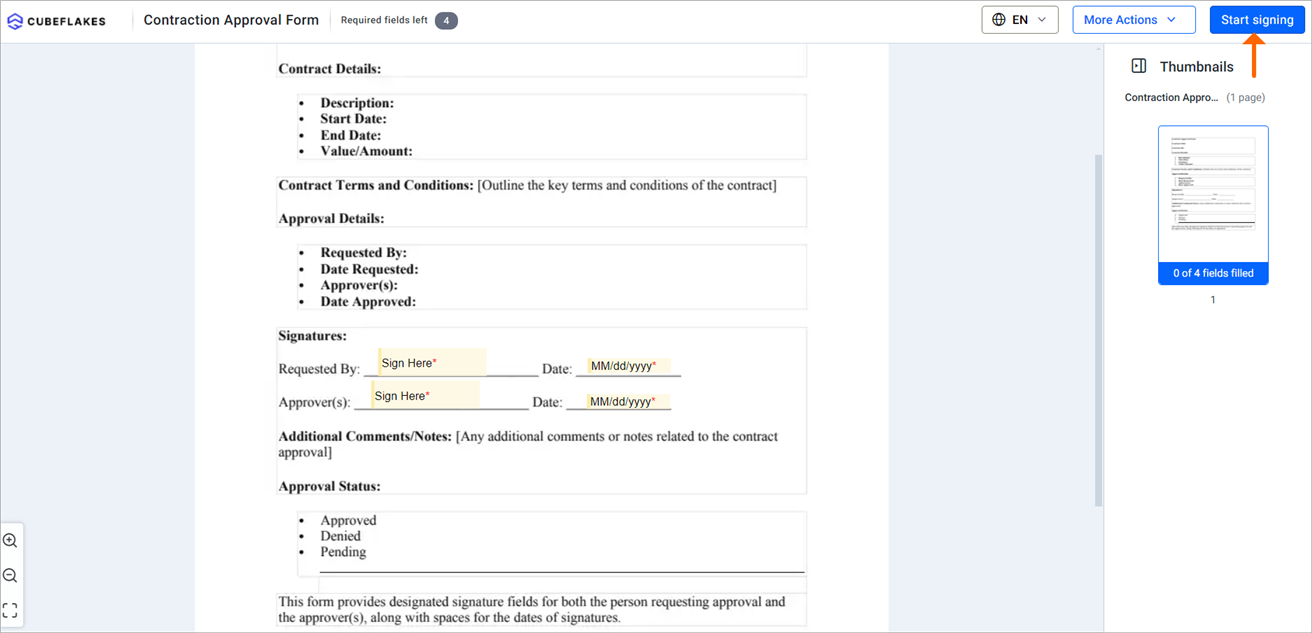
You can read more on how to sign a document in BoldSign.
Stay updated
Open Settings, select My Profile, then open the Notifications tab. There you turn sender, recipient, CC (carbon copy) and template alerts on or off.
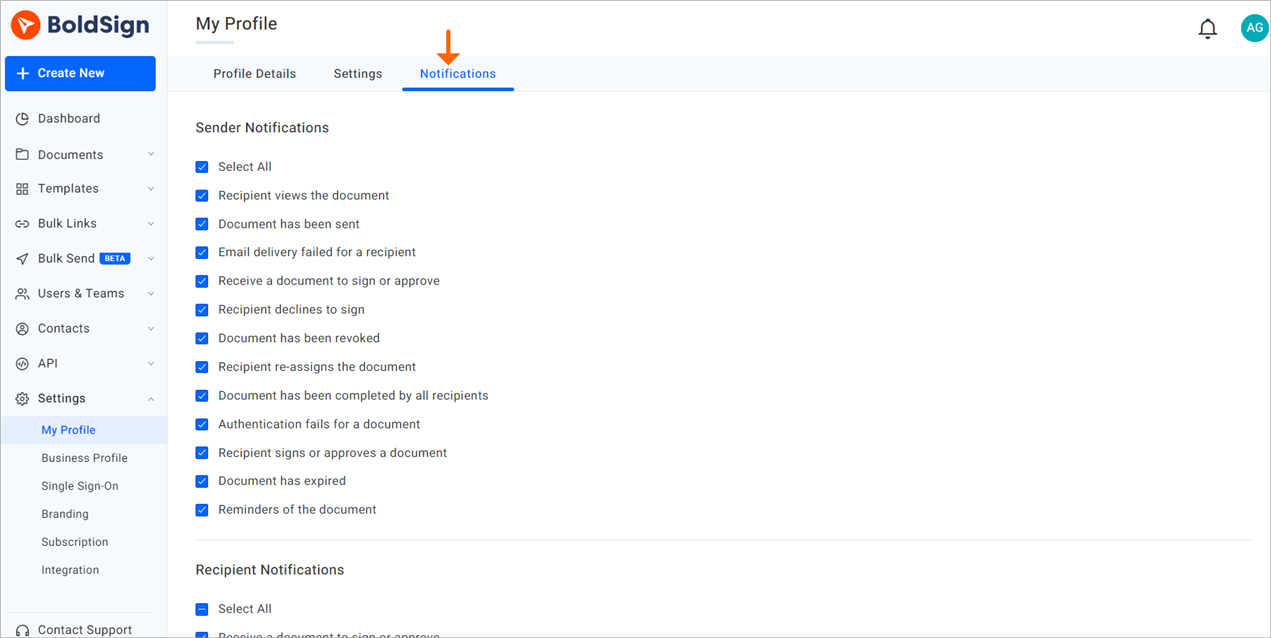
See how to manage email notifications for the full list.
How do you control who sees sensitive project documents?
Account admins use custom permissions to allow or deny a user access to another team’s items. Every signed document also carries an audit trail.
Custom permissions
A permission can cover documents, templates, Bulk Links and Bulk Send items. For each one, you choose actions such as View Document, Edit or Delete.
- Go to Users and Teams and select Custom Permissions.
- Click New Custom Permission.
- Pick the user, the item type and the teams, then click Save.
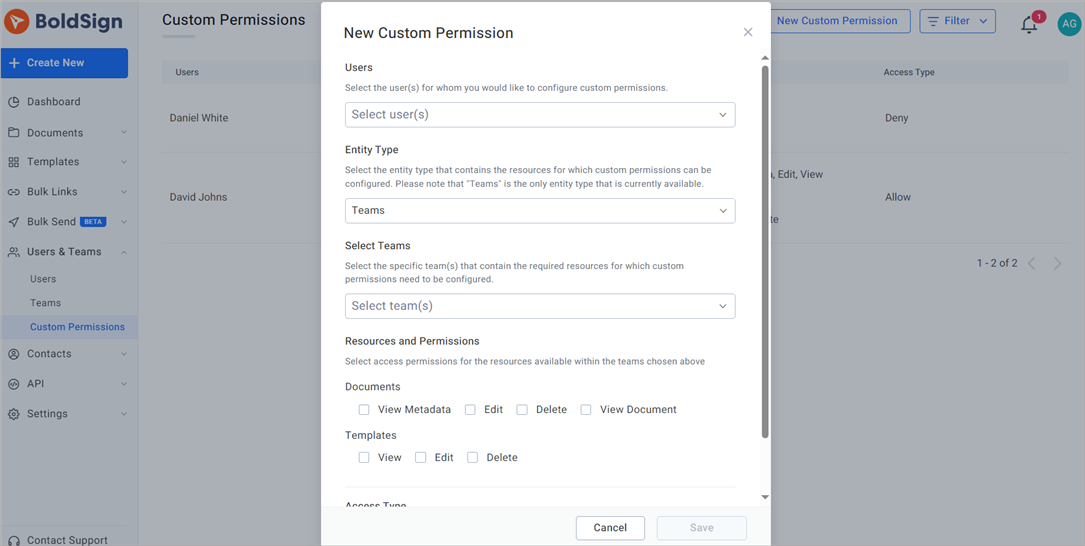
Our post on custom permissions covers roles in more depth.
Audit trails
The audit trail records each action in the signing process, such as when a signer viewed or signed. Keep it with the signed file as a record of who approved what.
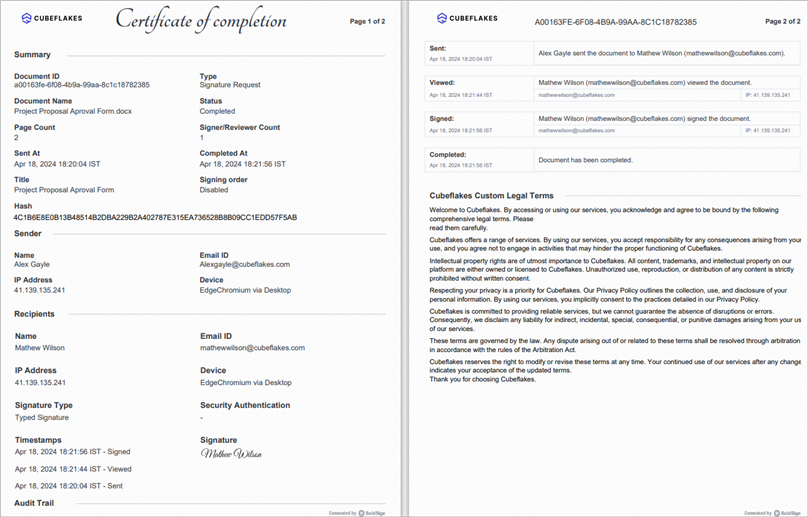
Read more about audit trails for construction approvals.
How do you hand over documents when someone leaves a project?
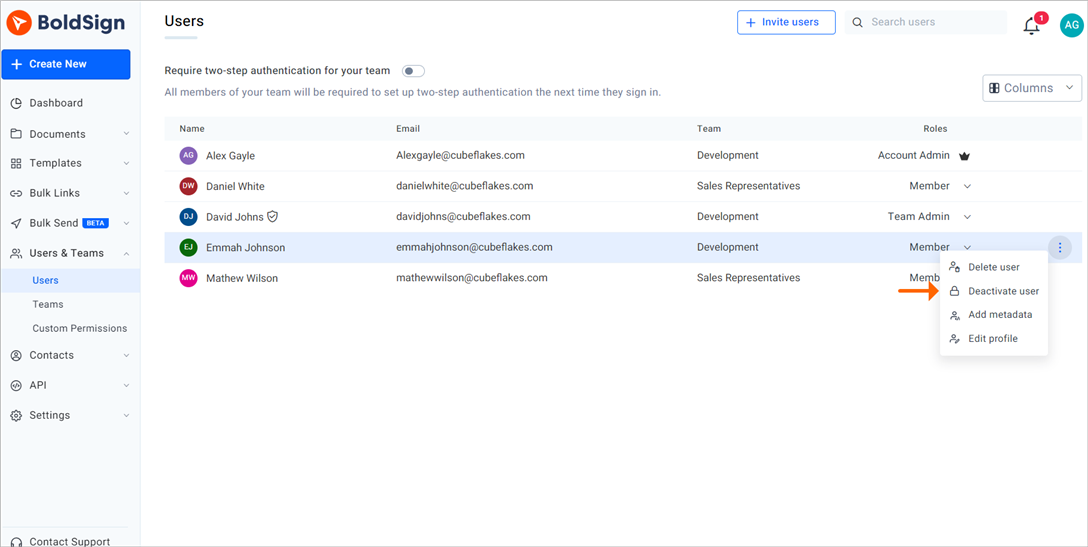
Move the person’s documents to another user when you delete or deactivate them. Account admins can do this for anyone, and team admins only for their own team.
- Open the Users page under Users & Teams.
- Open the menu at the end of the user’s row and select Deactivate User or Delete User.
- Choose who gets the documents in the To list, then click Confirm.
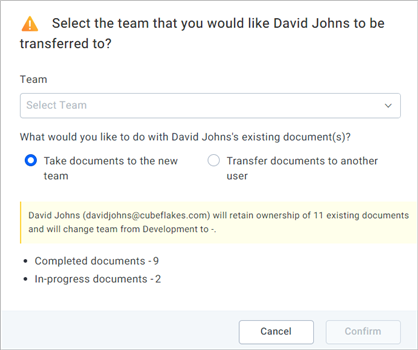
A deactivated user keeps their details, so you can turn them back on with Activate User. Deleting removes them for good and declines or revokes their documents still out for signature, so back those up first.
How do you share standard templates across teams?
Share one template with each team so everyone sends the same form, such as a nondisclosure agreement or contractor terms. You choose whether each team can only use it or can also edit it.
- Open the template and select Shared Templates.
- Choose a team from the Team list and click Add.
- Pick Can use or Can edit, then click Add.
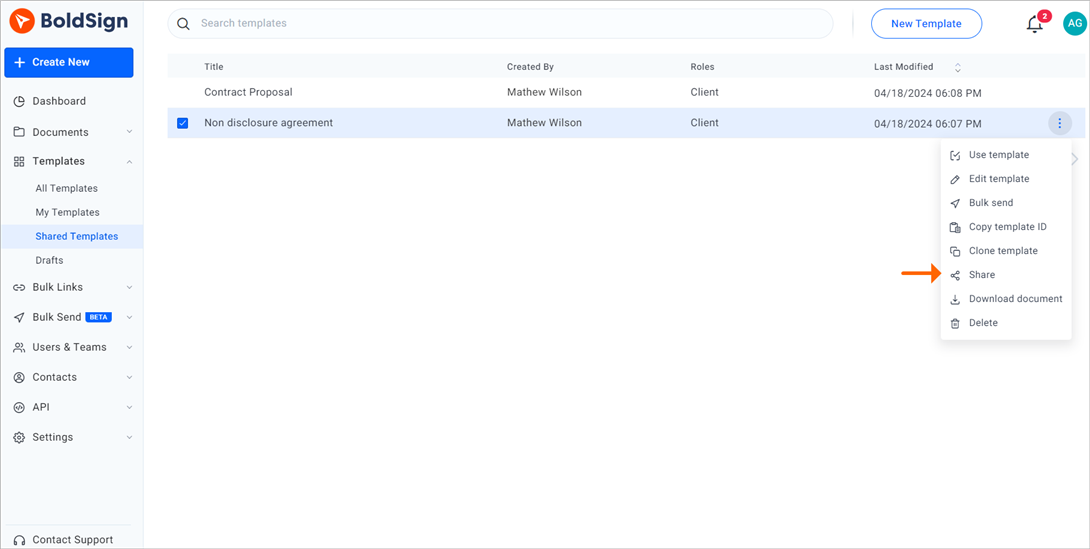
A team with Can edit access can change the template, and the change reaches everyone who uses it. Our help article shows how to share templates with other teams.
Which BoldSign plan do you need for construction approvals, and what does it cost?
Teams, roles and custom permissions come with the Business plan and up. So do Bulk Send and Bulk Links, as listed on the BoldSign pricing page in November 2026.
The Business plan costs $15 per user a month, and the Premium plan costs $99 a month for unlimited users. Both prices are in USD and billed yearly.
Template sharing starts on the Growth plan, at $5 per user a month. The free Essential plan includes audit trails, email alerts and 2 templates.
Where do you start with construction approvals in BoldSign?
Pick the next step that fits your project.
- Start a 30-day free trial and set up your first project team.
- Book a demo to see an approval flow built for your documents.
- Read our guide to a construction contract approval workflow.
Have a question about your set-up? Our team is ready to help through the support portal.
Frequently asked questions
What is an electronic signature in construction?
It is a way to sign a construction document, such as a subcontract or change order, on a screen instead of on paper. The signer opens a link, signs, and the record is stored with the file.
Are real estate e signatures legally binding?
Yes, when the signer agrees to sign electronically and the signed record is kept. In the US, federal law says a signature may not be denied legal effect only because it is electronic. Check local rules for papers a county must record.
Do subcontractors need a BoldSign account to sign?
No. They sign from the email link in any phone or computer browser, with no app to install.
Can I set the order in which people sign?
Yes. You can route a document so the subcontractor signs first, then the general contractor, then the owner. Each person gets it only after the one before them has signed.
Who can create teams in BoldSign?
Account admins create teams from the Users & Teams menu. Team admins then look after the people and documents in their own team.
What happens to documents when someone leaves the project?
You pick another user to receive them when you delete or deactivate that person. Deleting a user also declines or revokes their documents that are still out for signature, so back those up first.
Can I limit who sees financial documents?
Yes. Account admins can use custom permissions to allow or deny a user access to another team's documents, templates, Bulk Links and Bulk Send items.
Which BoldSign plan includes teams and custom permissions?
Teams, roles and custom permissions come with the Business plan and up. The Business plan costs $15 per user a month, billed yearly.

Meikanda Nayanar
A veteran product manager at BoldSign, boasting a decade-long journey as a .NET developer. With a rich history of leading product development across diverse technologies like Windows Forms, WPF, UWP, Xamarin.Forms, Flutter, and MAUI, Meikandan brings a unique blend of technical expertise and strategic insight to the table. Connect with him on LinkedIn.
More posts by Meikanda Nayanar