How to Edit Templates via API with the BoldSign Edit Template API
 Starvritsa Buhungi
TL;DR: To edit templates via API, send one
PUTrequest to the BoldSign Edit Template endpoint with the template ID and the changed fields. Top-level fields such as the title accept partial updates, while roles and form fields need the complete object. Our eSignature API page covers the rest of the platform.
A template saves time when you send the same contract to many people with the same fields. Then a manager role changes, or a signature box needs to move, and someone has to fix the template.
You can make that change by hand in the web app. It is faster to make the change from code when your product creates or manages templates for customers.
What does the BoldSign Edit Template API do?
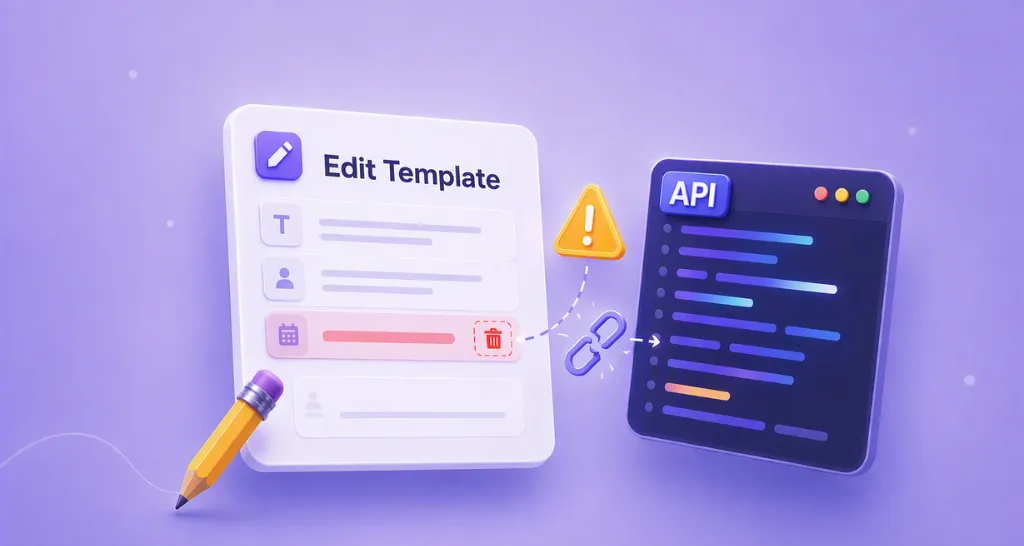
The Edit Template API changes the properties of a saved template or a draft template. You can change the title, description, document title, document message, signer roles and form fields.
Think of a printed form that you correct with a pen. You fix the one box that is wrong and keep the rest of the page. The template keeps its document, and only the properties you send change.
Why edit templates via API instead of by hand?
Code makes the same change the same way every time. That matters when you keep many templates, or the same template in a sandbox and a live account.
- A new approval step adds a signer role to every offer letter.
- A required field moves after a layout change in the document.
- A product release renames templates to match new plan names.
Each of these is one request in your backend or deployment script, so templates stay in step with your code.
How do partial updates work when you edit a template?
You send only the top-level fields you want to change, and the API leaves the rest unchanged. Nested data, such as roles and their form fields, works differently.
Top-level fields
The title, description, document title, document message and signing order setting are top-level fields. Send one of them on its own, and every other field keeps its current value.
Roles and form fields
Roles and their form fields are nested objects, so you must send the complete object. A role list that holds one role replaces the roles the template had.
Use the Template Properties API to read every property of the template first. Change the nested values in that copy, then send the updated object to the Edit Template API.
How do you edit a template via API, step by step?
Read the template, change what you need, and send it back with your API key. These five steps keep accidental overwrites out of your templates.
- Create an API key in your BoldSign account and copy the template ID.
- Call the Template Properties API to get the current roles and fields.
- Change the values you need, and keep every role you want to keep.
- Send a
PUTrequest to/v1/template/edit?templateId=<template ID>with theX-API-KEYheader. - Read the template properties again to confirm the change.
What does an edit template request look like?
The samples below set a new title and replace the roles with one Manager role. That role has one required signature field on page 1.
Replace {API-KEY} with your key and the template ID placeholder with your template’s ID.
curl --location --request PUT \
  'https://api.boldsign.com/v1/template/edit?templateId={Your Template ID }' \
  --header 'Content-Type: application/json' \
  --header 'X-API-KEY: {API-KEY}' \
  --data-raw '{
  "title": "{A new title}",
  "roles": [
    {
      "name": "Manager",
      "index": 1,
      "defaultSignerName": "Alex",
      "defaultSignerEmail": "alex@example.com",
      "signerType": "Signer",
      "formFields": [
        {
          "id": "Signature1",
          "fieldType": "Signature",
          "isRequired": true,
          "bounds": {
            "x": 600,
            "y": 200,
            "width": 100,
            "height": 32
          },
          "pageNumber": 1
        }
      ],
      "enableEditRecipients": true,
      "enableDeleteRecipients": true
    }
  ]
}'
var apiClient = new ApiClient("https://api.boldsign.com", "{API-KEY}");
var templateClient = new TemplateClient(apiClient);
var formFields = new List<FormField>
{
new FormField(
id: "Sign",
type: FieldType.Signature,
pageNumber: 1,
isRequired: true,
bounds: new Rectangle(x: 150, y: 150, width: 200, height: 30)),
};
var templateRoles = new List<TemplateRole>
{
new TemplateRole()
{
Name = "Manager",
Index = 1,
DefaultSignerName = "Alex",
DefaultSignerEmail = "alex@example.com",
SignerType = SignerType.Signer,
FormFields = formFields,
AllowRoleEdit = true,
AllowRoleDelete = true,
},
};
var editTemplateRequest = new EditTemplateRequest("{templateId}")
{
Title = "A new title for template",
Roles = templateRoles,
};
await templateClient.EditTemplateAsync(editTemplateRequest);import requests
url = "https://api.boldsign.com/v1/template/edit?templateId={your templateid}"
headers = {"Content-Type": "application/json", "X-API-KEY": "{API-KEY}"}
data = {
"title": "{A new title for template}",
"roles": [
{
"name": "Manager",
"index": 1,
"defaultSignerName": "Alex",
"defaultSignerEmail": "alex@example.com",
"signerType": "Signer",
"formFields": [
{
"id": "Signature1",
"fieldType": "Signature",
"isRequired": True,
"bounds": {"x": 625.0, "y": 293.0, "width": 124.0, "height": 32.0},
"pageNumber": 1,
}
],
"enableEditRecipients": True,
"enableDeleteRecipients": True,
}
],
}
response = requests.put(url, headers=headers, json=data)
print(response.status_code)const axios = require("axios");
const url = "https://api.boldsign.com/v1/template/edit?templateId={your templateid}";
const headers = {
"Content-Type": "application/json",
"X-API-KEY": "{API-KEY}",
};
const data = {
"title": "{A new title for template}",
"roles": [
{
"name": "Manager",
"index": 1,
"defaultSignerName": "Alex",
"defaultSignerEmail": "alex@example.com",
"signerType": "Signer",
"formFields": [
{
"id": "Signature1",
"fieldType": "Signature",
"isRequired": true,
"bounds": {
"x": 625.0,
"y": 293.0,
"width": 124.0,
"height": 32.0,
},
"pageNumber": 1,
},
],
"enableEditRecipients": true,
"enableDeleteRecipients": true,
},
],
};
axios
.put(url, data, { headers: headers })
.then((response) => {
console.log(response.status);
console.log(response.data);
})
.catch((error) => {
console.error(error);
});<?php
require 'vendor/autoload.php'; // Include Guzzle HTTP library
use GuzzleHttp\Client;
$url = 'https://api.boldsign.com/v1/template/edit?templateId={templateId}';
$headers = [
'Content-Type' => 'application/json',
'X-API-KEY' => '{API-KEY}' // Replace {API-KEY} with your actual API key
];
$data = [
"title" => "A new title for template",
"EnableSigningOrder" => false,
"roles" => [
[
"name" => "Manager",
"index" => 1,
"defaultSignerName" => "Alex",
"defaultSignerEmail" => "alex@example.com",
"signerOrder" => 1,
"signerType" => "Signer",
"formFields" => [
[
"id" => "Signature1",
"fieldType" => "Signature",
"isRequired" => true,
"bounds" => [
"x" => 625.0,
"y" => 293.0,
"width" => 124.0,
"height" => 32.0
],
"pageNumber" => 1
]
],
"enableEditRecipients" => true,
"enableDeleteRecipients" => true
]
]
];
$client = new Client();
try {
$response = $client->request('PUT', $url, [
'headers' => $headers,
'json' => $data
]);
$statusCode = $response->getStatusCode();
$responseData = $response->getBody()->getContents();
echo 'HTTP Status: ' . $statusCode . "\n";
echo 'Response: ' . $responseData . "\n";
} catch (Exception $e) {
echo 'Error: ' . $e->getMessage() . "\n";
}What should you watch out for when you edit templates via API?
Most problems come from nested data and from expecting the edit to reach more than the template. Check these points before you run an edit in production.
- Send every role you want to keep, since the roles you send replace the old list.
- Keep the IDs of the form fields you update, and start each ID with a letter or underscore.
- Create a new template to change the PDF, because the API does not change linked files.
- Test the request in the sandbox first, then switch to your live API key.
Our longer guide to the Edit Template API covers more examples, including a title-only update.
Which plan do you need to edit templates via the API?
You can test the Edit Template API for free with a free API sandbox account. Live API calls need the Enterprise API plan, from $30 a month with 40 envelopes, billed yearly.
The Enterprise API plan charges $0.75 per extra envelope. Prices are in USD, as of November 2026, and the pricing page lists every plan.
How do you start editing templates with the BoldSign API?
Start in the sandbox, try the samples above on a test template, then move to your live key. Here are three next steps.
- Create a free API sandbox account and get a sandbox API key.
- Schedule a demo to walk through your template workflow with our team.
- Ask a question through our support portal.
Frequently asked questions
Can I edit a template with the BoldSign API?
Yes. Send an update request to the Edit Template endpoint with the template ID and the fields you want to change. It works on saved templates and draft templates.
What is the endpoint to edit a template in BoldSign?
The endpoint is /v1/template/edit on api.boldsign.com, called as an update request with the templateId as a query parameter. Your API key goes in the request header.
Do I have to send the whole template to change one field?
Only for nested data. Send just the top-level fields you change, such as the title or message, and the rest stay as they are.
How do I change one form field inside a role?
Fetch the template details first, change the field in that copy, then send the complete roles list back. Roles are nested objects, so a partial role replaces what was there.
Can I replace the PDF in a template through the API?
No. The Edit Template API changes template properties only, not the files linked to the template. Create a new template when the document itself changes.
Does editing a template change documents I already sent?
No. The edit applies to the template, so later sends use the new version. Documents already out for signature keep the version they were sent with.
Which programming languages can call the Edit Template API?
Any language that can send a secure web request can call it. This guide shows five samples, including C#, Python and Node.js.
Can I try the Edit Template API without paying?
Yes. A free API sandbox account lets you create templates and call the Edit Template API with a sandbox key before you go live.

Starvritsa Buhungi
Starvritsa is a Technical Assistant at BoldSign, channelling her passion into crafting top-tier content for users through meticulous documentation. She creates content across various formats, including API tutorials, help articles, and comprehensive guides.
More posts by Starvritsa Buhungi