How to Prefill Form Details Before Sending a Document for Signature
 Gopinath Kannusamy
TL;DR: To prefill form details, build a template with form fields in the BoldSign web app. Then send it through our API with a value for each field ID. Your signer opens a document that already shows their name, email and other details, so they only review and sign. Our eSignature API page covers what else the API can do.
A new customer fills in a sign-up form on your website. You already hold their name, email and company, yet the agreement you send asks them to type it all again. Every retyped field is one more chance for a typo.
Prefilling removes that step. You put the known values into the document before it goes out, and the signer checks them and signs. This guide shows the template setup in the web app and the API call that fills the fields.
What does it mean to prefill form fields?
Prefilling means putting values into a document’s form fields before the signer opens it. The signer reviews what is already there instead of typing it.
Think of a hotel check-in card that already shows your name and dates when you arrive. You only check the details and sign at the bottom. A prefilled agreement works the same way for your customers.
What does each prefilled field need?
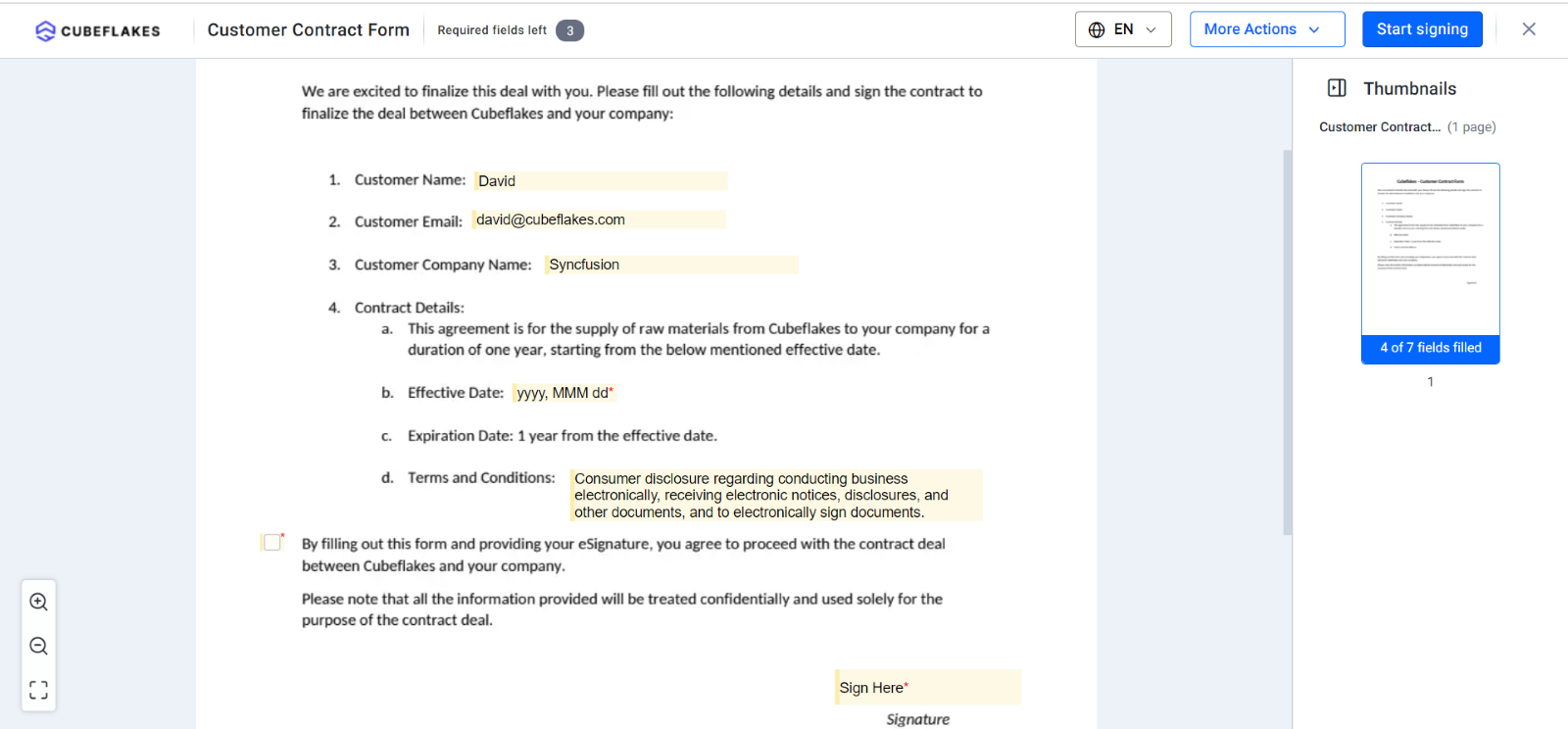
Every prefilled field is matched by its ID. When you send, you give us that ID and the value to show.
- The field’s ID, which the field gets when you place it on the template.
- The value you want the signer to see.
- An optional read-only setting, so the signer can see the value but not edit it.
The example later in this guide prefills text boxes, a checkbox, a radio button, a date and a dropdown. For a radio button, the ID is the group’s ID and the value is the label of the option to select. Our developer guides also cover radio button prefills in more detail.
How do you create a template for prefilled fields in BoldSign?
A template is a saved document whose fields are already placed and linked to signer roles. You build it once in the web app and reuse it for every customer.
Our help article on creating templates lists every option, and our eSignature templates page shows what a template can hold.
Upload the document
- Log in to your BoldSign account.
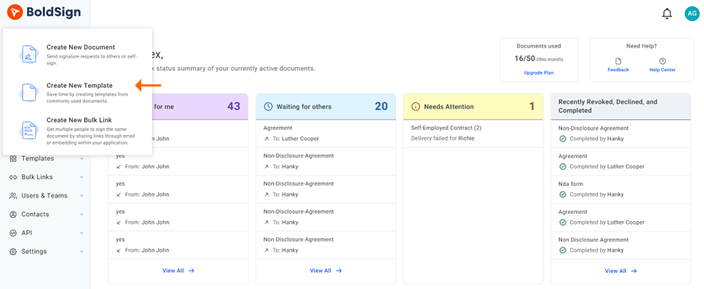
- Select Create New, then Create New Template.
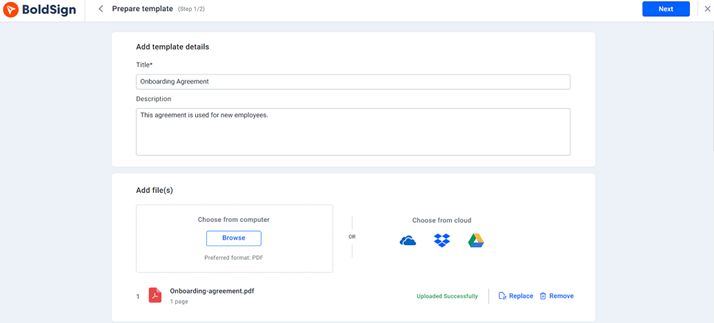
- On the Prepare template page, enter a Title and a Description.
- Upload your document in the Add files section.
Add roles and form fields
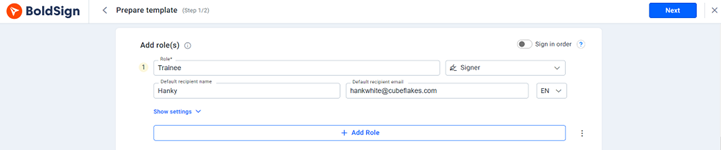
- In the Add role section, add a role for each signer.
- Select Next to open the prepare page.
- Place the form fields and assign each one to a role from the dropdown.
- Note the ID of each field you plan to prefill.
- Select Save template.
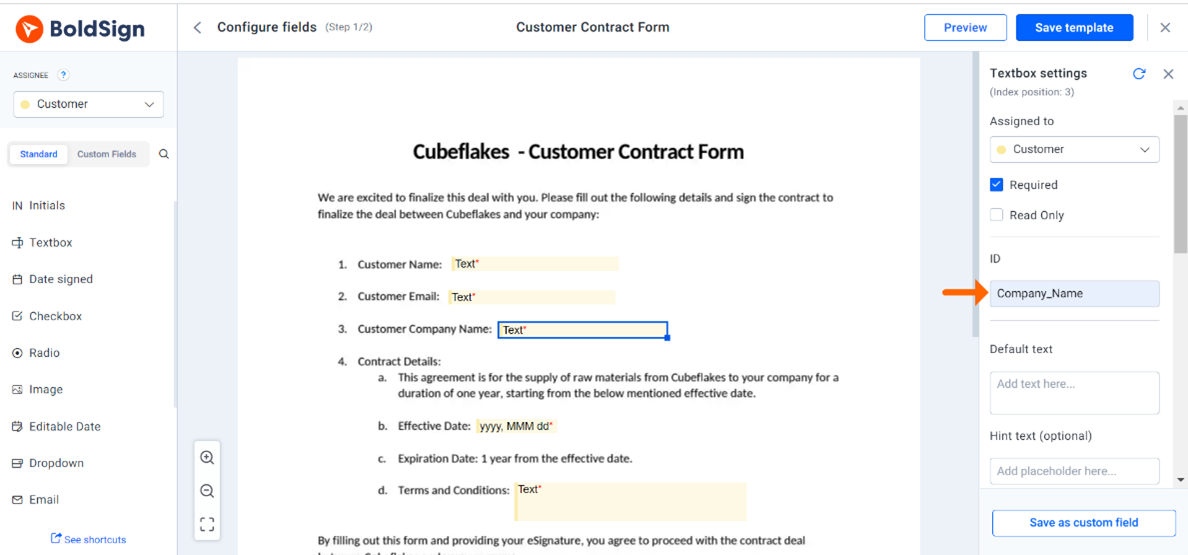
Each field shows its ID in its properties. You can also list every field ID with the template properties API at /v1/template/properties.
How do you prefill fields with the BoldSign API and send for signature?
Call the /v1/template/send endpoint with your template ID and a value for each field. We fill the fields and send the document in the same request.
In the request below, replace the template ID, signerName and signerEmail with your own values. Then edit the existingFormFields list so each id matches a field ID from your template.
curl -X 'POST' \
  'https://api.boldsign.com/v1/template/send?templateId=294548c3-2a0b-4281-b6ab-de34e3fffbc9' \
  -H 'accept: application/json' \
  -H 'X-API-KEY: {your API key}' \
  -H 'Content-Type: application/json;odata.metadata=minimal;odata.streaming=true' \
  -d '{
  "title": "Invitation form",
  "message": "Kindly review and sign this.",
  "roles": [
    {
      "roleIndex": 1,
      "signerName": "David",
      "signerEmail": "david@cubeflakes.com",
      "existingFormFields": [
        {
          "id": "Company_Name",
          "value": "Syncfusion"
        },
        {
          "id": "Customer_Name",
          "value": "David"
        },
        {
          "id": "Customer_Email",
          "value": "david@cubeflakes.com"
        },
        {
          "id": "Check_Box",
          "value": "on"
        },
        {
          "id": "Radio_Button",
          "value": "1"
        },
        {
          "id": "Due_Date",
          "value": "05/10/2023"
        },
        {
          "id": "Drop_Down",
          "value": "United States"
        }
      ]
    }
  ]
}'
Each entry in existingFormFields pairs one field ID with its value. Add "isReadOnly": true to an entry when the signer should see that value but not change it. Our developer guide to prefilling fields walks through the same call.
How do you prefill fields from a form submission?
Send the template from the code that handles your web form. When a customer submits the form, read their answers and pass them as field values in the send request.
In a live system, the values come from your form or your customer records instead of fixed text. The document then reaches the signer with their details in place, ready to review and sign.
Need to change a value after sending? Our guide to prefilling form fields after sending covers documents that are still in progress.
What should you check before sending prefilled documents?
Check that your request and your template agree, field by field. Run through these points before you go live.
- Match each
idin your request to a field ID from the template. - For a radio button, send the group ID as
idand the option’s label asvalue. - Lock values the signer should keep as they are with
isReadOnly. - Test the full request in a free API sandbox before sending to customers.
Which BoldSign plan do you need to prefill fields through the API?
You can build and test the whole flow in a free API sandbox account. Sending live documents through the BoldSign API needs the Enterprise API plan, which costs from $30 a month with 40 API envelopes.
Extra API requests cost $0.75 each, and the plan includes unlimited templates. Prices are in USD. See our API pricing page for current details.
How do you start prefilling documents for your customers?
Pick the step that fits where you are today.
- Create a free API sandbox account and send your first prefilled template.
- Book a demo to see prefilled templates set up for your own documents.
- Read how to save time with templates to build more templates your team can reuse.
Frequently asked questions
What does prefill mean in an eSignature document?
It means placing known values, such as a name or email address, into form fields before the signer opens the document. The signer checks those details and signs.
How do I choose an e-signature platform that can prefill fields from a form submission before the signer sees the document?
Look for templates with a fixed ID on every field and an API that sets field values in the same call that sends the document. With BoldSign, your form handler passes each answer to the /v1/template/send endpoint.
How do I stop a signer from changing a prefilled value?
Set isReadOnly to true for that field in the send request. The signer then sees the value but cannot edit it.
Where do I find the field IDs in a BoldSign template?
Each field lists its ID in its properties when you place it on the template. You can also call the /v1/template/properties endpoint to list every field ID at once.
How do I prefill a radio button through the API?
Send the radio group's ID as the id. Send the label of the option you want selected as the value.
Can I prefill fields after a document is sent?
Yes, while the document is still in progress. Our prefill form fields API sets values on a sent document, but only until the signer signs it.
Are prefilled documents legally binding?
Yes, when the signing meets the same rules as any other electronic signature. Prefilling only sets starting values; the signer still reviews, consents and signs.
Can I test prefilling for free in BoldSign?
Yes. A free API sandbox account lets you build a template and send prefilled test documents. Sending live documents needs a paid API plan.

Gopinath Kannusamy
Gopinath is a passionate software developer with 2 years of experience at BoldSign. He is an avid writer and enjoys sharing his insights on technology and development. In his free time, he enjoys exploring new technologies and learning new things. Connect with him on LinkedIn.
More posts by Gopinath Kannusamy