How to Sign Your Arabic Documents Electronically
 Lakshmi Priya Soundar Rajan
TL;DR: To sign your Arabic documents electronically, upload the file to BoldSign, add text box or label fields, and select right-to-left (RTL) in each field’s settings. Signers then type Arabic from right to left, and the signed copy keeps that direction. Our eSignature features page shows the other field options.
A contract written in Arabic often needs a few details from the signer: a name, an address or a short note. In a plain form field, Arabic letters start on the left and the line reads backwards. Signers then retype or give up.
We added a right-to-left (RTL) setting to our form fields for this. This guide shows how it works, then walks through sending, signing, tracking and downloading an Arabic document.
What does right-to-left (RTL) text mean in an eSignature?
RTL text starts at the right edge of a field and moves left as you type. Arabic, Hebrew, Farsi and Urdu are all written this way.
Think of a notebook made for English. You can still write Arabic in it, but every line starts against the wrong margin. An RTL field moves the margin to the right side, so each word lands where a reader expects it.
Which BoldSign fields support Arabic text from right to left?
Text box and label fields have the RTL option. You find it in the field settings, next to Align to Left, Align to Center and Align to Right.
Use a text box for anything the signer types, such as a name or address. Use a label for fixed Arabic text you add yourself, such as a field caption. Our help article on how to align text in form fields from right to left shows both.
How do you sign your Arabic documents electronically with BoldSign?
Sending an Arabic document follows the same path as any other document. The one extra step is selecting RTL on the fields that hold Arabic text.
Log in to your account
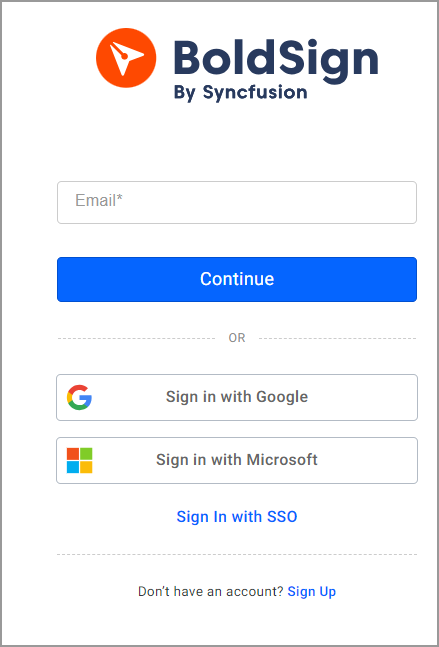
Log in to BoldSign from the sign-in page. New to us? Sign up for a free account first.
Start a new document and upload your file
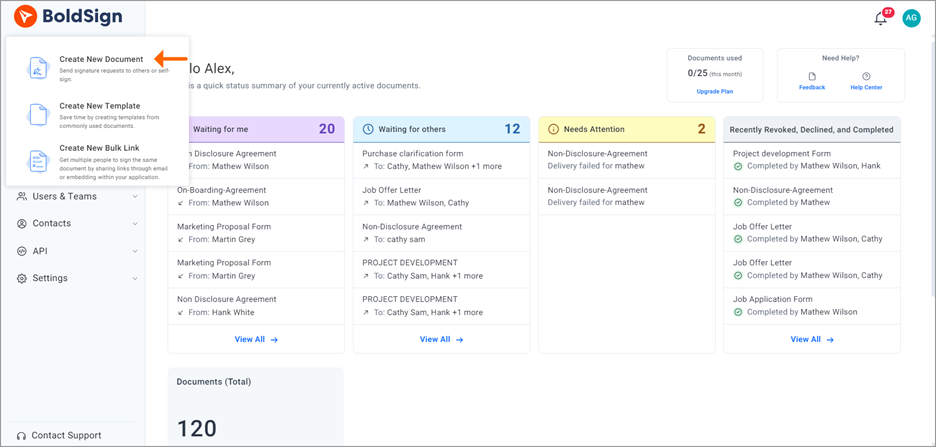
- Select Create New, then Create New Document.
- In the Add file(s) section, select Browse and choose your Arabic file.
- Add each recipient’s name and email address, then select Next.
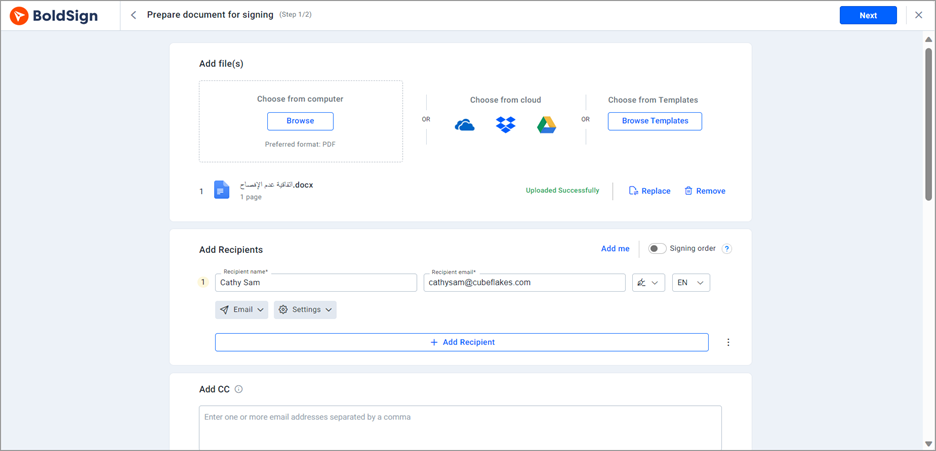
You can upload PDF files, Word documents and image files. Our help article on supported file formats and sizes lists the details.
Add fields and turn on RTL
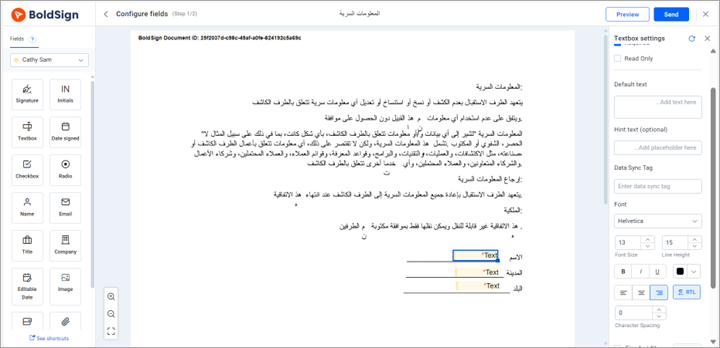
- On the Configure fields page, drag a text box or label field onto the document.
- In the field settings on the right, select RTL.
- Repeat for each field that will hold Arabic text.
Send the document
Select Send at the top right. Each signer gets an email with a link to open and sign the document.
What does the signer see on the signing page?
Signers see your Arabic document with the fields you placed. Text they type into an RTL field starts on the right and flows left, as Arabic should.
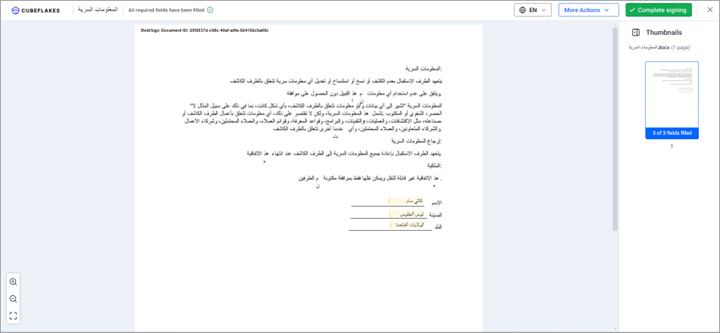
They add their signature in the signature field and finish. They sign without a BoldSign account.
How do you track and download the signed Arabic document?
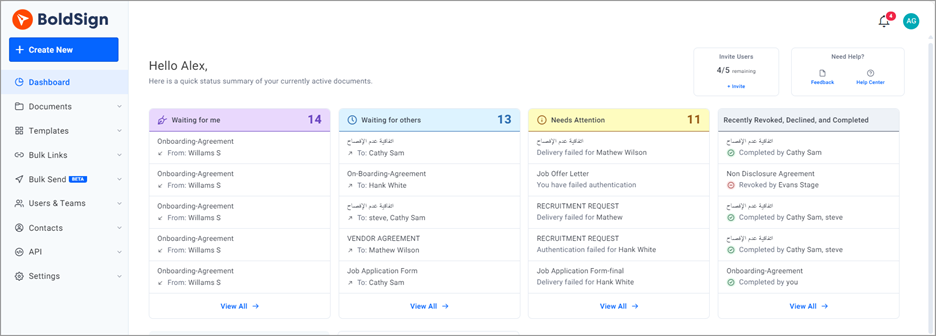
Your dashboard shows the status of each document as signers open and complete it. You get a notification as each step happens.
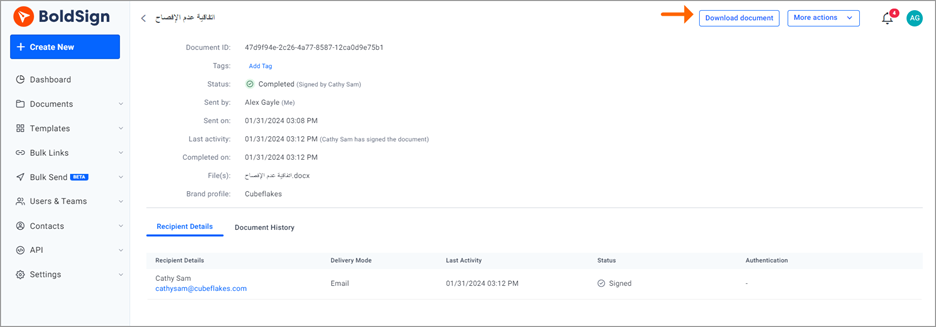
Once everyone signs, we create the final document. Download it to check that each RTL field reads from right to left.
What should you check before you send an Arabic document?
A quick check before you select Send saves a second round of signing. These points come up most often with Arabic files.
- Select RTL on every text box and label that holds Arabic, not just the first one.
- Save the file as a PDF when you can, so the Arabic layout stays fixed.
- Set each signer’s language in the dropdown on their recipient row.
- Leave enough width in each field for the longest expected answer.
The signer language sets the buttons and emails, and English is the default. As of November 2026, our signer language article lists 20 languages, and Arabic is not among them.
Can you set right-to-left text through the BoldSign API?
Yes. Developers set the textDirection property to RTL on a text box field when they create a document with the BoldSign API.
Left-to-right is the default when you leave the property out. Our developer guide on how to set text direction for text box fields has code samples.
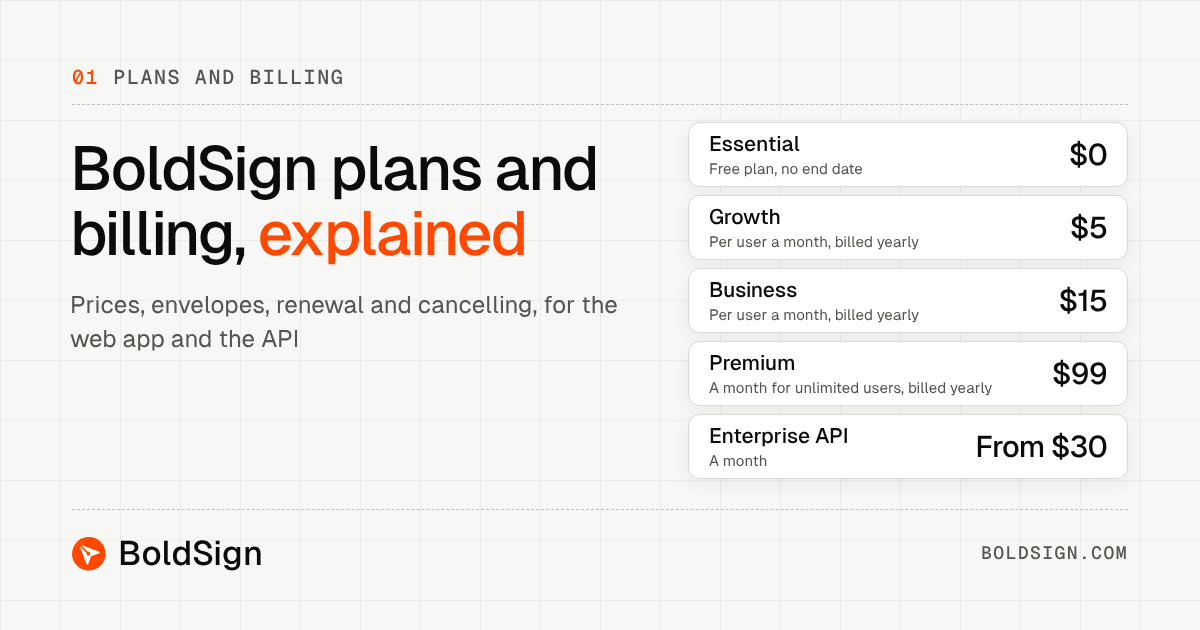
Which BoldSign plan do you need, and what does it cost?
The free Essential plan includes 25 envelopes a month for one user. Paid plans are billed yearly, and prices are in USD.
The Growth plan costs $5 per user a month, and the Business plan costs $15 per user a month. The Premium plan costs $99 a month for unlimited users.
Sending through the API needs the Enterprise API plan, from $30 a month with 40 envelopes. Developers can test first in a free API sandbox account. The BoldSign pricing page lists every plan.
How do you get started with Arabic eSignatures?
Send one Arabic document to yourself first and sign it as the signer would. You will see each RTL field from both sides.
- Start a 30-day free trial and send a test Arabic document.
- Book a demo to see RTL fields set up on your own documents.
- Visit our support portal with a question about RTL or signer languages.
Frequently asked questions
Can I sign an Arabic document electronically with BoldSign?
Yes. Upload the Arabic document, place your fields, and select RTL on each text box or label field. Signers then type Arabic from right to left and sign as usual.
What does RTL mean in an eSignature tool?
RTL stands for right-to-left. It sets a field so text starts at the right edge and flows left, the way Arabic, Hebrew, Farsi and Urdu are written.
Which BoldSign fields support right-to-left text?
Text box and label fields have the RTL option in their settings. It sits next to the left, center and right alignment options.
Does the RTL option translate the signing page into Arabic?
No. RTL only sets the direction of text inside a field. The signing page and emails follow the signer language you pick for each recipient, which is English by default.
Does the signer need a BoldSign account to sign an Arabic document?
No. Signers open the document from the link in their email and sign there. They type Arabic into the RTL fields without creating an account.
What file types can I upload for an Arabic eSignature?
You can upload PDF files, Word documents and image files. PDF gives signers the most consistent layout, so save your Arabic file as a PDF when you can.
Can I set right-to-left text direction through the API?
Yes. Set the textDirection property to RTL on a text box field when you create the document. Left-to-right is the default.
Will the signed Arabic document keep the right-to-left text?
Yes. The final document you download shows every RTL field as the signer typed it, from right to left, together with the signatures.

Lakshmi Priya Soundar Rajan
Lakshmi Priya Soundar Rajan is a Technical Writer at BoldSign. With expertise in simplifying complex concepts, she contributes to the comprehensive documentation and user-friendly content at BoldSign. Lakshmi’s commitment to quality ensures users have access to clear and helpful information. Connect with her on LinkedIn.
More posts by Lakshmi Priya Soundar Rajan