Passkey Authentication: How It Works and How to Use It in BoldSign
 Preethi Loganathan
TL;DR: Passkey authentication signs you in with the fingerprint, face scan or device personal identification number (PIN) that already unlocks your device. Your device proves who you are by signing a one-time challenge with a private key that stays on the device. You have no password to phish. Our help article on how to register a passkey in BoldSign shows where to add one.
Your BoldSign account holds a lot. It has the templates your team sends, the signature requests still in progress, and the archive of signed agreements.
In most accounts, a typed password and a code from your phone guard all of it. You may already ask signers to prove who they are. Passkeys give you, the sender, a sign-in that a fake login page cannot capture.
What is a passkey?
A passkey is a sign-in credential that replaces your password with a pair of cryptographic keys. You unlock it with the same fingerprint, face scan or PIN that unlocks your device.
Think of a password as a spoken code word that anyone who overhears it can use at any door. A passkey is more like a house key cut for one lock. It stays in your pocket and fits only its own door.
Passkeys come from the World Wide Web Consortium (W3C) Web Authentication specification, known as WebAuthn. The specification also lists their older names, discoverable credentials and resident keys. The Fast Identity Online (FIDO) Alliance explains them for a general audience on its passkeys page.
How passkey authentication works
Passkey authentication uses two matching keys. Your device keeps the private key and we keep the public key.
- When you register, your device creates the key pair and sends only the public key to us.
- When you sign in, we send your device a one-time challenge.
- You unlock the passkey with your fingerprint, face or PIN.
- Your device signs the challenge with the private key.
- We check the signature against your public key and sign you in.
No password crosses the network at any point. The private key stays on your device, which helps protect your account even if a service is breached.
Why do passkeys matter when you send agreements?
A passkey protects your sender account from phishing, the most direct way into it. A passkey made for boldsign.com cannot be used on a lookalike site, however real that site looks.
Fake login pages work by looking normal. Someone who sends signature requests gets many genuine emails with sign-in links, and those give a fake one good cover.
A stolen sender account also does more harm than a stolen signer account. An attacker inside it can send requests under your organization’s real name. Every signer downstream then sees a request that looks genuine.
The WebAuthn specification scopes each credential to the site it was created for, and your browser enforces that. You no longer have to spot the fake page yourself. Passkeys sit alongside the rest of our platform security and compliance controls.
How do you register a passkey in BoldSign?
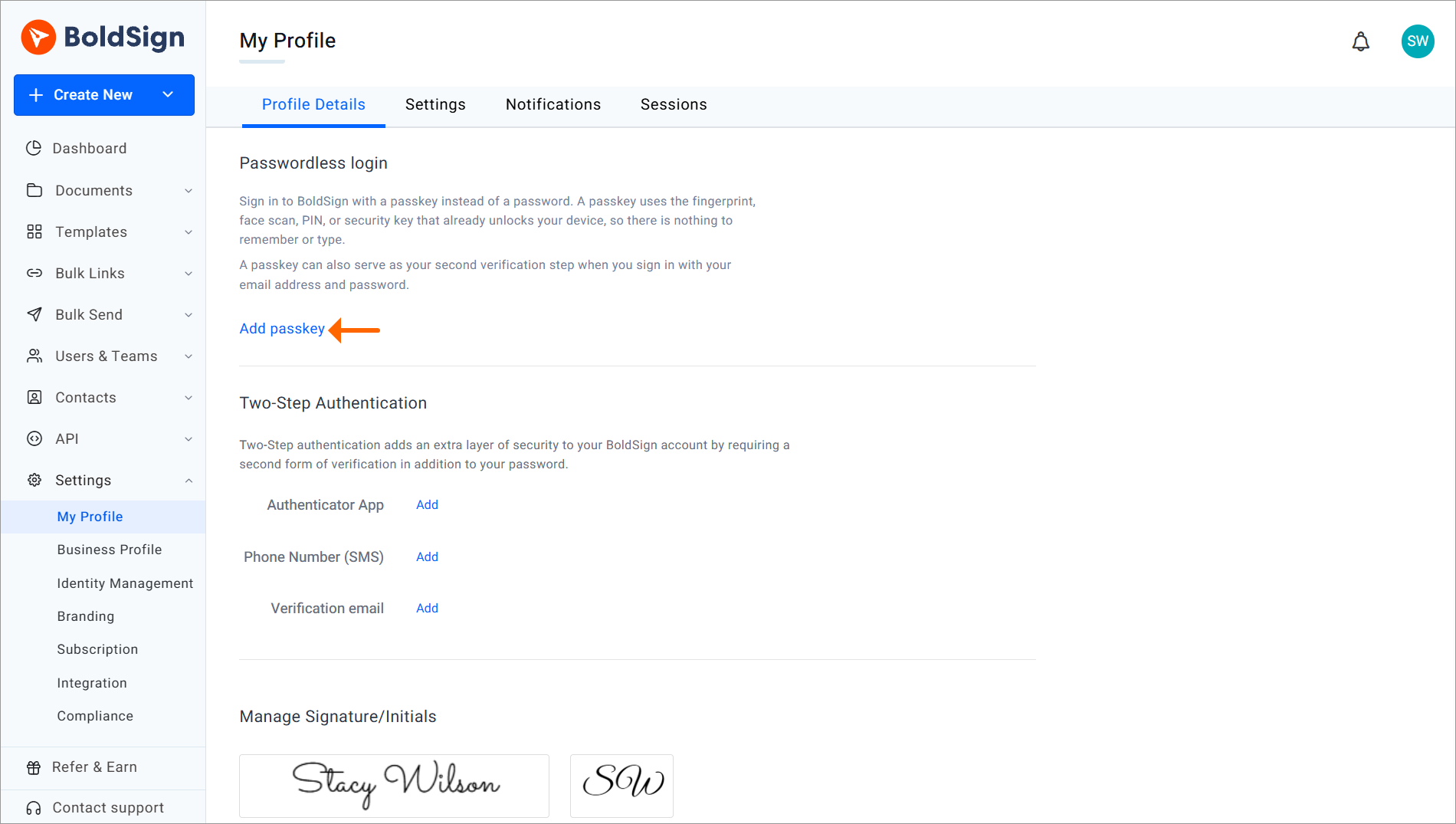
You register a passkey from Settings > My Profile > Passkeys. Your device needs a screen lock, fingerprint, face recognition or security key set up first.
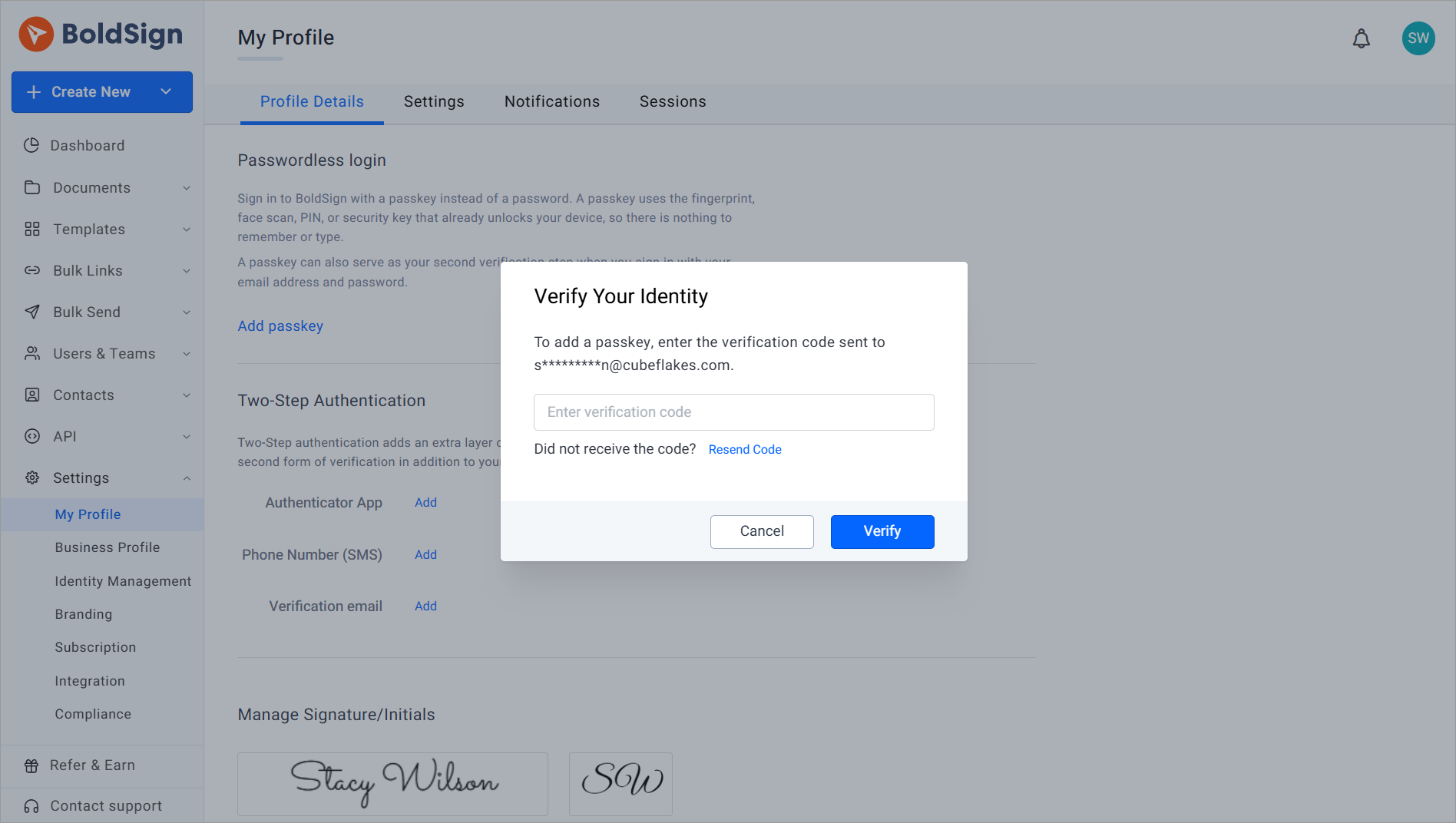
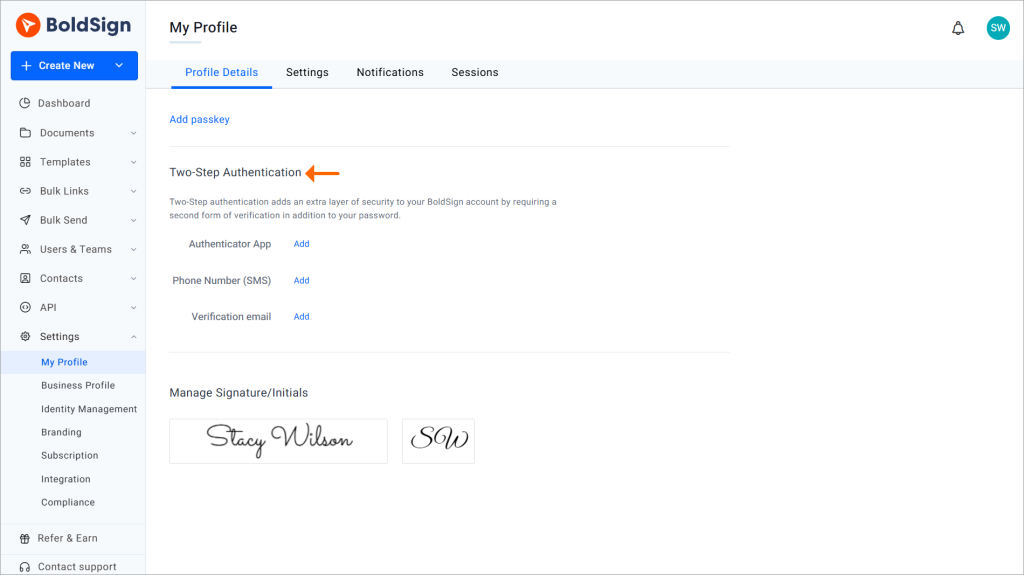
- Go to Settings > My Profile, find the Passkeys section and click Add passkey.
- Verify your identity with your Two-Step Authentication method, or with a code sent to your account email.
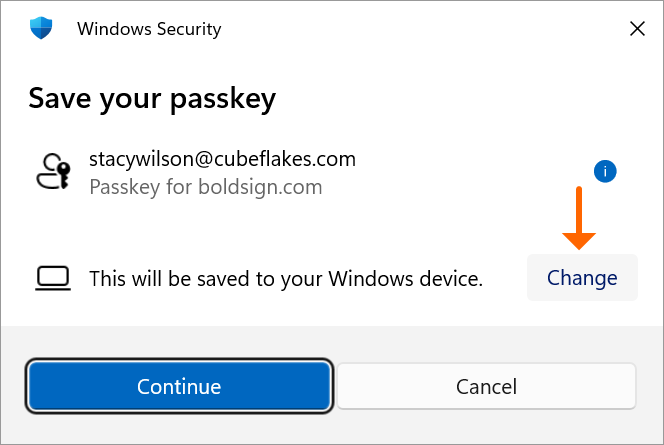
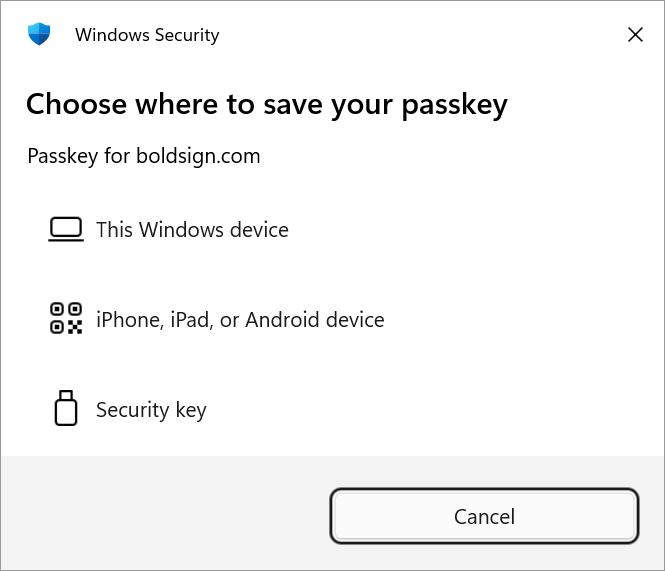
- In the Save your passkey prompt, choose where to save the passkey and click Continue.
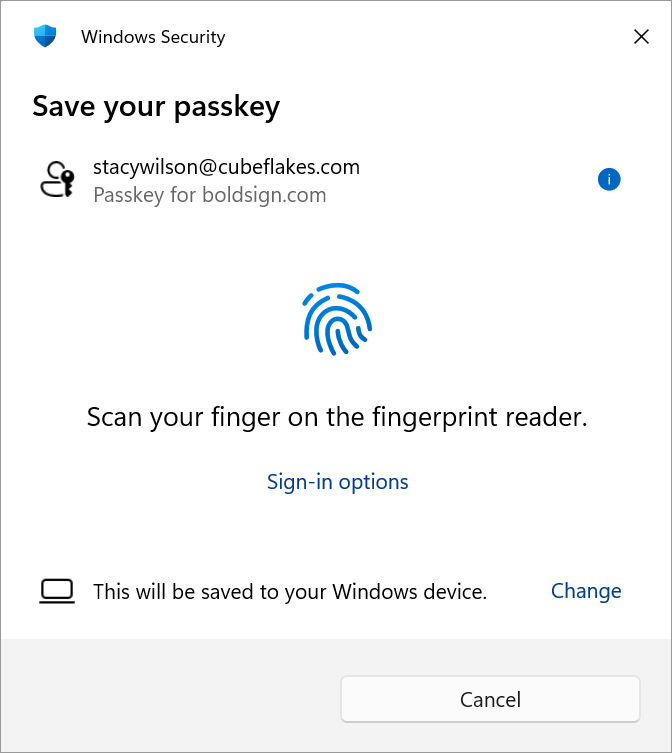
- Confirm with your fingerprint, face, PIN or security key.
- Replace the suggested name, such as Chrome on Windows, with a clear one and click Save.
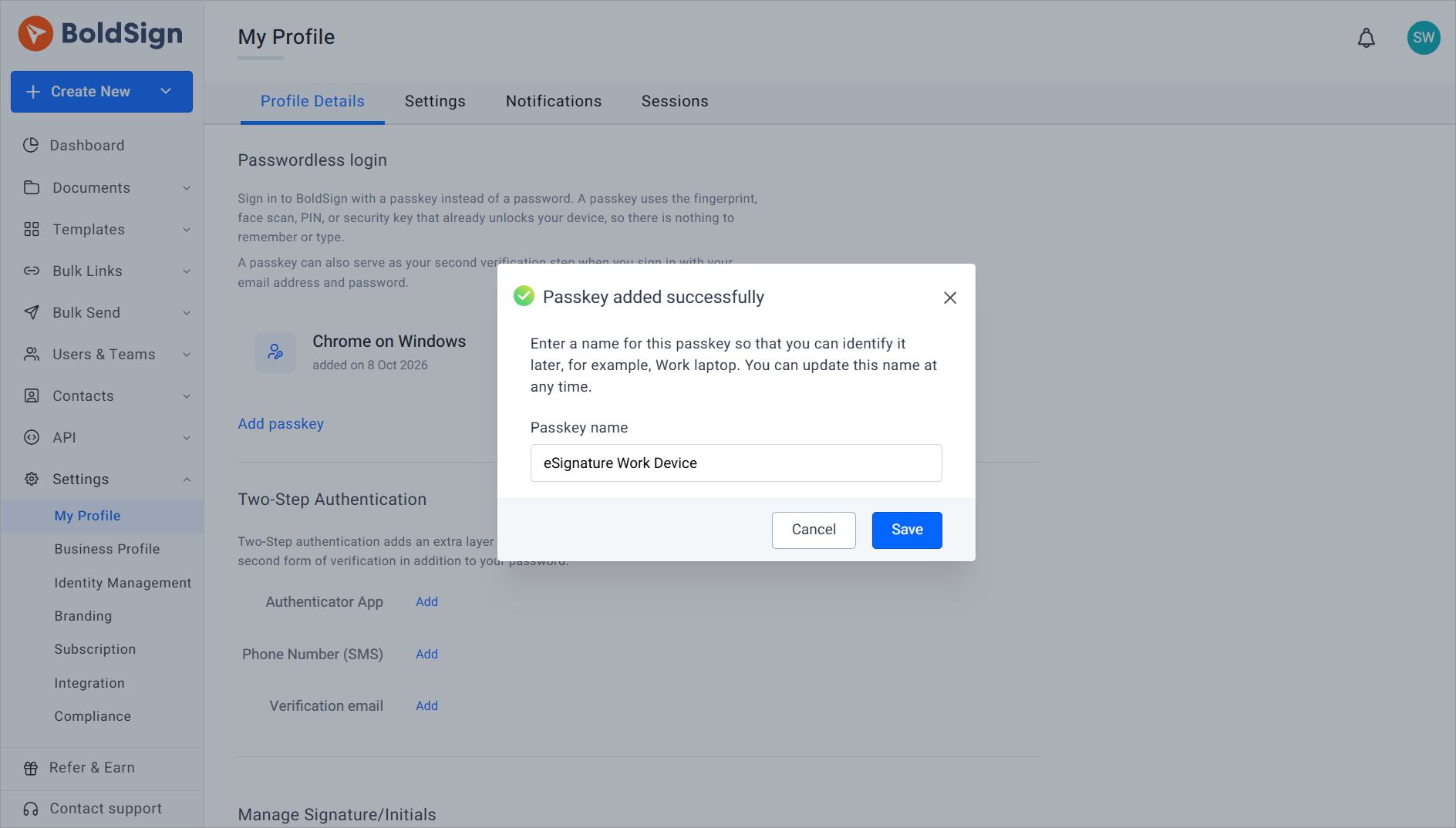
Each passkey name must be unique on your account. The help article linked above lists the characters a name can use.
How do you rename or delete a passkey?
Rename a passkey at any time with the pencil icon next to it, with no identity check. To delete one, click the Delete passkey icon, verify your identity and confirm.
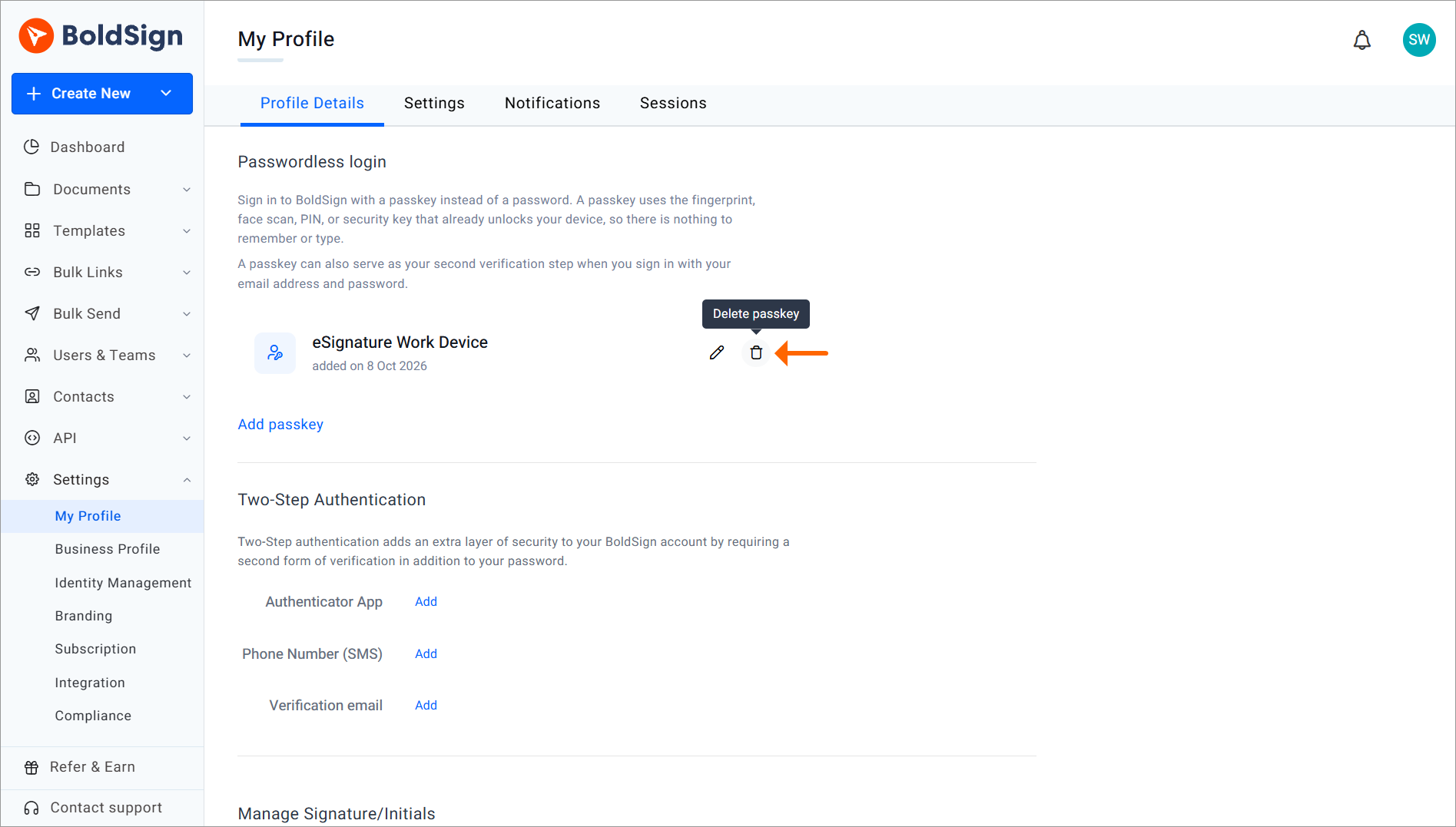
Deleting a passkey unlinks it from your BoldSign account only. Your other passkeys and sign-in methods stay as they are. The passkey itself stays in your keychain, browser or password manager until you delete it there too.
How do you sign in to BoldSign with a passkey?
You can use a passkey to sign in without a password, or as the second step after your password. The screens you see depend on the route you take.
How does passwordless sign-in work?
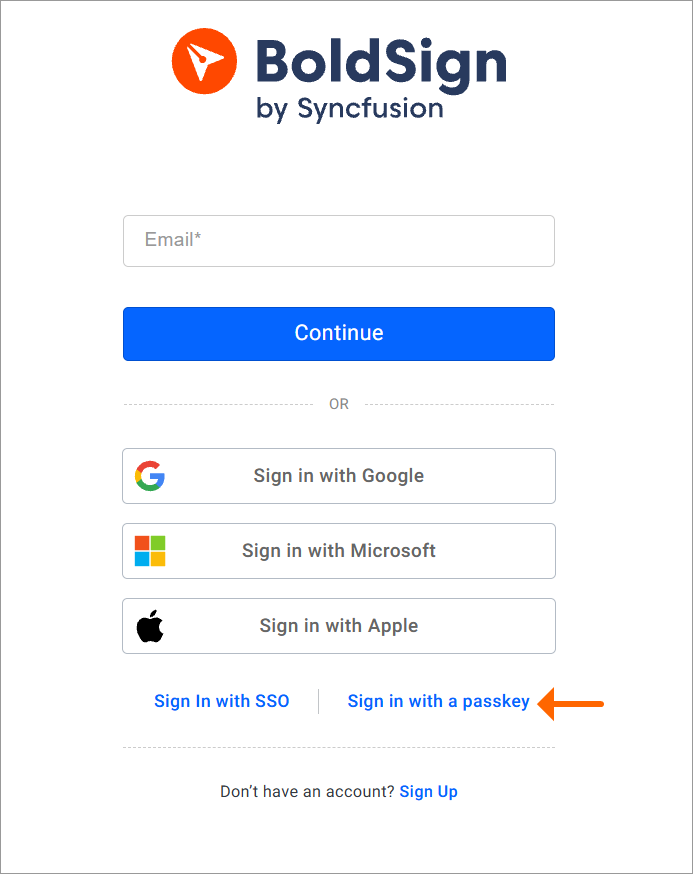
- On the BoldSign login page, click Sign in with passkey.
- Select your BoldSign account when the passkey prompt appears.
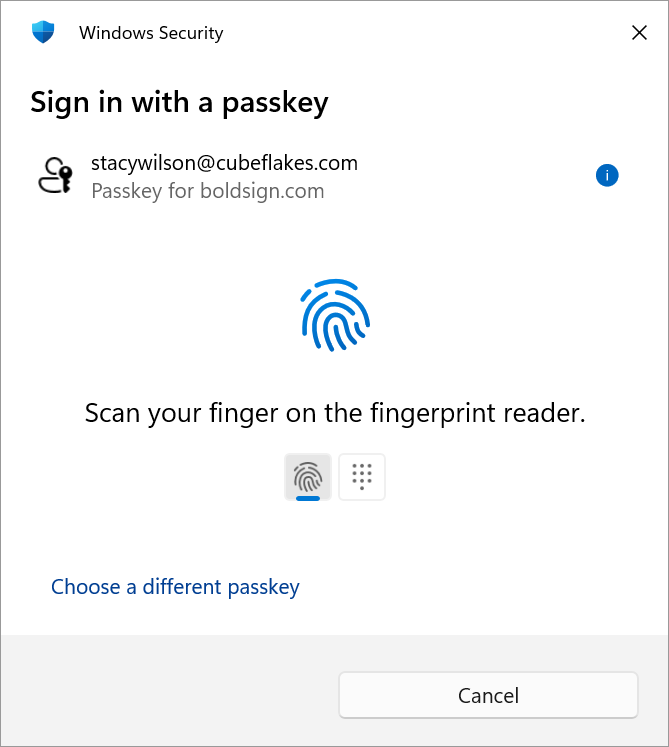
- Verify with your fingerprint, face, PIN or a security key.
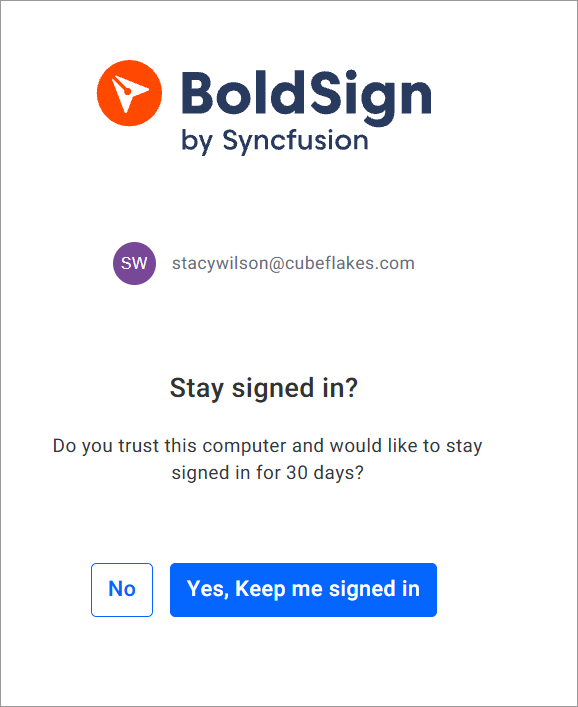
- Choose Yes to stay signed in for 30 days, or No to end the session after 30 minutes of inactivity.
What happens when you use a passkey after your password?
Your account setup decides the next screen after you sign in with your email and password.
| Your account setup | What happens next |
|---|---|
| Two-Step Authentication on, passkey registered | The Two-Step Verification screen lists Passkey next to your other methods |
| Two-Step Authentication on, no passkey | The Two-Step Verification screen shows the methods you set up |
| Two-Step Authentication off, passkey registered | The Verify your identity page lets you choose Passkey or Verification email |
| Two-Step Authentication off, no passkey | You are signed in directly |
A passkey adds an option to your two-step authentication setup. Your authenticator app and SMS codes keep working as before.
What happens after Google, Microsoft, Apple or single sign-on (SSO) sign-in?
We ask for your passkey after Google, Microsoft, Apple or your organization’s single sign-on (SSO) confirms who you are. On this route the passkey is an extra check, not one choice among several.
Why does the session screen appear only sometimes?
The session screen appears after passwordless sign-in and after SSO with a passkey. You skip it when you use a passkey after your password, because you already chose your session length at the password step.
Nothing is broken. The same passkey simply leads to different screens on different routes.
Which devices and browsers support passkeys?
Current desktop and mobile systems support passkeys in BoldSign, as the table shows. Linux support is partial and depends on your browser and credential manager.
| Platform | How you verify |
|---|---|
| Windows 10 (version 1903 or later) and Windows 11 | Windows Hello PIN, fingerprint or face recognition |
| macOS Ventura 13.0 or later | Touch ID and iCloud Keychain |
| iOS and iPadOS 16.0 or later | Face ID, Touch ID or device passcode |
| Android 9.0 or later | Fingerprint, face unlock, PIN or screen lock |
| ChromeOS | Device PIN or fingerprint |
These browsers support passkeys in their current versions:
- Google Chrome, Microsoft Edge and Opera
- Mozilla Firefox and Apple Safari
- Samsung Internet on Android
Physical FIDO2 security keys also work, whether you plug them in or tap them on a device with near-field communication (NFC).
How do you sign in on a computer with the passkey on your phone?
- Click Sign in with passkey on the computer.
- Choose the phone or tablet option in the prompt.
- Scan the quick response (QR) code with the phone that holds your passkey.
- Confirm with your fingerprint, face or PIN on the phone.
Keep both devices close together with Bluetooth turned on.
Are passkeys the same as signer authentication?
No. Passkeys protect your own sign-in to BoldSign, and signer authentication checks the people who open your documents.
| Passkeys | Signer authentication | |
|---|---|---|
| Who it checks | You, the account holder | The recipient of your document |
| When | At sign-in | When the recipient opens the document |
| Where you set it | Settings > My Profile > Passkeys | On each recipient when you prepare a request |
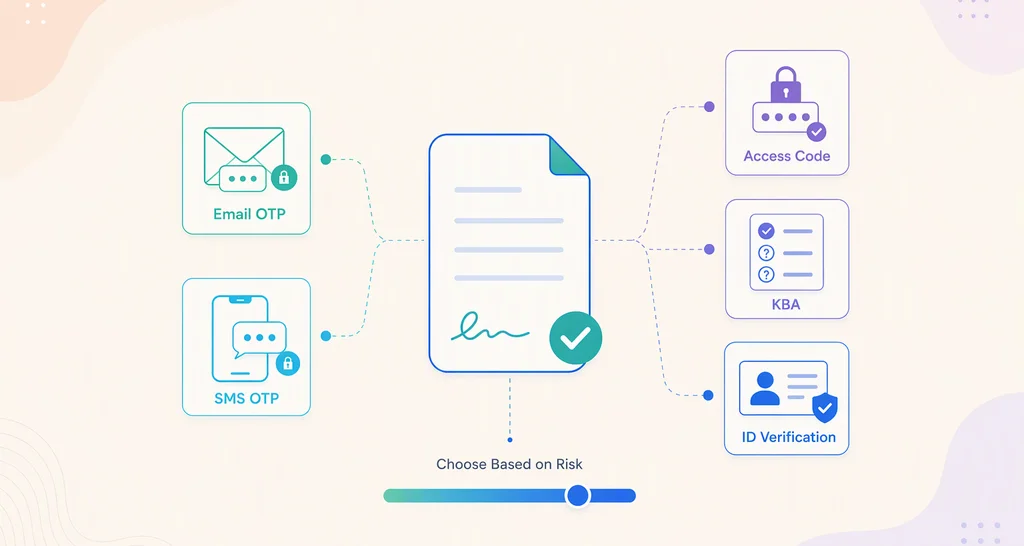
| Methods | Fingerprint, face, PIN or security key | Email code, SMS code, access code, ID verification or knowledge-based questions |
Registering a passkey changes nothing for your signers. Use signer authentication in BoldSign for that side, since the two protect opposite ends of the same workflow.
Which BoldSign plan do you need for passkeys?
Passkey sign-in and two-step authentication are on every BoldSign plan, including the free Essential plan. You can add a passkey today without changing plans.
SMS code checks for signers, ID verification and organization single sign-on need the Business or Premium plan. Business costs $15 per user a month, and Premium costs $99 a month for unlimited users, both billed yearly. Prices are in USD, as listed on the BoldSign pricing page in November 2026.
How do you start using passkeys in BoldSign?
Add a passkey on the laptop you send from, then add a second one on your phone. One lost device then never locks you out.
- Start a 30-day free trial and add a passkey after you sign in.
- Read how to set up two-factor authentication for your BoldSign account.
- Book a demo to see account and signer security set up for your team.
Frequently asked questions
What happens if I lose the device that has my passkey?
Sign in another way, then remove the lost passkey. Use your email and password, single sign-on (SSO) or another passkey, then delete the lost one under Settings > My Profile > Passkeys.
Can I have more than one passkey on the same BoldSign account?
Yes. You can register passkeys on different devices and platforms, and each one needs a unique name. A second passkey on your phone means one lost laptop never locks you out.
Do passkeys sync across my devices?
That depends on where the passkey is stored, not on BoldSign. Passkeys saved in iCloud Keychain, Google Password Manager or Windows Hello may sync across devices signed in to the same account.
Does deleting a passkey from BoldSign delete it from my device?
No. Deleting it in BoldSign only unlinks it from your account, so it can no longer sign you in. The credential stays in your keychain, browser or password manager until you remove it there.
Why do I not see Passkey on my verification screen?
The Passkey option appears only after you register at least one passkey under Settings > My Profile > Passkeys. Until then, the screen shows the Two-Step Authentication methods you set up.
Can I use a passkey on an older browser?
No. Passkeys need WebAuthn, the web standard behind them, and only modern browsers support it. Update to a current version of Chrome, Safari, Edge or Firefox.
What is the difference between a passkey and a password?
A password is a shared secret you type, so it can be guessed, phished or reused. A passkey is a key pair whose private key stays on your device. You sign in by letting your device sign a one-time challenge.
Can I use a passkey with Google, Microsoft, Apple or SSO sign-in?
Yes. After Google, Microsoft, Apple or your organization's single sign-on (SSO) confirms who you are, we ask for your registered passkey as an extra check before you are signed in.

Preethi Loganathan
Preethi is a Digital Marketing Executive at BoldSign who develops precise, research-driven content on eSignatures, compliance, and digital signing workflows. She works closely with product and engineering teams to ensure every article is accurate, validated, and aligned with industry best practices. Connect with her on LinkedIn.
More posts by Preethi Loganathan