Qualified Electronic Signature (QES): What It Is, When You Need One and How to Turn It On in BoldSign
 Meikanda Nayanar
TL;DR: A qualified electronic signature (QES) is the top signature level under EU law, and it has the legal effect of a handwritten signature. A qualified trust service provider (QTSP) checks each signer’s ID before they sign. We added QES in April 2025, and you can turn it on per signer from our QES page.
Some documents need more than a typed name. A bank, a court or a partner in another EU country may ask for a signature backed by a checked ID.
This guide explains what a QES is and when you need one. It then shows how to turn it on in BoldSign and what it costs.
What is a qualified electronic signature?
A QES is a signature made with a qualified certificate, after a QTSP has checked who the signer is. It counts the same as wet ink under the EU Electronic Identification and Trust Services Regulation (eIDAS).
Think of it like a passport stamp. Anyone can write their name on a form. A border officer’s stamp shows that a trusted office checked the person first.
Our EU eSignature legality guide describes three levels under eIDAS, Regulation (EU) No 910/2014:
- A simple electronic signature (SES) is any electronic data linked to a document.
- An advanced electronic signature (AES) is tied to one signer and shows later changes.
- A QES is an advanced signature made with a certified device and a qualified certificate.
Is a QES legally binding across the EU?
Yes, when a QTSP issues the certificate. Article 25 of eIDAS gives a QES the same legal validity as a wet-ink signature, across EU member states.
Simple and advanced signatures are valid as well, but their weight as evidence varies by country. Some documents still need a paper signature under local law.
For deals with the United Kingdom, read our guide to UK eIDAS vs EU eIDAS after Brexit.
When do you need a QES, and when is a simple signature enough?
Use a QES when a law, a court or the other party asks for one. You turn it on per signer, so everyday forms can keep a simple signature.
Here are some common cases:
- A real estate esignature on a lease can stay at the simple level.
- A healthcare electronic signature on a consent form can stay simple unless a rule asks for more.
- An electronic signature waiver for a sports club can stay simple too.
- A contract with an EU partner may need a QES when the partner asks for one.
See how we support esignature for real estate and healthcare teams.
What makes QES a secure digital signature solution?
A QES links each signature to a checked ID and a qualified certificate. That pairing turns secure digital signature software into a signature with the legal effect of ink.
Here is what happens when your signer opens a QES document:
- They pick their country and a provider.
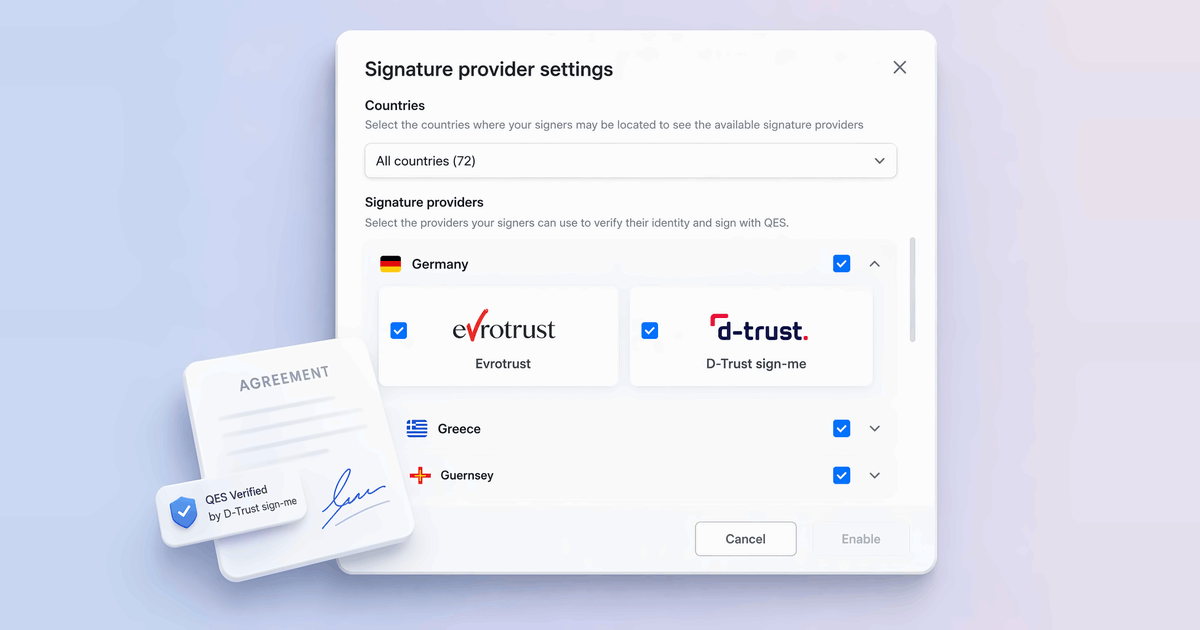
- They scan an ID and take a selfie in the provider’s app, such as Evrotrust.
- The provider issues their qualified certificate.
- They confirm their identity in the app and tap Sign.
The provider’s app runs on the signer’s phone, so a QES also works as a mobile electronic signature. Our guide on how to get an electronic signature at the qualified level walks a signer through each screen.
How does BoldSign protect your QES documents?
We apply the same security standards to QES documents as to every other signature. Our security policy lists our audits and controls.
- We have completed a System and Organization Controls (SOC) audit, SOC 2 Type 2.
- We offer a GDPR compliant esignature under the General Data Protection Regulation (GDPR). Read our GDPR overview.
- We support the Health Insurance Portability and Accountability Act (HIPAA), as our HIPAA overview explains.
- Stripe, our payment processor, meets the Payment Card Industry Data Security Standard, as our notes on card payments explain.
Your documents and signer data stay in the data region you select, such as the EU.
How do you turn on QES in BoldSign?
An admin turns on QES once in the Business Profile, and then you switch it on per signer. Until then, QES is off for all users.
- Expand Settings and select Business Profile.
- On the Settings tab, find the QES option.
- Click Contact Support in the dialog that opens, and send the request.
- After we turn it on, set the number of verification attempts and click Save changes.
Next, click Configure next to Signature providers. Select your countries and providers, click Enable, and then click Save changes. Evrotrust is on by default.
Reach our team through the support portal when you cannot open the Business Profile. The full steps are in our help article on Qualified Electronic Signatures (QES).
How do you send a document with QES?
Upload the document, add your signers, and switch on QES in each signer’s settings. You can also save QES on a signer role in a template.
Keep these limits in mind:
- Each file must be 30 megabytes (MB) or smaller.
- Each QES signer needs their own signing order.
- Reviewers and signing groups cannot use QES.
Can you add QES through an API electronic signature workflow?
Yes. The BoldSign API sends QES documents when you set EnableQes to true on a signer, once QES is on in your account.
Your product then gets a legally binding signature API for EU signers, with the same ID check as the web app. Our guide to secure QES signing with the BoldSign API shows the request, and our eSignature API page covers the rest.
Which BoldSign plan do you need for QES, and what does it cost?
QES is an add-on from the Business plan up, at $3 per signing attempt. We charge for each attempt, whether it succeeds or fails.
Our Business plan costs $15 per user a month. Our Premium plan costs $99 a month for unlimited users. Both are billed yearly and include HIPAA support and ID verification.
Live use of the BoldSign API needs our Enterprise API plan, from $30 a month with 40 envelopes, and it includes QES. Prices are in USD, as listed on our pricing page.
Two QES signers cost $6 in QES charges when each signs at the first try. Teams comparing QES software for business can test the rest of the product on a 30-day free trial.
How do you get started with QES as an electronic signature for business?
Start with the signers who need a QES, and keep simple signatures for the rest. Choose your next step.
- Start a 30-day free trial, with no credit card needed.
- Book a demo to see QES signing with our team.
- Read more about qualified electronic signatures in BoldSign.
Frequently asked questions
What is a qualified electronic signature?
It is the top signature level under the EU eIDAS rules. A qualified trust service provider checks the signer's ID and issues a qualified certificate. The signature then has the legal effect of a handwritten one.
Is a qualified electronic signature legally binding in the EU?
Yes, when a qualified trust service provider issues the certificate. Under eIDAS it has the same legal effect as a handwritten signature. A QES from one member state is recognised in the others.
Do I need a qualified electronic signature card to sign with QES in BoldSign?
Not with Evrotrust, our default provider. The signer scans an ID and takes a selfie in the Evrotrust app, and the app issues their qualified certificate.
How much does QES cost in BoldSign?
QES is an add-on at $3 per signing attempt, on top of a Business, Premium or Enterprise API plan. Two QES signers cost $6 in QES charges when each signs at the first try.
Which QES providers can my signers use?
Evrotrust is on by default and covers 55 countries. An admin can also turn on Smart-ID, Swisscom and other providers for set countries.
Can I send QES documents through the BoldSign API?
Yes. Turn on QES in your account settings first. Then set EnableQes to true on each signer who should sign at the qualified level.
What happens if a signer fails the ID check?
The signer can try again, up to a limit your admin sets between 1 and 10 attempts. After the last failed attempt, we block QES signing for that signer.
Do I need QES for every document?
No. QES stays off until you turn it on for a signer, so your other documents keep a simple electronic signature.

Meikanda Nayanar
A veteran product manager at BoldSign, boasting a decade-long journey as a .NET developer. With a rich history of leading product development across diverse technologies like Windows Forms, WPF, UWP, Xamarin.Forms, Flutter, and MAUI, Meikandan brings a unique blend of technical expertise and strategic insight to the table. Connect with him on LinkedIn.
More posts by Meikanda Nayanar