How to Send Contracts from Salesforce with BoldSign
 Stephen Otieno Okoth
TL;DR: You send a contract from Salesforce by opening the record, picking a BoldSign template and selecting Send for Signature. Mapped fields fill in the deal details, and the signing status shows on the same record. Our Salesforce eSignature integration page lists everything it covers.
A rep closes a deal on a Friday afternoon. The opportunity already holds the company name, the amount and the signer’s email. Yet the contract still gets built in a separate tool, with every detail typed in again.
With our Salesforce integration, the contract starts from the record you already work in. This guide covers the rep’s steps, the one-time admin setup, and how to track each contract until it is signed.
What does sending contracts from Salesforce with BoldSign mean?
You prepare, send and track the signing request from the Salesforce record instead of a separate app. The record stays your single place for deal data and contract status.
Think of a pre-printed order form at a shop counter. The layout never changes, and the clerk only writes in the customer’s details. A BoldSign template is that form, and Salesforce supplies the details.
In this guide, a contract can be a sales agreement, an order form or a non-disclosure agreement (NDA). Any document you send for signature from Salesforce works the same way.
How do you send a contract from a Salesforce record?
You open the record, choose a template and send it from the BoldSign Signatures component. The whole job takes a few clicks once an admin has set up the template.
Pick the record and the template
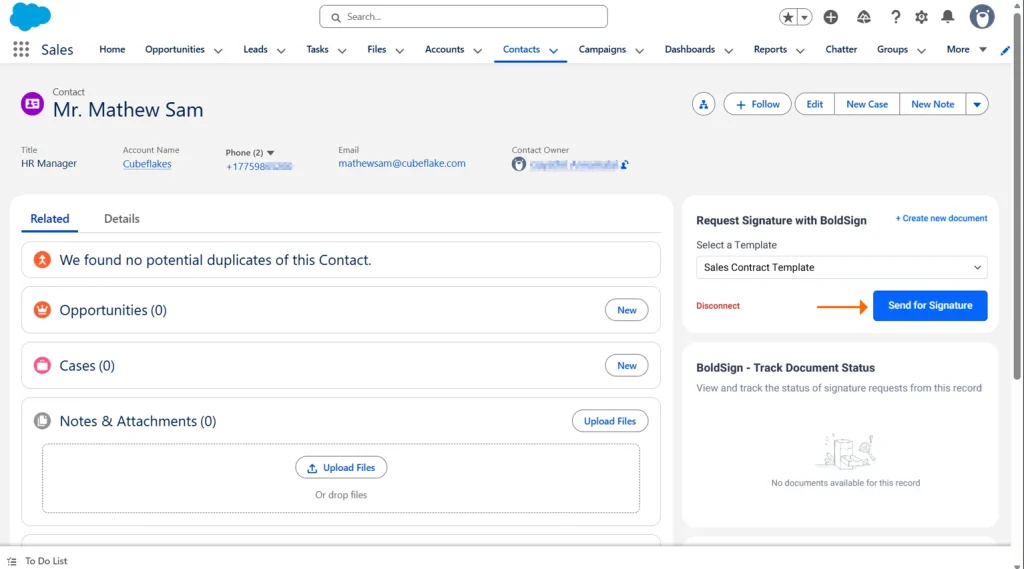
- Open a Salesforce record, such as an opportunity.
- Find the BoldSign Signatures component on the record page.
- Select a template, then select Send for Signature.
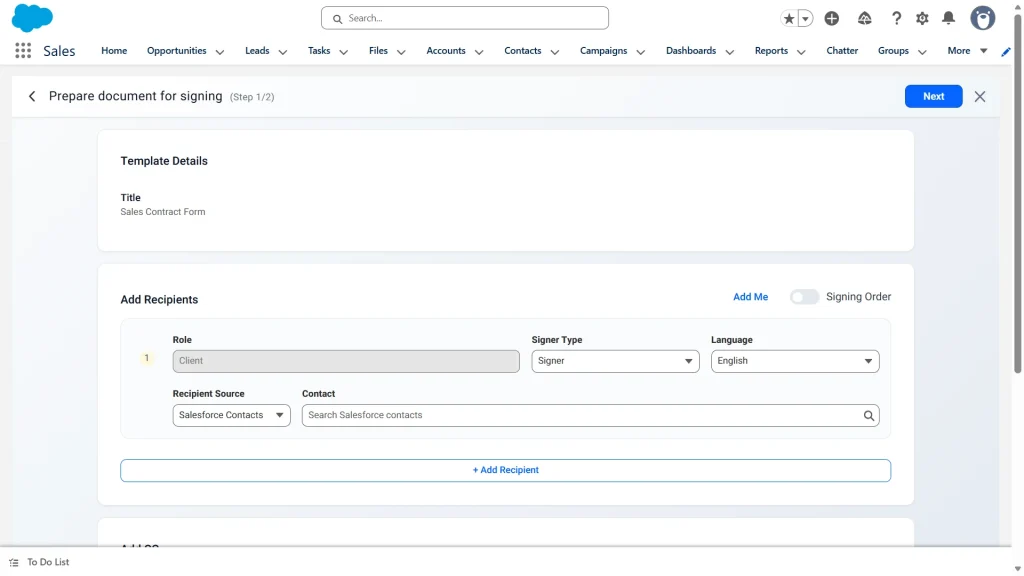
Check the signers and fields, then send
- Review the recipients. Choose Manual entry, Salesforce Contact or Related Contacts from the record as the source.
- Check the fields that Salesforce data has already filled in.
- Send the document. You return to the same record.
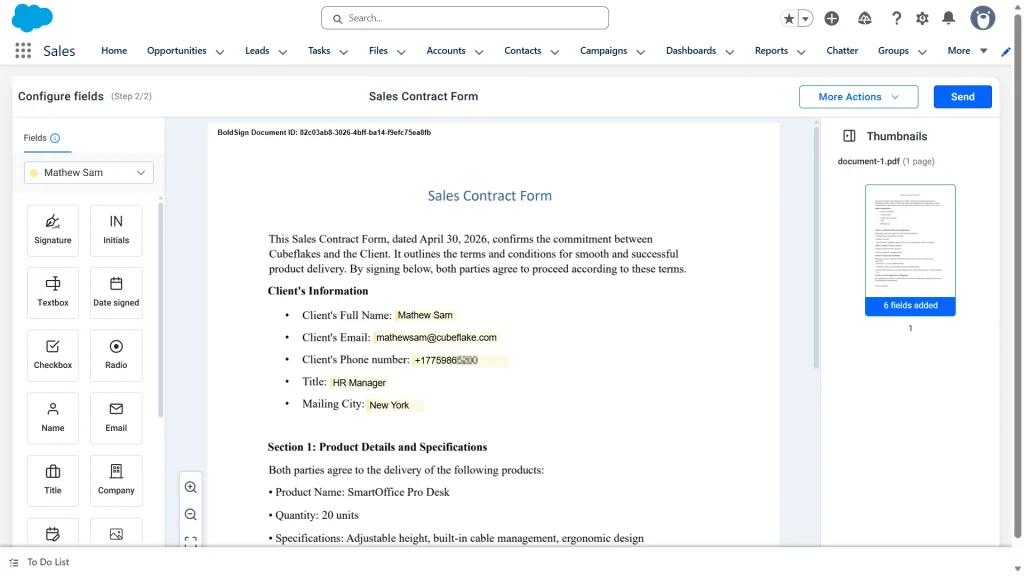
You can edit recipients and field values before you send. The template and the admin’s field mapping stay fixed. Our help article on how to send a signature request from a BoldSign template in Salesforce covers each screen.
What does an admin set up first?
An admin connects the two accounts once, then builds the templates reps will use. Reps need the BoldSign User permission set before they can send.
Connect BoldSign and Salesforce
- In BoldSign, open Settings, then Integration.
- Select Enable on the Salesforce card.
- Review the charges in the dialog, then select Yes, Enable.
- Open BoldSign in Salesforce from the AppExchange link on the same card.
Our help article on how to enable the Salesforce integration shows each screen.
Build a template and map Salesforce fields
Admins with the BoldSign Admin permission set create templates from the BoldSign app in Salesforce. They pick the object to send from, upload the document and add roles.
Next, they place fields on the document and map each one to a Salesforce field. Turning on Writeback to Salesforce sends values that signers type back to the record. Writeback does not work with lookup fields.
Our guide on how to auto-fill contracts using Salesforce fields goes deeper into field mapping. The help article on how to create and configure BoldSign templates for Salesforce lists every setting.
Which Salesforce fields should you map first?
Start with the fields every contract needs and that rarely change late in a deal. Begin with one high-volume agreement, such as an order form or an NDA.
- Company legal name and address, from the account
- Signer name and email, from the contact
- Amount and currency, from the opportunity
- Contract start and end dates
- Product or plan name
Leave out fields that change late, need legal review, or come from a system that syncs unreliably. Route those contracts through an approval step before they go out.
How do you track contract status in Salesforce?
Add the BoldSign Document Status component to the record page. Each record then shows the documents sent from it, and the status updates in real time.
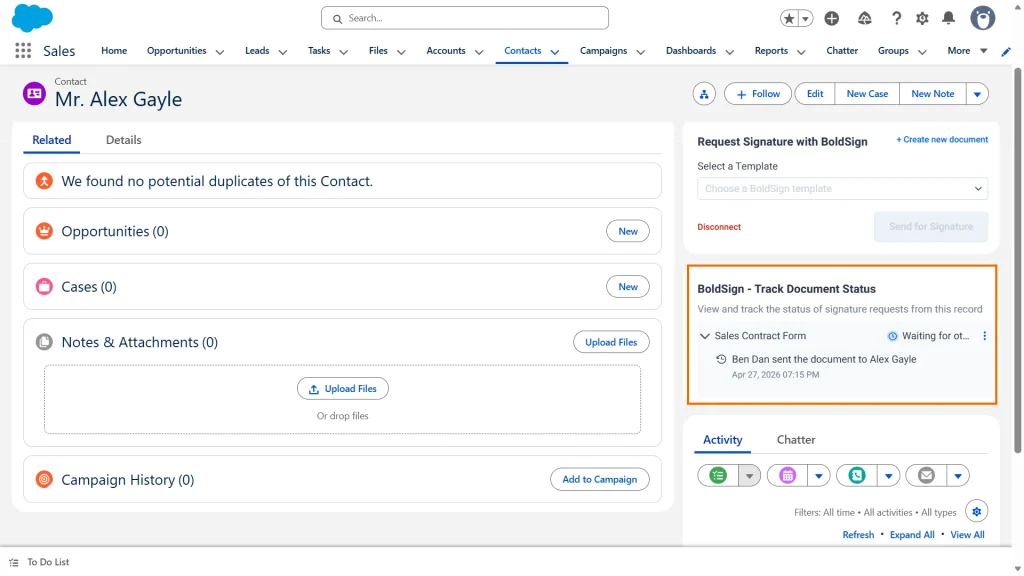
The document owner can open the document, send reminder emails or revoke the request. Other users can view the status only. Our help article on how to track document status from Salesforce explains the component.
Our guide on how to track contract status in Salesforce shows the reports teams build on top. Once a contract is signed, the completed copy saves to the matching Salesforce record.
What does the integration do, and what needs Salesforce automation?
The integration sends documents, fills mapped fields, shows status and saves the signed copy. Steps that change other Salesforce data come from your own Salesforce automation.
Your Salesforce admin builds those steps with tools such as Salesforce Flow. Typical examples are moving the opportunity stage on signing, or creating a handoff or invoicing task.
Some teams want a contract to go out the moment a new contact appears. A Zapier workflow can send signature requests to new Salesforce contacts using a BoldSign template.
Can a business in the Netherlands or elsewhere in the EU use this?
Yes. The steps are the same in any country, and the integration works with your existing Salesforce objects and fields.
An electronic signature cannot be denied legal effect only because it is electronic. That rule sits in Article 25 of the EU regulation on electronic identification and trust services (eIDAS). Some contract types have their own rules, so check those for your documents.
Our security policy lists data centers in the US East, the EU, Canada and Australia.
What mistakes should you avoid?
Most problems come from templates that drift or fields that nobody owns. Watch for these when you roll out:
- Letting reps edit templates freely, which breaks the field mapping
- Mapping dozens of fields at once instead of the 10 to 15 that matter
- Having nobody own exceptions and legal review
- Leaving the status component off the opportunity page
- Testing with made-up records instead of real deals
Which BoldSign plan do you need, and what does the Salesforce add-on cost?
The Salesforce integration is a paid add-on on the Business and Premium plans. Prices are in USD, as listed on our Salesforce integration page in November 2026.
On the Business plan, the add-on is $10 per user a month. It comes on top of the plan price of $15 per user a month, billed yearly.
On the Premium plan, the add-on is $21 a month for the whole organization. The plan itself is $99 a month for unlimited users, billed yearly, with up to 250 envelopes a month.
Trial plans carry no extra charge for the integration, so you can test it during the 30-day free trial. The Zapier workflow needs the Enterprise API plan, which starts at $30 a month with 40 envelopes. Our pricing page compares every plan.
Ready to send your first contract from Salesforce?
Set up one template, map a handful of fields and send a test contract to yourself.
- Start a 30-day free trial and turn on the Salesforce integration at no extra charge.
- Book a demo to see the setup with your own contract types.
- Visit our support portal when you have a question during setup.
Frequently asked questions
How do I send a contract from Salesforce with BoldSign?
Open the Salesforce record, pick a template in the BoldSign Signatures component and select Send for Signature. Check the signers and the filled-in fields, then send. You land back on the same record.
Can BoldSign fill in contract fields from Salesforce data?
Yes. An admin maps Salesforce fields such as contact name, email, amount and close date to template fields once. Each contract sent from a record then arrives with those values filled in.
Which Salesforce records can I send contracts from?
Templates can be set up for Salesforce standard and custom objects. Opportunities, accounts, contacts and leads are the usual starting points for sales contracts.
Where is the signed contract saved?
The completed document stays in your BoldSign account and is also saved to the matching Salesforce record. Your team finds the final copy next to the deal.
Can I send a reminder or cancel a contract from Salesforce?
Yes, if you sent it. The document owner can send reminder emails and revoke the request from the BoldSign Document Status component. Other users see the status only.
How to integrate contract signing with a Dutch business's existing Salesforce setup?
Turn on the Salesforce integration in your BoldSign settings, install the BoldSign app from AppExchange and map one template to your Salesforce fields. Your existing objects, fields and records stay as they are.
Are contracts signed from Salesforce legally valid in the EU?
Yes, when the signature meets the rules for that type of contract. EU rules on electronic identification and trust services (eIDAS) stop a court refusing an electronic signature only because it is electronic. Check the rules for your document type.
How much does the BoldSign Salesforce add-on cost?
On the Business plan it costs $10 per user a month on top of the plan. On the Premium plan it costs $21 a month for the whole organization. During a trial there is no extra charge.

Stephen Otieno Okoth
Stephen is a Technical Assistant at BoldSign who specializes in creating clear documentation and engaging videos. He combines his technical skills and creativity to deliver user-focused solutions. Connect with him on LinkedIn.
More posts by Stephen Otieno Okoth