7 eSignature Workflow Automation Ideas with BoldSign and Zapier
 Lakshmi Priya Soundar Rajan
TL;DR: Automated eSignature workflows connect BoldSign to your other apps. A form entry, a signed contract or a declined request then starts the next step for you. Through Zapier, you can send templates from form answers, alert your team, update deals and file signed PDFs. Our BoldSign Zapier integration page shows how the connection works.
You send a contract, wait for the signature, then copy the details into a spreadsheet. Next you upload the PDF to a shared folder and tell the sales rep. Each step takes a minute, and each one is easy to forget.
Zapier can automate doc signing workflow steps like these for you. This guide explains how BoldSign works inside Zapier and walks through seven workflows you can copy.
What are automated eSignature workflows?
An automated eSignature workflow is a chain of steps that runs on its own once a signing event happens. You set up the chain once, and the apps pass the work along.
Think of a row of dominoes. You line them up, tip the first one, and the rest fall in order without your help.
Integrated eSignature solutions with workflow automation features work the same way. A new form entry tips the first domino, and the signed contract tips the next one.
How do BoldSign triggers and actions work in Zapier?
A trigger is the event that starts a Zap, and an action is the job a Zap does in an app. BoldSign offers three triggers and one action, listed in our article on supported triggers and actions in Zapier.
Which BoldSign triggers can start a Zap?
All three triggers are instant, so the Zap starts as soon as the event happens.
- Document Sent starts a Zap when a document goes out to a signer.
- Document Completed starts a Zap once every signer has signed.
- Document Declined starts a Zap when a signer declines a document.
Each trigger has an Admin mode setting. With it on, a Zap can catch documents your whole organization sends.
What does the BoldSign action do?
The Send Document From Template action sends a document for signature from a saved BoldSign template. In the Zap, you pick the template and map signer names, emails and field values from the earlier step.
How can a small business automate signature requests?
Pick one repeat task, such as sending a service agreement, and build a single Zap for it. You need a Zapier account, a BoldSign account and one saved template.
- Create a template in BoldSign with the roles and fields your document needs.
- In Zapier, choose the app and event that should start the Zap, such as a new form entry.
- Add the BoldSign Send Document From Template action and connect your account.
- Map the signer name, email and field values from the trigger step.
- Set Sandbox Mode to true, run a test, then switch it off to go live.
You can test with a free API sandbox account before you pay for anything. Our knowledge base articles on Zapier cover each setup in more detail.
Which eSignature workflow automation ideas work with BoldSign and Zapier?
The seven ideas below each start from one BoldSign trigger or end with the BoldSign action. Zapier’s BoldSign integrations page lists ready-made Zaps you can start from.
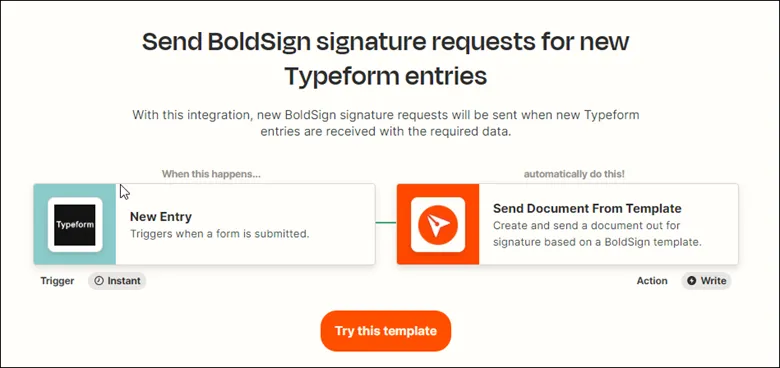
#1 Create BoldSign signature request for new entries
Send a signature request each time someone submits a form in Google Forms or Typeform. Automated form filling and e-signature tools work well together here, because the form answers fill the document for you.
Say you collect client details through a Typeform survey. Each new entry sends a BoldSign signature request with those details already filled in.
The same pattern works with spreadsheet tools. Our guide on how to automate eSignature requests for new RowShare entries shows one example.
#2 Send emails or messages about new BoldSign signature requests
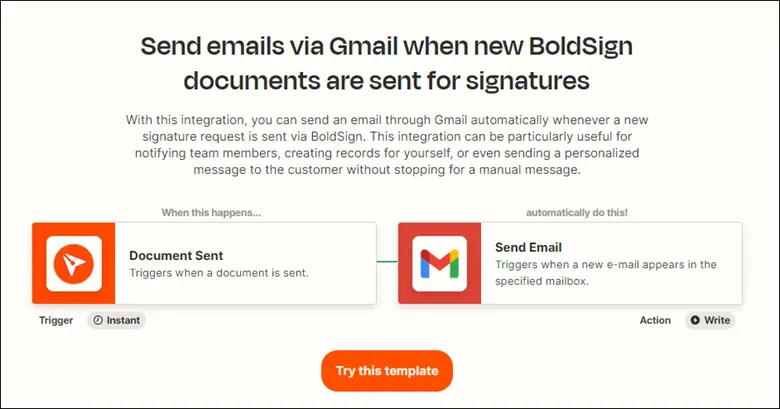
Let people know when a request goes out, without writing the email yourself. Use the Document Sent trigger with Gmail, Slack or another messaging app.
The message can include the document title, the sender and any notes for the reader. For example, you can email a manager in Gmail each time a contract goes out for signing.
#3 Create contacts when BoldSign documents are completed
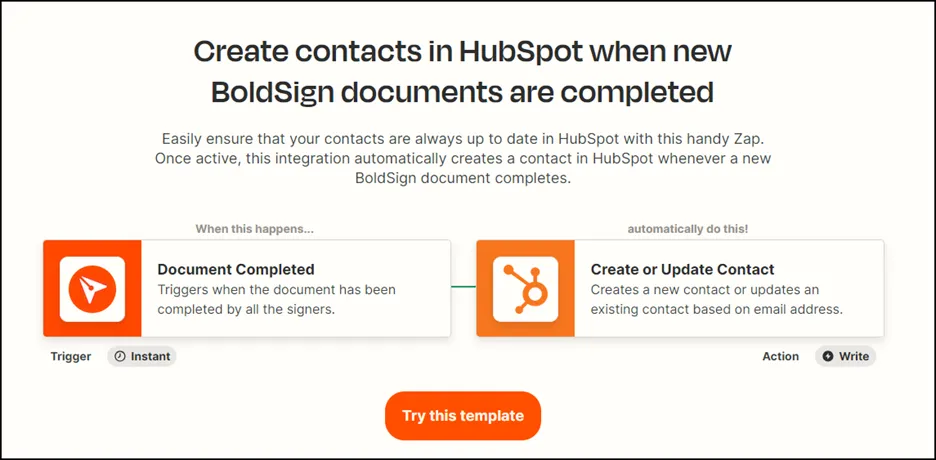
Add each new signer to your contact list once a document is complete. The Document Completed trigger can create a contact in HubSpot, so nobody has to type it in.
New customers then appear in your customer relationship management (CRM) tool as soon as they sign.
#4 Track the declined BoldSign signature requests
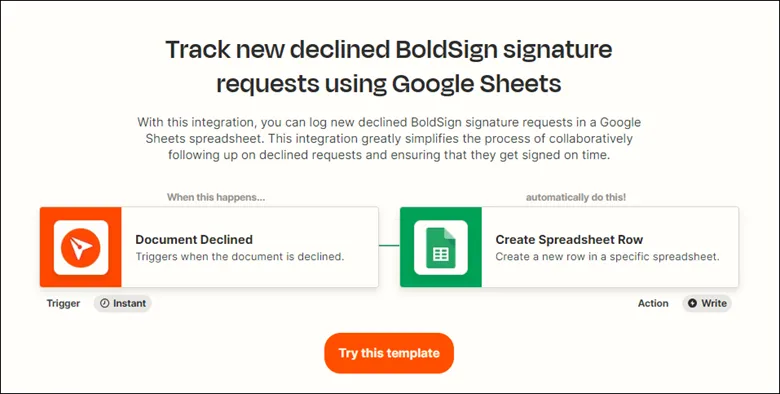
Keep a record of every declined request so you can follow up. Use the Document Declined trigger to add a row to Google Sheets each time a signer declines.
The row can hold the details you need for a follow-up call:
- The document ID and title
- The signer’s name and email address
- The reason the signer gave for declining
#5 Track newly completed BoldSign documents
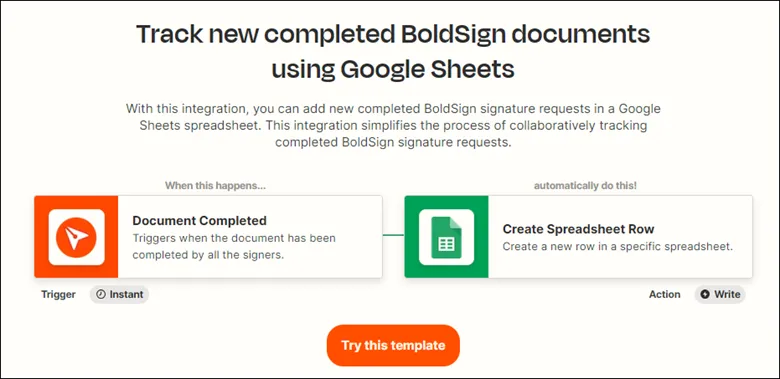
Log every completed document in one place for quick look-ups. The Document Completed trigger can add a row to Google Sheets each time a document is signed.
Record the document title, the signers and the completion date. Your team can then find any signed agreement from one sheet.
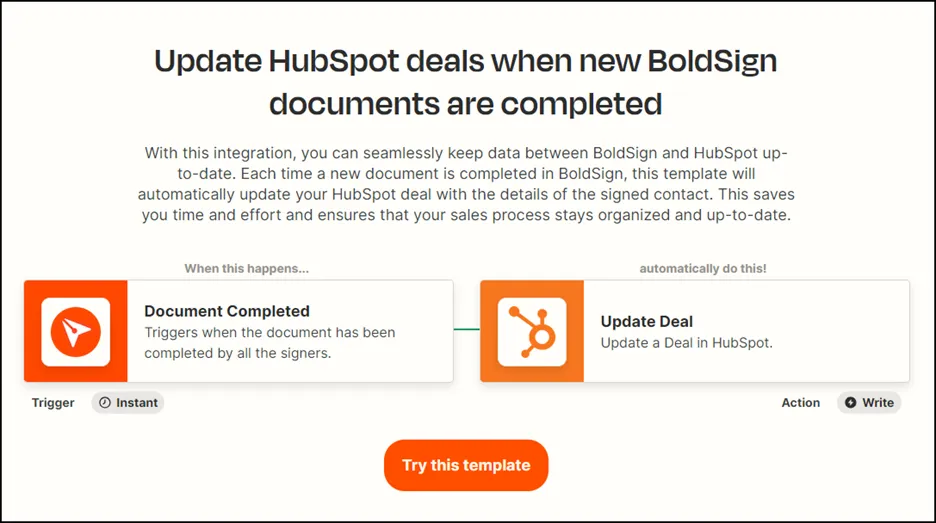
#6 Update CRM deals when BoldSign documents are completed
Move a deal forward the moment its contract is signed. The Document Completed trigger can update a deal in HubSpot or Pipedrive.
Sales reps see the signed status on the deal without checking BoldSign. Our guide on how to automate contract management in Pipedrive walks through the setup.
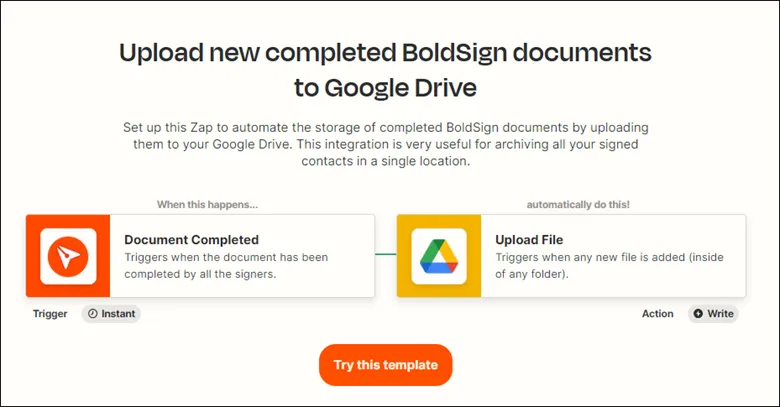
#7 Upload completed BoldSign documents to the cloud
Save every signed PDF to a shared folder without downloading it first. The Document Completed trigger can send a copy to Google Drive, OneDrive or another cloud storage app.
Your team gets one place to find signed files, and you keep a second copy outside BoldSign. Our guides cover how to upload signed documents to Google Drive and to OneDrive.
Which workflow automation tools offer customizable eSignature workflows?
We connect to Zapier and to Microsoft Power Automate, and both let you choose your own steps. Developers who want full control can build on the BoldSign API instead.
Zapier suits teams that want to connect many apps without code. Power Automate fits teams that already work in Microsoft 365. With the API, webhooks tell your app the moment a document is sent, signed or declined.
What should you check before you turn a Zap on?
A few limits shape how you plan each Zap. Knowing them early saves a rebuild later.
- The action sends from a saved template, so make one template for each document you send often.
- Opening a teammate’s signed PDF needs View Document access from the account owner.
- Sandbox documents carry a test watermark and are deleted after 14 days.
- A permission error usually points to your plan or to the Sandbox Mode setting.
Review the security, privacy and data handling of every app you connect, too. Each app in a Zap receives some of your document data.
Which BoldSign plan do you need for Zapier, and what does it cost?
Live Zaps need our Enterprise API plan, from $30 a month with 40 envelopes, as listed on the BoldSign pricing page in November 2026. Each extra envelope costs $0.75, and prices are in USD.
You can build and test every Zap first in a free sandbox account, with no credit card. The 30-day free trial of our web app runs Zaps in sandbox mode only, so it cannot send live documents through Zapier.
How do you start building your first Zap?
Begin with one Zap for the document you send most, then add the next idea once it runs well.
- Start a 30-day free trial and build your first template.
- Book a demo to see these workflows set up for your team.
- Visit our support portal with a question about a Zap you are building.
Frequently asked questions
Can you recommend digital signature services that integrate with Zapier?
BoldSign connects to Zapier with three instant triggers and one action. You can test every Zap for free in sandbox mode, and live Zaps run on our Enterprise API plan.
How can I trigger an automated workflow immediately after a document is signed?
Start a Zap with the BoldSign Document Completed trigger. It fires once every signer has signed, so the next step can save the PDF, update a deal or post a message.
Our HR team manually fills out employment forms. What document APIs can automate this and add digital signatures directly in Word documents?
A Zap can take each form answer and send a BoldSign template filled with it. You can upload Word files as well as PDFs, and signers sign the finished document online.
Which workflow automation tools support custom eSignature workflows?
We connect to Zapier and Microsoft Power Automate. Developers can also build their own flows on the BoldSign API with webhooks, which tell your app when a document changes.
Do signers need a BoldSign or Zapier account?
No. Signers open the link in their email and sign on any device. Only the person who builds the Zap needs both accounts.
Can a Zap send a file that is not a BoldSign template?
No, the Zapier action sends from a saved BoldSign template only. Make one template for each document you send often, then pick it in the Zap.
Can I test a BoldSign Zap without using envelopes?
Yes. Set the Sandbox Mode field in the Zap to true and it runs without using an envelope. Sandbox documents carry a test watermark and are deleted after 14 days.
Can a Zap track documents my whole team sends?
Yes. Turn on Admin mode in the trigger to catch documents sent across your organization. Opening a teammate's signed PDF also needs View Document access from the account owner.

Lakshmi Priya Soundar Rajan
Lakshmi Priya Soundar Rajan is a Technical Writer at BoldSign. With expertise in simplifying complex concepts, she contributes to the comprehensive documentation and user-friendly content at BoldSign. Lakshmi’s commitment to quality ensures users have access to clear and helpful information. Connect with her on LinkedIn.
More posts by Lakshmi Priya Soundar Rajan