Automatically Upload Signed Documents to Google Drive with Zapier
 Lakshmi Priya Soundar Rajan
TL;DR: A ready-made Zapier template sends every signed BoldSign document to Google Drive on its own. The Document Completed trigger starts the Zap, and the Upload File action saves the signed PDF to a folder you pick. Our Zapier integration page lists every trigger and action.
Picture a sales coordinator who gets an email each time a contract is signed. She downloads the PDF, opens Google Drive, finds the client folder and uploads the file. On a busy week, a few contracts never reach the folder.
A Zap does that filing for you. This guide shows how to set up the template, test it and avoid the usual mistakes.
What does the Zapier Google Drive template do?
The template links BoldSign to Google Drive, so each completed document uploads to a Drive folder. You set it up once, and Zapier runs it every time a document is signed.
A mail forwarding order at the post office works the same way. You fill in the form once, and every later letter goes to the new address.
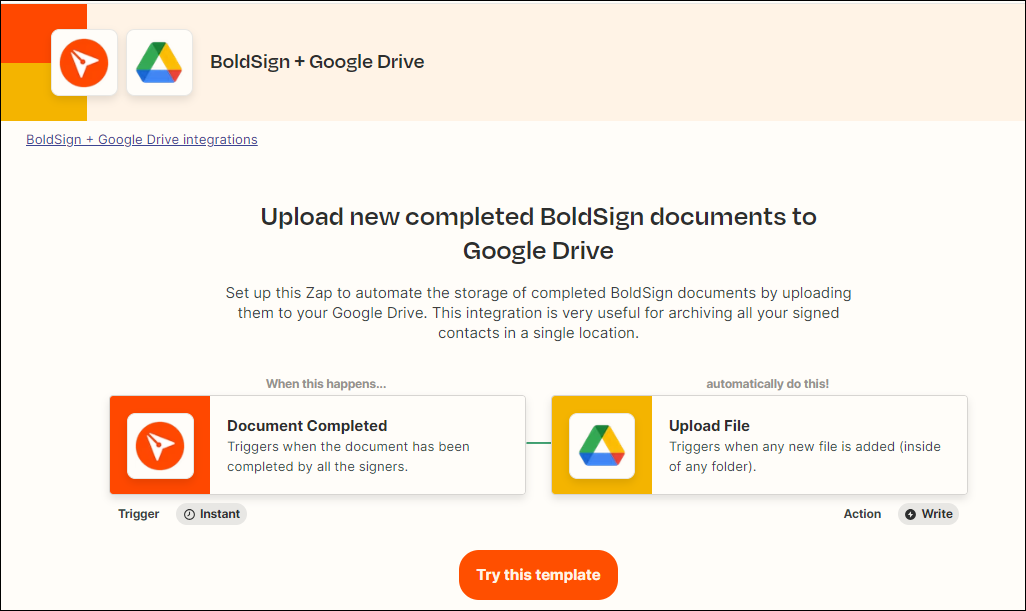
The Zap has two parts. The trigger is the BoldSign event called Document Completed. The action is the Google Drive event called Upload File, which puts the signed file in your folder.
You can find the template among the others in BoldSign’s Zapier app listing.
What do you need before you start?
You need three accounts, and the Zap connects to each one. Set them up first so the editor can reach them.
- A Zapier account to build and run the Zap.
- A Google account with access to the Drive folder for signed files.
- A BoldSign account: a paid API account or a free sandbox account.
No BoldSign account yet? Create a free API sandbox account to build and test the Zap before it runs live.
How do you upload signed documents to Google Drive with Zapier?
Start from the template, connect each account, then test the Zap. The whole set-up happens inside the Zapier editor.
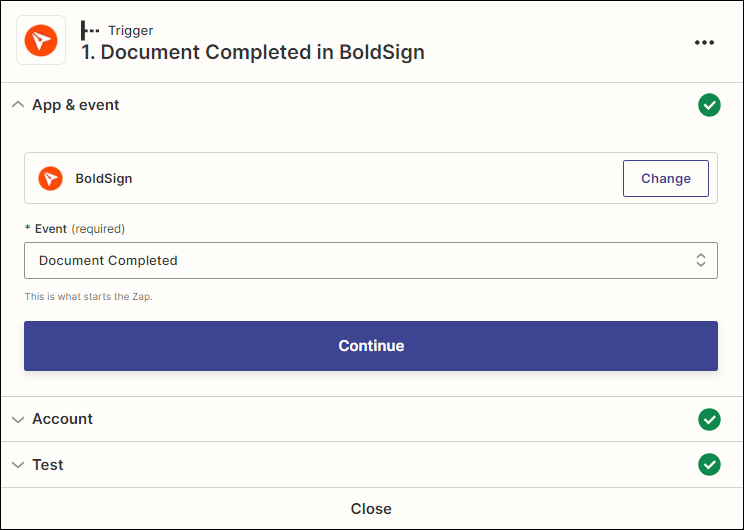
Set up the BoldSign trigger
- Go to the Upload new completed BoldSign documents to Google Drive page and click Try this template.
- Check the App & event section. BoldSign and the Document Completed event are already filled in.
- In the Account column, connect your BoldSign account.
- In the Test column, test the trigger. Zapier then shows your latest completed document.
Set up the Google Drive action
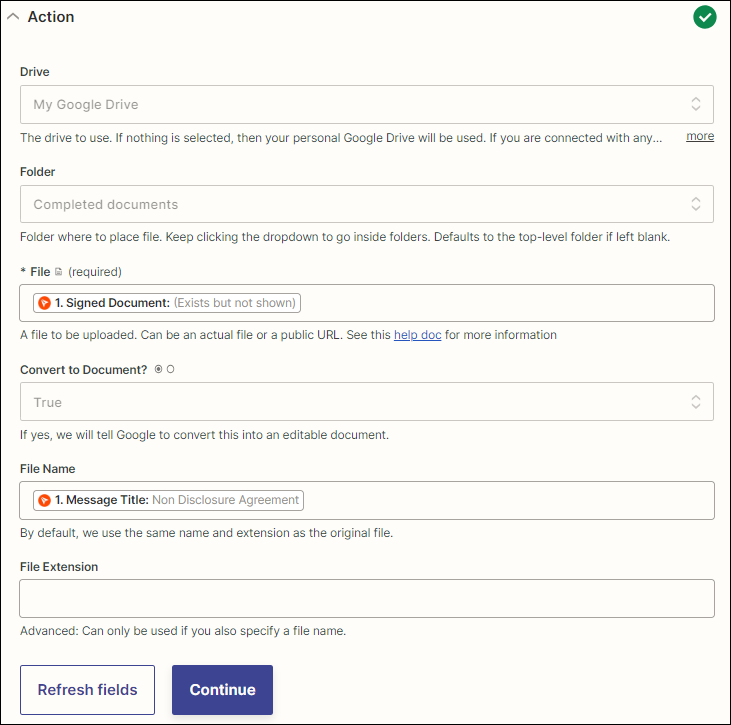
- Check the App & event section. Google Drive and the Upload File event are already filled in.
- Connect your Google account in the Account column.
- In the Drive field, select My Google Drive, then choose the folder for signed files.
- Map the Signed Document value to the File field, along with any other required fields.
Test and publish the Zap
- Test the action in the Test field. Your latest completed document should appear in the Drive folder.
- Check the details, then click Publish.
- Find your new Zap on the Zaps page in Zapier.

From now on, each document you complete in BoldSign lands in that folder.

What should you watch out for?
A few settings decide whether the Zap runs as you expect. Check them before and after you publish.
- Set Sandbox Mode to true while testing, so no envelope is used.
- Switch Sandbox Mode to false once the Zap is ready for real documents.
- Turn on Admin mode in the trigger to catch documents your whole organization sends.
- Ask your admin for the View Document permission to save a teammate’s signed PDF.
- Expect sandbox documents to carry a test watermark and leave BoldSign after 14 days.
Our support team can help when a Zap still fails.
Can you save signed documents to Google Drive without Zapier?
Yes, our automatic cloud backup saves each completed document to Google Drive, OneDrive or Dropbox straight from your BoldSign settings. Our guide to auto backup of signed documents shows how an admin connects it.
Zapier suits you when the upload is one part of a bigger workflow, such as a Slack alert. The same template idea works for Dropbox and OneDrive too.
For more ideas, read how to automate your eSignature workflows with BoldSign integrations on Zapier. You can also send eSignature requests for new RowShare entries.
Which plan do you need, and what does it cost?
Live Zaps need our Enterprise API plan, from $30 a month with 40 envelopes and $0.75 per extra envelope. You can build and test the Zap first in a free sandbox account, with no credit card.
Automatic cloud backup without Zapier comes with the Business plan at $15 per user a month. The Premium plan costs $99 a month for unlimited users. Both are billed yearly in USD, as listed on our pricing page in November 2026.
How do you start sending signed files to Google Drive?
Pick the step that fits where you are today.
- Start a 30-day free trial and send your first document for signature.
- Book a demo to see Zapier and cloud backup set up for your team.
- Read the Zapier articles in our knowledge base for each trigger and action.
Frequently asked questions
Is there e-signature software that integrates with Google Drive and Zapier?
Yes. BoldSign connects to Zapier, and a ready-made Zap sends each completed document to a Google Drive folder you pick. We also offer a direct cloud backup to Google Drive that needs no Zap.
Do I need to write code to send signed files to Google Drive?
No. You build the Zap in the Zapier editor by picking apps, events and a folder. The template fills in most of the settings for you.
Which BoldSign trigger starts the Zap?
The Document Completed trigger starts it. Only fully signed documents reach your Drive folder, and drafts or declined requests stay out.
Can I test the Zap without using an envelope?
Yes. Set the Sandbox Mode field to true while you test. Switch it to false once the Zap is ready to run with real documents.
Can the Zap save documents my teammates send?
Yes, when you turn on Admin mode in the trigger and hold the View Document permission. Admin mode catches documents from the whole organization.
Can I use the same steps for Dropbox or OneDrive?
Yes. Choose Dropbox or OneDrive as the action app in place of Google Drive. The BoldSign trigger stays the same.
How long do sandbox test documents last?
Sandbox documents carry a test watermark, and we delete them from BoldSign after 14 days. Use them to check the Zap, then switch to live documents.
Which BoldSign plan do I need for Zapier?
Live Zaps need the Enterprise API plan, from $30 a month with 40 envelopes. A free sandbox account lets you build and test the Zap first.

Lakshmi Priya Soundar Rajan
Lakshmi Priya Soundar Rajan is a Technical Writer at BoldSign. With expertise in simplifying complex concepts, she contributes to the comprehensive documentation and user-friendly content at BoldSign. Lakshmi’s commitment to quality ensures users have access to clear and helpful information. Connect with her on LinkedIn.
More posts by Lakshmi Priya Soundar Rajan