Automate eSignature Requests for New RowShare Entries with Zapier
 Jayavigneshwaran
TL;DR: A Zap can send a BoldSign signature request each time someone adds a row to a RowShare table. Zapier has a ready-made template for this: pick your table, pick a BoldSign template, and map the row’s columns to the signer and form fields. Our Zapier integration page lists every trigger and action you can use.
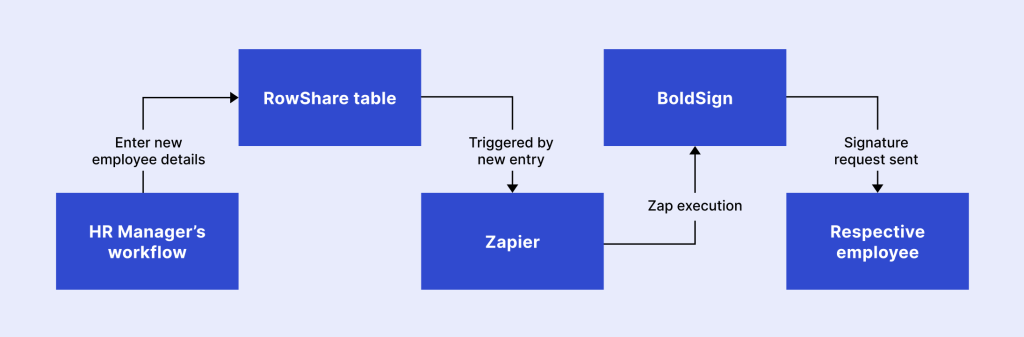
An HR manager adds each new hire to a RowShare table: name, email, job title and start date. Each person then needs an onboarding agreement. Typing those same details into a signature request again is slow, and a typo sends the agreement to the wrong inbox.
A Zap removes that second round of typing. This guide shows how to connect RowShare and BoldSign through Zapier, test the connection and switch it on.
How does a RowShare Zap send eSignature requests?
A Zap watches your RowShare table and sends a BoldSign template whenever a new row appears. The row’s values fill in the signer’s name, email address and form fields.
Think of a sign-up sheet at a front desk. A visitor writes their name once, and the receptionist hands them the right form with their name already on it. RowShare is the sheet, Zapier is the receptionist, and BoldSign holds the form.
The flowchart below shows the path from a new row to a sent agreement.
What do you need before you start?
You need three things in place before you build the Zap:
- A Zapier account
- A RowShare table with a column for each value you want in the document
- A BoldSign account with a saved template for the agreement
Get a BoldSign account with a free API sandbox account or a free trial. The sandbox needs no credit card.
How should the RowShare table look?
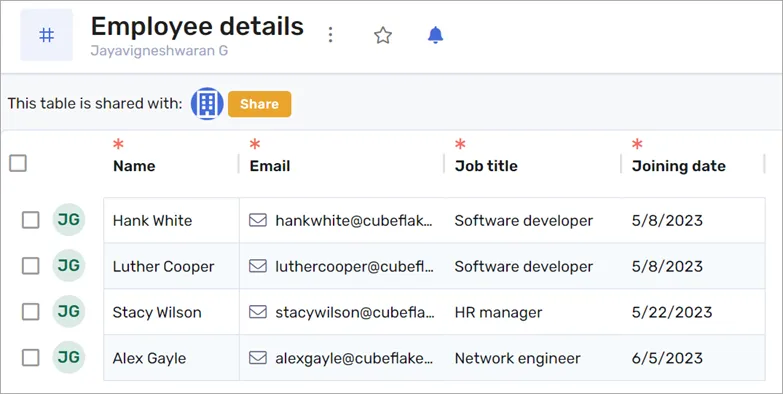
Give the table one column for each detail the agreement needs. For onboarding, that means the employee’s name, email address, job title and joining date.
How should the BoldSign template look?
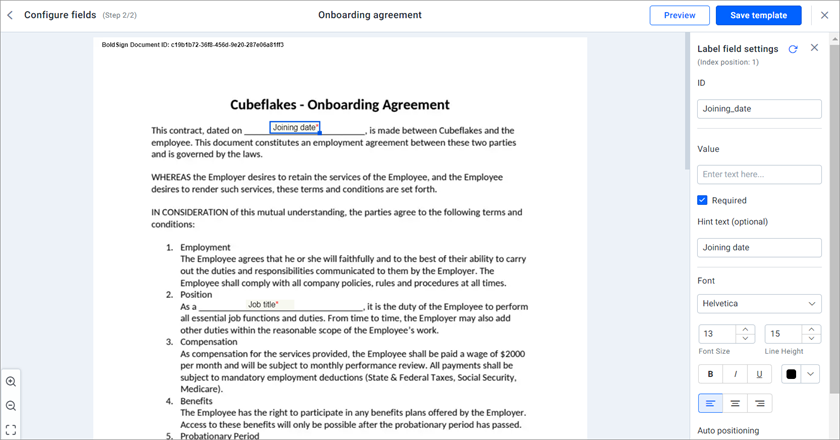
Create the onboarding agreement as a BoldSign template, with a signature field for the employee. Our help articles on creating templates and how to create a template cover each step.

Add a label form field for each value that comes from the table. Our example uses two: Joining Date and Job Title. The Zap fills them from the matching RowShare columns, so nobody types them by hand.
Our guide on how to save time with templates explains when a template pays off.
How do you automate eSignature requests for new RowShare entries?
You start from Zapier’s ready-made template, set RowShare as the trigger and BoldSign as the action. The three parts below take you from the template to a live Zap.
How do you set RowShare as the trigger?
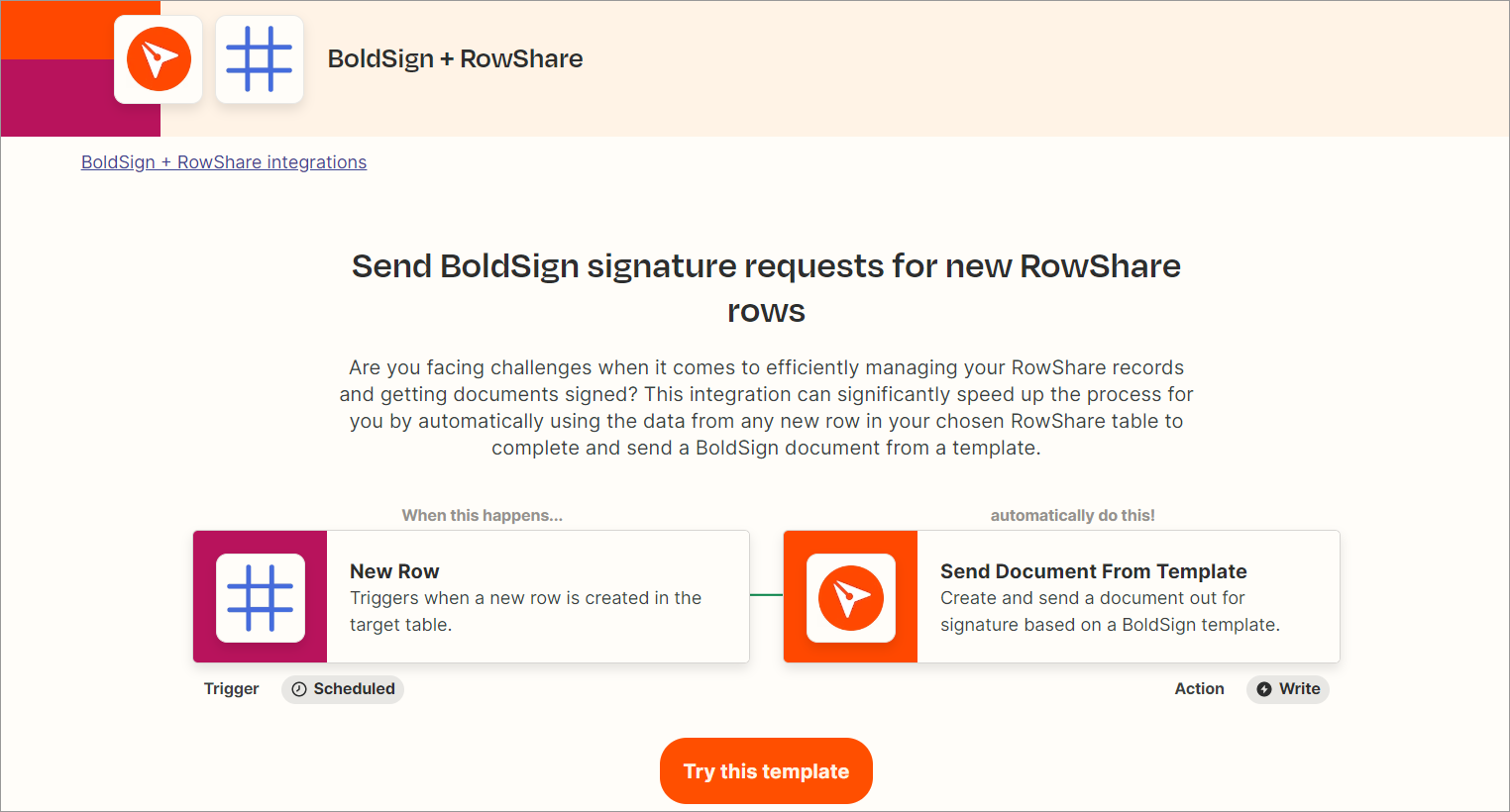
- Open the Zapier template Send BoldSign signature requests for new RowShare rows.
- Select Try this template and give the Zap a title.
- Check that RowShare is the trigger app and New Row is the trigger event.
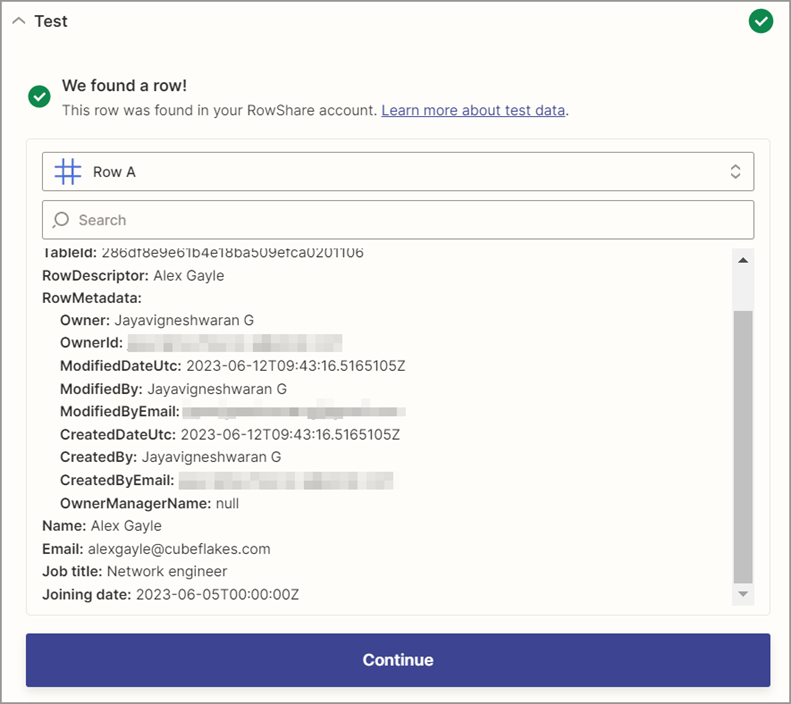
- Connect your RowShare account and choose the Table to watch.
- Test the trigger, pick one of the rows it loads, and select Continue.
How do you set BoldSign as the action?
- Check that BoldSign is the action app and connect your BoldSign account.
- Pick your onboarding template in the Choose Template field.
- Set Sandbox Mode to True while you test.
- Map the RowShare name and email columns to Recipient Name and Recipient Email.
- Map the job title and joining date columns to the matching label fields.
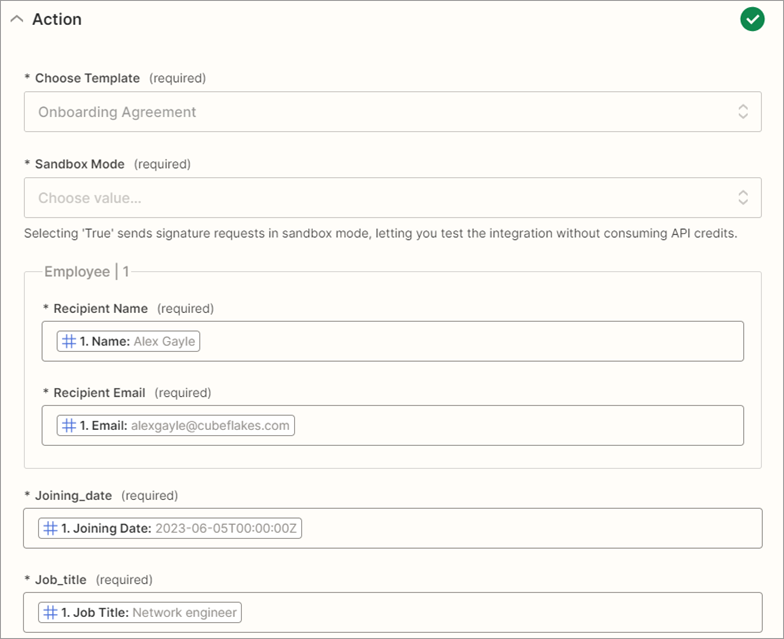
Sandbox Mode keeps the test out of your live account and uses no API credits. Our help article on sending signature requests for RowShare rows lists the same steps.
How do you test and publish the Zap?
Test the action, and we create the signature request and email it to the address you mapped. You can then open the document’s overview page in the BoldSign web app.
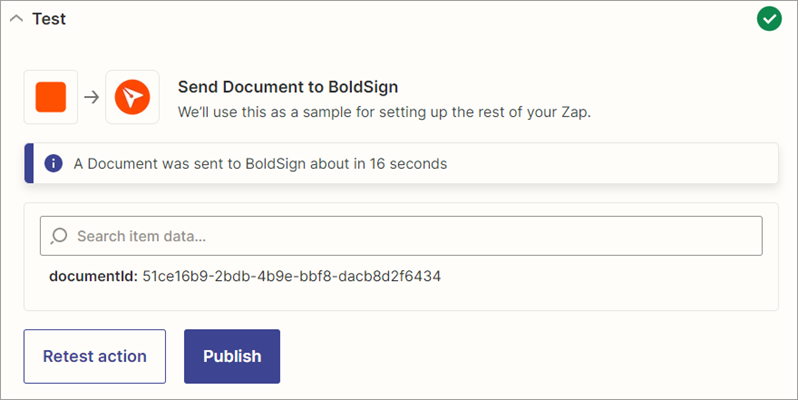
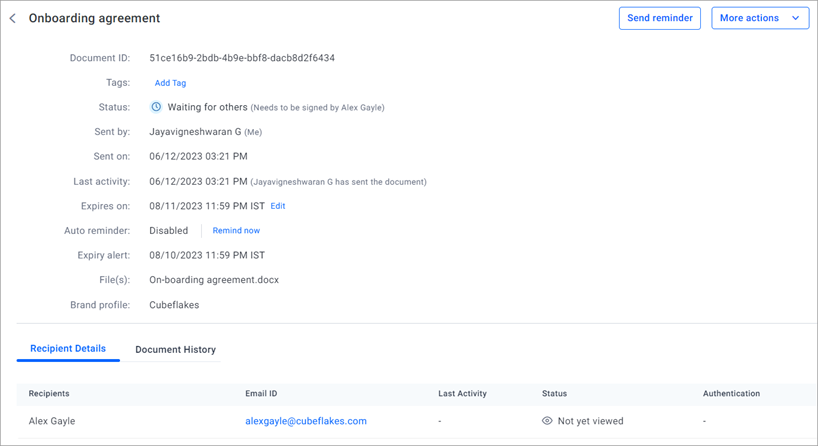
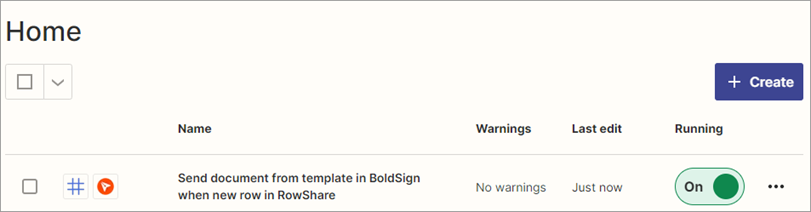
Set Sandbox Mode to False, then publish the Zap and turn it on. From now on, each new row sends an agreement, and the Zap shows on the Zaps page in Zapier.
What should you watch out for?
Most problems come from the table or the field mapping. Check these points before you switch Sandbox Mode off.
- Use label form fields for values from the table; the Zap supports only that field type.
- Fill the email column for every row, or the request has no one to go to.
- Test with a row that holds your own email address first.
- Sandbox documents carry a test watermark and are deleted after 14 days.
Our Zapier app also has three triggers: Document Sent, Document Completed and Document Declined. A second Zap can use Document Completed to file the signed agreement. Our guide with 7 eSignature workflow automation ideas shows more pairings.
Which BoldSign plan do you need for Zapier, and what does it cost?
Live Zaps need the Enterprise API plan, which starts at $30 a month with 40 envelopes. Each extra envelope costs $0.75, as listed on the BoldSign pricing page in November 2026.
The Essential, Growth, Business and Premium plans do not include Zapier. The 30-day free trial and the free sandbox run Zaps in sandbox mode only, so you can build and test before you buy. Prices are in USD.
Where do you go next with RowShare and BoldSign?
Build the Zap in sandbox mode and add a test row with your own email address. Then point it at your real onboarding table.
- Start a 30-day free trial and build your first Zap in sandbox mode.
- Read how to automate your eSignature workflows with BoldSign on Zapier from the first Zap onward.
- See how a sales team does the same with Pipedrive contract management through Zapier.
Frequently asked questions
Can a new RowShare row send a document for signature on its own?
Yes, with a Zap. The RowShare trigger New Row starts the Zap, and our BoldSign action sends a template to the person named in that row.
Do I need to write code to connect RowShare and BoldSign?
No. Zapier has a ready-made template for this pair of apps. You connect both accounts, pick a table and a BoldSign template, and map the fields.
Which BoldSign form fields can a RowShare Zap fill in?
Label fields. Our help article on this Zap says only the label form field is supported, so use labels for values such as a start date or job title.
Can I test the RowShare Zap without sending a real document?
Yes. Set Sandbox Mode to True in the BoldSign action. Sandbox documents carry a test watermark, use no API credits and are deleted after 14 days.
Does the new employee need a BoldSign account to sign?
No. The signer opens the link in the email we send and signs there. They do not need an account of their own.
Is an onboarding agreement signed through a Zap legally binding?
Yes, when it meets the same rules as any electronic signature: the signer agrees to sign electronically and the record is kept. Check the rules for your document type and country.
Can I use a different spreadsheet app instead of RowShare?
Yes, when Zapier offers a new-row trigger for that app. The BoldSign action stays the same: it sends a saved template and fills it from the row.
Which BoldSign plan do I need to run the Zap live?
Live Zaps need the Enterprise API plan, from $30 a month with 40 envelopes, as of November 2026. The free trial and the free sandbox run Zaps in sandbox mode only.

Jayavigneshwaran
Product Manager at BoldSign with a strong foundation in web and mobile development. Started as a web developer working with React, Angular, TypeScript, and Blazor, then moved into mobile development with Flutter and Dart. Now leading the BoldSign mobile app and support experience, combining technical depth with product strategy to deliver reliable releases and great customer outcomes. Connect with him on LinkedIn.
More posts by Jayavigneshwaran