Automate Calculations in eSignature Documents with Formula Fields
 Rayronald Ochola Otieno
TL;DR: A formula field works out a value from other fields in your document, such as a total, a tax amount or a due date. In the BoldSign web app, you place the field, write the formula in the Formula Builder and test it in Preview. Our eSignature features page shows the other fields you can add.
A sales rep sends an order form with a quantity, a unit price and a discount. The signer fills in the numbers, and someone works out the total by hand. One slip, and the signed contract shows the wrong amount.
A formula field does that math inside the document. This guide shows what a formula can use, then walks through building one in the web app.
What is a formula field in an eSignature document?
A formula field is a form field that shows a value worked out from other fields. You write the rule once, and the field fills in the answer for each signer.
Think of a cell in a spreadsheet. You type a rule such as “price times quantity” once. Each time the numbers change, the cell shows the new answer.
A formula field brings that idea into a document you send for signing. Some people call it a signature formula. It holds no fixed value of its own; it reads the fields you point it to.
Which form fields can a formula use?
A formula can read four types of field. Text boxes and dropdowns hold numbers, and the two date fields hold dates.
- Text box: set it to Number so it accepts only numbers.
- Dropdown: set its options to Number so each choice is a value.
- Date picker: the signer picks a date in a fixed format.
- Editable date: the signer types a date, so the format must be right.
Each field needs a field ID. The formula uses that ID, written in square brackets, such as [Quantity].
Which operators and functions can you use in a formula?
Formula fields support basic math, comparisons, “and” and “or” checks, and a set of functions. The tables below follow our help article on formula fields.
Math operators
Use these to add, subtract, multiply and divide numbers from your fields.
Key: you type the symbol in the first column, and square brackets hold a field ID.
| Operator | Formula | Example |
|---|---|---|
+ (add) |
[TextBox1] + [TextBox2] |
100 and 50 give 150 |
- (subtract) |
[TextBox1] - [TextBox2] |
200 and 50 give 150 |
* (multiply) |
[TextBox1] * [TextBox2] |
5 and 10 give 50 |
/ (divide) |
[TextBox1] / [TextBox2] |
100 and 4 give 25 |
Comparison and logic operators
A comparison returns true or false. The “and” and “or” operators join two comparisons into one check.
| Operator | Formula | Example |
|---|---|---|
> (greater than) |
[TextBox1] > [TextBox2] |
100 and 50 give true |
< (less than) |
[TextBox1] < [TextBox2] |
30 and 50 give true |
>= (greater than or equal to) |
[TextBox1] >= [TextBox2] |
50 and 50 give true |
<= (less than or equal to) |
[TextBox1] <= [TextBox2] |
50 and 50 give true |
&& (and) |
[TextBox1] > 100 && [Dropdown1] > 50 |
150 and 60 give true, as both checks pass |
|| (or) |
[TextBox1] > 100 || [Dropdown1] > 50 |
150 and 40 give true, as one check passes |
Number functions
The If function picks between two values. Floor and Ceil turn a decimal into a whole number.
| Function | What it does | Example |
|---|---|---|
If(condition, true_result, false_result) |
Returns one value when the condition is true and another when it is false | If([TextBox1] > 100, [TextBox1], [TextBox2]) with 120 and 80 gives 120 |
Floor(number) |
Drops the decimal part | Floor([TextBox1] / 2) with 7 gives 3 |
Ceil(number) |
Moves up to the next whole number | Ceil([TextBox1] / 3) with 25 gives 9 |
Date functions
Date functions read a date field. They can pull out part of a date, count days or move a date forward.
| Function | What it does | Example with 2024-06-15 |
|---|---|---|
Year(date) |
Returns the year | 2024 |
Month(date) |
Returns the month, from 1 to 12 | 6 |
Day(date) |
Returns the day of the month | 15 |
Days(date) |
Returns the number of days in that month | 30 |
DateDiff(end_date, start_date) |
Counts the days between two dates | 2024-06-20 and 2024-06-10 give 10 |
AddYears(date, number of years) |
Adds years to a date | AddYears([DatePicker1], 2) gives 2026-06-15 |
AddMonths(date, number of months) |
Adds months to a date | AddMonths([DatePicker1], 6) gives 2024-12-15 |
AddDays(date, number of days) |
Adds days to a date | AddDays([DatePicker1], 10) gives 2024-06-25 |
A formula can also include other formulas. You might build a subtotal in one field and a total with tax in the next.
How do you add a formula field in BoldSign?
You add a formula field on the same page where you place every other field. The steps below use the BoldSign web app.
Start a new document
- Log in to BoldSign, or create a free account first.
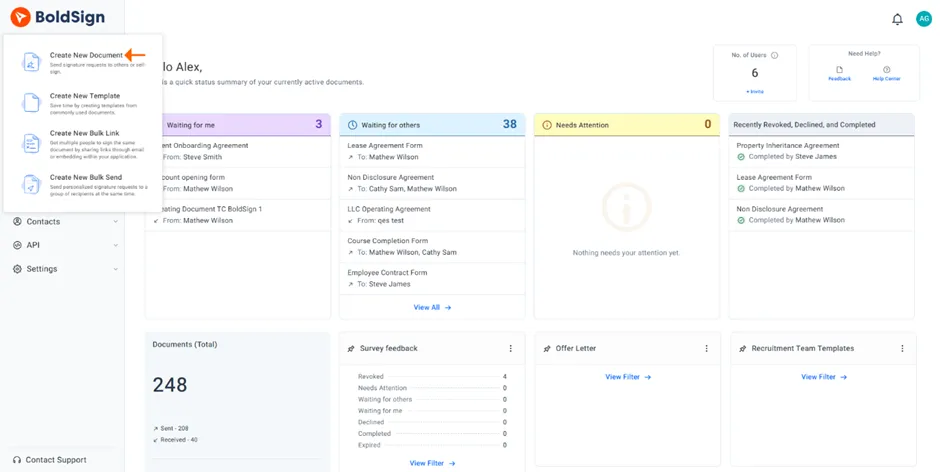
- On the Dashboard, select Create New, then Create New Document.
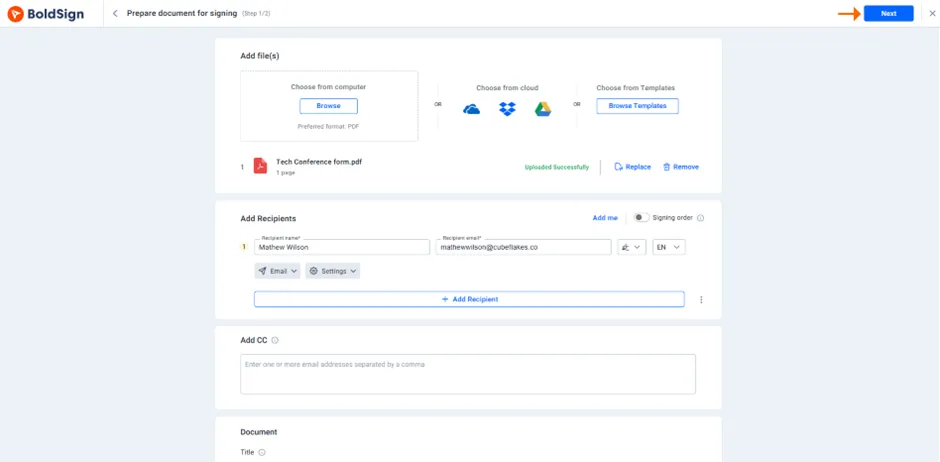
- Fill in the Prepare document for signing page and select Next.
Add the fields the formula will read
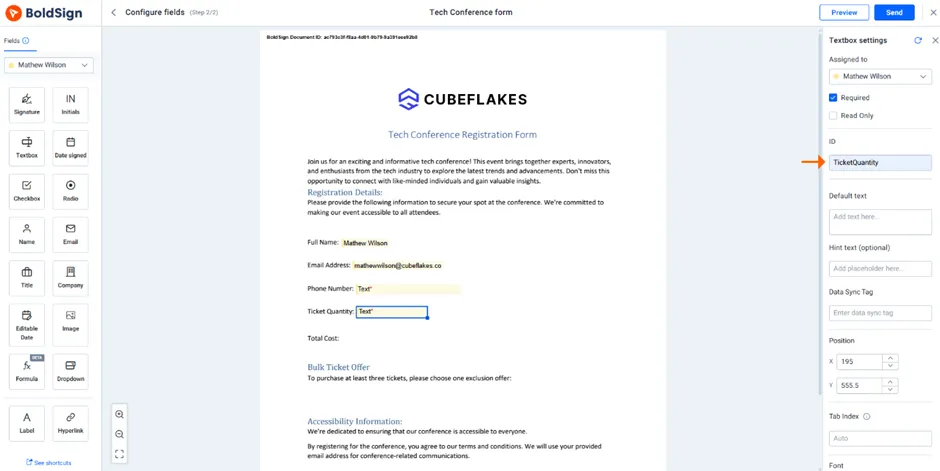
- On the configure fields page, add your text boxes, dropdowns or date fields first.
- Give each one a short, clear field ID, such as Quantity or Price.
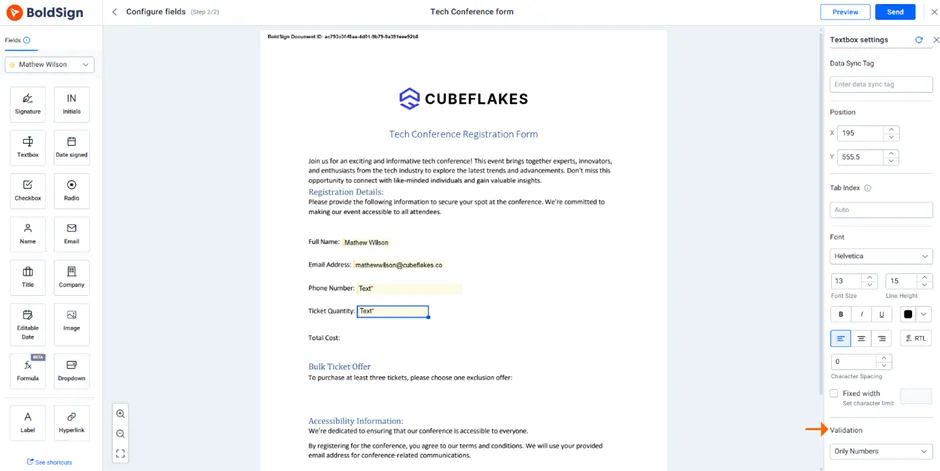
- Set each number text box and dropdown to accept numbers only.
Build and test the formula
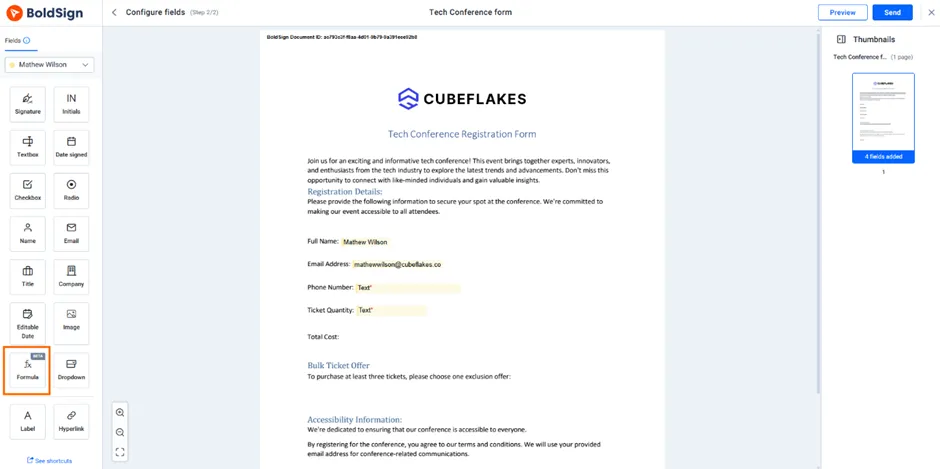
- Drag the Formula field to the spot where the result should appear.
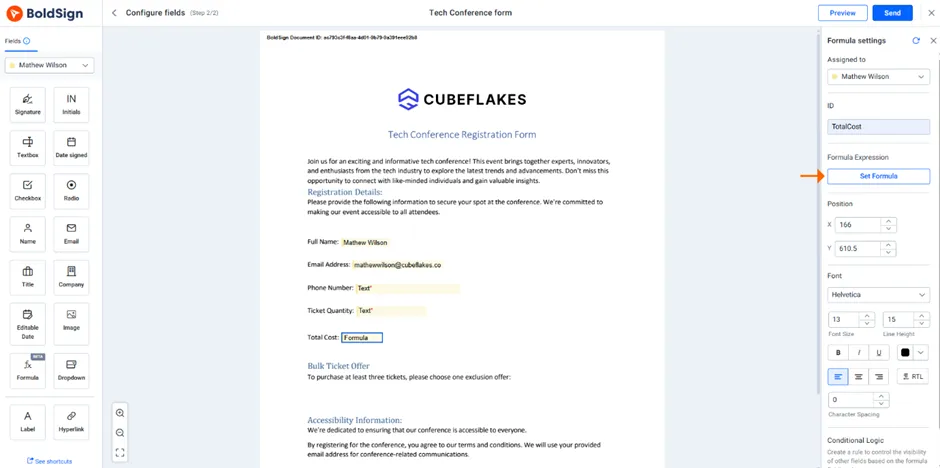
- Enter a field ID for it and select Set Formula to open the Formula Builder.
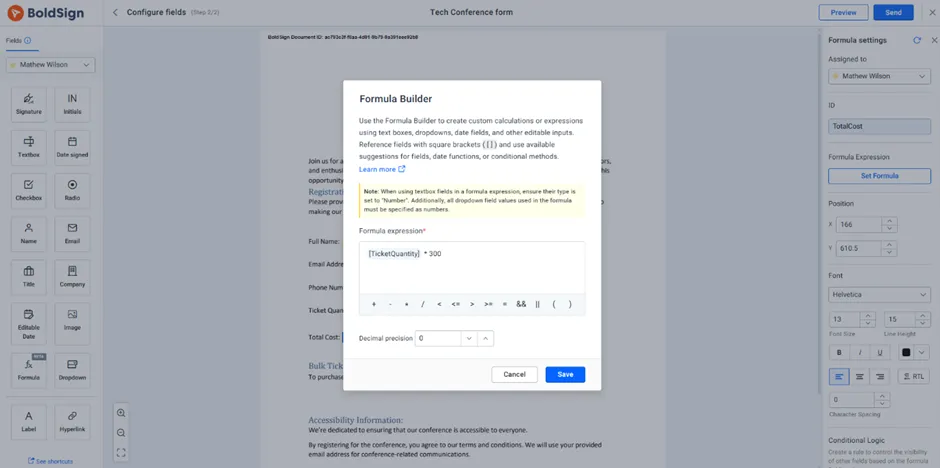
- Write the formula from your fields, operators and functions, or pick from the suggestions.
- Validate the formula to check for errors, then select Save.
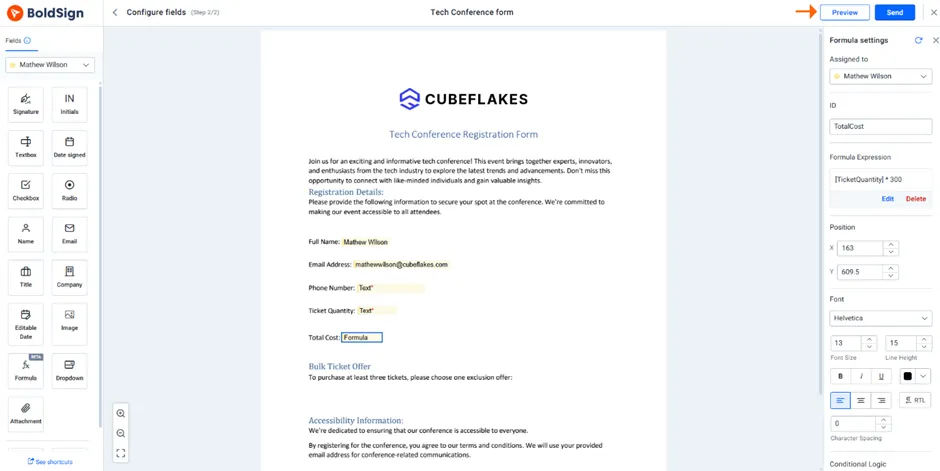
- Select Preview and enter sample values to test the result.
How do you show or hide a field with a formula?
Add conditional logic to a formula field, and its result decides whether another field appears. A result of 1 shows the field, and 0 hides it.
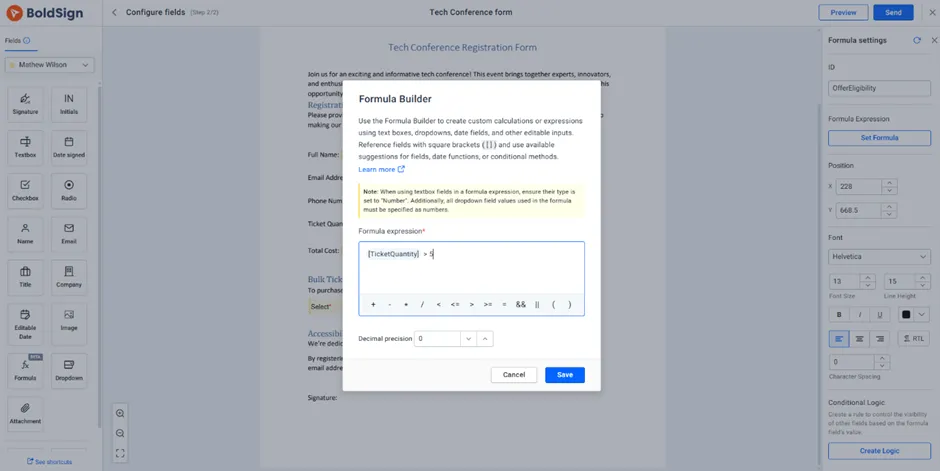
Say an event form gives a discount to buyers of more than five tickets. A formula checks the ticket count. The offer field stays hidden until the count passes five.
Write the condition
- Add the offer field to the document and fill in its options.
- Drag a Formula field into place and select Set Formula.
- Write a check such as
[Tickets] > 5and select Save.
Set the rule
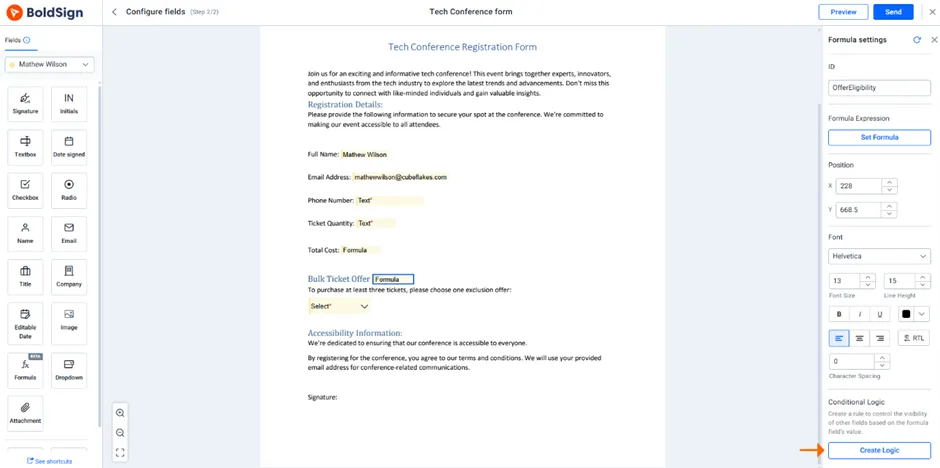
- In the formula field’s settings, select Create Logic.
- Choose what each result does, then apply the rule.
- Select Preview and try a count above and below five.
The rule reads the result in one of three ways:
- True: a result of 1 shows the field.
- False: a result of 0 hides the field.
- A number you set: the field shows only on that exact result, such as 10.
Our video on formula fields walks through this setup on screen.
Where do formula fields help?
Any document with a number or date that comes from other fields can use a formula. Here are some common cases by team.
- Accounting: work out tax, interest and totals on engagement letters and invoices.
- Healthcare: work out a bill from the length of a service.
- Real estate: count lease days and set renewal dates with date functions.
- HR teams: split a salary into parts and count leave days in offer letters.
- Legal teams: set expiry dates and show a clause only when a value calls for it.
Sales teams can do the same on order forms. A total that adds up the lines and takes off a discount is a typical first formula.
What should you watch out for with formula fields?
Most formula errors come from the input fields, not the formula. Check these points before you send.
- Number setting: a text box or dropdown not set to Number can break the math.
- Date format: an editable date typed in the wrong format gives a wrong result.
- Date order: DateDiff takes the later date first, then the earlier one.
- Field IDs: short, clear IDs make formulas easier to read and fix.
Always run a test in Preview with real sample numbers. A quick check there costs less than a signed contract with the wrong total.
Which BoldSign plan do you need, and what does it cost?
Conditional fields are on every plan, from the free Essential plan up, as listed on the BoldSign pricing page in November 2026. The pricing page has no separate row for formula fields, so try them in a free trial first.
Paid web app plans are billed yearly, in USD. The Growth plan is $5 per user a month, and the Business plan is $15 per user a month. The Premium plan is $99 a month for unlimited users.
Developers who add formula fields through the BoldSign API need the Enterprise API plan. It starts at $30 a month with 40 envelopes.
Where do you go next with formula fields?
Pick the step that fits your team.
- Start a 30-day free trial and add a total to your most-sent order form.
- Book a demo to see formula fields set up for your own documents.
- Read our guide to formula fields in the BoldSign API if your developers send documents from code.
Have a question about a formula you already use? Ask our team through the support portal.
Frequently asked questions
What is a signature formula in an eSignature document?
It is a formula field: a field that works out a value from other fields, such as a total or a due date. The result shows in the document, so nobody does the math by hand.
Which fields can a BoldSign formula field use?
A formula can use text boxes and dropdowns set to Number. It can also use date picker and editable date fields for date math.
Can a formula field show or hide another field?
Yes. Add logic to the formula field. A result of 1 shows the field, 0 hides it, and any other number you set shows it only on that exact result.
Which e signature apis platforms support conditional logic and calculation fields for dynamic contract pricing?
We do. You build formula fields in the BoldSign web app, with no code, and show or hide fields with logic. Developers can add formula fields through the BoldSign API as well.
How do I count the days between two dates in a document?
Use DateDiff with the later date first, such as DateDiff([EndDate], [StartDate]). The field shows the number of days between the two dates.
Can I round a calculated number up or down?
Yes. Floor drops the decimal part, so 3.5 becomes 3. Ceil moves up to the next whole number, so 8.33 becomes 9.
Can one formula use the result of another formula?
Yes. A formula can include other formulas, so you can build a subtotal first and then a total from it.
How do I test a formula before I send the document?
Validate the formula in the Formula Builder to catch errors, then select Preview. Enter sample values and check the result before you send.

Rayronald Ochola Otieno
Rayronald Ochola Otieno is a content specialist at BoldSign, specializing in video content and help articles within the eSignature domain. As a blog author, he creates well-researched, insightful content that simplifies complex eSignature topics like digital signatures, compliance, and workflow automation for businesses and professionals. With expertise in creating educational videos and articles, Ray helps users understand and adopt secure, efficient signing solutions. Beyond writing and video creation, Ray enjoys exploring new technologies, reading about the latest industry trends, and continually refining his skills.
More posts by Rayronald Ochola Otieno