Create Custom Form Fields to Speed Up Document Building with BoldSign
 Senthil Kumar
TL;DR: A custom form field is a field you set up once, with its settings and default value, and then drag into any document. In BoldSign, an admin creates custom fields inside a brand, publishes them and shares them with the team. Our branding feature page shows what else a brand controls.
Say your contracts always carry the same fields: Company Name, Countries, Business Type, Payment Type and Company Website. Each new document means placing those fields again and setting the same options every time.
Custom form fields remove that repeat work. This guide shows how to create, publish and share them, and how to let your team save their own.
What is a custom form field?
A custom form field is a preconfigured field with its values and formatting already applied. You save it once and reuse it on every document that needs it.
Think of a rubber stamp with your company address on it. You carve it once, then press it on each envelope instead of writing the address by hand.
A custom field works the same way. You drag the saved field into place instead of rebuilding a Payment Type dropdown with the same options for every contract.
How do you control who uses custom fields?
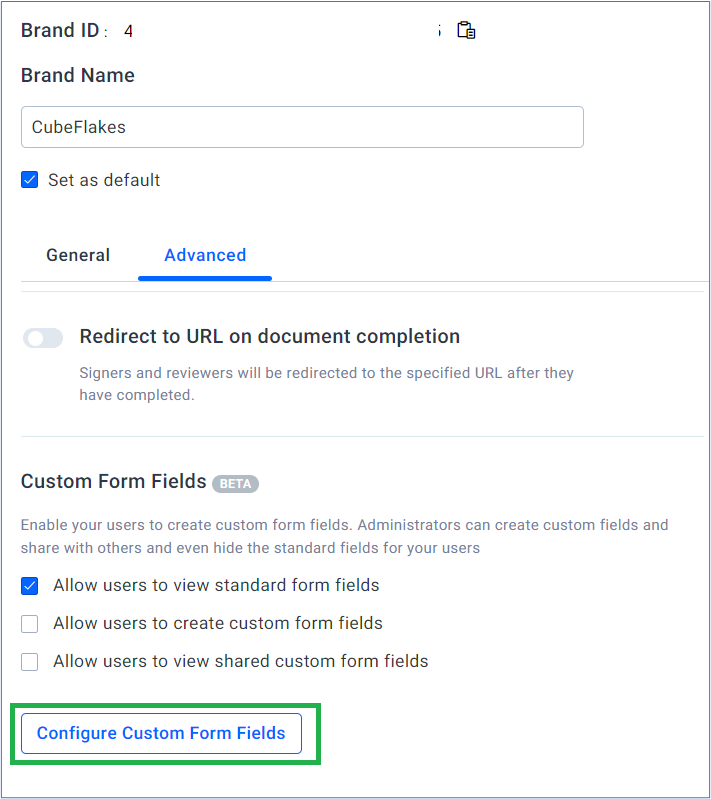
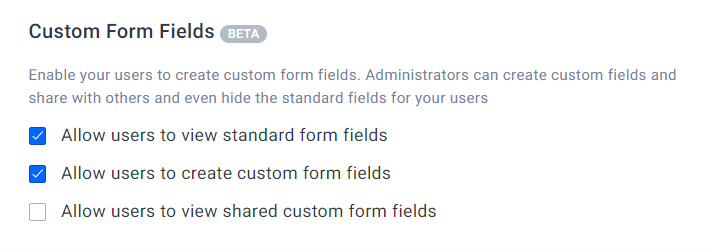
Admins decide who sees and creates custom fields. Three switches sit in the Advanced section of each brand under Settings and Branding.
- Allow users to view standard form fields is on by default.
- Allow users to create custom form fields lets users save their own fields.
- Allow users to view shared custom form fields shows your published fields to everyone.
You can turn off the standard fields only after you share a custom field. Our help article on how to create and customize branding covers the other brand settings.
How do you create custom fields in BoldSign?
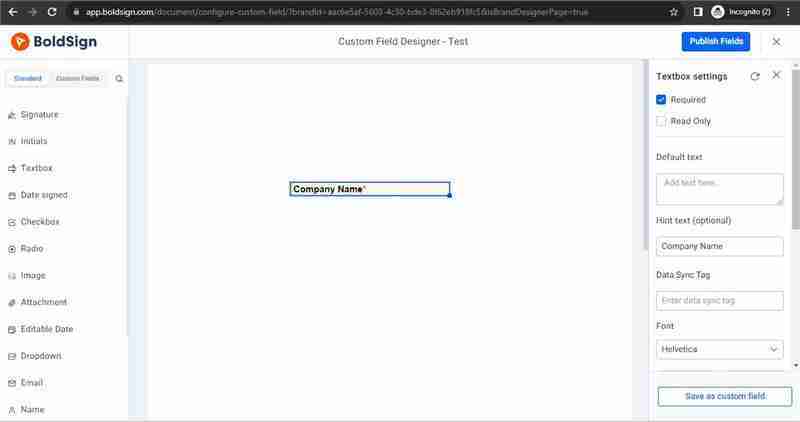
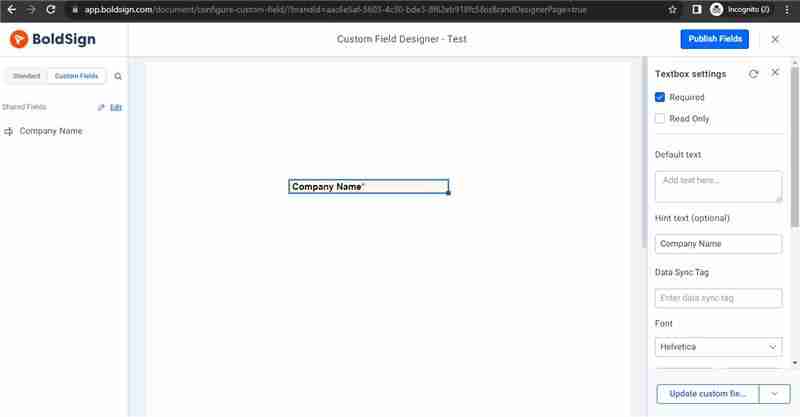
Admins build custom fields in a designer page inside the brand. You place a field, set it up and save it under a name.
- Open the brand and click Configure Form Fields.
- Drag a field from the left panel onto the page.
- Set its properties in Settings, such as default values and formatting.
How do you save and publish a custom field?
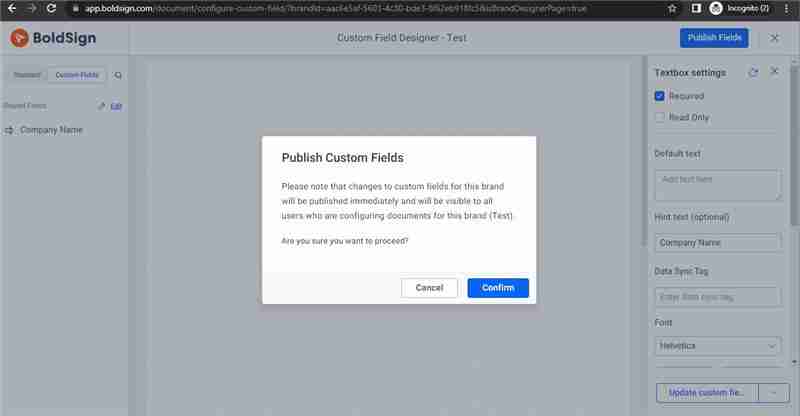
Once the field looks right, save it and publish it so senders can use it.
- Click Save as custom field.
- Enter a Field name and an optional Description.
- Click Publish Fields, then Confirm in the pop-up.
How do you share a custom field with your team?
Turn on Allow users to view shared custom form fields and click Save changes. Everyone in your organization then sees the published fields on documents sent with that brand.
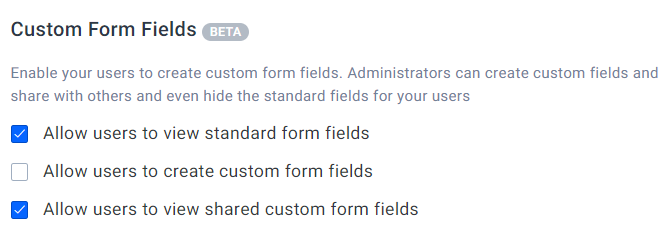
Turn the switch off again to hide your custom fields from other users.
How do you use custom fields in a document or template?
Select the brand when you create the document or template, then click Next. Your fields wait in the Custom Fields tab next to the standard fields.
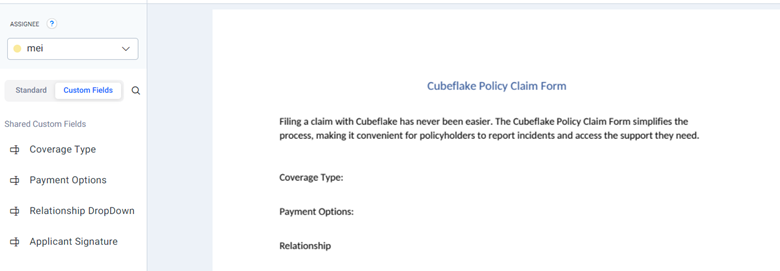
Drag the field onto the page, and it arrives with its settings in place. The same field works across every contract template that uses the brand. Our guide to saving time with templates shows how to reuse a whole document across signers.
How do you let team members create their own custom fields?
An admin turns on one switch in the brand, and users can then save fields while they prepare documents. Fields a user saves stay private to that user.
Turn on custom fields for users
- Go to Settings and select Branding.
- Create a brand or open an existing one.
- In Advanced, turn on Allow users to create custom form fields and click Save.
Save a field from the preparation page
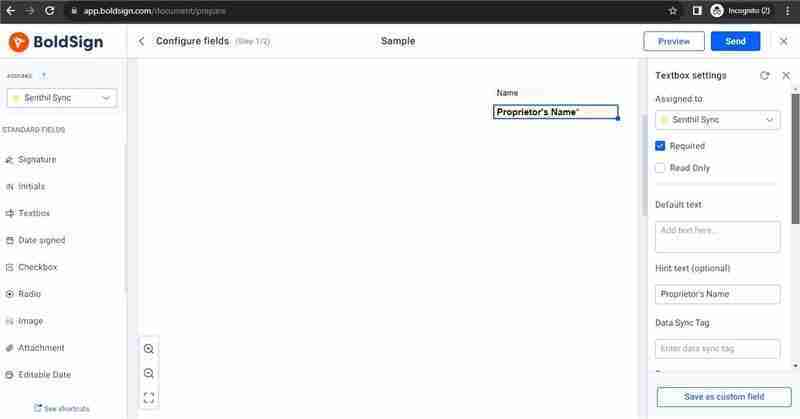
- Create a document or template, select the brand and click Next.
- Drag a field onto the page and change its settings.
- Click Save as custom field, enter a Field name and Description, then click Save.
Our help article on how to configure custom form fields covers each setting in more detail.
Which BoldSign plan do you need for custom fields?
Custom fields come with the Business, Premium and Enterprise API plans. The Essential and Growth plans do not include them, as listed on the BoldSign pricing page in November 2026.
The Business plan costs $15 per user a month, and the Premium plan costs $99 a month for unlimited users, both billed yearly. Prices are in USD. Both include unlimited brands, so each brand can keep its own set of custom fields.
What should you set up after your first custom field?
Start with the fields your team places most often, then build from there.
- Start a 30-day free trial and save the fields from your most-sent contract.
- Book a demo to see custom fields set up for your team’s documents.
- Read how to prefill form details before sending a document for signers.
Frequently asked questions
What is a custom form field in BoldSign?
A custom form field is a field you set up once and save for reuse. Its type, settings and default value stay in place, so you drag it onto a document instead of configuring it again.
How do I add custom fields to a contract template and reuse it across signers?
Open the template, select its brand and click Next. Drag a field onto the page, set it up, then click Save as custom field. It then waits in the Custom Fields tab for every document or template that uses that brand.
Who can create custom form fields?
Admins can create and publish them from the brand settings. Other users can create their own once an admin turns on Allow users to create custom form fields for that brand.
Can other users see the custom fields I create?
Not by default. Fields a user saves stay private to that user. Fields an admin publishes reach everyone once Allow users to view shared custom form fields is on.
Can I hide the standard form fields from my team?
Yes, after you share at least one custom field. Turn off Allow users to view standard form fields in the brand's Advanced settings, and senders see only your shared fields.
Are custom fields tied to a brand?
Yes. You set them up inside a brand, and they appear on any document or template sent with that brand. A team with several brands can keep a different field set for each.
Do custom form fields change how a document is signed?
No, signers fill in a custom field like any other field. The saved settings only spare the sender from setting the field up again.
Which BoldSign plans include custom fields?
Custom fields come with the Business and Premium plans and the Enterprise API plan. The Essential and Growth plans do not include them.

Senthil Kumar
Senthil Kumar M, who works for Syncfusion as a Product Manager. He has been actively involved in web development since 2012 and has a passion for both front-end and back-end technologies.
More posts by Senthil Kumar