How to Edit In-Progress Documents or Fields in BoldSign
 Rowan Sam Kerongo Makori
TL;DR: You can edit a document in BoldSign after you send it, as long as it is still in progress. Choose Edit document from its menu in My Documents, make your changes and send it again. Our document management page shows how we track every sent document.
You send a contract for signature and spot a typo in the client’s email address. Or a manager asks to add a second signer an hour after it went out. Without editing, you would revoke the request, rebuild it and ask everyone to sign again.
Editing an in-progress document fixes the mistake in place. This guide covers what you can change, the steps, the limits and what signers see while you work.
What does it mean to edit an in-progress document?
An in-progress document is one you have sent that is still waiting for signatures. Editing it lets you change the request without sending a new one.
Think of a group dinner booking. You call the restaurant to add two guests and move the time, rather than cancel and book again. Guests who already confirmed stay on the list.
What can you change after sending a document in BoldSign?
You can change most parts of the request until every signer has signed. Our help article on how to edit an existing document lists each option.
- Signer names and email addresses, for signers who have not signed yet
- New signers and CC (carbon copy) recipients
- Files, including new files added after sending
- Document settings such as reminders, tags and the expiry date
- Form fields for anyone who has not signed yet
How do you edit an in-progress document in BoldSign?
You open the document in edit mode, change the details, then send the changes. The steps below follow the same order as the screens.
Open the document in edit mode
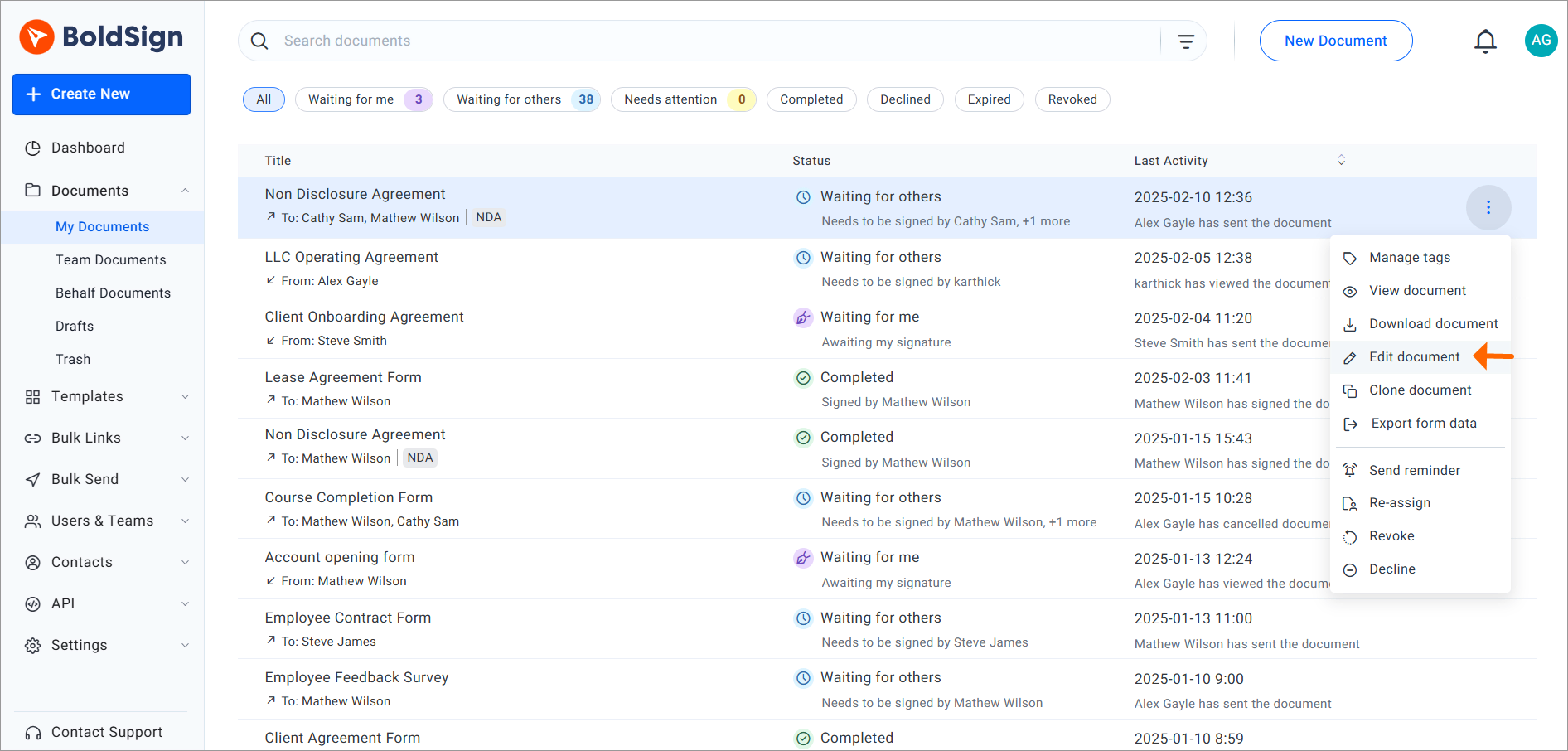
- Sign in to BoldSign, expand Documents and choose My Documents.
- Find the in-progress document and open its context menu (the three dots).
- Select Edit document.
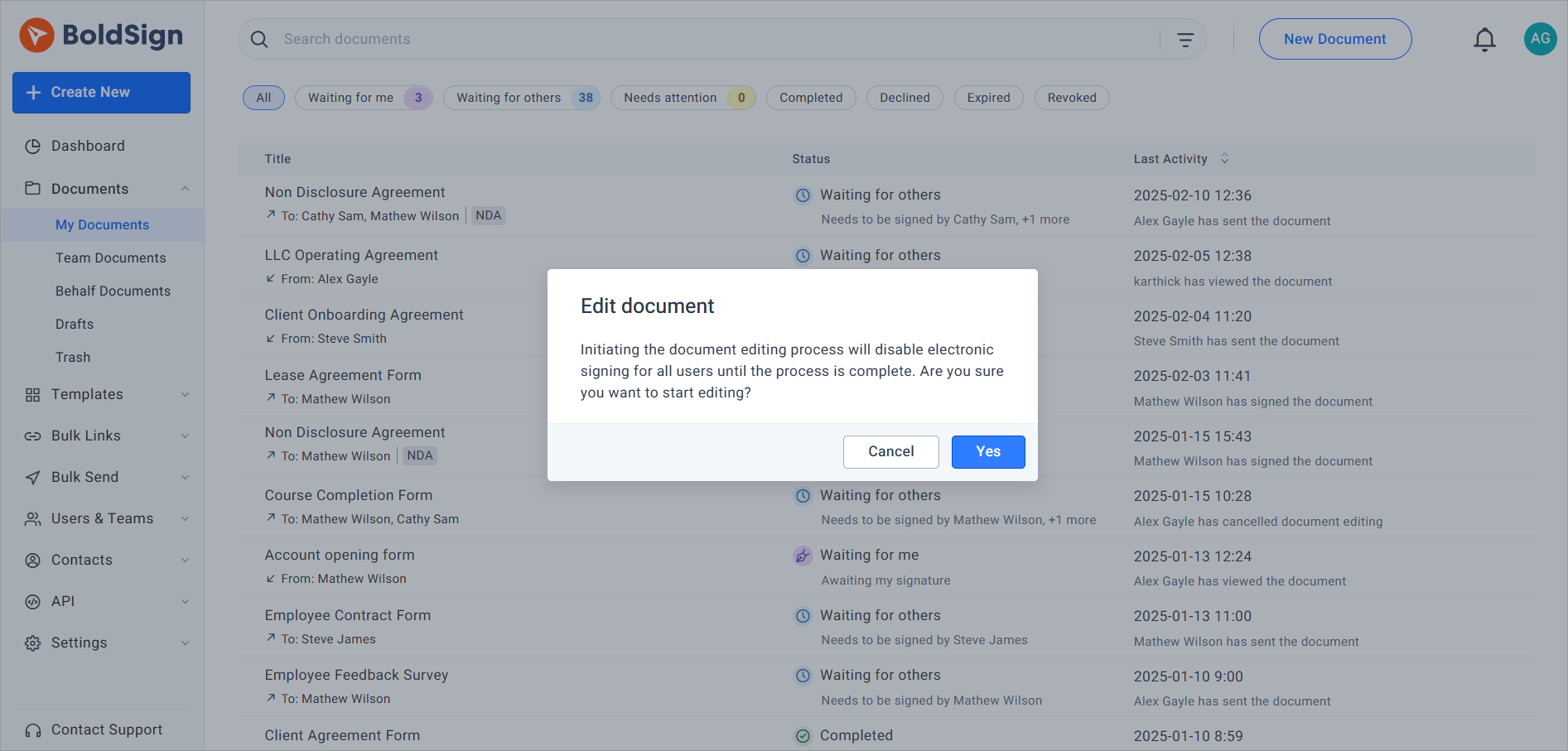
- In the warning prompt, select Yes to start editing.
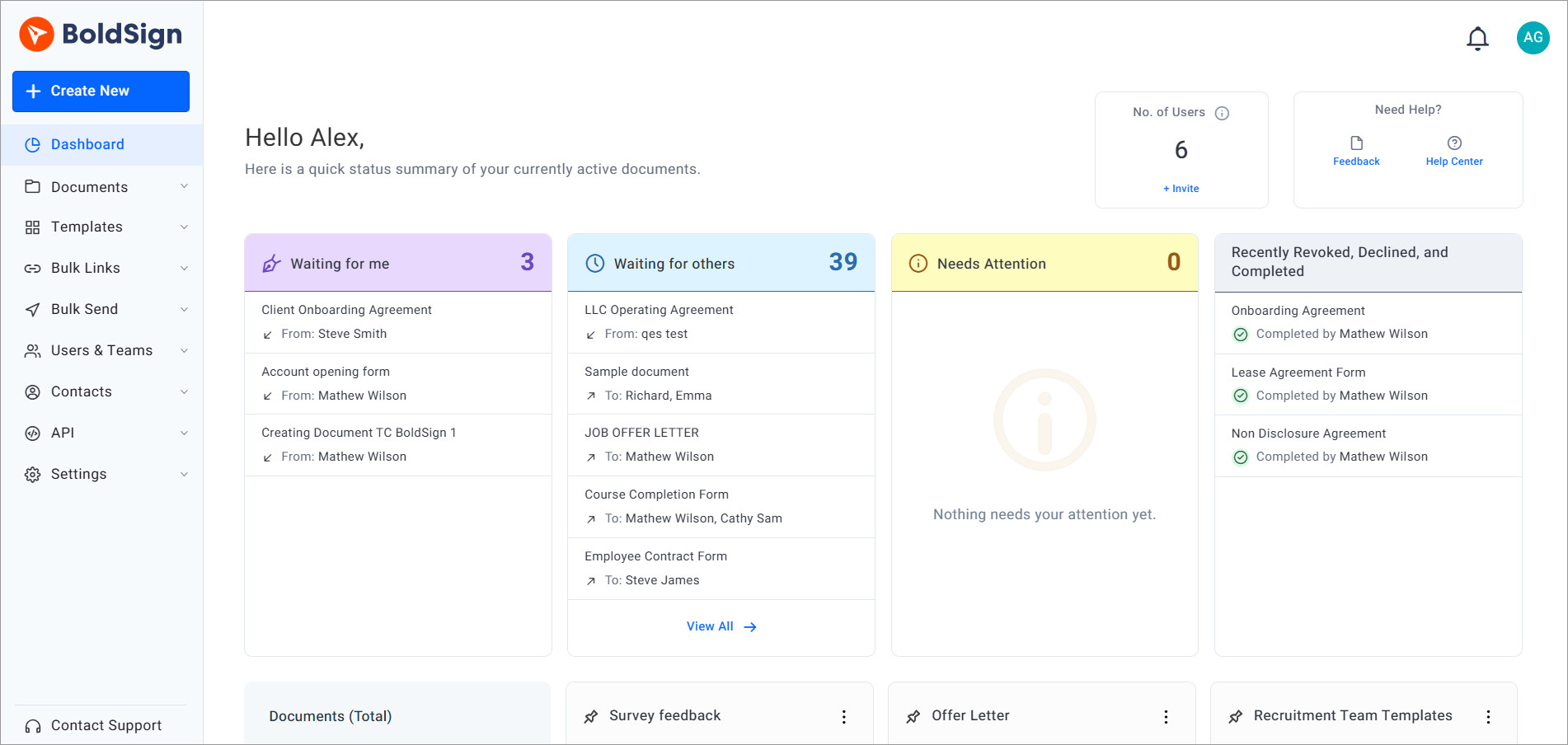
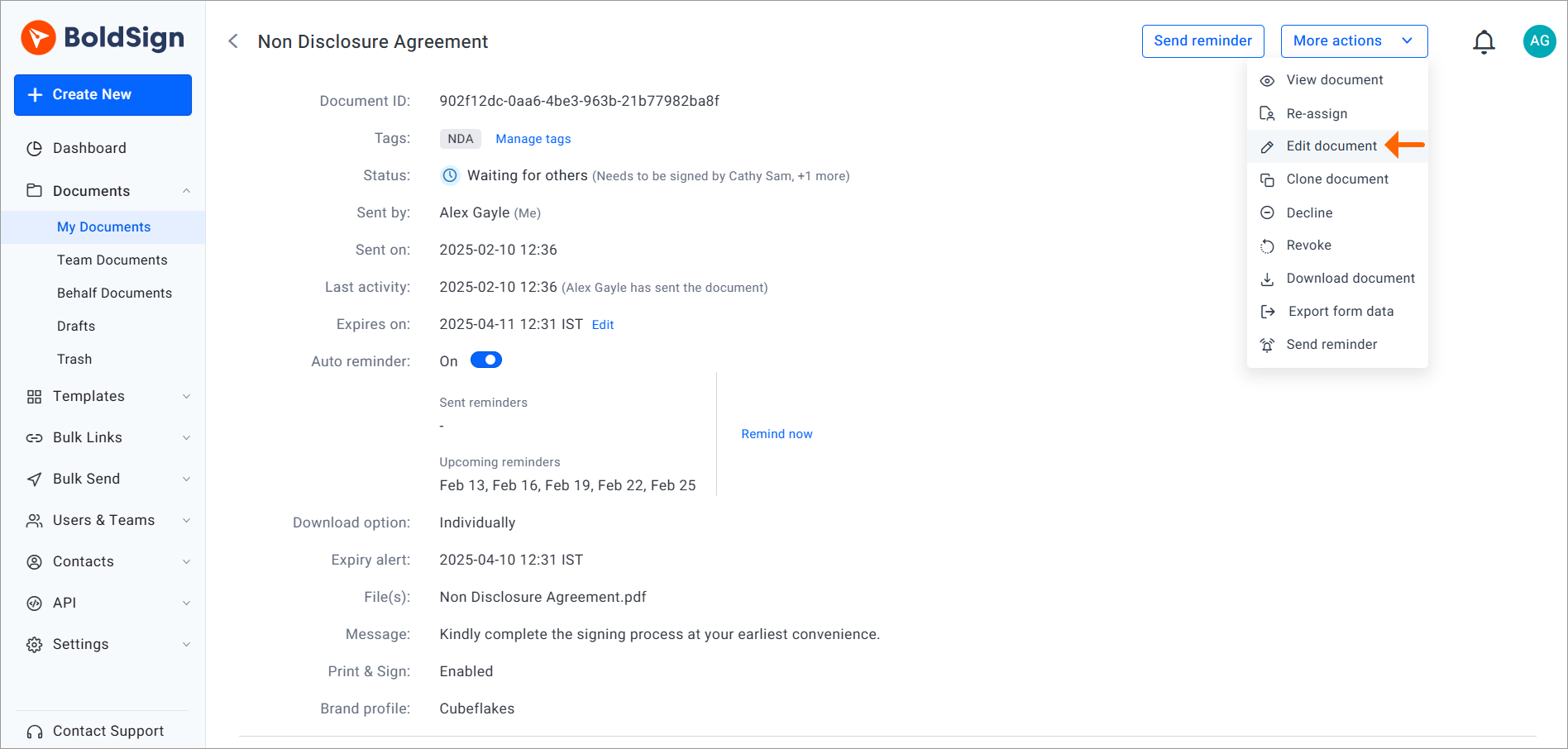
You can also open the document’s overview page, select More actions, then Edit document.
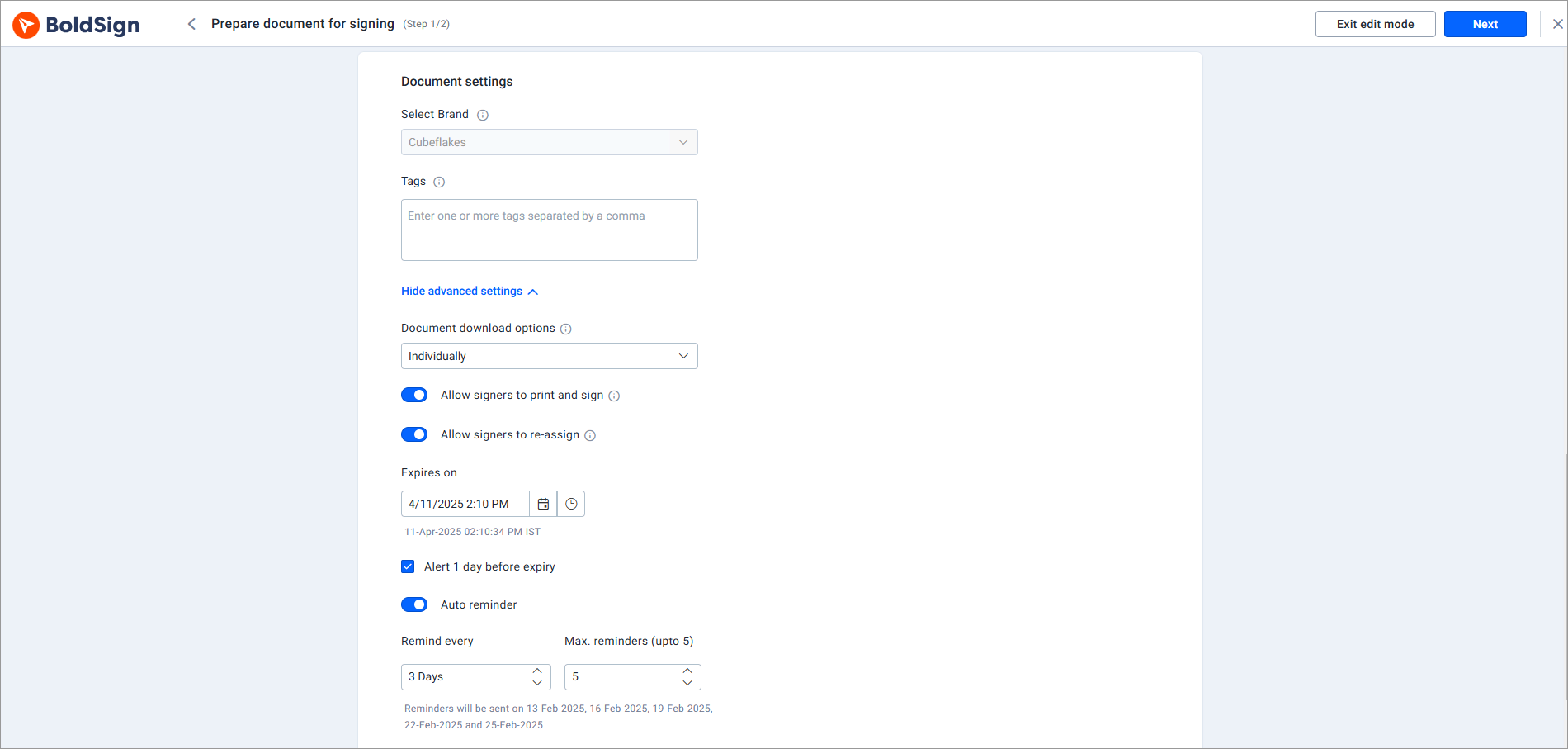
Update recipients and settings
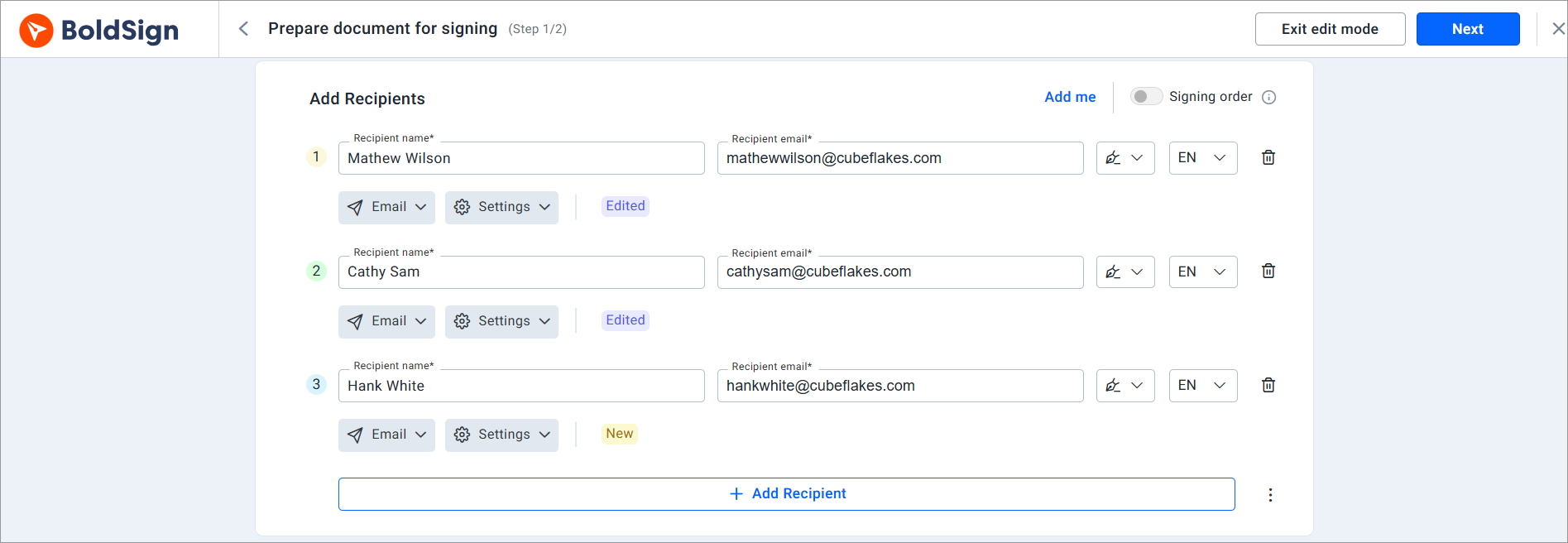
Edit mode opens the page where you first prepared the document. Each change gets a label, so you can see what you touched.
- Change a signer’s name or email address. An Edited label appears next to that signer.
- Add a signer or CC recipient. A New label appears next to each one.
- Adjust settings such as automatic reminders, document tags or the expiry date.
- Select Next to move to the Configure fields page.
Adjust fields and send the changes
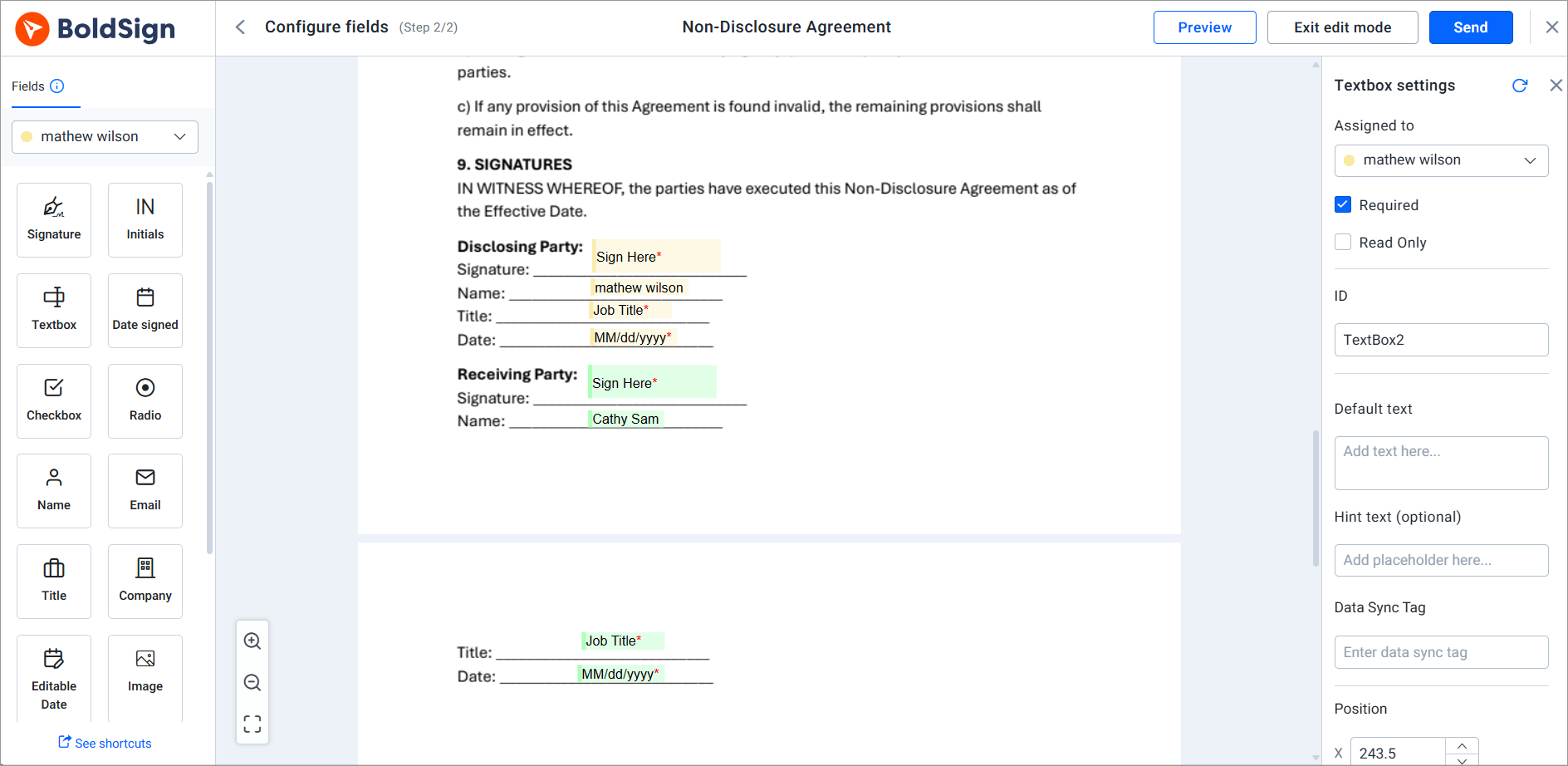
The Configure fields page shows the document with every signer’s fields in place. Fields of an edited signer move to their new details on their own.
- Place fields, such as text boxes or signature fields, for each new signer.
- Open a field’s settings to change it, for any signer who has not signed.
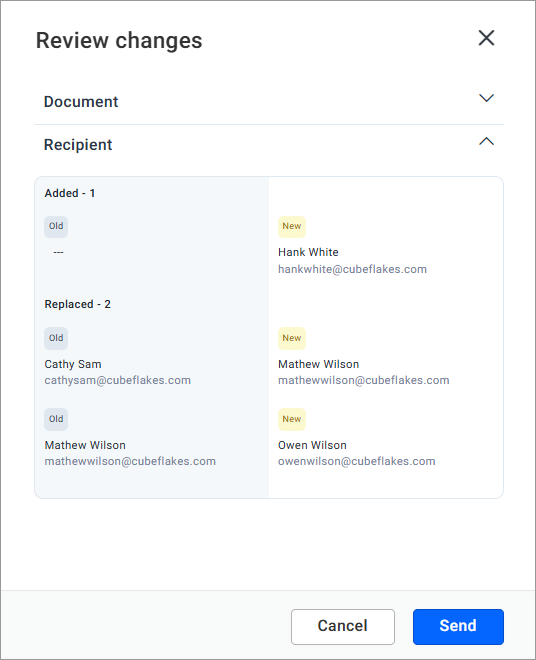
- Select Send, check the summary of changes, then select Send again.
To drop your changes, select Exit edit mode before you send.
How do you edit a document sent on behalf of someone else?
Open it from the Behalf Documents page instead of My Documents. The rest of the steps match the ones above.
Select the document, then choose More Actions and Edit Document. Our help article on how to edit behalf documents shows each screen.
What can’t you change once a document is in progress?
Some parts of a request stay fixed so the record stays trustworthy. The limits fall into two groups.
Limits on every in-progress document
- The document title and the brand details, such as the logo
- The signing order
- Documents created from a bulk link
- Documents that are completed, declined, revoked or expired
Only the person who sent the request can edit it. A team admin can’t edit a document a team member sent.
Limits after someone signs
Once a signer signs, their part of the document is locked. You can still add signers and edit anyone who has not signed.
- The signer’s name and email address
- The fields assigned to that signer
- The files you uploaded
- Label and hyperlink fields shared by all signers
What happens to signers while you edit a document?
Signers can’t open the document until you finish. Anyone who tries sees the message “Document currently being edited.”
A signer with a BoldSign account sees the document under Need attention until editing ends. We notify signers once the changes are sent. Every edit appears in Document History on the overview page, next to the rest of the audit trail.
Which BoldSign plan includes document editing?
Edit document is part of every plan, including the free Essential plan. Our pricing page listed it on every plan in November 2026.
Growth costs $5 per user a month and Business $15 per user a month. Premium costs $99 a month for unlimited users, and all prices are billed yearly in USD.
Some limits depend on the plan. Essential includes 1 brand and Growth includes 2, while Business and Premium include unlimited brands. Bulk links start on the Business plan.
How do you get started with editing sent documents?
Try it on a real request and see how much rework it saves. Pick the next step that fits you.
- Start a 30-day free trial and edit a test document after you send it.
- Book a demo to see edit mode on your own documents.
- Contact our support team with a question about a document you already sent.
Frequently asked questions
Can I edit a document after sending it for signature?
Yes, while the document is still in progress. Open it from My Documents, choose Edit document, and make your changes before you send it again.
Can I add a new signer to a document I already sent?
Yes. Add the new signer or CC (carbon copy) recipient in edit mode. Then place their fields on the Configure fields page and send the changes.
Can I change a signer's email address after sending?
Yes, for a signer who has not signed yet. Update the name or email address in edit mode, and their fields move to the new details.
Does editing a sent document restart the signing process?
No. Signers who already signed keep their signatures, and their details and fields stay locked. The document continues with the changes you sent.
Is a document still legally valid after I edit it?
Yes, when the signing still meets the usual electronic signature rules. We record every edit in the document history, so you can show what changed and when.
Why can't I see Edit document on my document?
The option appears only for in-progress documents you sent yourself. Completed, declined, revoked, expired and bulk link documents cannot be edited.
What do signers see while I edit a document?
They see the message Document currently being edited and cannot open it until you finish. We notify them once the editing is complete.
Is editing in-progress documents free in BoldSign?
Yes. Edit document is part of every plan, including the free Essential plan, as listed on our pricing page in November 2026.

Rowan Sam Kerongo Makori
Rowan contributes to the BoldSign blogs and helps the articles team. He is passionate about writing high-quality and informative content. His interests include reading books, writing, and exploring.
More posts by Rowan Sam Kerongo Makori