Signer Authentication Methods for eSignatures: Email, Codes, KBA and ID Checks
 Caroline Dolly
TL;DR: Signer authentication is a check a signer must pass before your document opens. We offer five methods: email one-time passcode (OTP), SMS OTP, access code, knowledge-based authentication (KBA) and ID verification. Our signer authentication page shows how each works.
You send a loan form to a client, and the signing link lands in a shared inbox. Anyone with that link could open the form and sign it. For a lunch order, that may not matter.
For a contract, a medical consent form or a bank form, it matters a lot.
Signer authentication closes that gap. This guide explains each method, how to choose one, and how to set it up in BoldSign.
What is signer authentication?
Signer authentication is a check that proves the person opening a document is the person you meant to sign it. The signer passes the check first, and only then sees the document.
Think of a parcel that needs a signature at the door. The courier asks for your name, and for a valuable parcel, your ID. Each authentication method sets a different bar, from a code sent to an inbox up to a photo ID matched to a live selfie.
You choose the bar for each signer. A short internal form may need none, while a loan agreement may need an ID check.
What are the different authentication methods for e-signatures?
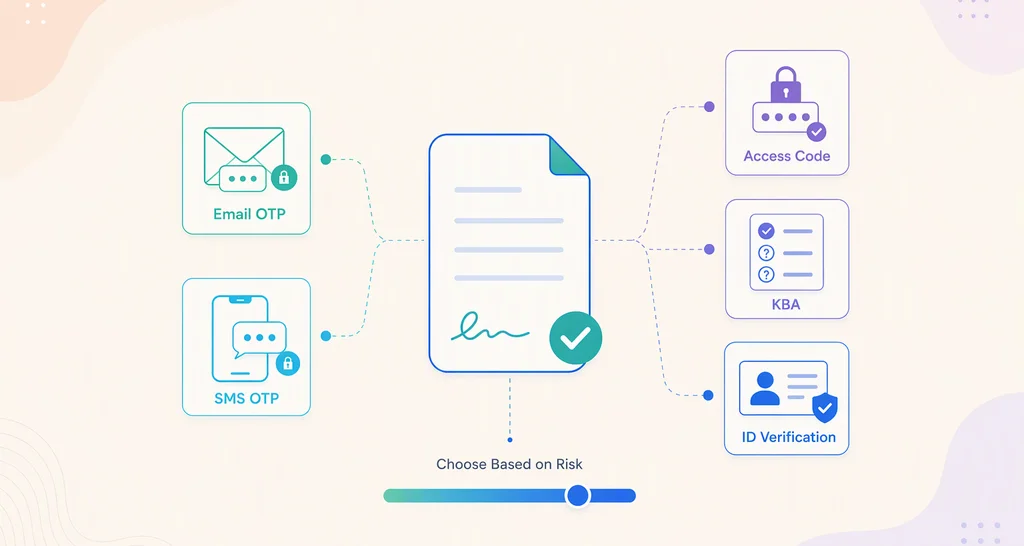
There are five common methods, and each one asks the signer to prove something different. We offer all five, and you can set a different one for each signer.
Email OTP
An email one-time passcode (OTP) proves the signer controls their email address. We email a code to the signer, and the document opens once they enter it. Each code lasts 10 minutes.
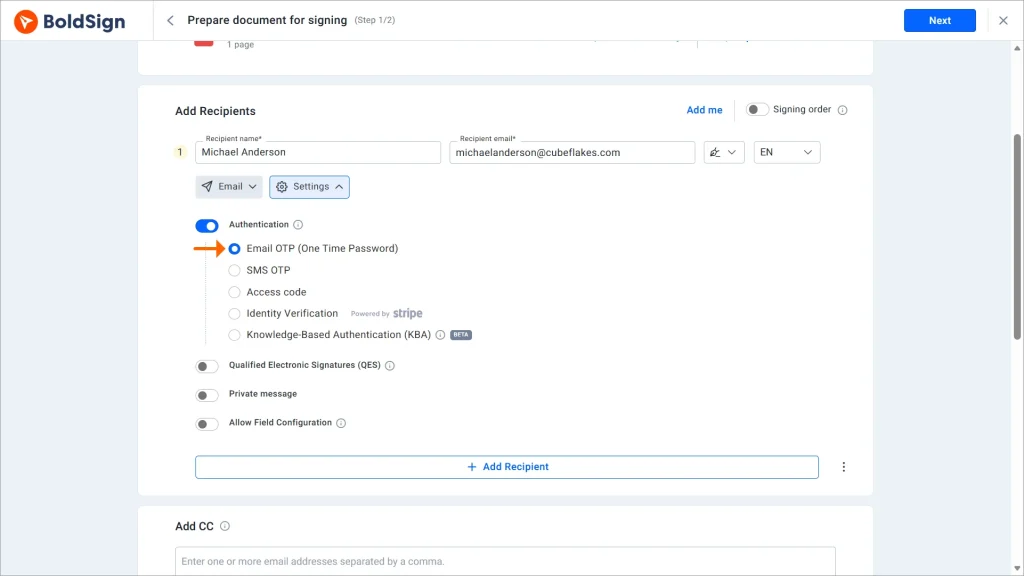
See how to add email authentication to a signer.
SMS OTP
An SMS OTP proves the signer holds a phone number. You enter the signer’s phone number and country code. The signer confirms that number when they open the document, and we text them a code.
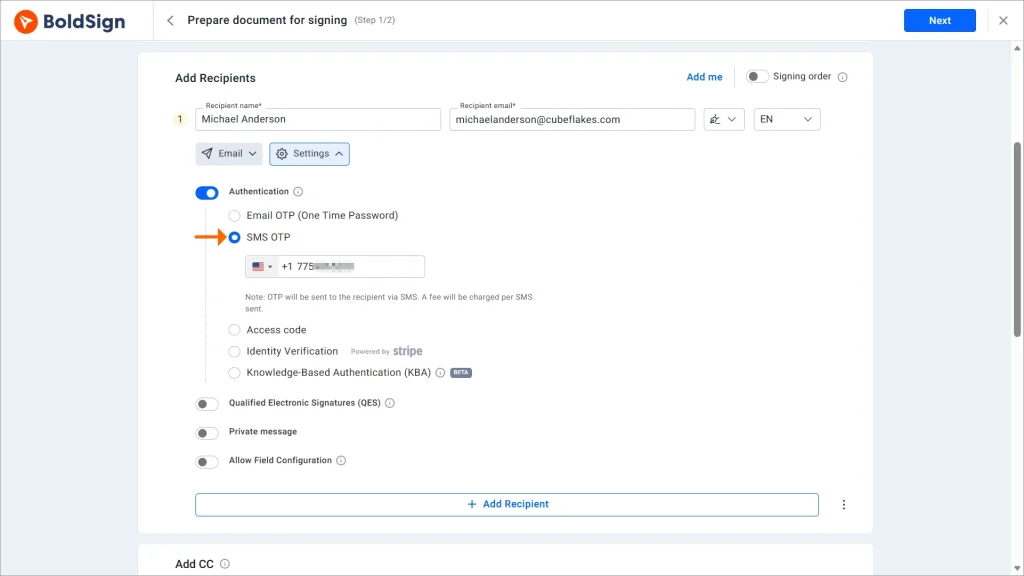
Our help article on how to add SMS authentication to a signer shows each screen.
Access code
An access code proves the signer got a message from you. You create the code, then share it outside BoldSign, such as in a phone call. The signer types it in to open the document.
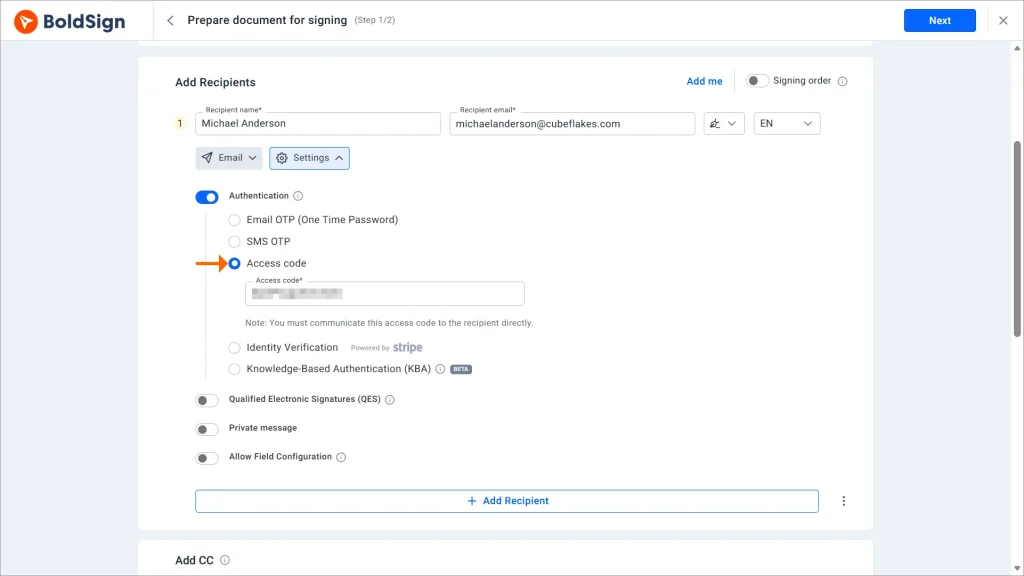
You can also change an access code after you send the document.
Knowledge-based authentication (KBA)
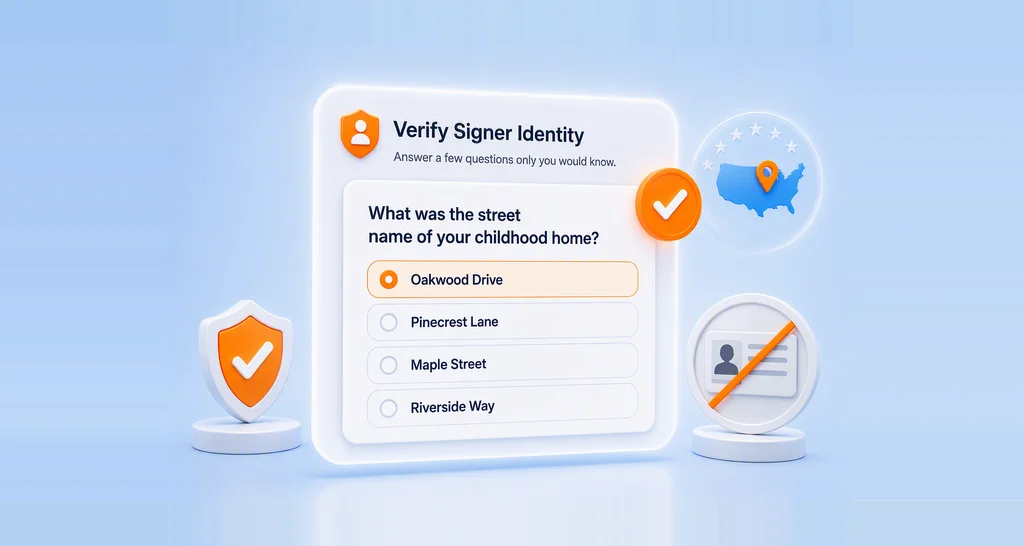
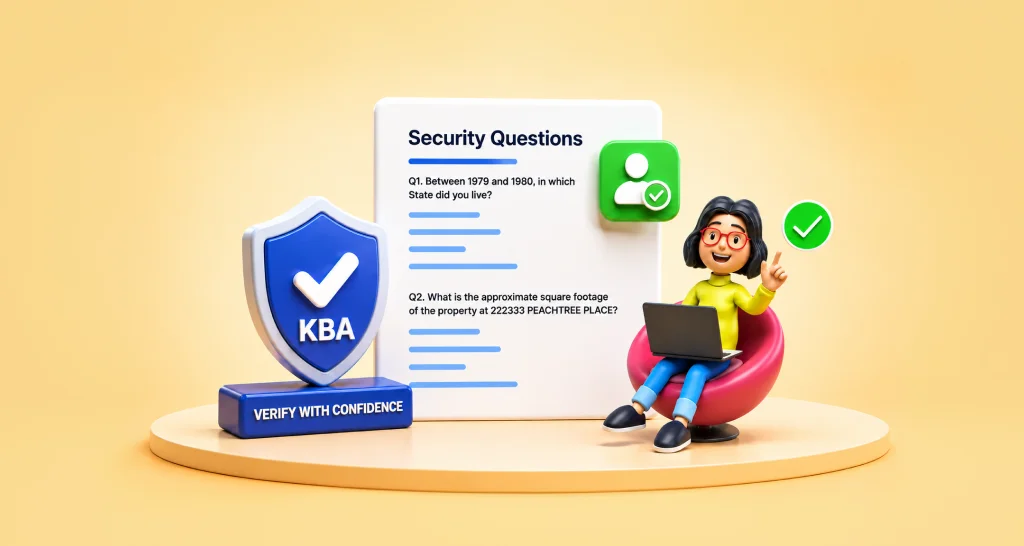
KBA proves who the signer is without an ID upload. The signer enters their legal name, address and the last four digits of their Social Security number. Then they answer questions drawn from public records.
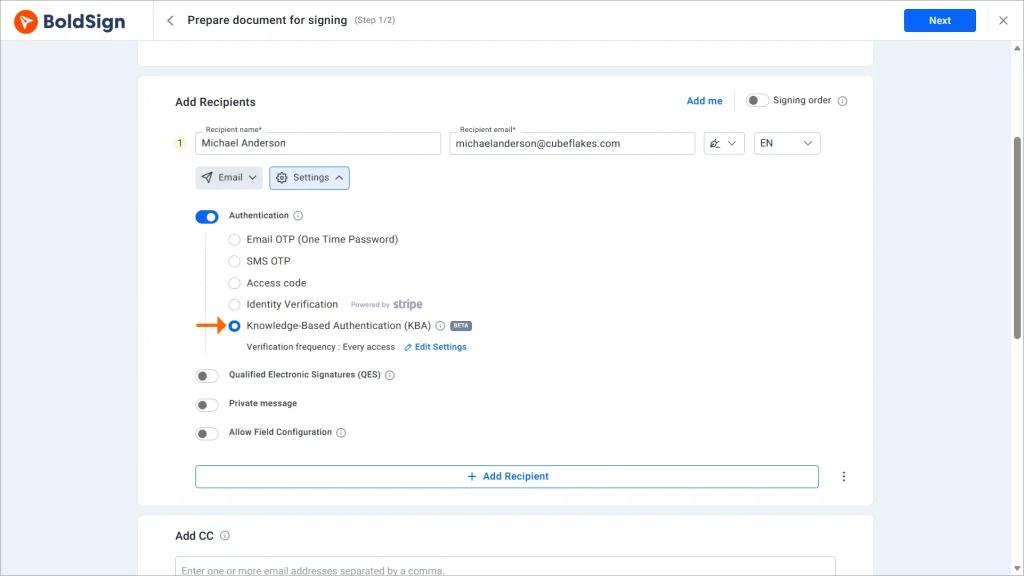
KBA works only for signers based in the US. Our knowledge-based authentication page covers the full flow. For a deeper look, read our guide to verifying signers with KBA.
ID verification
ID verification proves who the signer is from a government ID. The signer takes a photo of a passport, driver’s license or national ID card, then takes a live selfie. We match the two before the document opens.
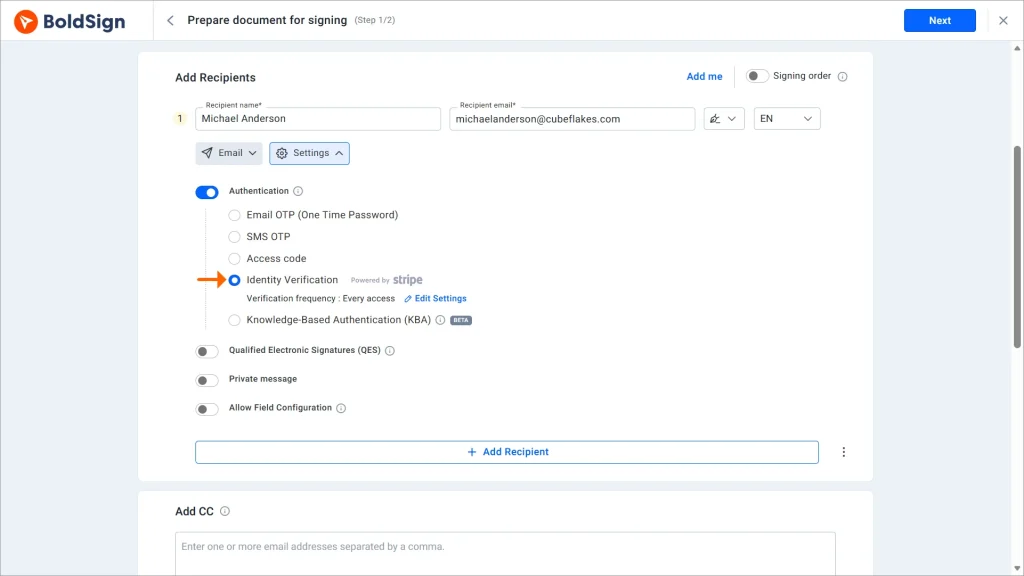
ID verification works for signers in the US and other supported countries. Our signer identity verification page lists the settings you can choose.
How do the signer authentication methods compare?
The methods differ in what they prove and how much effort they ask of the signer. Pick the lightest check that still fits the risk of the document.
| Method | What it proves | What the signer needs |
|---|---|---|
| Email OTP | They control the email address | Access to their inbox |
| SMS OTP | They hold the phone number | A phone that gets texts |
| Access code | They got your separate message | The code you shared |
| KBA | They know facts from public records | A US address and Social Security number |
| ID verification | Their face matches a government ID | A valid ID and a camera |
How do I verify a user’s identity before allowing them to sign a document?
Turn on authentication for that signer when you prepare the request. The signer then passes the check before they can see or sign the document.
- Select Create New, then Create New Document.
- Upload the document and enter the recipient’s details.
- Open Show settings below the recipient and turn on Authentication.
- Choose a method and fill in what it asks for, such as a phone number or access code.
- Select Next, add the signature fields, then select Send.
The signer completes the check when they open the document. Only then can they read and sign it.
How do you add or change authentication after sending?
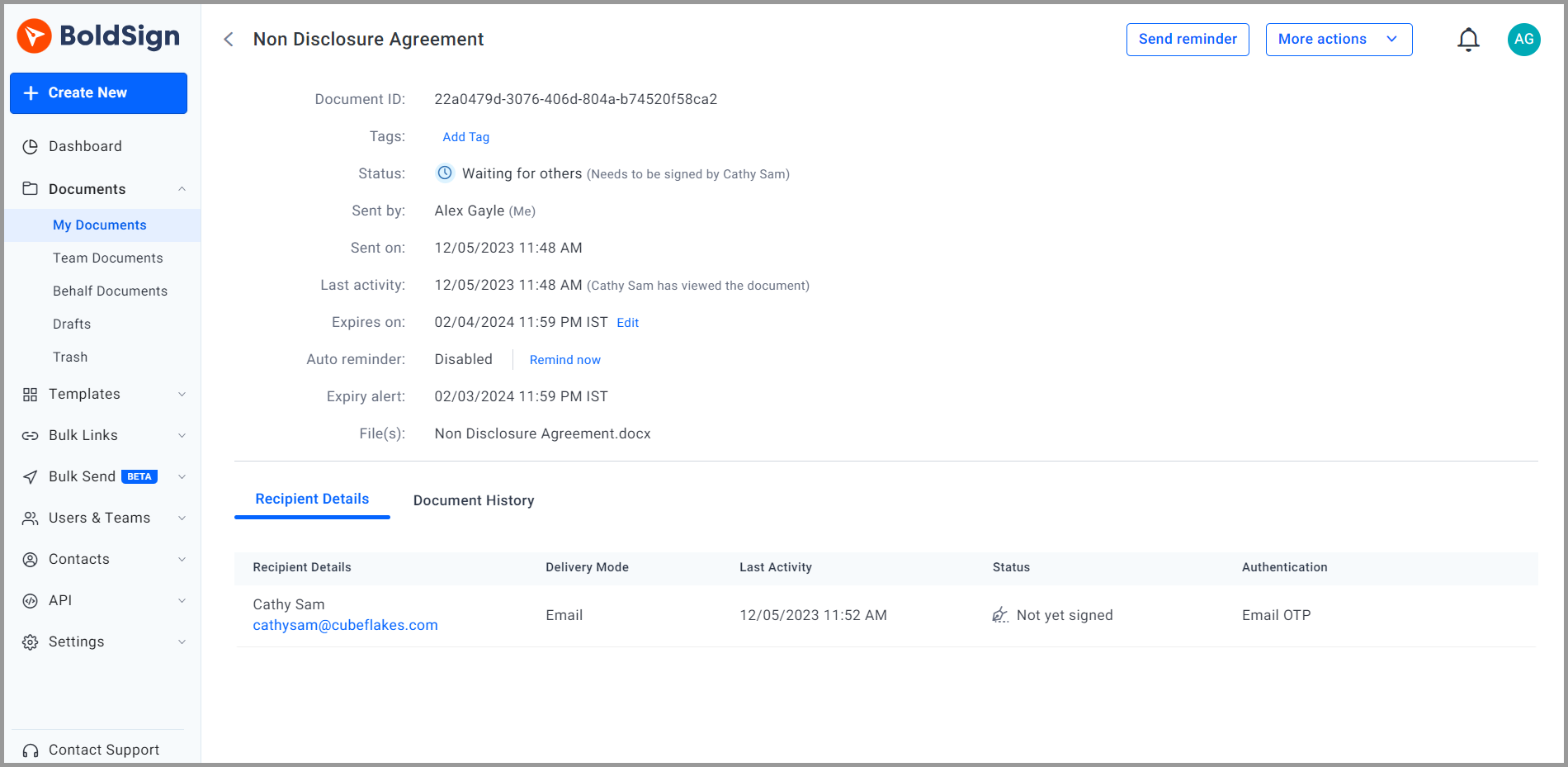
Do it from the document’s overview page, as long as the signer has not signed yet. Open My Documents and select the document to reach that page.
Add authentication to a sent document
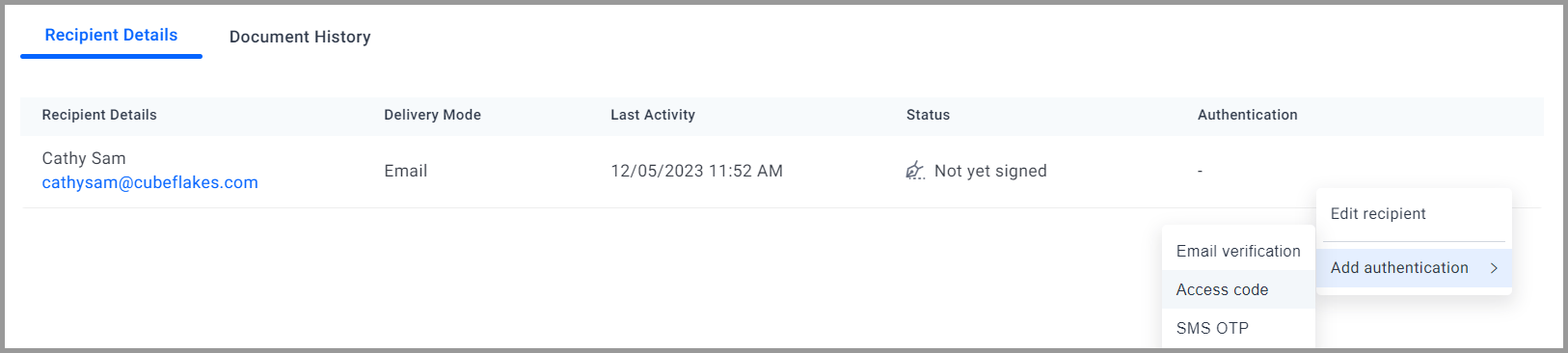
- Find the signer in the recipient details on the overview page.
- Hover over the signer and open the context menu.
- Select Add Authentication and choose a method.
Change the authentication method
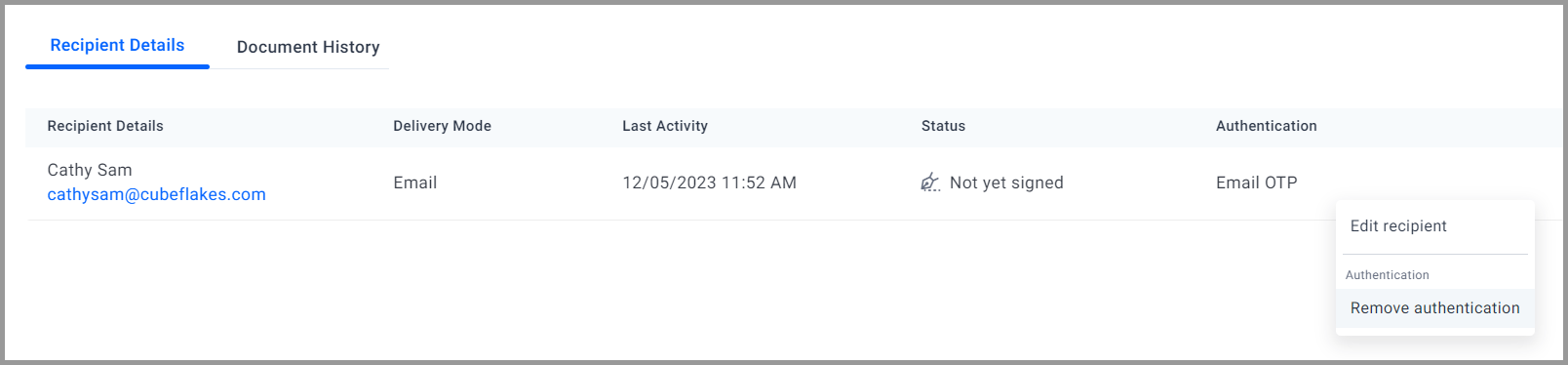
Remove the current method first, then add the new one. The recipient details section shows which method each signer has now.
- Open the signer’s context menu and select Remove authentication.
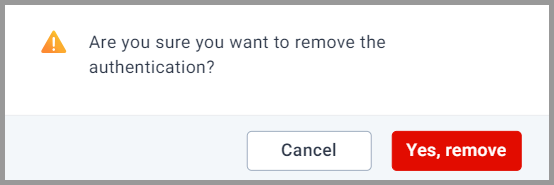
- Select Yes, remove in the pop-up to confirm.
- Open the context menu again, select Add authentication and choose the new method.
What happens when a signer fails authentication?
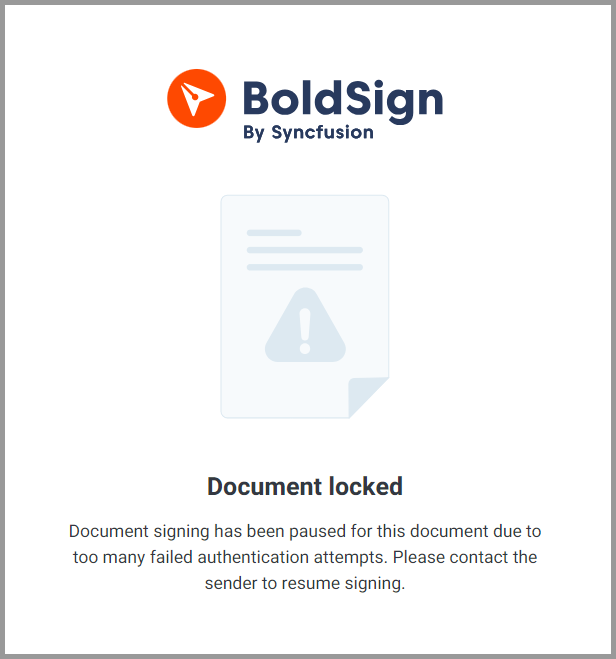
The document locks for that signer after too many failed tries. You then unlock it from the overview page, and the signer can try again.
Limits differ by method. An access code locks after three failed tries, and for KBA and ID verification you set the number of tries. KBA allows one to three.
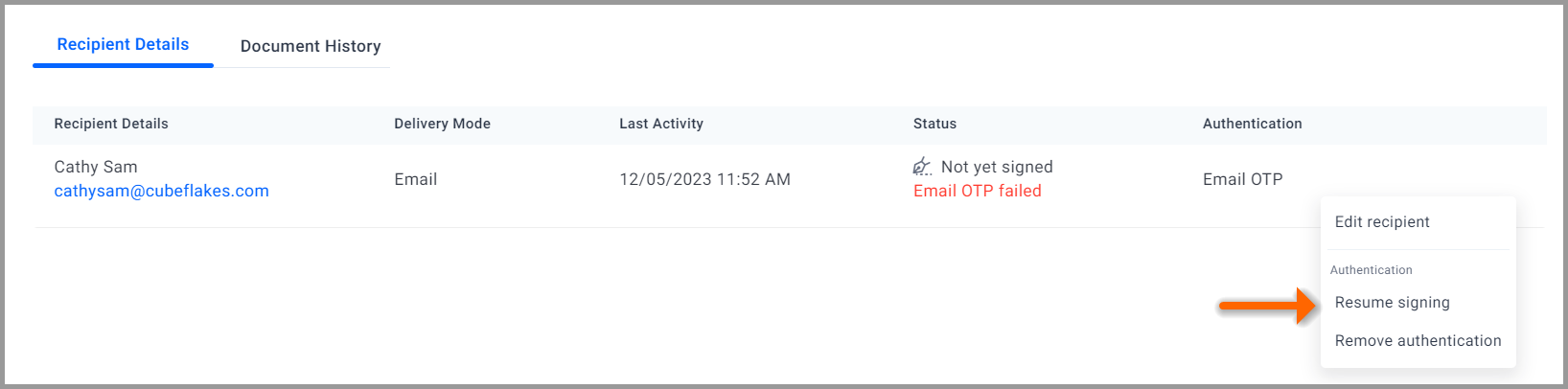
To unlock the document, open it from My Documents. Open the context menu at the right end of Recipient Details and select Resume Signing. The signer completes the check again when they reopen the document.
Which BoldSign plan do you need, and what does each method cost?
Email OTP and access codes come with every plan, including the free Essential plan. SMS OTP, KBA and ID verification start on the Business plan, at $15 per user a month billed yearly.
Each use of those three adds a small charge, as listed on the BoldSign pricing page in November 2026. An SMS code costs $0.20, a KBA attempt costs $1.50 and an ID check costs $2.
You pay for KBA and ID checks whether the signer passes or fails. Prices are in USD.
The same three methods are on the Premium plan, at $99 a month for unlimited users billed yearly. The Growth plan, at $5 per user a month, includes email OTP and access codes only. Developers need the Enterprise API plan, from $30 a month, to send live documents through the API.
Where do you go next with signer authentication?
Start with email OTP for everyday documents, and add stronger checks where the risk is higher. Watch our video on how to manage signer authentication for a quick tour.
- Start a 30-day free trial and send a test document with an email code.
- Book a demo to choose the right check for each of your documents.
- Visit our support portal with a question about a check you already use.
Frequently asked questions
What is signer authentication?
Signer authentication is a check the signer passes before the document opens. It proves the person holding the signing link is the person you meant to sign.
What does auth signature mean?
On paper forms, auth. signature usually stands for authorized signature, the mark of someone allowed to sign. In eSigning, an authentication step confirms that person is who they claim to be.
What are the differences between sign request options available for reviewing documents?
The options differ in what the signer must prove. Email and SMS codes prove they control an inbox or phone, an access code proves they got your message, and KBA or an ID check proves who they are.
What are the new sign request options available in the market?
Newer options check the person, not only their inbox. Knowledge-based authentication asks questions from public records, and ID verification matches a government ID to a live selfie. We offer both next to email and SMS codes.
Can I use more than one authentication method for different signers?
Yes. You set authentication for each signer in the request, so one signer can get an access code while another gets an ID check.
Is a document signed after an ID check legally binding?
Yes, when it meets the usual rules for electronic signatures, such as the signer agreeing to sign electronically. Authentication adds evidence of the signer's identity, which helps in a dispute.
Does KBA work for signers outside the US?
No, KBA works only for signers based in the US. Use ID verification for signers in other countries, since it accepts passports, driver's licenses and national ID cards.
Which BoldSign plans include SMS codes, KBA and ID verification?
All three start on the Business plan and are also on Premium and Enterprise API. Each use is charged on top of the plan: $0.20 per SMS, $1.50 per KBA attempt and $2 per ID check.

Caroline Dolly
Caroline Dolly is a technical writer at BoldSign who simplifies complex concepts into clear, engaging content. She creates tutorials, help articles, and product documentation, ensuring information is accurate and accessible. Connect with her on LinkedIn.
More posts by Caroline Dolly