Embedded Document Sending with BoldSign: How to Set Up and Customize the Send View
 Gopinath Kannusamy
TL;DR: Embedded document sending lets your users prepare and send a document for signature inside your own app. You create a send link with our API, load it in an iframe, and choose which buttons and views appear. Our embedded eSignature page shows what else you can build in.
Say you run a property management app. Your agents write leases there all day, then copy each one into a separate eSignature tool to add signers and fields. Every switch costs time and breaks their focus.
Embedded sending removes that switch. This guide shows how to create the send link, then walks through each setting that shapes what your users see.
What is embedded sending?
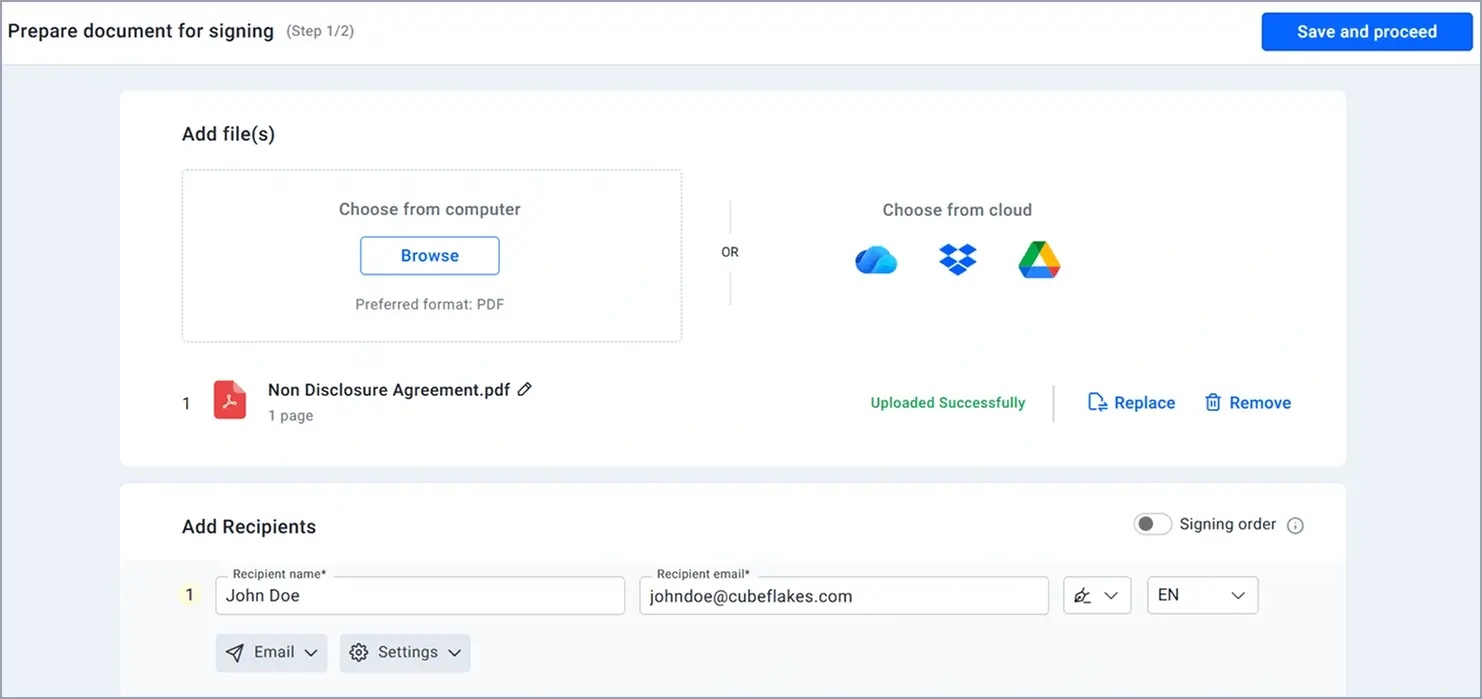
Embedded sending is our document send screen running inside your application. Your users upload a file, add signers and place fields without leaving your product.
Think of a card reader at a shop counter. The bank handles the payment, but the customer never leaves the shop. Here we handle the signing request, and your users stay in your app the whole time.
Embedded sending is one part of an embedded signature setup. The other part, embedded signing, lets the signers sign inside your app as well.
How do you embed the document send screen in your app?
Create an embedded request link with the createEmbeddedRequestUrl API, then load that link in an iframe. You set the display options in the same call.
- Send a
POSTrequest to/v1/document/createEmbeddedRequestUrlwith the file, title and signers. - Add the display settings you want, such as
ShowToolbarorSendViewOption. - Read the
sendUrlfrom the response and load it in an iframe in your app. - Let your user finish the screen and select Send.
Here is the request as a client URL (cURL) command:
curl -X POST \
  'https://api.boldsign.com/v1/document/createEmbeddedRequestUrl' \
  -H 'X-API-KEY={your API key}' \
  -F 'Title=Sent from API Curl' \
  -F 'ShowToolbar=true' \
  -F 'ShowNavigationButtons=true' \
  -F 'ShowPreviewButton=true' \
  -F 'ShowSendButton=true' \
  -F 'ShowSaveButton=true' \
  -F 'SendViewOption=PreparePage' \
  -F 'ShowTooltip=false' \
  -F 'Signers[0][Name]=Alex' \
  -F 'Signers[0][EmailAddress]=alex@example.com' \
  -F 'Files=@NDA.pdf;type=application/pdf'
The response holds a documentId and the sendUrl. The document stays a draft until your user sends it.
Why customize the embedded sending screen?
Each app has its own flow, so the default screen may show more than your users need. Turning buttons on or off keeps the screen matched to the job.
You might hide our toolbar because your app has its own. You might remove the Send button so users can only save drafts for a manager to send. Small choices like these make the screen feel like part of your product.
What does the default embedded send view look like?
Without any settings, the screen loads with our standard layout and buttons. The settings below each change one part of it.
How do you hide the toolbar with ShowToolbar?
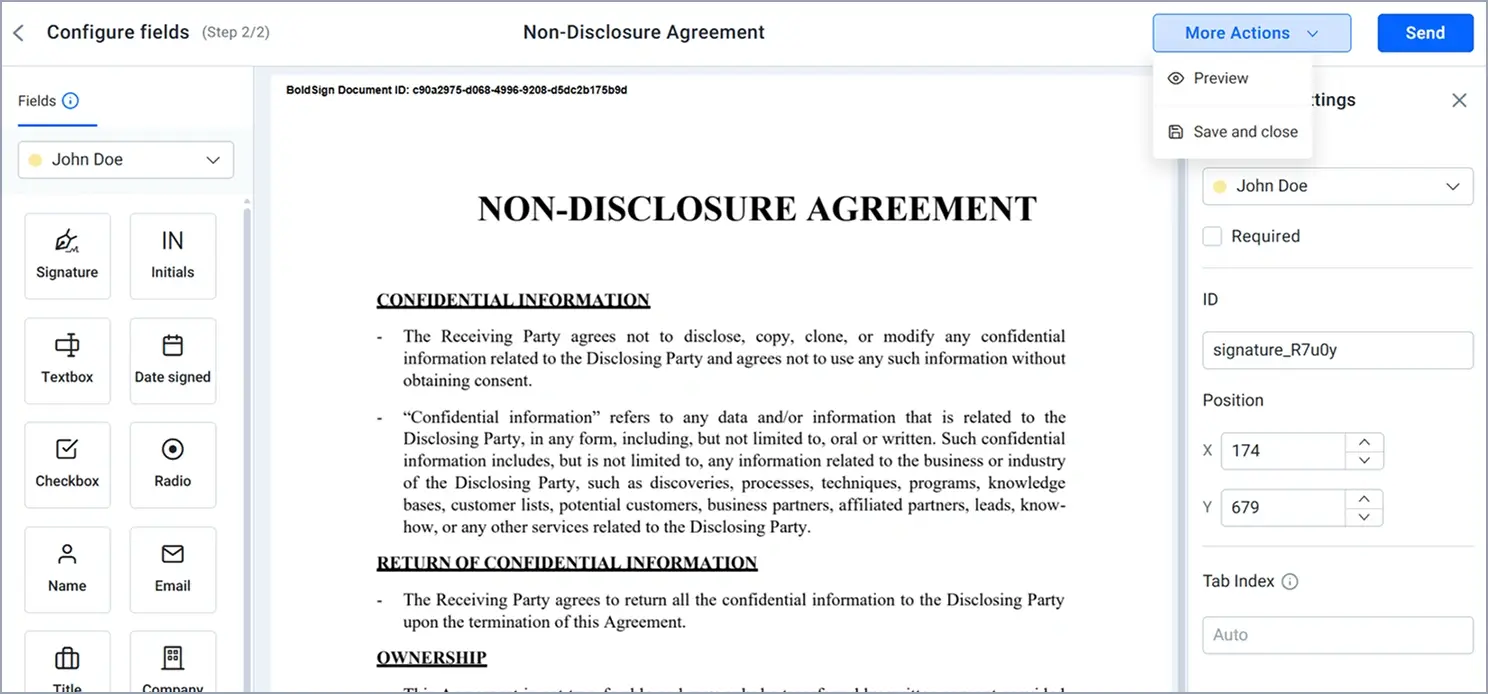
ShowToolbar turns the toolbar at the top of the editor on or off. Its default is false.
Keep it off when you want to use your own toolbar instead of ours. Turn it on when your users need our editing tools in view.
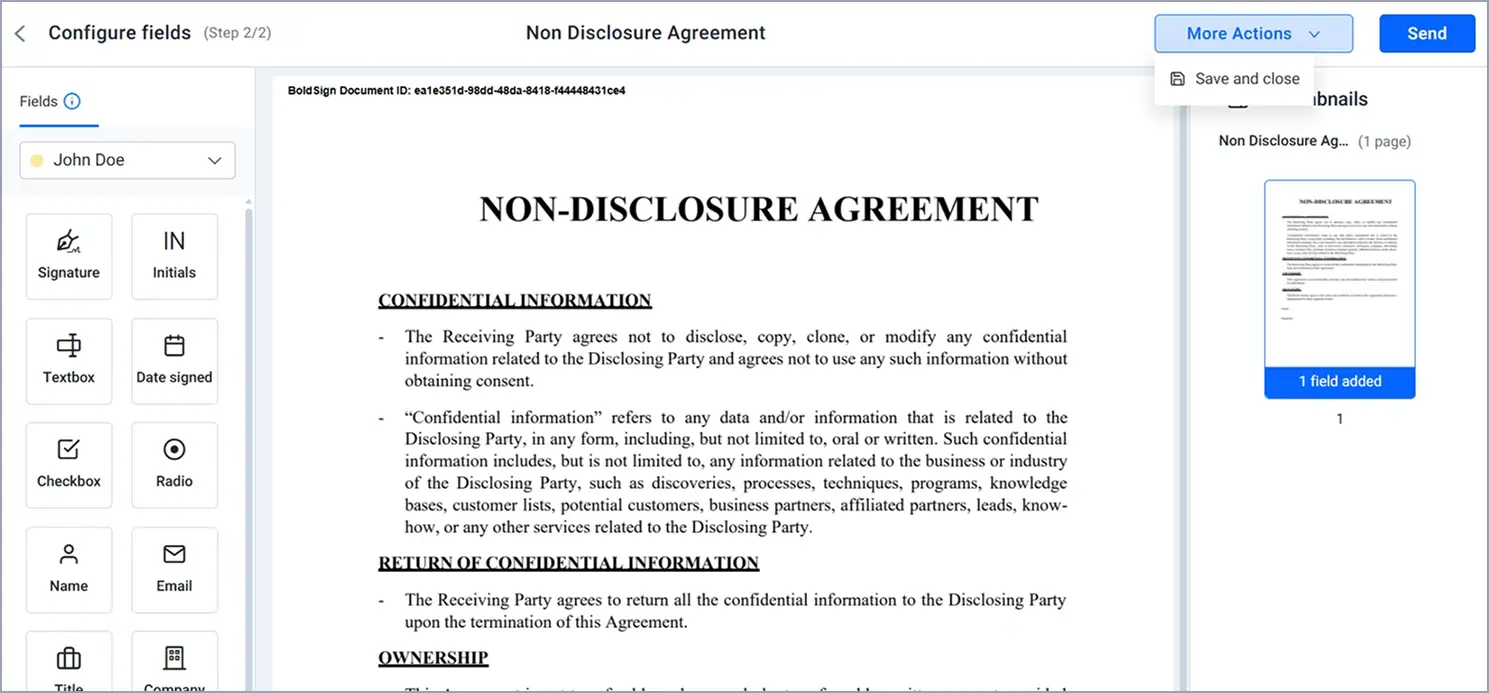
How do you stop users saving drafts with ShowSaveButton?
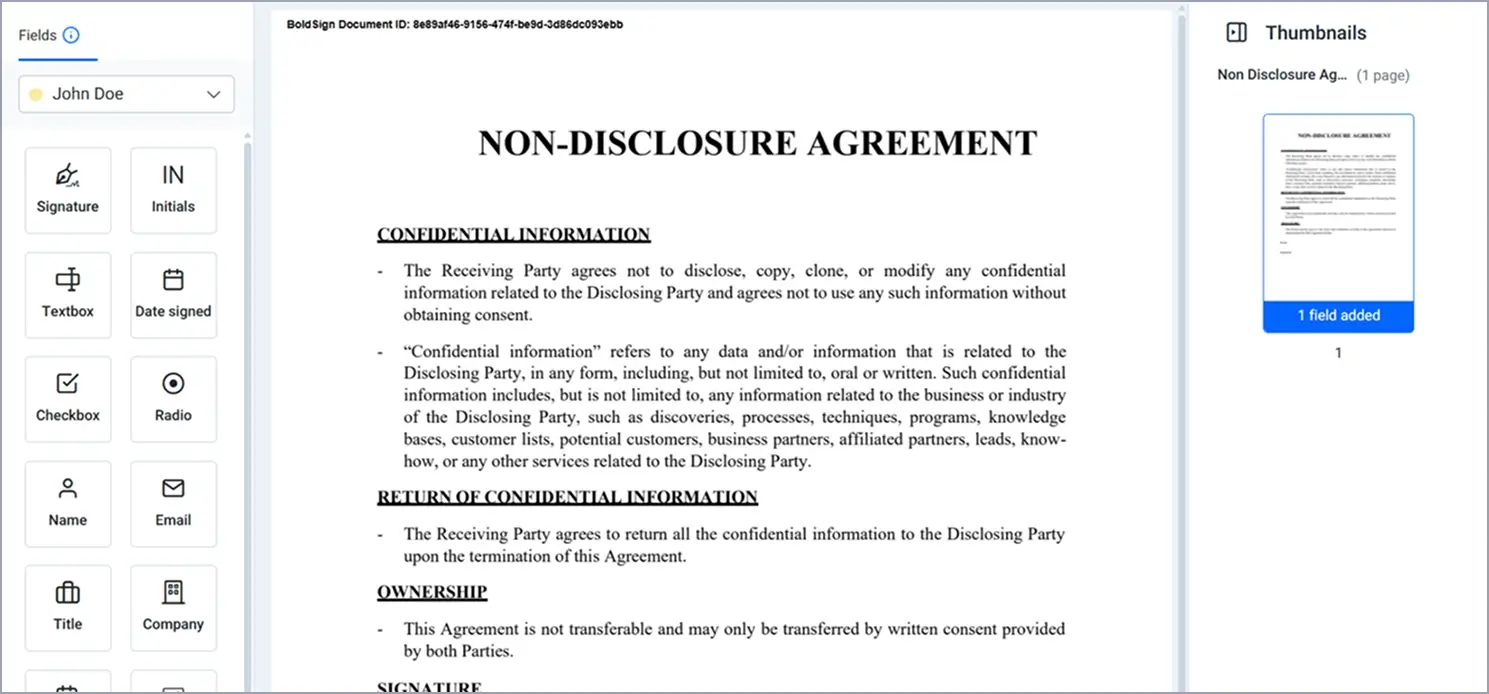
ShowSaveButton shows or hides the Save and Close option in the More Action menu. Its default is true.
Set it to false when users should finish the document in one sitting. They then prepare and send it without leaving a draft behind.
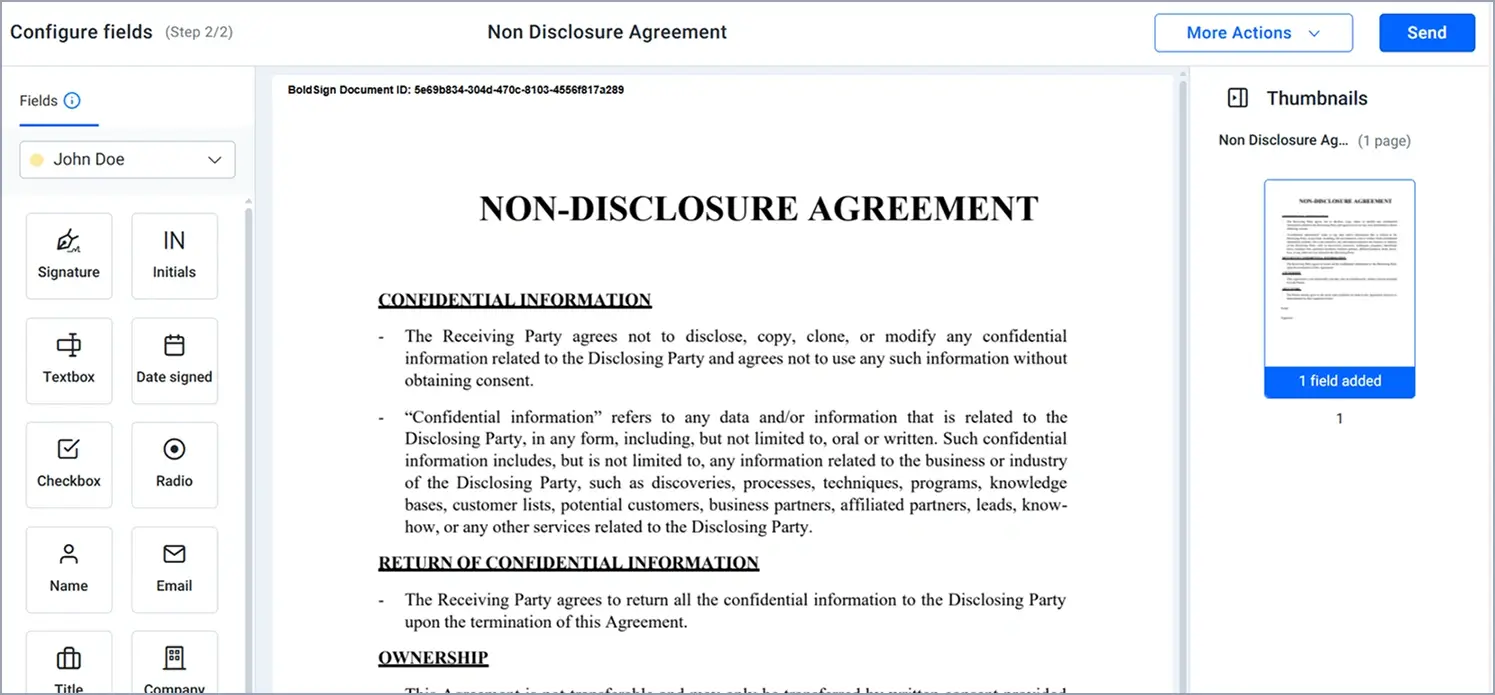
How do you allow drafts only with ShowSendButton?
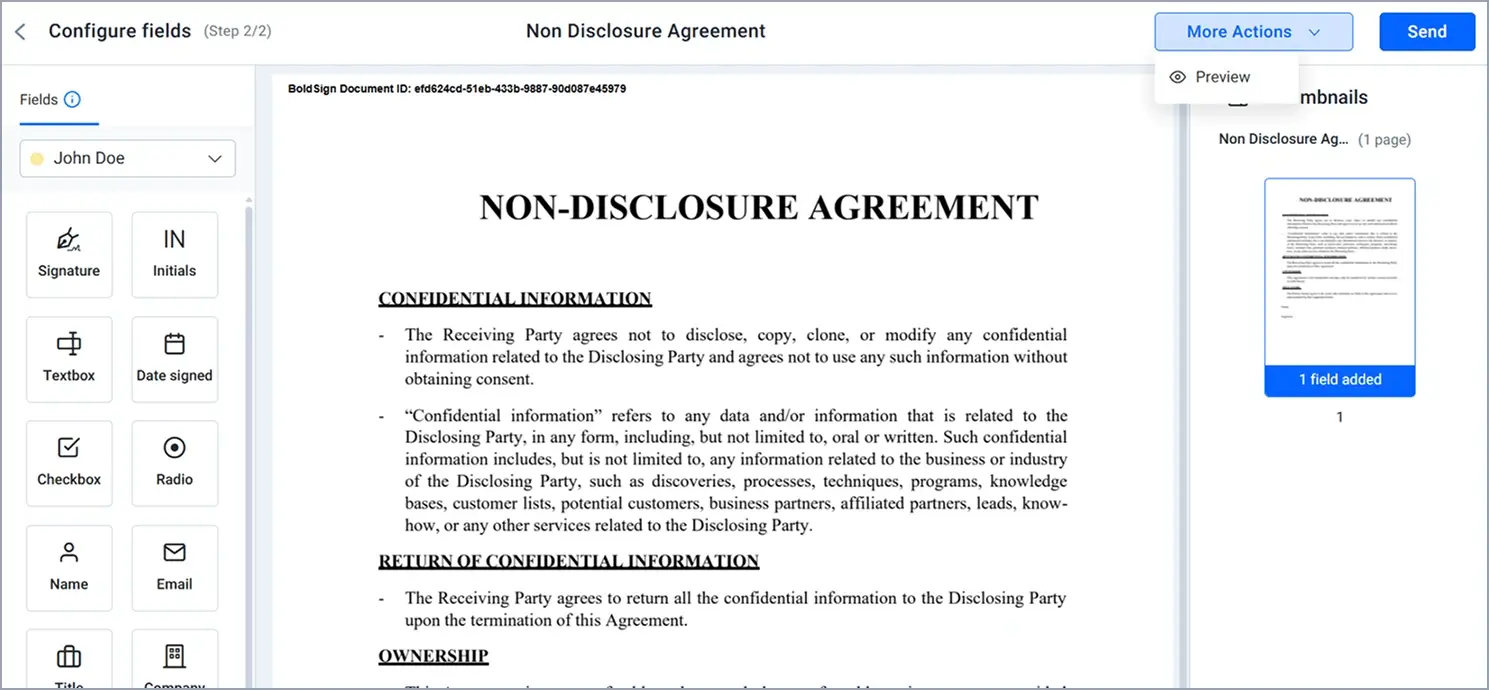
ShowSendButton shows or hides the Send button. Its default is true.
Set it to false to allow drafts only. Users can prepare and save the document, and someone else can send it later.
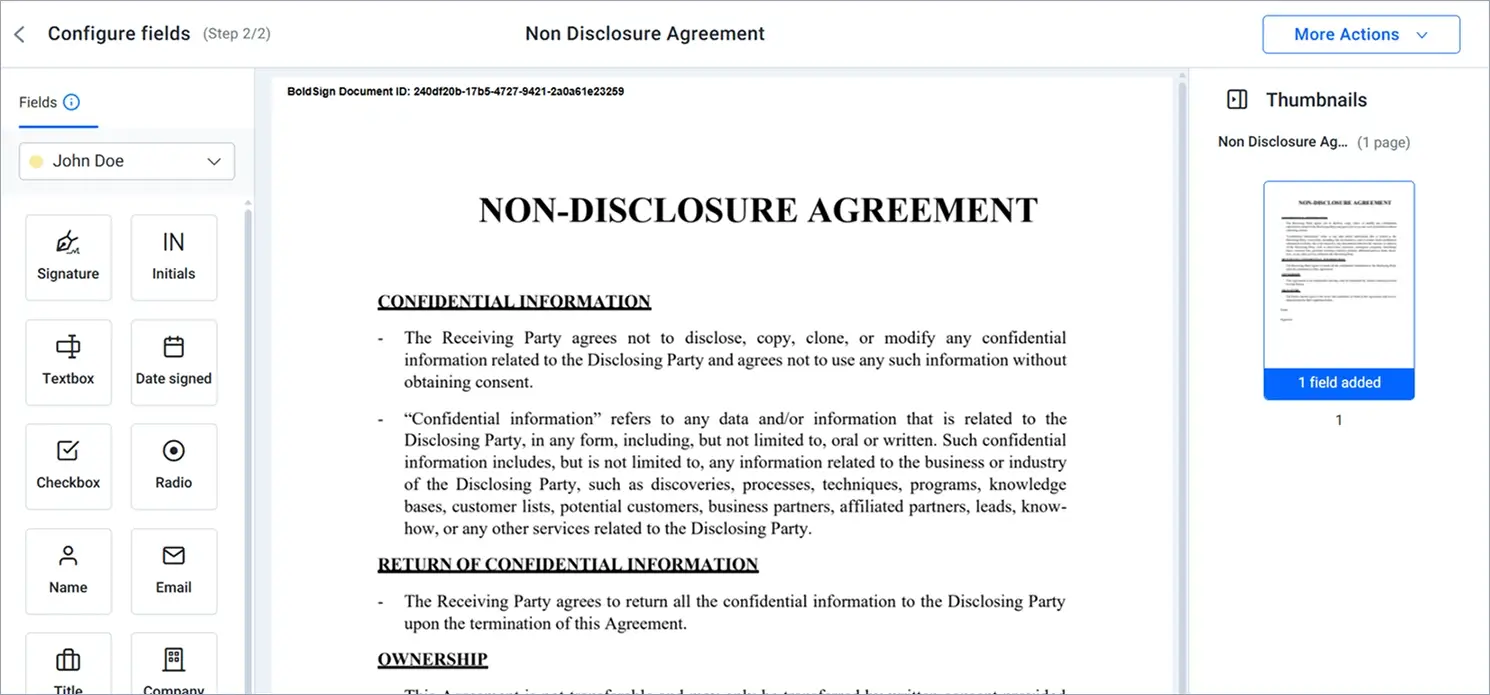
How do you remove the preview step with ShowPreviewButton?
ShowPreviewButton shows or hides the Preview button in the More Action menu. Its default is true.
Turn it off for short, simple documents where a preview adds a step without adding value. Keep it on for longer documents with many fields.
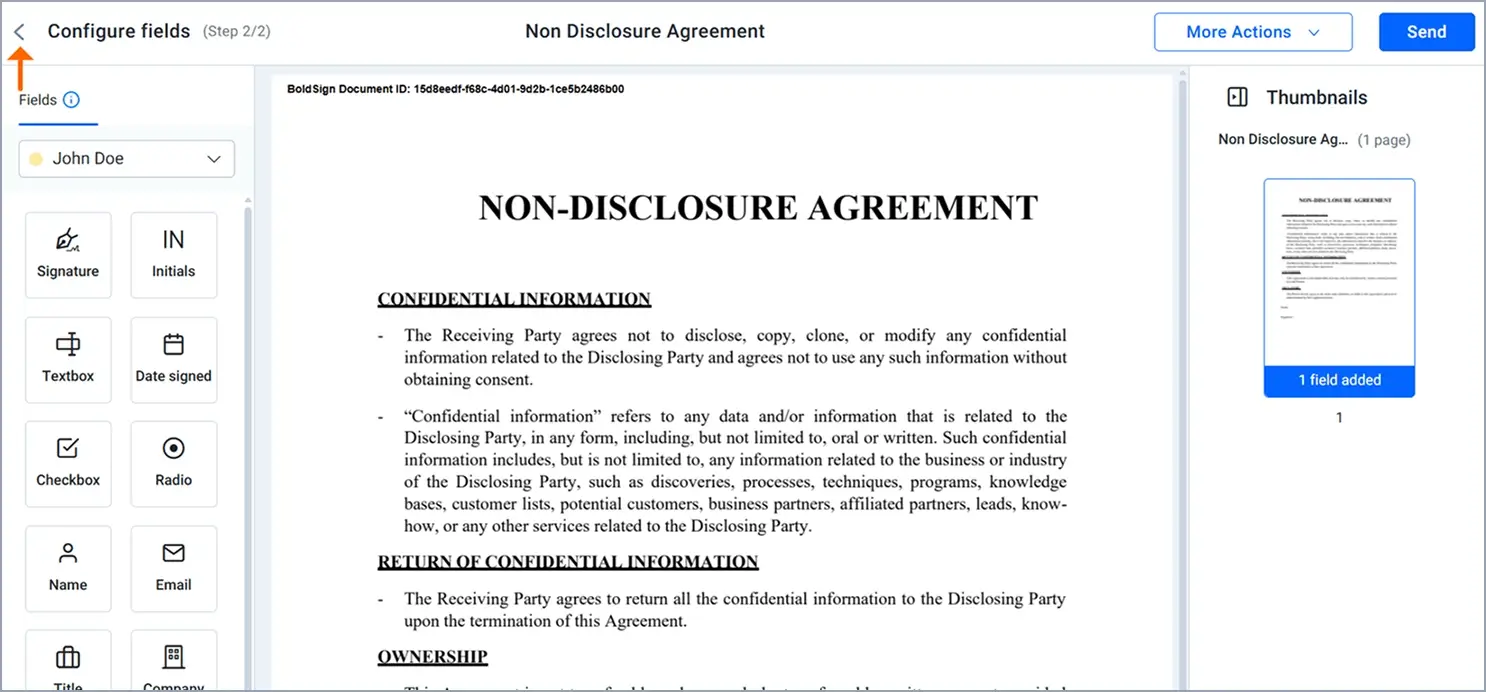
How do you hide the Back button with ShowNavigationButtons?
ShowNavigationButtons shows or hides the Back button. Its default is true.
Set it to false when users should follow one path forward. They then stay on the current page instead of stepping back.
How do you choose the first page with SendViewOption?
SendViewOption sets the page your users see first. Its default is PreparePage, and the other value is FillingPage.
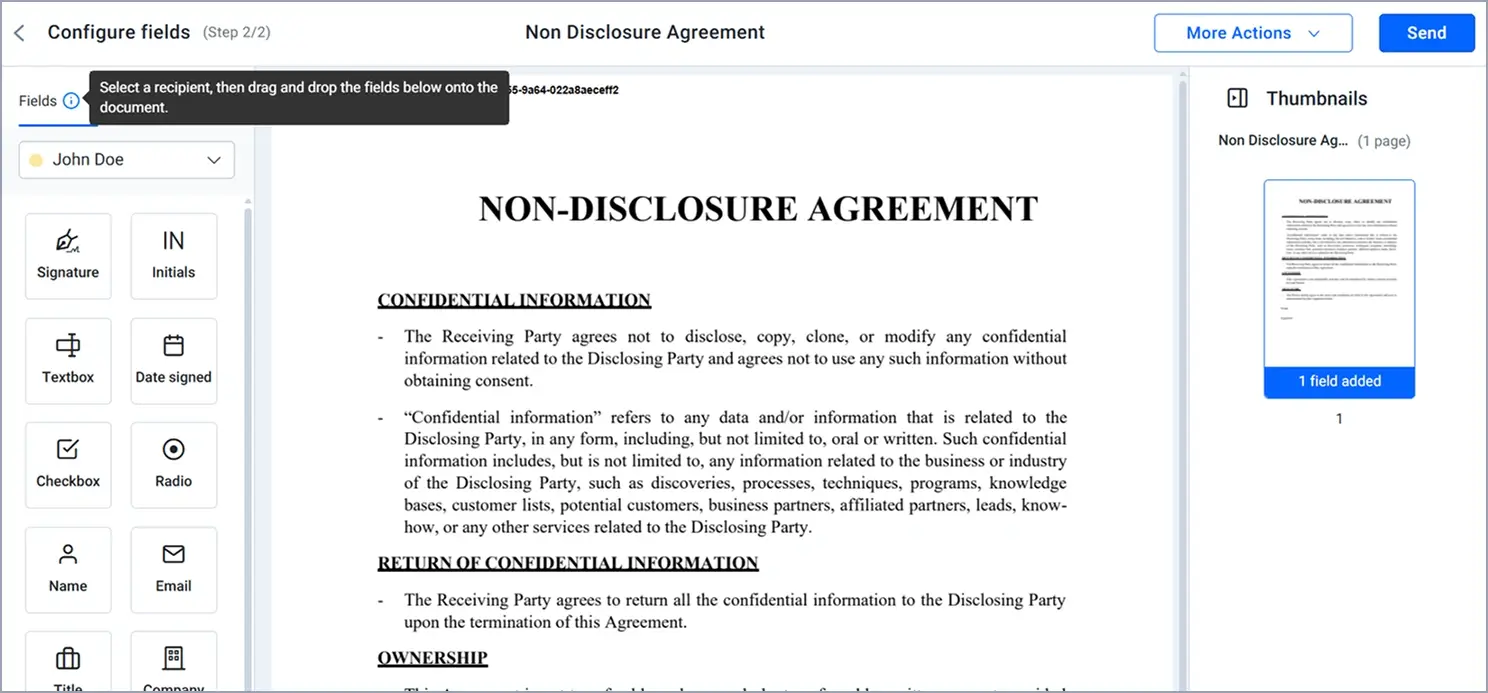
Use PreparePage when users should start by placing form fields for signers. Use FillingPage when they should start by setting up signers and their authentication.
How do you show help text with ShowTooltip?
ShowTooltip shows a tooltip near the assignee field on the prepare page. Its default is false.
Turn it on when your users are new to assigning fields to signers. The tooltip gives them a short hint at the moment they need it.
Which other embedded send settings should you know?
A few more settings control what happens around the screen. Our Embedded Request API documentation lists every setting with its default value.
RedirectUrlsends the user to your page once they finish creating the document.Localeopens the screen in another language, such as French, German or Spanish.SendLinkValidTillsets when the link expires, up to 180 days ahead.AllowScheduledSendlets users schedule the document to go out later.
Which BoldSign plan do you need for embedded sending, and what does it cost?
Live API access, including embedded sending, comes with the Enterprise API plan. The plan starts at $30 a month with 40 envelopes, and extra envelopes cost $0.75 each.
You can build and test first in our free API sandbox. Prices are in USD, as listed on the BoldSign pricing page in November 2026.
Where do you go next with embedded sending?
Start with the default screen in the sandbox, then turn settings on or off until it fits your flow.
- Create a free API sandbox account and run the cURL sample above.
- Schedule a demo to walk through your embedded workflow with our team.
- Visit our support portal with a question about your integration.
Frequently asked questions
What is embedded document sending?
Embedded sending puts our document send screen inside your app. Your users add signers and fields, then send the document without leaving your product.
Which endpoint creates an embedded send link?
Send a request to /v1/document/createEmbeddedRequestUrl on api.boldsign.com. The response returns a documentId and a sendUrl that you load in an iframe.
Does the document go out as soon as I create the link?
No. The document stays a draft until your user completes the send screen and selects Send.
How long does an embedded send link stay valid?
You choose the expiry with the SendLinkValidTill setting. The longest you can set is 180 days.
Can I hide the Send button and allow drafts only?
Yes. Set ShowSendButton to false, and your users can prepare and save the document without sending it.
Can the send screen open in another language?
Yes. Set the Locale value to a language such as French, German or Spanish. The screen opens in English when you leave it out.
Is a document sent from an embedded screen legally binding?
Yes, when the signers agree to sign electronically and the signed record is kept. Every document gets an audit trail. Check the rules for your document type and country.
Can I try embedded sending for free?
Yes. You can build and test it in our free API sandbox before you move to a paid plan.

Gopinath Kannusamy
Gopinath is a passionate software developer with 2 years of experience at BoldSign. He is an avid writer and enjoys sharing his insights on technology and development. In his free time, he enjoys exploring new technologies and learning new things. Connect with him on LinkedIn.
More posts by Gopinath Kannusamy