How to Get Employee Expense Claim Forms Signed Faster with BoldSign
 Evans Omondi Otieno
TL;DR: An employee expense claim is a signed request to get back money spent on work. You can collect these signatures online: build one claim form as a reusable template, add a field for receipts, and send it. Approvers sign in turn, reminders chase late signers, and each claim keeps an audit trail.
A sales rep comes back from a client trip with a hotel bill, two taxi receipts and a lunch. They fill in a paper claim form, staple the receipts and leave it on a manager’s desk. A week later, the form is still there, and payroll has closed for the month.
HR and finance teams see this pattern every month. This guide explains what an expense claim holds, why the signing step stalls, and how to move the whole thing online.
What is an employee expense claim?
An employee expense claim is a request to be paid back for money spent on work. The employee lists the costs, adds the receipts and signs to confirm they are correct.
Think of it like splitting a dinner bill with a friend. You paid, you show the receipt, and your friend pays you back. A claim works the same way, with your company as the friend and a policy that sets what counts.
What does an expense claim form include?
Most claim forms ask for the same details each time. That makes them a good fit for a reusable form.
- The employee’s name, department and staff number
- Each cost, with its date, amount and reason
- The receipts for those costs
- The employee’s signature and date
- The approver’s signature and date
Why do expense claim signatures slow HR teams down?
Paper claims stall because they need more than one signature. Each person in the chain can hold up the form, and nobody can see where it sits.
Handwritten forms also bring missing receipts and typing errors when someone keys the data in later. Each mistake sends the form back to the start. Moving the form online fixes most of these delays.
How do you collect expense claim signatures with BoldSign?
Start by turning your claim form into a template. You set it up once, then reuse it for every claim.
- Select Create New, then Create New Template.
- Enter a title, upload your claim form and add roles such as Employee and Approver.
- Select Next, place the form fields and assign each one to a role.
- Add an Attachment field so employees can upload receipts as PDF, Word or image files.
- Select Save template.
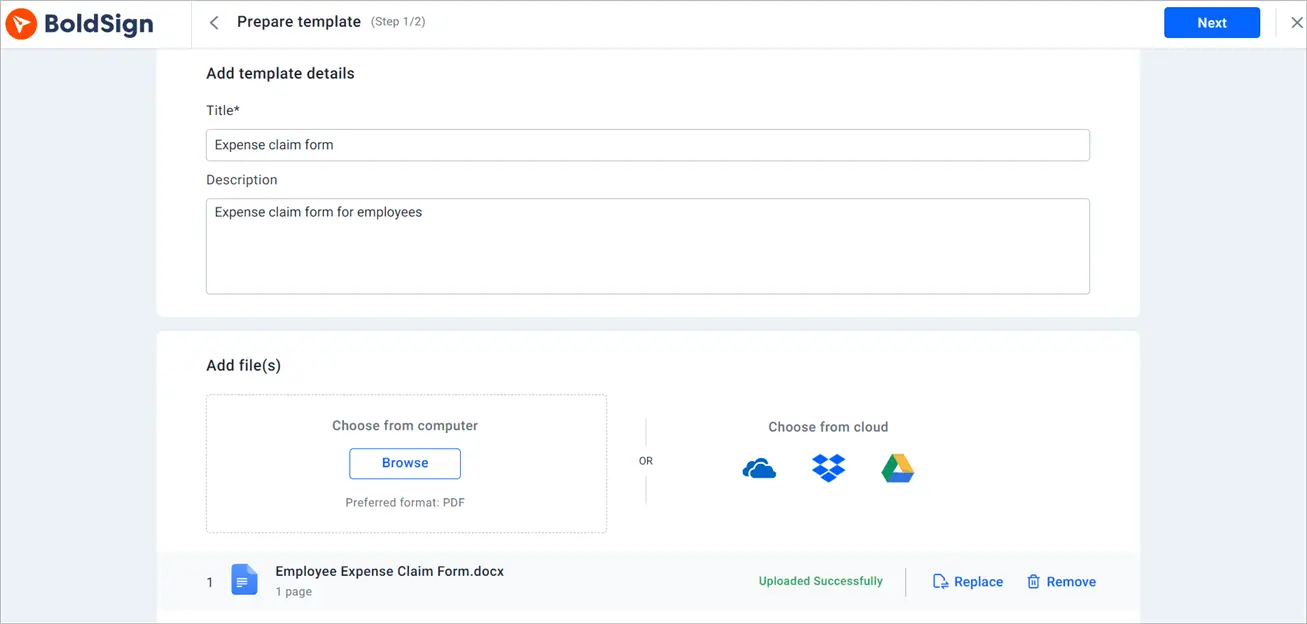
Our help articles on how to create a template and how to request attachments from signers cover each option.
How do HR, finance and managers approve claims together?
Put each group in its own team so the right people see the right claims. An account admin creates teams from Users & Teams, then Teams, then Add team.
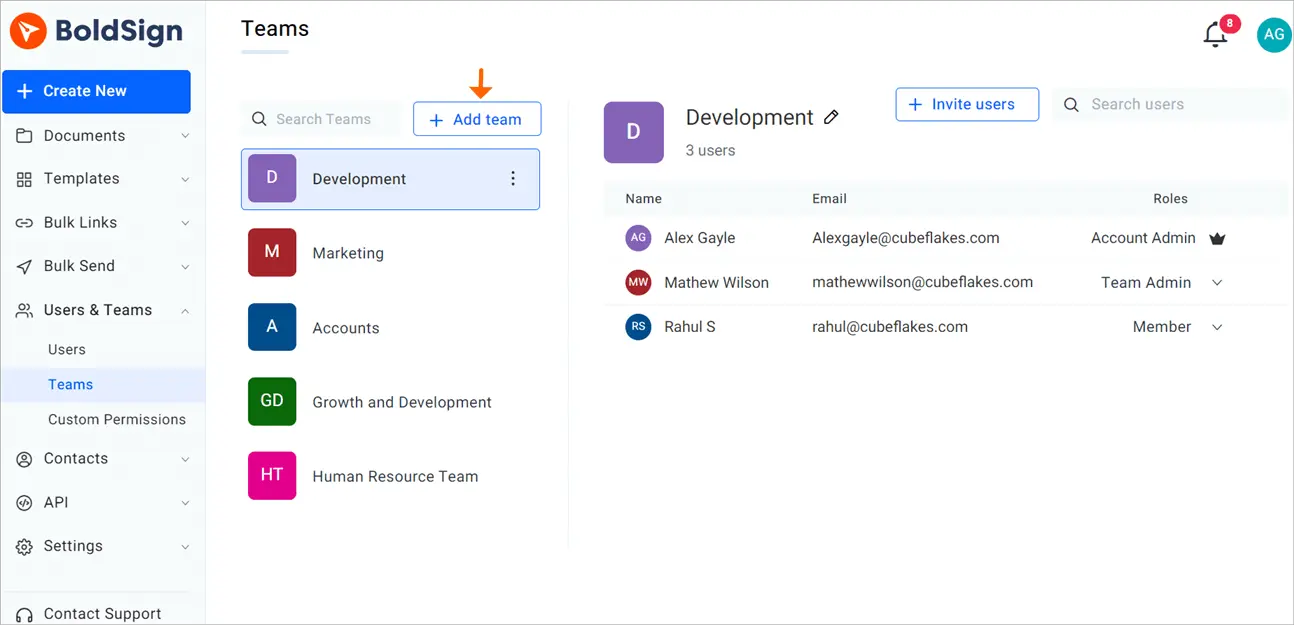
A team admin then manages their own team. Our guide to creating and managing teams shows the steps.
How do you send a claim form to many employees at once?
Use bulk send when you know who should get the form. Use a bulk link when you want one link that a whole group can open.
Bulk send
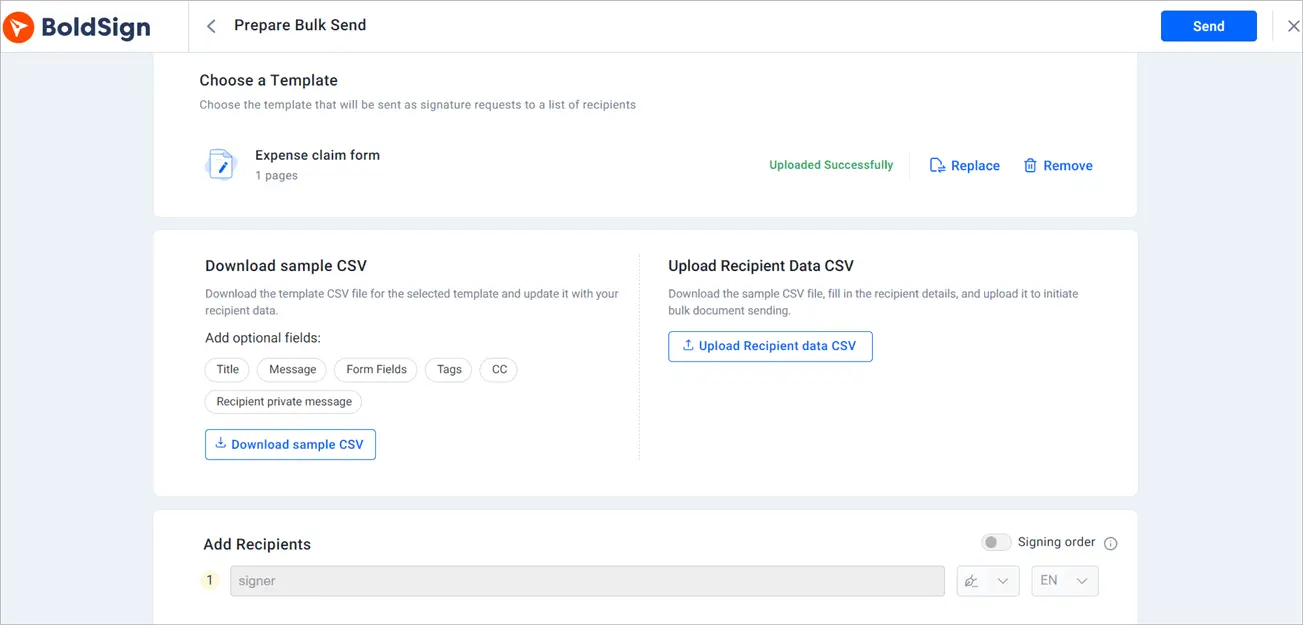
With bulk send, you pick a template and upload a CSV file with one row per employee. Each person gets their own copy to fill in and sign.
Bulk link
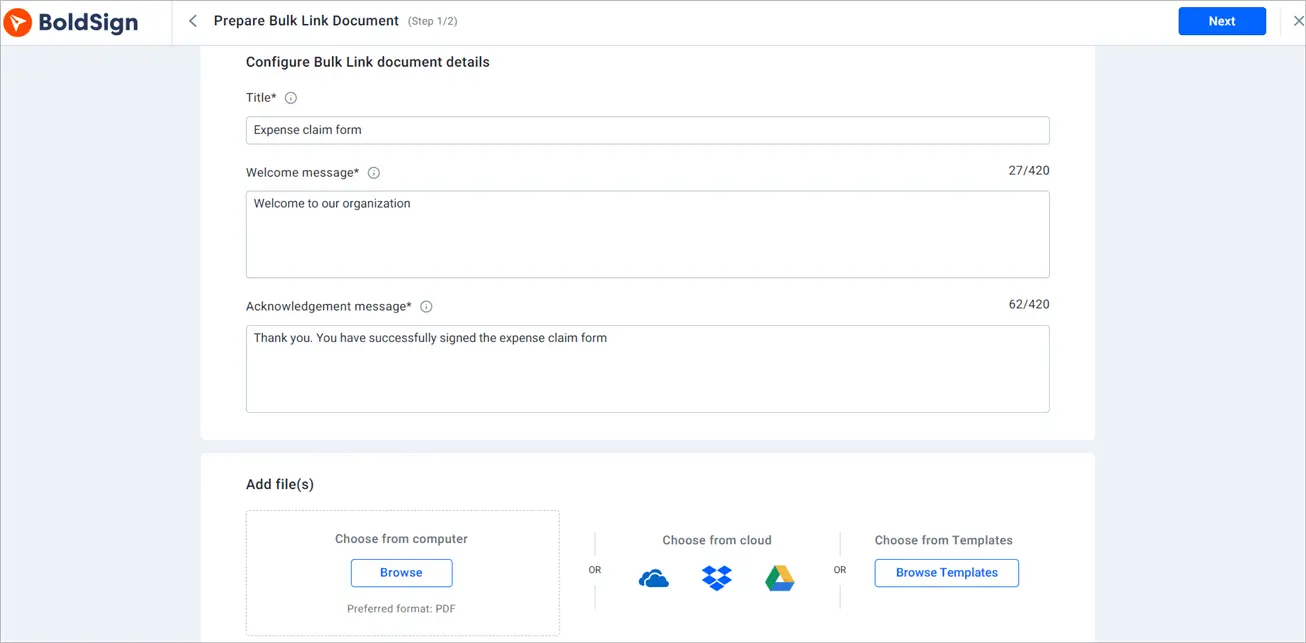
A bulk link is one signing link that you can share by email or on your website. Each employee who opens it enters their name and email, then signs their own copy.
How do reminders stop expense claims from stalling?
Auto reminders email signers until they act. Turn on Auto reminder under Document settings when you send a claim.
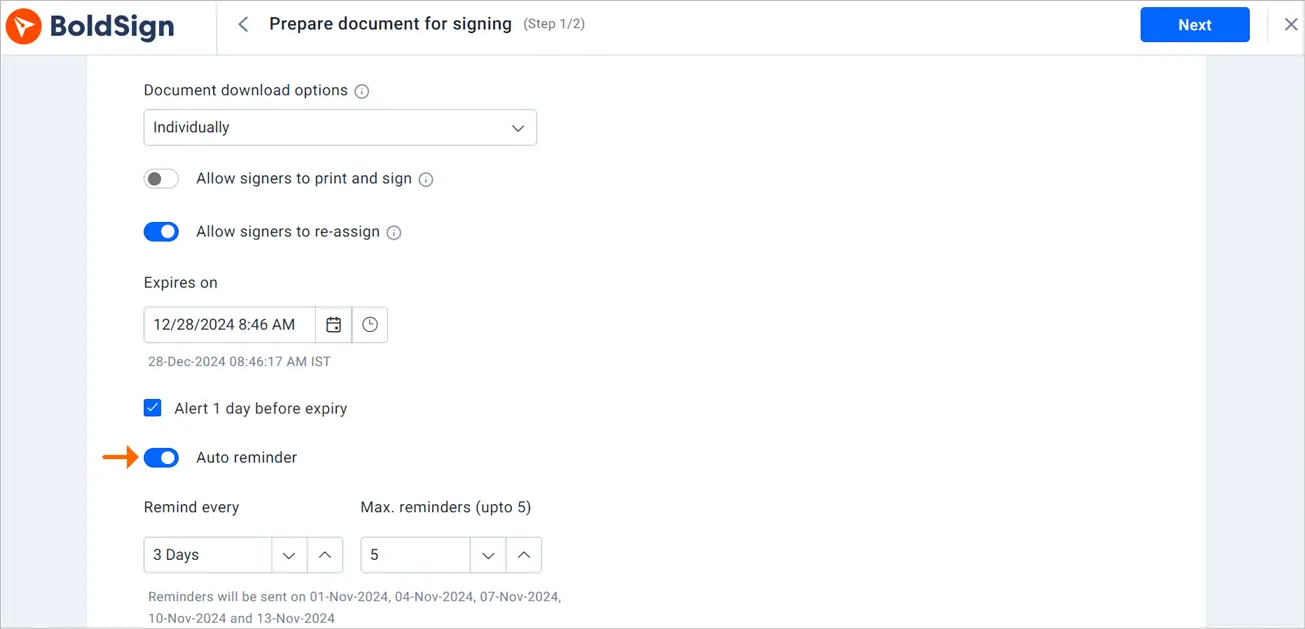
Set Remind every to the number of days between emails, and Max. reminders to up to five. Our article on how to set up auto reminders has the details.
How does an employee sign an expense claim?
Employees sign from the email link or from their BoldSign account. Signing takes three steps.
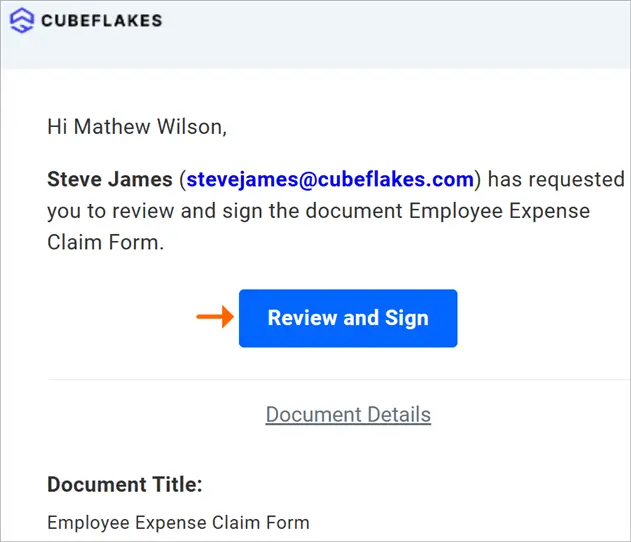
- Open the email and select Review and Sign, or open the claim in your account.
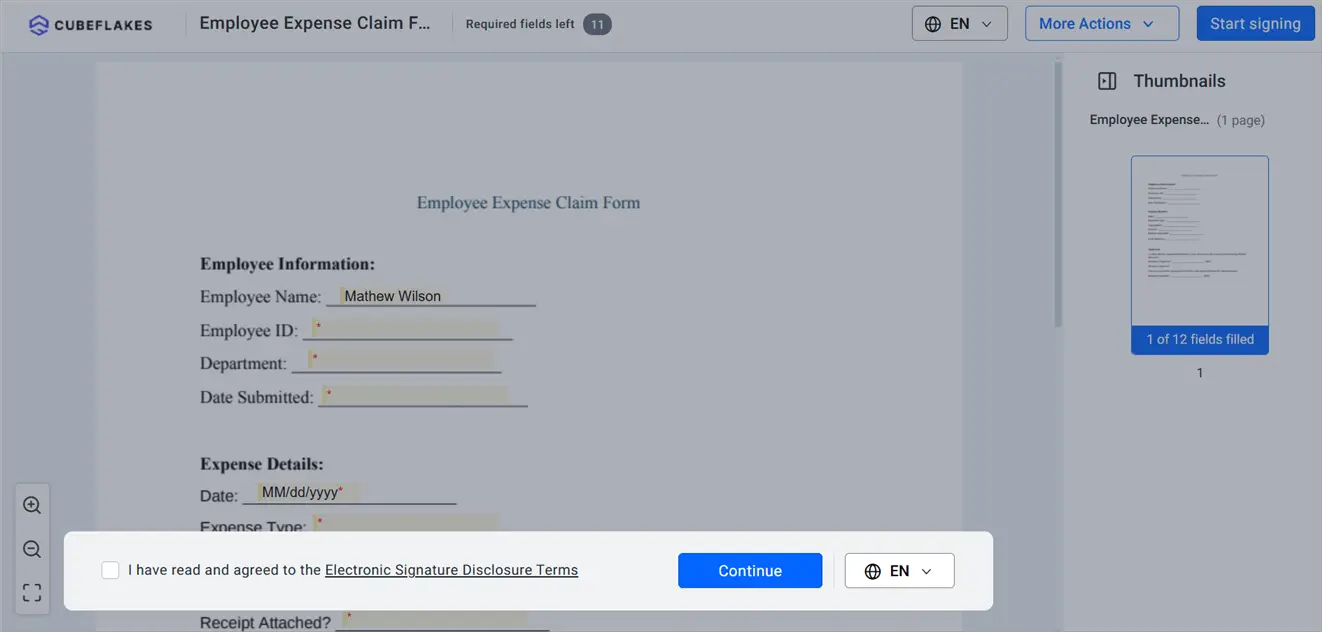
- Read the terms, agree to them and select Continue.
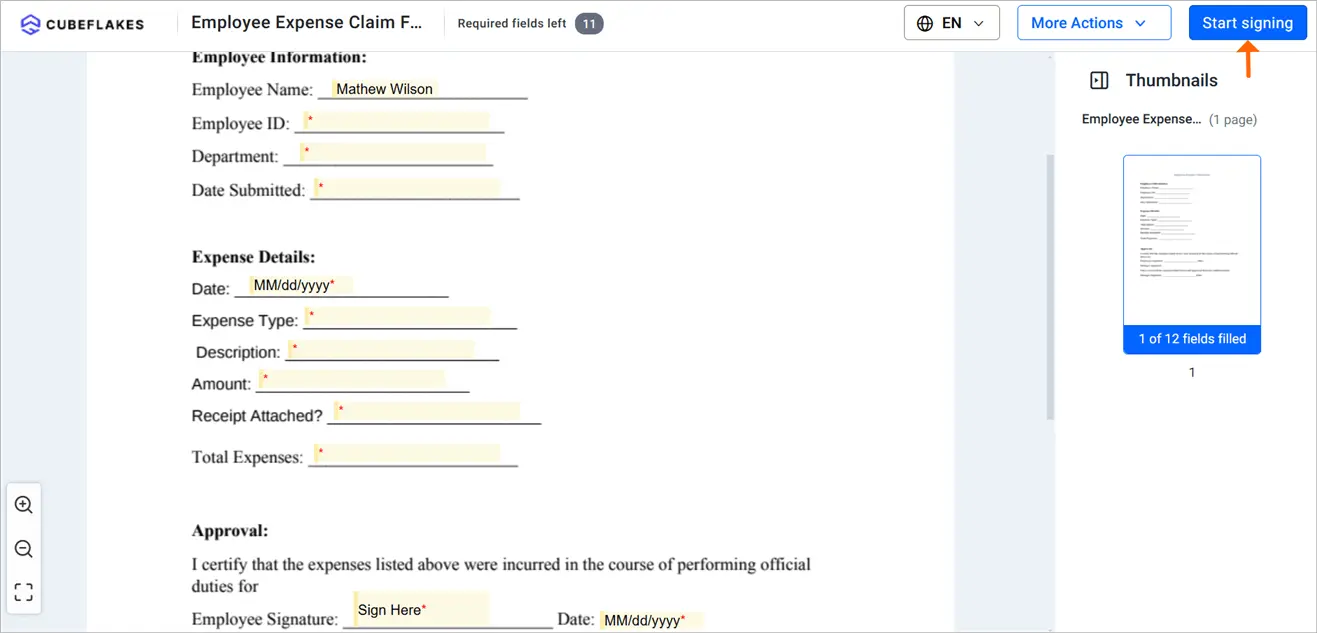
- Select Start signing, fill in every required field, then select Finish.
How do you find and track claims after they are signed?
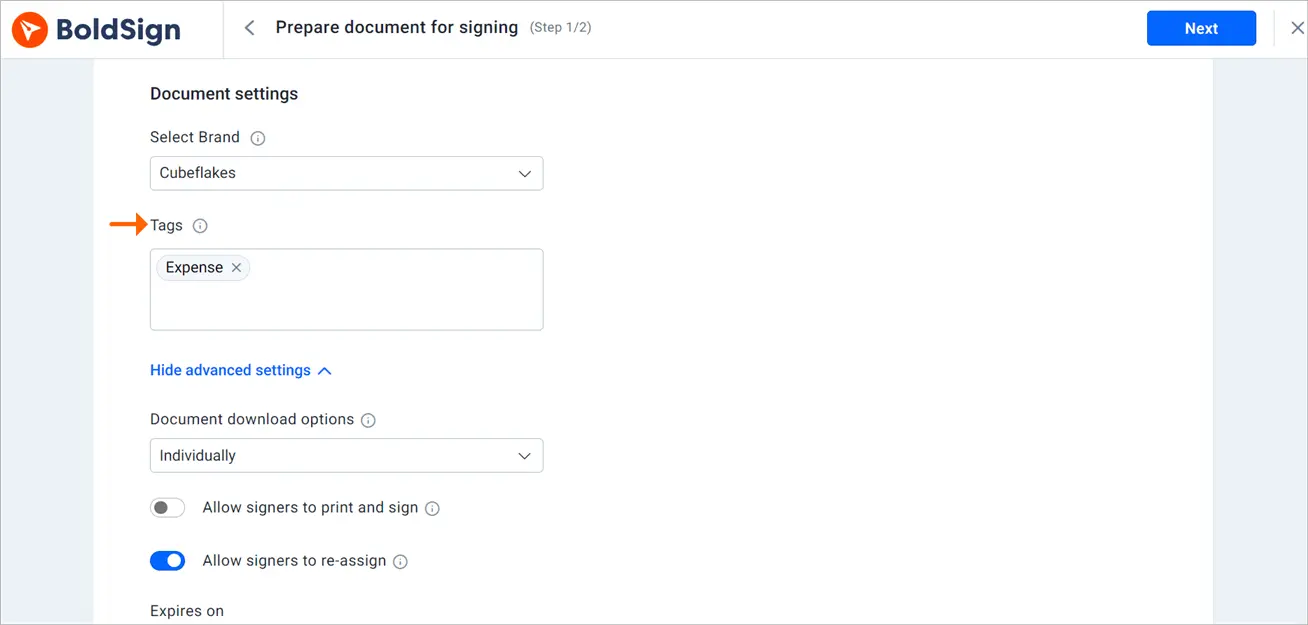
Tag each claim by department, project or month. You can then filter My Documents by tag to find any claim fast.
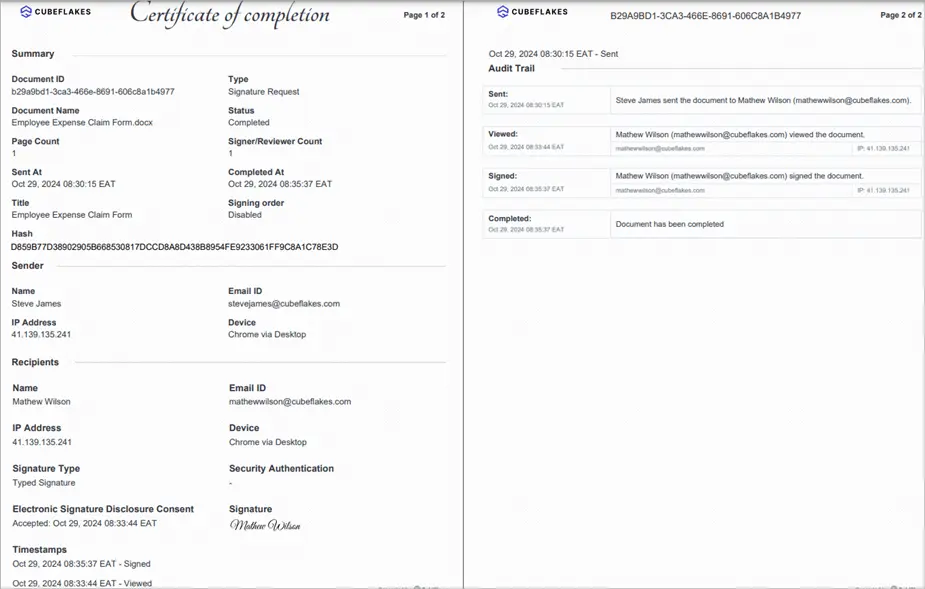
Save a filter with Save & Pin to keep it as a widget on your dashboard. Each claim also carries an audit trail with every view, signature and timestamp.
How do you make claim requests look official?
Add your logo and colors to the emails and signing pages that employees see. Our branding settings also let you set the sender name on each email.
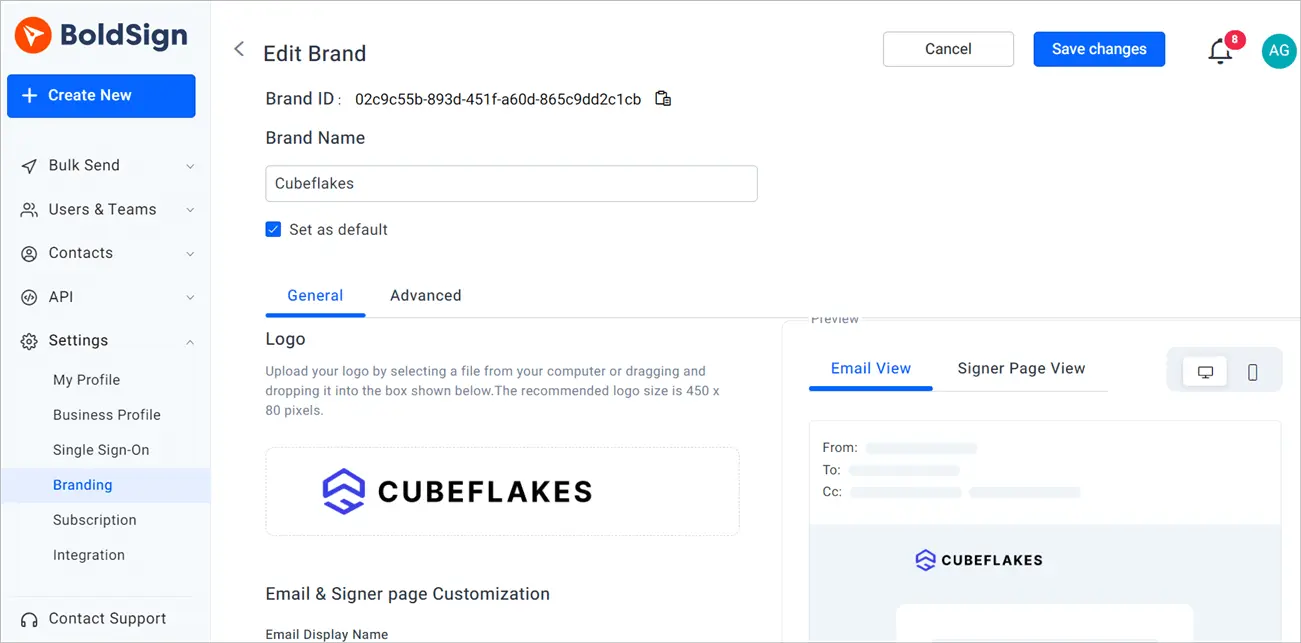
Employees then know at a glance that the request comes from your company.
Can employees and approvers sign expense claims on a phone?
Yes. Employees can sign in any phone browser, and approvers can use our mobile app for iOS and Android.
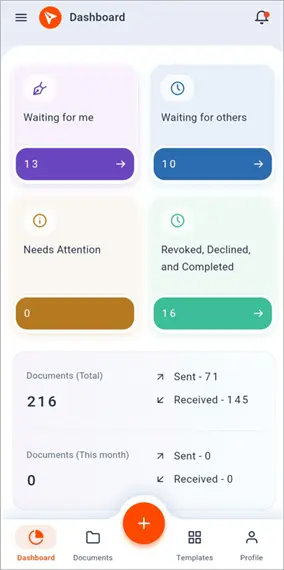
The app also lets approvers track each signer and send documents while away from their desk.
How secure are expense claim documents in BoldSign?
Claims hold personal and payment details, so storage matters. We store documents with 256-bit encryption, and our security policy lists our System and Organization Controls (SOC) 2 Type 2 audit.
We follow the General Data Protection Regulation (GDPR) across our products. Claims with medical costs may fall under the Health Insurance Portability and Accountability Act (HIPAA). Our HIPAA page explains how an admin accepts the business associate agreement (BAA).
Which BoldSign plan do you need for expense claims, and what does it cost?
Every plan includes branding, reminders, attachments and audit trails. The plan you need depends on how many templates and approvers you have.
- The Essential plan is free, with 2 templates and one brand.
- The Growth plan is $5 per user a month, with 10 templates and two brands.
- The Business plan is $15 per user a month, with unlimited templates, teams, bulk send, bulk links and HIPAA support.
- The Premium plan is $99 a month for unlimited users, with the same features as Business.
Prices are in USD and billed yearly, as listed on the BoldSign pricing page in November 2026. Bulk send and bulk links add $0.25 per envelope on the Business and Premium plans.
How do you get your first expense claim signed?
Start with one claim form and one approver. Once the template works, send it to the rest of your team.
- Start a 30-day free trial and turn your claim form into a template.
- Book a demo to see an expense claim flow set up for your team.
- Visit our support portal with a question about your setup.
Frequently asked questions
What is an employee expense claim?
An expense claim is a request to get back money you spent on work costs. You list each cost, add the receipts and sign to confirm the details are true.
Who needs to sign an expense claim form?
The employee signs first to confirm the costs. A manager, and often someone in finance or HR, then signs to approve the payment. Your own policy sets the exact order.
Are electronic signatures on expense claims legally valid?
Yes, when the signer agrees to sign online and the signed record is kept. In the US, the Electronic Signatures in Global and National Commerce (ESIGN) Act says a signature cannot be denied legal effect just for being electronic.
Can employees attach receipts to an expense claim in BoldSign?
Yes. Add an Attachment field to the form. Employees can then upload receipts as PDF, Word or image files when they sign.
Do employees need a BoldSign account to sign an expense claim?
No. Employees sign from the link in their email. They can open it on a computer or in any phone browser.
How do I stop expense claims from waiting for weeks?
Turn on Auto reminder when you send the claim. We then email the signer on the schedule you set, up to five times, until they sign.
How can HR find old expense claims for an audit?
Tag each claim, for example by department or month, and filter My Documents by tag. Each signed claim also comes with an audit trail that lists every view and signature.
How much does BoldSign cost for expense claims?
The Essential plan is free with 2 templates. Growth is $5 per user a month and Business is $15 per user a month, both billed yearly in USD.

Evans Omondi Otieno
Evans Omondi Otieno is a customer support representative and writer at BoldSign, specializing in creating clear, insightful content to help users navigate eSignature solutions. As a blog author, Evans writes well-researched articles that simplify technical concepts, helping businesses and professionals understand how to use BoldSign effectively. With expertise in technical support and content creation, he ensures users have a seamless experience and gain valuable knowledge from his articles.
More posts by Evans Omondi Otieno