How to Dynamically Position Form Fields in eSignature Requests Using API
 Gopinath Kannusamy
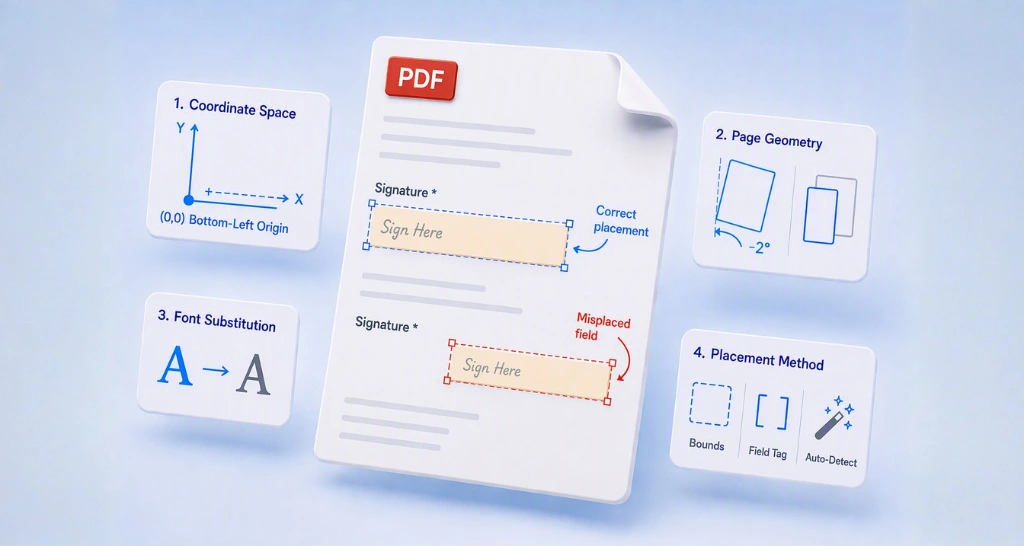
TL;DR: You can position form fields without knowing any X and Y coordinates. Type BoldSign text tags into your document where each field should go, then send it through the API with UseTextTags set to true. Our eSignature API page shows what else you can build.
Your app sends contracts that change from one customer to the next. A clause grows, a table gains a row, and the signature line moves to page 4.
Hard-coded coordinates break each time that happens. Text tags travel with the text instead, so each field lands where its tag sits.
How do text tags position form fields?
A text tag is a short piece of text in your document that marks where a field goes and what kind of field it is. We scan the uploaded file and swap each tag for a matching form field.
Think of sticky notes on a printed contract that say “sign here”. The notes move with the page, and nobody needs a ruler. Text tags work the same way inside the file.
- Type each tag into the document where you want a field, in Word or any tool that exports a PDF.
- Send the file through the API with text tags turned on.
- We replace every tag with a form field at that exact spot.
The layout you designed stays as it is, because each field takes the place of its tag.
What is the syntax of BoldSign text tags?
A text tag sits inside double curly braces, with its parts split by the pipe symbol (|). The field type and signer index come first, and the other parts are optional.
- Field type: the kind of field, such as text, sign or init.
- Signer index: the signer the field belongs to, starting from 1.
- Required: an asterisk (*) makes the field mandatory.
- Field label: the placeholder shown in a text field.
- Field ID: a unique name for the field.
What does a text tag look like?
Here is a tag that adds a required text box for the first signer: {{text|1|*|Enter name|field_1}}.
Read from left to right, the field type is text and the signer index is 1. The asterisk makes it required, “Enter name” is the label, and “field_1” is the field ID.
A field ID can use letters, numbers, hyphens and underscores, and each ID must be unique in the document.
How do you turn on text tags with the API?
Set UseTextTags to true in your send document request. The default is false, so tags stay as plain text until you turn it on.
With UseTextTags on, you do not need to list form fields for each signer. The request below sends a document with text tags for one signer.
curl -X 'POST' \
  'https://api.boldsign.com/v1/document/send' \
  -H 'accept: application/json' \
  -H 'X-API-KEY: {your API key}' \
  -H 'Content-Type: multipart/form-data' \
  -F 'Title="Sample Document"' \
  -F 'UseTextTags=true' \
  -F 'Signers={
  "name": "hanky",
  "emailAddress": "hankyWhites@boldsign.dev",
  "signerType": "Signer",
  "signerRole": "Signer",
  "locale": "EN"
}' \
  -F 'Files=@{your file}'
Which form fields can text tags add?
Plain text tags support seven field types. Each one has a short tag name that you type as the field type.
| Form field | Tag |
|---|---|
| Text box | text |
| Signature | sign |
| Initials | init |
| Date signed | date |
| Editable date | editdate |
| Title | title |
| Company | company |
Radio buttons, checkboxes and other field types need definition tags, covered in the next section. Our supported fields reference lists the date formats for editable dates.
How do you size a field from its tag?
Add spaces right after the opening braces or before the closing braces to make the field wider. Set a larger font size on the tag to make it taller.
What are definition tags?
A definition tag is a short ID in the document, such as {{@tag1}}, whose full settings live in your send request. Use one when a long tag would be too wide for a small field.
Definition tags also add field types and settings that plain tags lack. You list each definition in the TextTagDefinitions part of the request.
Which properties can a definition tag set?
Each definition needs a DefinitionId, a Type and a SignerIndex. The table below shows the properties used most often.
| Property | What it sets |
|---|---|
| DefinitionId | The ID that matches the tag in the document |
| Type | The form field type, such as TextBox or Signature |
| SignerIndex | The signer the field belongs to |
| IsRequired | Whether the signer must fill the field |
| FieldId | A unique name for the field |
| Size | The width and height of the field |
| Font | The font name, size and style |
| Validation | Rules for what a text box accepts, such as an email address |
| Placeholder | The hint text shown in a text box |
| DateFormat | The format of a date field |
| RadioGroupName | The group a radio button belongs to |
| PageNumber | The page the field is on |
Our advanced usage guide lists every property, including offsets and conditional rules.
How do you use a definition tag in a send request?
Start the tag with @ and follow it with the definition ID, such as {{@tag1}}. Then add a matching entry to TextTagDefinitions in the same request.
The request below turns on UseTextTags and defines tag1 as a required email text box for the first signer.
curl -X POST \
  'https://api.boldsign.com/v1/document/send' \
  -H 'X-API-KEY: {your-api-key}' \
  -F 'Title=Sent from API Curl' \
  -F 'Message=This is document message sent from API Curl' \
  -F 'Signers[0][Name]=Henry' \
  -F 'Signers[0][EmailAddress]=henry@boldsign.dev' \
  -F 'Signers[0][SignerType]=Signer' \
  -F 'UseTextTags=true' \
  -F 'TextTagDefinitions[0][DefinitionId]=tag1' \
  -F 'TextTagDefinitions[0][Type]=TextBox' \
  -F 'TextTagDefinitions[0][SignerIndex]=1' \
  -F 'TextTagDefinitions[0][IsRequired]=true' \
  -F 'TextTagDefinitions[0][FieldLabel]=Email field' \
  -F 'TextTagDefinitions[0][FieldId]=axq12367' \
  -F 'TextTagDefinitions[0][Size][Width]=500' \
  -F 'TextTagDefinitions[0][Size][Height]=50' \
  -F 'TextTagDefinitions[0][Placeholder]=Enter your email here' \
  -F 'TextTagDefinitions[0][PageNumber]=1' \
  -F 'TextTagDefinitions[0][Font][Name]=Helvetica' \
  -F 'TextTagDefinitions[0][Font][Size]=20' \
  -F 'TextTagDefinitions[0][Font][Style]=Italic' \
  -F 'TextTagDefinitions[0][Validation][Type]=Email' \
  -F 'Files=@{your file};type=application/pdf'
Every tag ID needs a matching definition in the request, or we stop the document from being sent.
What should you check before you send?
Most problems with text tags come from small details in the document. Check these before you go live.
- Turn on UseTextTags, or the tags stay as plain text.
- Give tags the same color as the page background, since the tag text stays in the file.
- Keep every field ID unique across the document.
- Match every
{{@id}}tag to a DefinitionId in the request.
Which BoldSign API plan do you need, and what does it cost?
Live API requests need the Enterprise API plan, from $30 a month with 40 envelopes, as listed on the BoldSign pricing page in November 2026. Each extra envelope costs $0.75, and prices are in USD.
To build and test text tags first, use the free API sandbox. It needs no credit card, and its documents carry a test watermark and are deleted after 14 days.
Where do you go next with text tags?
Try a tag or two on a sample document before you build them into your app.
- Create a free API sandbox account and send your first document with text tags.
- Open the text tags demo to see tags turn into fields, then read the text tags introduction.
- Book a demo or ask our support team about your setup.
Frequently asked questions
What is a signature field API?
A signature field API lets your code add signature boxes and other fields to a document before you send it. The BoldSign API does this with exact coordinates or with text tags typed into the file.
What e-signature API supports document sending, signer fields, and signing status?
The BoldSign API covers all three. You send documents and set signer fields in one request, then read each document's status from its own endpoint.
Which tools can embed dynamic e-signature fields in web forms?
Look for an API that places fields from markers in the document, so the layout can change without new coordinates. Our text tags work this way, and embedded requests let your users place fields inside your own app.
Do text tags show up in the signed document?
The tag text stays in the file under the form field. Our developer docs suggest giving tags the same color as the page background, such as white on white.
Can I add checkboxes or radio buttons with text tags?
Yes, through definition tags. Plain text tags cover seven field types, and radio buttons and checkboxes need a definition in the send request.
How do I make a text tag field wider or taller?
Add spaces inside the curly braces to widen the field, and use a larger font size for the tag to make it taller. A definition tag can also set an exact width and height in pixels.
What happens if a definition ID is missing from the request?
The document is not sent. Every tag such as {{@tag1}} needs a matching DefinitionId in TextTagDefinitions.
Can I test text tags for free?
Yes. The free API sandbox needs no credit card. Its documents carry a test watermark and are deleted after 14 days.

Gopinath Kannusamy
Gopinath is a passionate software developer with 2 years of experience at BoldSign. He is an avid writer and enjoys sharing his insights on technology and development. In his free time, he enjoys exploring new technologies and learning new things. Connect with him on LinkedIn.
More posts by Gopinath Kannusamy