How to Track Organization Activities on the BoldSign eSignature Platform
 Lakshmi Priya Murugesan
TL;DR: The activity log shows account administrators every action people take in your BoldSign organization, with the user, time, event and details. You open it from Settings, then Business Profile, then the Activity Log tab. Filter it by date, open any entry for more detail, or export it to a CSV file, as our activity log help article explains.
Picture an HR manager whose team sends offer letters and policy forms all week. Someone changes a setting, and a week later nobody remembers who did it. Asking each person takes time and rarely gives a clear answer.
The activity log answers that question in one place. This guide covers what it records, how to read it, and how to keep a copy.
What is the activity log in BoldSign?
The activity log is a running list of what people do in your organization’s account. Think of the sign-in book at an office front desk, except this one fills itself in.
Each entry records four things:
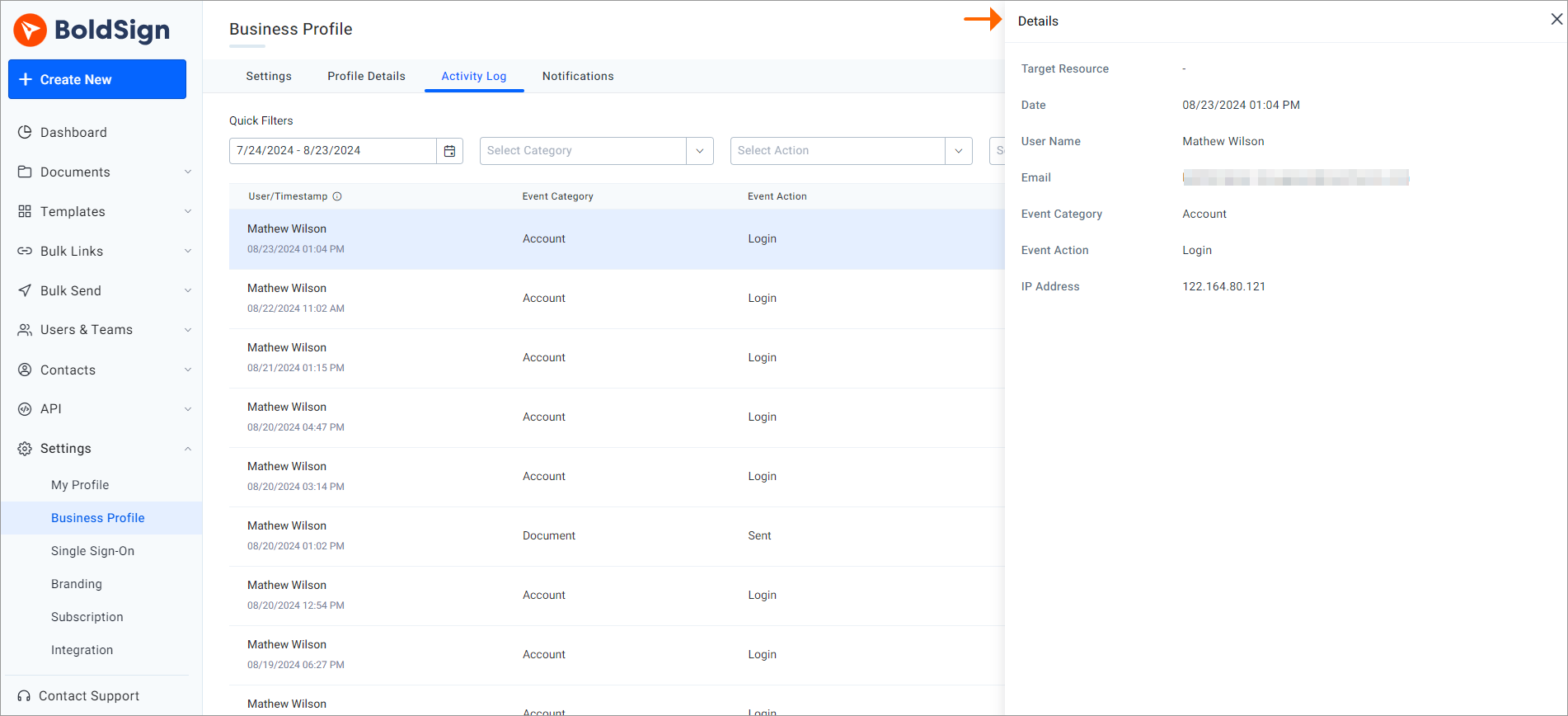
- The name and email address of the person who took the action.
- The exact date and time of the action.
- The event category and the action, such as a change to account settings.
- The target resource and any further details about the change.
Only account administrators can open the log. It keeps the past 30 days of activity.
Why track organization activities?
In a shared account, you need to know who changed what. The log gives you that view without asking each person.
- You can spot an action that nobody expected and follow up with the person who took it.
- Every change carries a name and a time, so questions about a setting get quick answers.
- A CSV export keeps a list of account changes, with dates, for later reviews.
The log covers the account as a whole. Our guide to why eSignature audit trails matter covers the events on one signed document.
How do you open the activity log in BoldSign?
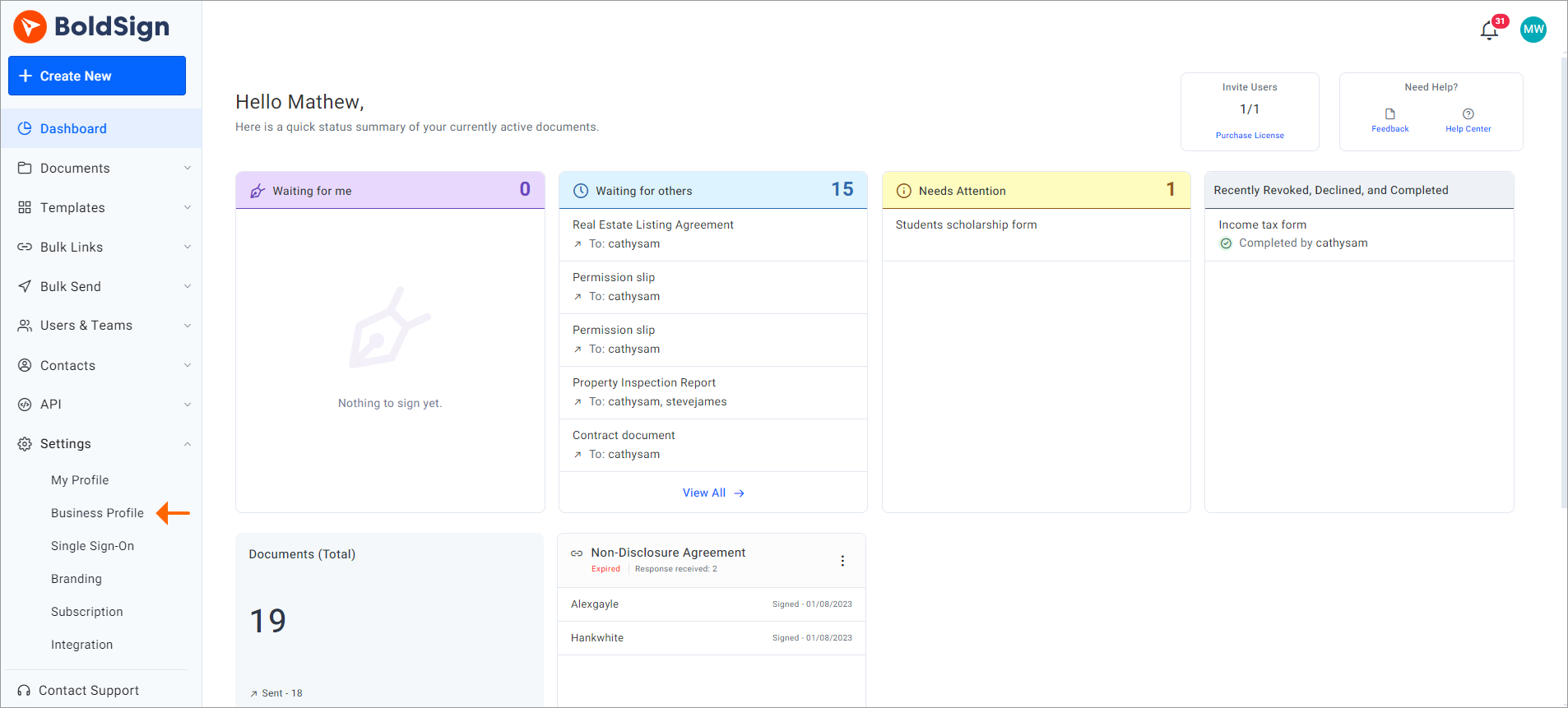
You reach the log from the account settings. The steps below match our help article.
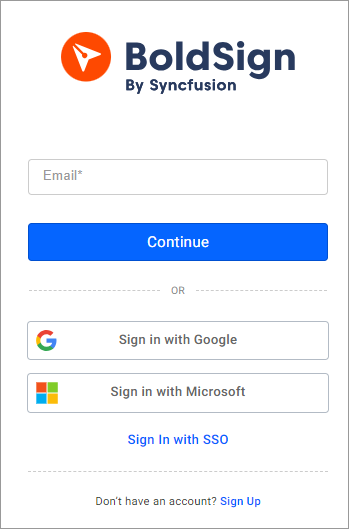
- Sign in to your BoldSign account. The Dashboard page opens.
- Expand the Settings menu and select Business Profile.
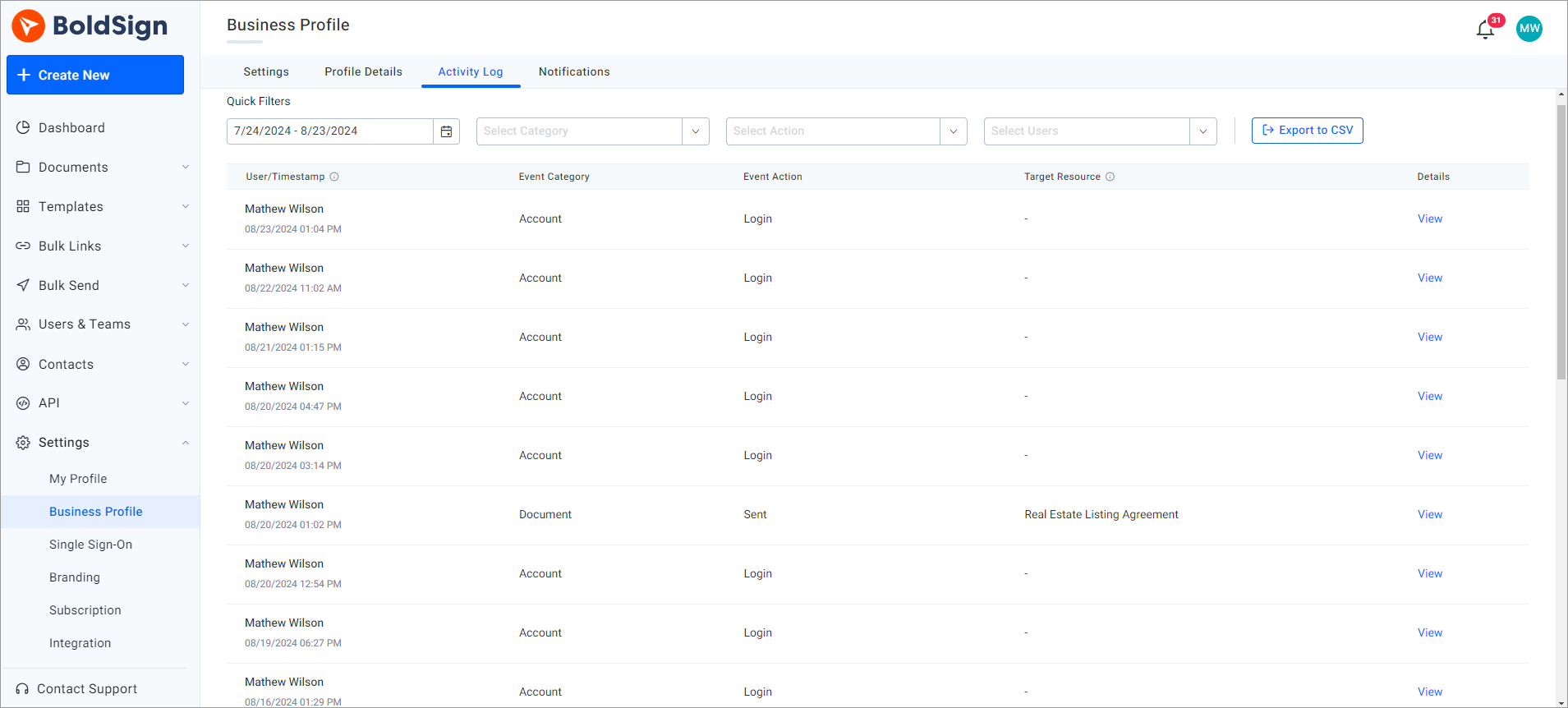
- Select the Activity Log tab.
What does each column in the activity log show?
The log lists one action per row. Each row has five columns:
- User/Timestamp: who acted and when.
- Event Category: the area of the account that changed.
- Event Action: what the person did.
- Target Resource: the item the action applied to.
- Details: a View button for the full record.
How do you see the details of one activity?
Select View in the Details column, or select the row itself. A dialog opens with the full record for that action.
How do you filter and export activity records?
A busy account fills the log quickly. Filters narrow the list, and an export keeps a copy past 30 days.
- Open Quick Filters above the list.
- Pick a date range: Today, Yesterday, Last 7 days, Last 30 days or Custom range.
- Select Apply to show only that range.
- Select Export to CSV at the top right to download entries for one user or all users.
Save exports on a regular schedule when your team must keep records for longer than 30 days.
Which BoldSign plan do you need to track team activity?
Our pricing page does not list the activity log by plan, so ask our team about your account. The log matters most once several people share one account.
The Essential plan is free and holds one user. The Growth plan costs $5 per user a month and lets you add users.
The Business plan costs $15 per user a month and adds team collaboration plus roles and custom permissions. The Premium plan costs $99 a month for unlimited users. All prices are in USD and billed yearly, and each paid plan starts with a 30-day free trial.
How do you start tracking activity in your account?
Pick the step that fits where your team is today.
- Start a 30-day free trial and invite your team to one shared account.
- Book a demo to see the activity log and team settings with our team.
- Visit our support portal with a question about your account’s activity records.
Frequently asked questions
What is the activity log in BoldSign?
The activity log is a list of actions people take in your organization's BoldSign account. Each entry shows who acted, when, and what changed.
Who can see the BoldSign activity log?
Only account administrators can open the activity log. Other users in the organization cannot see it.
How long does BoldSign keep activity log entries?
The log keeps the past 30 days of activity. Export the entries to a CSV file when you need a record for longer.
Where do I find the activity log in BoldSign?
Open the Settings menu, choose Business Profile, then select the Activity Log tab.
Can I export the activity log?
Yes. Select Export to CSV at the top right of the page to download entries for one user or for all users.
How do I find activity from a specific day?
Use the date filter under Quick Filters. Pick Today, Yesterday, Last 7 days, Last 30 days or a custom range, then select Apply.
Is the activity log the same as a document audit trail?
No. The activity log covers actions across the whole account, such as settings changes. An audit trail records the events on one document, from sending to signing.
Does the activity log help with compliance checks?
Yes, when you keep the records you need. The log shows who changed what and when, and a CSV export lets you store entries past the 30-day window.

Lakshmi Priya Murugesan
Lakshmi Priya Murugesan is a Technical writer at BoldSign. She excels in creating clear, concise documentation and guides across various tech fields. Lakshmi Priya is passionate about technology, she enjoys exploring new trends and sharing her insights through blogs and articles.
More posts by Lakshmi Priya Murugesan