How to Auto Backup Signed Documents to Google Drive, OneDrive and Dropbox
 Lakshmi Priya Soundar Rajan
TL;DR: Auto backup to cloud storage saves a copy of every signed document to your own cloud drive, with nobody downloading or uploading files. With BoldSign, an admin connects Google Drive, OneDrive or Dropbox once. From then on, we save each completed document there, with its audit trail and attachments if you choose.
Picture an office manager who downloads each signed contract and drags it into the shared drive. Some days that step gets missed. A month later, someone searches the drive for a lease and it is not there.
Cloud backup removes that manual step. This guide shows what we save, how the folders are laid out, and how to connect each service.
What is auto backup cloud storage for signed documents?
Auto backup cloud storage means a copy of each signed document reaches your cloud drive on its own. You connect the service once, and every completed document follows.
Think of a mailroom clerk who files a copy of each returned letter in the right drawer. Nobody has to remember to do it, and the drawers stay in the same order. Our cloud backup plays that clerk for your Google Drive, OneDrive or Dropbox.
The backup can also hold the audit trail, the record of who opened and signed a document and when. Our guide on why e-signature audit trails matter explains what that record proves.
What does the backup folder look like?
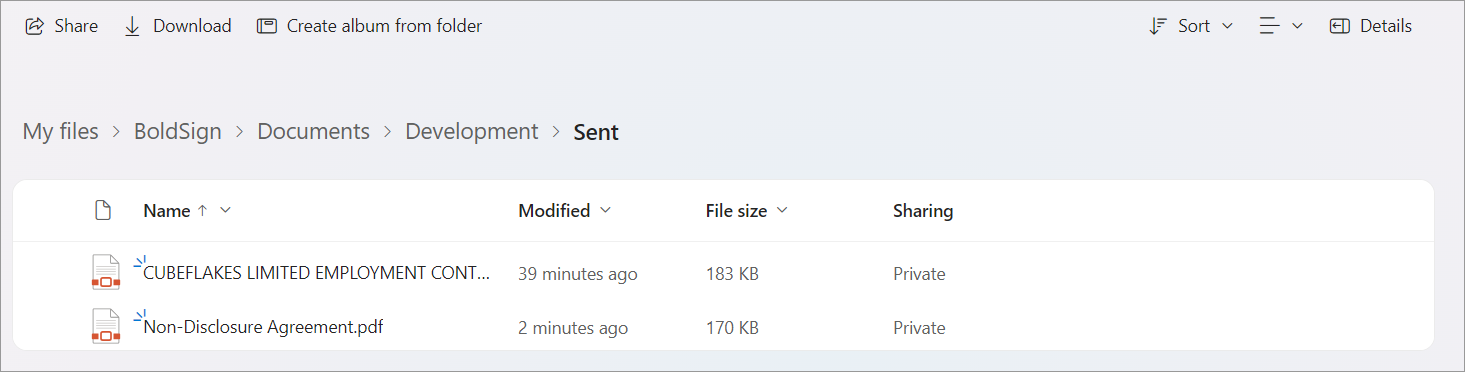
We create a root folder called BoldSign, unless you give it another name. Inside it, we sort your files in four levels:
- One folder for each document type: regular documents, bulk links and bulk send.
- Inside each type, one folder named after each team.
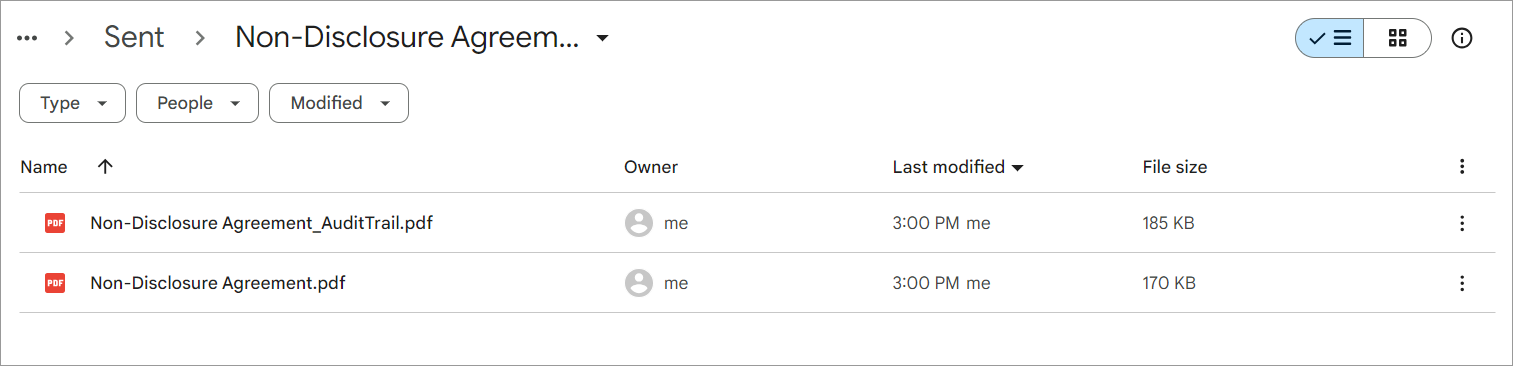
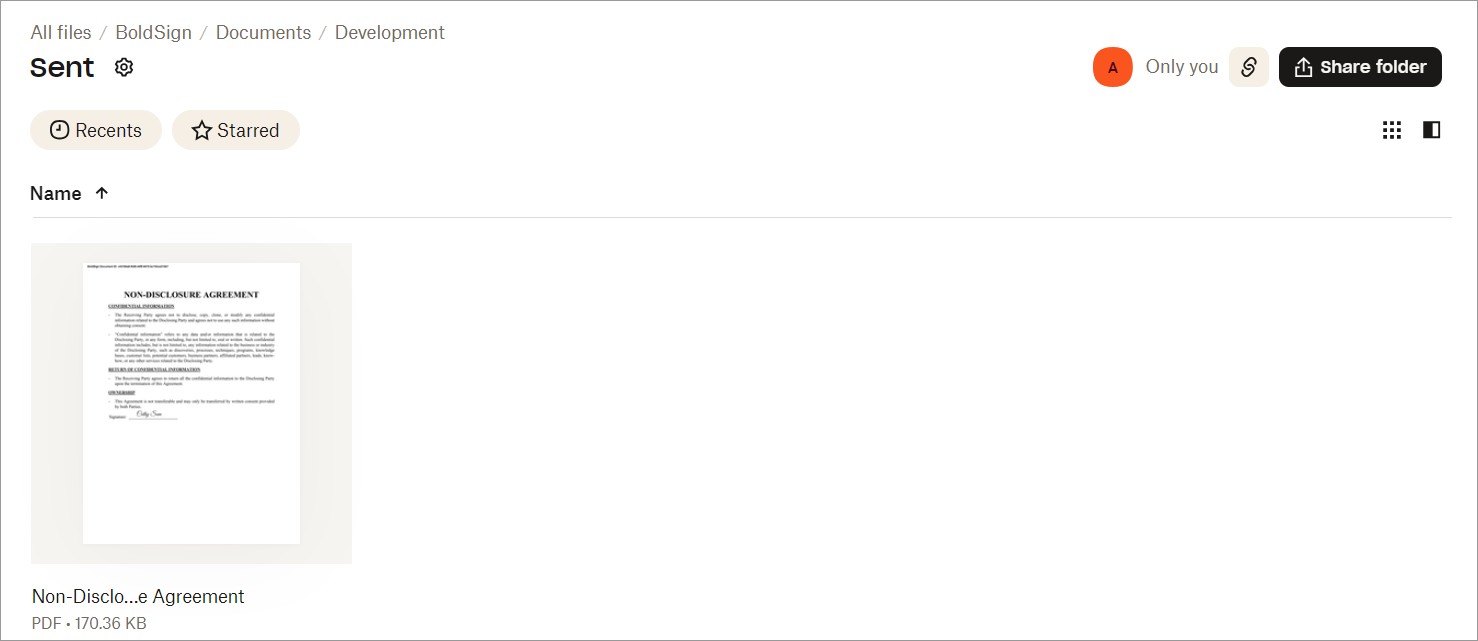
- Inside each team folder, a Sent folder and a Received folder.
- Inside Sent or Received, a Recipient Attachments folder with one subfolder per recipient.
Sent holds documents you sent for signature and documents you signed yourself. Received holds requests you signed and completed documents where you were a CC (carbon copy) recipient.
Two completed documents can share a name. We then add the date and time, in the format set on your business profile page. A slash or colon in that format turns into a hyphen, since folder names reject those characters.
How do you set up cloud backup in BoldSign?
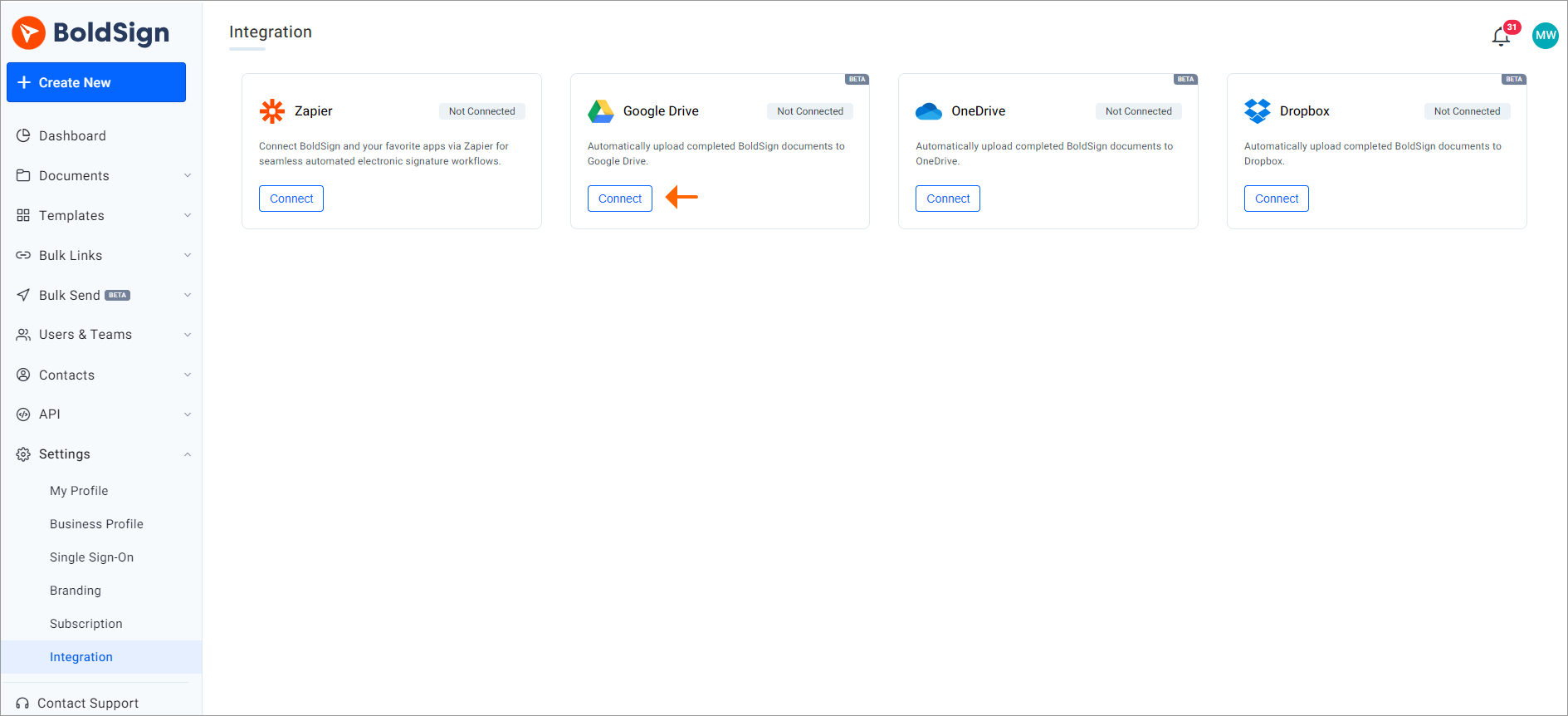
An organization admin connects each service from the Integration page under Settings. Each setup takes a few minutes and needs no code.
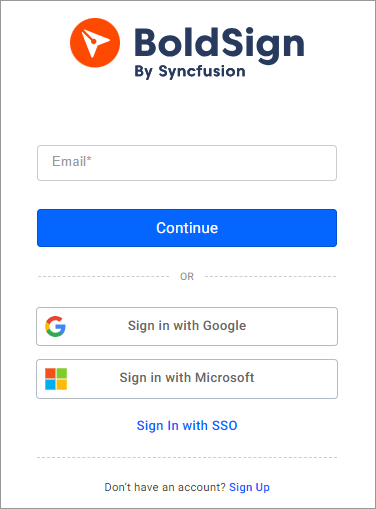
Sign in to your BoldSign account first, or create a new account.
How to backup documents on Google Drive
Our Google Drive integration page and the help article on how to connect Google Drive for cloud backup cover each option.
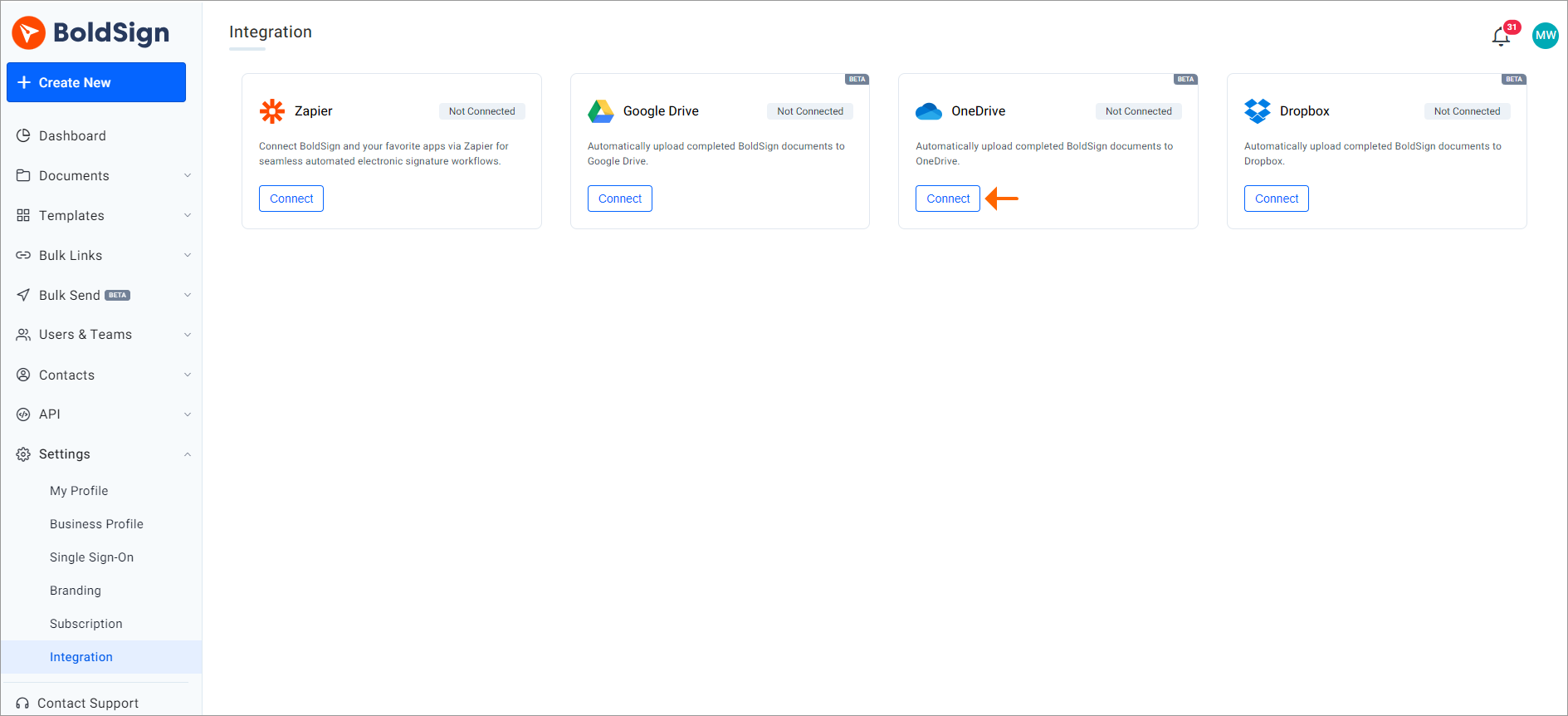
- Open Settings, select Integration, then select Connect on the Google Drive card.
- Sign in with the Google account that should hold your backups.
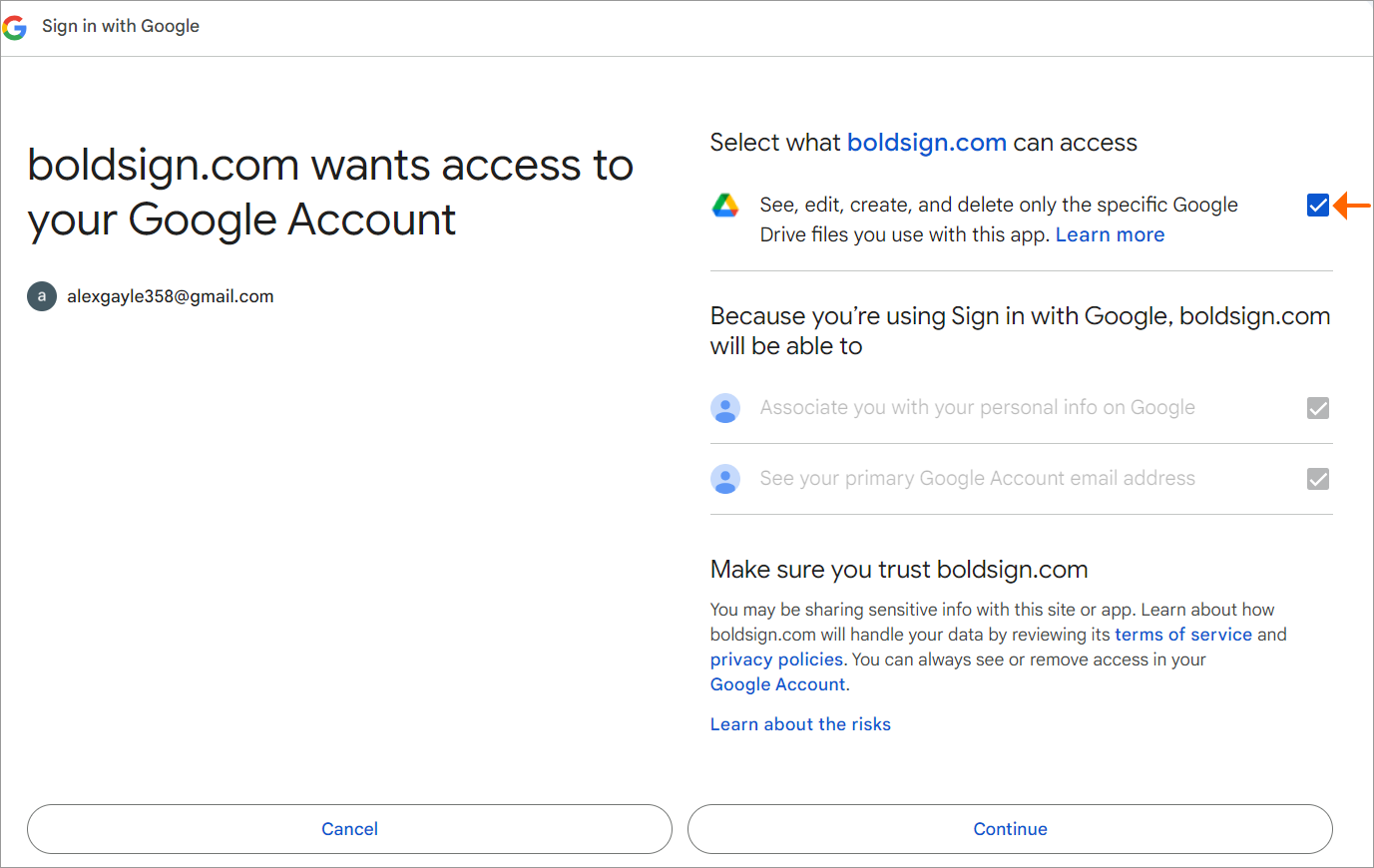
- Tick the checkbox that gives BoldSign access, then select Continue.
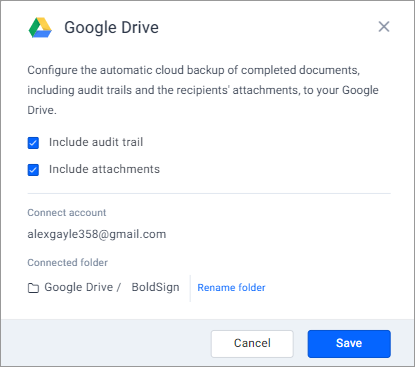
- Keep or rename the root folder, tick Include audit trail and Include attachments as needed, then select Save.
- Complete a test document and check that a copy appears in Google Drive.
Tick the access checkbox in step 3. Without it, Google returns an error when you connect.
How do you connect OneDrive?
Our OneDrive integration works the same way. The help article on how to connect OneDrive for cloud backup lists the same options.
- On the Integration page, select Connect on the OneDrive card.
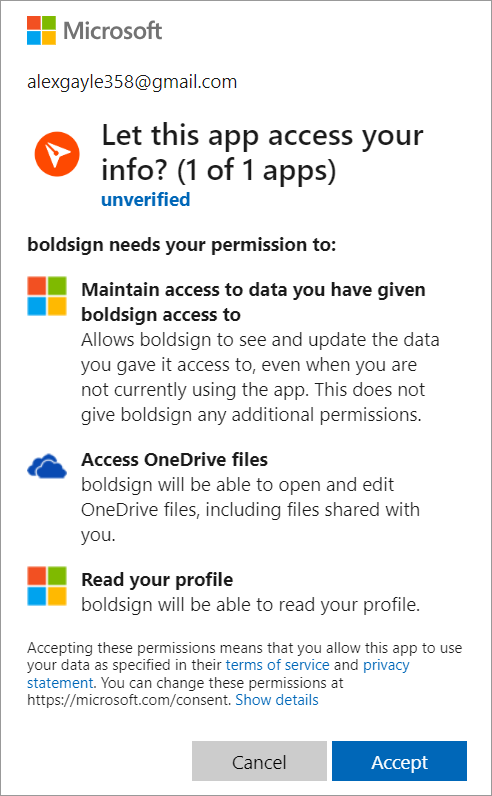
- Sign in with your Microsoft account, then select Accept to give BoldSign access.
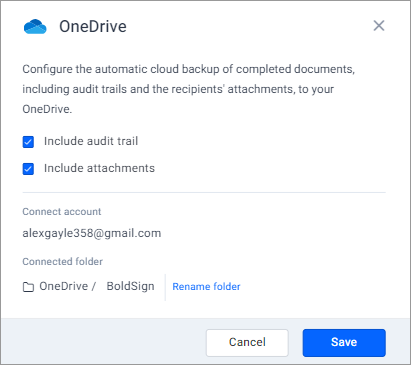
- Confirm the root folder, or select Rename folder to change its name.
- Tick Include audit trail and Include attachments as needed, then select Save.
- Complete a test document and check that a copy appears in OneDrive.
How do you connect Dropbox?
Our Dropbox integration follows the same pattern. The help article on how to connect Dropbox for cloud backup has the details.
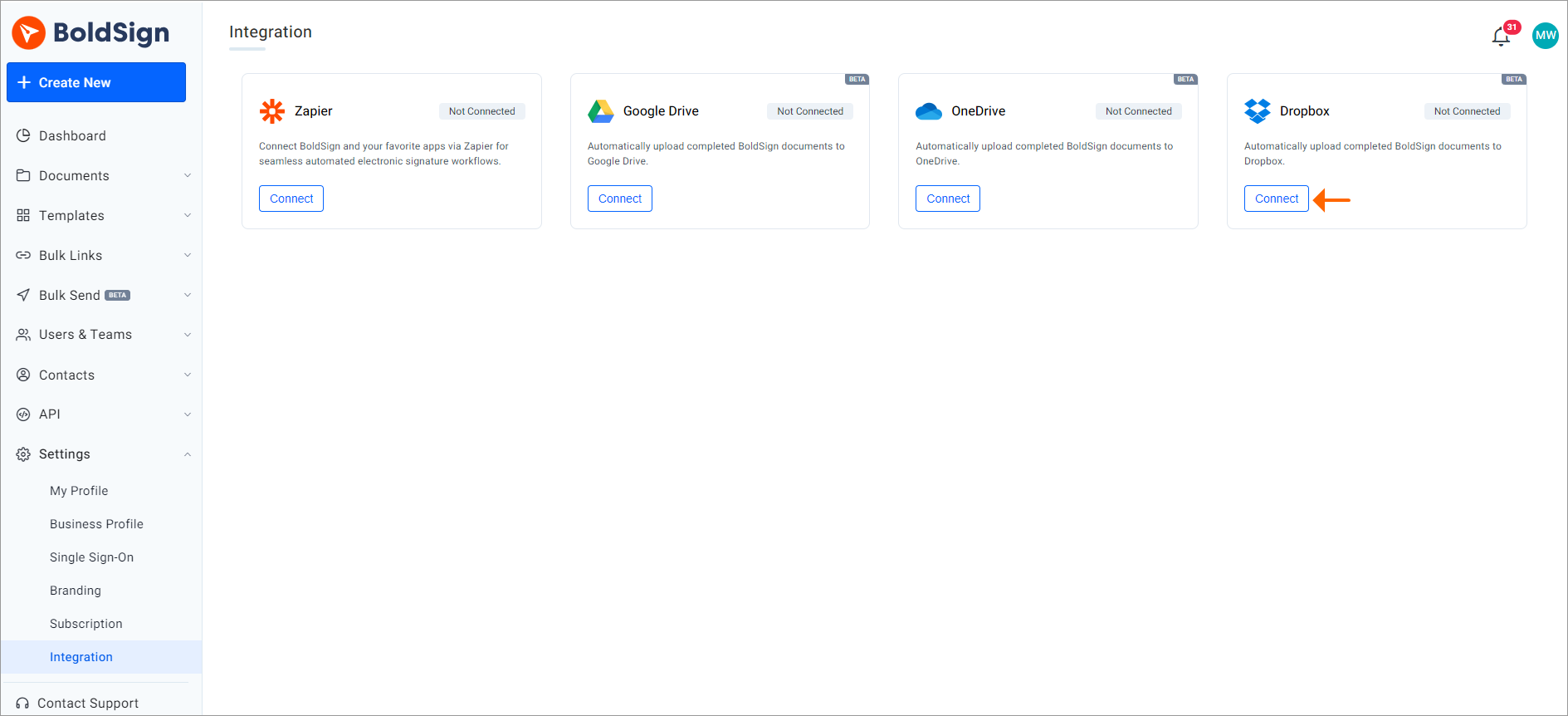
- On the Integration page, select Connect on the Dropbox card.
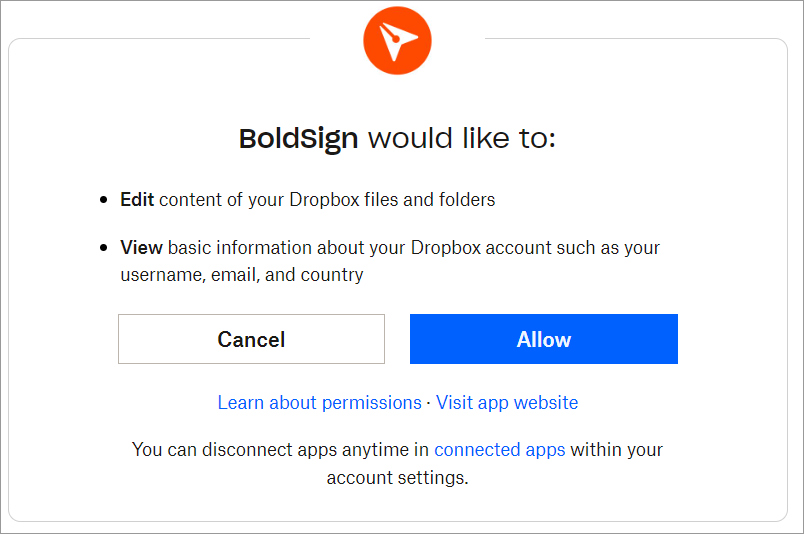
- Sign in to Dropbox, then select Allow to give BoldSign access.
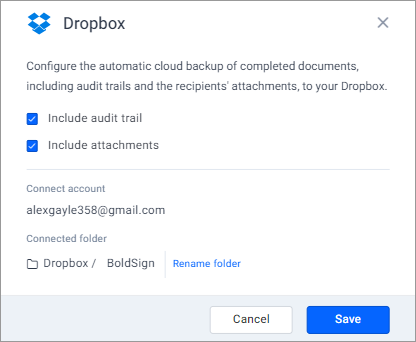
- Confirm the root folder, or select Rename folder to change its name.
- Tick Include audit trail and Include attachments as needed, then select Save.
- Complete a test document and check that a copy appears in Dropbox.
What should you check before you turn on cloud backup?
A few rules decide who controls the backup and which documents it covers. Read them before you connect.
Who controls the backup?
A single organization admin sets up each integration with their own cloud account. That admin can change the account used for syncing, or disconnect the service.
The admin can also share the team folders. Add team admins or colleagues to the shared folder, and they can view that team’s documents.
Which documents get backed up?
Backup covers documents completed after you connect the service. Email support@boldsign.com to copy earlier documents and audit trails once.
What happens when you rename a team?
We create a new folder with the new team name, and later documents go there. Older documents stay in the old folder, so copy them across yourself to keep them together.
How do you disconnect a service?
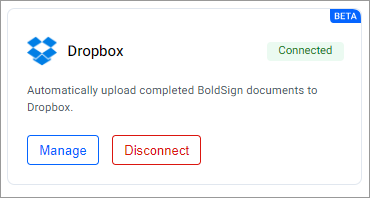
Select Disconnect on the service’s card on the Integration page. New documents stop saving there, and files already in the folder stay in place.
Which BoldSign plan includes cloud backup, and what does it cost?
Cloud backup comes with the Business plan and the Premium plan. Bulk send and bulk links, which get their own backup folders, start on the same plans.
Our pricing page listed these prices in November 2026, billed yearly in USD. Business costs $15 per user a month, and Premium costs $99 a month for unlimited users. We charge nothing extra for each document we back up.
How do you start backing up your signed documents?
Pick the step that fits where your team is today.
- Start a 30-day free trial and try BoldSign with your own documents.
- Book a demo to see cloud backup set up for your team.
- Contact our support team with a question about a backup you already run.
Frequently asked questions
What e-signature platforms integrate cleanly with Google Drive or Dropbox so signed files are saved to the right folder automatically?
BoldSign is one option. We save each completed document to a Google Drive, Dropbox or OneDrive folder you name, sorted by document type and team. The audit trail and signer attachments can go with it.
Does a Google Drive OneDrive integration need any coding?
No. An organization admin connects Google Drive, OneDrive or Dropbox from the Integration page in BoldSign settings. Setup takes four steps and needs no code.
Are there e-signature APIs that maintain detailed audit logs and sync documents to OneDrive without data loss?
Our cloud backup runs from the BoldSign web app settings, so you set it up once without code. Each completed document goes to OneDrive with its audit trail when you tick that option.
Does BoldSign back up documents I signed before connecting?
Not on its own. Backup starts with documents completed after you connect. Email our support team to ask for a one-time backup of earlier documents and audit trails.
Can I rename the BoldSign backup folder?
Yes. The root folder is called BoldSign by default, and you can rename it in the configuration dialog when you connect the service.
Who can set up cloud backup in BoldSign?
One organization admin sets it up with their own cloud account. That admin can later change the account used for syncing or disconnect the integration.
What happens to my files if I disconnect the integration?
Files already in your cloud folder stay where they are. New completed documents stop saving to that service.
Which BoldSign plan includes automatic cloud backup?
The Business and Premium plans include it. Business costs $15 per user a month, and Premium costs $99 a month for unlimited users, both billed yearly.

Lakshmi Priya Soundar Rajan
Lakshmi Priya Soundar Rajan is a Technical Writer at BoldSign. With expertise in simplifying complex concepts, she contributes to the comprehensive documentation and user-friendly content at BoldSign. Lakshmi’s commitment to quality ensures users have access to clear and helpful information. Connect with her on LinkedIn.
More posts by Lakshmi Priya Soundar Rajan