Masked Text in eSignature Forms: Protect Sensitive Data in Multi-Signer Workflows
 Stephen Otieno Okoth
TL;DR: Masked text hides a value, such as an ID or bank account number, from everyone except the signer who typed it and the sender. In BoldSign, you turn on Mask value in a Textbox field’s settings. Our eSignature features page lists the other fields you can add.
A new hire fills in an onboarding form with a bank account number for payroll. The form then goes to a manager and an HR approver.
Neither of them needs that number. Without masking, both can read it.
Masked text in eSignature forms fixes that gap. This guide covers what masking does, which fields to mask and how to set it up in BoldSign.
What is masked text in an eSignature form?
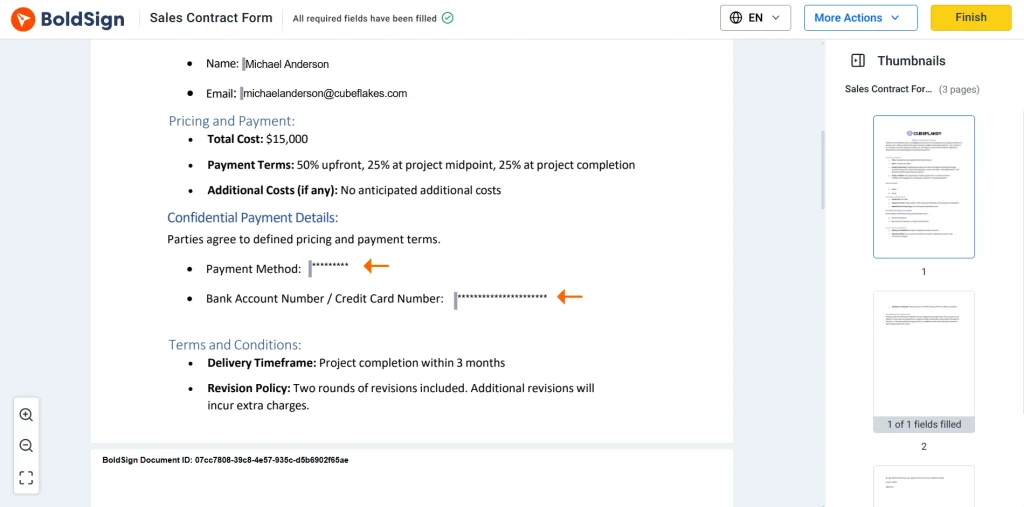
Masked text is a field whose value shows as hidden characters, such as ************, to most people who open the document. The signer who types it and the sender can still read the real value.
Think of a bank card number on a shop receipt. The receipt prints only the last few digits, so the cashier and anyone who finds it cannot copy the full number. A masked field does the same job inside a signed document.
Why do masked text fields matter in multi-signer workflows?
Every signer in a workflow can usually see every filled field. One person may type a tax number, and three more people then read it on the way to completion.
That wider view causes real problems:
- People lose trust when their personal data reaches readers who never needed it.
- Each extra reader adds another chance for a screenshot, a forward or a copy kept too long.
- Teams sometimes move a step to email or paper to hide data, which slows the whole document down.
Masking gives you a middle path. You still collect the value, but fewer people can read it once it is in.
Which fields should you mask?
Mask a field when later signers only need to know it is filled, not what it says. Keep it visible when someone must read it to approve the document.
A field is a good candidate when:
- It holds personal or financial data.
- Later signers do not need the exact value.
- Copying or sharing it would cause harm.
- It supports records or checks, not decisions.
Fields people often mask:
- National ID or passport numbers
- Tax identification numbers
- Bank account or payment details
- Employee or internal ID numbers
- Personal phone numbers or home addresses, where reviewers do not need them
Names, job titles and dates usually stay visible. Reviewers need them to understand what they are approving.
How do you mask sensitive information in BoldSign text fields?
You turn on masking in the Textbox field’s settings while you prepare the document. The same steps work for a document, a template or a bulk link.
- Create a new document, template or bulk link.
- Add your recipients and set the signing order.
- Go to the Prepare page.
- Drag a Textbox field onto the document and assign it to the signer who will enter the data.
- Under Textbox Settings, check Mask value.
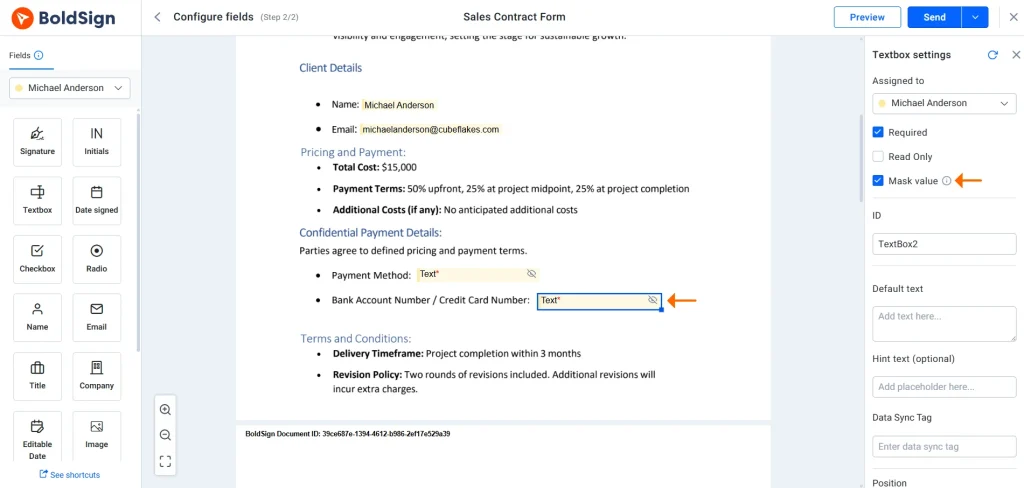
Assign each masked field to the right signer. A field given to the wrong person hides the value from the one who should type it.
How do masked values appear during signing?
The assigned signer sees the real text as they type it. Every other signer sees only masked characters in that field.
Take a nondisclosure agreement (NDA) that asks one party for a national ID and a bank account number. That party sees the numbers they enter. The other signers see ************ in those fields, yet they can still read and sign the rest of the document.
Who can see the value in a masked text field?
Only two people can see the real value: the signer assigned to the field and the sender. Everyone else sees the masked version for the whole workflow.
- The assigned signer sees the full value while entering it.
- Other signers see masked characters at every point.
- CC (carbon copy) recipients also see only masked characters.
- The sender can reveal the value after sending.
How does the sender access masked values?
The sender has two ways to read a masked value after sending. Both come from the Document section of BoldSign.
- Open the document with View Document and select the eye icon to reveal the masked field.
- Go to the Document Overview page and choose Export Form Data to download the values in a CSV file.
Data collected quietly during signing stays available to the team that needs it afterward.
When should you leave a field unmasked?
Leave a field visible when more than one signer must read or check the exact value. Masking hides data; it does not replace a review.
Skip masking when:
- Several signers must confirm the same number.
- The document works as a shared reference for everyone on it.
- A later approver must check the value is correct, not just filled.
In these cases, change the workflow instead. You can try one of these:
- Split the document so the sensitive part goes to fewer people.
- Change the signing order so the checker sees it first.
- Add a separate step for the person who must verify it.
How do you use masked text well across a team?
Masking works well when everyone applies it the same way. A few habits keep it consistent as more people send documents.
- Build masking into your templates so each send hides the same fields.
- Keep a short list of the fields your team treats as sensitive.
- Avoid open text boxes that invite people to type private data where you did not plan for it.
- Test each workflow from every signer’s view, not just the sender’s.
- Match who can export form data to who should see the masked values.
Masking every field by default is a common slip. Reviewers lose the context they need, so mask only values that would cause harm if shared.
Which BoldSign plan do you need for masked text?
Mask value is a setting on the Textbox field, one of the form fields every plan lists. That includes the free Essential plan, as shown on the BoldSign pricing page in November 2026.
Where you use masking depends on what you send. The Essential plan includes 2 templates and the Growth plan includes 10, while the Business and Premium plans include unlimited templates. Bulk links come with the Business plan, Premium plan and Enterprise API plan.
Growth costs $5 per user a month and Business costs $15 per user a month. Premium costs $99 a month for unlimited users. All prices are in USD and billed yearly.
How do you start protecting sensitive data in your forms?
Try masking on one form you send often, then sign it as each recipient to check what they see.
- Start a 30-day free trial and add a masked Textbox field to a test document.
- Book a demo to see masking set up for your HR, finance or compliance documents.
- Ask our support team how to fit masking into a workflow you already use.
Frequently asked questions
What is a masked text field in BoldSign?
It is a Textbox field with the Mask value setting turned on. The signer who fills it sees what they type. Other signers and CC (carbon copy) recipients see only masked characters.
Can the sender see a masked value?
Yes. The sender can reveal it with the eye icon in View Document, or download it in a CSV file with Export Form Data on the Document Overview page.
Can other signers ever see a masked value?
No. The value stays hidden from every other signer and CC recipient for the whole workflow. Only the assigned signer and the sender can see it.
Does masking replace access control?
No. Masking hides one value on the page, so you still need the right recipients, signing order and storage rules around it.
What kind of information should I mask?
Mask values that would cause harm if copied or shared, such as national ID numbers, tax numbers and bank account numbers. Leave names and job titles visible, since reviewers need them for context.
Can I use masked text in templates and bulk links?
Yes. You can turn on Mask value for a Textbox field in a document, a template or a bulk link. Bulk links come with the Business plan and up.
Does masking slow down signing?
No. The signer types into the field as usual, and the document moves to the next signer once they finish.
What if an approver needs to check the exact value?
Leave that field unmasked, or move the check into a separate step. Masking suits values that later signers do not need to read.

Stephen Otieno Okoth
Stephen is a Technical Assistant at BoldSign who specializes in creating clear documentation and engaging videos. He combines his technical skills and creativity to deliver user-focused solutions. Connect with him on LinkedIn.
More posts by Stephen Otieno Okoth