How to Set Up Team Collaboration for eSignatures in BoldSign
 Senthil Kumar
TL;DR: Team collaboration in BoldSign means grouping people into teams, giving each person a role and sharing the templates they send. Admins then track every team document from one page and hand over a leaver’s files in a few clicks. Our document management page shows how those files stay organized.
Picture a sales team of six and an HR team of four, all sending contracts from one account. Someone asks where a contract stands, and nobody knows who sent it. Then a sales rep leaves, and their open deals sit in an inbox no one checks.
Teams, roles and shared templates fix that. This guide walks through each part in the order you would set it up.
How do teams and user roles work in BoldSign?
A team is a group of users who share documents and templates, such as Sales or HR. Each user also has a role that decides what they can see and change.
Think of an office building. The building manager holds every key, each floor has a supervisor with keys to that floor, and staff have keys to their own desks.
- Account admin: manages users, teams and documents across the whole organization.
- Team admin: manages users and documents inside their own team.
- Member: works on their own documents and templates.
How do you create a team in BoldSign?
Account admins create teams from the Teams page. Our help article on creating and managing teams also covers renaming and deleting them.
- Open the Users & Teams menu and select Teams.
- Select Add team, next to the search field.
- Enter a name in the Team name field.
- Select Add.
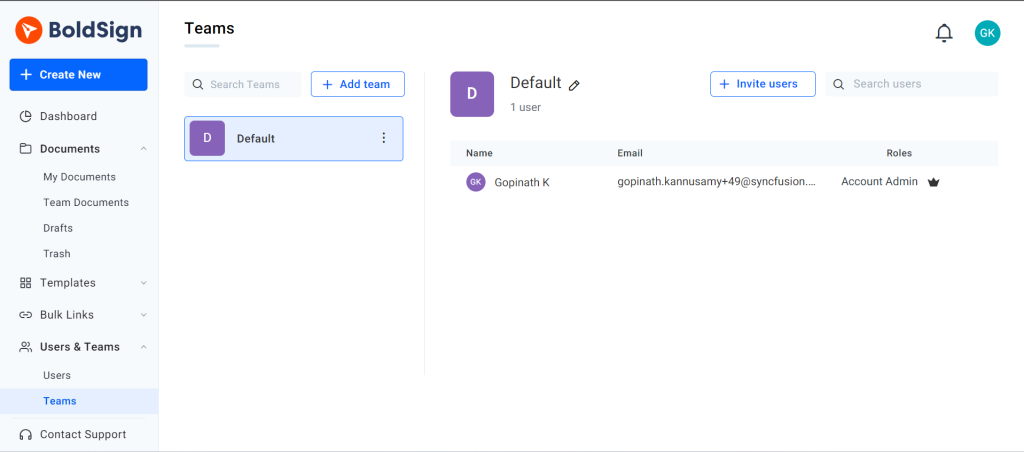
Name teams after the way your company already works, such as by department or region. The Teams page in the app is also where you rename a team or search a long list.
How do you invite users to your team?
You invite people from the Users page and choose their team as you go. Our guide on how to invite new users to the team shows each screen.
- Open Users & Teams and select Users.
- Select Invite users in the top-right corner.
- Pick the team from the list.
- Enter the email address, select Add, then select Invite.
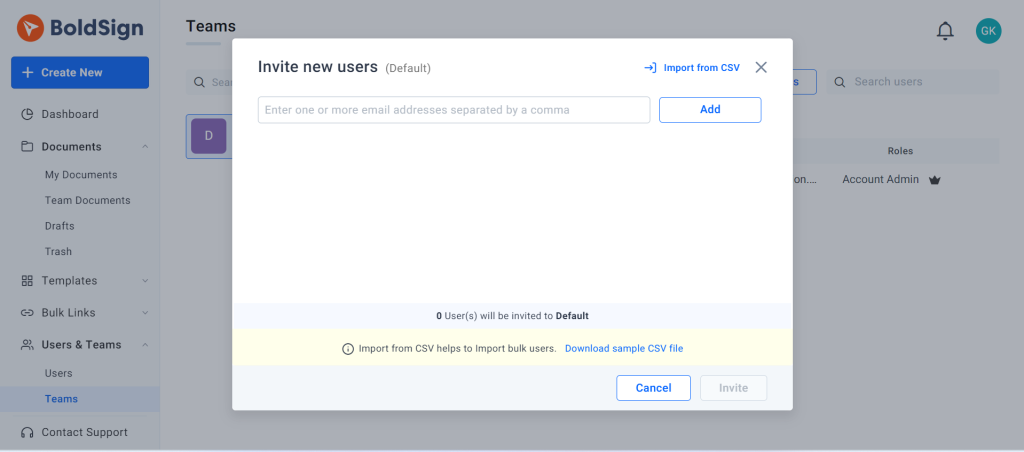
The new user gets an email with a link to join. A team admin can invite people only to their own team, while an account admin can choose any team.
What happens to documents when someone leaves the team?
You move their documents to a colleague when you remove them. You can delete the user for good or deactivate them so you can turn the account back on later.
- Open Users & Teams and select Users.
- Open the menu at the end of the user’s row.
- Choose Delete User or Deactivate User.
- Pick a colleague in the To list and select Confirm.
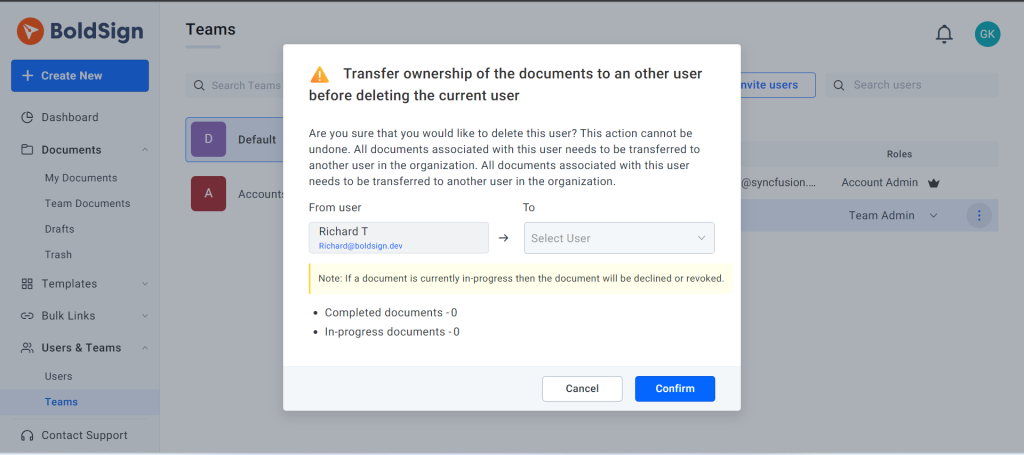
The colleague gets an email once the documents arrive. Documents still out for signature are declined or revoked instead of moved, so resend those. Our articles on how to delete a user and transfer their documents and how to activate or deactivate a user have the details.
How do you share templates with your team?
Share a template with a team, and everyone on it sends the same approved document. You create it once by following our steps to create a template.
- Open the template and select Shared Templates.
- Choose the team from the Team list and select Add.
- Pick the access level and select Add again.
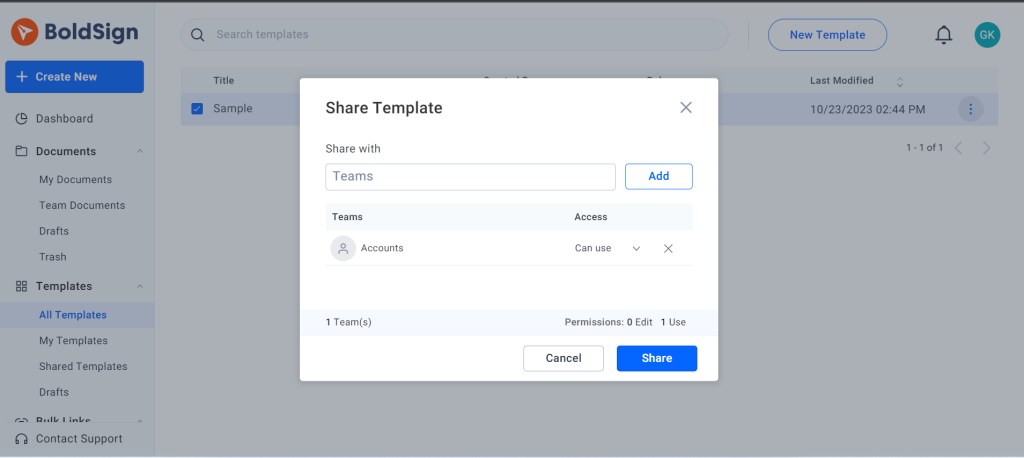
Can use lets the team send documents from the template. Can edit also lets them change and share it, and their saved changes reach everyone who uses it. Our article on how to share a template to other teams covers both options.
How do you track your team’s documents?
Open Documents and select Team Documents to see everything your team members sent or received. The status column shows where each document stands.
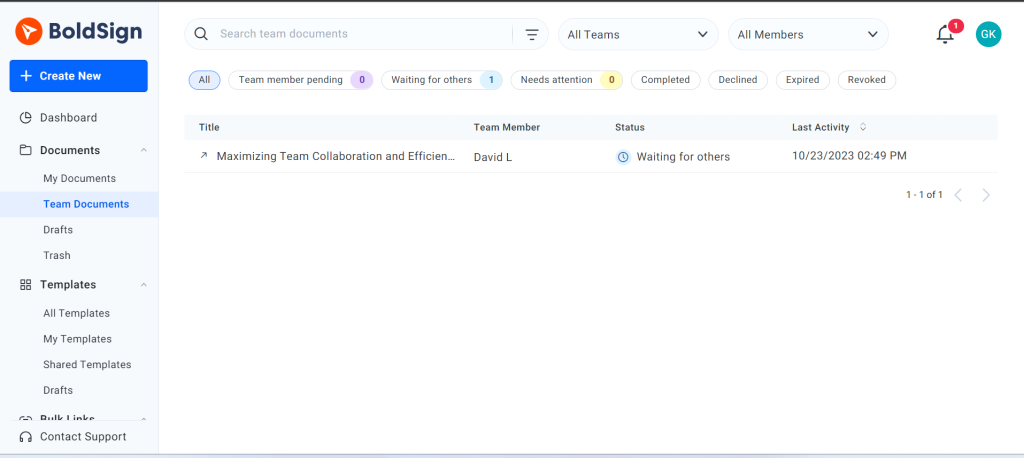
Select any document to open its overview, then choose More actions to send a reminder, revoke it or decline it. Account admins can filter by team and by member, and team admins can filter by member. Our article on how to check team document statuses explains the filters.
How do you give someone access to another team’s documents?
Account admins create a custom permission for that person. Work keeps moving when a team admin is away, or when Legal needs to review a Sales contract.
- Open Users and Teams and select Custom Permissions.
- Select New Custom Permission.
- Choose the user, the type of item and the teams.
- Select Save.
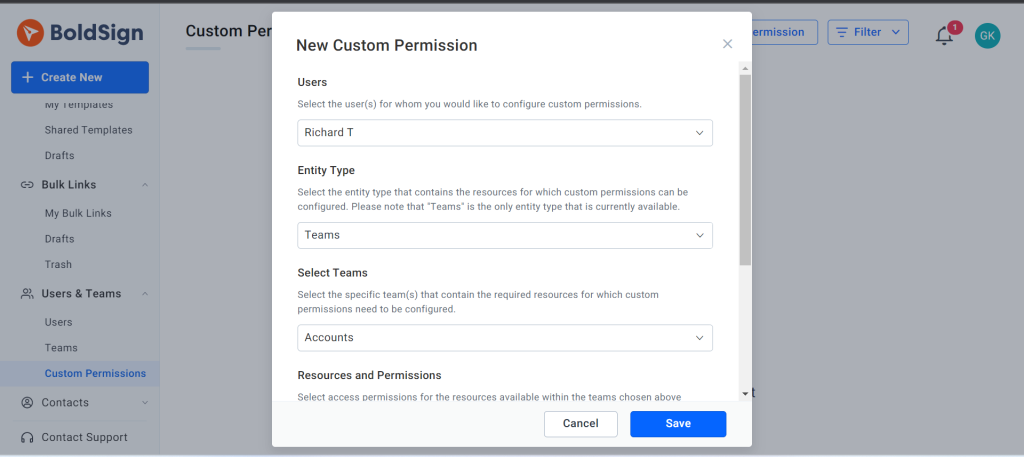
A permission can cover documents, templates, bulk links or bulk sends. For documents, you choose actions such as View Document, Edit and Delete. Our guide to custom permissions for document access shows more examples.
Which BoldSign plan do you need for team collaboration?
Team collaboration, roles and custom permissions start on the Business plan, at $15 per user a month billed yearly. The Premium plan costs $99 a month for unlimited users.
The Growth plan, at $5 per user a month, lets you share templates with team members but leaves out teams and roles. Bulk send and bulk links come with the Business plan and up. Prices are in USD, as listed on our pricing page in November 2026.
How do you get your team started?
Begin with one team and one shared template, then add the rest as people settle in.
- Start a 30-day free trial and set up your first team.
- Book a demo to plan teams and roles for your company.
- See how construction teams run approvals with eSignatures.
Frequently asked questions
What user roles does BoldSign have?
There are three: account admin, team admin and member. Account admins manage the whole organization, team admins manage their own team, and members work on their own documents and templates.
Can a team admin invite users to any team?
No, a team admin can invite users only to their own team. An account admin picks any team from the list in the Invite new users dialog.
Can I invite someone who already uses BoldSign at another company?
Not while that person belongs to another organization. The invitation shows an error, and the person has to leave the other organization first.
What happens to a user's documents when they leave?
You choose a colleague in the To list when you delete or deactivate the user, and their documents move to that person. Documents still waiting for signatures are declined or revoked, so resend those.
What is the difference between deleting and deactivating a user?
Deactivating keeps the user's details, so you can turn the account back on later. Deleting removes those details for good.
Can a team member edit a template I share?
Only with Can edit access. Can use access lets a team send documents from the template without changing it.
Who can see the Team Documents page?
Account admins and team admins. A team admin sees documents sent and received by their own team, and an account admin sees every team.
How much does BoldSign cost for a team?
Team features start on our Business plan at $15 per user a month, billed yearly. The Premium plan costs $99 a month for unlimited users.

Senthil Kumar
Senthil Kumar M, who works for Syncfusion as a Product Manager. He has been actively involved in web development since 2012 and has a passion for both front-end and back-end technologies.
More posts by Senthil Kumar