Introducing the BoldSign MCP Server: Connect Your AI Assistant to eSignature
 Evans Omondi Otieno
TL;DR: The BoldSign Model Context Protocol (MCP) server connects an artificial intelligence (AI) assistant to your account. You connect it once, then ask in plain language to send documents from your templates, check signing status or send reminders. Our BoldSign MCP page shows what it can do.
AI assistants read plain requests well, but on their own they cannot act in your business tools. Asking one to send a contract usually ends with a draft email you still have to send yourself.
We built the BoldSign MCP server to close that gap. This guide explains what it is, which tools it gives your assistant, and how to set it up.
What is the BoldSign MCP server?
The BoldSign MCP server is a connector that turns BoldSign actions into tools an AI assistant can call. It uses MCP, an open standard for linking AI assistants to outside systems.
Think of it as a power adapter for travel. Your laptop and the wall socket each work fine, but they need an adapter to fit together. MCP is that adapter between your assistant and your BoldSign account.
How does an MCP electronic signature request work?
You ask in plain words, and the assistant picks the right BoldSign tool. Each request runs in four steps.
- You type a request, such as “Send the non-disclosure agreement (NDA) to Mathew Wilson.”
- The assistant picks a BoldSign tool, such as sending a document from a template to a saved contact.
- The MCP server calls the BoldSign API, which then runs the action.
- The server returns structured results in JavaScript Object Notation (JSON), and the assistant reports back to you.
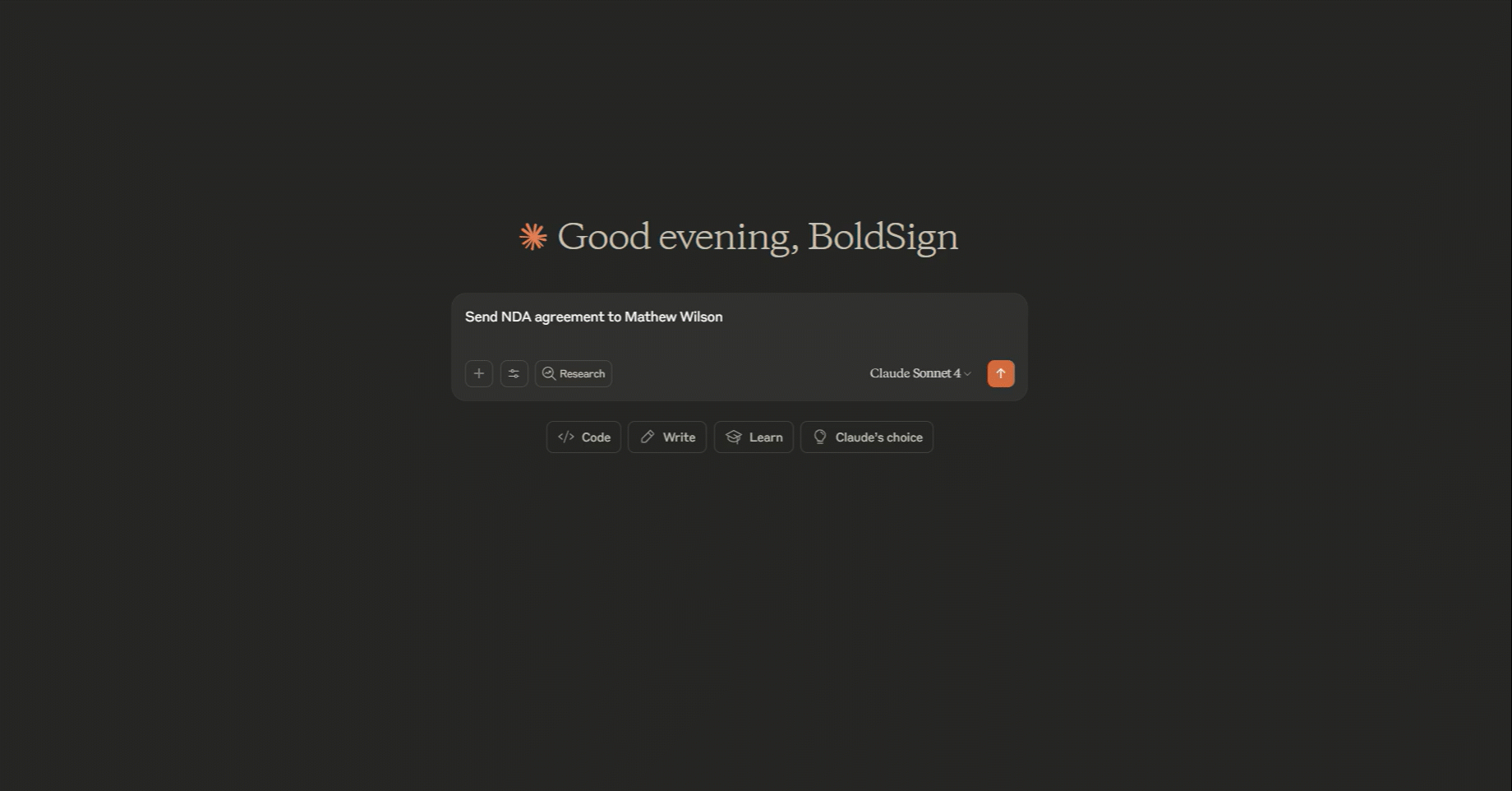
Follow-up requests work the same way. Ask the assistant to check who has signed or to send a reminder.
Which tools does the BoldSign MCP server include?
The server gives your assistant tools for documents, templates, contacts, users and teams. Each tool below links to the API action it calls.
Which document tools are there?
- List documents: returns a list of your documents, one page at a time.
- List team documents: returns the documents your team can see.
- Get document: shows the details and status of one document.
- Revoke document: cancels a document that is still in progress.
- Send reminders: reminds signers who have not signed yet.
The hosted server adds two more document tools. One lists documents sent on behalf of others, and one walks you through sending a new document.
Which template tools are there?
- List templates: returns the templates in your BoldSign account.
- Get template: shows the details of one template.
- Send document from template: creates and sends a signing request from a template.
Which contact, user and team tools are there?
- List contacts: returns your saved contacts.
- Get contact: shows the details of one contact.
- List users: returns the users in your organization.
- Get user: shows the details of one user.
For teams, List teams returns your teams. Get team shows the details of one team.
Why connect an AI assistant to eSignature?
An assistant that can act saves you the copy and paste between a chat and your signing tool. You ask once, and the request is sent from your own account.
A sales rep can ask for the status of every open contract before a call. An operations lead can remind every signer who is late, without opening a dashboard. Both get automated signing workflows from a short message.
What can the assistant not do?
We limit what the assistant can do, so a person stays in charge of the content. It sends only from templates you have already built and approved.
- It cannot draft or edit an agreement.
- It cannot sign for anyone; each signer completes their own copy.
- It records each send in the audit trail, with the sender’s name, email, internet protocol (IP) address and device.
Our BoldSign MCP page lists these limits in full.
How do you set up the hosted BoldSign MCP server?
Connect your client to the address for your account’s region, then sign in. The hosted server needs no local install.
- Pick the regional address that matches your BoldSign account.
- Choose how to sign in: OAuth or an API key.
- Follow the setup guide for your client.
Our MCP server overview has the full details.
Which regional address do you use?
Use the address for the region your account lives in. A mismatch can make sign-in or tool calls fail.
- US:
https://mcp.boldsign.com/mcp - EU:
https://mcp-eu.boldsign.com/mcp - Canada:
https://mcp-ca.boldsign.com/mcp - Australia:
https://mcp-au.boldsign.com/mcp
Which sign-in method fits your client?
OAuth suits clients with a built-in sign-in, such as Claude on the web and ChatGPT. An API key suits coding tools and agents that send a custom header.
Our authentication guide covers both. Our post on API keys and OAuth explains the difference.
Which clients have a setup guide?
- Claude on the web, as a custom connector.
- Claude Code, with an API key.
- ChatGPT, as a custom connector.
- GitHub Copilot in Visual Studio Code, with an API key.
Start with a read-only request, such as “List my recent templates.” Try sending once that works.
How do you set up the local BoldSign MCP server in Claude Desktop?
The local server runs on your computer through npm, the Node.js package manager. Its repository is now deprecated, so use the hosted server for new setups.
What do you need first?
- A BoldSign account; a free API sandbox account works.
- A BoldSign API key, made by following our API key guide.
- Node.js version 18.0.0 or higher.
- An MCP client, such as Claude Desktop from the Claude download page.
How do you add the server to Claude Desktop?
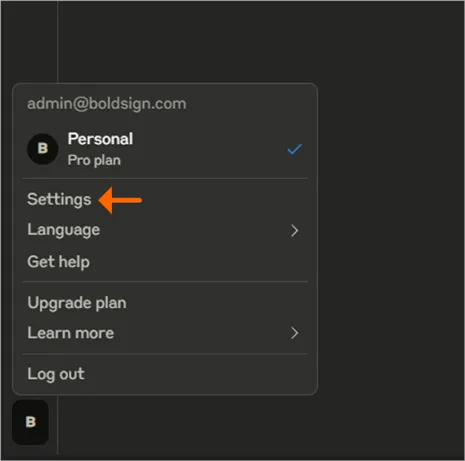
- In Claude Desktop, open the Settings menu in the bottom-left corner.
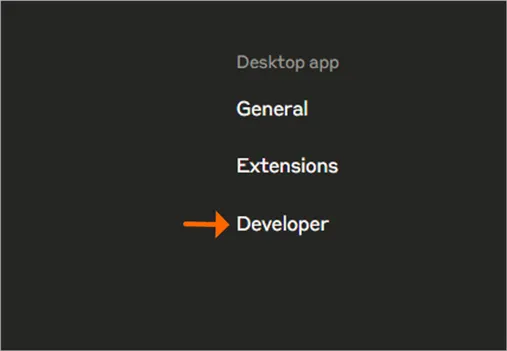
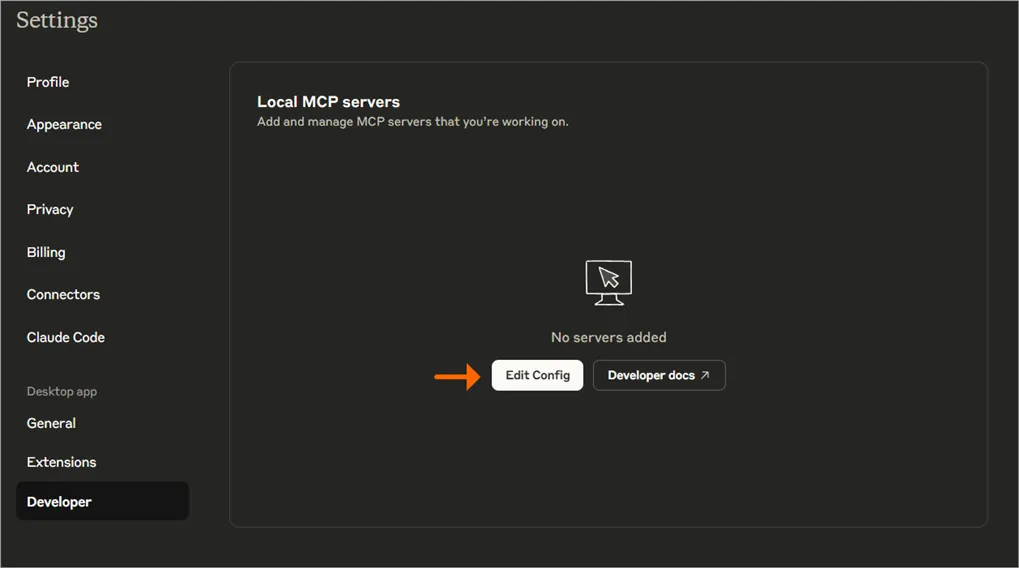
- On the Settings page, select the Developer tab.
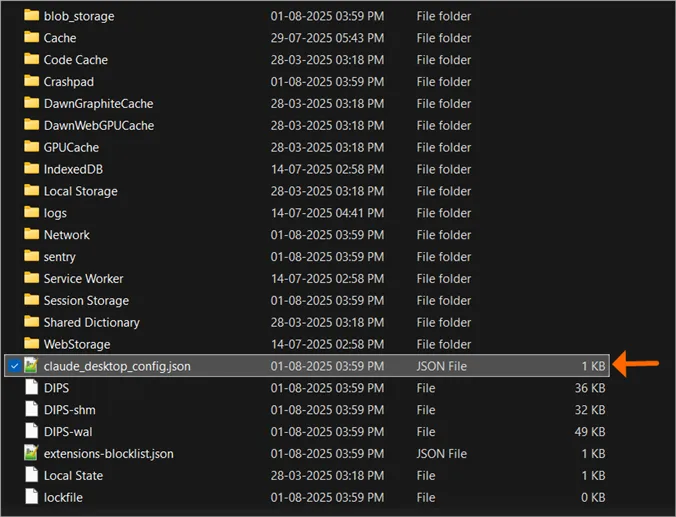
- Select Edit Config to open the
claude_desktop_config.jsonfile in your text editor.
- Add this configuration to the file:
{
    "mcpServers": {
        "boldsign": {
            "command": "npx",
            "args": ["-y", "@boldsign/mcp"],
            "env": {
                "BOLDSIGN_API_KEY": "YOUR_BOLDSIGN_API_KEY",
                "BOLDSIGN_API_REGION": "US"
            }
        }
    }
}
Replace the placeholder key with your own API key. Set the region value to US, EU or CA to match your account; the local server falls back to US otherwise.
- Save the file, quit Claude Desktop, and open it again.
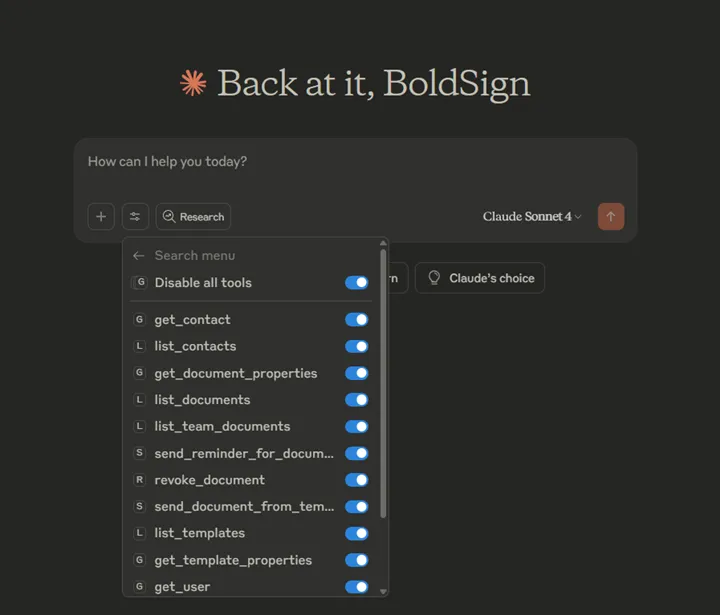
- Check that the BoldSign tools now appear in the chat’s tools list.
How do you add it to other clients?
The BoldSign MCP repository has a setup section for each of these clients:
Which plan do you need, and what does it cost?
You can test every MCP action free in the API sandbox. Sending live documents needs the Enterprise API plan.
The Enterprise API plan starts at $30 a month and includes 40 envelopes. Each extra envelope costs $0.75. Prices are in USD, as listed on the API pricing page in November 2026.
How do you start using MCP for electronic signature?
Begin in the sandbox and connect one client. Move to live sending once your templates are ready.
- Create a free API sandbox account and try a read-only request.
- Book a demo to see an assistant send from your own templates.
- Read how AI agents use MCP for eSignature, or ask our support team a question.
Our API documentation covers every action the tools call.
Frequently asked questions
What is the BoldSign MCP server?
It is our hosted server that lets an AI assistant call BoldSign actions through the Model Context Protocol (MCP). Your assistant can send documents from templates, check status and send reminders from a chat.
Which e-signature APIs have an MCP server?
BoldSign has a hosted MCP server for its eSignature API, with endpoints in the US, EU, Canada and Australia. For other providers, check each one's developer documentation.
Is the BoldSign MCP server only for developers?
No. Business users can add it as a connector in Claude on the web or ChatGPT and sign in with OAuth. Developers can also connect coding tools with an API key.
Does the BoldSign MCP server store my documents?
Our documentation describes the hosted MCP server as stateless. It passes requests to your BoldSign account, and your documents stay there.
Can the AI assistant sign documents for me?
No. The assistant sends from templates you have already built and approved. Each signer opens and signs their own copy.
Which AI clients work with the BoldSign MCP server?
We publish setup guides for Claude on the web, Claude Code, ChatGPT and GitHub Copilot in Visual Studio Code. Other MCP clients work when they support remote connections.
Are documents sent through an AI assistant legally binding?
Yes, when they meet the same rules as any electronic signature, such as the signer agreeing to sign electronically. Each send is recorded in the audit trail.
Do I need a paid plan to try the BoldSign MCP server?
No. You can test each action free in the API sandbox. Sending live documents needs a paid API plan.

Evans Omondi Otieno
Evans Omondi Otieno is a customer support representative and writer at BoldSign, specializing in creating clear, insightful content to help users navigate eSignature solutions. As a blog author, Evans writes well-researched articles that simplify technical concepts, helping businesses and professionals understand how to use BoldSign effectively. With expertise in technical support and content creation, he ensures users have a seamless experience and gain valuable knowledge from his articles.
More posts by Evans Omondi Otieno