Keep Contract Template Changes Under Control with BoldSign
 Rayronald Ochola Otieno
TL;DR: You can lock a contract template in BoldSign so senders keep its files, recipients, message and fields exactly as you set them. Turn off the options you want to protect under Template Usage Settings, and lock single fields on the Configure Fields page. Our eSignature templates page shows what a template can hold.
Your legal team approves an offer letter template. A month later, a recruiter swaps the PDF for an older copy, and another adds an extra recipient. The contract that goes out no longer matches the one legal signed off.
Template usage settings stop that drift. This guide shows what you can lock, how to set it up, and what to check first.
What are template usage settings?
Template usage settings are toggles that decide what a sender may change when they use your template. You set them once, and every send from that template follows them.
Think of a paper form behind a glass counter. Staff can write a name in the blank boxes, but the printed terms stay put. A locked template works the same way for your digital documents.
Why should you lock a contract template?
Locking keeps every signed copy the same as the version you approved. You fix the parts that carry risk and leave the rest open.
Teams lock different parts for different reasons:
- HR teams lock files, fields and recipients on offer letters, so salary and benefit terms stay as approved.
- Legal teams lock files and the message on agreements, so disclaimers reach every signer word for word.
- Sales teams lock pricing fields on quotes and leave the message open for a personal note.
- Finance teams lock every option on payment agreements, so amounts and terms stay fixed.
How does a contract creator turn on template usage settings?
As the contract creator, you find these settings on the Prepare template page. Our help article on how to set template permissions covers each step.
- Select Create New, then Create New Template.
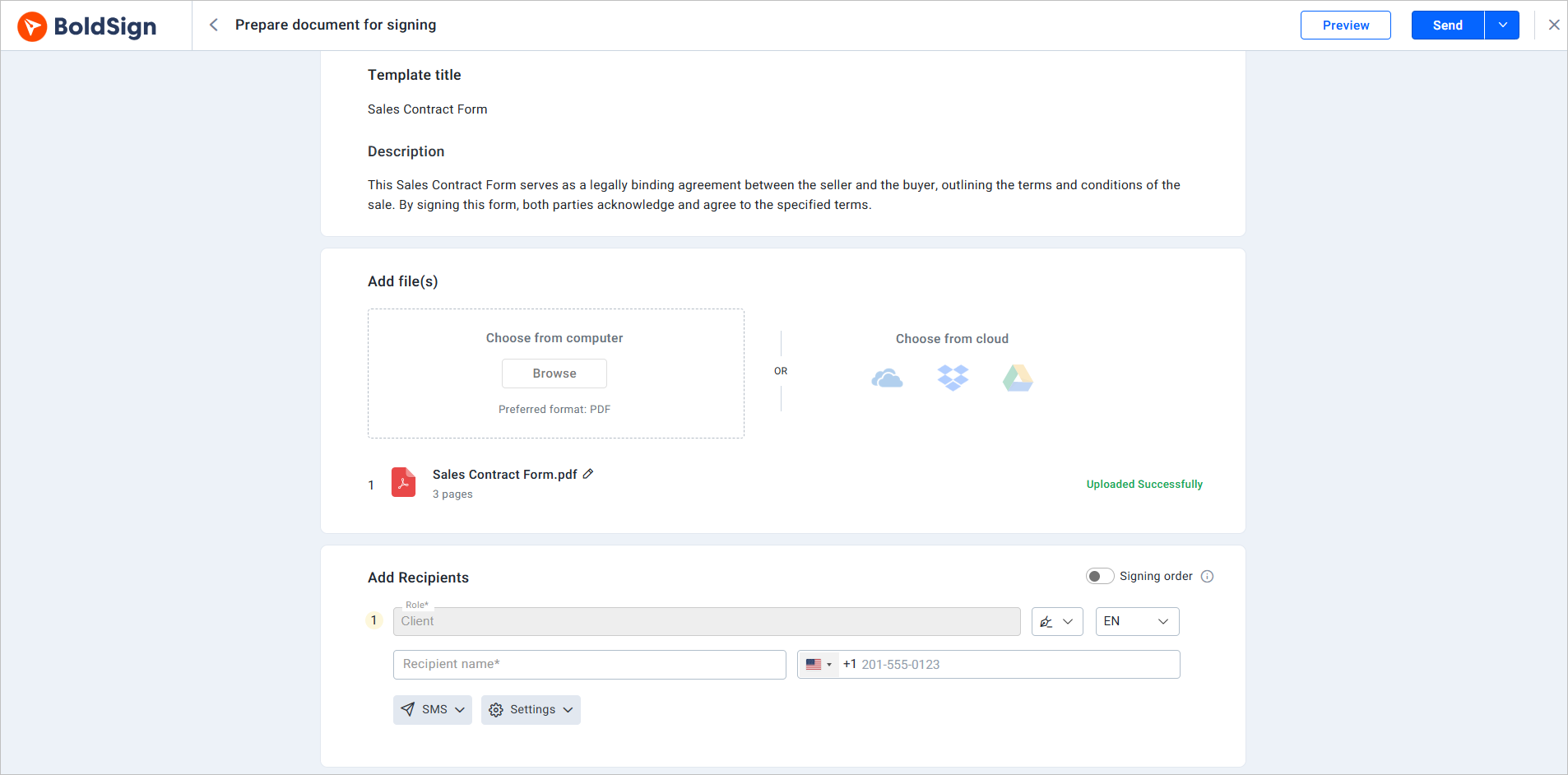
- On the Prepare template page, enter a title and description.
- Add your files and the signer roles.
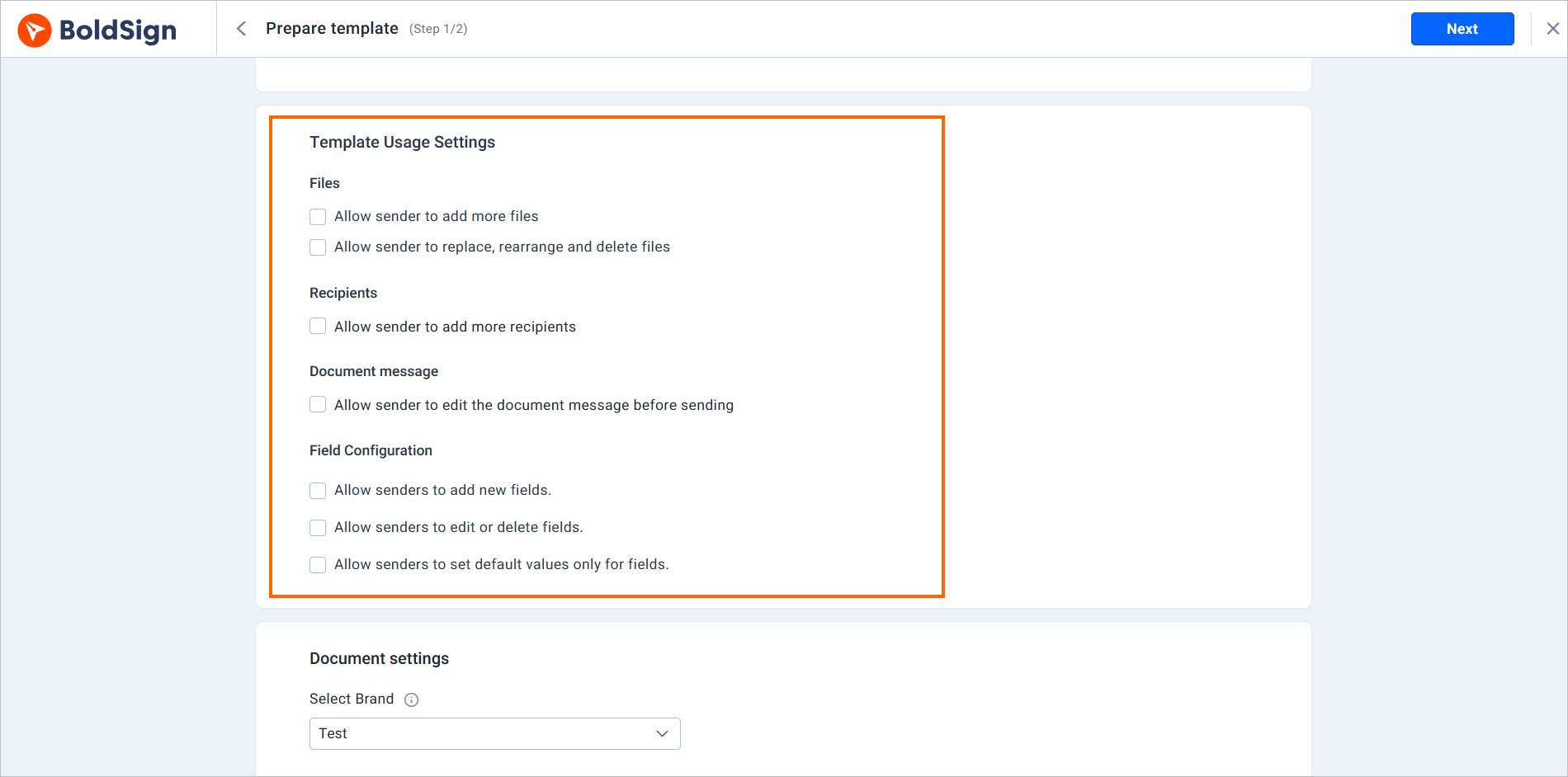
- Scroll down to Template Usage Settings and set each toggle.
- Select Next, add your form fields, then select Save template.
Which parts of a template can you lock?
You can lock four groups: files, recipients, the document message and form fields. Each group has its own toggles, so you choose what stays open.
How do you lock template files?
Two toggles in the Files group control how senders handle files. Both start turned on.
Allow sender to add more files lets senders upload extra documents. Turn it off to keep only your files.
Allow sender to replace, rearrange, and delete files lets senders swap, reorder or remove files. Turn it off to fix the files in place.
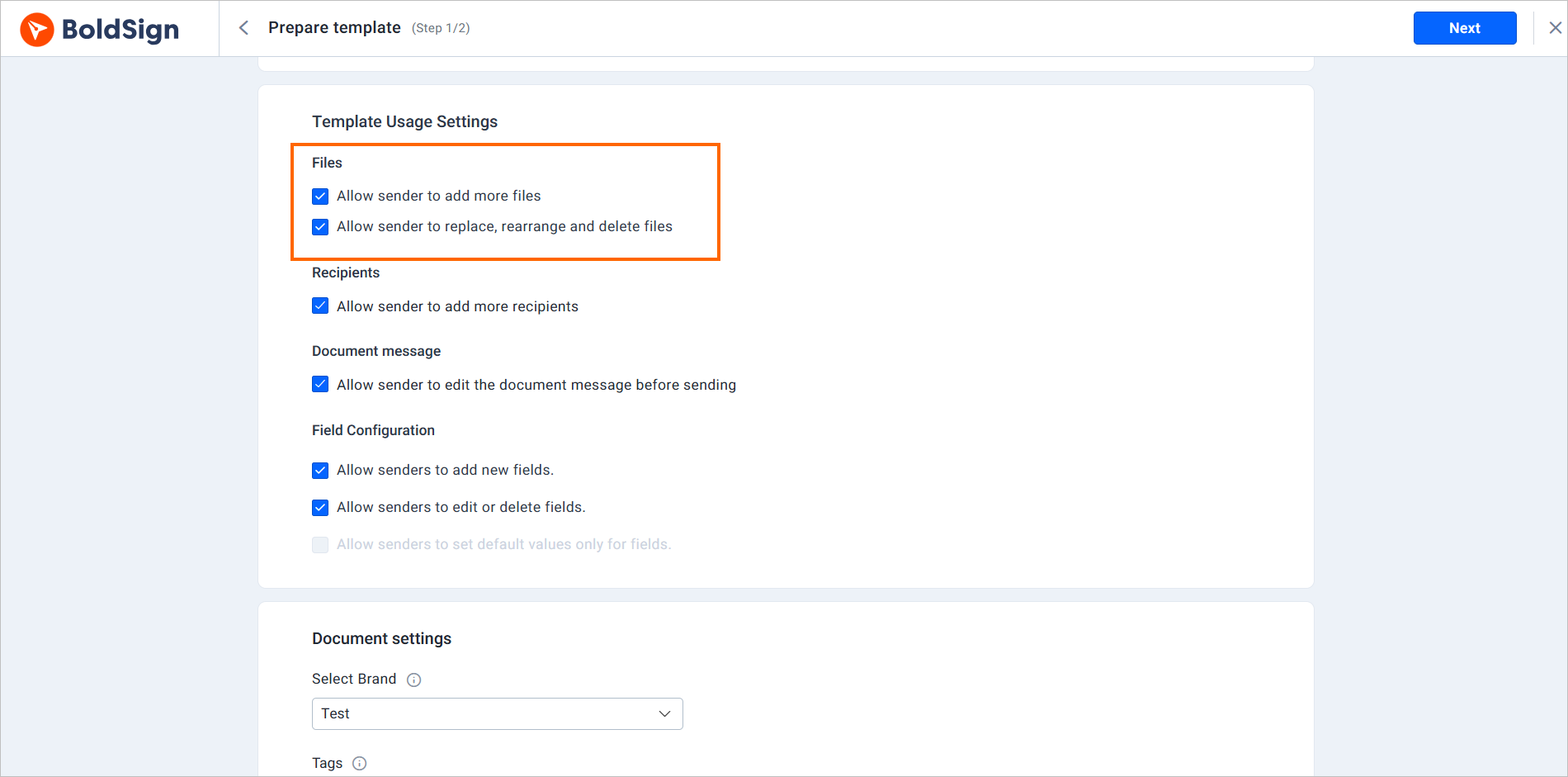
Turn both toggles off to keep the template’s files exactly as approved.
How do you lock template recipients?
The Recipients group has one toggle, Allow sender to add more recipients. Turn it off, and senders can use only the roles you set in the template.
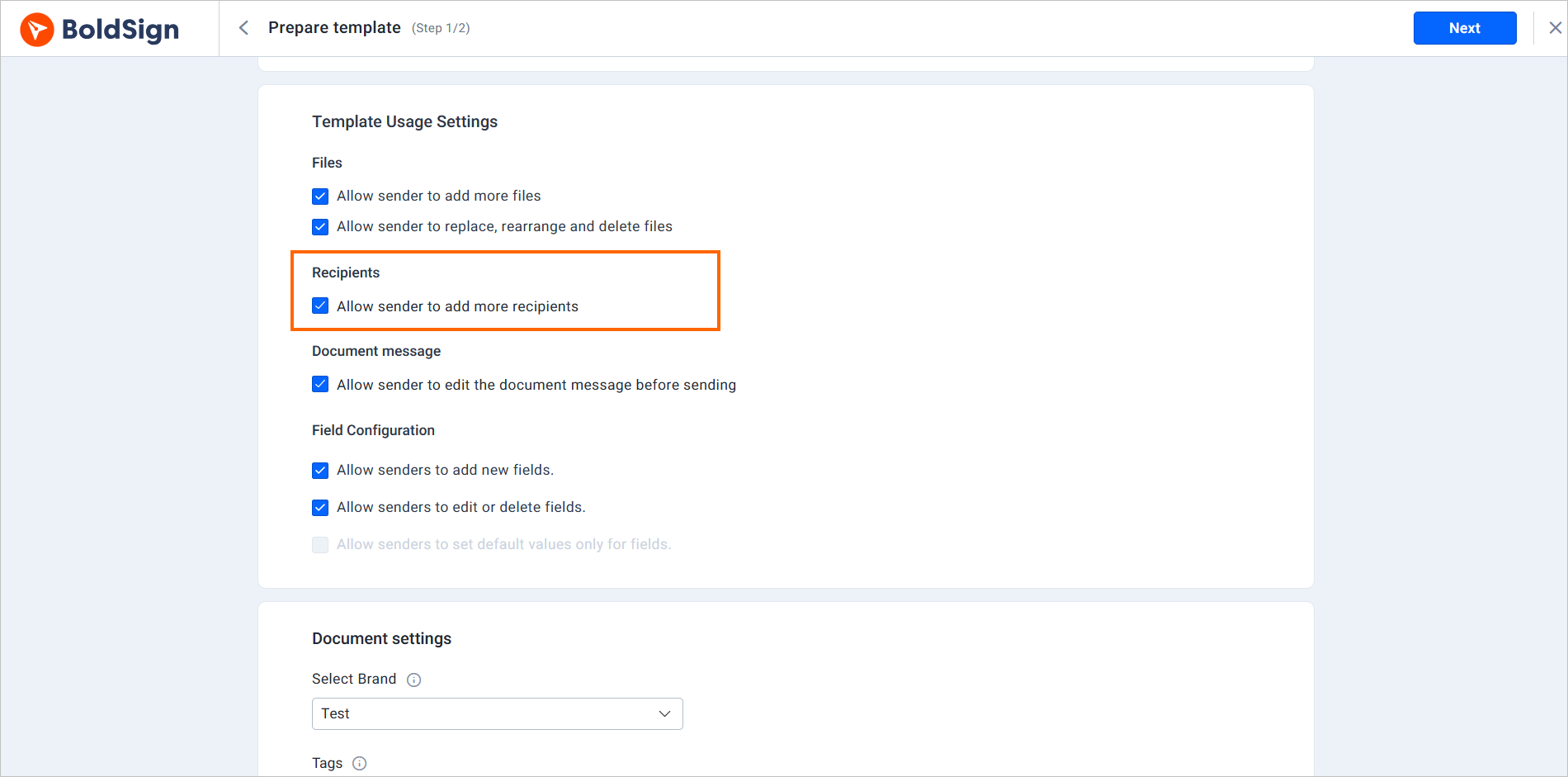
Each role also has its own settings. Open a recipient’s Settings menu and clear Edit this recipient or Delete this recipient under Allow sender to. Our help article on how senders add, edit or remove recipients shows where these sit.
How do you lock the document message?
The Document message group has one toggle, Allow sender to edit the document message before sending. Turn it off, and every send carries the message you wrote.
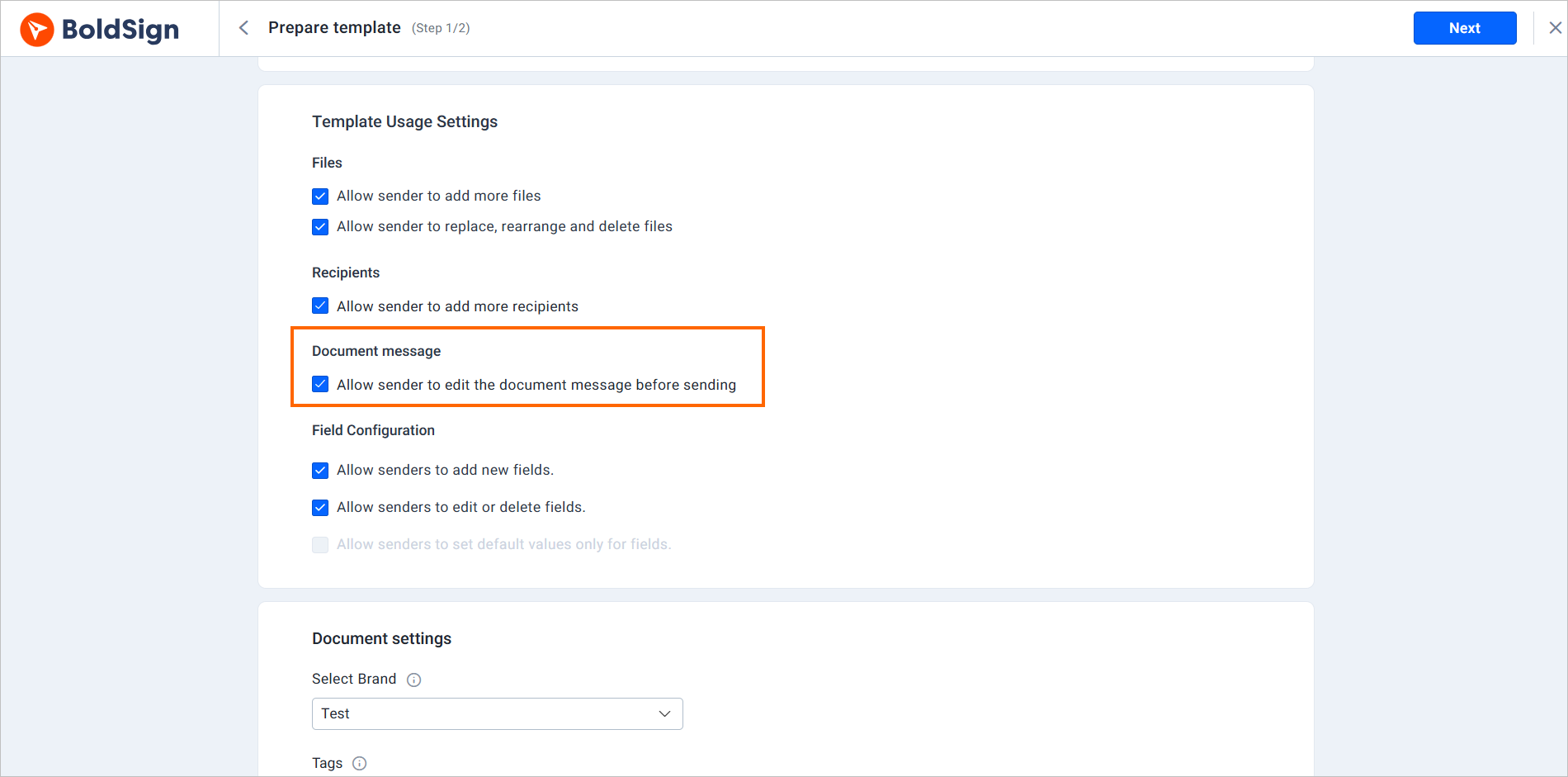
Keep it off when the message holds instructions or legal wording that must stay the same. Our guide on whether senders can modify the message has the details.
How do you lock form fields?
The Field configuration group has three toggles for signature, date, text and other fields. Together they set how much of the field layout a sender can touch.
- Allow senders to add new fields lets senders place extra fields on the document.
- Allow senders to edit or delete fields lets senders move, resize, change or remove your fields.
- Allow senders to set default values only for fields lets senders change only default values. It starts turned off.
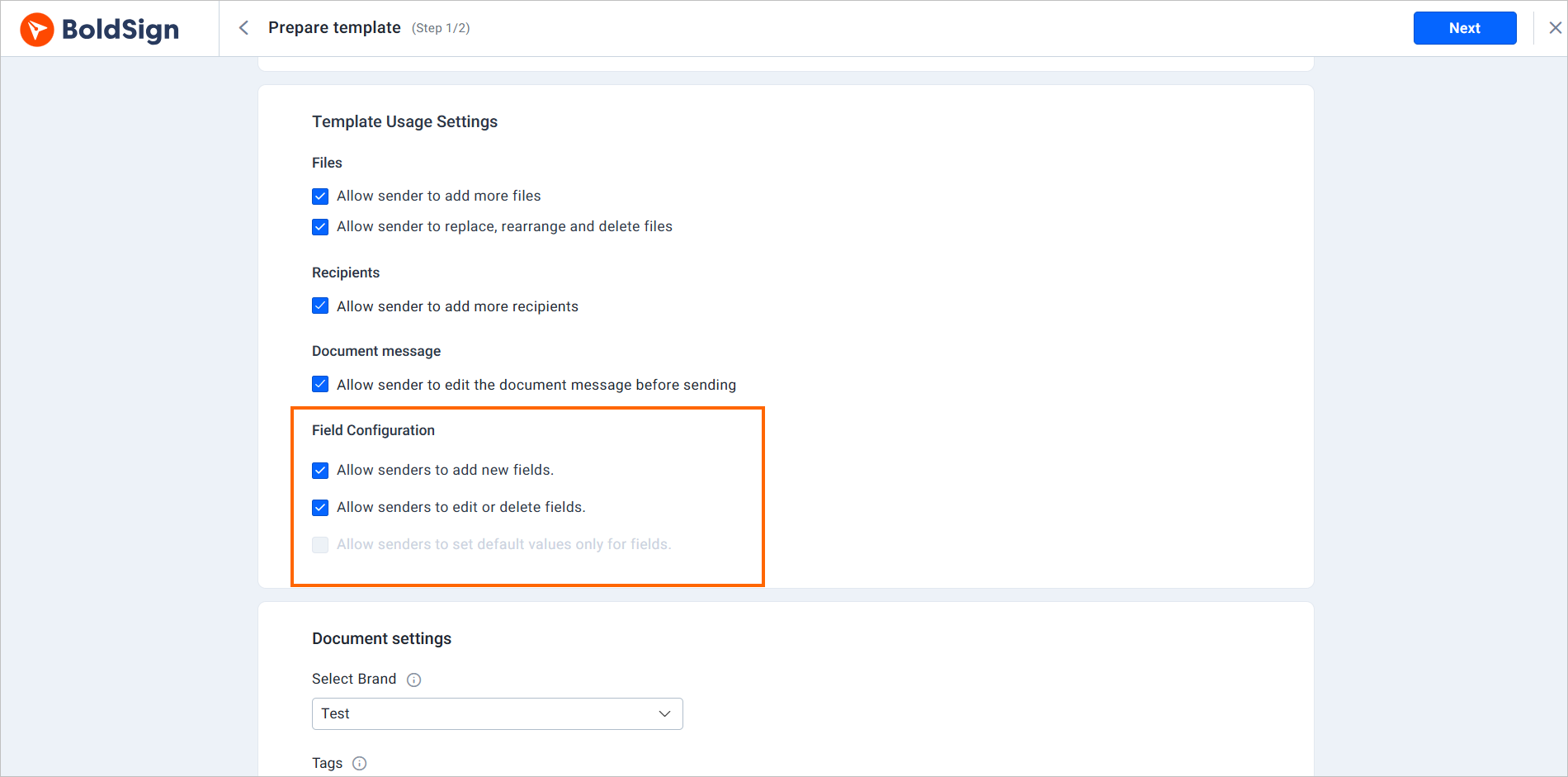
Turn all three off, and senders skip the field page and go straight to sending or previewing.
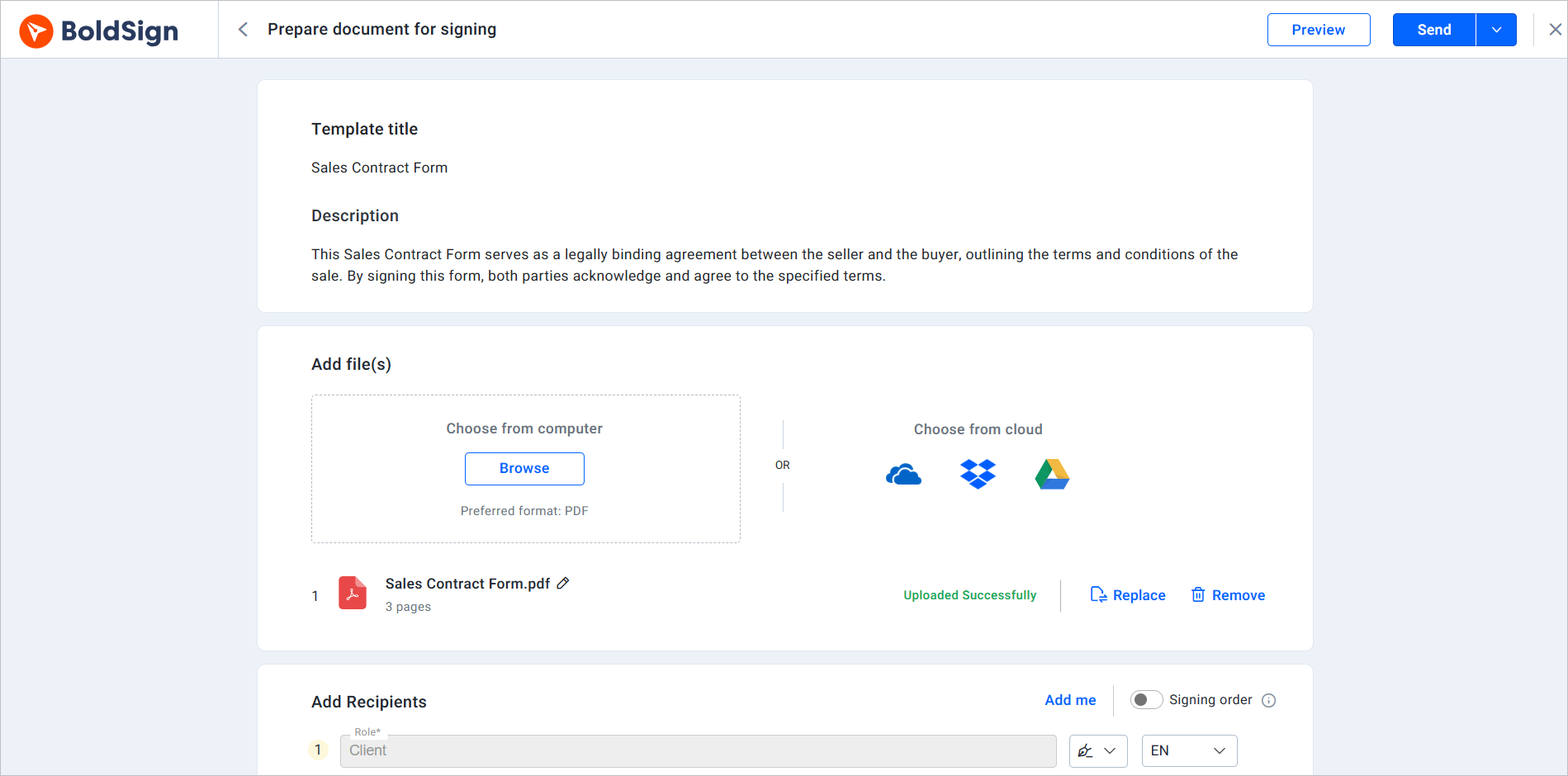
That setup suits a template you have fully prepared in advance. Our guide on template field configuration explains each toggle.
How do you create a fully locked template?
Turn off every option in all four groups of Template Usage Settings. Senders can then only add the recipients’ details, review the document and send it.
- In Files, turn off both toggles.
- In Recipients, turn off Allow sender to add more recipients and clear each role’s edit and delete options.
- In Document message, turn off the message toggle.
- In Field configuration, turn off all three toggles.
How do you lock a single form field?
Lock one field on the Configure Fields page when the rest of the template should stay flexible. For example, you might fix the signature field and let senders move a date field.
- While you create or edit a template, open the Configure Fields page.
- Select a field to open its settings panel on the right.
- In Allow Sender Actions, clear Edit This Field, Delete This Field, or both.
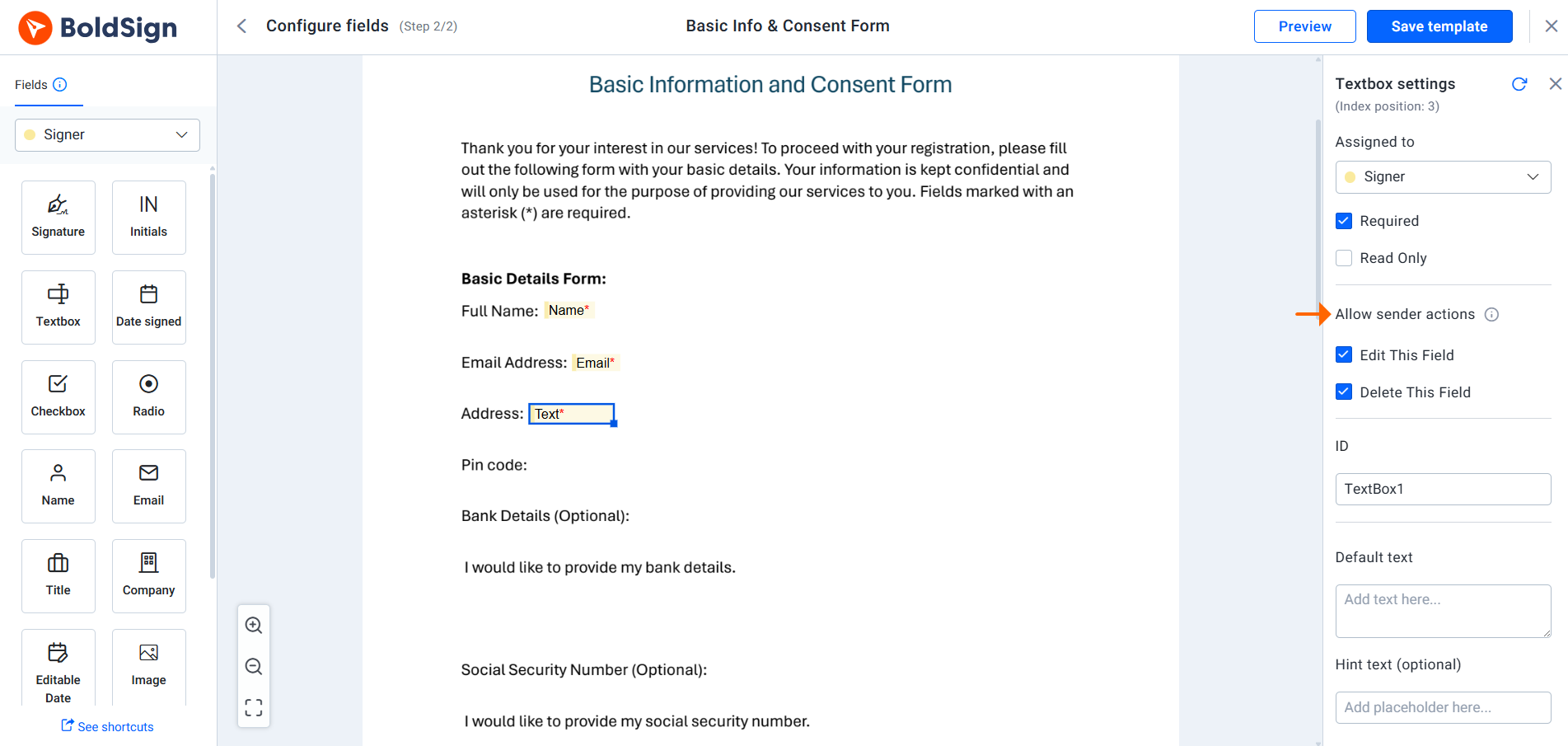
Both checkboxes start ticked. With both cleared, senders can change only the field’s default value. Our guide on how to let senders edit or delete template form fields lists every combination.
What should you check before you lock fields?
Field locks come with a few setup rules. Check them before you save, so the template still works for senders.
- Give each signer role at least one field when Allow senders to add new fields is off.
- Fill in every required labeled field first when Allow senders to edit or delete fields is off.
- With all three field toggles off, self-signing from that template is turned off.
Which BoldSign plan includes locked templates?
Locked templates and usage restriction come with the Growth, Business and Premium plans, as listed on our pricing page in November 2026. The free Essential plan includes 2 templates, without locking.
The Growth plan costs $5 per user a month and includes 10 templates. The Business plan costs $15 per user a month, and the Premium plan costs $99 a month for unlimited users. Both include unlimited templates.
All prices are in USD and billed yearly.
How do you start protecting your templates?
Pick the template your team sends most and lock the parts that carry risk. These links help you take the next step.
- Start a 30-day free trial and lock your first contract template.
- Read our guide on how to save time with eSignature templates to create one from scratch.
- Book a demo or reach our team through the support portal with questions.
Frequently asked questions
What are template usage settings in BoldSign?
They are toggles on the Prepare template page that decide what a sender may change in your template. You set them once, and they apply to everyone who sends from that template.
Can I stop people from editing a shared contract template?
Yes. Turn off the file, recipient, message and field options in Template Usage Settings. Senders then fill in the recipients and send the document as you built it.
Can senders still add a personal note to a locked template?
Yes, as long as you leave Allow sender to edit the document message before sending turned on. You can lock files and fields and still keep the message open.
Can I lock one field and leave the rest editable?
Yes. Select the field on the Configure Fields page and clear Edit This Field and Delete This Field. Other fields keep their own settings.
What happens when all three field options are off?
Senders skip the field configuration page and go straight to sending or previewing. Self-signing from that template is also turned off.
Are documents sent from a locked template legally binding?
Yes, when they meet the same electronic signature rules as any other document. Locking only limits what the sender can change before sending.
Can I change a locked template later?
Yes. As the template owner you can edit the template and its usage settings at any time. The locks apply to people who use the template to send.
Which BoldSign plan includes locked templates?
Locked templates and usage restriction start on the Growth plan. The Business and Premium plans include them too, and the free Essential plan does not.

Rayronald Ochola Otieno
Rayronald Ochola Otieno is a content specialist at BoldSign, specializing in video content and help articles within the eSignature domain. As a blog author, he creates well-researched, insightful content that simplifies complex eSignature topics like digital signatures, compliance, and workflow automation for businesses and professionals. With expertise in creating educational videos and articles, Ray helps users understand and adopt secure, efficient signing solutions. Beyond writing and video creation, Ray enjoys exploring new technologies, reading about the latest industry trends, and continually refining his skills.
More posts by Rayronald Ochola Otieno