How a Salesforce eSignature Workflow Helps Close Deals Faster
 Stephen Otieno Okoth
TL;DR: A Salesforce eSignature workflow sends the contract from the deal record, fills it with record data and files the signed PDF back on that record. The fewer times a rep leaves Salesforce, the sooner a verbal yes becomes closed-won. Our eSignature for Salesforce page shows how the integration works.
A rep gets a verbal yes on Tuesday. The contract is downloaded, edited, emailed, forwarded, resent and finally signed the following Monday. Nobody updates Salesforce, and finance asks where the PDF went.
Salesforce is a customer relationship management (CRM) tool, and the deal already lives there. This guide covers how to run signing from that record, the habits that keep it fast, and how to measure where deals stall. For the integration’s launch and setup, read our post on eSignature for Salesforce.
What is a Salesforce document signing workflow?
A Salesforce document signing workflow takes a contract from the deal record to a signed copy filed on that same record. Every step happens in Salesforce, so nothing depends on a rep’s inbox.
Think of a relay race where the baton never leaves the track. The record is the track, and each hand-off, from rep to customer to finance, happens on it.
How do you send a contract for signature from a Salesforce record?
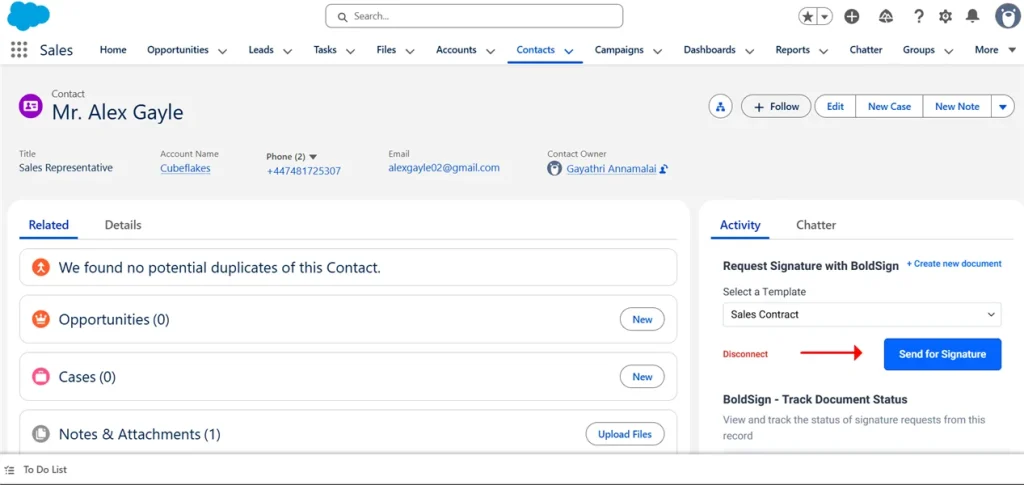
The rep starts from the record and stays there until the document is sent. Our help article on how to send a signature request from Salesforce covers each screen.
Start the request
- Open the Opportunity, Account, Contact or other record the template was built for.
- Find the BoldSign Signatures component and choose a template your admin set up.
- Select Send for Signature.
Check the details and send
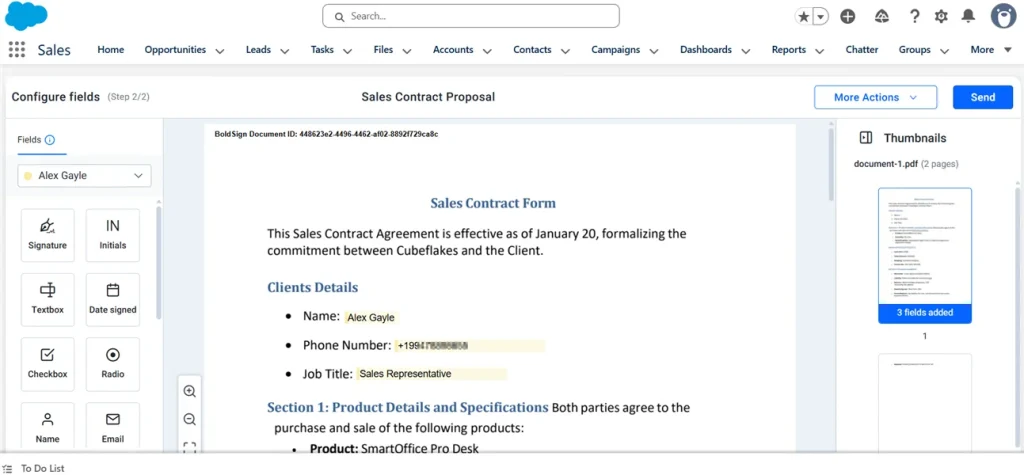
- Review the recipients, which fill in from the record, and change them if needed.
- Check the fields that prefill from Salesforce data.
- Send the document, and Salesforce returns you to the same record.
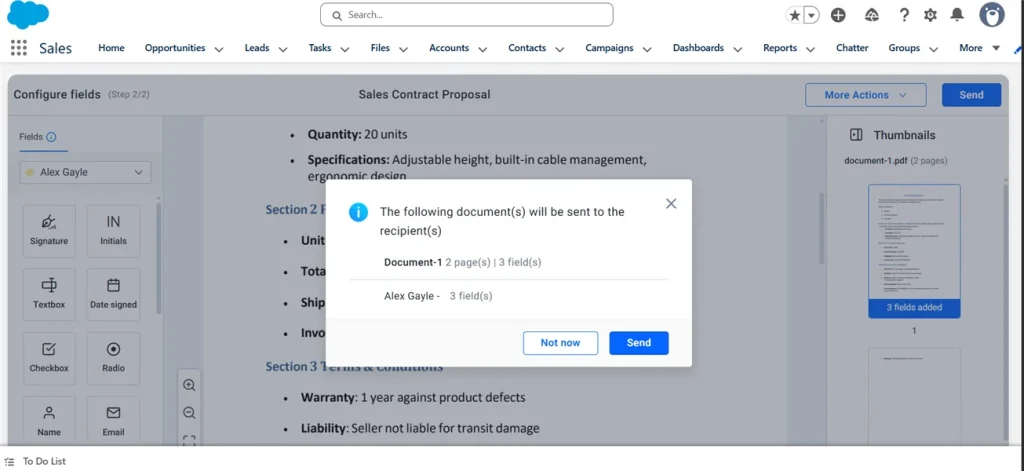
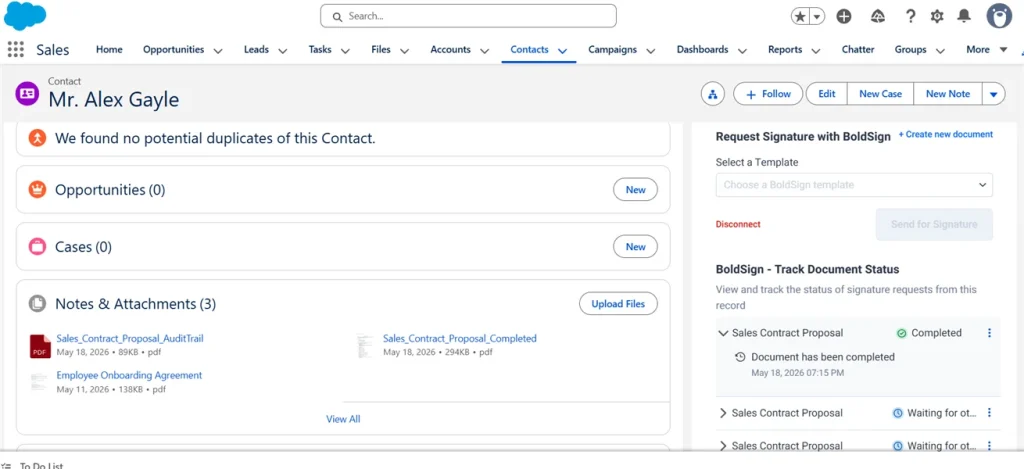
The customer receives the document by email. Its status then appears in the BoldSign Document Status component on the record.
How can I push deals from CRM to e-signature platforms automatically?
Map Salesforce fields to template fields once, and every send fills the contract from the deal record. Reps stop retyping names, amounts and dates.
An admin builds the template for one Salesforce object and maps its fields, as our article on how to create templates for Salesforce explains. The data can also flow the other way. With Writeback to Salesforce turned on, values a signer enters update the record, except lookup fields.
Which documents should you automate first?
Start with the document your team sends most often. For many sales teams, that is an order form, a nondisclosure agreement (NDA) or a Salesforce e signature proposal.
High-volume documents create the most repeated work, so one of them gives you a quick win. A template also keeps the approved wording, required fields and signer roles the same on every send. Our guide on how to save time with templates shows the idea in the BoldSign web app.
Which fields should you map?
Map the fields reps retype on every send. Leave the rest until the first template is running well.
- Company name and billing address
- Signer name, title and email
- Amount and contract term
- Start date
- Opportunity owner details
A short mapping list is easier to keep working when fields or processes change later. Add more fields once reps ask for them.
Where should signed documents live?
Decide this before rollout, so the signed contract is easy to find later. Completed documents can be saved on their own to the record’s Notes & Attachments section, which needs a custom permission.
Our Salesforce integration overview lists that setting. Pick one record type for signed contracts, usually the Opportunity, and tell every team.
How do you keep a sent contract moving?
Give every request a clear owner and a set of defaults before the first send. A contract rarely stalls during signing; it stalls when nobody follows up.
Set recipient roles in the template
Templates hold roles such as Signer and Reviewer, plus CC (carbon copy) recipients. Each role can draw its person from manual entry, a Salesforce Contact or a contact related to the record.
Related contacts are the option our help article recommends. The rep then picks the right person from the deal instead of typing an email address.
Agree on reminders and expiry
We send reminders automatically or manually, and each document can carry an expiry date. Agree on how many days to wait before a reminder and when a request should expire.
From the Document Status component, the document owner can also send a reminder or revoke a request by hand. Other users on the record can see the status only.
Name an owner for exceptions
Declined requests, expired links, wrong signers and price changes all need someone to act. Name that person in your sales operations process.
When an exception arrives, the next step should already be clear. Otherwise the request sits on the record until the quarter ends.
What should reps do at each signing stage?
Status on the record only helps when each stage has a next action. Our help article on how to track document status from Salesforce shows the component.
- Waiting, unopened: confirm the signer’s email address and remind them.
- Opened, unsigned: send a short note offering to answer questions.
- Declined: pass it to the exception owner and record the reason.
- Expired: decide whether to send again or check the deal is still live.
- Completed: confirm the PDF is on the record and move the deal forward.
Our post on how to track contract status in Salesforce goes deeper into this view.
How do you keep proof of signing with the contract?
Every BoldSign document has an audit trail, a record of each action taken on it. Decide where your team keeps it, so the proof sits next to the signed copy.
Some teams store it with the signed PDF on the record. Others keep it as a separate related file. Our guide on why audit trails matter explains what they hold.
How do you measure speed in a Salesforce contract workflow?
Measure the points where deals usually stall. Three numbers cover most of them.
Send-to-open time
Send-to-open time runs from sending the request to the signer first opening it. A long wait points to a wrong email address, a missed message or weak follow-up.
Open-to-signed time
Open-to-signed time runs from first opening to a completed signature. A long wait here points to questions about the terms, extra approvals or the wrong signer.
Resend and exception rate
The exception rate is how often requests are sent again or end as declined, expired or revoked. A high rate shows setup problems that an average completion time hides.
What mistakes slow Salesforce signing down?
Most problems come from a few repeated habits. Each one is easy to fix once you spot it.
- Letting reps edit templates freely, so the wording drifts from the approved version
- Mapping every field at once instead of the few reps retype
- Hiding signing status in email instead of on the record
- Filing signed contracts on different records or in different folders
- Treating declined and expired requests as rare instead of planning for them
Which BoldSign plan do you need for Salesforce, and what does it cost?
The Salesforce integration is on the Business and Premium plans, as listed on the BoldSign pricing page in November 2026. Prices are in USD.
The Business plan costs $15 per user a month, billed yearly, and the Salesforce add-on adds $10 per user a month. The Premium plan costs $99 a month for unlimited users, billed yearly, and the add-on adds $21 a month per organization. Both plans include unlimited templates, and you can test the integration during the 30-day free trial.
How do you start your Salesforce eSignature workflow?
Pick your most-sent document, map its key fields and run a few sends from one Opportunity. Then add the habits above one at a time.
- Start a 30-day free trial and send your first contract from a Salesforce record.
- Book a demo to see a template mapped to your own Salesforce fields.
- Read our guide to auto-filling contracts before you build your first template.
Frequently asked questions
How do I send a document for signature from Salesforce?
Open the record, pick a template in the BoldSign Signatures component and select Send for Signature. You then check the recipients and prefilled fields before you send.
Can signed documents be saved back to Salesforce?
Yes. Completed documents can be saved on their own to the Notes & Attachments section of the record. Your Salesforce admin needs to grant a custom permission for this.
Why send contracts for eSignature inside Salesforce?
Reps stay on the record they already work in. They skip retyping customer details, chasing signatures by email and uploading the signed copy by hand.
Can I send documents from a Salesforce Opportunity?
Yes. A template can be set up for the Opportunity object, or for Account, Contact or a custom object. Reps then send it from the record page.
Can I track signature status inside Salesforce?
Yes. The BoldSign Document Status component on the record shows each request sent from it. The document owner can send a reminder or revoke the request from there.
Can signers update Salesforce fields when they sign?
Yes, for mapped fields with Writeback to Salesforce turned on. Values a signer enters flow back into the record, though writeback skips lookup fields.
Is an eSignature on a Salesforce contract legally binding?
Yes, when it meets the usual rules for electronic signatures: the signer agrees to sign electronically and the signed record is kept. Check the rules for your contract type and country.
Do customers need a Salesforce or BoldSign account to sign?
No. Customers receive the document by email and sign from the link. Only the people sending from Salesforce need access to the integration.

Stephen Otieno Okoth
Stephen is a Technical Assistant at BoldSign who specializes in creating clear documentation and engaging videos. He combines his technical skills and creativity to deliver user-focused solutions. Connect with him on LinkedIn.
More posts by Stephen Otieno Okoth