How to Send an eSignature Request to Two Recipients Who Share One Email
 Ranjitha Amirthalingam
TL;DR: You can send one document to two signers who share an email address. Turn on Signing order so each person gets their own request in turn, or add one recipient with signature fields for both people. Our eSignature features page shows what else each request can do.
A married couple signs a lease from one family inbox. Two business partners share an office address. In both cases, two people need to sign, but they share a single email address.
Most signing tools expect one address per signer. This guide shows two ways to get both signatures on the same document with BoldSign.
What is a dual signature?
A dual signature means two people sign the same document. Each person adds their own signature to their own fields.
Think of a birthday card passed around an office. One card goes from desk to desk, and each person signs their own spot. A shared inbox works the same way, with the email passed from one person to the next.
How can two people sign from the same email address?
You have two options in BoldSign. Pick the one that fits how the two people work together.
With signing order on, each person gets their own request at the shared address, one after the other. With it off, one request goes to the shared address, and the first signer passes the link on.
Signing order is the simpler route for most senders. Each person signs as a separate recipient, and we send the second request for you.
How do you send to two signers with signing order?
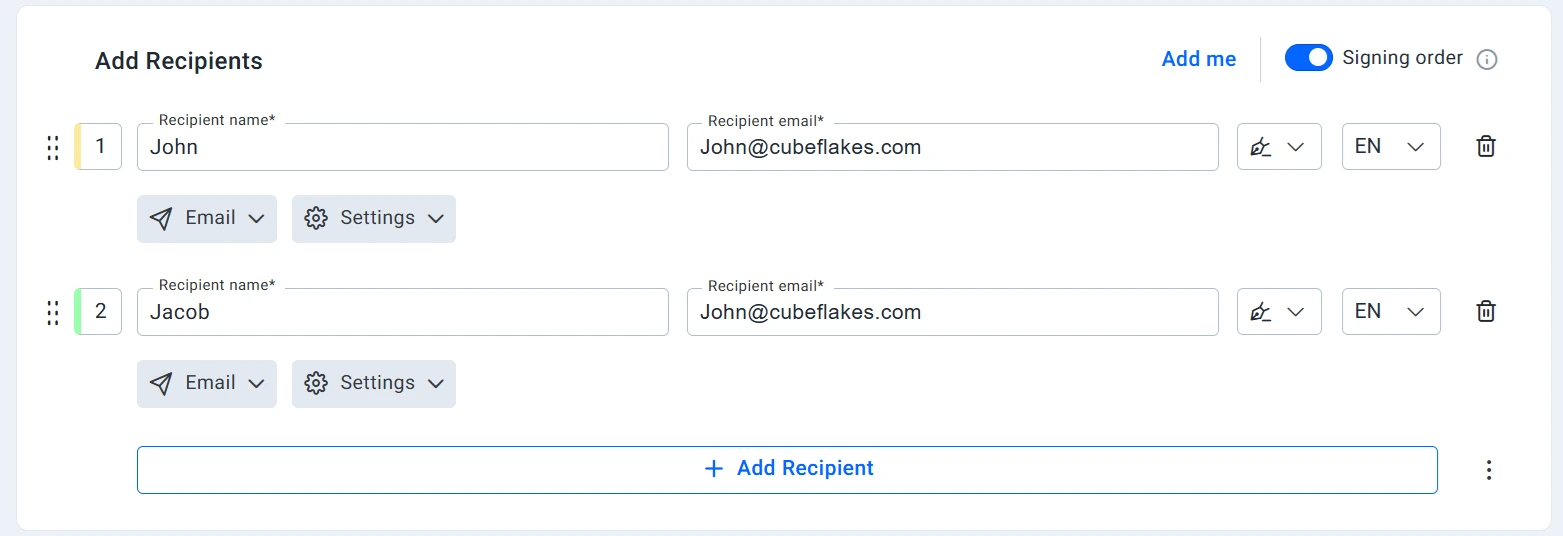
By default, we show an error when you add the same email for two recipients. Turning on the signing order lets you use one address for both.
How do you turn on signing order?
- Select Create New, then Create New Document.
- Upload your file on the Prepare document page.
- In Add recipients, turn on the Signing order toggle.
- Add each signer’s name with the shared email address.
- Drag the signers into the order you want, then select Next.
Our help article on signing in a particular order explains the setting in more detail.
How do you place two signature fields?
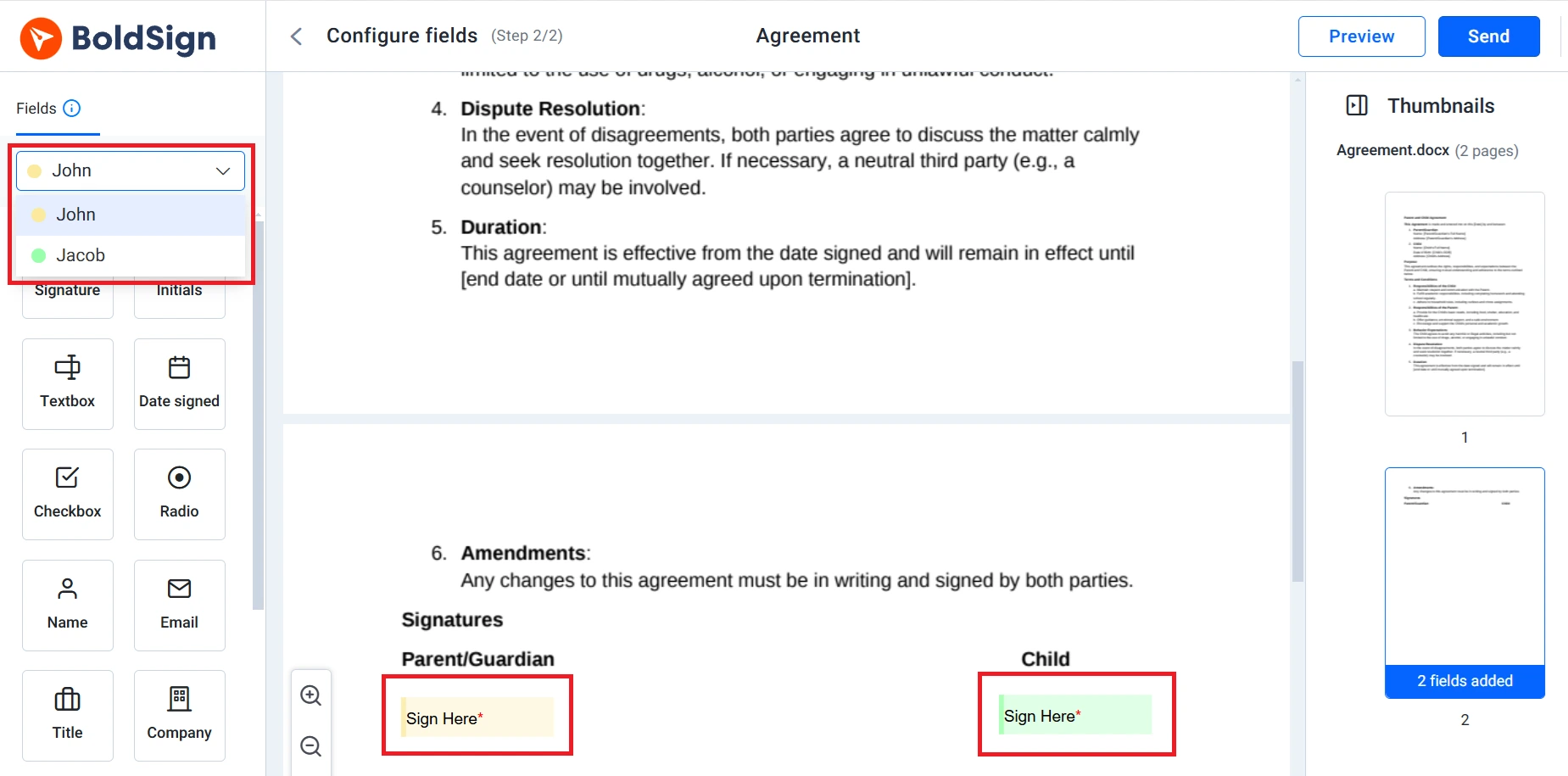
On the Configure fields page, pick each signer from the recipient dropdown. Then place that person’s signature fields on the document and select Send.
What happens after you send?
The first signer gets the request at the shared address and signs. We then send a new request to the same address for the second signer.
The second signer opens the link and sees the first signature already in place. They add their own signature, and the document is complete.
How do you get two signatures without signing order?
Leave the signing order off when you prefer one request. The first signer signs and then hands the link to the second person.
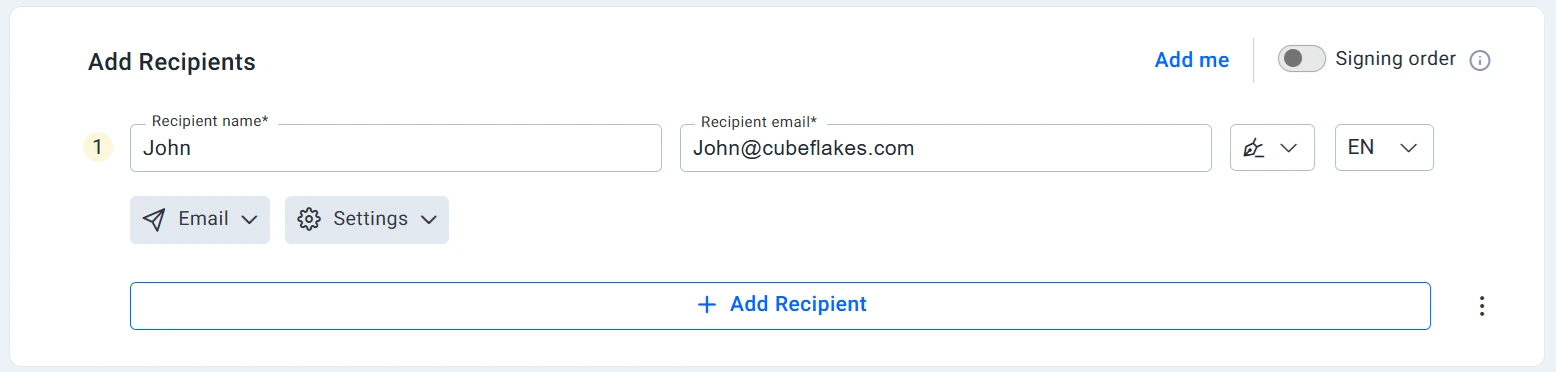
How do you add one recipient?
Upload your document and enter the signer details with the shared email address. Select Next to move to the fields.
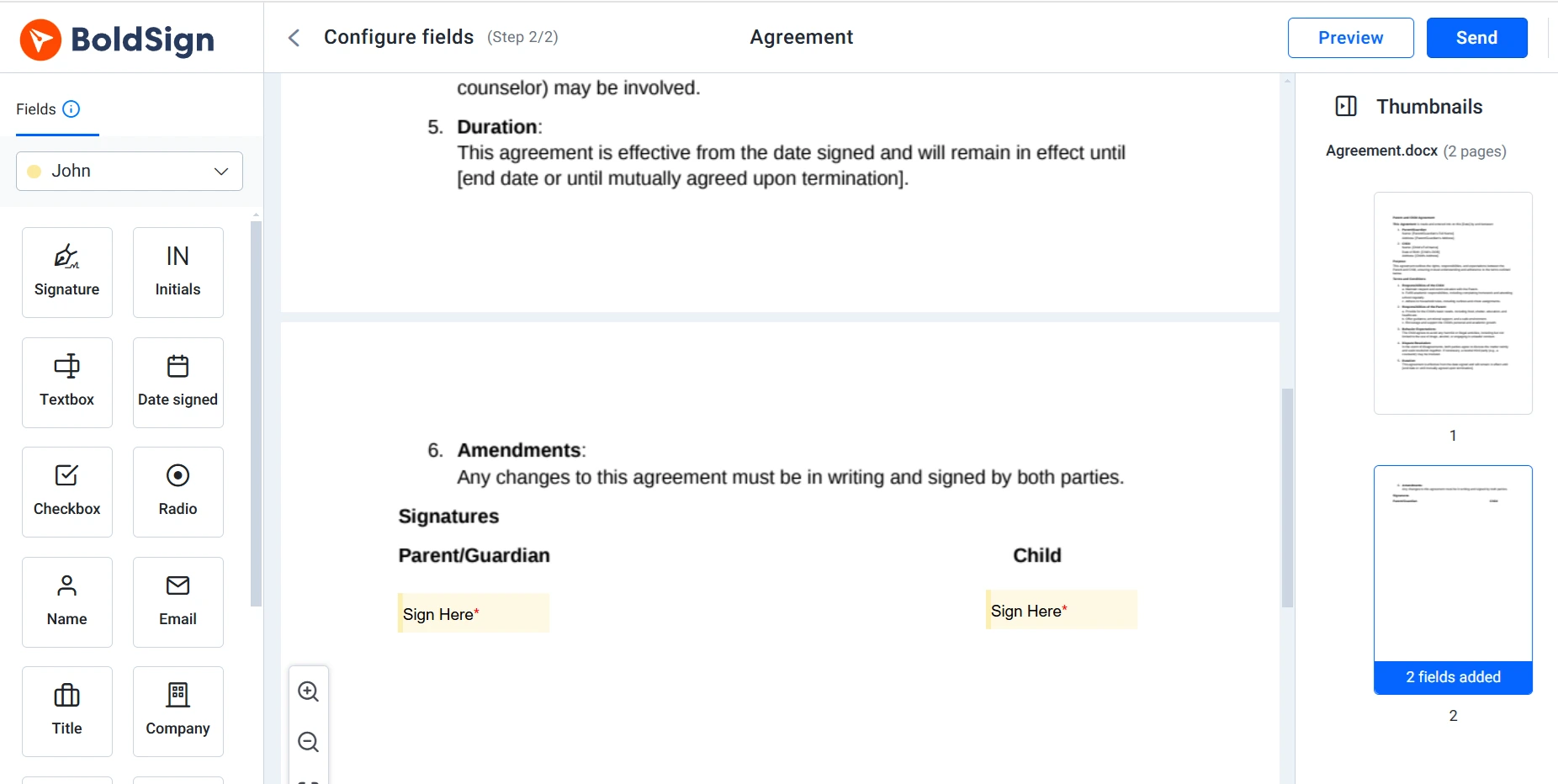
How do you add a signature field for each person?
Place a signature field for each person in the right spot on the document. Then select Send to deliver the request to the shared address.
How does the first signer pass the link on?
- Open the request from the email link, or from My Documents.
- Accept the terms, select Continue, then select Start Signing.
- Complete your own fields only.
- Select More Actions, then Save, and wait for the save message.
- Share the signing link with the second signer in any messaging app.
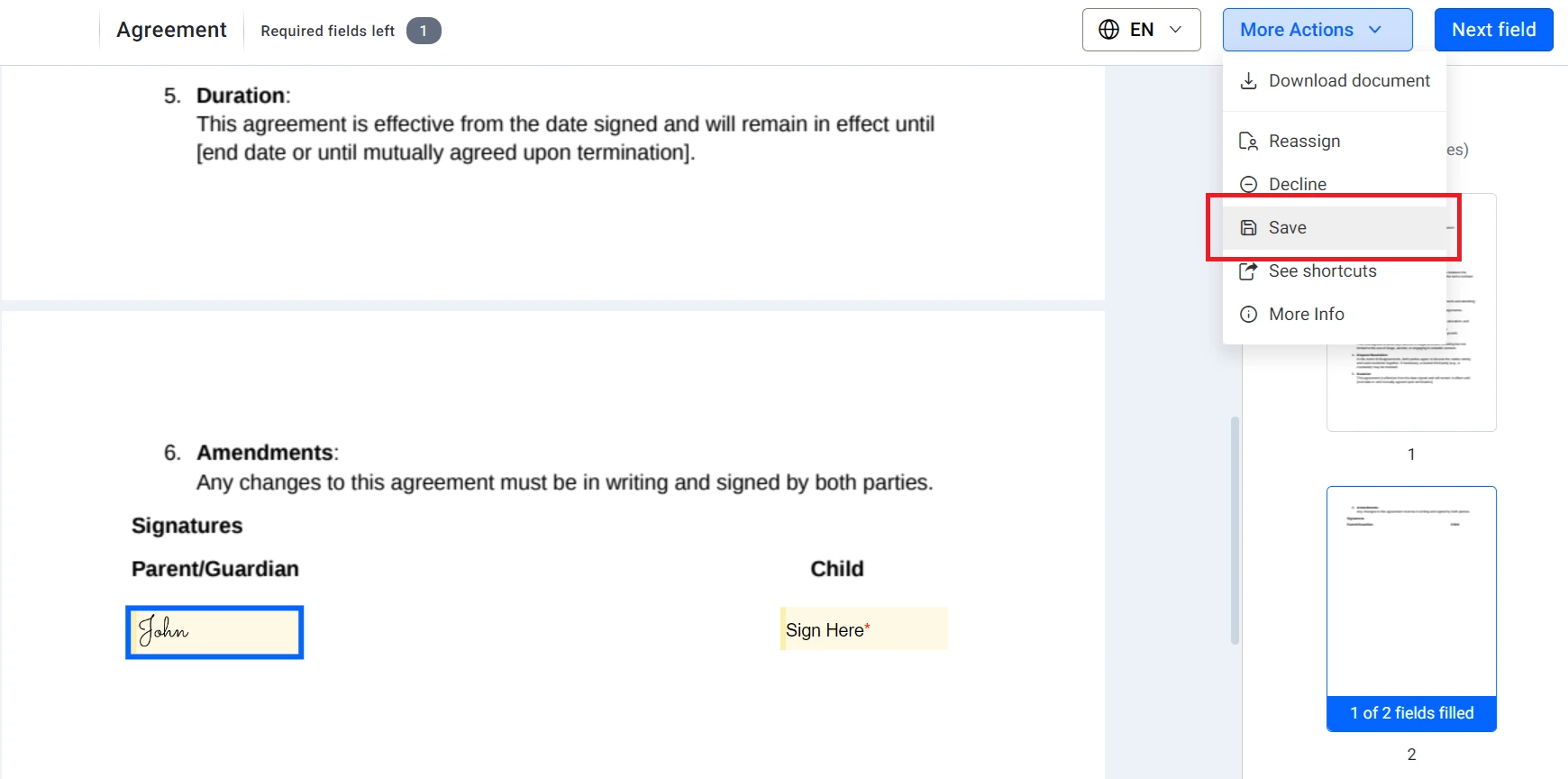
Save before you share the link, so your work stays on the document. The second signer then opens the link and fills in their own fields.
How do you send a document for e-signature to multiple people?
Add one recipient for each person in Add recipients, then place each person’s fields. Every signer gets their own link to sign.
The same steps work for two signature lines or ten. Our help article on how to add multiple recipients covers the details.
What should you watch for with a shared inbox?
Small slips cause most problems with a shared address. Check these points before you send.
- Tell both people which fields are theirs.
- Ask the first signer to save before sharing the link.
- Use email aliases, such as name+1 and name+2, to keep separate contact records.
Aliases reach the same inbox, and we treat each one as its own address. Ask your email provider whether it supports them. Our help article on signers who share an email address lists the details.
Which BoldSign plan do you need, and what does it cost?
Every BoldSign plan lets you send documents for signature, including the free Essential plan. The Growth plan costs $5 per user a month, and the Business plan costs $15 per user a month.
The Premium plan costs $99 a month for unlimited users. All prices are in USD and billed yearly, as listed on our pricing page in November 2026.
Where do you go next with two signers on one email?
Try both methods with a test document before you send a real agreement.
- Start a 30-day free trial and send a test to your own inbox.
- Book a demo to see signing order set up for your documents.
- Visit our support portal with a question about your setup.
Frequently asked questions
Can two signers use the same email address in BoldSign?
Yes. Turn on Signing order and add both people with the shared address. Each person then gets their own request in turn.
How do I send a document for e-signature to multiple people?
Upload the document, add one recipient for each person in Add recipients, and place each person's fields. Select Send, and each person gets a link to sign.
How can I collect signatures from several people on the same agreement?
Add every signer as a recipient on one document. All of the signatures then land on the same copy of the agreement.
Why does BoldSign show an error when I add the same email twice?
Each recipient normally needs their own email address. Turn on Signing order, and the same address can be added for more than one recipient.
What is a dual signature on a document?
A dual signature means two people sign the same document. Couples, joint account holders and business partners often sign this way.
Can the second signer see the first signature?
Yes. The second signer opens the document after the first person has signed, so the first signature is already in place.
What should the first signer do before sharing the signing link?
Select More Actions and then Save. A message confirms the save, and the link is then ready to share with the next signer.
Can I keep separate contact records for two people on one inbox?
Yes, with email aliases such as name+1 and name+2 at the same domain. Mail reaches one inbox, and we treat each alias as its own address.

Ranjitha Amirthalingam
Ranjitha is a seasoned developer with over 7 years of hands-on experience in C#, specializing in desktop applications using WPF and Blazor. Beyond the world of coding, Ranjitha has a passion for travel, particularly enjoying the tranquility and beauty of mountain ranges. Whether working on cutting-edge software or exploring nature, Ranjitha is always seeking new adventures and challenges. Connect with her on LinkedIn.
More posts by Ranjitha Amirthalingam