Automate Your eSignature Workflows with BoldSign Integrations on Zapier
 Jayavigneshwaran
TL;DR: The BoldSign Zapier integration sends a document from your template when something happens in another app. It also starts a Zap when a document is sent, completed or declined. This guide builds two Zaps for HR onboarding: a form response sends the agreement, and the signed copy lands in Google Drive. Our Zapier integration page lists every trigger and the action.
Picture an HR manager who onboards new hires. Each hire fills in a Google Form. The manager then builds an agreement from those answers, sends it for signature, and later downloads the signed copy into a shared Google Drive folder.
Every step repeats for every hire, and each manual step is a chance to type an email address wrong. Below, we connect BoldSign to Zapier so the whole flow runs on its own.
What is the BoldSign Zapier integration?
The integration links your BoldSign account to the apps you already use through Zapier, with no code. Zapier lists thousands of apps, so a form, a sheet or a customer relationship management (CRM) tool can start a signing.
Think of it like a doorbell wired to a porch light. Pressing the bell is the trigger, and the light switching on is the action. In Zapier, that pair is called a Zap.
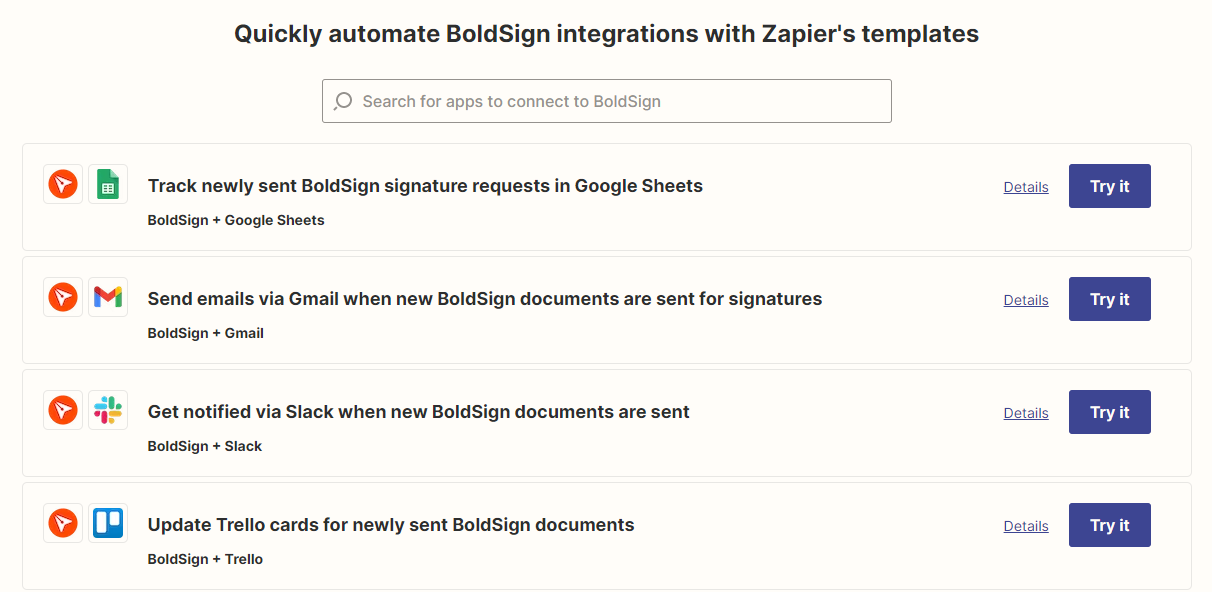
You can find the BoldSign app and its ready-made Zap templates on the BoldSign Zapier integration page.
Which BoldSign triggers and actions does Zapier support?
The BoldSign app has three triggers and one action. Every trigger is instant, so Zapier hears about the event the moment it happens.
Supported triggers
- Document Sent starts a Zap when you send a document for signature.
- Document Completed starts a Zap once every signer has signed.
- Document Declined starts a Zap when a signer declines the document.
Each trigger has an Admin mode setting. Turn it on to catch documents that anyone in your organization sends.
Supported action
Send Document From Template creates a document from one of your BoldSign templates and sends it for signature. You map data from the trigger app, such as a name and email address, into the template’s fields.
The action needs a saved template. Create one with our guides on BoldSign templates and how to create a template. Our help article on the supported triggers and actions in Zapier has more examples.
What do you need before you build a Zap?
You need a Zapier account, a BoldSign account and a template with the fields the Zap will fill. A free API sandbox account is enough to build and test, with no credit card.
Each Zap has a Sandbox Mode field. Set it to true while you build, and the Zap runs without using an envelope. Sandbox documents carry a test watermark, and we delete them after 14 days.
How does the HR onboarding workflow fit together?
The workflow uses two Zaps. You can start either one from a Zap template or build it from scratch.
- The new hire fills in a Google Form with their details.
- The first Zap sends them an agreement from your BoldSign template.
- Once they sign, the second Zap saves the signed document in Google Drive.
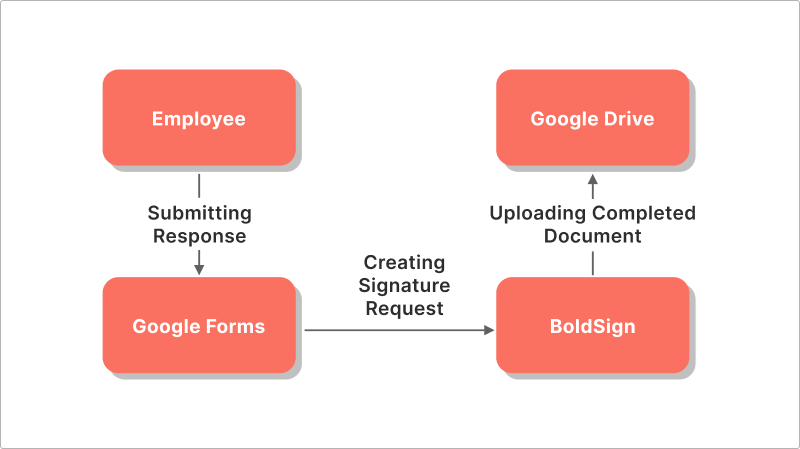
For this example, assume you shared the form with a new hire named Alex, and Alex has already submitted it.
How do you send a document when a Google Form is submitted?
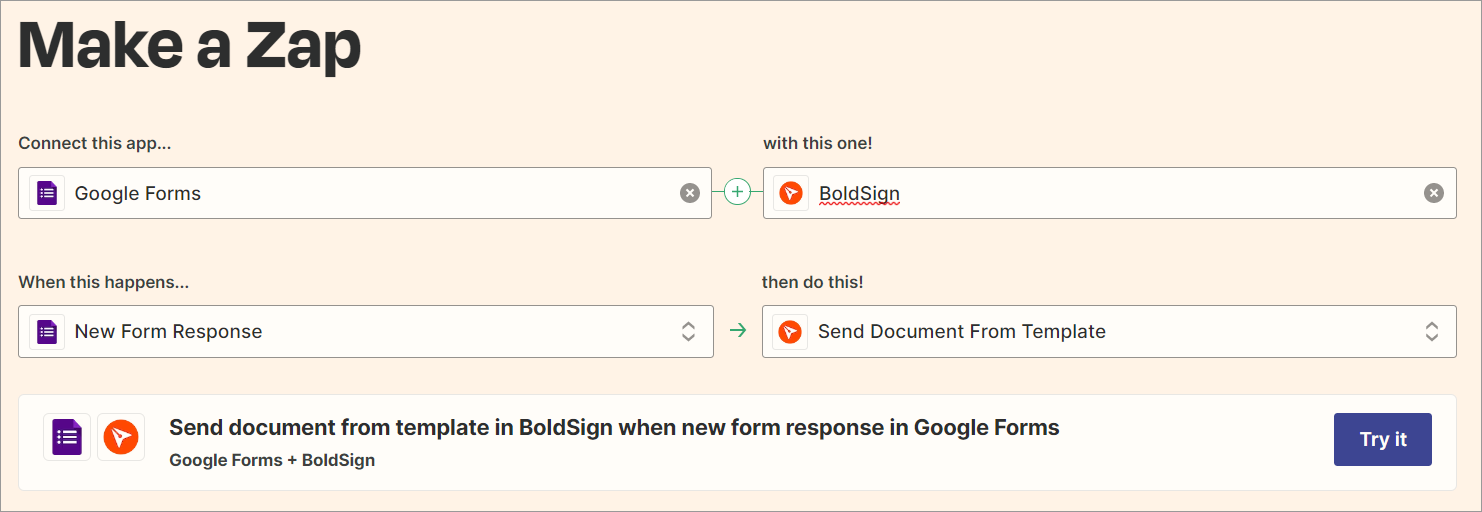
Build a Zap with Google Forms as the trigger app and BoldSign as the action app. Have your onboarding template saved in BoldSign before you start.
- In Zapier, create a new Zap and choose Google Forms as the trigger app.
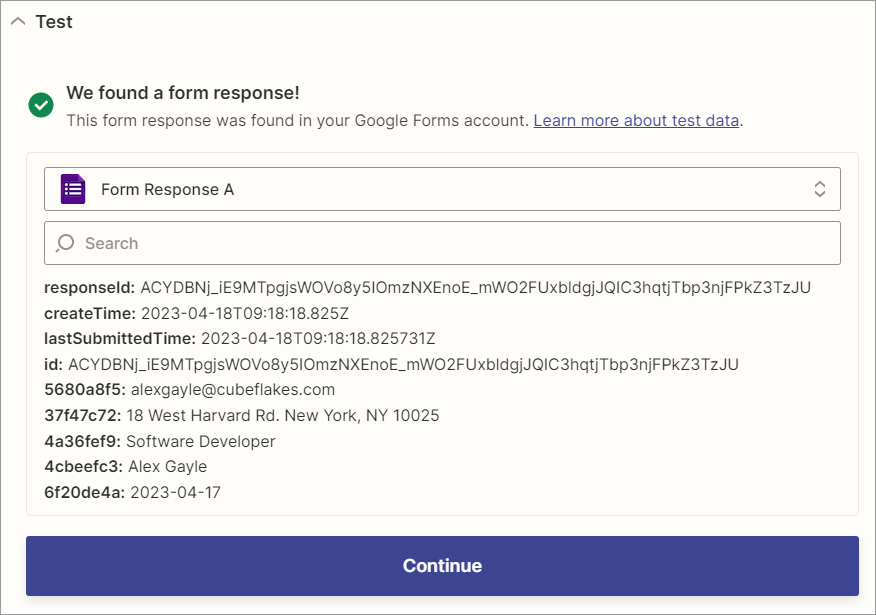
- Pick your onboarding form and test the trigger. Zapier shows the latest response.
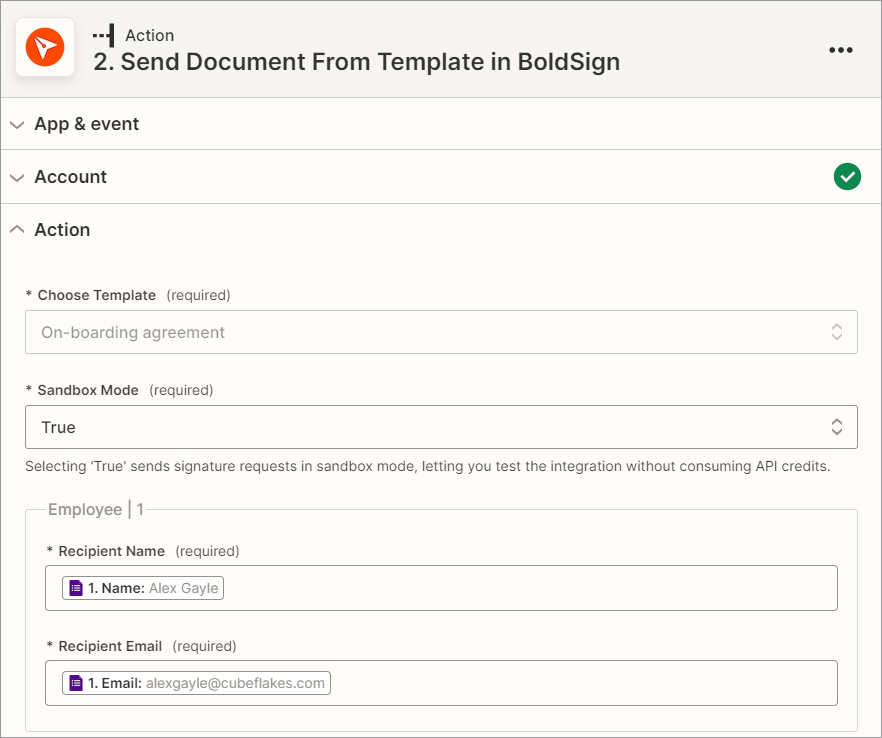
- Add BoldSign as the action app, choose Send Document From Template, and sign in.
- Choose your template and set Sandbox Mode to true for the first run.
- Map the hire’s name and email address from the form to the signer fields.
How do you check the test and turn the Zap on?
Test the action, and BoldSign creates a signature request for Alex. You can then open it in the BoldSign web app.
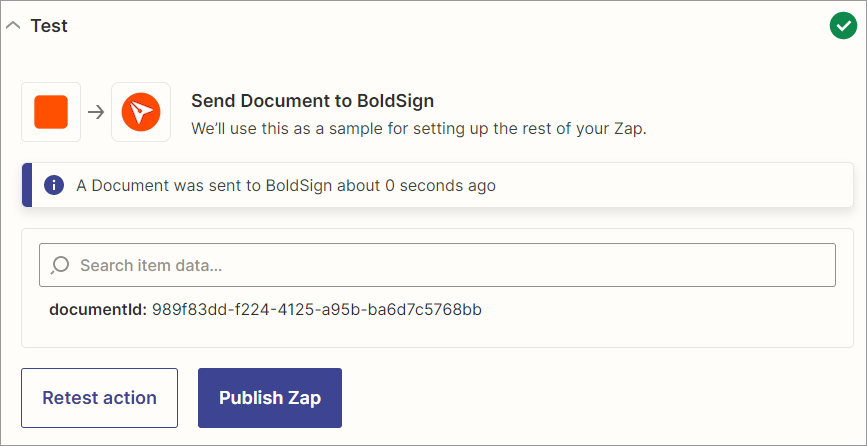
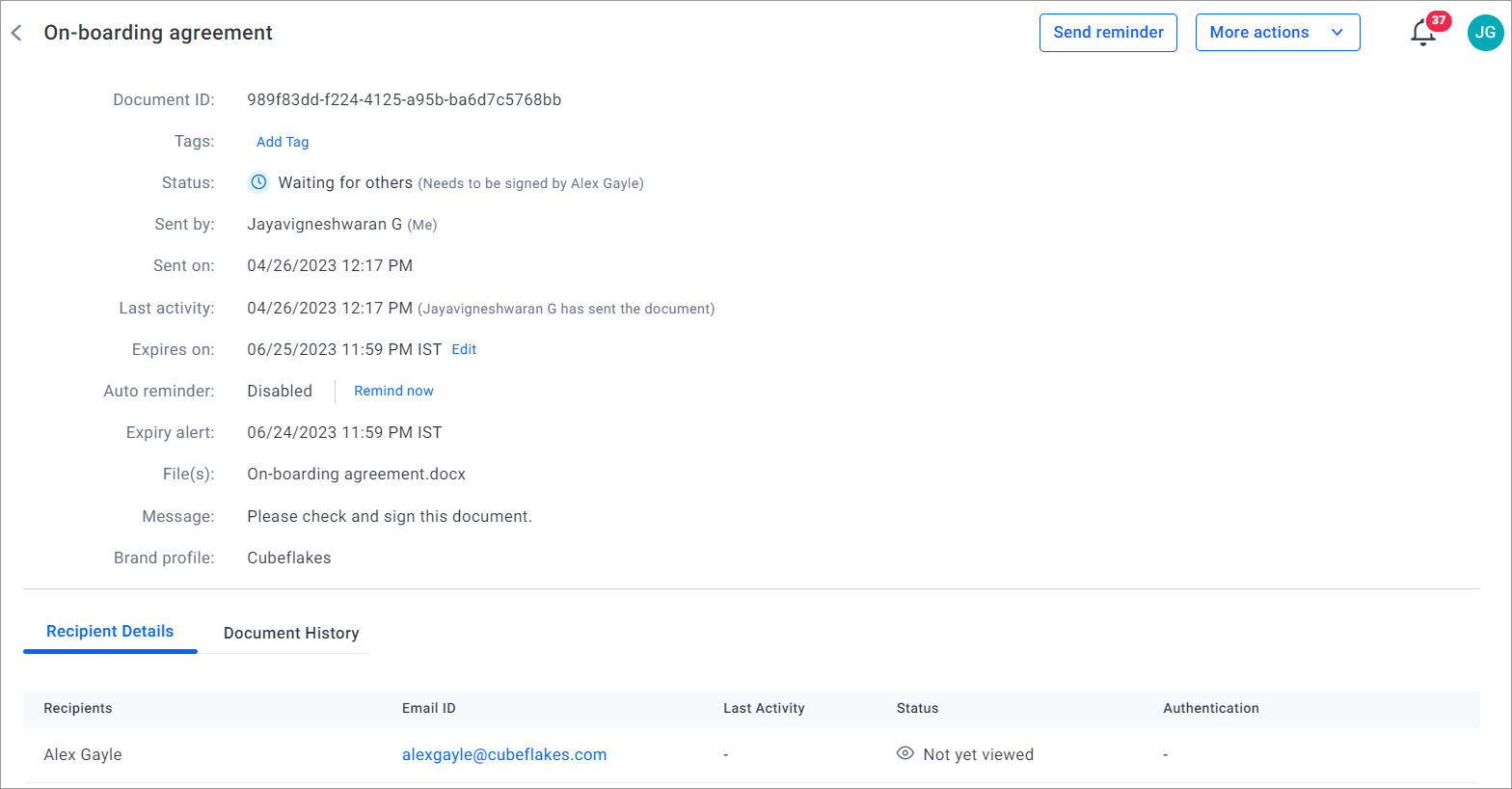
Set Sandbox Mode to false when the Zap is ready, then publish it. From then on, every form response sends a new signature request.
How do you save signed documents to Google Drive automatically?
Build a second Zap with BoldSign as the trigger app and Google Drive as the action app. It files each signed agreement without anyone downloading it.
- Create a new Zap and choose BoldSign with the Document Completed trigger.
- Connect your BoldSign account and test the trigger to load a recently completed document.
- Add Google Drive as the action app and choose the drive and folder.
- Pick the signed document as the file to upload, and give it a file name.
- Test the action, then publish the Zap.

When Alex signs, the completed agreement now appears in that folder. Both Zaps show on the Zaps page in Zapier, where you can pause or edit them.
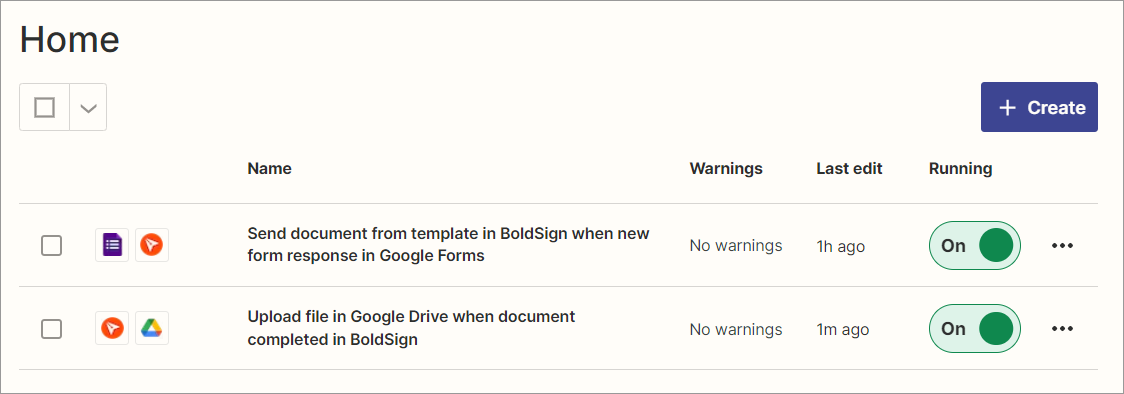
Our step-by-step guide to upload signed documents to Google Drive with Zapier covers this Zap in more detail.
What should you watch out for?
A few limits shape what a Zap can do. Check them before you plan a larger workflow.
- A Zap sends only from a template, never from a loose file.
- No trigger fires for a reminder or an expired document.
- The Document Completed trigger needs the View Document permission to download a teammate’s signed PDF.
- Production accounts can make 2,000 BoldSign API requests an hour.
Which BoldSign plan do you need, and what does it cost?
Live Zaps need our Enterprise API plan, from $30 a month with 40 envelopes. Each extra envelope costs $0.75, and prices are in USD.
You can build and test every Zap in the free sandbox first. The 30-day free trial of our web app also runs Zaps in sandbox mode only. The API pricing page shows the current terms.
Where do you go next with BoldSign and Zapier?
Once your onboarding Zaps run, the same trigger and action can cover sales, finance and operations. Pick a next step.
- Create a free API sandbox account and build your first Zap today.
- Read our 7 eSignature workflow automation ideas with BoldSign and Zapier for more Zaps to build.
- Book a demo or contact our support team about your workflow.
You can also start a 30-day free trial to send documents from the BoldSign web app.
Frequently asked questions
What can the BoldSign app do in Zapier?
It has three instant triggers and one action. A Zap can start when a document is sent, completed or declined, and it can send a new document from one of your templates.
Do I need a template to send documents through Zapier?
Yes. The Send Document From Template action sends only from a saved BoldSign template. Save your file as a template first.
How do I test a BoldSign Zap without sending real documents?
Set the Sandbox Mode field in the Zap to true. The Zap then runs without using an envelope, and the test document carries a watermark and is deleted after 14 days.
Which BoldSign plan do I need for live Zaps?
Live Zaps need our Enterprise API plan, from $30 a month with 40 envelopes. You can build and test every Zap first in a free sandbox account.
Can the 30-day free trial send documents through Zapier?
Only in sandbox mode. The trial lets you build and test Zaps, but it cannot send live documents through a Zap.
Are documents sent by a Zap legally binding?
Yes, when the signing meets the same rules as any other electronic signature. A Zap only starts the send, and the audit trail records which documents it sent.
Can a Zap start when a signing reminder goes out or a document expires?
No. The app's three triggers fire when a document is sent, completed or declined.
Why can my Zap not download a teammate's signed PDF?
The Document Completed trigger needs the View Document permission to download a document another user sent. Ask an admin to grant it, or turn on Admin mode in the trigger.

Jayavigneshwaran
Product Manager at BoldSign with a strong foundation in web and mobile development. Started as a web developer working with React, Angular, TypeScript, and Blazor, then moved into mobile development with Flutter and Dart. Now leading the BoldSign mobile app and support experience, combining technical depth with product strategy to deliver reliable releases and great customer outcomes. Connect with him on LinkedIn.
More posts by Jayavigneshwaran