BoldSign from a Paralegal's Perspective: Send, Track and Prove Signatures
 Madeline Joyner
TL;DR: A paralegal can use BoldSign to send a contract to every party in one request. You can then watch who still has to sign and download proof of each signature. Signing order, cloning and templates cut the repeat work on busy days. Our electronic signature for legal teams page shows how firms set it up.
A paralegal on a busy legal team may juggle dozens of open contracts at once. Each one has its own parties, deadlines and follow-ups. One missed signature can hold up a closing or a new client file.
BoldSign is our eSignature web app, and this guide walks through it from a paralegal’s point of view. You will see where documents live, how to send one, how to fix a mistake and how to prove who signed.
What does a paralegal need from an e-signature tool?
You need one place to send contracts, see their status and keep proof of signing. Everything else is a time-saver on top.
Think of it like a court docket for your own desk. A docket tells you what is pending, what is due and what is done. An e-signature dashboard does the same for contracts, so you stop keeping a separate spreadsheet of who still has to sign.
Electronic signatures also have legal standing in the US. A contract keeps its legal effect in electronic form under the Electronic Signatures in Global and National Commerce (ESIGN) Act. Some records sit outside that rule, such as wills, family law matters and many court documents.
What do you see when you log in to BoldSign?
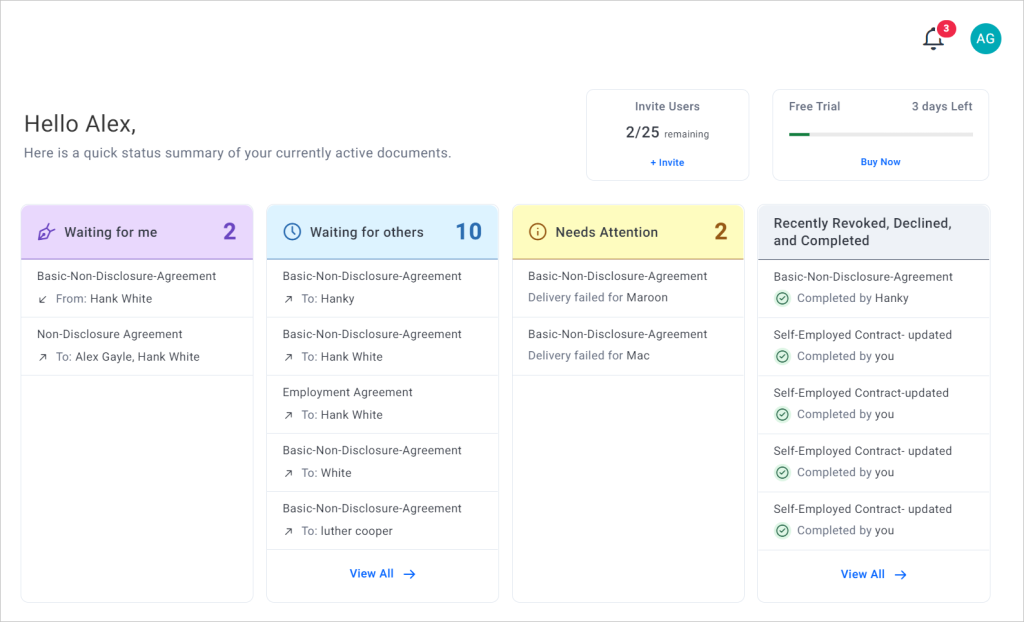
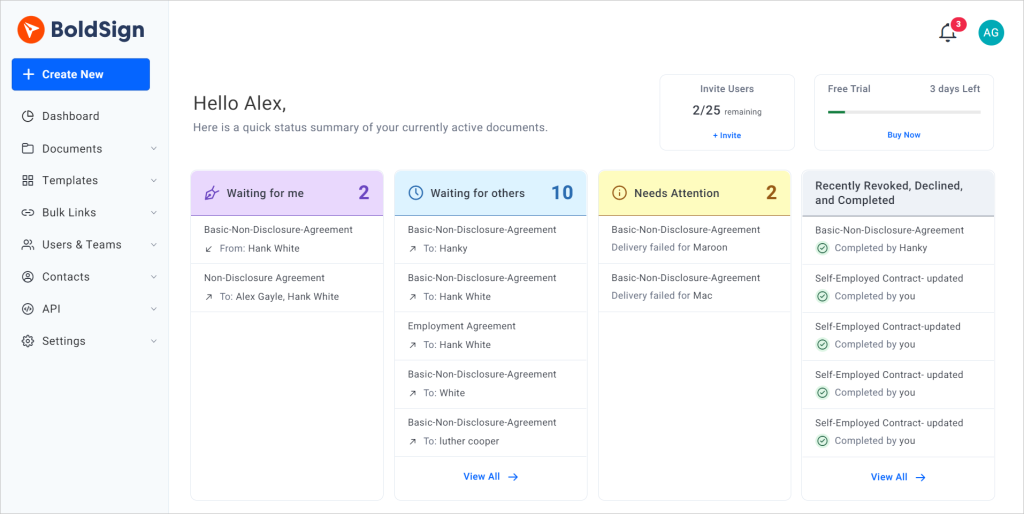
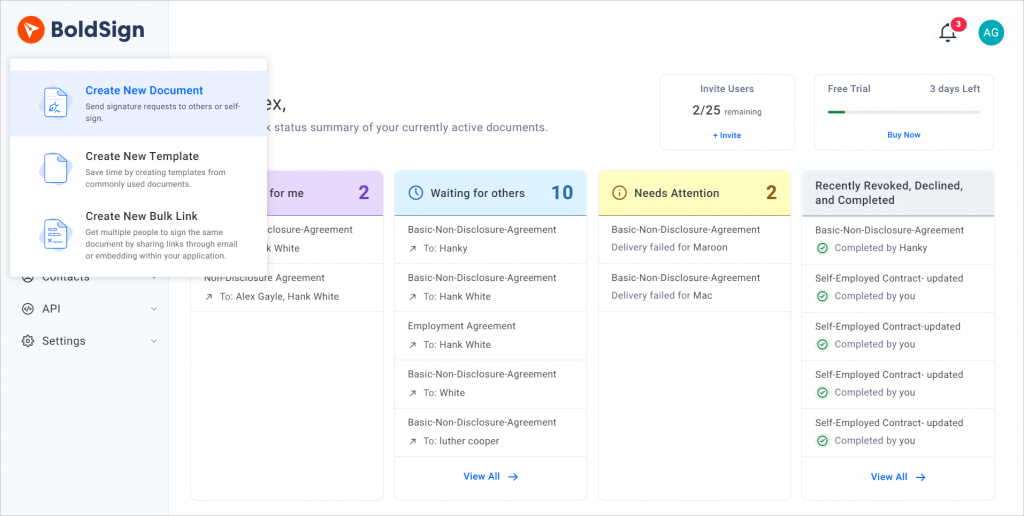
You land on the dashboard. It shows documents that wait for your signature, documents that wait on others and documents that need your attention.
The menu on the left leads to every other part of the app. Here is where a paralegal spends most of the day:
- Documents holds My Documents, Team Documents, drafts and trash.
- Templates holds documents you send again and again.
- Users & Teams shows who in your firm uses BoldSign and which team they belong to.
- Contacts keeps the people you send to, so you can skip retyping addresses.
How do you send a contract for signature in BoldSign?
Select Create New, then Create New Document, and follow the steps on the page. Our help article on how to send your first document covers each option.
- Upload the contract. PDF is the preferred format, and Word and image files also work.
- Add each recipient’s name and email address, and pick a role such as Signer.
- Add colleagues who only need a copy in the CC (carbon copy) box.
- Set a title, an expiry date and automatic reminders, then select Next.
- Drag the signature and date fields onto the page, assign each one to a signer, then select Send.
You can also ask each signer for a one-time code sent by email before they can open the document. That check helps when a contract holds sensitive client details.
How do you make parties sign in a set order?
Turn on the Signing order toggle in the recipients section. Then drag each recipient into place.
The first signer receives the document straight away. Each later signer gets it once the person before them has signed. When everyone is done, every signer receives the final copy at the same moment.
A signing order suits a settlement where your client signs before the other side. It also suits an engagement letter that a partner countersigns last. Our article on how to set the signing order has the details.
How do you fix a contract you already sent?
Revoke it, then clone it. Cloning makes a new copy with the same files, recipients and fields, so you only correct the error.
- Go to Documents, then My Documents.
- Open the document’s menu and choose Clone document.
- Choose With form field values to keep what was filled in, or Without form field values to start blank.
- Select Clone, fix the details, then send the copy.
Signature, initial, image and attachment fields come back empty in the copy. Our guide on how to clone a document with form fields explains what carries over.
How do you prove who signed a contract and when?
Download the audit trail. You can do that once every signer has finished.
The audit trail is a record of the document’s whole history. According to our help article on what the audit trail contains, it lists:
- the document ID, title, status, signing order and page count;
- each person’s name, email, internet protocol (IP) address and device;
- the identity checks each signer passed;
- the time of every action, from sending to the last signature.
To download it, open My Documents, choose the document’s menu and select Download audit trail. Read why this record matters in our post on why e-signature audit trails matter.
How do templates and bulk links save a paralegal time?
A template stores a document you send often, with its fields already placed. A bulk link is one signing link that many people can open and sign on their own copy.
Templates suit engagement letters, nondisclosure agreements and intake forms. You set the fields once, then add the real people each time you send. Our guide on how to save time with templates walks through it.
Bulk links suit a form that goes to a group you cannot name in advance. A consent form for a group of new clients is one example.
Each person enters their name and email, then signs a separate copy with its own audit trail. Our guide on when to use bulk links gives more examples.
Which BoldSign plan does a legal team need, and what does it cost?
Most small firms start on Growth or Business. The right plan depends on how many templates you need and whether you send bulk links.
These prices come from the BoldSign pricing page in November 2026, in USD and billed yearly:
- The Essential plan is free and includes 2 templates.
- The Growth plan costs $5 per user a month, includes 10 templates and adds team management.
- The Business plan costs $15 per user a month and includes unlimited templates.
- The Premium plan costs $99 a month for unlimited users and unlimited templates.
Bulk links come on the Business, Premium and Enterprise API plans as an add-on at $0.25 per envelope. Every plan includes the audit trail. You can try any of it with a 30-day free trial.
How can your legal team get started?
Pick the step that fits where your team is today.
- Start a 30-day free trial and send your next engagement letter from it.
- Book a demo to see BoldSign set up for your firm’s documents.
- Contact us with a question about your team’s workflow.
Frequently asked questions
How can a paralegal use e-signature software?
A paralegal can send contracts for signature, see which ones still wait on a signer and download proof of signing. All of it happens in one place, so nothing depends on chasing paper by mail.
Are e-signatures legally binding on contracts?
Yes, when the US Electronic Signatures in Global and National Commerce (ESIGN) Act covers the deal and the parties agree to sign electronically. Wills, family law matters and many court filings fall outside it.
Can I make several people sign a contract in a set order?
Yes. Turn on the Signing order toggle when you add recipients. Each signer gets the document only after the person before them has signed.
What do I do if I sent a contract with a mistake?
Revoke the document, then use Clone document to make a copy. Fix the error in the copy and send it again, without rebuilding the fields.
What does the BoldSign audit trail show?
It records each signer's device and IP address. It also notes the time of every step. You can download it once every signer has finished.
Which file types can I send for signature in BoldSign?
You can upload PDF files, Word documents, Excel sheets, PowerPoint files and common image formats. Our help article says PDF is the preferred format, so convert a Word draft when you can.
Can I copy someone at the firm on a contract without asking them to sign?
Yes. Add their email address in the CC (carbon copy) box. They receive a copy of the signed document and have nothing to sign.
How much does BoldSign cost for a legal team?
We offer a free Essential plan. Growth costs $5 per user a month and Business costs $15 per user a month, both billed yearly. Premium costs $99 a month for unlimited users.

Madeline Joyner
A NC Certified Paralegal at Syncfusion. In my personal life, I spend most of my time with my children, tending to my plants, and looking to grow in the legal field.
More posts by Madeline Joyner