How to Clone a Document with Form Fields in BoldSign
 Rowan Sam Kerongo Makori
TL;DR: Cloning a document in BoldSign makes a new copy of a document you already sent, with its form fields and, if you choose, their values. You open the document’s menu, select Clone document, choose With form field values, then check the copy and send it. For documents you send again and again, our eSignature templates are the next step.
A contract renewal often looks almost the same as last year’s contract. The client name, the address and most of the terms stay the same. Typing them into a fresh document again takes time, and every retyped field is a chance for a typo.
Cloning lets you start from the document you already sent. This guide explains what carries over to the copy, then walks through the steps.
What does cloning a document do?
Cloning creates a new document from one you sent before, with the same files, recipients and form fields. You decide whether the fields keep their values or start blank.
Think of it like photocopying a filled-in form and then correcting only the lines that changed. The copy is a separate request, so the original document stays as it was.
Which form fields keep their values when you clone?
Most fields that hold typed or chosen data keep it in the copy. Fields tied to a signer’s own mark or profile come back empty.
Our help article on supported form fields when cloning documents lists both groups.
Fields that keep their values
- Text box, label and hyperlink fields
- Checkbox, radio button and dropdown fields
- Name and email fields
- Date signed and editable date fields
Fields that appear empty in the copy
- Signature and initial fields
- Image fields
- Attachment fields
- Company and title fields, which fill in from each recipient’s profile
The empty fields still sit in the same place on the page. The signer fills them in again when they sign the new copy.
How do you clone a document with form fields in BoldSign?
You start from the My Documents list and finish on the page where you send. The steps below follow the order you see on screen.
- Log in to your BoldSign account, or create one if you are new.
- Expand the Documents menu and choose My Documents.
- Find the document, open the menu (three dots) next to it and select Clone document.
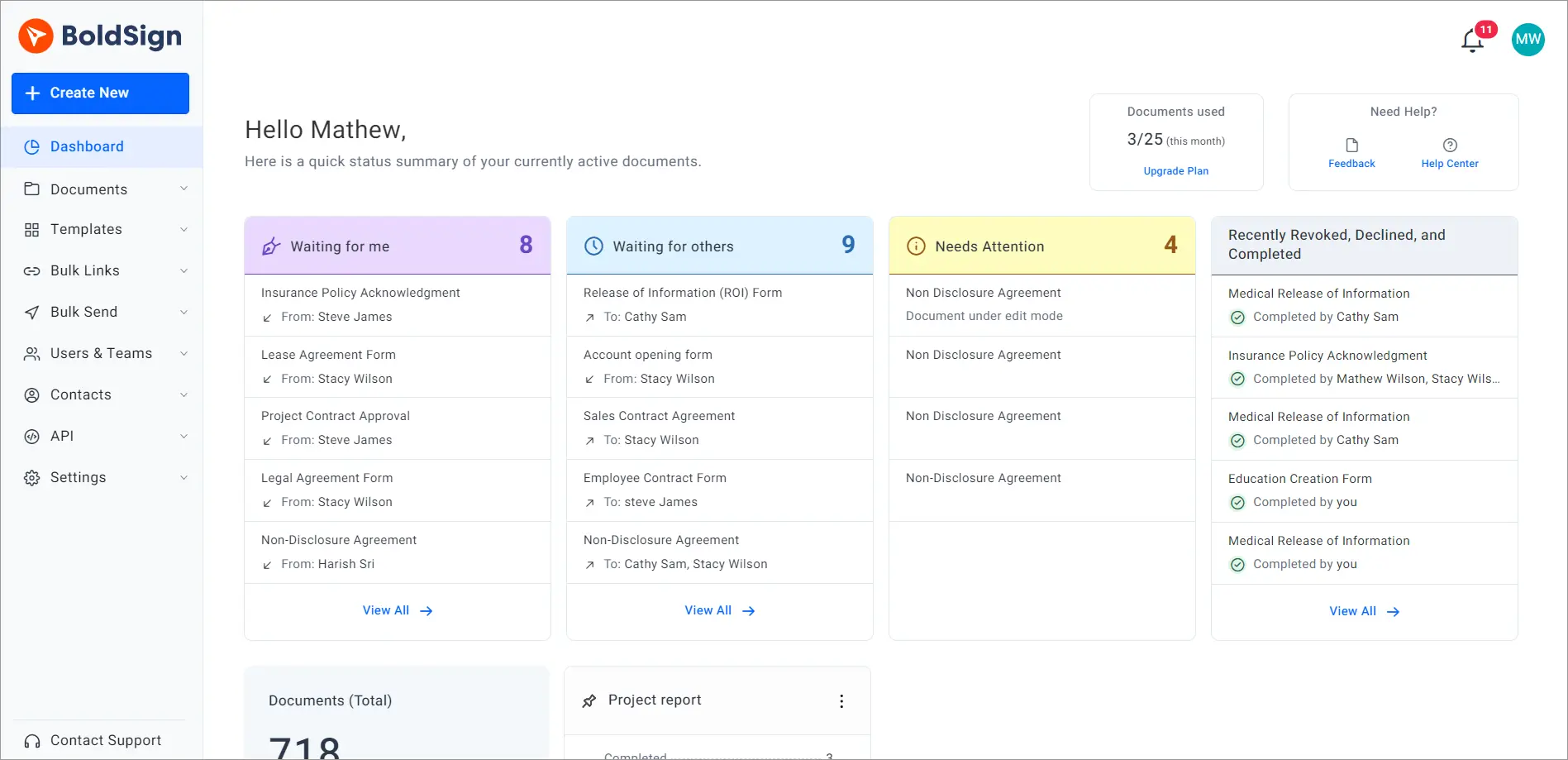
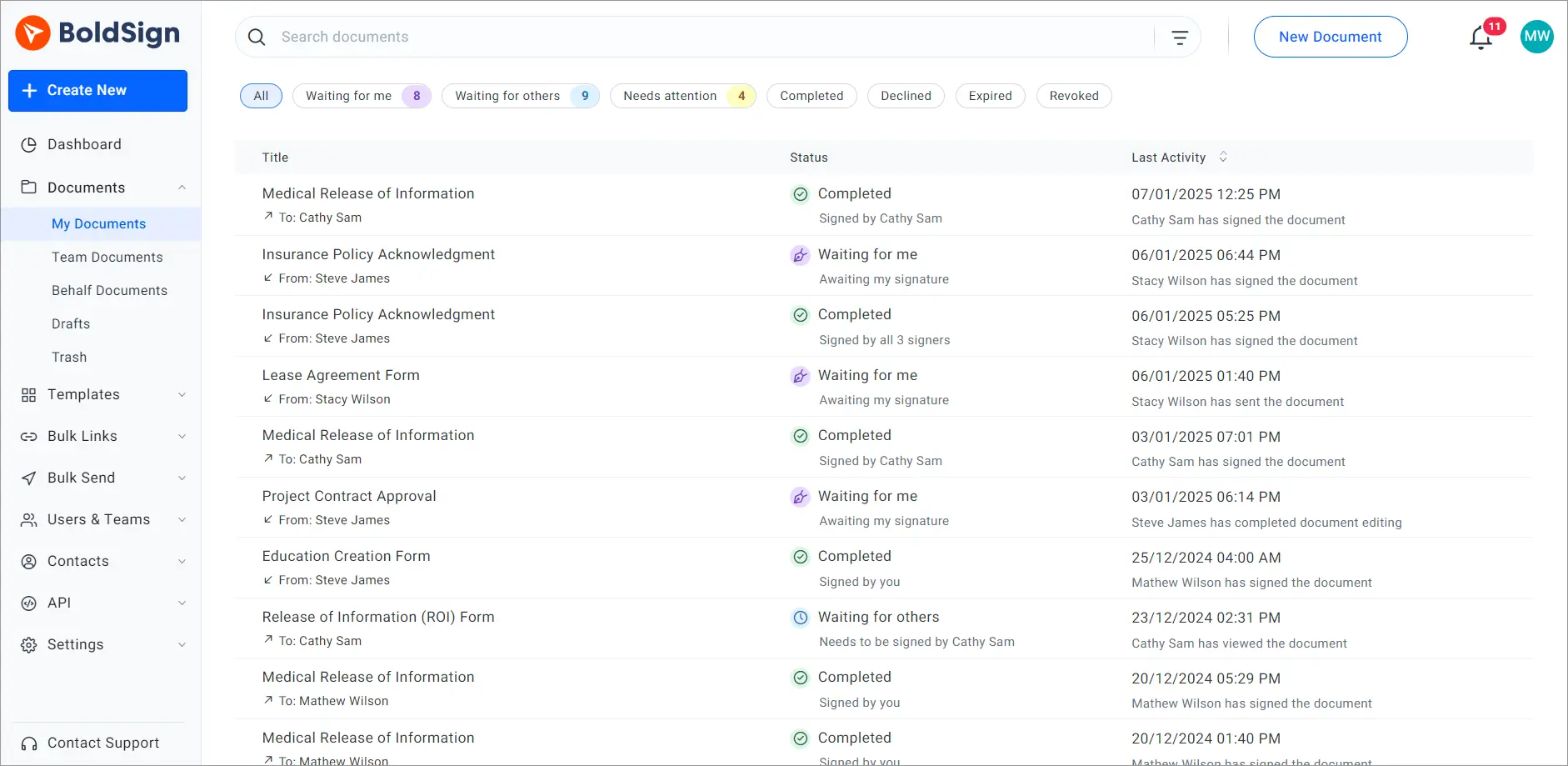
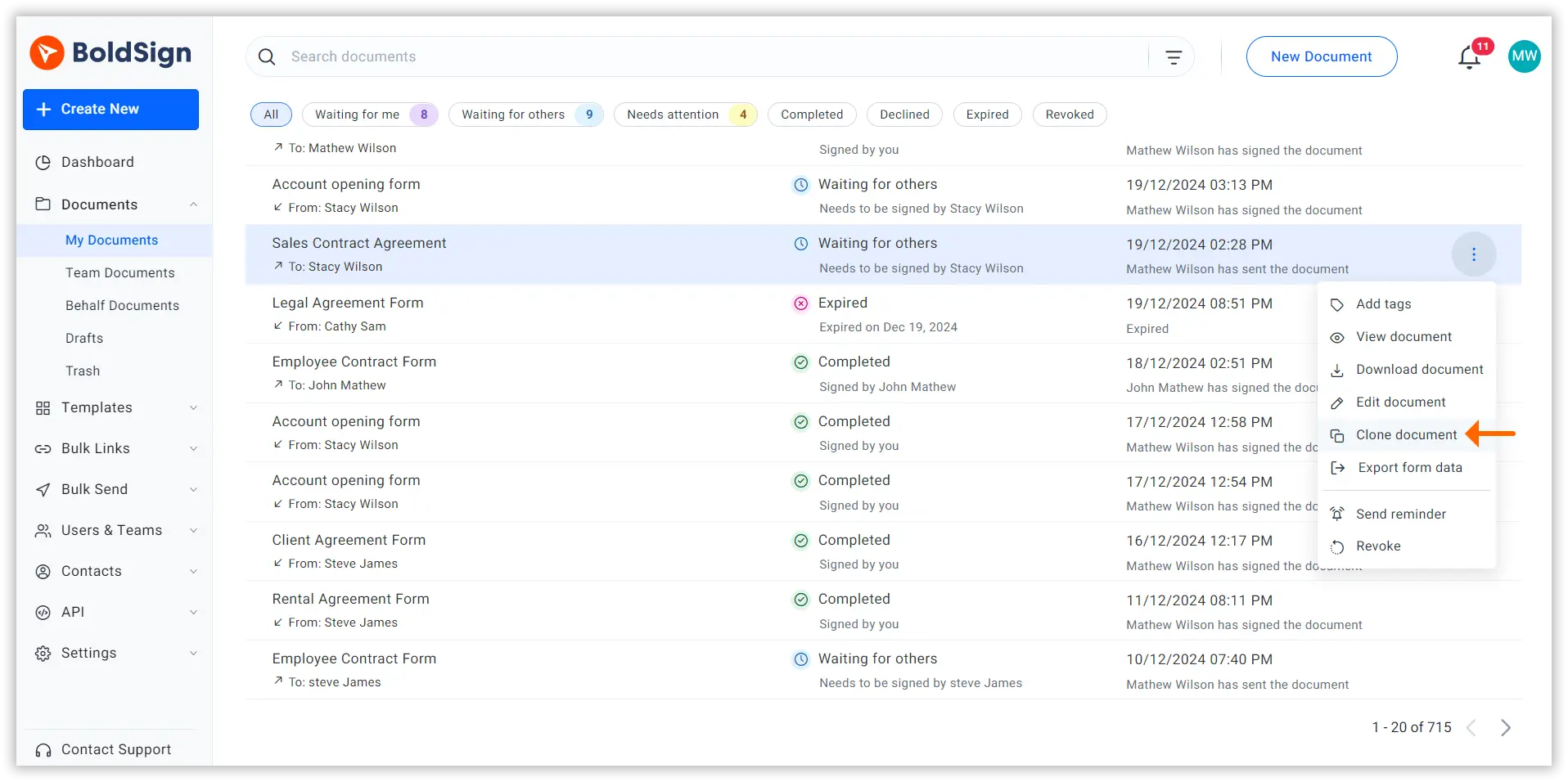
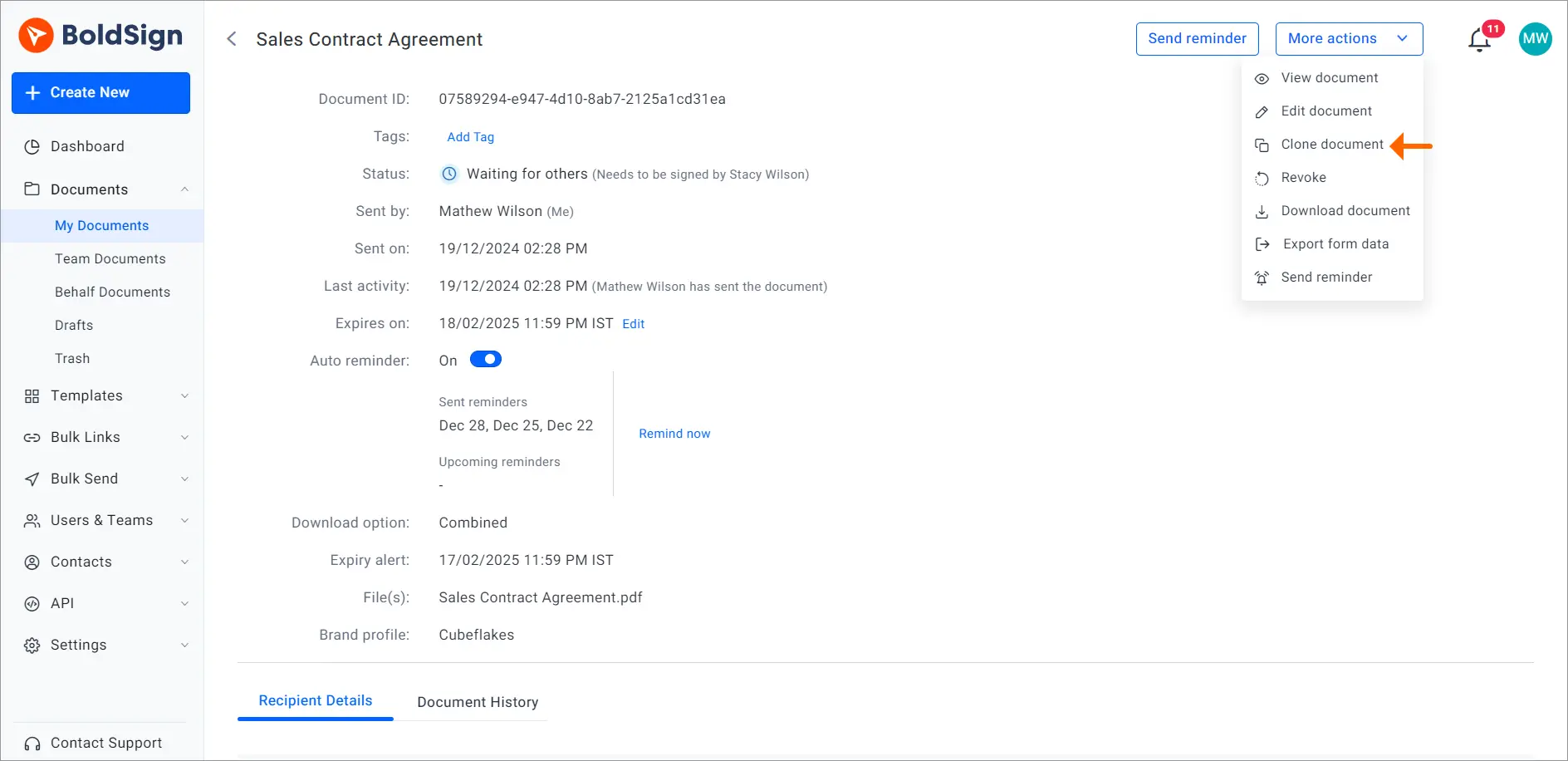
You can also open the document’s overview page, click More actions and select Clone document there.
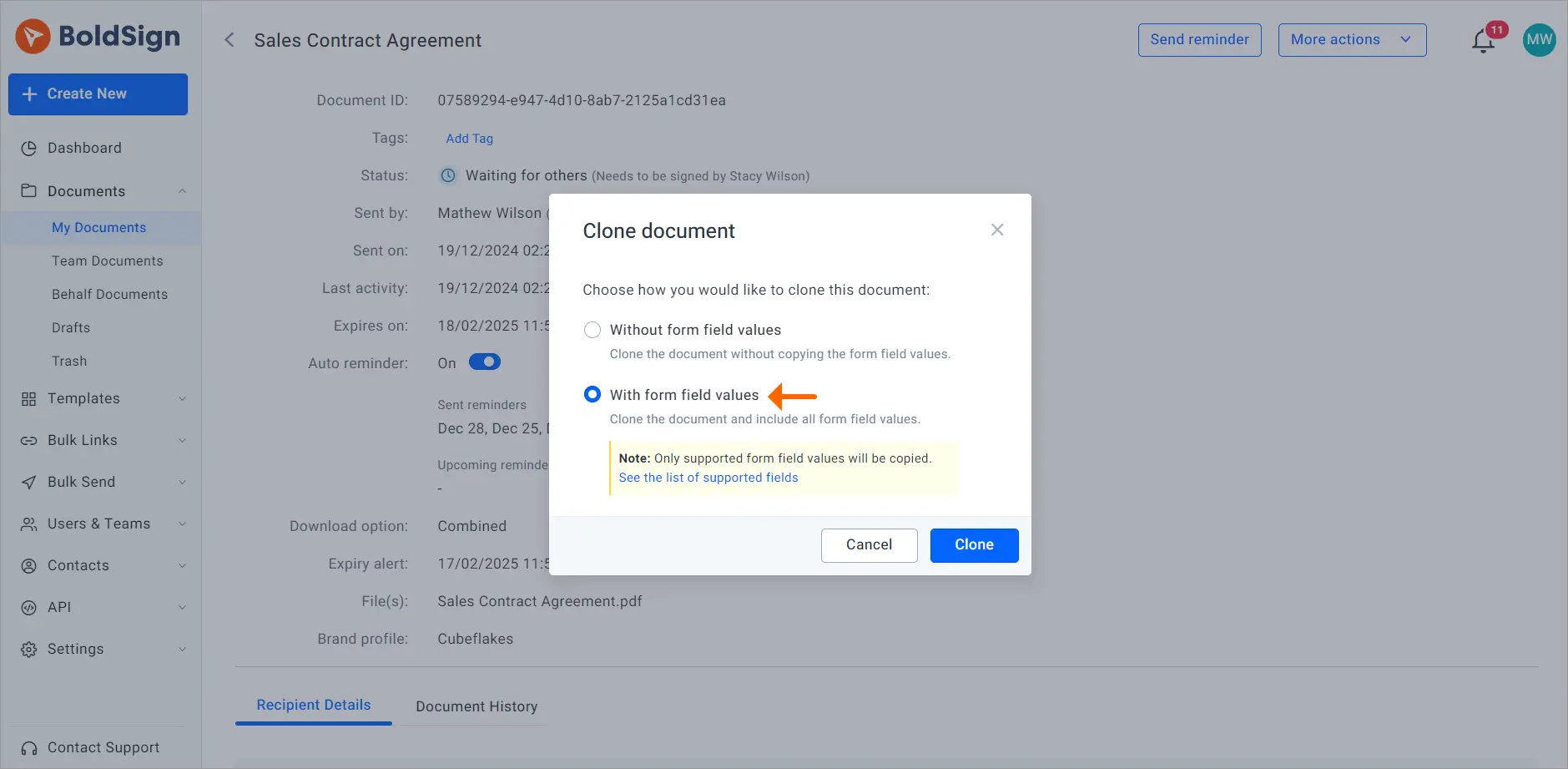
Choose what the copy keeps
The Clone Document dialog gives you two options. With form field values keeps the data, and Without form field values keeps each field but leaves it blank.
- Select With form field values.
- Click Clone to create the copy.
Check the copy and send it
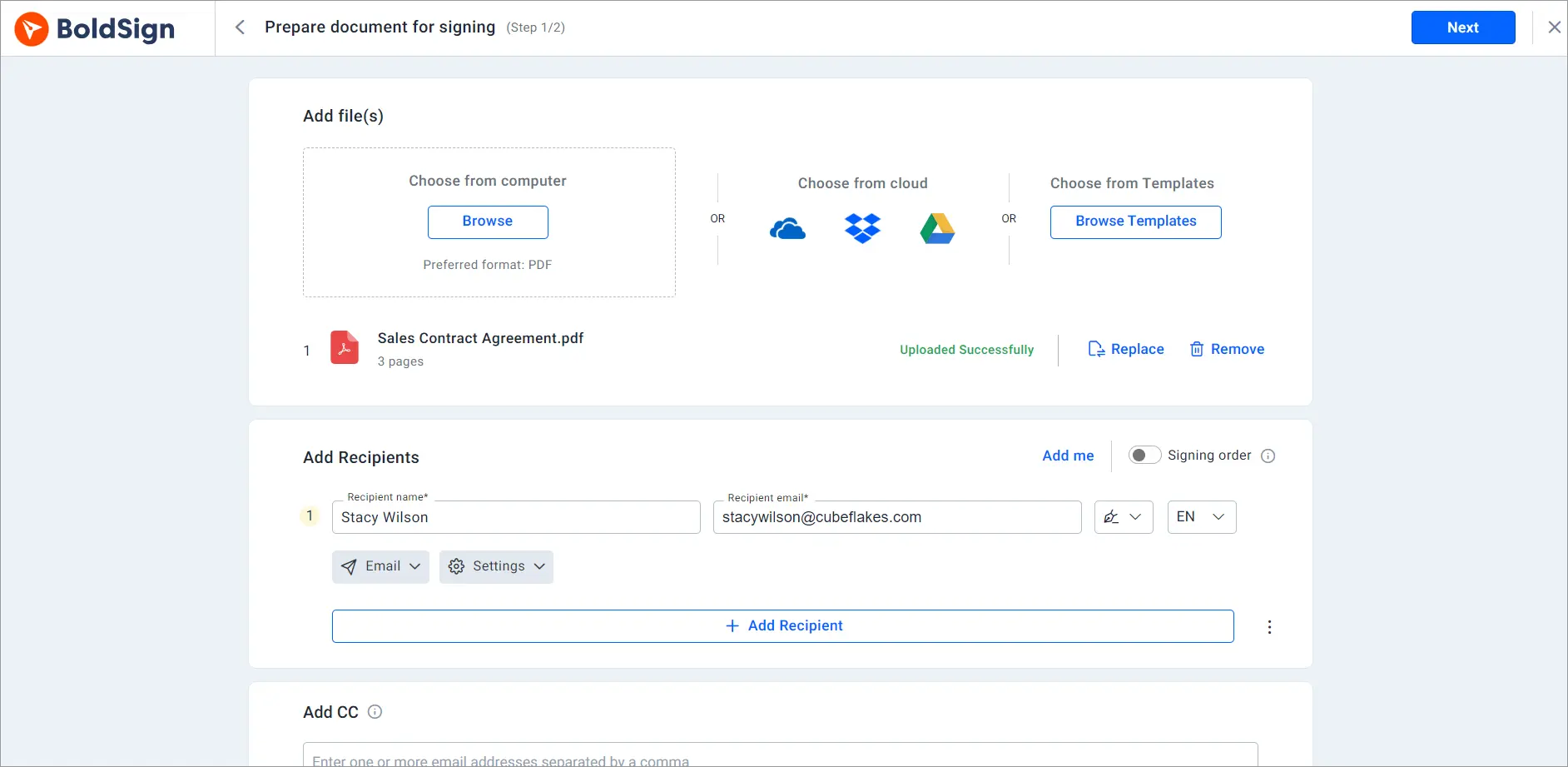
The copy opens on the Prepare document for signing page. Every setting from the original document shows here, and you can change any of them.
- Update the recipients, the message or the files if anything changed.
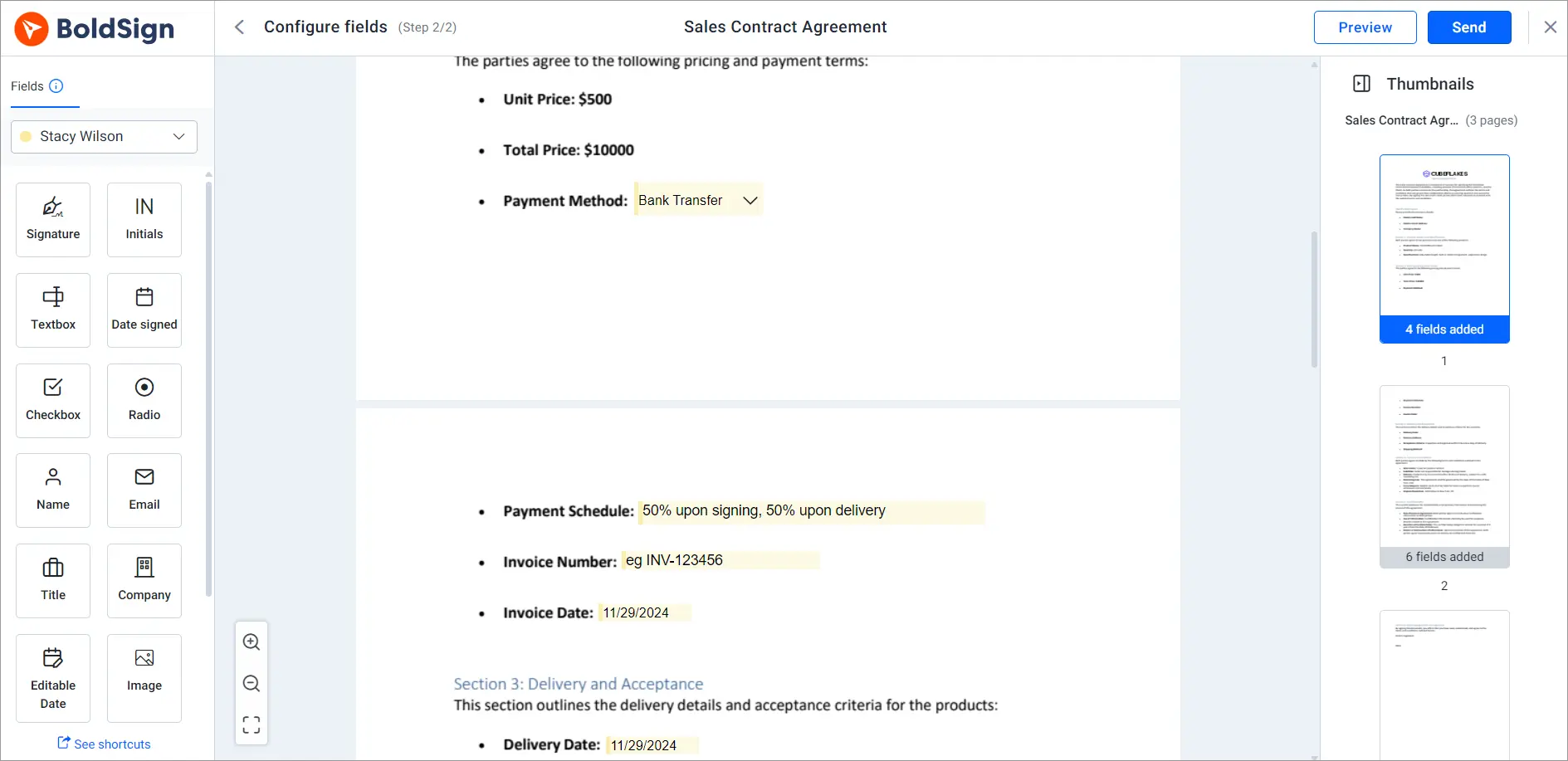
- Click Next to open the Configure fields page.
- Check the field values, then add or remove fields as needed.
- Click Send.
How can I reduce form fields without losing verification accuracy?
Clone a past document with its values, so you fill in only the fields that changed. Signature, initial and attachment fields come back empty, so each signer still confirms the new copy themselves.
A renewal shows how this works. The client name, email and dropdown choices carry over, and you edit only the new dates and amounts. You review fewer fields by hand, and each one you touch is a field that really changed.
Before you send, read through the Configure fields page once. A value that was right last year, such as a price or a start date, may need an update.
Should you clone a document or use a template?
Clone when one past request is close to what you need now. Use a template when the same document goes to many different people.
A template stores fields against roles, such as Employee or Client, instead of real names. You fill in the people each time you send. Our guide on how to save time with templates shows how to set one up.
Our guide on how to prefill form details shows another way to fill in fields before a send.
Which BoldSign plan do you need to clone documents?
The BoldSign pricing page lists basic and advanced form fields on every plan, including the free Essential plan. Cloning itself has no separate line on that page.
Templates do have plan limits. The Essential plan includes 2 templates and the Growth plan includes 10. The Business and Premium plans include unlimited templates.
What can you do next with cloning in BoldSign?
Try cloning on a document you send often, and see how much retyping it saves.
- Start a 30-day free trial and clone your next renewal.
- Book a demo to see cloning and templates set up for your documents.
- Watch our video tutorials, or ask a question through our support portal.
Frequently asked questions
What does it mean to clone a document in BoldSign?
Cloning makes a new copy of a document you already sent, with its files, recipients and form fields in place. You check the copy, change what you need and send it as a new request.
Does a cloned document keep the values in its form fields?
Yes, when you choose With form field values. Text boxes, checkboxes, dropdowns, names, emails and several other fields keep their data in the copy.
Which fields come back empty after cloning?
Signature, initial, image and attachment fields come back empty. Company and title fields also stay empty, because they fill in from each recipient's profile.
Can I clone a document without its field values?
Yes. Choose Without form field values in the Clone Document dialog. The copy keeps every field in its place, and each field starts blank.
Can I edit a cloned document before I send it?
Yes. The copy opens on the Prepare document for signing page, and you then move to the Configure fields page. You can add, remove or change fields on either page.
Does cloning change the original document?
Cloning leaves the original as it was. The copy is a separate document that you edit and send on its own.
Is a cloned document legally binding?
Yes, when the signing meets the same rules as any other electronic signature. Cloning only saves set-up time; consent and signing work as they do for a new document.
When should I use a template instead of cloning?
Use a template when the same document goes to many different signers. Clone a document when one past request is close to what you need now, such as a renewal.

Rowan Sam Kerongo Makori
Rowan contributes to the BoldSign blogs and helps the articles team. He is passionate about writing high-quality and informative content. His interests include reading books, writing, and exploring.
More posts by Rowan Sam Kerongo Makori