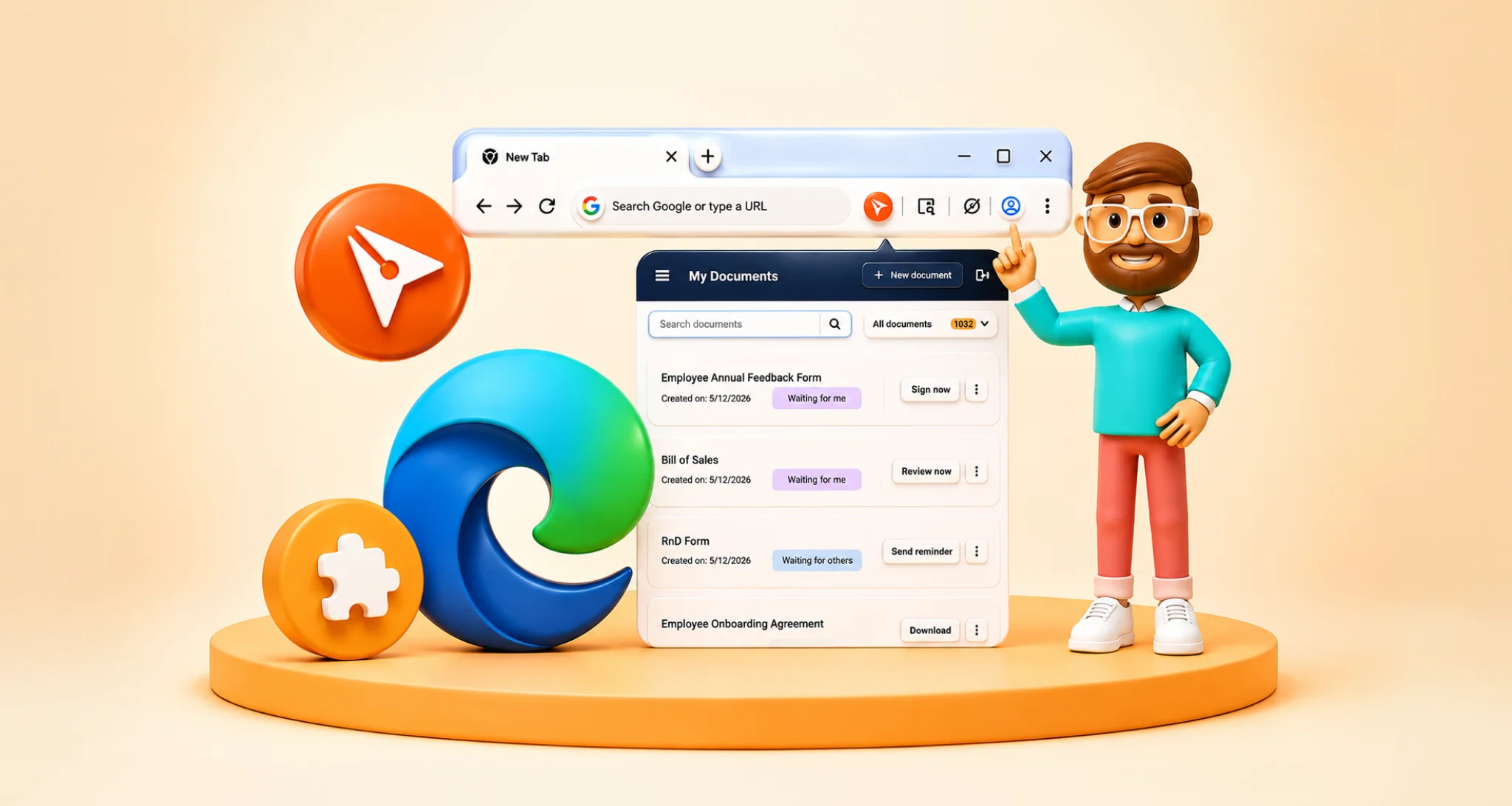
BoldSign Is Now on the HubSpot Marketplace: Install eSignatures in HubSpot
 BoldSign Team
TL;DR: BoldSign is now on the HubSpot Marketplace, so you can send, track and save signed documents from your HubSpot records. You install it once from your BoldSign settings and pick where the card appears. Our HubSpot eSignature integration page shows what it does on each record.
A deal is ready to close, and your rep still has to export the contact, open another tool and paste in the details. Then someone asks where the signed copy went.
We built our HubSpot app to remove those steps. This post covers what the listing means for you, how to install the app and which plan you need.
What does BoldSign on the HubSpot Marketplace mean for your team?
You can now find and add us from the HubSpot Marketplace like any other HubSpot app. Once connected, your team sends documents for signature from the records they already use.
Think of it like adding a printer to your office network. You set it up once, and then everyone prints from the program they are already in.
Our app is also a HubSpot certified app, after a technical review by HubSpot.
What can you do with BoldSign inside HubSpot?
You can send, track and store signature requests from a contact, company or deal record. The BoldSign card in the record sidebar holds every action.
- Send a document or a template without leaving the record.
- Fill template fields such as name, email and company from HubSpot properties.
- See each document’s status: Waiting for others, Completed or Revoked.
- Send a reminder or revoke a document from the same list.
- Keep the signed PDF with the record once everyone signs.
Our guide to document signing with the BoldSign HubSpot integration walks through a full send.
How do you install BoldSign from the HubSpot Marketplace?
You connect the app from your BoldSign settings, then approve it in HubSpot. Ask a HubSpot Super Admin to run the install, and use the same email address in both accounts.
- In BoldSign, open Settings, then Integration.
- Select Connect on the HubSpot card, then Yes, Connect.
- Log in to HubSpot, review the permissions and select Connect app.
- Select Allow, then Manage Location to show the card on contacts, deals and companies.
- Refresh the Integration page in BoldSign and check that it reads Connected.
Our help article on how to connect HubSpot with BoldSign shows each screen.
What should you know after you install the app?
Keep the integration connected. Once it is disconnected, we can no longer update document statuses in HubSpot.
Each teammate then links their own BoldSign account from the card on any record. Signers never need an account, because they sign from the link in their email.
Questions about a setup you already run? The HubSpot section of our help center has the guides, and you can open a support ticket for anything else.
How do you get the most from the app once it is live?
Start with the documents you send most often and turn them into templates. Our three short guides each cover one part of the job.
- Send contracts from HubSpot with a mapped template.
- Track contract status in HubSpot and follow up on time.
- Save signed contracts to HubSpot without downloading anything.
How do we keep documents sent from HubSpot secure?
We encrypt every document with 256-bit Advanced Encryption Standard (AES) keys, and every signing gets an audit trail. We have completed a System and Organization Controls (SOC) 2 Type 2 audit, and our security policy has the details.
Signers can also confirm who they are with a one-time code sent by email or SMS.
Which BoldSign plan do you need for HubSpot, and what does it cost?
HubSpot is part of the Business plan and the Premium plan. The Business plan costs $15 per user a month, and the Premium plan costs $99 a month for unlimited users, both billed yearly in USD.
The HubSpot app has no separate fee. We also leave sends from HubSpot unmetered. You can try it first with a 30-day free trial.
Ready to add BoldSign to HubSpot?
Install the app once, and your team can send the next contract from the deal it belongs to.
- Start a 30-day free trial and connect it to your HubSpot account.
- Book a demo to see the app on your own HubSpot records.
- See the BoldSign listing on the HubSpot Marketplace.
Frequently asked questions
Is BoldSign on the HubSpot Marketplace?
Yes. Our app has been listed on the HubSpot Marketplace since March 2026. It is also a HubSpot certified app after a technical review by HubSpot.
How do I install BoldSign in HubSpot?
Open Settings, then Integration, in your BoldSign account and select Connect on the HubSpot card. Log in to HubSpot, approve the app and choose where the BoldSign card shows.
Who should install the BoldSign app in HubSpot?
A HubSpot Super Admin should run the install. Use the same email address for your BoldSign and HubSpot accounts so the two link cleanly.
Does the BoldSign app for HubSpot cost extra?
No. The integration has no separate fee. We also leave sends from HubSpot unmetered. You pay only for the BoldSign plan that includes HubSpot.
Do signers need a HubSpot or BoldSign account?
No. Signers open the link in the signature request email and sign in any browser. Only the people who send documents need a BoldSign account.
Where does the BoldSign card appear in HubSpot?
The card sits in the right sidebar of contact, company and deal records. You pick these places with Manage Location during the install.
What happens if I disconnect the HubSpot integration?
We stop updating document statuses in HubSpot once the integration is disconnected. Keep it connected so each record shows the current status.
Are eSignatures sent from HubSpot legally binding?
Yes, when the signer agrees to sign electronically and the signed record is kept. Our audit trail logs each step of the signing. Check the rules for your document type and country.

BoldSign Team
The official team behind BoldSign—the simple, secure eSignature solution trusted by businesses worldwide. Our platform helps individuals and teams create, sign, and manage documents effortlessly while maintaining full compliance. Experience BoldSign yourself with a free trial or request a personalized demo to see it in action.
More posts by BoldSign Team