Staying Safe from Modern Phishing Attacks: A Guide for BoldSign Users
 Jackson Paul Thiraviaraj
TL;DR: Modern phishing attacks hide behind quick response (QR) codes, fake app consent screens and copies of real login pages. A real BoldSign signing email has a Review and Sign button and needs no account or password to sign. If you already clicked, change your password, remove any app you approved and report it to us, then turn on two-factor authentication.
A colleague forwards a contract that needs your signature. The email has no link, only a QR code and a note that says “scan to view on mobile”. You scan it, and your phone opens a page that looks like a sign-in screen.
Attackers now use tricks that slip past the usual email checks. Our guide to spotting a fake signature request email covers sender addresses and warning signs. This guide covers three newer tricks, what our real emails and signing pages look like, and what to do after a click.
What are modern phishing attacks?
Modern phishing attacks use trusted tools to hide a scam, so the email looks clean to you and to your spam filter. The three most common tricks are QR codes, fake app consent screens and fake login pages.
Think of a fake sticker on a real parking meter. The meter is genuine, but the code on the sticker sends your payment somewhere else. These attacks work the same way, with a real service as the cover.
How does QR code phishing work?
QR code phishing puts a harmful web address inside the black and white square of a QR code. Your phone opens the address, so the link never shows up for your email filter to check.
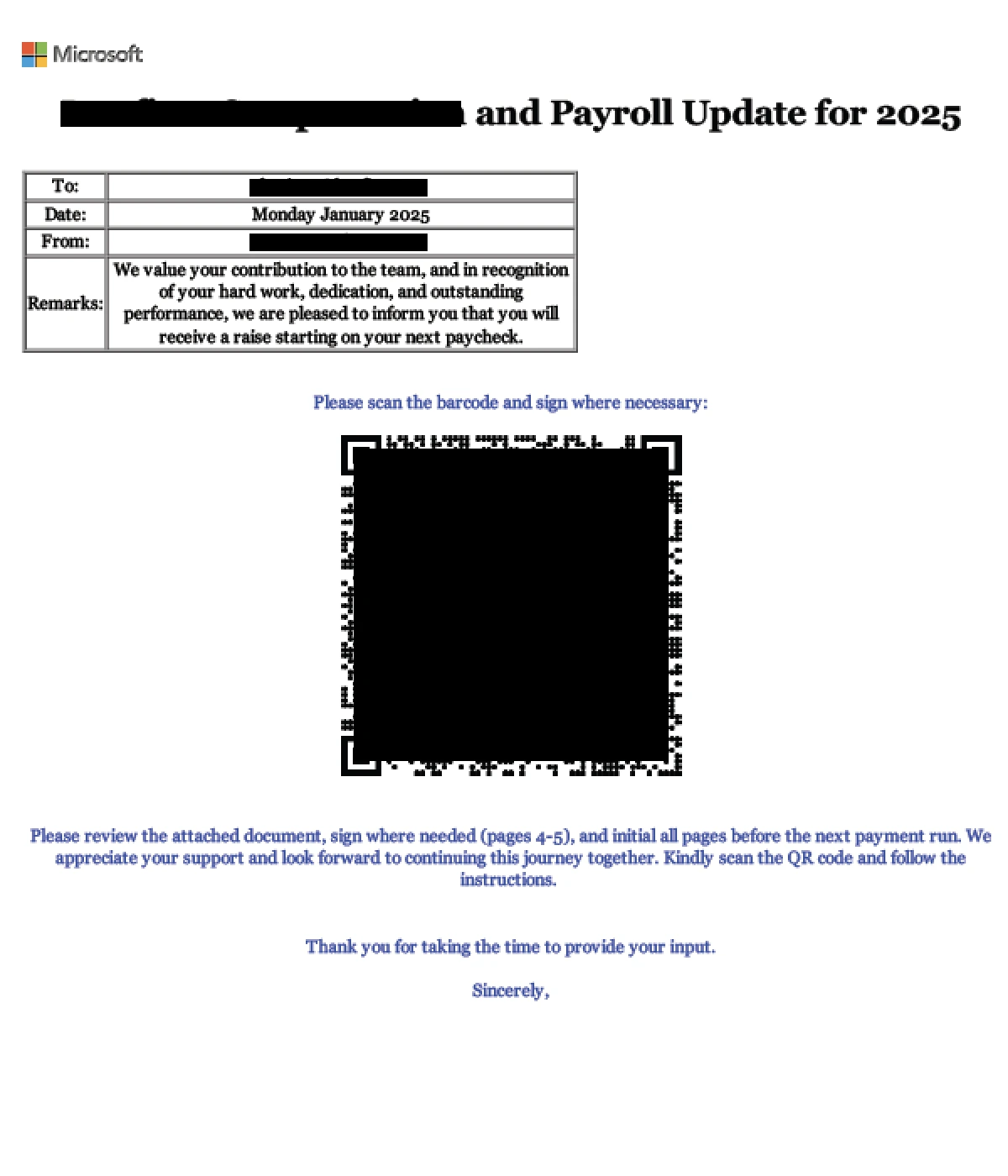
Some codes go through a real website first, then bounce you to the scam page. Look at the part of the address after returnUrl= or u= in these examples. We have broken the links on purpose, so they cannot be opened.
| Full address inside the QR code | Where it really sends you |
|---|---|
hxxp://legit_domain/ViewSwitcher/SwitchView?mobile=False&returnUrl=hxxps://ebjv[.]com[.]au/filesharer |
hxxps://ebjv[.]com[.]au/filesharer |
hxxp://legit_domain/redirect/head/?u=hxxps://trusted_domain[.]statementquo[.]com/ey8YO?e={user_email} |
hxxps://trusted_domain[.]statementquo[.]com/ey8YO?e={user_email} |
A pattern such as /switchview?mobile=false&returnurl= in a scanned link is a warning sign. The first domain may be real, but the page you land on belongs to someone else.
How do you stay safe from QR codes in email?
- Skip QR codes in emails you did not expect.
- Read the address your phone camera shows before you open it.
- Check the domain at the end of any redirect, not only the first one.
- Send a screenshot of a suspicious code to support@boldsign.com.
We do not put QR codes in our emails to ask you to sign in, open an app or take an action. Report any QR code that claims to come from BoldSign. The one QR code you meet with us is on your own My Profile page, when you set up an authenticator app.
What is OAuth consent phishing?
Open Authorization (OAuth) consent phishing uses a fake app to ask for access to your account. You click Accept on a real Microsoft or Google screen, and the attacker gets a token that works without your password.
An email link or attachment can open this kind of prompt. The app name may copy a company you trust, and the screen may show an “unverified” label under it.
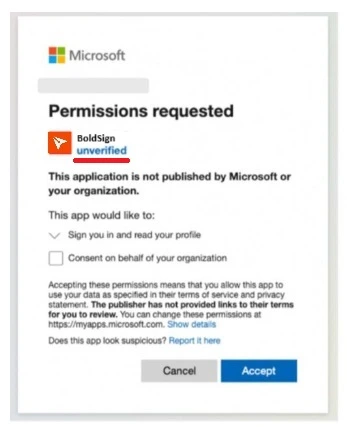
How do you spot a fake consent screen?
- The request appears after an email link, not after you chose to connect an app.
- The publisher shows as “unverified”, or its name is vague.
- The app asks for more access than its job needs.
- You did not start the connection from inside the app itself.
Select Cancel when any of these apply. You connect an app to BoldSign from your own account or your own code, so a surprise consent request is a reason to stop.
How do fake login pages trick you?
Fake login pages copy the look of a real sign-in page and send whatever you type to the attacker. The email around them usually pushes you to act fast, with a line such as “View an important document”.
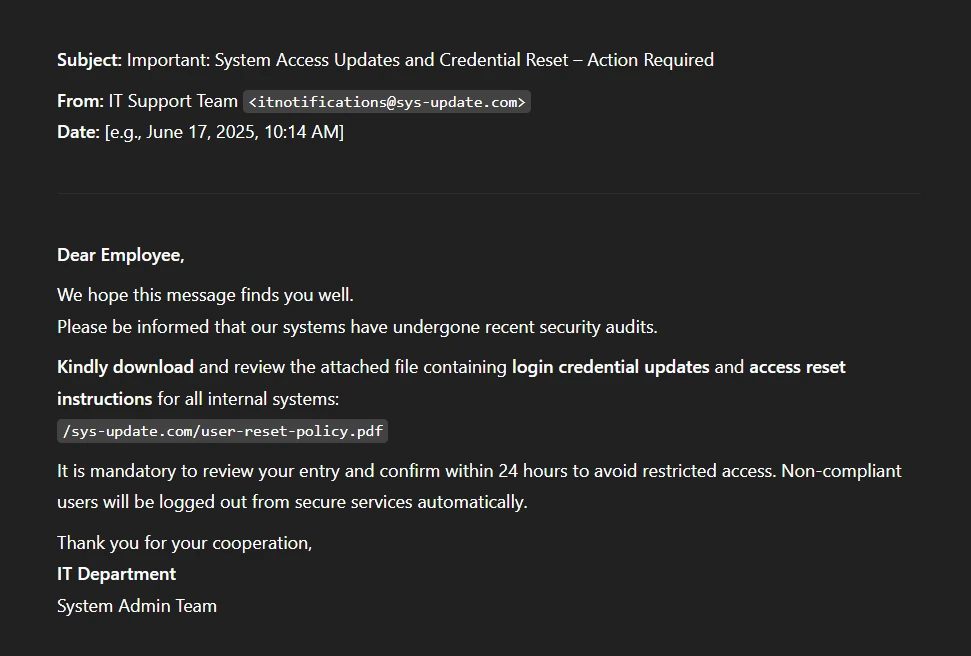
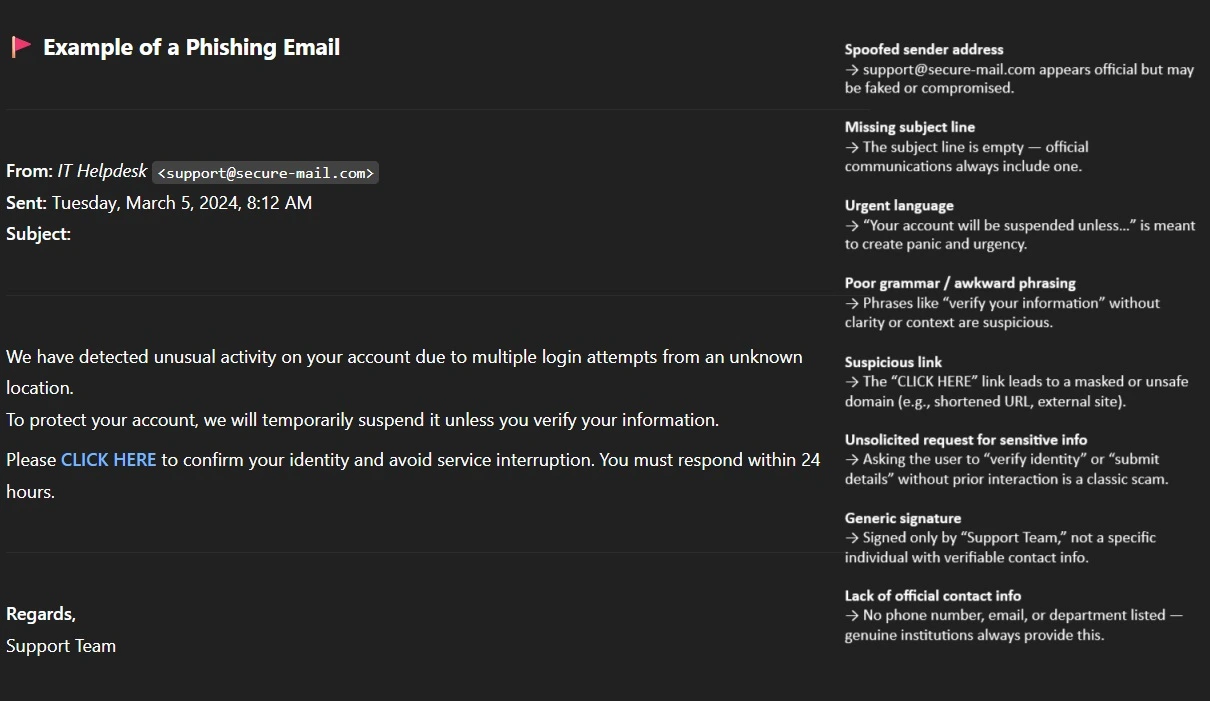
How do you check a page before you sign in?
- Hover over a link, or press and hold it on a phone, to see where it goes.
- Check a link with Norton Safe Web or VirusTotal when in doubt.
- Type boldsign.com into your browser to sign in, instead of using an email link.
The University of Connecticut’s phishing education page shows more real examples of fake login emails.
What does a real BoldSign signing email and page look like?
A real signing email names the document, says who sent it and shows any message from the sender. It has a Review and Sign button that opens the document.
Anyone can sign without a BoldSign account, as our help article on signing a document as a guest explains. The real signing page follows the same short steps each time.
- Read the terms, agree to them and select Continue.
- Select Start signing in the top-right corner.
- Fill in the required fields and select Complete signing.
A page that asks for your email password, card number or bank details before you can sign is outside that flow. Close it and check with the sender through a contact you already trust.
A sender can also ask us to email you a one-time code before the document opens. Our page on signer authentication lists the methods a sender can turn on.
What should you do if you already clicked a phishing link?
Act on the step that matches what you did, starting with the most urgent. Each step below closes one way back into your accounts.
What if you typed your password?
- Change that password at once, and any account that uses the same one.
- Sign in from boldsign.com and turn on two-factor authentication (2FA).
- Tell your IT team, since a work password may open other systems too.
What if you approved an app or scanned a code?
- Remove the app in the security or connected apps settings of the account you approved it on.
- Close a page you opened from a QR code without typing anything into it.
- Run a virus scan when you downloaded or opened a file.
How do you report it to us?
Forward the email to support@boldsign.com with the sender’s address and any links, codes or attachments. A screenshot of a QR code or consent screen helps us trace where it leads.
How do you keep your BoldSign account secure?
Use a password you do not use anywhere else, and turn on 2FA. With 2FA on, a stolen password alone is not enough to sign in.
You can get your code from an authenticator app or the other methods in our 2FA help article. Our two-step authentication guide shows where to turn it on in My Profile.
Do signer security checks cost extra on a BoldSign plan?
A one-time code by email is part of every plan, including the free Essential plan. You can also try the paid plans with a 30-day free trial.
The BoldSign pricing page lists the other signer checks and the plan each one needs. Prices are in USD.
How do you stay one step ahead of phishing?
A short pause before you scan, approve or sign in stops most of these tricks. Pick the next step that fits you.
- Start a 30-day free trial and send a document with a one-time email code turned on.
- Read our guide to signer authentication methods to protect the documents you send.
- Contact our support team with a question about an email you received.
Frequently asked questions
What is QR code phishing?
QR code phishing hides a harmful web address inside a quick response (QR) code. You scan it with your phone and land on a fake page, often one that asks you to sign in.
Does BoldSign send QR codes in emails?
No. We do not put QR codes in our emails to ask you to sign in, open an app or take any action. Report any email that does to support@boldsign.com.
What is an OAuth consent phishing attack?
A fake app asks you to grant it access to your account through a real sign-in provider. Once you click Accept, the app can read your data without your password.
Do I need a BoldSign account or password to sign a document?
No. A signer opens the document from the Review and Sign button in the email. Any page that demands your password before you can sign deserves a second look.
What does a real BoldSign signing page ask me to do?
You agree to the terms and select Continue, then Start signing. You fill in the fields and select Complete signing, with no card or bank details involved.
What should I do if I scanned a suspicious QR code?
Close the page without typing anything. Change your password if you entered it, then send a screenshot of the code to support@boldsign.com.
How do I remove an app I approved by mistake?
Open the security or connected apps settings of the account you approved it on, such as Microsoft or Google, and remove the app. Ask your IT team when it is a work account.
How do I check where a QR code goes before I open it?
Point your phone camera at the code and read the address it shows before you tap it. Open it only when the domain is one you know and expected.

Jackson Paul Thiraviaraj
Jackson Paul T is a product manager with over 5 years of experience in software development, specializing in application security. An expert in .NET and C#, he excels in managing the entire application security lifecycle, ensuring that products meet the highest standards of safety and reliability. Jackson’s proactive approach and dedication to security contribute significantly to the success of his organization. Connect with him on LinkedIn.
More posts by Jackson Paul Thiraviaraj