How to Customize eSignature Emails in BoldSign for Your Brand
 Rayronald Ochola Otieno
TL;DR: You can customize each eSignature email in BoldSign by creating a brand, then editing the subject and body of each email type with placeholders. Our team approves the new content before signers see it. Our eSignature branding page shows what else a brand can hold.
A client gets a signature request from your firm. The email shows another company’s default wording, and the client is not sure it is safe to open. A short delay like that can hold up a contract for days.
With your own words, logo and colors, the request looks like it came from you. This guide shows how to set that up in BoldSign, from your first brand to the email your signer opens.
What is eSignature email customization?
ESignature email customization means you write the text of the emails your signers receive. You change the subject line and the body, and we fill in the details for each send.
Think of a letterhead with a mail-merge letter. The paper and wording are yours, and only the name and date change for each person. A custom email works the same way, with placeholders in place of the name and date.
What can you change in an eSignature email?
You can change the subject and body of each email, and your brand adds your logo and colors. Each brand can also set the sender name that signers see in the “From” line.
To add a placeholder, type @ or / in the subject or body. A list of details appears, such as:
- Recipient name and sender name
- Document title, message and link
- Document created date and expiry date
- Signer list and reviewer list
The subject and body do not accept images, font families or links. Your logo comes from the brand, and the signing link comes from the document link placeholder.
Which eSignature emails can you customize?
You can customize 13 email types, one for each stage of signing. Each type has its own help article with the placeholders it supports.
| Email type | When it is sent |
|---|---|
| Signature request | Asks a recipient to sign or approve a document |
| Recipient signs a document | After a recipient signs |
| Document completed (single signer) | When one signer completes a document |
| Document completed (multiple signers) | When all recipients finish signing |
| Document declined | When a recipient declines to sign or approve |
| Document revoked | When the sender revokes the document |
| Document reassigned | When a document moves to another recipient |
| Automatic reminder | On a set schedule until the recipient signs |
| Manual reminder | When the sender sends a reminder by hand |
| One day before document expiration | A day before the document expires |
| Document expiry | When the document expires |
| Document deletion | After the sender deletes the document for good |
| New document notification for CC | Tells CC (carbon copy) recipients about a new request |
Why does a custom eSignature email matter?
The email is often the first thing a signer sees from you in the signing process. Clear wording in your own voice helps them trust it and act on it.
A default message reads the same for a lease, a job offer and a sales contract. Your own text can tell the signer what the document is and why it needs their signature. Consistent emails across requests, reminders and completion notices also make your firm easier to recognize.
How do you customize an eSignature email in BoldSign?
You create a brand first, then edit its emails. Our help article on email content customization lists every option.
- Log in and go to Settings > Branding.
- Select Create New Brand, enter the brand name and upload your logo.
- Open the email customization tab to see the list of email types.
- Select the edit icon next to an email and change its subject and body.
- Type @ or / to add placeholders, then select Save Changes.
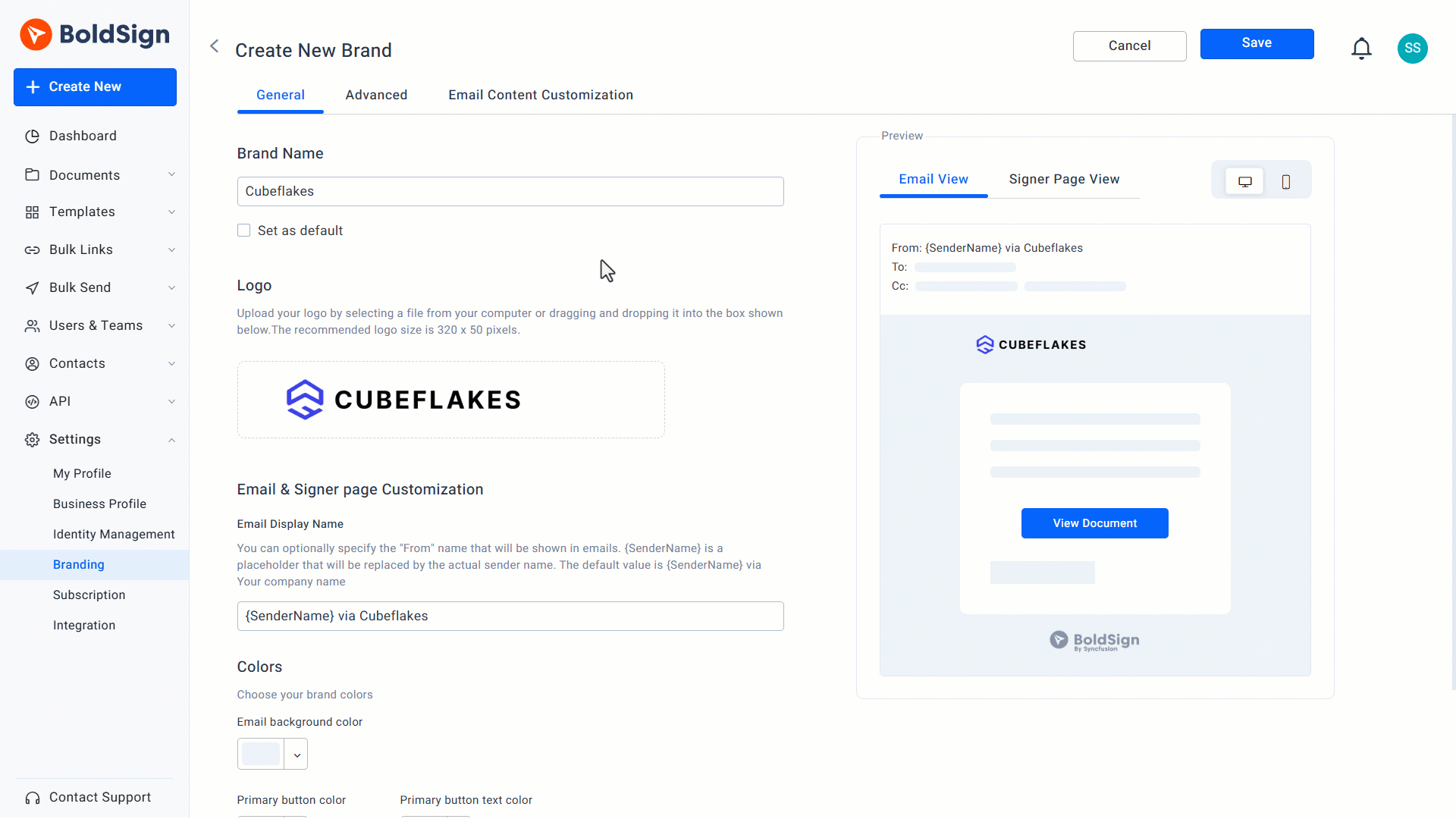
Our guide to create a brand covers the logo size and the sender name. You can also set your brand colors.
How do you get custom email content approved?
Our team reviews each custom email for quality and compliance before signers receive it. Here is how to submit email content for approval.
- Check your edits for spelling, placeholders and tone.
- Save the email. Its status shows Edited (Not Submitted).
- Select Submit for Approval. The status changes to Waiting for Approval.
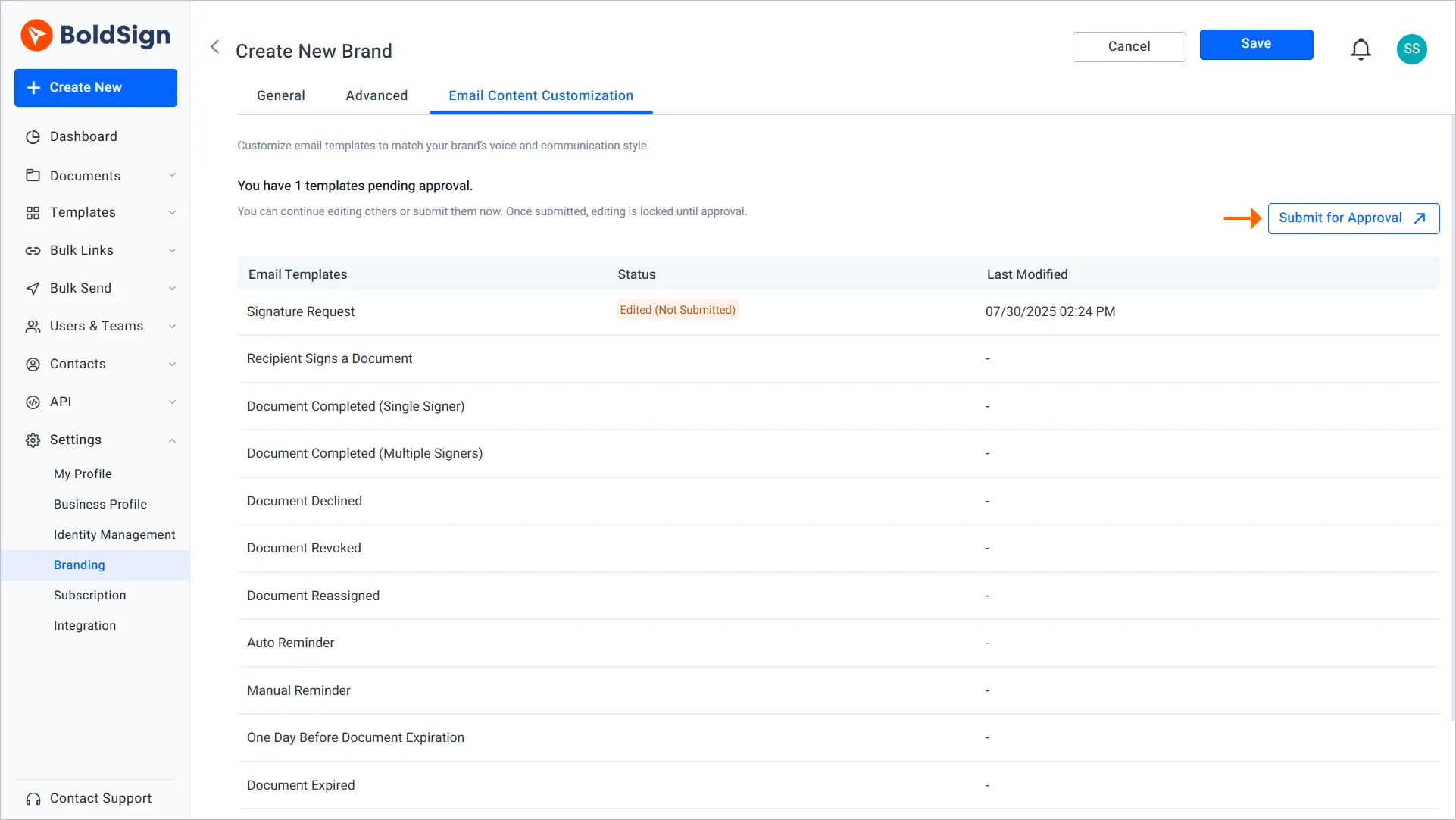
Your emails stay locked while the review is open. Once we accept the content, the status changes to Approved and the email is ready to use. We send our decision through a support ticket, with feedback when you need to change something.
How do you change an email after approval?
You can edit an approved email at any time, and signers keep getting the approved version until the new one passes review.
- Select the edit icon on the approved email and make your changes.
- Select Save Changes. The status shows Draft Under Partial Approval.
- Select Submit for Approval to start the review.
How do you withdraw an approval request?
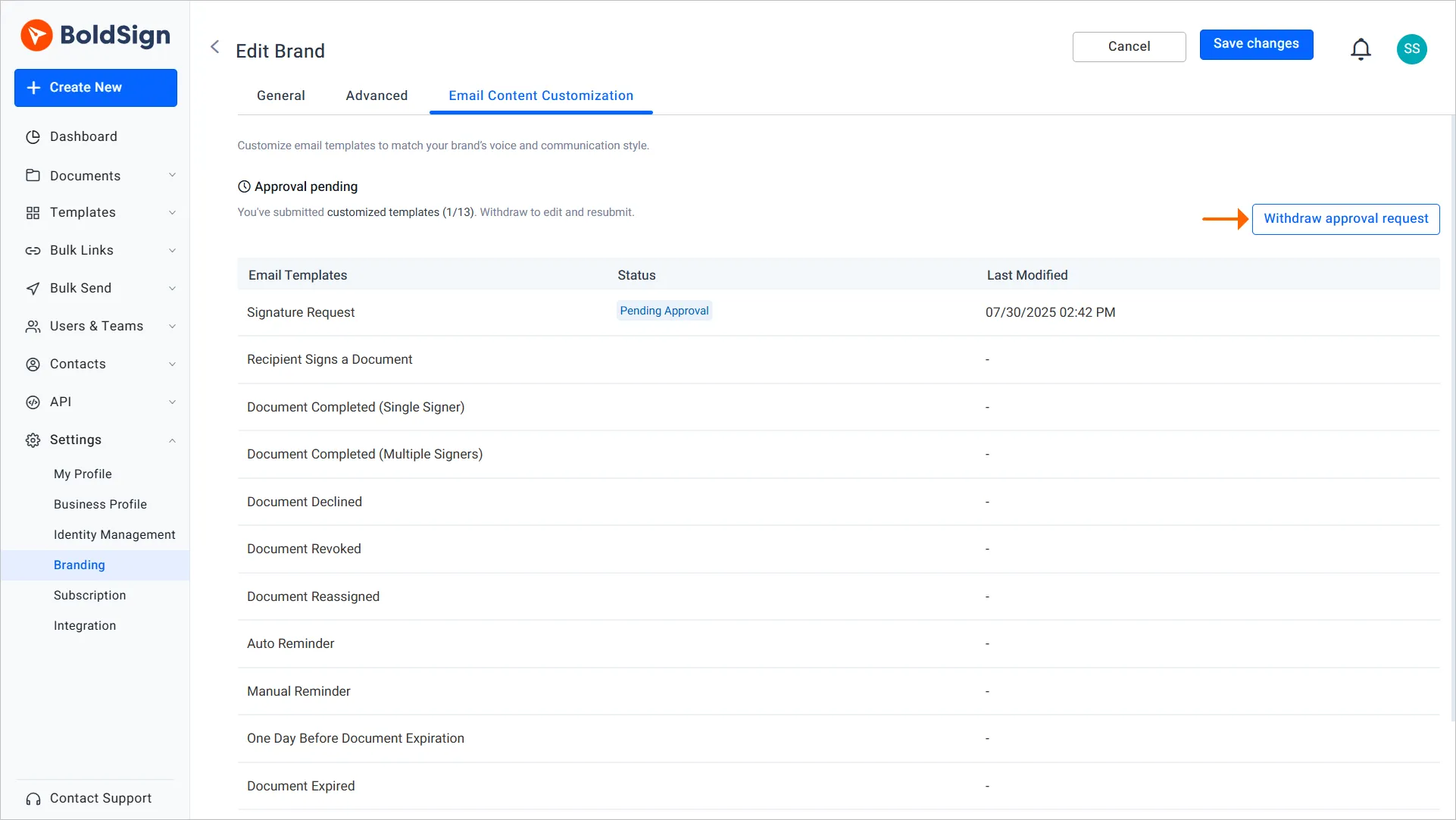
Withdraw the request when you spot a mistake after submitting. The email goes back to editing.
- Open the email customization tab.
- Select Withdraw Approval Request.
- Make your changes, then submit again.
Can a new brand reuse approved emails?
Yes, a new brand can inherit emails from another brand with approved content. Only brands with approved emails appear in the list.
Make any change to inherited emails in the parent brand, then submit it for approval. A brand that inherits its emails goes back to the default emails when you delete the parent brand.
How do you send documents with your custom emails?
Pick the brand that holds your custom emails, either as your default or for each document. Our article on how to send a document with your brand shows both ways.
- Go to Settings > Branding and find your brand on the Manage Brands page.
- Open its menu and select Set as Default, as our guide to change the default brand explains.
- When you send a document, check the brand in the brand list.
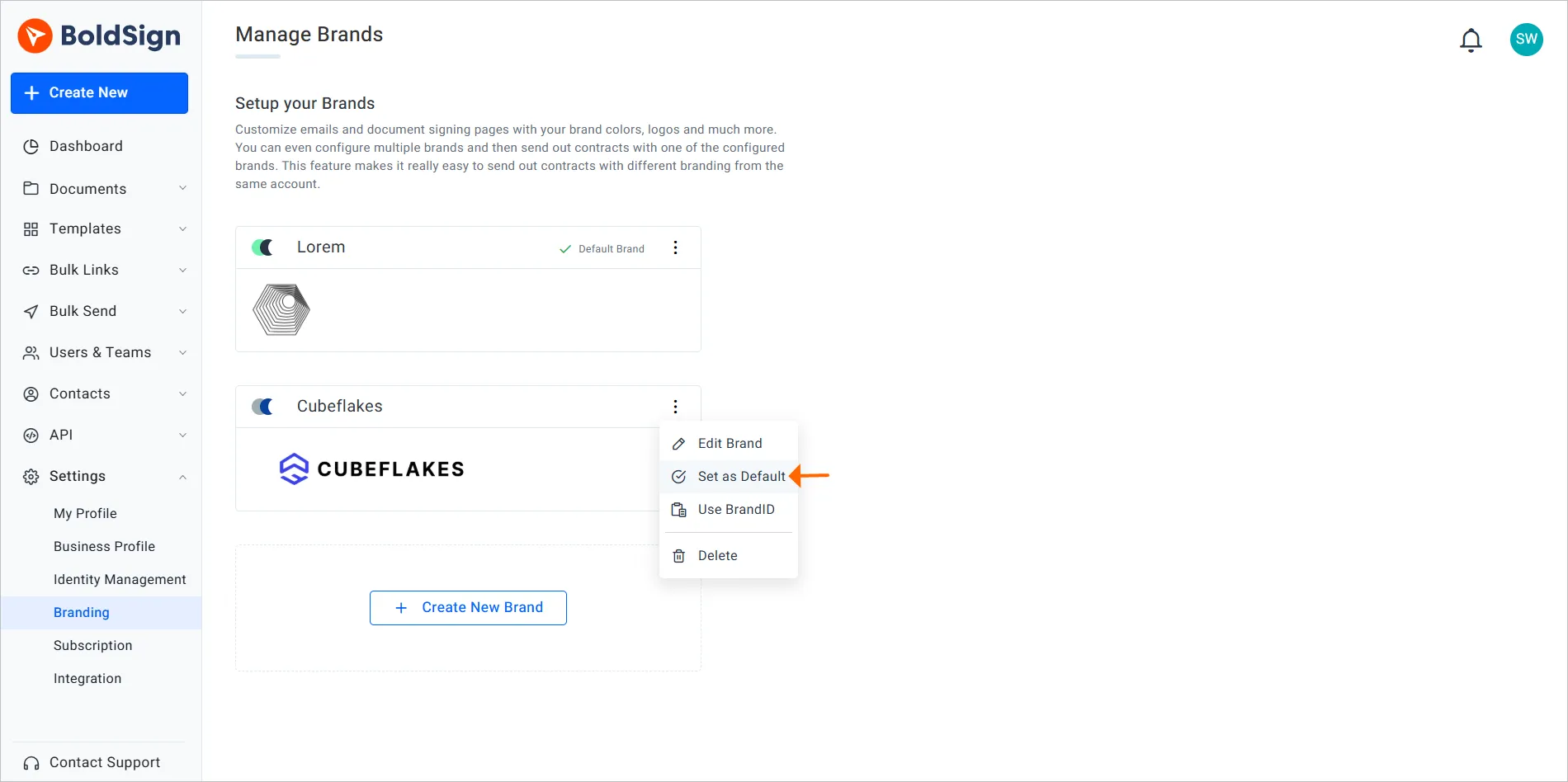
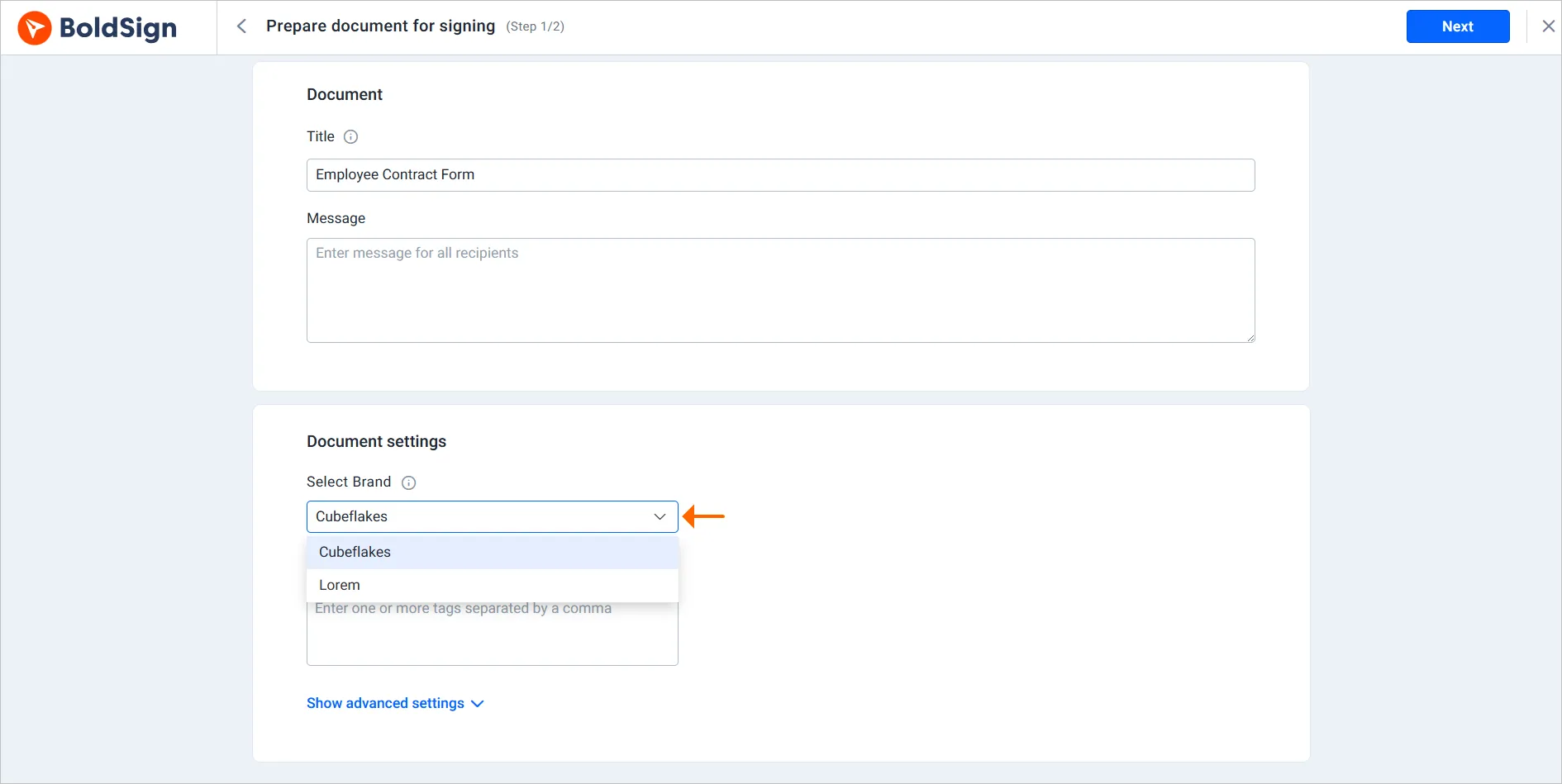
New documents use the default brand on their own. A sender can still pick another brand for one document, such as a client with its own look.
Which BoldSign plan do you need to customize email content?
Email content customization is part of the Business, Premium and Enterprise API plans, as listed on our pricing page in November 2026. Logo and color branding comes with every plan.
The Essential plan is free and includes one brand. The Growth plan costs $5 per user a month and includes two brands. Neither includes email content customization.
The Business plan costs $15 per user a month, and the Premium plan costs $99 a month for unlimited users. Both include unlimited brands, email content customization and a custom email domain. Prices are in USD and billed yearly.
Where do you go next with eSignature emails?
Start with the email your signers see most, the signature request. Then pick your next step.
- Start a 30-day free trial and write your first custom signature request.
- Book a demo to see branded emails set up for your team.
- Read how to send signature requests from your own email domain.
Frequently asked questions
Can I change the wording of BoldSign signature request emails?
Yes. Open Settings, then Branding, then the email customization tab, and edit the subject and body of any email type. Our team approves the new text before it goes out.
Which BoldSign emails can I customize?
You can edit 13 email types. They cover signature requests, reminders, completion, decline, revoke, reassign, expiry, deletion and the notice to CC (carbon copy) recipients.
What is a placeholder in an eSignature email?
A placeholder is a slot that fills itself with real details when the email is sent. Type @ or / in the subject or body to add one, such as the recipient name or document link.
Why does BoldSign review custom email content?
We review each custom email to check its quality and compliance before signers see it. You get our decision through a support ticket, with feedback when a change is needed.
Can I add images or links to a custom eSignature email?
No. The subject and body do not accept images, font families or links. Your logo comes from the brand, and the document link comes from a placeholder.
Do my old emails keep working while an edit is under review?
Yes. When you edit an approved email, the approved version stays in use. The new version replaces it only after our team approves it.
Can I use different email content for different clients?
Yes. Create one brand for each client or business line, give each brand its own email content, and pick the brand when you send a document.
Which BoldSign plan includes email content customization?
Email content customization is part of the Business, Premium and Enterprise API plans. Logo and color branding is part of every plan, including the free Essential plan.

Rayronald Ochola Otieno
Rayronald Ochola Otieno is a content specialist at BoldSign, specializing in video content and help articles within the eSignature domain. As a blog author, he creates well-researched, insightful content that simplifies complex eSignature topics like digital signatures, compliance, and workflow automation for businesses and professionals. With expertise in creating educational videos and articles, Ray helps users understand and adopt secure, efficient signing solutions. Beyond writing and video creation, Ray enjoys exploring new technologies, reading about the latest industry trends, and continually refining his skills.
More posts by Rayronald Ochola Otieno