How to Send and Sign Documents Online Securely with BoldSign
 Yvone Atieno Odhiambo
TL;DR: To send a document for signature online, upload the file, add your signers, drag signature fields onto the page and select Send. Signers open the link, sign in the browser and the signed copy comes back to you, with an audit trail. Our document management page shows how you track each request.
A new client is ready to start, but the contract is still a PDF in your inbox. Printing it, signing it, scanning it and emailing it back can take a day. Chasing the other side to do the same can take a week.
Online signing removes the printer and the scanner. Open a monthly report, sign and send it back in a few minutes, from a laptop or a phone. This guide covers both sides: sending a document for signature, and signing one you receive.
What does it mean to send and sign documents online?
Sending and signing online means the whole signing job happens in a web app. You upload the document, the other person signs on screen and both of you keep a signed copy.
Think of passing a birthday card around an office. Someone has to carry it from desk to desk, and it often stalls on one desk. Online signing sends the card to every desk at once, and you can see who still has to sign.
What is a good way to send, sign and store business documents?
A good setup keeps all three jobs in one place. You send from the same app where you sign, and every signed file lands in one list with its audit trail.
With us, you upload a file, add signers and place fields in a few clicks. Signers open a link and sign in any browser. Signed documents and their audit trails then sit on your My Documents page.
That order also matches the steps below. Start with an account, then send your first document.
How do you send a document for signature with BoldSign?
You send from the Create New menu in the web app or the mobile app. For a visual walkthrough, watch this how-to video on sending contracts.
1. Create your account
Start a 30-day free trial to set up your account. Once it exists, you can quickly sign in to the web app or the BoldSign mobile app from the App Store or Google Play.
2. Upload your document
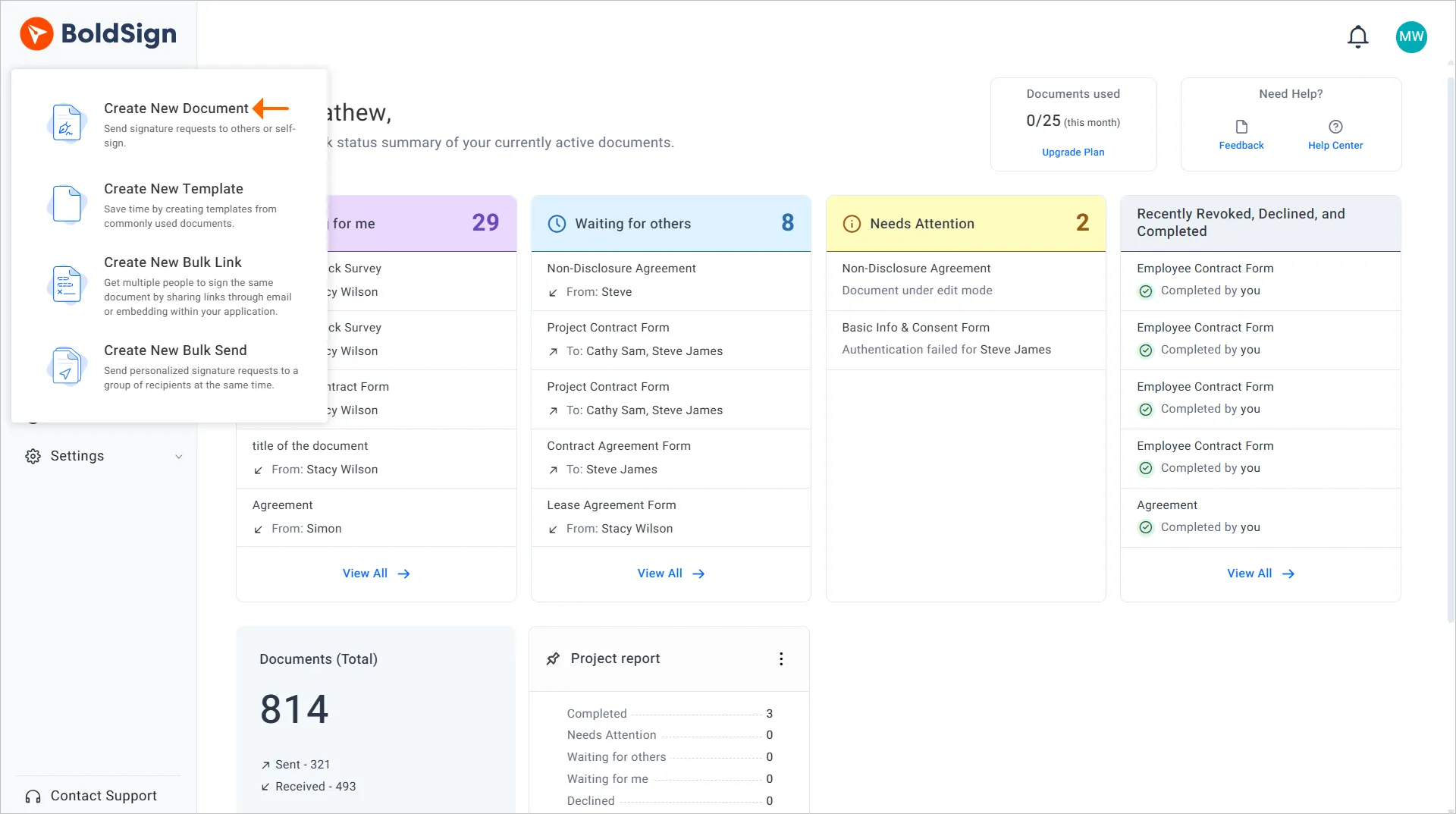
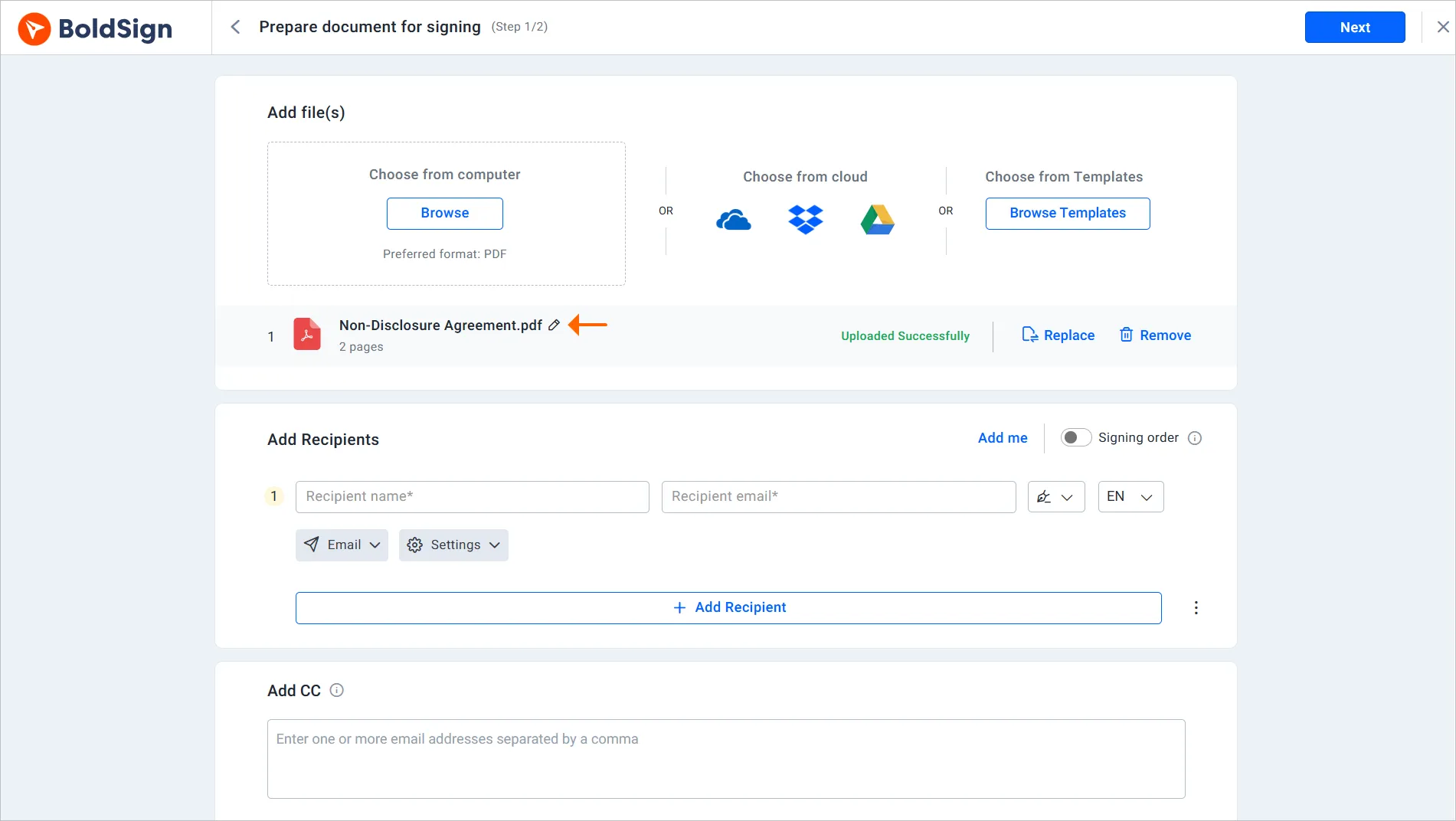
Select Create New, then Create New Document. In Add files, upload your file from your computer or cloud storage, or start from a template.
3. Add recipients and fields
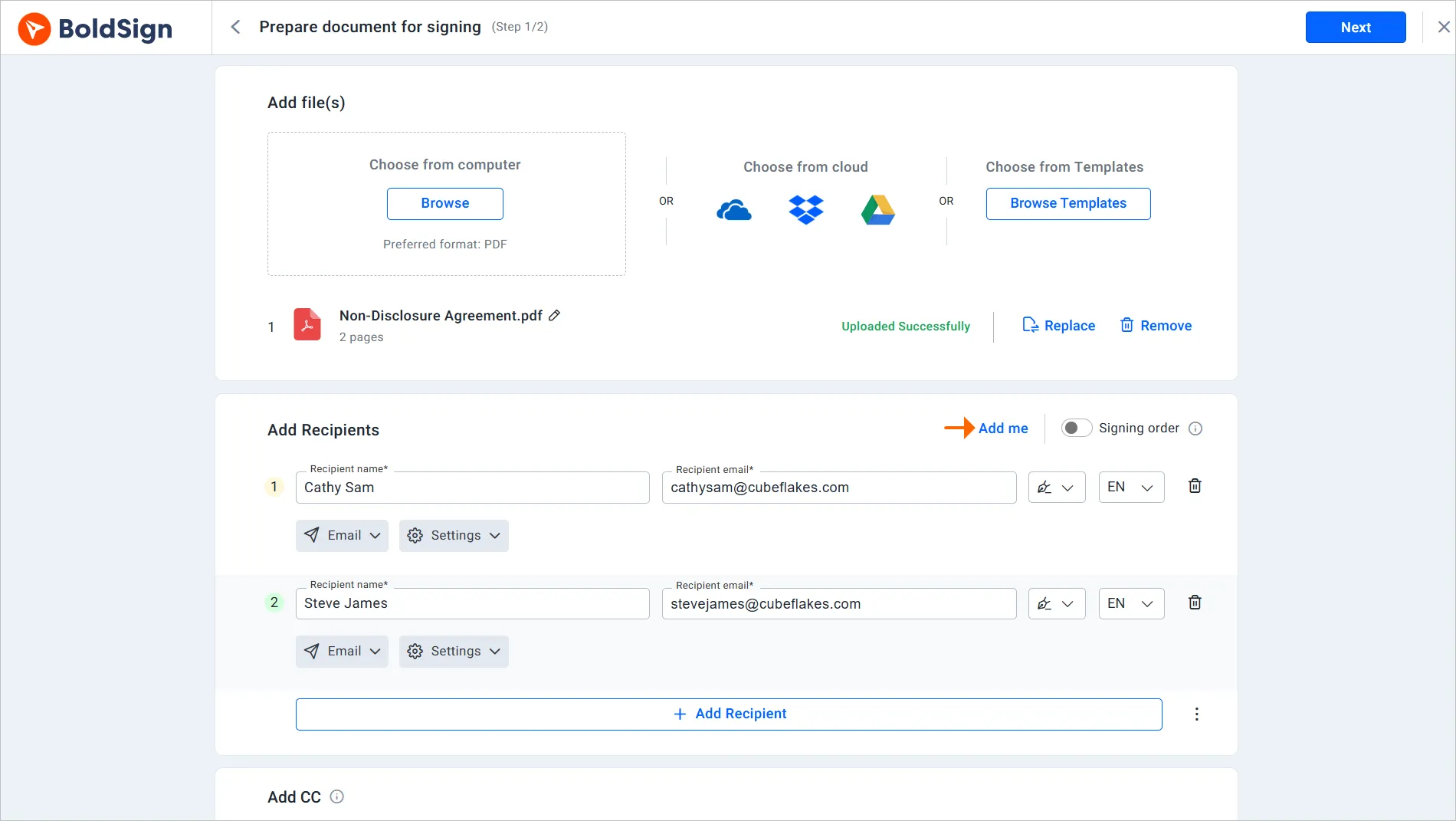
In Add Recipients, enter each person’s name and email address and give them a role, such as Signer. Select Add Me when you need to sign the document too.
Select Next to open the page where you add form fields for each signer. Drag signature, initials and date fields onto the page, or add a hyperlink field.
4. Choose how the request reaches each signer
Email is the default delivery method. You can also send the signing link by text message, by email and text together, or through WhatsApp.
Our guide on how to send eSignature requests through WhatsApp walks through that option. An email signing link expires after 30 days, and signers can ask for a new one.
5. Preview, send and track
Select Preview to check the document as signers will see it, then select Send. Each signer gets a secure link to review and sign.
Watch progress on the My Documents page, or pin a team’s documents to your dashboard. To nudge a signer, send a reminder manually with the bell icon or Send reminder.
How do you sign a document someone sent you?
Signing takes four steps in the browser. Everything starts from the link in your email.
- Open the email and select Review and Sign.
- Read and agree to the terms, then select Continue.
- Select Start signing and fill in every required field.
- Select Finish to complete the signing.
The signed document goes back to the sender as soon as you select Finish. On the BoldSign mobile app, the last button reads Complete signing instead.
What features help you send and sign documents in less time?
Once the basic flow works, a few features save time on the next hundred documents. Each one below links to a page with the steps.
Reuse and share
- Create a template with fields already placed for contracts you send often.
- Share one reusable signing link with many people using bulk links.
- Add your logo and colors to requests, as our guide on how to personalize eSignature requests with your brand shows.
Fields, devices and code
- Choose from the available form fields, such as text boxes, dropdowns and attachments.
- Send and sign on a phone with the BoldSign mobile app.
- Developers can send documents from their own app with the BoldSign API.
Trust and records
- Add authentication to a signer with an email code, access code or SMS code.
- Reach signers on their phones with signing by text message.
- Download the audit trail with each signer’s internet protocol (IP) address and time stamps.
What should you check before you send?
A few checks stop most failed requests. Look over these before you select Send.
- Spell each email address and phone number correctly.
- Give every signer at least one signature field.
- Set a signing order when one person must sign first.
- Add signer authentication for documents that carry money or personal data.
These checks matter more for sensitive files. Our security policy explains how we encrypt documents at rest and in transit.
Which BoldSign plan do you need, and what does it cost?
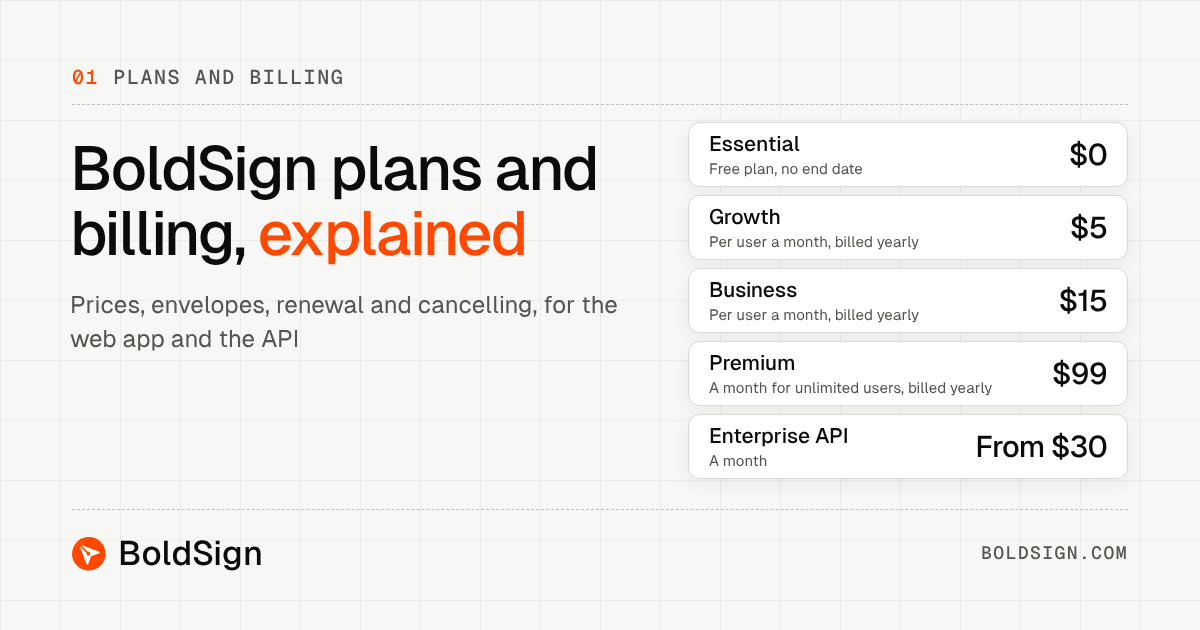
Every plan lets you send documents for signature, so you can start on the free Essential plan. Prices below come from the BoldSign pricing page in November 2026, are in USD and are billed yearly.
The free Essential plan costs nothing and covers 25 envelopes a month with 2 templates. The Growth plan costs $5 per user a month and adds 50 envelopes a month and 10 templates.
The Business plan costs $15 per user a month. It adds text message and WhatsApp delivery, SMS codes, ID verification, bulk links, unlimited brands and a custom email domain. The Premium plan costs $99 a month for unlimited users and includes the same features.
Live use of the BoldSign API, including embedded signing, needs the Enterprise API plan. It starts at $30 a month with 40 envelopes.
Where do you go next with online signing?
A quick way to learn the flow is to send one real document to yourself. These links help you take that first step.
- Start a 30-day free trial and send a test document to your own email.
- Book a demo to see the signing flow set up for your team.
- Read how online document signing software compares on features before you choose.
Frequently asked questions
How do I send a document for signature with BoldSign?
Select Create New, then Create New Document, and upload your file. Add each recipient, place the fields they must fill, then preview and send. Our help article on sending documents for signature shows each screen.
How to sign a document online and send it back?
Open the email, select Review and Sign, and agree to the terms. Select Start signing, fill in the required fields, then select Finish. The signed copy goes back to the sender on its own, so you have nothing to attach or email.
Can I remind a signer who has not signed yet?
Yes. Open My Documents, find the document and select the bell icon or Send reminder. You can send one manual reminder per document each day, and it does not change your automatic reminders.
Can I offer document signing and upload features in one portal?
Yes, when you build it with the BoldSign API. Embedded signing keeps signers inside your own app, and an Attachment field lets them upload PDF, Word or image files while they sign.
Are documents signed online legally binding?
Yes, when the signer agrees to sign electronically and the record of the signing is kept. Our signatures are built to meet the US Electronic Signatures in Global and National Commerce (ESIGN) Act and the EU electronic identification, authentication and trust services (eIDAS) rules. Check the rules for your document type and country.
How does BoldSign keep signed documents secure?
We encrypt stored documents with 256-bit Advanced Encryption Standard (AES) encryption and protect data in transit. Our security policy also covers our System and Organization Controls (SOC) 2 Type 2 audit, which checks how we handle customer data.
How long does a signing link stay active?
An email signing link expires after 30 days. A signer who opens an expired link can ask for a new one, which also lasts 30 days.
Can I send a signature request through WhatsApp?
Yes. Choose WhatsApp in the delivery options and enter the signer's country code and phone number. Our page on how to request eSignatures via WhatsApp explains the cost per notification.

Yvone Atieno Odhiambo
Yvone is a Technical Assistant at BoldSign who specializes in creating clear documentation and engaging videos. She combines her technical skills and creativity to deliver user-focused solutions. Connect with her on LinkedIn.
More posts by Yvone Atieno Odhiambo