How to Customize Your eSignature Requests with Your Brand Identity
 Caroline Dolly
TL;DR: You customize branding in BoldSign by creating a brand with your logo, colors and sender name, then picking it when you send. Your signers then see your look in the request email, on the signing page and in the audit trail. Our branding feature page lists every brand setting.
A client opens an email asking them to sign a contract. The sender name looks unfamiliar and the email has no logo they know. Some people stop there and wonder if the request is genuine.
A branded request removes that doubt. This guide shows how to customize branded signing experiences in e-signature platforms, with each step in BoldSign.
What does branding an eSignature request mean?
Branding means your signers see your company, not ours, at each step of signing. Your logo, colors and sender name replace the default look.
Think of company letterhead. The letter inside could say anything, but the header tells the reader who sent it before they read a word. A brand does the same job for a signature request.
What can you brand in BoldSign?
A brand is a saved set of design and signing settings. You can create one for each team or client and choose one for each document.
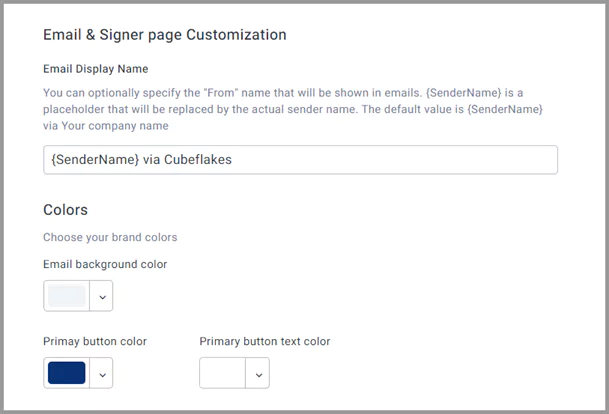
- Your logo and the email colors for the background, buttons and button text
- The sender name in the From line, such as {SenderName} via your company name
- Custom legal terms that signers accept before they sign
- The time zone shown in the audit trail and the Date Signed field
- A web page that signers reach after they finish
How do you create a brand in BoldSign?
Account administrators create brands from the Settings menu. Here is how to customize branding in e-signature documents, starting with the basics.
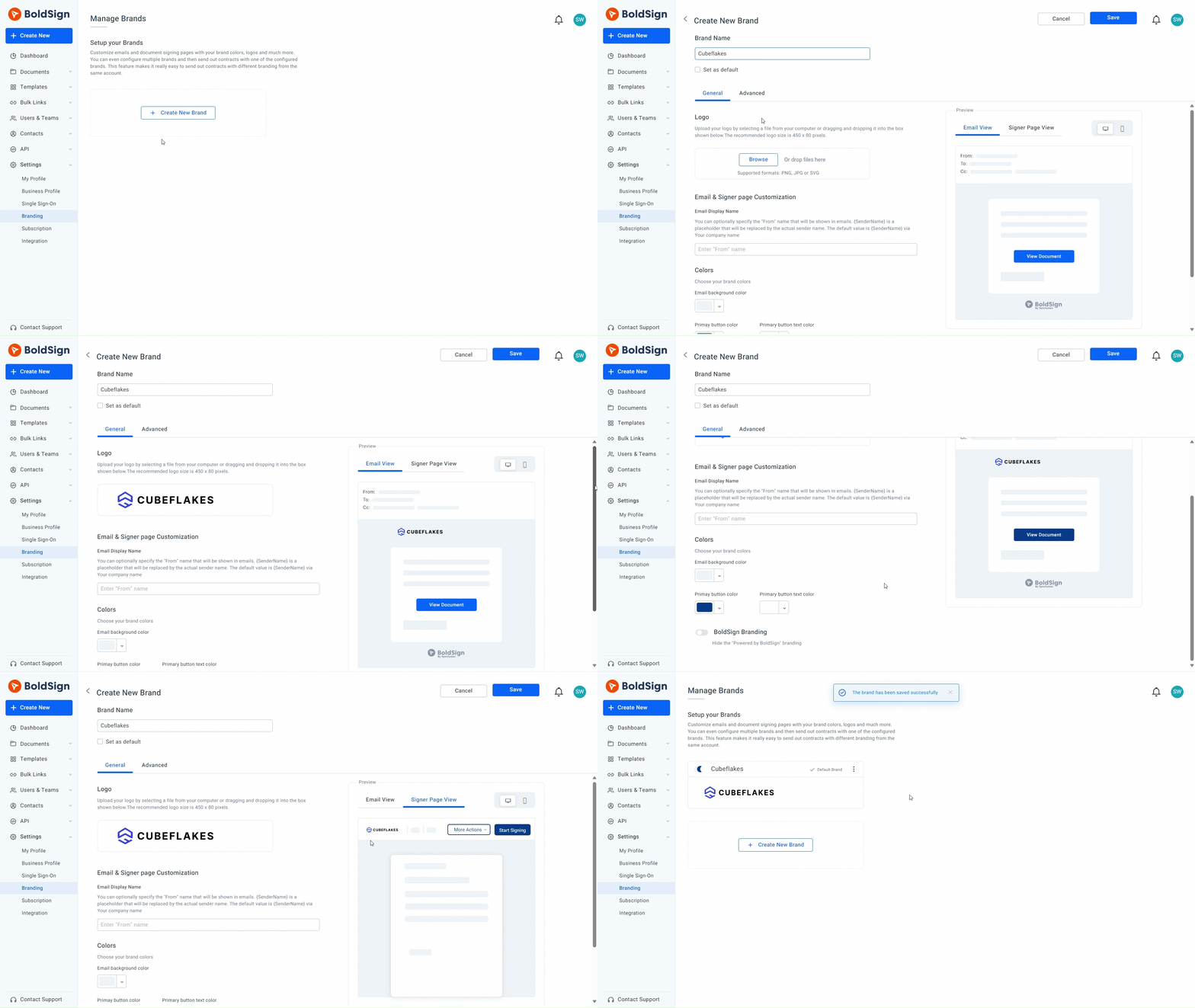
- Open Settings and select Branding.
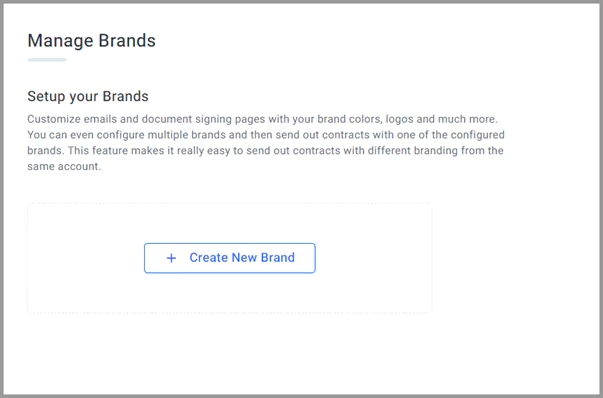
- On the Manage Brands page, select Create New Brand.
- Enter a Brand Name so you can tell your brands apart.
- In the General section, upload your logo and choose your colors.
- Add an optional From name, then select Save.
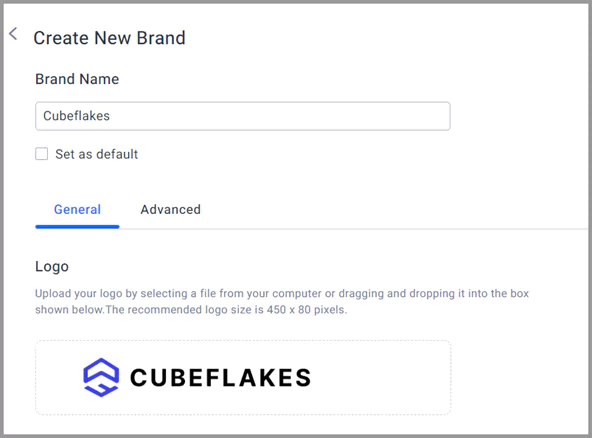
Your logo can be a Joint Photographic Experts Group (JPG), Portable Network Graphics (PNG) or Scalable Vector Graphics (SVG) file. A logo without padding on its edges looks sharpest in emails.
Setting the sender name and email colors
The From name only appears on the signature request email. You can use the placeholder {SenderName}, which we replace with the name of the person who sends.
For example, “{SenderName} via Cubeflakes” tells the signer both who sent the request and which company it comes from. A preview on the right of the page shows each color change as you make it.
Hiding the Powered by BoldSign logo
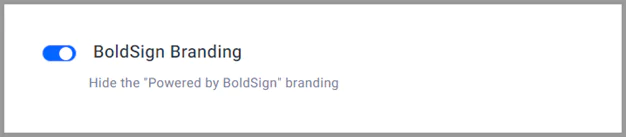
Turn on the BoldSign Branding option to hide the Powered by BoldSign logo in your emails. Documents you send after that change show only your brand.
Which advanced brand settings change the signer’s experience?
The Advanced section of a brand controls what happens around the signature. Each setting below applies to every document you send with that brand.
How signed documents reach signers
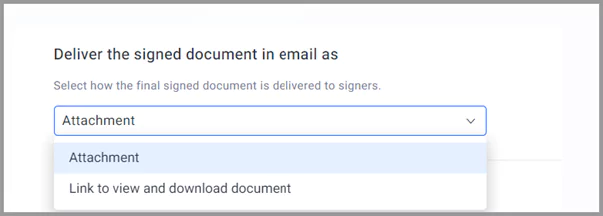
Choose whether the completion email carries the signed document as an attachment or as a link. A link keeps the email small, while an attachment puts the file straight into the signer’s inbox.
You can also combine the signed document and its audit trail into one file. Each signed contract then travels with its own record of who signed and when.

Custom legal terms
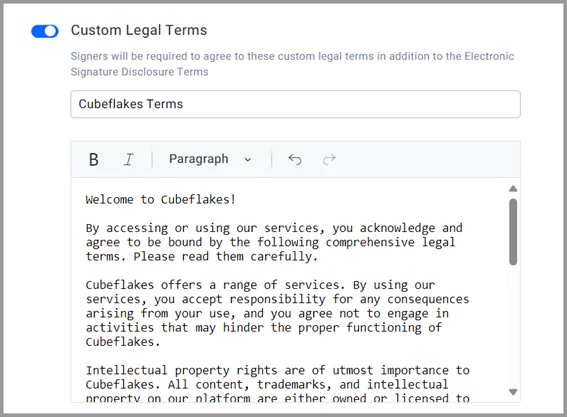
Turn on Custom Legal Terms to add your own terms next to our standard terms. You give them a title and write the text, and the preview shows what signers will see. Our guide to custom legal terms covers the formatting options.
Document time zone
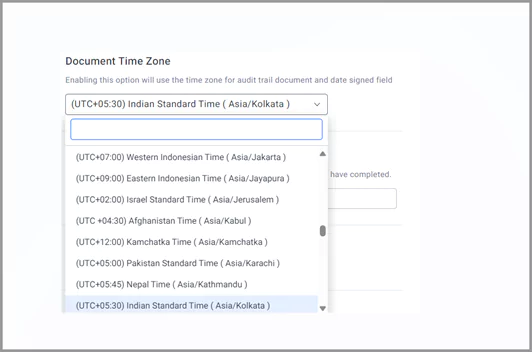
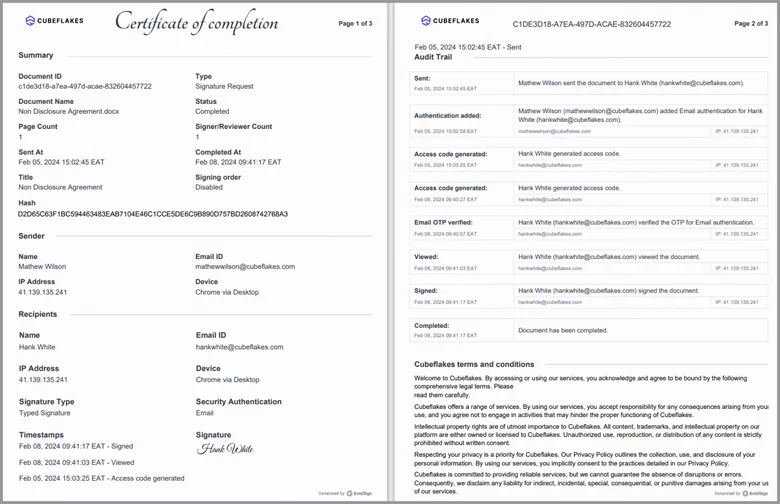
Set a time zone so every date reads the same way for your team. The audit trail and the Date Signed field both use it.
Redirect after signing
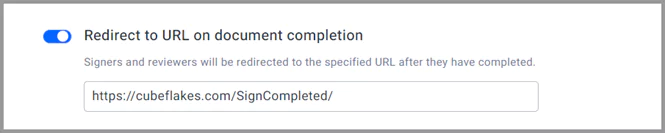
Turn on Redirect to URL on document completion and enter an address, such as a thank-you page or your client portal. Our help article on the redirect URL shows where the option sits.
Hiding the decline and save options
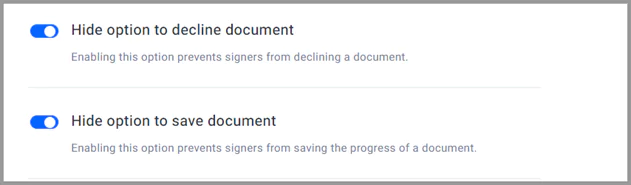
Signers normally find Decline and Save in the More Actions menu. Turn on Hide option to decline document or Hide option to save document to remove them for this brand.
Hiding Save means the signer finishes in one visit. Hiding Decline suits documents the signer has already agreed to in principle.
How do you manage several brands?
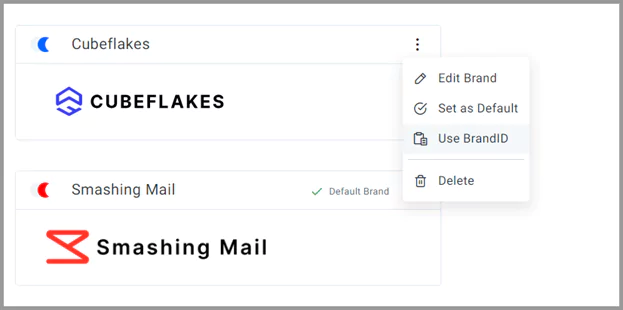
Every brand appears on the Manage Brands page, with a context menu at the right end of its row. Use that menu to set a default brand or change an existing one.
- Choose Set as Default to apply a brand to new documents automatically.
- Choose Edit Brand to open the saved settings, make changes and save.
- Pick another brand on a single document whenever that document needs a different look.
Setting a new default removes the old one, so your team always starts from one brand.
How do you pick a brand when you send a document?
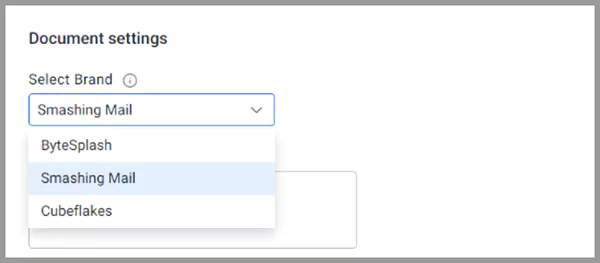
Select the brand on the send page before you add signers. Your logo, colors and settings then apply to the email, the signing page and the audit trail for that document.
Developers can also attach a brand to the requests their own software sends.
What does the signer see?
Your brand follows the signer from the first email to the final record. Here is what changes at each step.
The signature request email
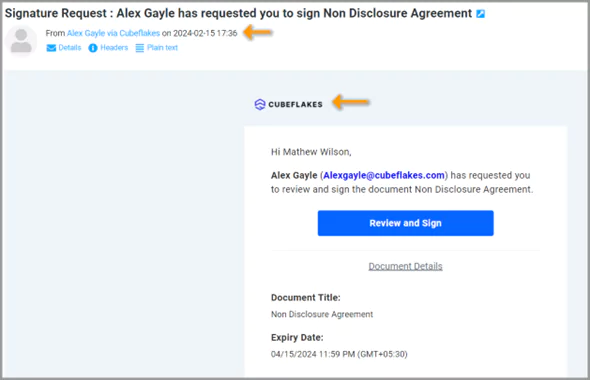
The email shows your logo, your colors and the sender name you set. The signer knows who is asking before they open the document.
The signing page
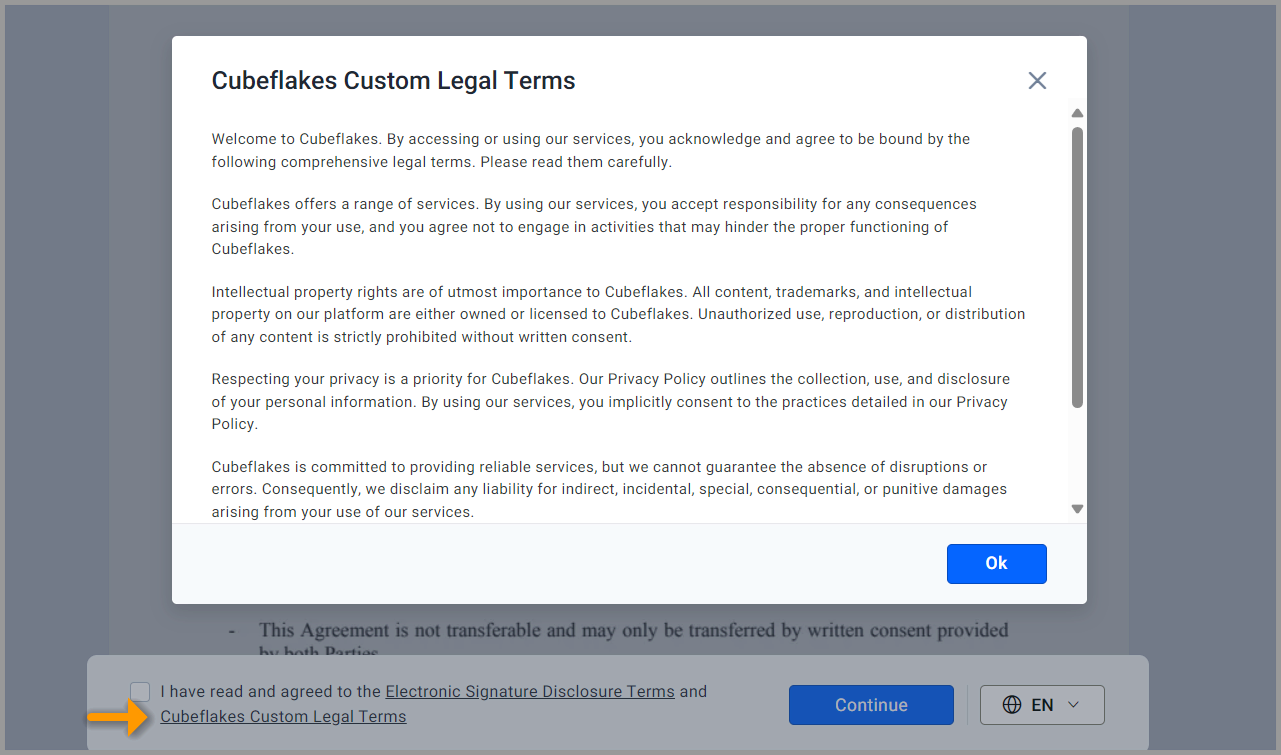
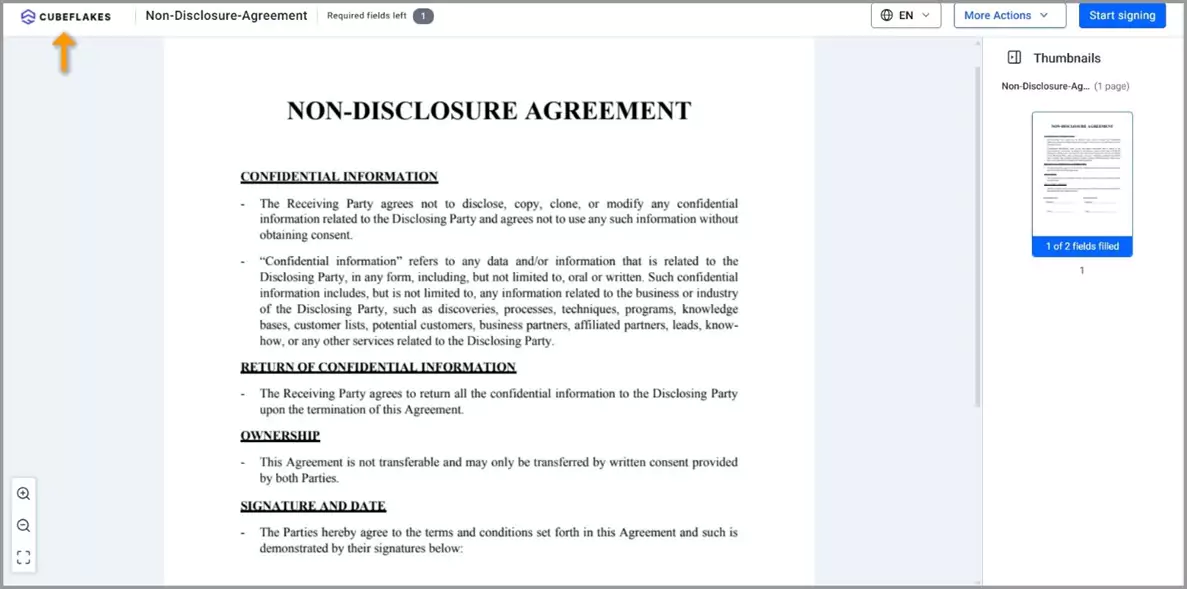
The signer first reviews our terms and any custom legal terms in your brand. After that, the page shows your logo, brand name and colors on any device.
The audit trail document
The audit trail carries your logo and your chosen time zone. Any custom legal terms appear at its end.
How do you send signature emails from your own domain?
A custom email domain sends your signature requests from your company’s address instead of ours. You set it up in Business Profile under Custom Domain Settings.
- Enter a From name and a Domain Name, then select Save changes.
- Open a support ticket from the link below the domain field.
- Add the domain name system (DNS) records our support team sends you, then tell them it is done.
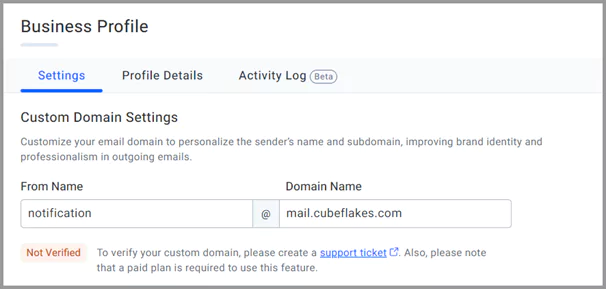
Once the status reads Verified, we send your emails from that domain. Our guide to configure a custom email domain has the full steps. Our post on sending requests from a custom email domain explains why it helps.
Which BoldSign plan do you need for custom branding?
Every plan, including the free Essential plan, lets you add your logo and colors. The number of brands and some settings depend on your plan, as listed on our pricing page in November 2026.
The Essential plan includes 1 brand. The Growth plan, at $5 per user a month, includes 2 brands. It also adds the redirect after signing and the option to hide the Powered by BoldSign logo.
The Business plan costs $15 per user a month, and the Premium plan costs $99 a month for unlimited users. Both include unlimited brands and a custom email domain. Each extra domain costs $5 a month.
Prices are in USD and billed yearly. Branded requests sent from your own software need the Enterprise API plan, from $30 a month with 40 envelopes.
Ready to put your brand on your next signature request?
Setting up a brand takes a few minutes, and every request after that carries it. Choose your next step.
- Start a 30-day free trial and create your first brand.
- Book a demo to see branding set up for your team’s documents.
- Read six ways to improve branding in eSignature workflows for more ideas.
Frequently asked questions
How do I add my company logo and branding to e-signature request emails?
Create a brand under Settings, then Branding, and upload your logo and choose your email colors. Pick that brand when you send, and the request email carries your logo, colors and sender name.
Can I use more than one brand in BoldSign?
Yes. You can run a separate brand for each team or client and pick one brand for each document. How many brands you can create depends on your plan.
What logo file can I upload to a BoldSign brand?
You can upload a JPG, PNG or SVG file of up to 512 kilobytes. We recommend a logo of 320 by 50 pixels with no extra padding around it.
Can I remove the Powered by BoldSign logo from emails?
Yes, on a paid plan. Edit your brand, turn on the option to hide the Powered by BoldSign branding and save. Documents you send after that change leave the tagline out of signer emails.
Can signature request emails come from my company's own domain?
Yes, on the Business plan and above. You enter a From name and domain in Business Profile, and our support team verifies the domain before emails go out from it.
Are documents signed with a custom brand legally binding?
Yes, when the signing meets the same rules as any other electronic signature, such as signer consent and a record of each step. A brand changes how the request looks, not how consent or the audit trail work.
Where does a signer see my custom legal terms?
The signer reviews and accepts them before signing, through a link next to our own terms. A copy of the terms also appears at the end of the audit trail document.
Can I send signers to my website after they sign?
Yes. Turn on Redirect to URL on document completion in a brand and enter the address. Anyone who finishes a document sent with that brand lands on that page.

Caroline Dolly
Caroline Dolly is a technical writer at BoldSign who simplifies complex concepts into clear, engaging content. She creates tutorials, help articles, and product documentation, ensuring information is accurate and accessible. Connect with her on LinkedIn.
More posts by Caroline Dolly