How to Virtually Sign a Document: A Step-by-Step Guide
 Yvone Atieno Odhiambo
TL;DR: To sign a document virtually, you open the signing link, click each signature field and add your signature on screen. To ask others to sign, you upload the file to an eSignature tool, add signers and fields, and send it. Our signer authentication page shows how to check who opens the link.
A client needs your signature on a contract today, and you are nowhere near a printer. Or you need three people to sign a form, and they all work from different cities.
Virtual signing solves both cases. This guide explains what it means, which documents you can sign this way, and how to sign virtually or send a file with BoldSign.
What is the virtual signing meaning?
Virtual signing means you approve a digital file with an electronic signature. You never print, scan or post a page.
Think of signing for a parcel on a courier’s handheld screen. You still agree to receive it, just without paper. A virtual signature works the same way for a contract, a form or a letter.
The file can be a PDF, a Word document, an Excel sheet or an image. We accept all four when you upload a document for signing.
Can I sign any document virtually?
You can sign most business documents virtually, such as sales contracts, job offers, leases and consent forms. US federal law says a signature cannot lose legal effect only because it is electronic.
The Electronic Signatures in Global and National Commerce (ESIGN) Act sets that rule, but a few documents fall outside it. The list of exceptions in the ESIGN Act includes:
- Wills, codicils and testamentary trusts.
- Adoption, divorce and other family law matters.
- Court orders, court notices and official court filings.
- Notices about utility shutoffs, eviction or insurance cancellation.
Check local law, or ask a lawyer, before you sign one of these virtually. Our guide on how to sign a document online legally covers consent and records in more depth.
How to sign virtually when someone sends you a document
Signing a document someone sent you takes a few minutes. You can sign without an account or extra software.
- Open the email with the signature request and select the link in it.
- Enter a one-time code or access code if the sender asked for one.
- Read the document from start to end.
- Select each signature field and type, draw or upload your signature.
- Fill in any other required fields, then finish signing.
You can do this on a laptop or in any phone browser. The sender sets which signature types you can use.
How to sign a document virtually with BoldSign
Sending a file for virtual signing follows six steps. Our help article on how to add form fields for each signer covers every option.
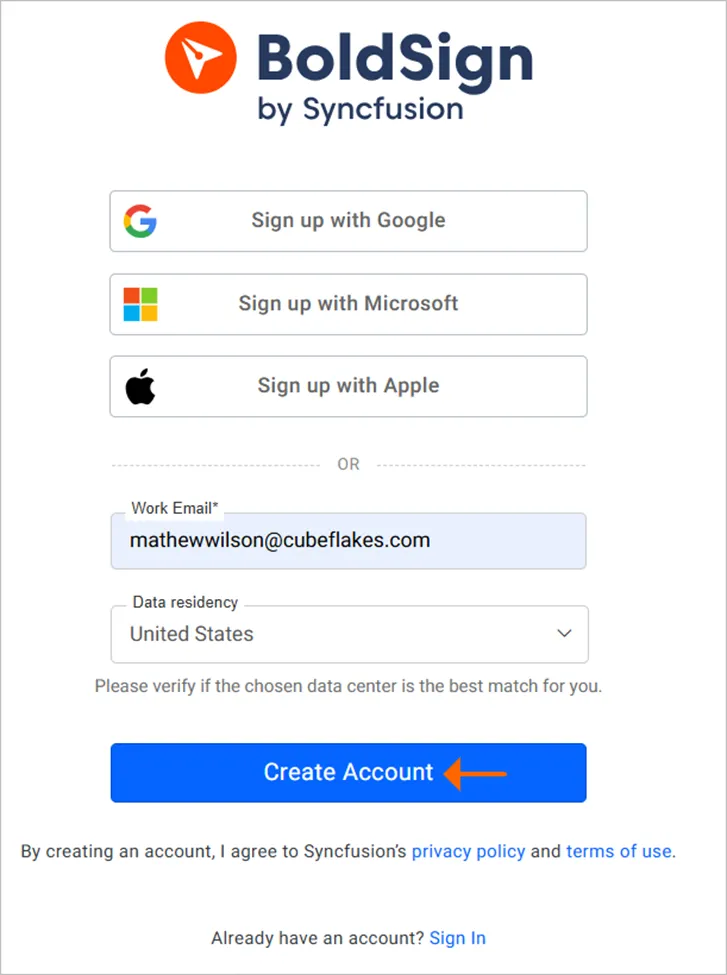
1. Create a BoldSign account
Sign up on our website with a free plan or a free trial. You can upgrade later from the same account.
2. Upload your document
Select Create New, then Create New Document. Attach your file in the Add files section.
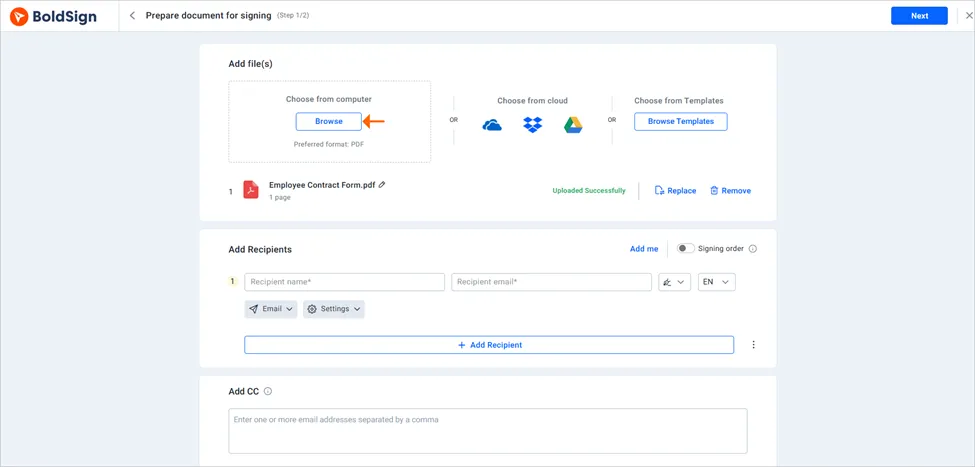
3. Add signers
Add the name and email address of each person who must sign. Set a signing order when one person must sign before the next.
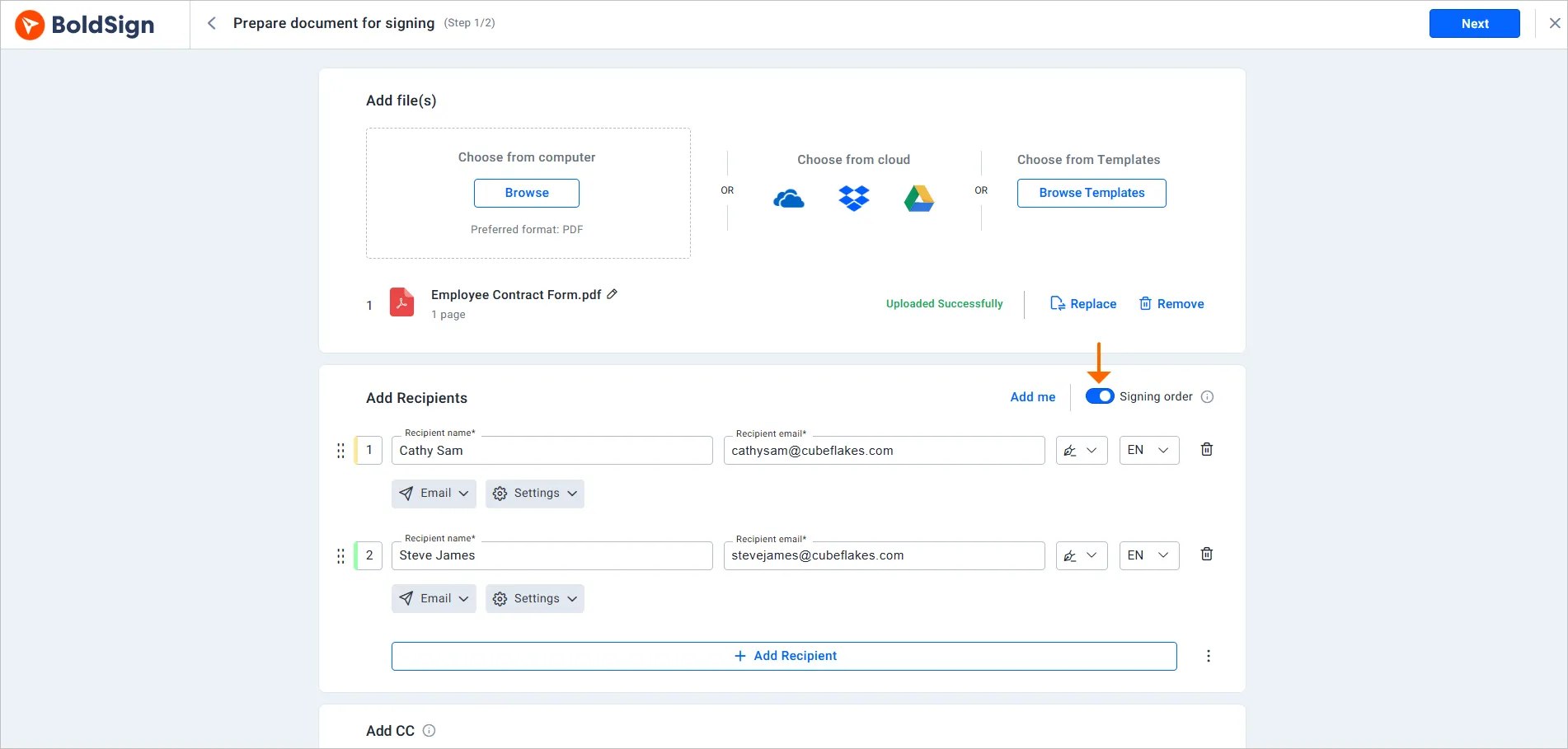
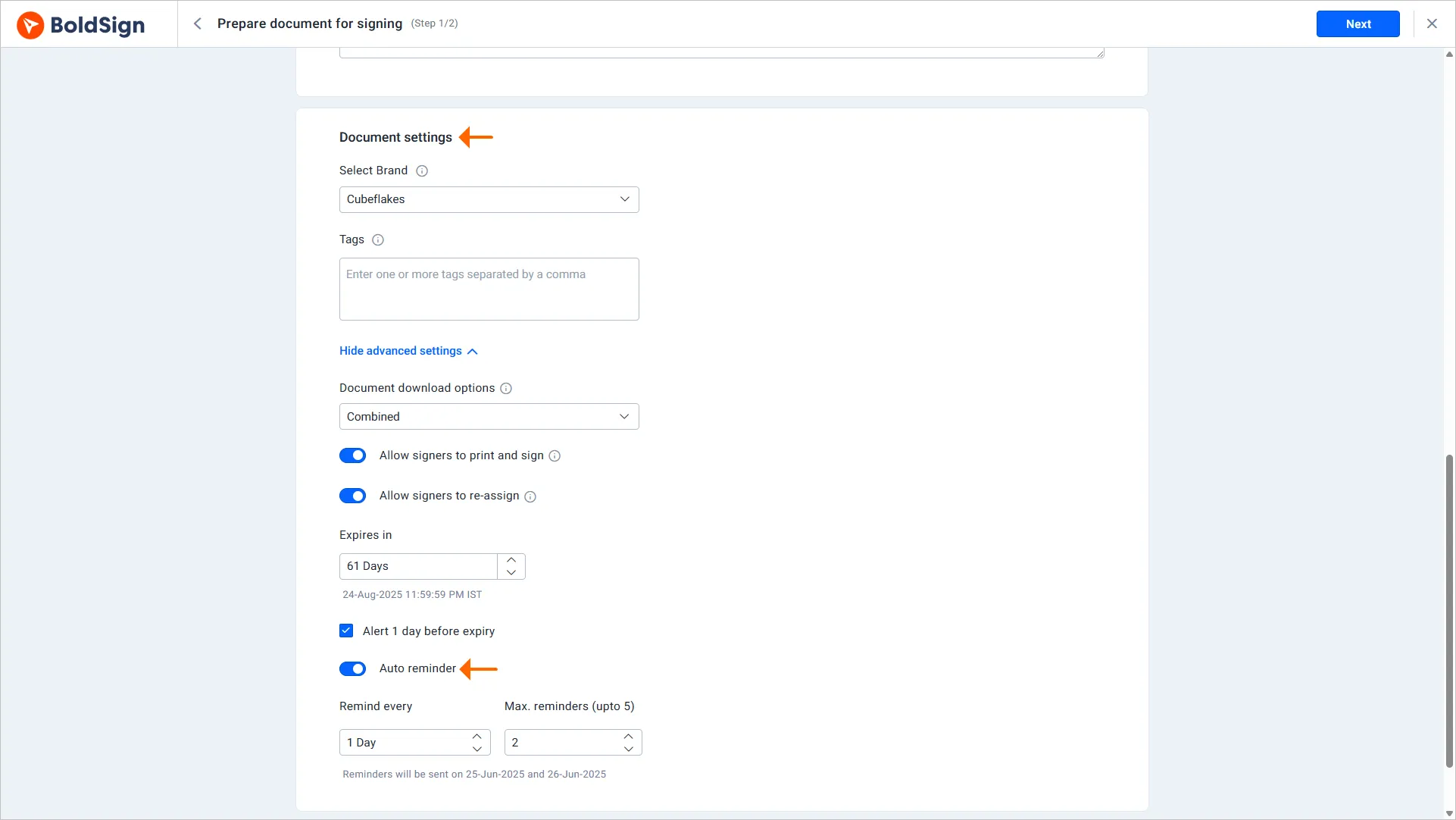
Open Show settings under each recipient to set options such as authentication. You can also add your own logo and colors to the emails and signing page with our branding settings.
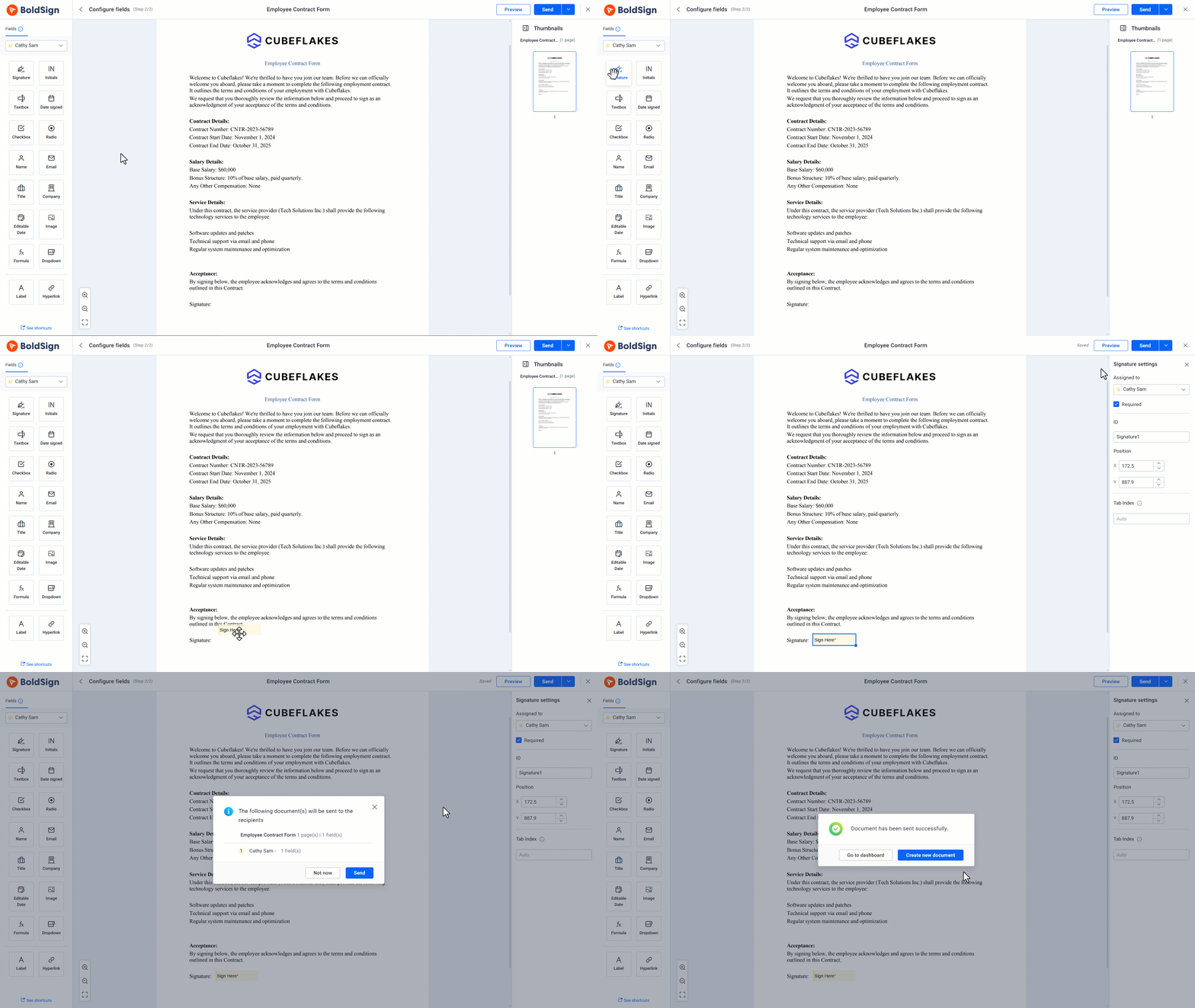
4. Place fields and send
Select Next to open the page where you place fields. Pick a recipient from the drop-down, then drag fields onto the document. Select Preview to check the details, then send.
5. Let signers sign securely
Each signer gets an email with a link to review and sign. To check who opens the link, add authentication to a signer with one of these:
- Email one-time password (OTP), sent to the signer’s email address.
- SMS OTP, a code sent to the signer’s phone.
- An access code that you share with the signer in advance.
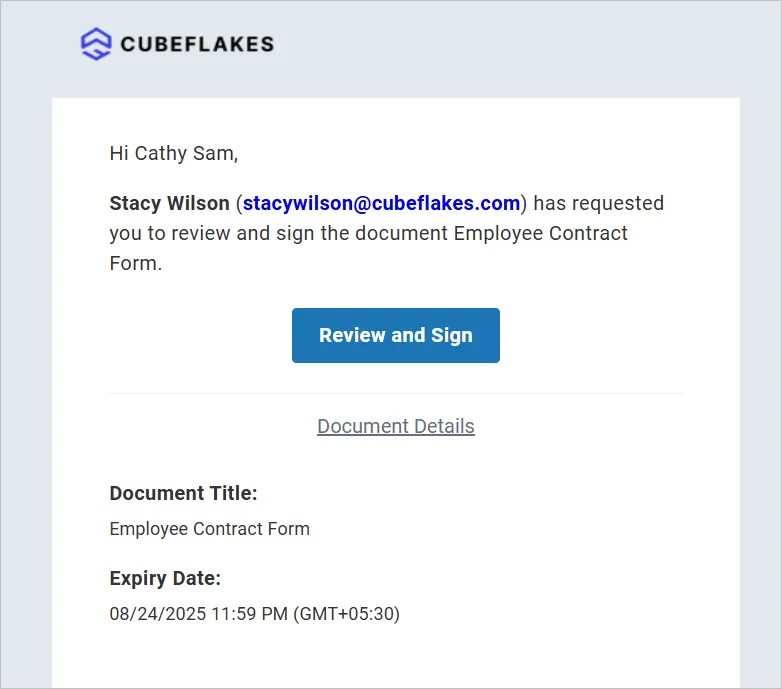
6. Track and store signed documents
Track who has viewed or signed each document from your dashboard. Once all signers finish, download the audit trail, which records names, internet protocol (IP) addresses, devices and timestamps.
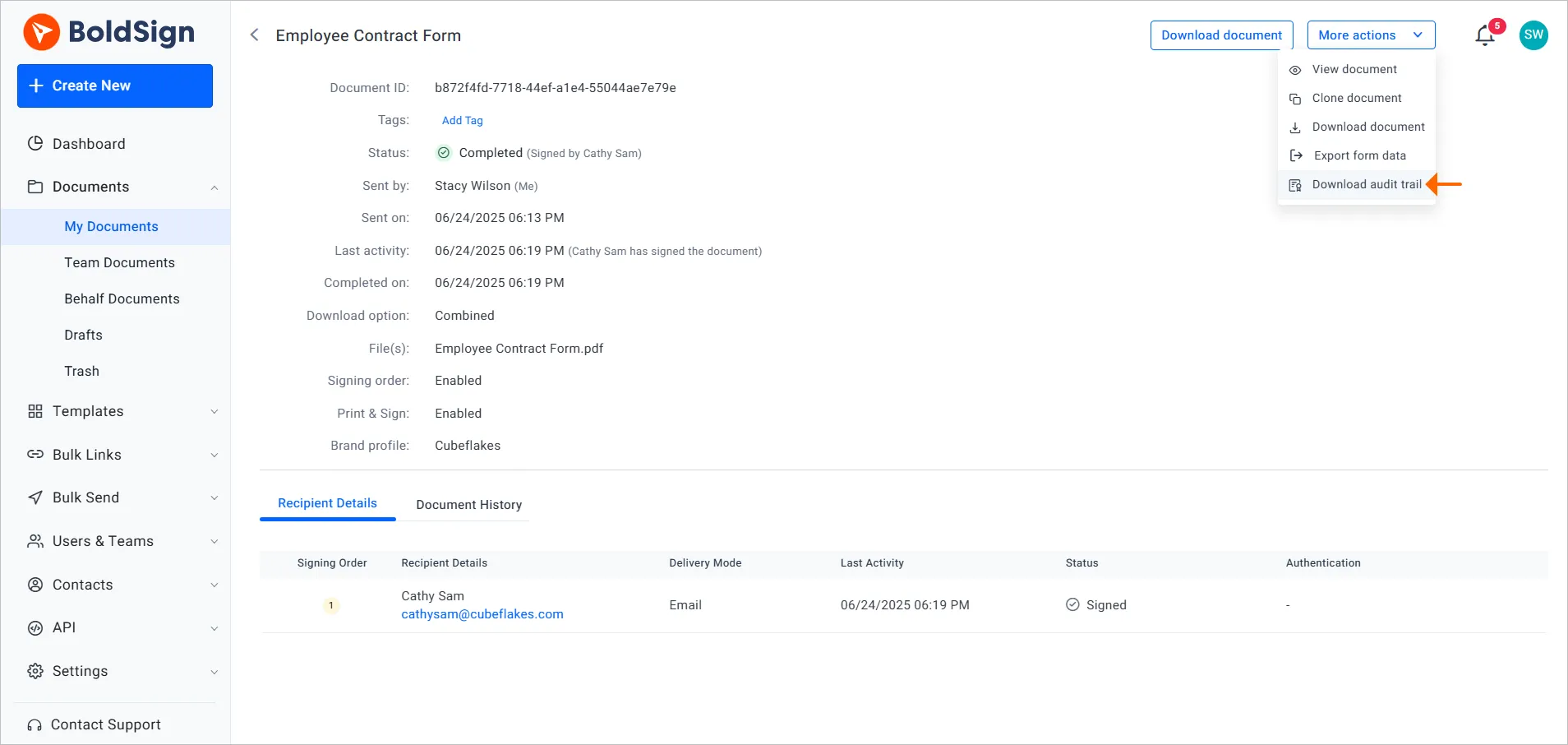
You can also connect BoldSign with tools such as Google Drive to keep signed files with the rest of your work.
What should you watch out for when you sign virtually?
A virtual signature is only as reliable as the steps around it. Keep these habits in mind:
- Sign only through links you expect, from senders you know.
- Read the whole document before you add your signature.
- Use authentication for documents with money or personal data in them.
- Keep the signed copy and its audit trail together.
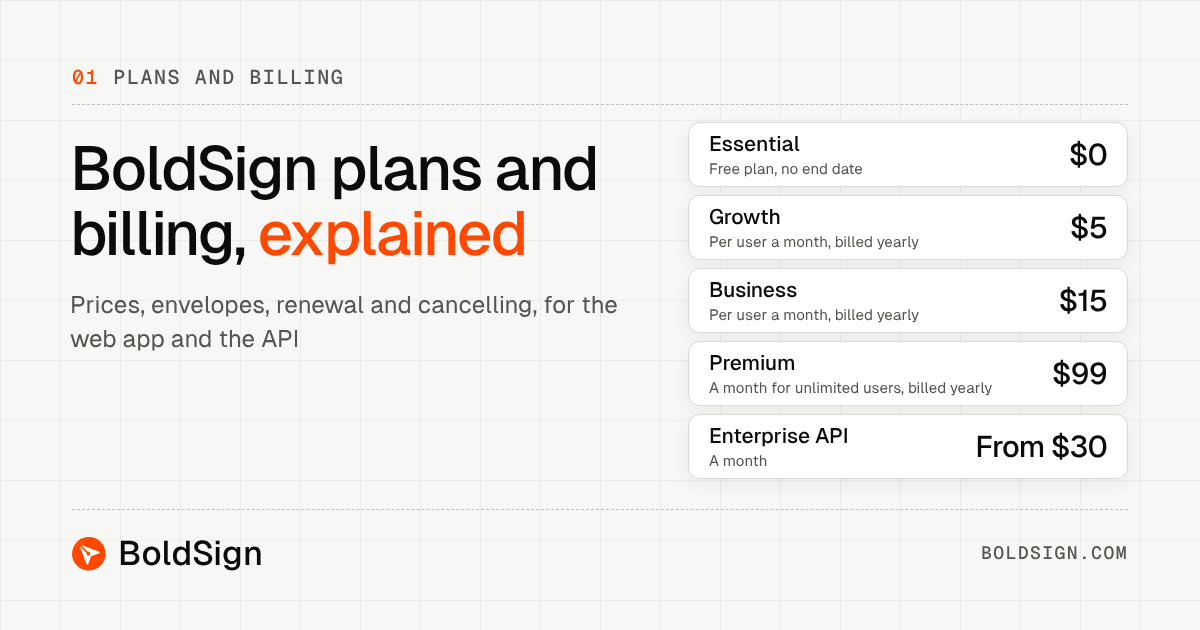
Which BoldSign plan do you need, and what does it cost?
You can send documents for virtual signing on every plan. The prices below come from the BoldSign pricing page and are in USD, billed yearly.
- Essential: free, with 25 envelopes a month, 2 templates and 1 brand.
- Growth: $5 per user a month, with 50 envelopes a month and 10 templates.
- Business: $15 per user a month, with unlimited envelopes, unlimited brands and SMS authentication.
- Premium: $99 a month for unlimited users, with 250 envelopes a month.
Pick the Business plan when you need SMS OTP or unlimited sends. Every plan includes email authentication and the audit trail.
Where do you go next with virtual signing?
Pick the step that fits where you are today.
- Start a 30-day free trial and send your first document for signature.
- Book a demo to see virtual signing set up for your team.
- Read how to sign documents on Android when you sign on the go.
Frequently asked questions
Are virtually signed documents legally binding?
Yes, when the signer agrees to sign electronically and the document is not one the law excludes. US federal law says a signature cannot lose legal effect only because it is electronic.
Virtual sign meaning: is it the same as an electronic signature?
Yes. A virtual signature is another name for an electronic signature. You approve a digital file on screen instead of signing paper with a pen.
Do I need an account to sign a document someone sent me?
No. A signer opens the link in the email and signs in the browser. Only the sender needs a BoldSign account.
Can I virtually sign a document on my phone?
Yes. Signers can sign in any phone browser. Our mobile app for iOS and Android also lets you send, sign and track documents.
How do I sign virtually if I have no printer?
Open the signing link on your computer or phone and add your signature on screen. You can type it, draw it or upload an image, as the sender allows.
Can more than one person sign the same document?
Yes. Add each signer when you prepare the document and give each one their own fields. You can also set the order in which they sign.
How do I know who signed and when?
Download the audit trail once everyone has signed. It records each signer's name, email address, internet protocol (IP) address, device and the time of every action.
Can I start for free?
Yes. Our Essential plan is free and includes 25 envelopes a month. You can also start a 30-day free trial of our paid features.

Yvone Atieno Odhiambo
Yvone is a Technical Assistant at BoldSign who specializes in creating clear documentation and engaging videos. She combines her technical skills and creativity to deliver user-focused solutions. Connect with her on LinkedIn.
More posts by Yvone Atieno Odhiambo